Edit lot alert
A lot alert is a preconfigured notification triggered by various system events with packaging lots in IWRS. These events can be the packaging lot creation, expiration, release, and so on.
In the course of a clinical trial, you might need to update some alert details—its recipients, email content, or else. You can do this at any time using the Edit functionality.
-
In the IWRS application header, select the ALERT tab.
-
On the page that opens, from the left pane, select the subtab corresponding to the alert category of your interest.
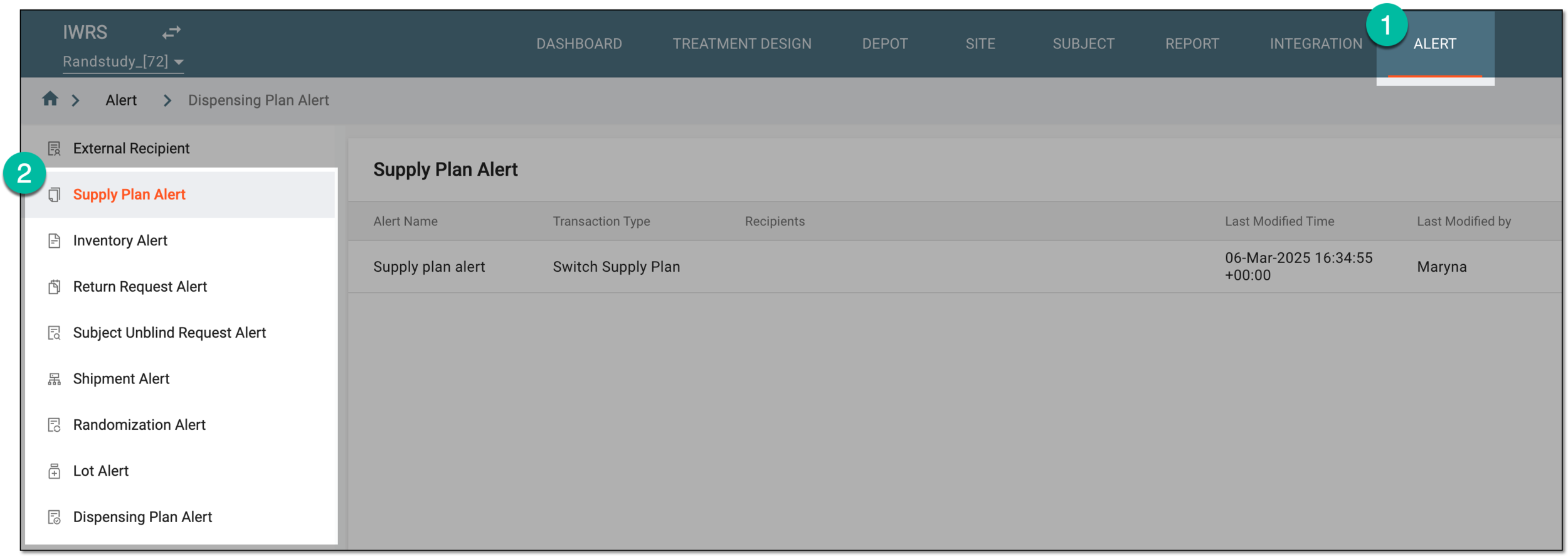 Figure 1. Accessing alert settings
-
In the Lot Alert table that appears, next to the alert you want to modify, select More
 > Edit
  .
. Figure 2. Accessing lot alert edits
-
On the page that opens, configure a lot alert as explained in the following table.
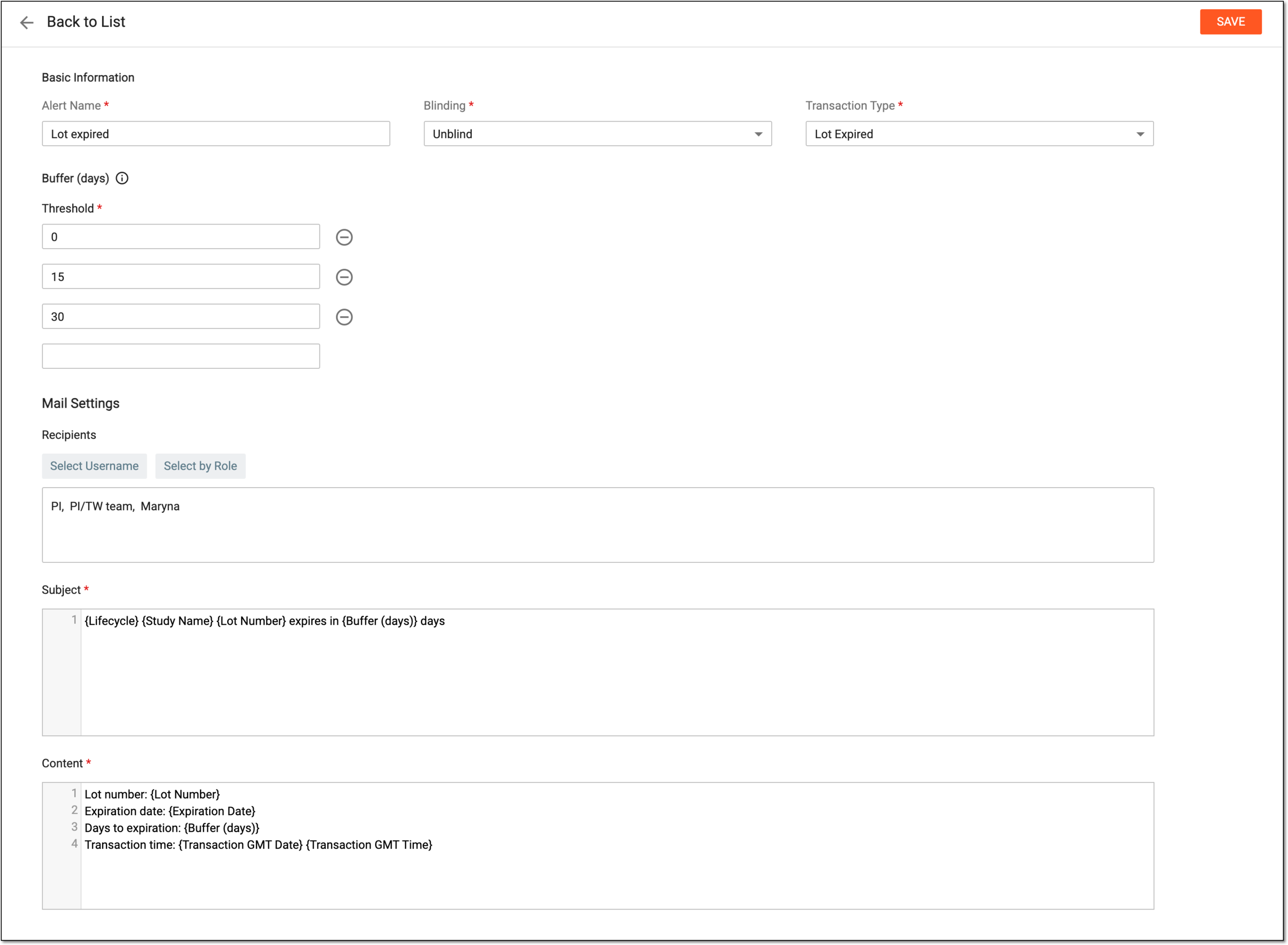 Figure 3. Updating lot alert details
Tip
In the following table, mandatory elements are marked with an asterisk (*).
Element
Details
Basic Information
Alert Name*
Update the name of the lot alert to better suit your business needs.
Blinding*
Select one of the following blinding types:
-
Blind: select this type if you want both blinded and unblinded users to be recipients of the alert.
-
Unblind: select this type if you want only unblinded users to be recipients of the alert.
Transaction Type*
Select one of the following transaction types:
-
Lot Created: triggers an alert when a new packaging lot is created in the system.
-
Lot Released: triggers an alert when the packaging lot items are released to their destination.
-
Lot Edited: triggers an alert when the packaging lot details are modified.
-
Lot Revoked: triggers an alert when the packaging lot release is revoked.
-
Lot Expired: triggers an alert when the items within the packaging lot are getting close to their expiration or expiring—depending on the buffer settings. This alert triggers for every expiration date from the packaging lot—the default and the additional ones.
You can learn more about the lot expiration dates in the Manage packaging lot expiration
                                        dates section.
Buffer (days)
The buffer setting is only available for the Lot Expired transaction type.Threshold
Enter the number of days before the expiration date that triggers the alert. Once one value is entered, a new row appears for you to set multiple buffer periods and trigger several alerts as the packaging lot gets closer to expiration.
For instance, you can notify the responsible personnel about the packaging lot expiration 30 days before, 15 days before, and then zero days—the expiration day.
Select the minus symbol to remove extra rows.
Mail Settings
Recipients
Select either of the following options:
-
Select Username: to expand the list of system users and select the ones to receive an alert email. To remove a user from recipients, clear the checkbox next to their name.
-
Select by Role: to expand the list of system user roles and select the ones to receive an alert email. To remove a user role from recipients, clear the checkbox next to its name.
The users and roles available for selection depend on the blinding setting. You can specify users and roles
                                  together.
Subject*
Enter the subject of the email. You can also start typing with the opening brace "{" to expand the list of predefined variables that you want to include in the email subject.
Content*
Enter the text of the email. You can also start typing with the opening brace "{" to expand the list of predefined variables that you want to include in the email content.
SAVE
Select
 to save the implemented changes.
 -
Once saved, the alert is updated. The recipients are notified via email upon each system event of the updated conditions.