Configure dynamic randomization scheme (arm selector)
The dynamic randomization method adjusts the allocation probabilities based on the current distribution of participants by running the defined arm selector. The arm selector is a component of the randomization algorithm that determines the treatment arm to which a new participant is allocated based on certain predefined criteria or rules.
In IWRS, you can configure the arm selector criteria and rules by adding a randomization scheme and then configuring it in one of the following ways—from scratch or file upload.
The dynamic randomization method adjusts the allocation probabilities based on the current distribution of participants by running the defined arm selector. The arm selector is a component of the randomization algorithm that determines the treatment arm to which a new participant is allocated based on certain predefined criteria or rules.
In IWRS, you can configure the arm selector criteria and rules for a previously added randomization scheme by entering all the parameters in the system from scratch.
Important
You can only configure the scheme details such as arms, factors, and arm allocation options for the scheme that is in the Draft status. For more details see the Change randomization scheme status section.
-
In the IWRS application header, select the TREATMENT DESIGN tab.
-
In the left pane of the page that opens, select Period.
-
In the Period List table that appears, select the period within which you want to configure a dynamic randomization scheme.
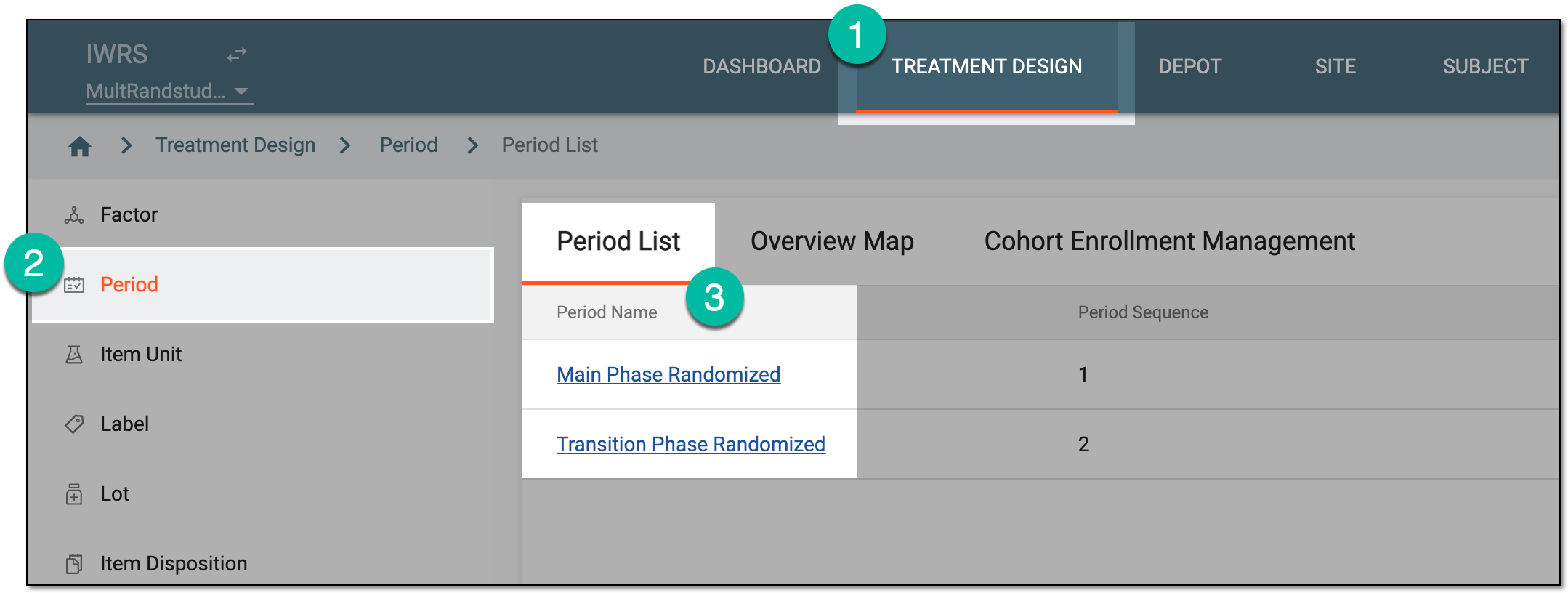 Figure 1. Selecting period to configure
-
In the period configurator tree, drill down and expand the cohort for which the dynamic randomization method is configured. From the expanded cohort menu, select Randomization List.
-
In the Randomization List table that appears, locate the randomization scheme of the System Generated type and select its name.
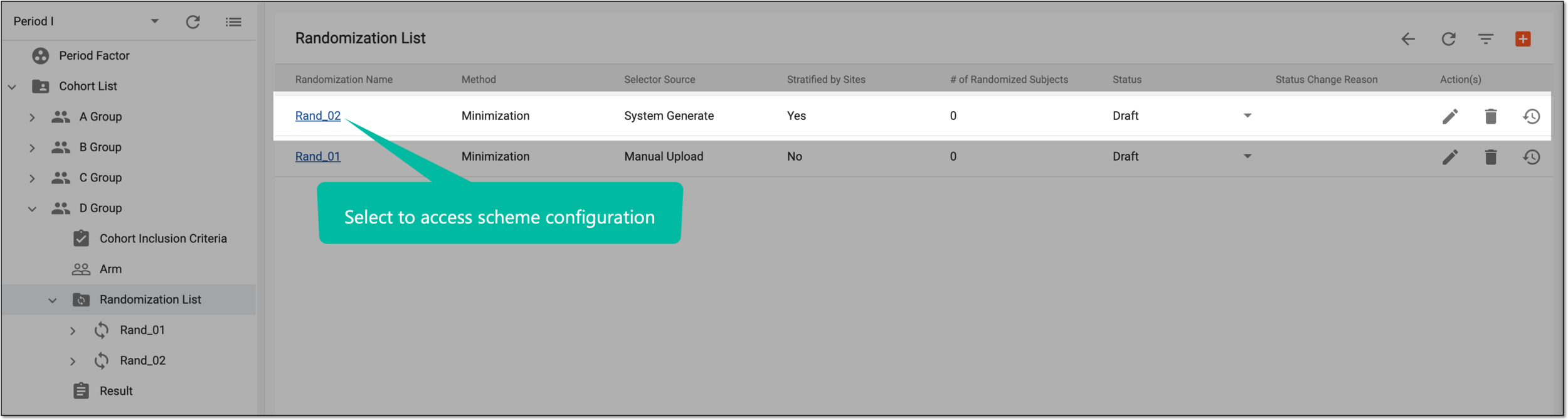 Figure 2. Accessing randomization scheme configurator
Tip
You can also select the Scheme node under the respective randomization scheme in the period configurator tree.
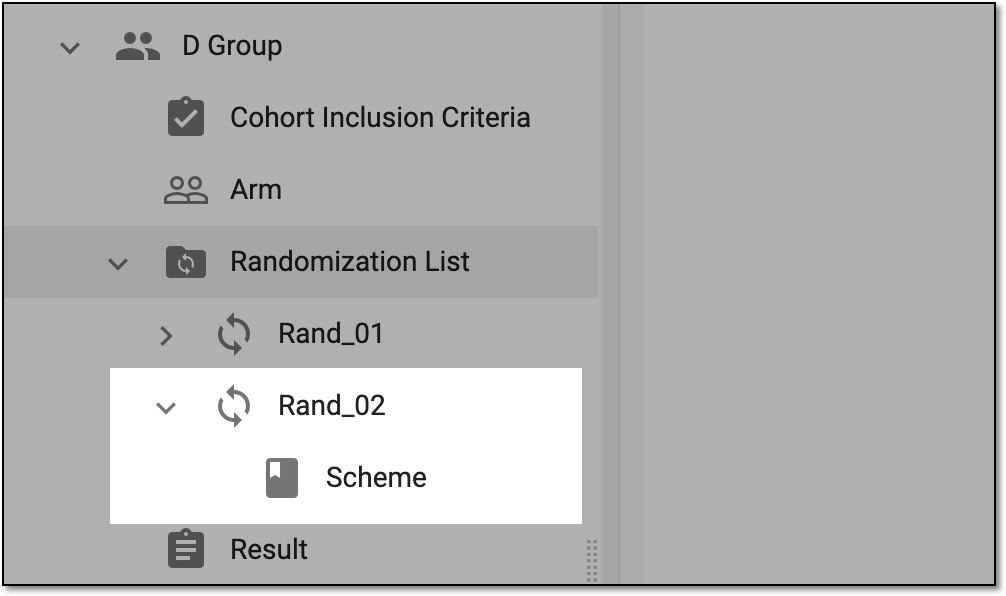 Figure 3. Accessing randomization scheme configurator from tree
-
On the page that opens, make sure the arms and factors are properly configured according to the following instructions:
-
Select the Arm Allocation Options tab and in the form that opens, complete the configurations as explained in the following table.
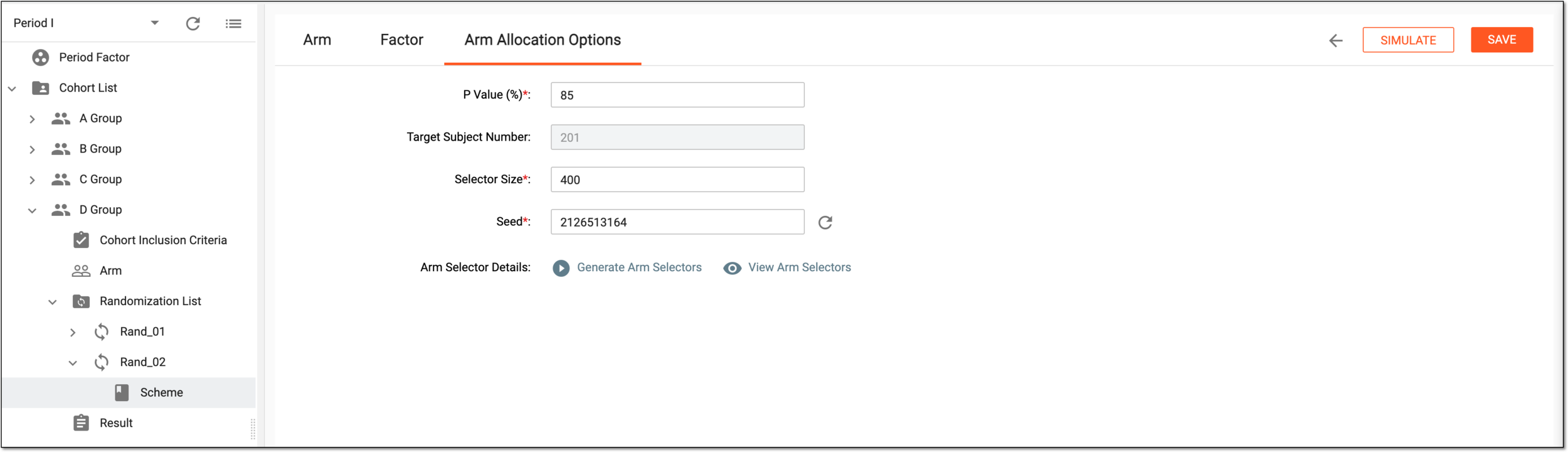 Figure 4. Configuring arm allocation options
Tip
In the following table, mandatory elements are marked with an asterisk (*).
Element
Details
P Value (%)*
Enter the percentage to set up the probability of subject allocation to the treatment arms. It is recommended to set this value between 80% and 90% to reach maximum efficiency and arm balance.
The P value is a key parameter in dynamic randomization algorithms, as it influences the likelihood of a participant being assigned to a particular treatment arm compared to the other arms.
Target Subject Number
Represents the total number of expected subjects within the cohort to be randomized. This is a read-only value pulled from the study information module of CTMS.
Selector Size*
Enter the number of arm selector options you want to generate. It is recommended to have this number greater than the target subject number to cover the situations of subject discontinuation, exclusion from balance calculation and so on.
Seed*
Enter the seed number manually or select
 to update the system-generated seed number—a specific value used to initialize the random number generator
algorithm.
to update the system-generated seed number—a specific value used to initialize the random number generator
algorithm.Once the random number generator is initialized with the seed number, it produces a sequence of pseudo-random numbers based on that seed. These pseudo-random numbers are then used by the arm selector to determine the allocation of participants to treatment arms.
Arm Selector Details
Generate Arm Selector
Select
 to generate the list of arm selectors according to your configurations.
View Arm Selectors
Select
 to open the Arm Selector List dialog and view the arm selectors generated according to your
configurations.
to open the Arm Selector List dialog and view the arm selectors generated according to your
configurations.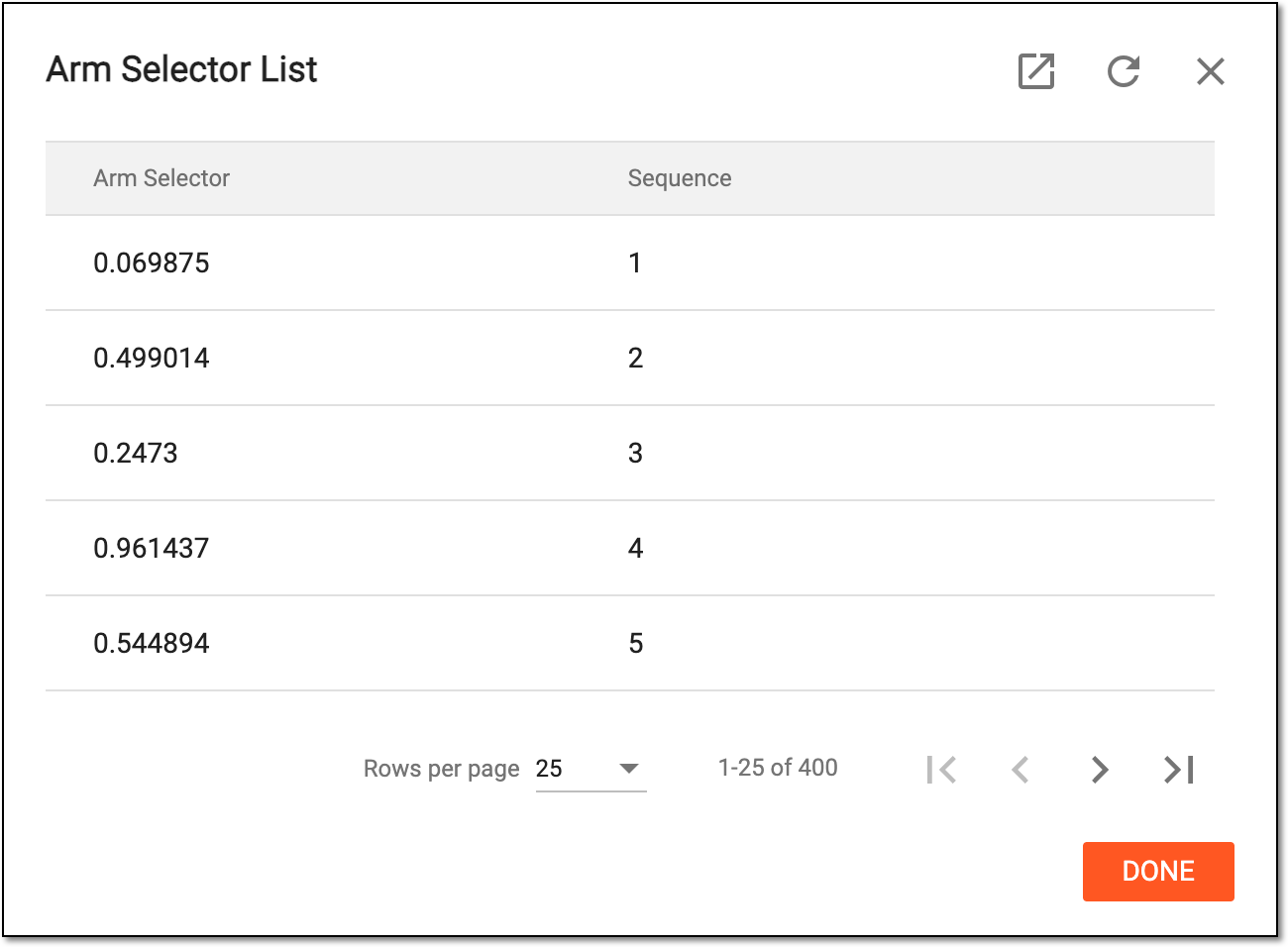 Figure 5. Viewing arm selector list
You can also export the arm selector list by selecting
 from the dialog workspace toolbar.
SAVE
Select
 to save the implemented changes.
SIMULATE
Select
 to run a dynamic randomization simulation and assess its relevance for your study.
Once all the stages are configured, the randomization scheme is ready. You can now change the randomization scheme status to Ongoing if you want to set it as the currently active randomization for your cohort. Note that you cannot change the scheme settings once it becomes ongoing.
The dynamic randomization method adjusts the allocation probabilities based on the current distribution of participants by running the defined arm selector. The arm selector is a component of the randomization algorithm that determines the treatment arm to which a new participant is allocated based on certain predefined criteria or rules.
In IWRS, you can configure the arm selector criteria and rules for a previously added randomization scheme by configuring a file offline and uploading it to the system. This might be useful if you have your arm selector values generated externally and want to use them in IWRS configurations. To ensure file compatibility, the system offers you to download the template, fill it as required, and upload it to the system.
Important
You can only configure the scheme details such as arms, factors, and arm allocation options for the scheme that is in the Draft status. For more details see the Change randomization scheme status section.
-
In the IWRS application header, select the TREATMENT DESIGN tab.
-
In the left pane of the page that opens, select Period.
-
In the Period List table that appears, select the period within which you want to configure a dynamic randomization scheme.
Figure 1. Selecting period to configure
-
In the period configurator tree, drill down and expand the cohort for which the dynamic randomization method is configured. From the expanded cohort menu, select Randomization List.
-
In the Randomization List table that appears, locate the randomization scheme of the Manual Upload type and select its name.
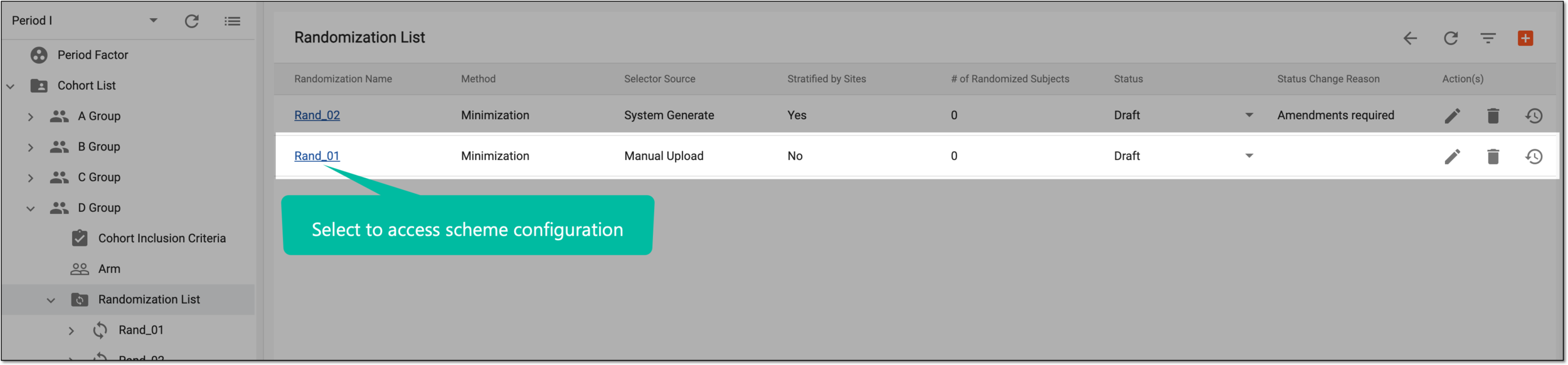 Figure 2. Accessing randomization scheme configurator
Tip
You can also select the Scheme node under the respective randomization scheme in the period configurator tree.
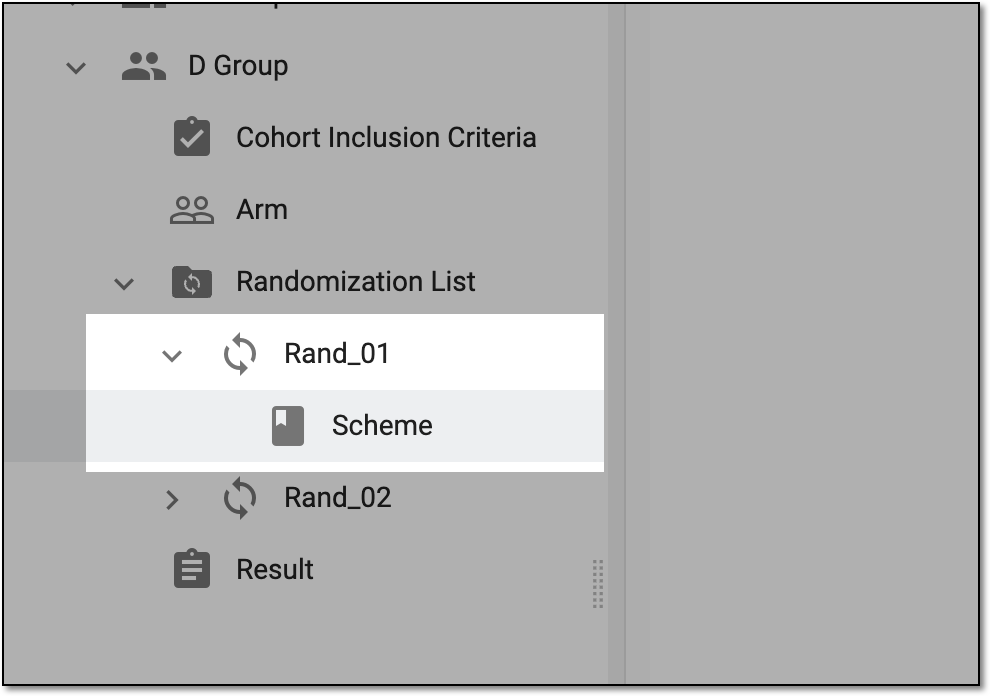 Figure 3. Accessing randomization scheme configurator from tree
-
On the page that opens, make sure the arms and factors are properly configured according to the following instructions:
-
Select the Arm Allocation Options tab and in the form that opens, complete the configurations as explained in the following table.
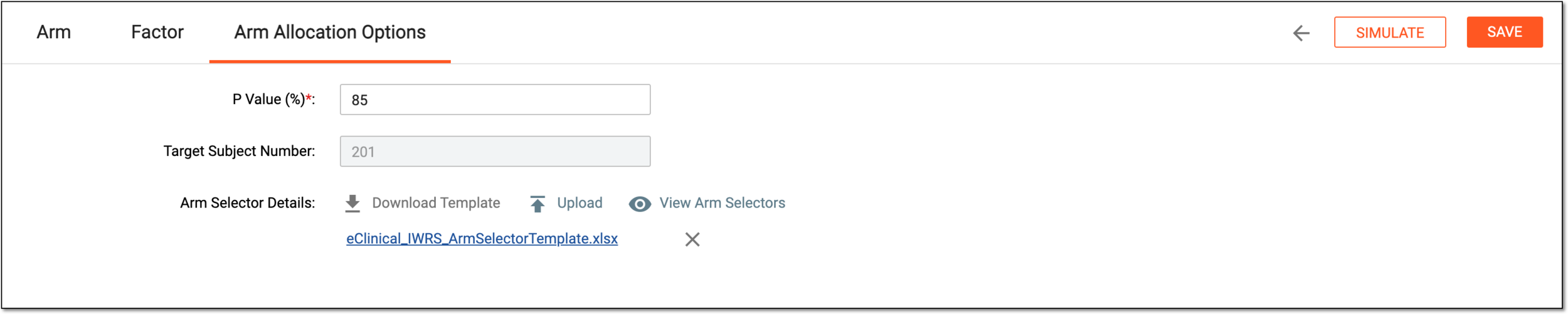 Figure 4. Configuring arm allocation options
Tip
In the following table, mandatory elements are marked with an asterisk (*).
Element
Details
P Value (%)*
Enter the percentage to set up the probability of subject allocation to the treatment arms. It is recommended to set this value between 80% and 90% to reach maximum efficiency and arm balance.
The P value is a key parameter in dynamic randomization algorithms, as it influences the likelihood of a participant being assigned to a particular treatment arm compared to the other arms.
Target Subject Number
Represents the total number of expected subjects within the cohort to be randomized. This is a read-only value pulled from the study information module of CTMS.
Arm Selector Details
Download Template
Select
 to download a template XLSX file and fill it with predefined arm selector values.
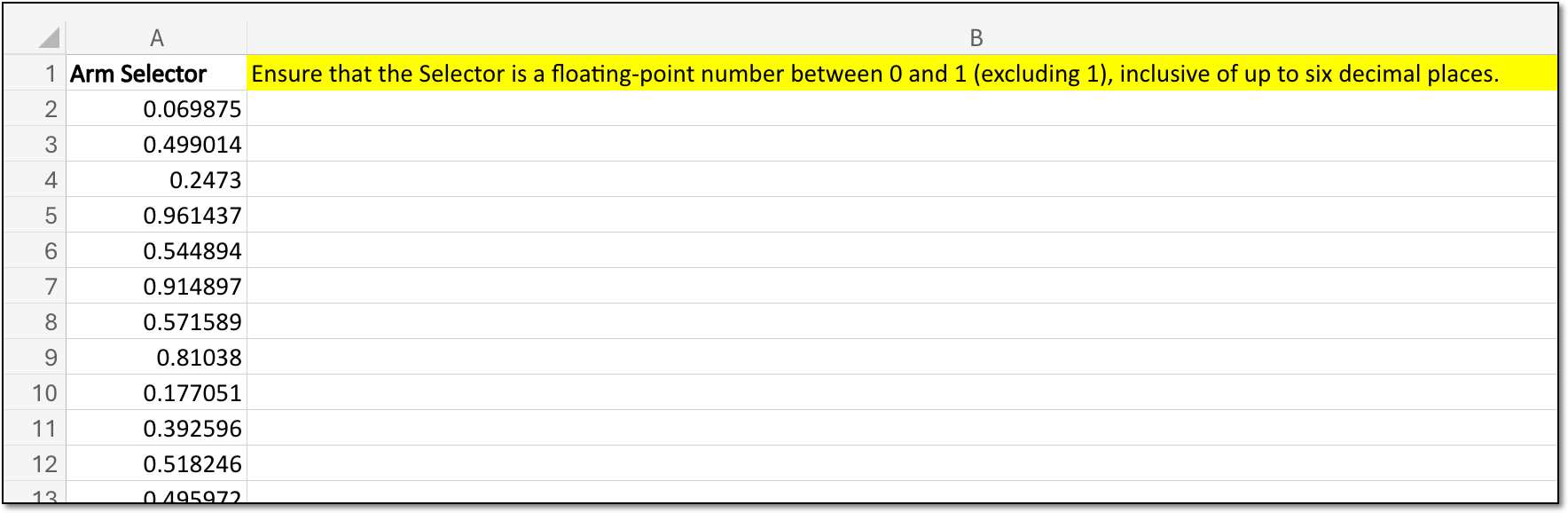 Figure 5. Example of arm selector file
Upload
Select
 to upload your filled XLSX file with arm selector details.
View Arm Selectors
Select
to open the Arm Selector List dialog and view the arm selectors generated according to your
configurations.Figure 6. Viewing arm selector list
You can also export the arm selector list by selecting
from the dialog workspace toolbar.SAVE
Select
to save the implemented changes and in the confirmation dialog that opens, select  .
.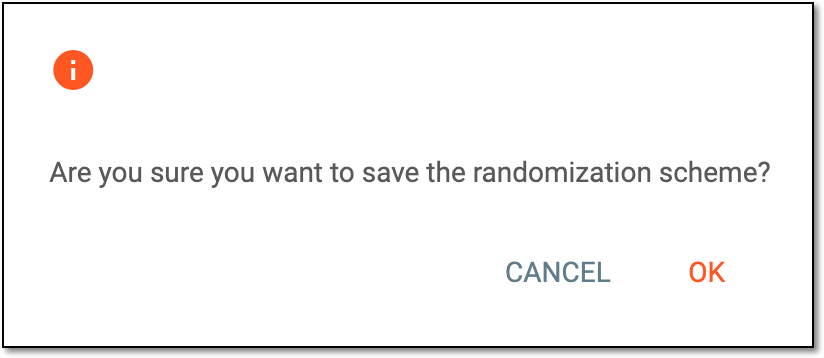 Figure 7. Confirming to save randomization scheme
SIMULATE
Select
to run a dynamic randomization simulation and assess its relevance for your study.
Once all the stages are configured, the randomization scheme is ready. You can now change the randomization scheme status to Ongoing if you want to set it as the currently active randomization for your cohort. Note that you cannot change the scheme settings once it becomes ongoing.