Manage arms for dynamic randomization scheme
In IWRS, when configuring the dynamic randomization scheme, you need to manage the arms that are considered for subject allocation and their ratio for the system to prioritize allocation or sustain balance. Arm management is the same for the randomization schemes configured from scratch in IWRS and from file upload. From this page, you can add and delete arms as well as edit their ratio values.
Important
You can only manage arms for the scheme that is in the Draft status. For more details see the Change randomization scheme status section.
-
In the IWRS application header, select the TREATMENT DESIGN tab.
-
In the left pane of the page that opens, select Period.
-
In the Period List table that appears, select the period within which you want to manage arms for a dynamic randomization scheme.
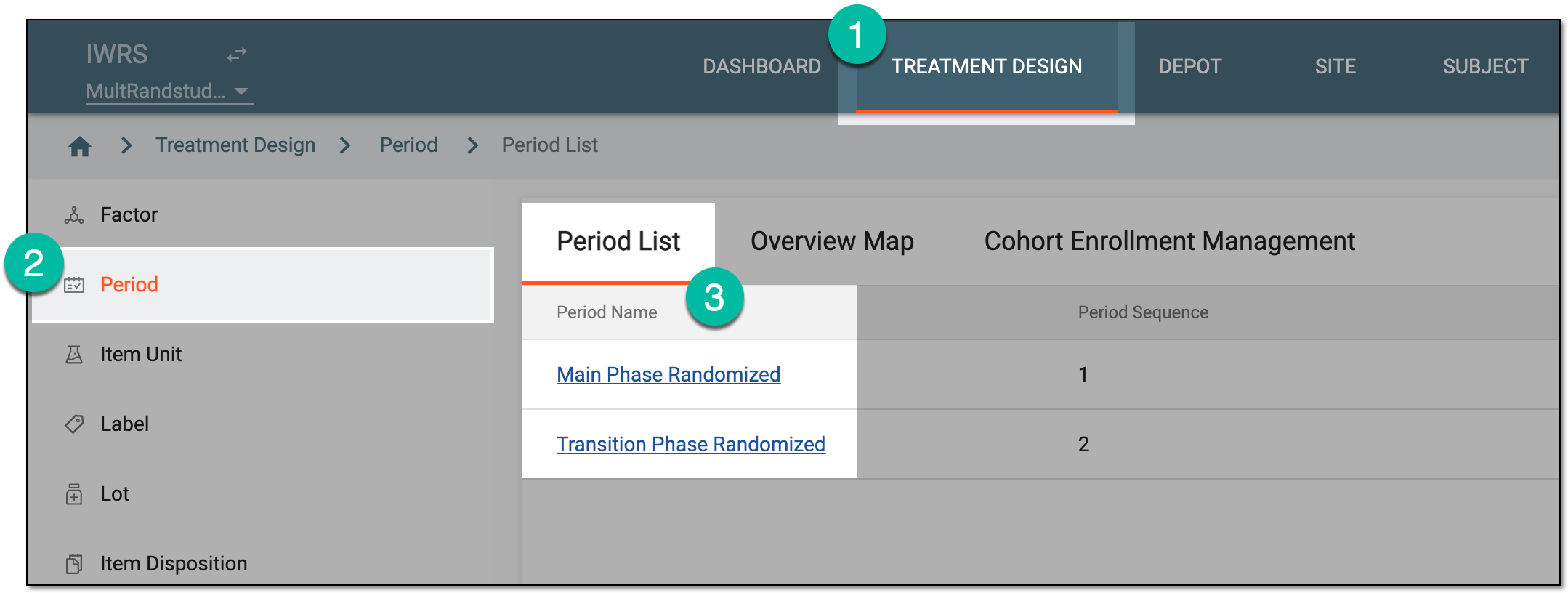 Figure 1. Selecting period to configure
-
In the period configurator tree, drill down and expand the cohort for which the dynamic randomization method is configured. From the expanded cohort menu, select Randomization List.
-
In the Randomization List table that appears, locate the randomization scheme of your interest and select its name.
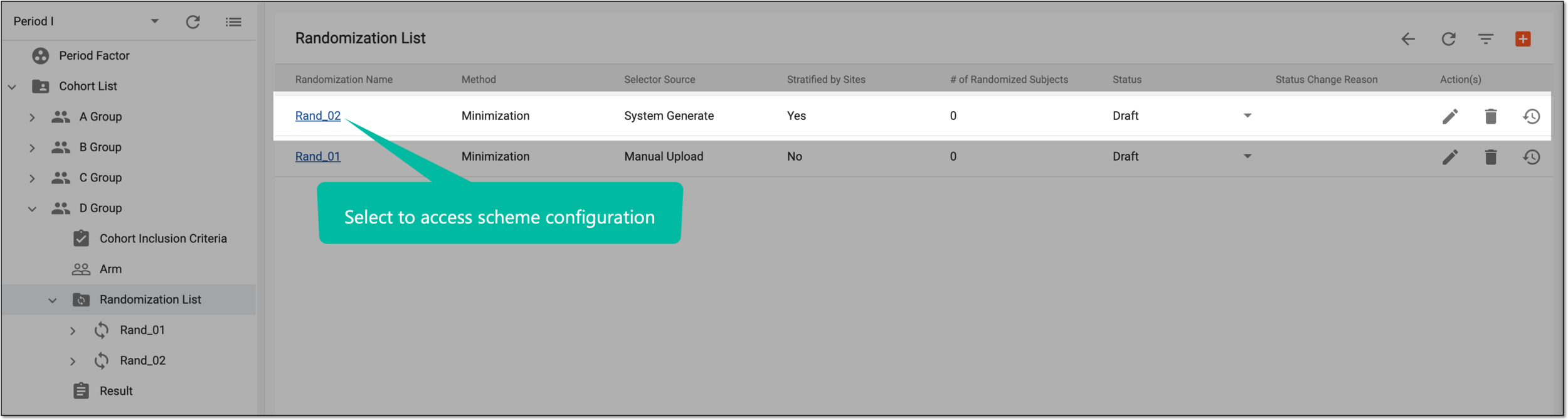 Figure 2. Accessing randomization scheme configurator
Tip
You can also select the Scheme node under the respective randomization scheme in the period configurator tree.
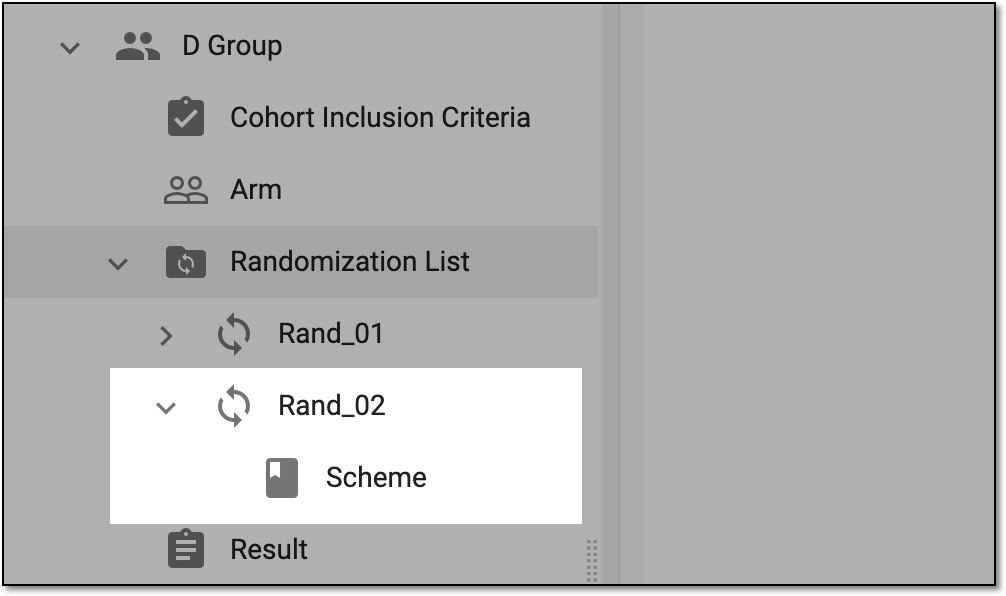 Figure 3. Accessing randomization scheme configurator from tree
-
On the scheme configuration page, under the Arm tab, manage the arms as follows.
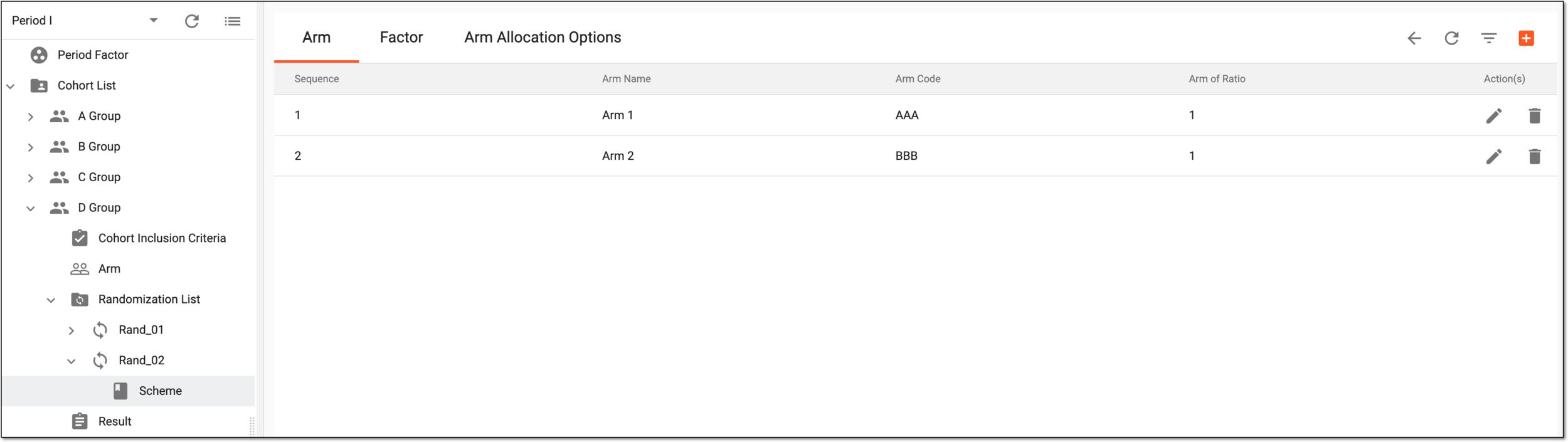 Figure 4. Dynamic randomization scheme arms
-
From the workspace toolbar, select New Item
 to add more arms to your randomization scheme as explained in the following table.
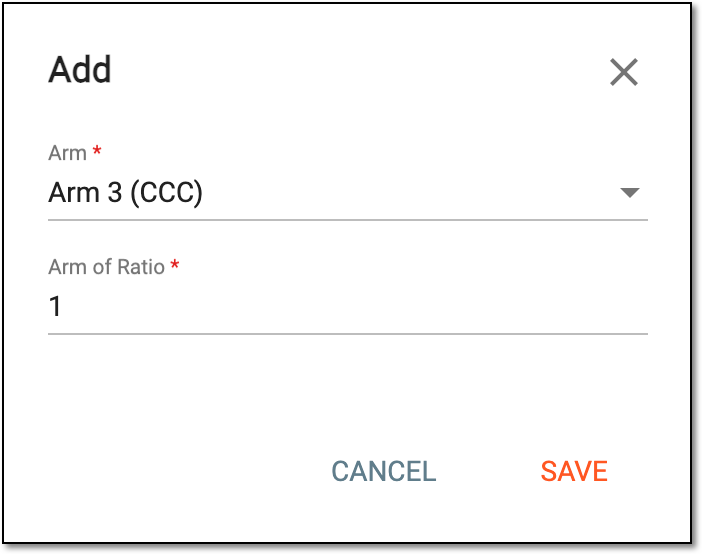 Figure 5. Configuring arm and ratio
Element
Details
Arm*
Select the arm to include in the randomization process. The list of available options here is based on the arms added to the cohort.
Arm of Ratio*
Enter the number to outline the ratio of subjects allocated to this arm compared to other arms.
For instance, if the ratio of all arms is 1, the system spreads the allocation equally. However, if one arm has a ratio of 2, and the other arms have a ratio of 1, then the arm with a higher ratio has more subject allocation probability.
SAVE
Select
 to save the implemented changes.
CANCEL
Select
 to discard the changes without saving.
 -
Next to the needed arm, from the Action(s) column, select Edit
 to update the
arm ratio as explained in the previous table.
to update the
arm ratio as explained in the previous table. -
Next to the needed arm, from the Action(s) column, select Delete
 to
remove the arm from the list and exclude it from the randomization process.
to
remove the arm from the list and exclude it from the randomization process.
-
You have managed the arm list for your dynamic randomization. Once the randomization starts, the arms added to the list are taking part in the subject allocation according to the set ratio.