Run simulation for dynamic randomization
In IWRS, once you configure the dynamic randomization scheme and generate an arm selector, you can run the simulation to assess the capabilities and efficiency of the implemented configs for your study needs and requirements.
-
In the IWRS application header, select the TREATMENT DESIGN tab.
-
In the left pane of the page that opens, select Period.
-
In the Period List table that appears, select the period within which you want to run a dynamic randomization scheme simulation.
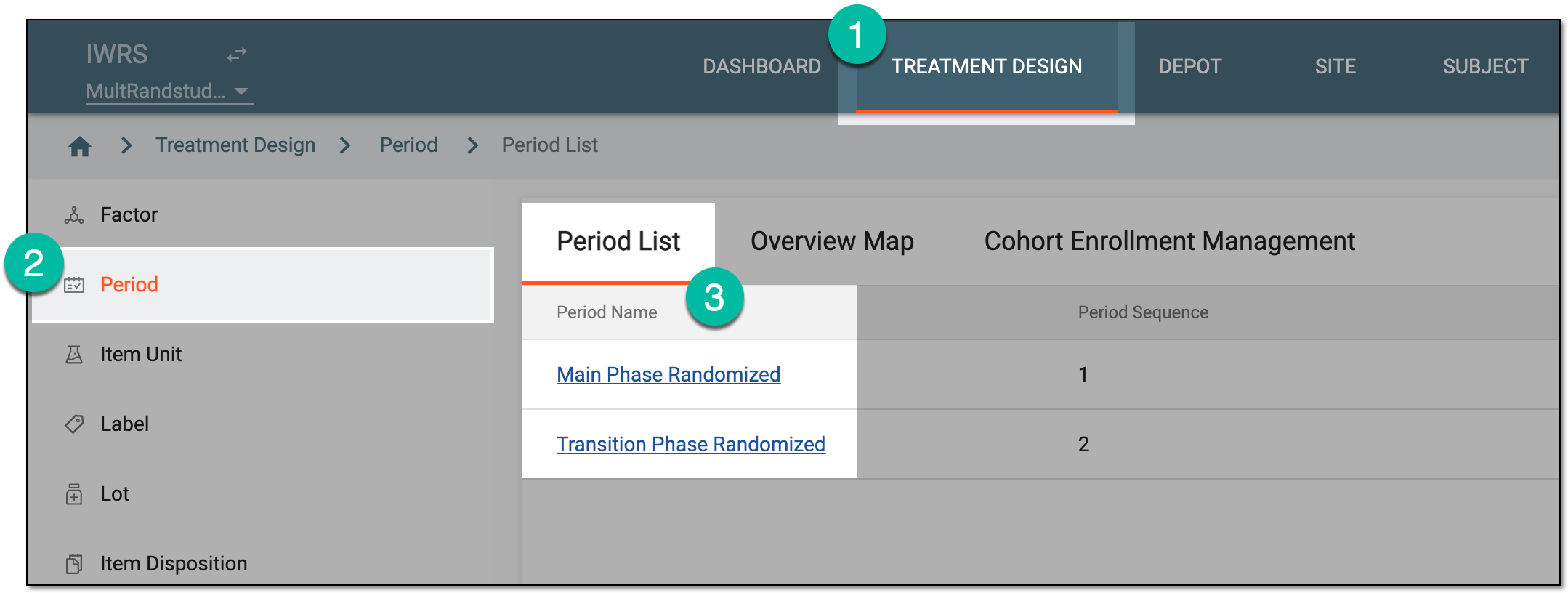 Figure 1. Selecting period to configure
-
In the period configurator tree, drill down and expand the cohort for which the dynamic randomization method is configured. From the expanded cohort menu, select Randomization List.
-
In the Randomization List table that appears, locate the randomization scheme for which you want to run a simulation and select its name.
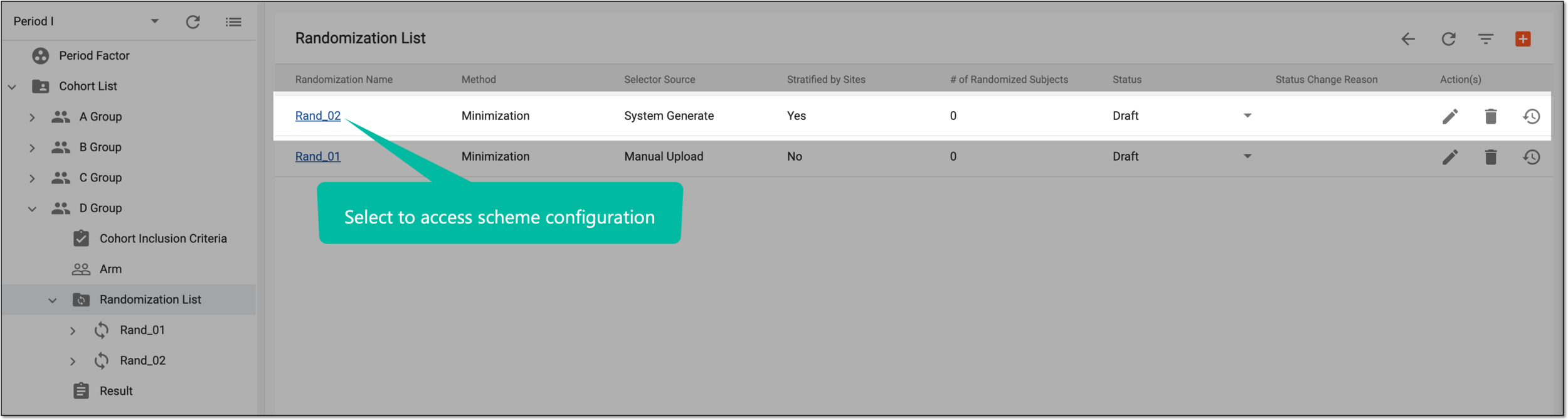 Figure 2. Accessing randomization scheme configurator
Tip
You can also select the Scheme node under the respective randomization scheme in the period configurator tree.
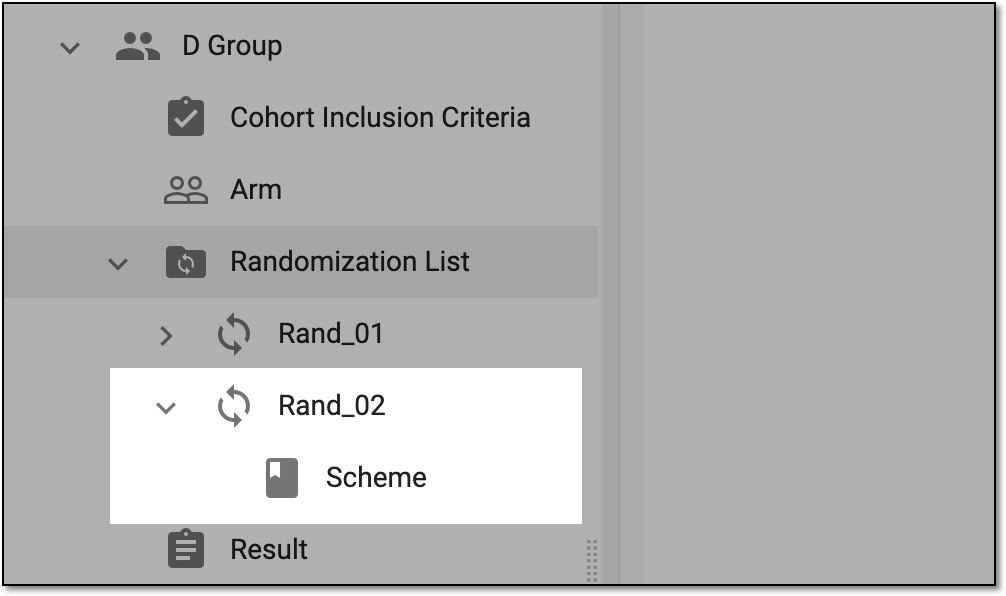 Figure 3. Accessing randomization scheme configurator from tree
-
On the page that opens, select the Arm Allocation Options tab.
-
On the resulting Arm Allocation Options page, select
 to run a dynamic randomization simulation.
 -
On the Simulation List page that opens, select New Item
 .
.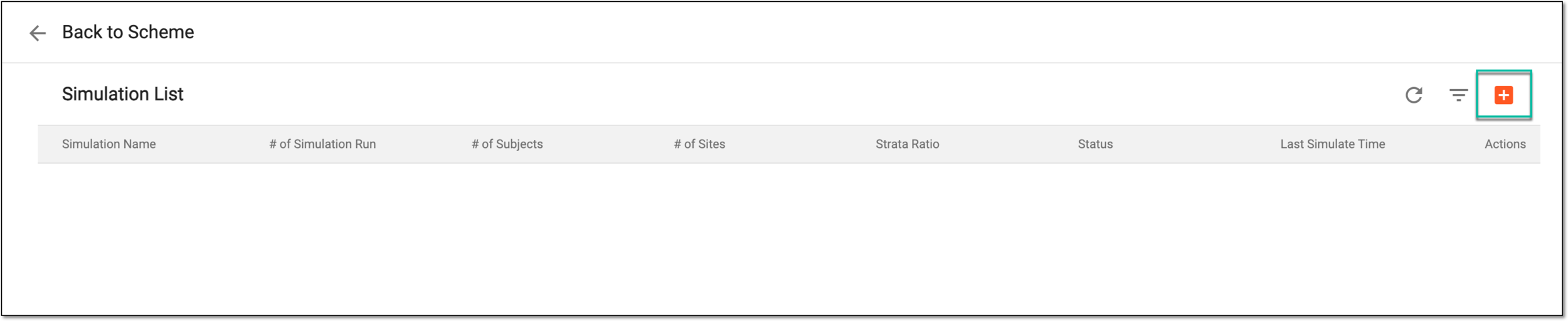 Figure 4. Adding new simulation
Tip
You can skip adding a new simulation if you already have the list of previously configured ones and want to run one of them. In this case, go to step 10.
-
In the New dialog that appears, complete the fields as explained in the following table.
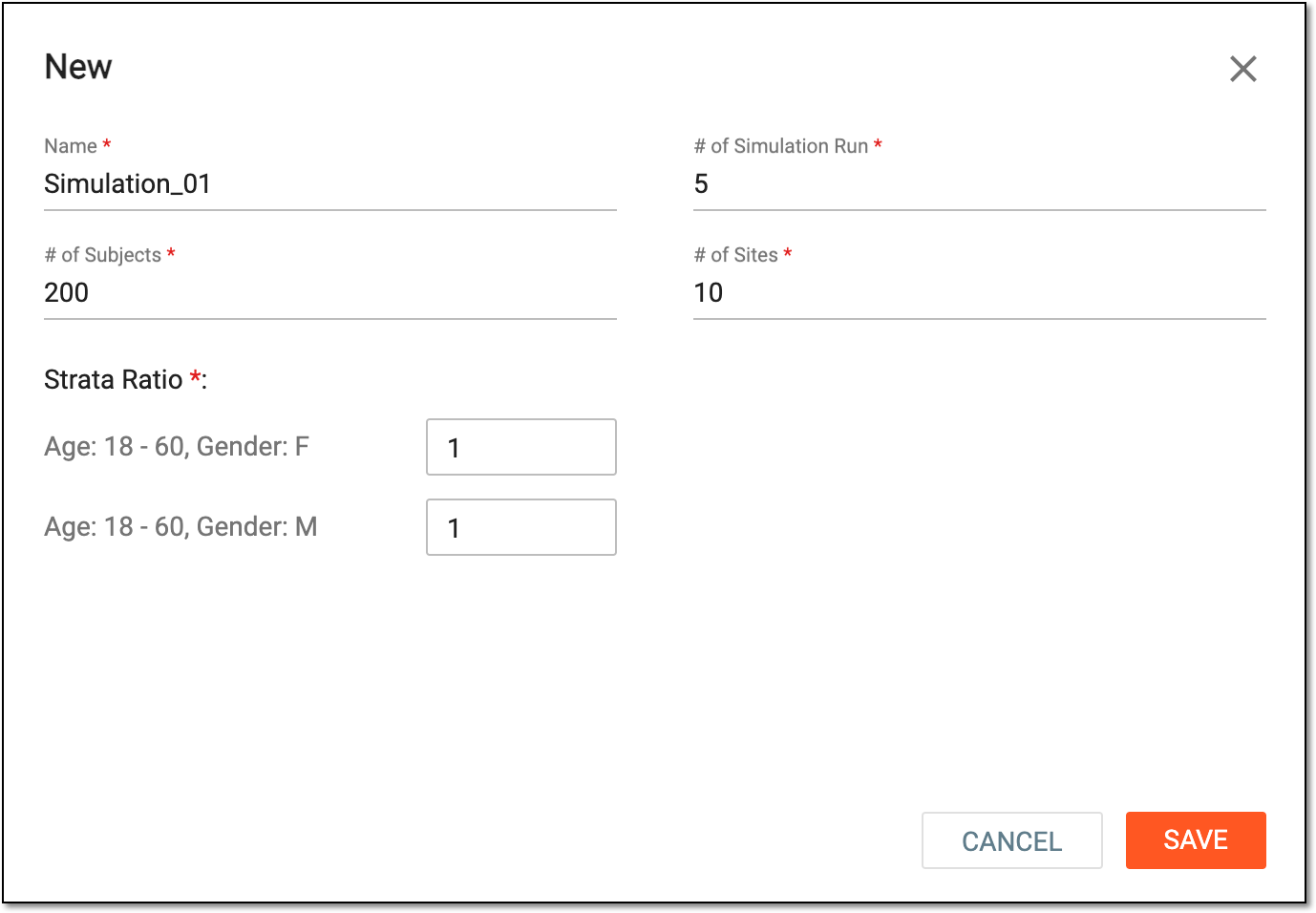 Figure 5. Configuring new simulation
Tip
In the following table, mandatory elements are marked with an asterisk (*).
Element
Details
Name*
Enter the name for your simulation configuration.
# of Simulation Run*
Enter the number of how many times you want to run this simulation to compare various possible results.
For instance, if you enter 5, the system runs the simulation five times and you can view five different results to have more understanding of how this configuration might work out for you.
# of Subjects*
Enter the number of subjects that are randomized with this simulation. It is recommended to add the number that is close to your real-case cohort size to get the simulation result as close as possible to reality.
# of Sites*
Enter the number of sites between which the subject are allocated with this simulation. It is recommended to add the number that is close to your real-case scenario to get the simulation result as close as possible to reality.
Strata Ratio*
Enter the the number to outline the ratio of subjects allocated to each strata factor compared to others within this simulation.
For instance, if the ratio of all factors is 1, the system gives them equal consideration.. However, if one factor has a ratio of 2, and the other factors have a ratio of 1, then the with a higher ratio has more influence on the subject allocation probability.
SAVE
Select
 to implement the changes, close the dialog, and return to the Simulation List page.
CANCEL
Select
 to discard all changes without saving, close the dialog, and return to the Simulation
List page.
to discard all changes without saving, close the dialog, and return to the Simulation
List page. -
On the Simulation List page that opens, locate the simulation that you want to initiate and from the Action(s) column next to it, select Run
 .
.Tip
You can update the simulation configuration if it is not run yet. Simply select Edit
 and make
changes as explained in the previous table.
and make
changes as explained in the previous table. Figure 6. Running simulation
You have successfully run the dynamic randomization simulation. You can now view the simulation result.