View simulation result for dynamic randomization
In IWRS, once you configure the dynamic randomization scheme and generate an arm selector, you can run the simulation to assess the capabilities and efficiency of the implemented configs for your study needs and requirements.
Once the simulation is run, you can view the brief and detailed results to see the approximate scheme of subject allocation according to the configuration of the randomization scheme.
-
In the IWRS application header, select the TREATMENT DESIGN tab.
-
In the left pane of the page that opens, select Period.
-
In the Period List table that appears, select the period within which you want to view a dynamic randomization scheme simulation.
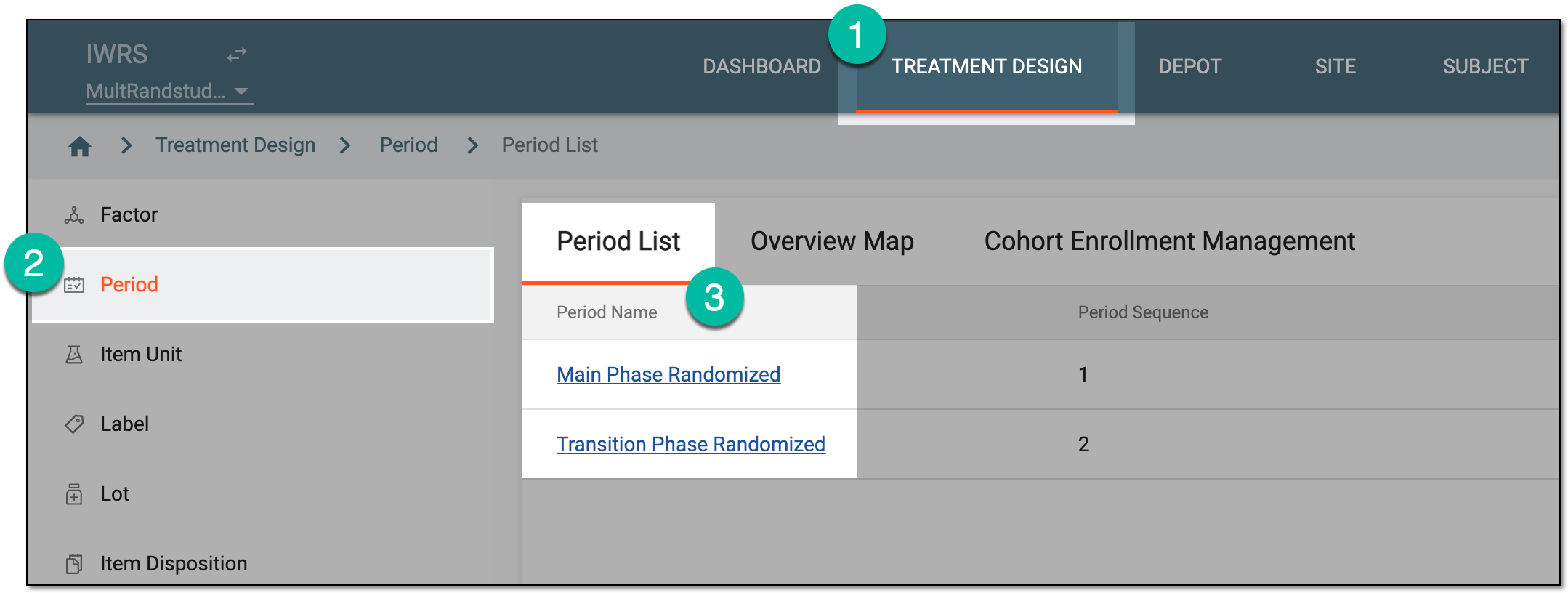 Figure 1. Selecting period
-
In the period configurator tree, drill down and expand the cohort for which the dynamic randomization method is configured.
-
Expand the Randomization List node and select the randomization whose simulation you want to review. Then select Simulation

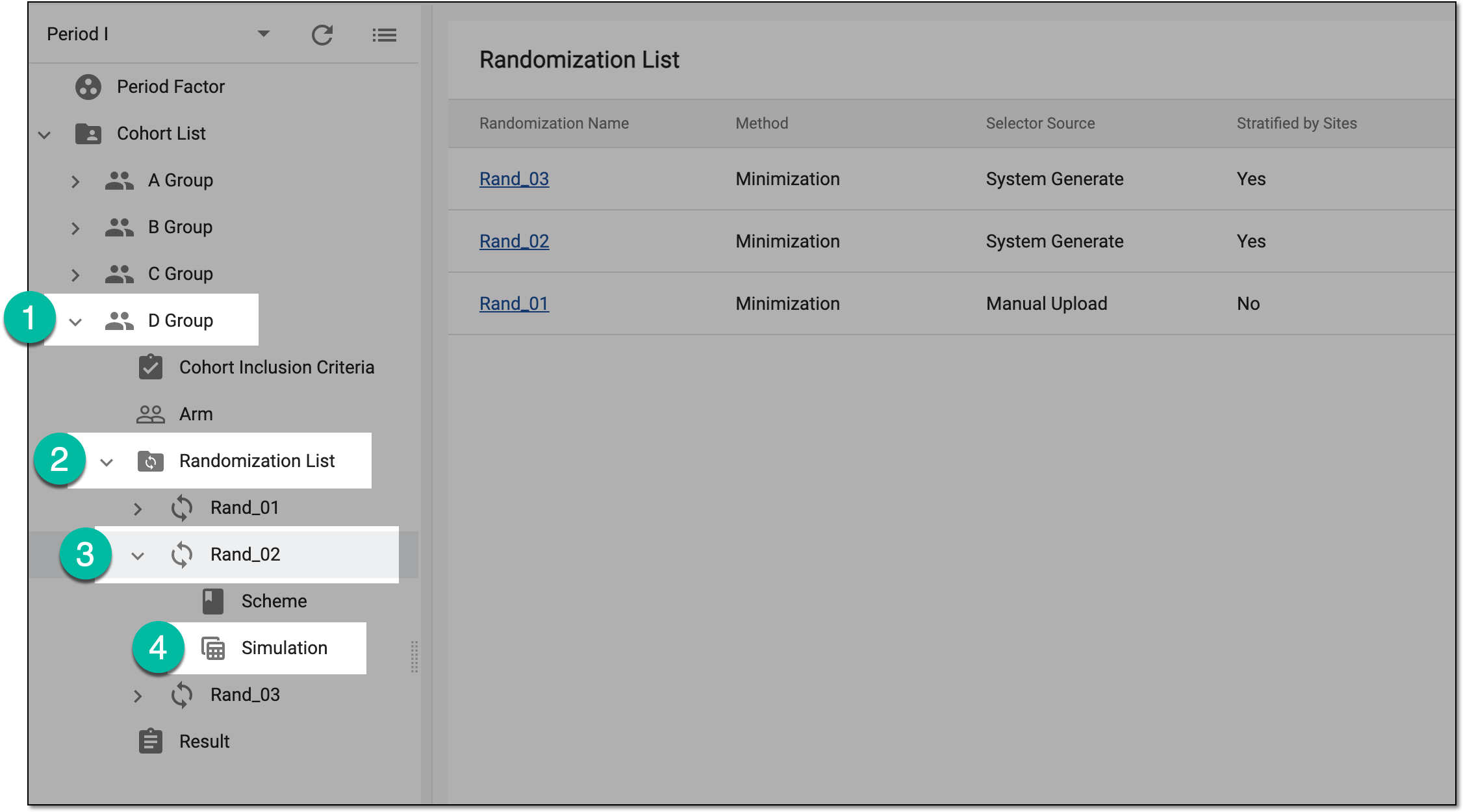 Figure 2. Accessing randomization simulation
-
On the Simulation List page that opens, locate the previously run simulation and from the Action(s) column next to it, select View Result
 .
. Figure 3. Opening simulation result
-
On the page that opens, under the Scheme Setting tab, review the scheme settings—arms, factors, and arm allocation options—according to which the randomization is performed.
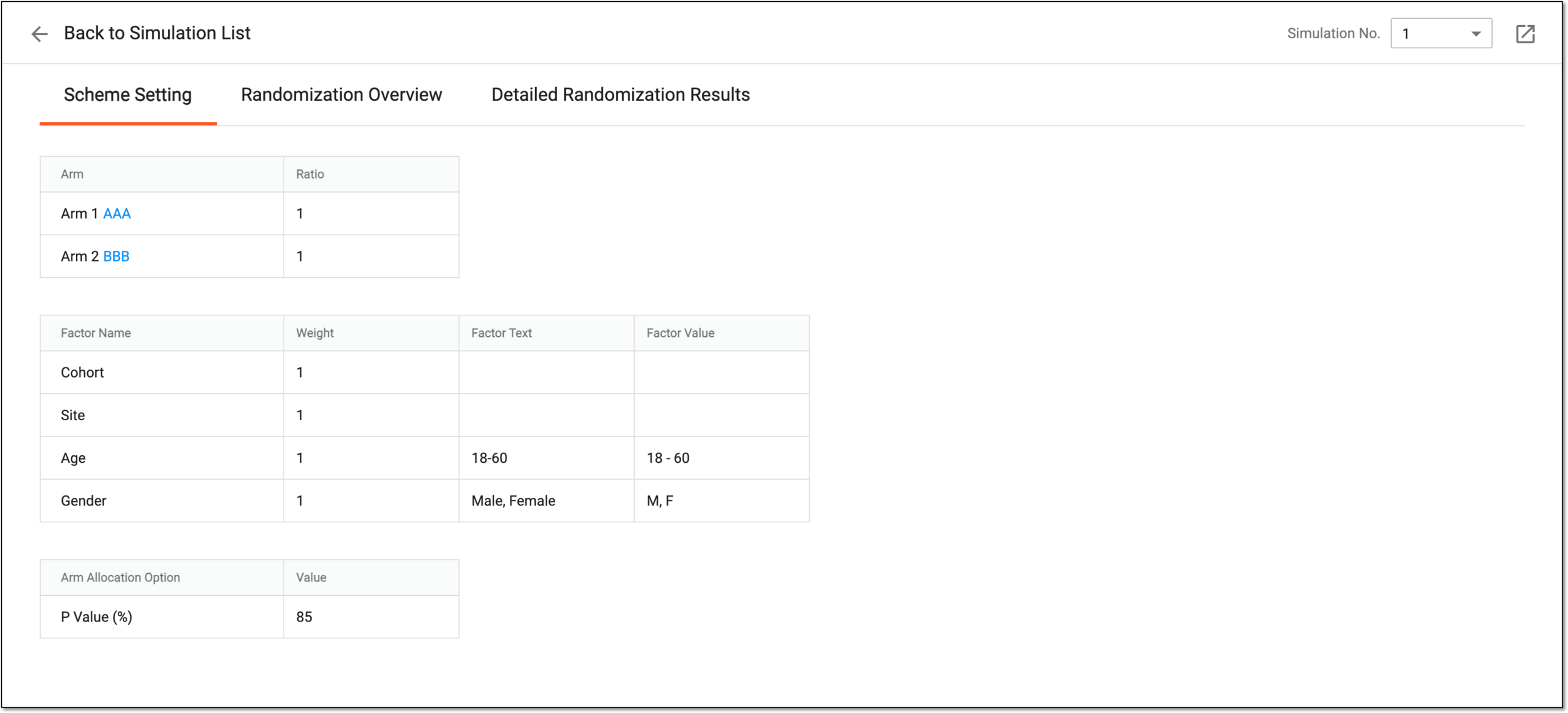 Figure 4. Reviewing scheme setting for randomization simulation
-
Switch to the Randomization Overview tab to view the simulated subject allocation outcome by cohort, site, and factor.
Important
You can analyze the deviation value along with the expected quantity of allocated subjects. If the deviation is higher than 1 (one subject), it is color-highlighted and means that the set randomization scheme bears the risk of imbalanced subject allocation. If the risk is high, consider reconfiguring your randomization scheme.
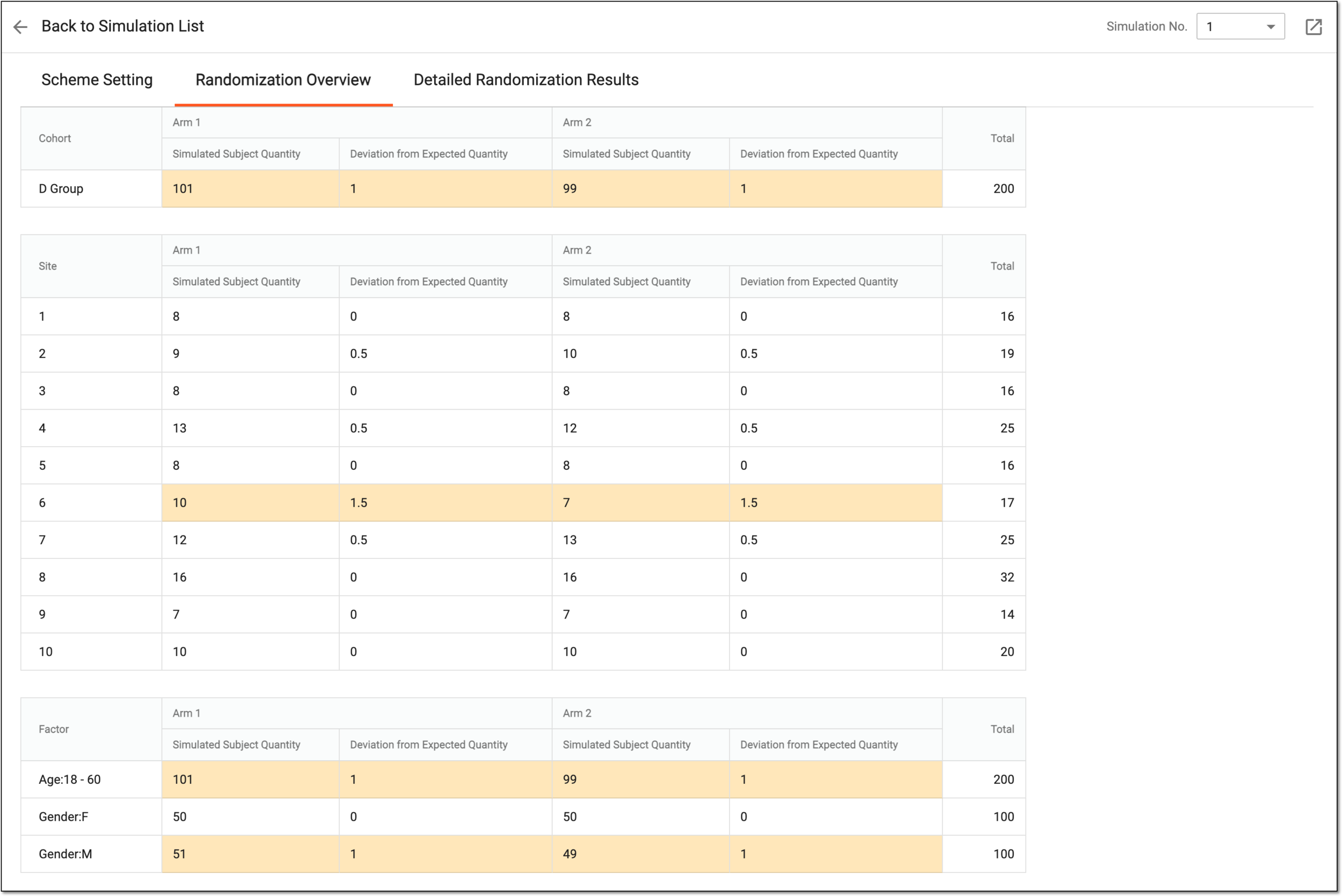 Figure 5. Assessing randomization overview
Tip
Use the Simulation No. filter to switch between the simulation run variations. The number of variations is predefined by the number of runs set upon configuration.
-
Switch to the Detailed Randomization Results tab to see the details of subject allocation between arms, such as which factors were considered, the arm selector values, P values, and so on.
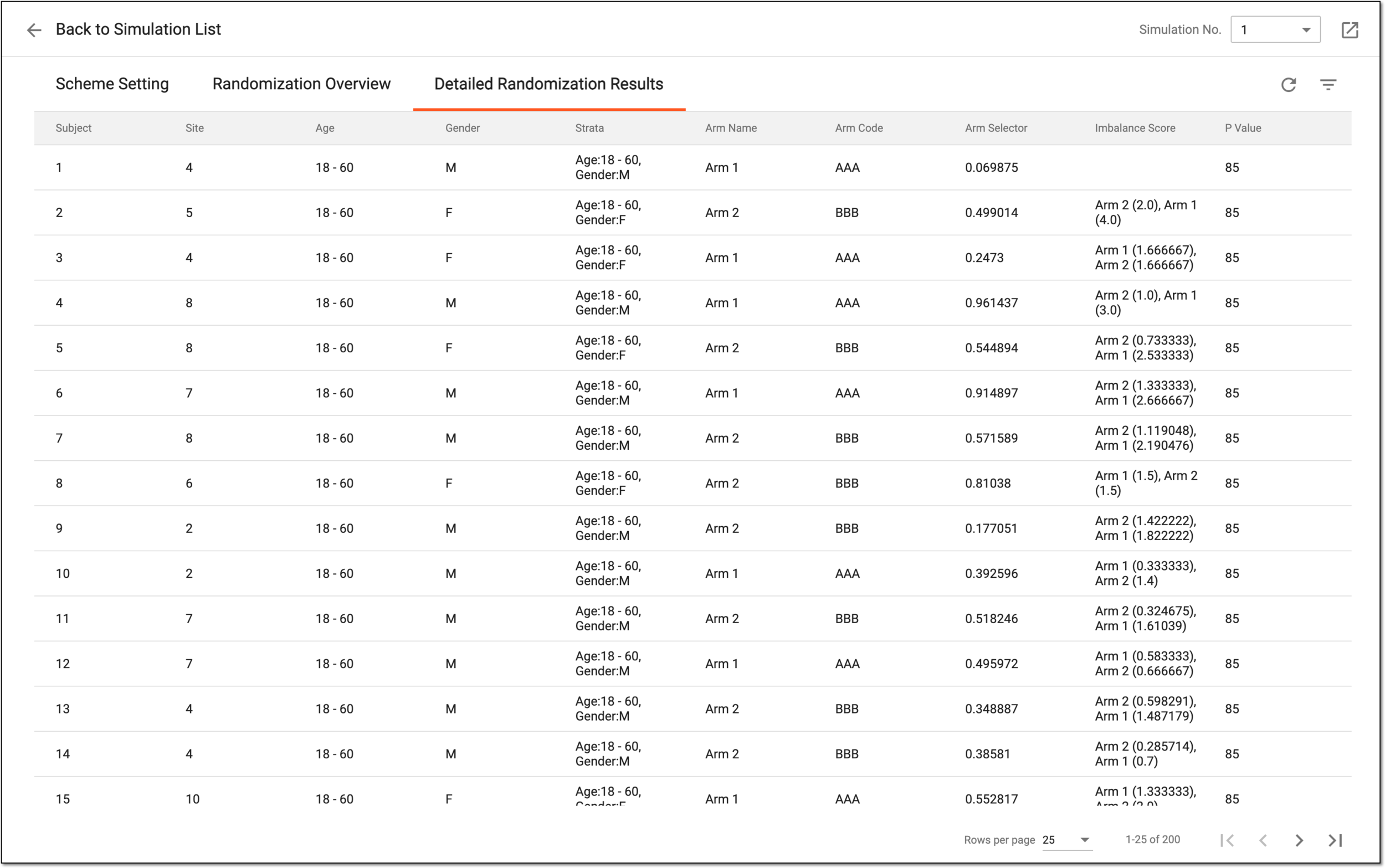 Figure 6. Assessing detailed randomization result
You have viewed the result of the dynamic randomization simulation.
Tip
You can also export the simulation result of your interest and use it offline as an XLSX file by selecting Export  .
.