Manage group details and user list
In the ADMIN app, you can create user groups whenever you need to unite certain users with similar responsibilities, activities, and purposes to conveniently provide them with access rights to managing and reviewing the data and processes related to selected sites and depots.
For each group, you can access the details page to conveniently manage its activation status, update the details, or maintain the list of added users to check who has access to the selected group and decide if access permissions must be updated.
-
In the ADMIN application header, select the USER GROUPS tab.
-
On the Groups page that appears, from the Name column, select the user group name.
 Figure 1. Selecting user group name to access details
-
On the user group details page that opens, you can perform various actions as required.
Select one of the available options based on the current activation status of the group:
-
Active: to activate the currently inactive user group and allow its users to access the assigned sites and depots immediately.
-
INACTIVE: to inactivate the currently active user group and prevent its users from accessing the assigned sites and depots until the group is activated again.
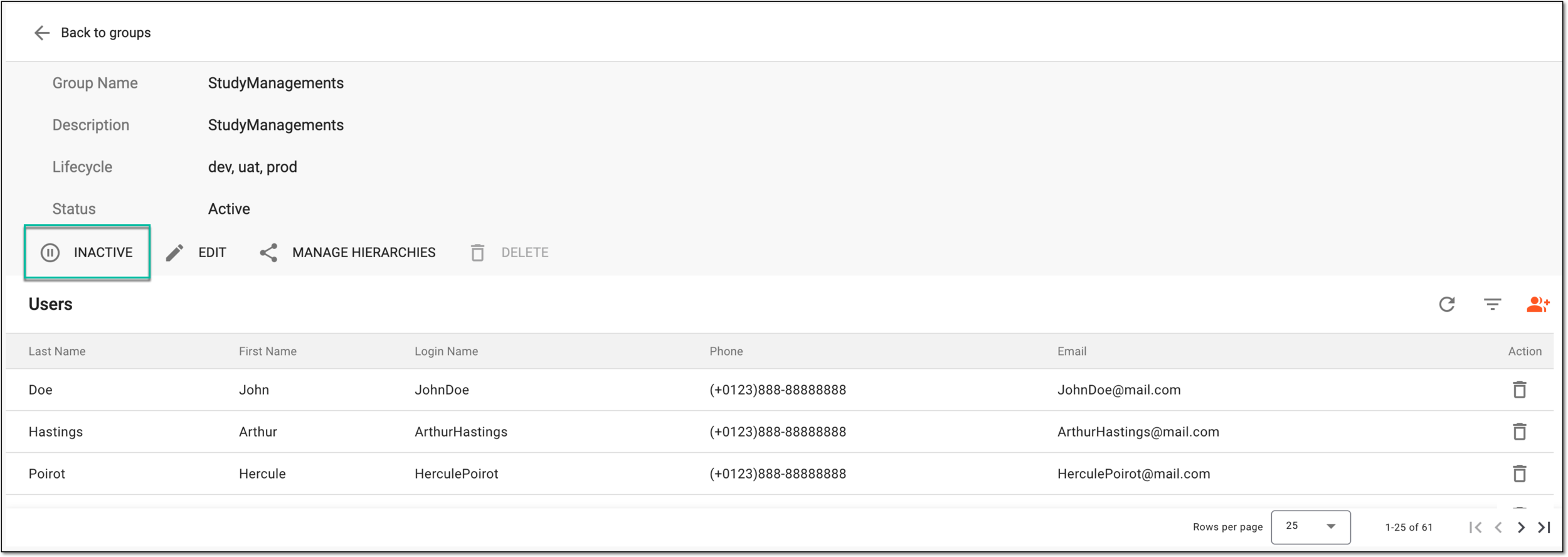 Figure 2. Inactivating user group from details page
Tip
Learn more about user group activation and inactivation in the Activate/Inactivate user group section.
Select EDIT and in the Edit Group dialog that appears, make the necessary changes. The fields here are identical to those explained in the table of the Add new user group section.
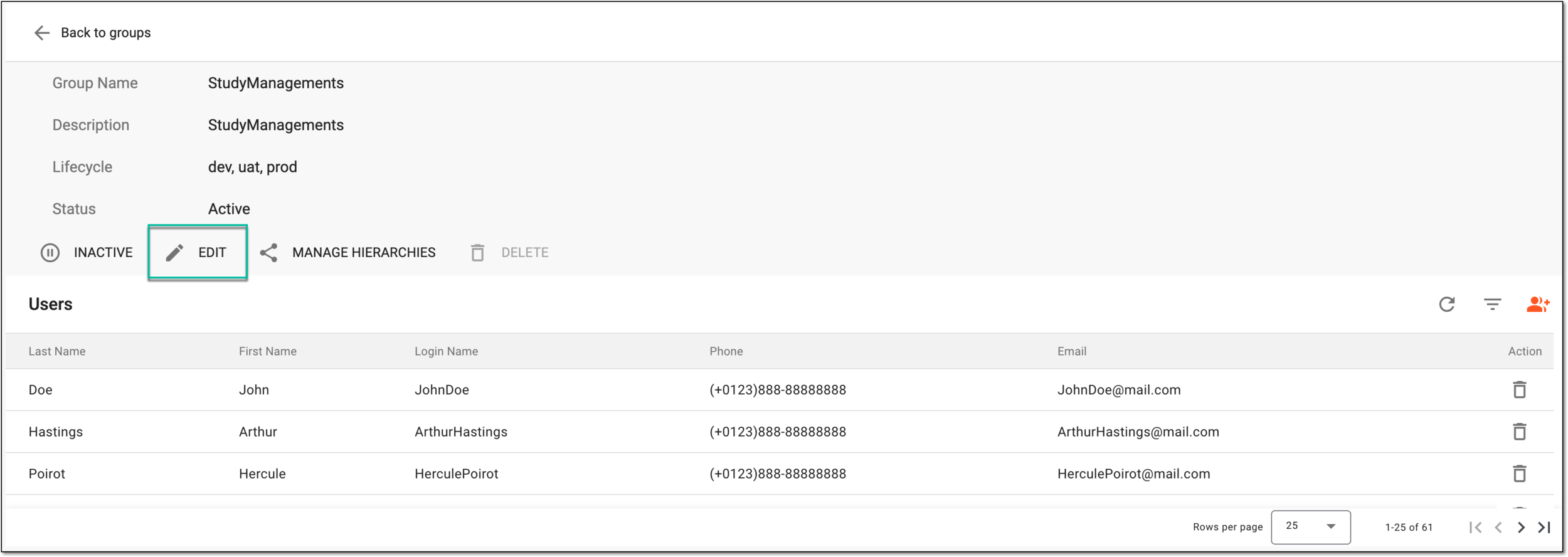 Figure 3. Editing user group from details page
Tip
Learn more about user group details editing in the Edit user group details section.
-
Select MANAGE HIERARCHIES.
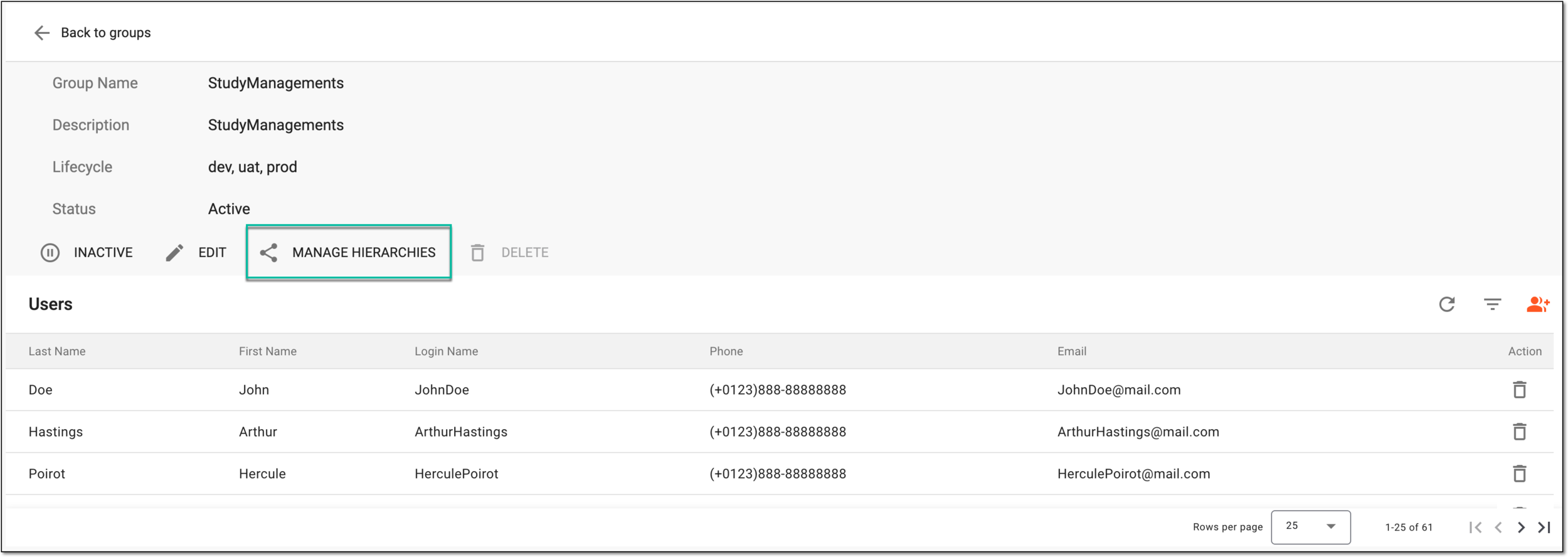 Figure 4. Accessing hierarchy management for user group from details page
-
On the Hierarchies page that appears, from the Lifecycle field, select the lifecycle where the configuration must be implemented—dev, uat, or prod.
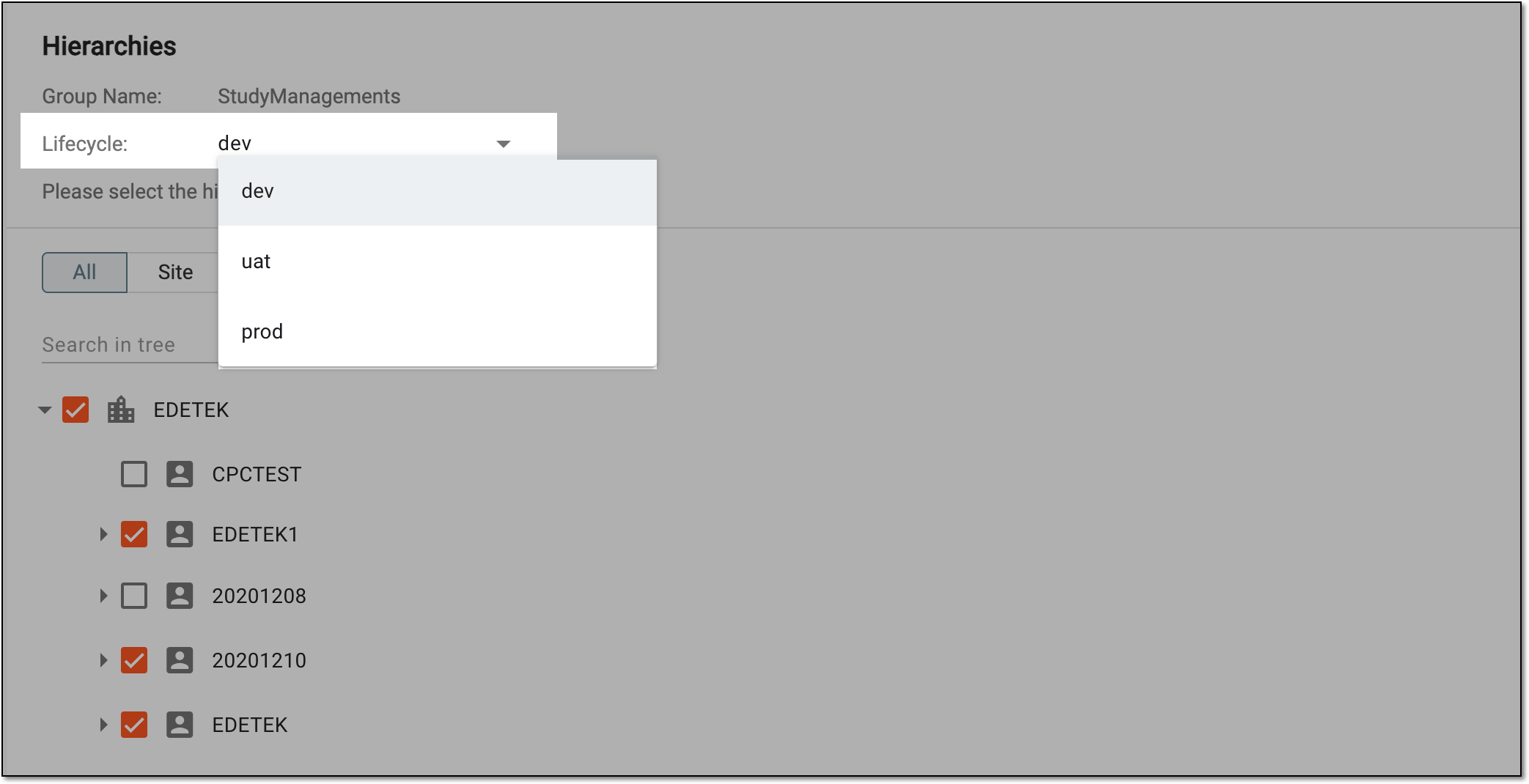 Figure 5. Providing access to sites and depots in hierarchy
-
Select one of the tabs to display the needed hierarchy as follows:
-
All: lists all the sponsors, their studies, and both sites and depots of each study.
-
Site: lists all the sponsors, their studies, and sites of each study.
-
Depot: lists all the sponsors, their studies, and depots of each study.
Important
The All, Site, and Depot tabs are unavailable in the explorer tree if the sponsor does not use the eClinical apps that have site and depot infrastructure, such as EDC, IWRS, CTMS, and so on, but uses only SD or PV, for instance.
-
-
Drill down the selected hierarchy and select the checkboxes next to the instances to which you want to provide access for the user group.
Clear the checkboxes to retrieve access if needed.
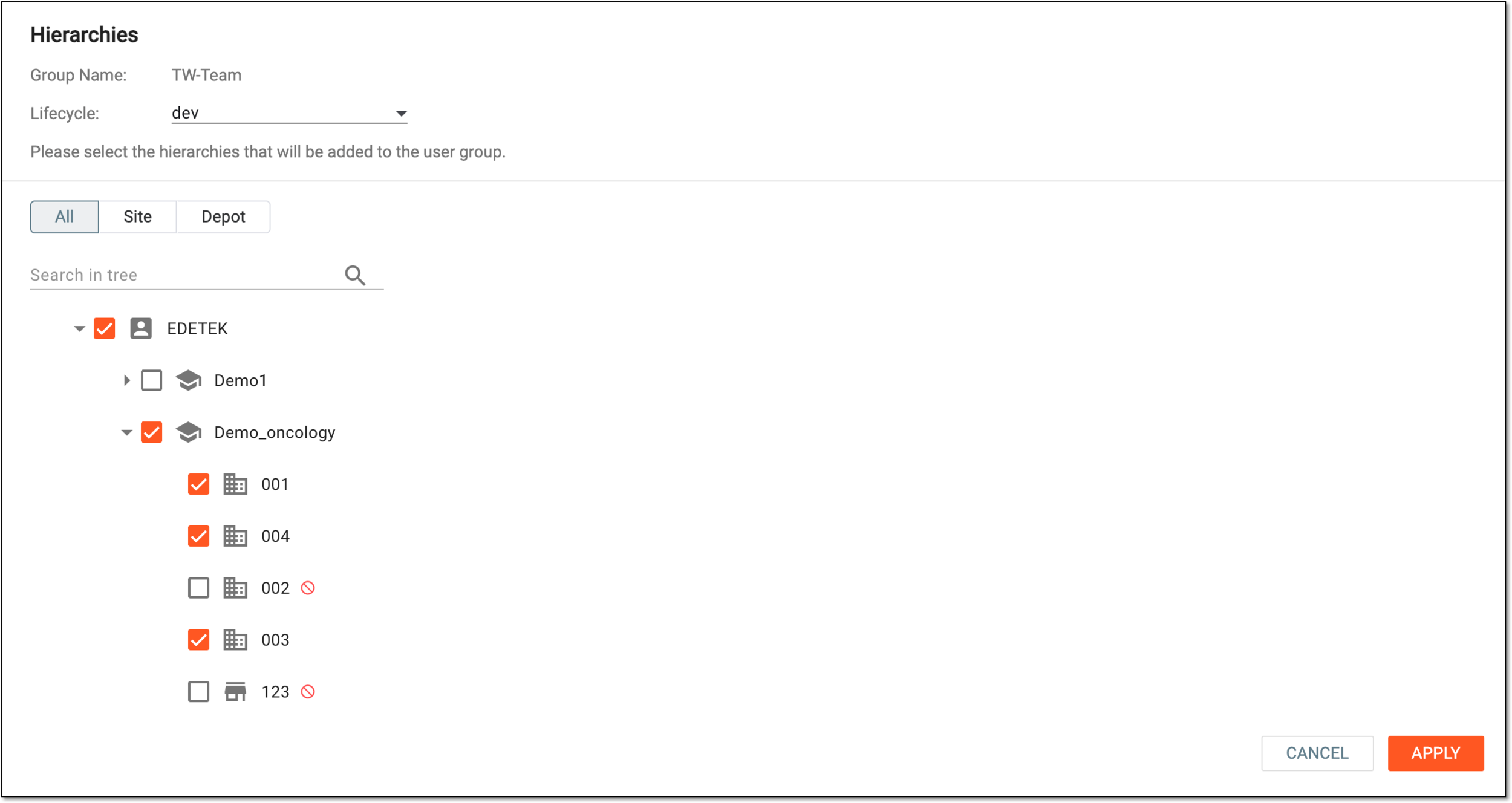 Figure 6. Providing access to sites and depots in hierarchy
Tip
Selecting the parent-level instance, such as sponsor or study, you also provide access to all its child instances. Thus, in the respective dialog, confirm your action.
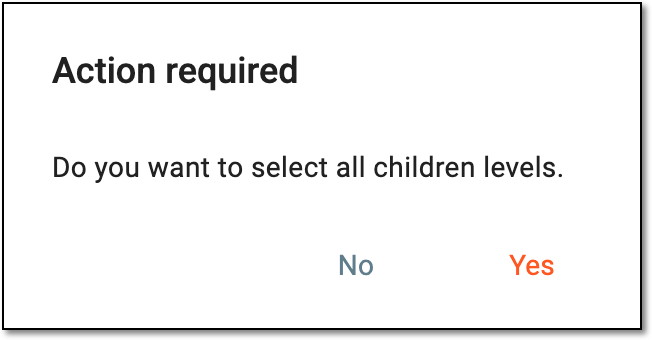 Figure 7. Confirming access for child levels
-
Select
 to implement the changes.
In the Users list of the details page, you can check the details of all the users added to the group as explained in the following table.
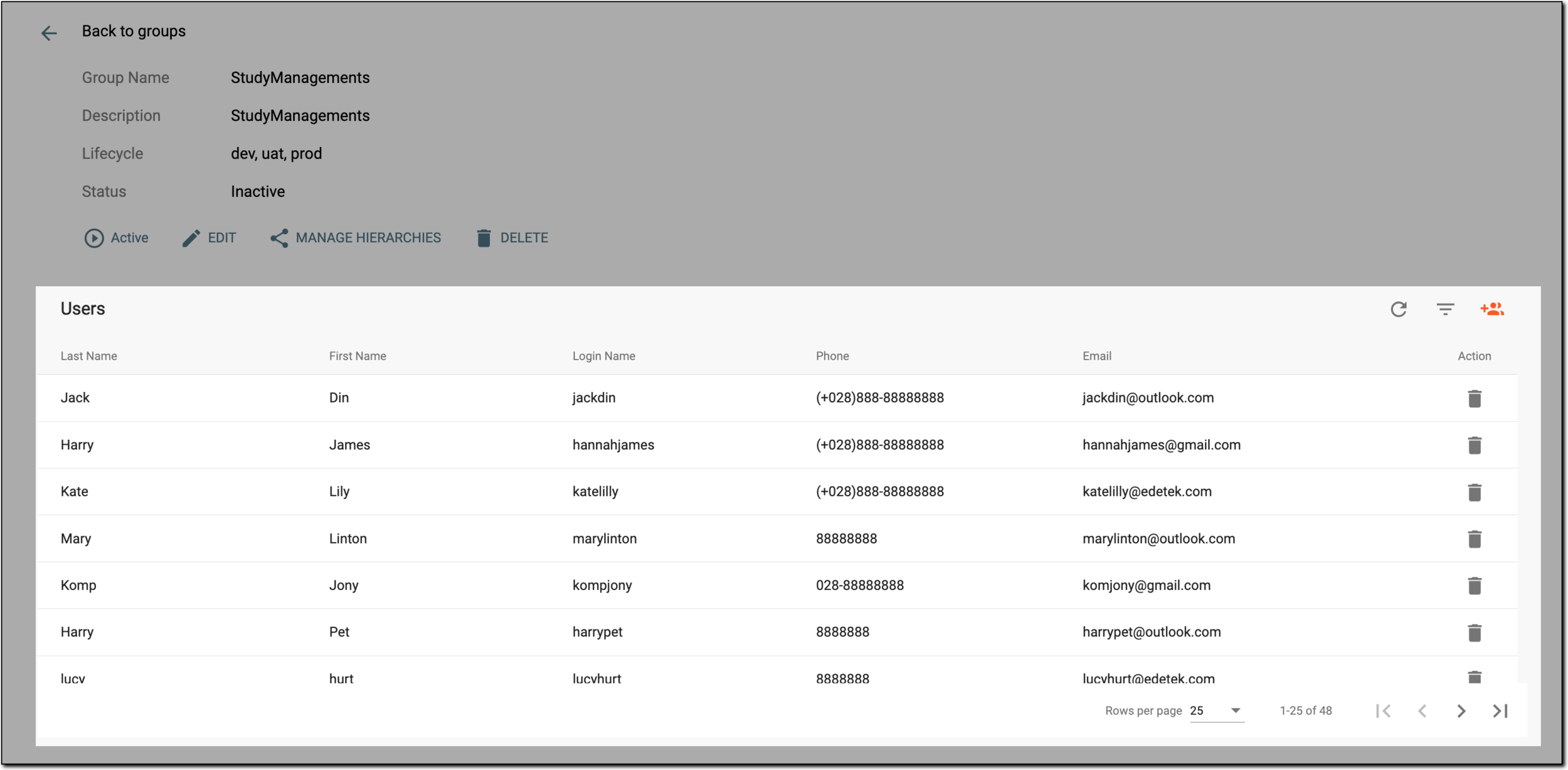 Figure 9. Checking user details
Tip
Learn more on how to add and remove users within the group in the Add user to user group and Delete user from user group sections.
Element
Details
Last Name
Represents the last name of the user.
First Name
Represents the first name of the user.
Login Name
Represents the name with which the user logs in to the eClinical system.
Phone
Represents the contact phone number of the user.
Email
Represents the contact email address of the user that is also intended for all the system notifications in eClinical.
-

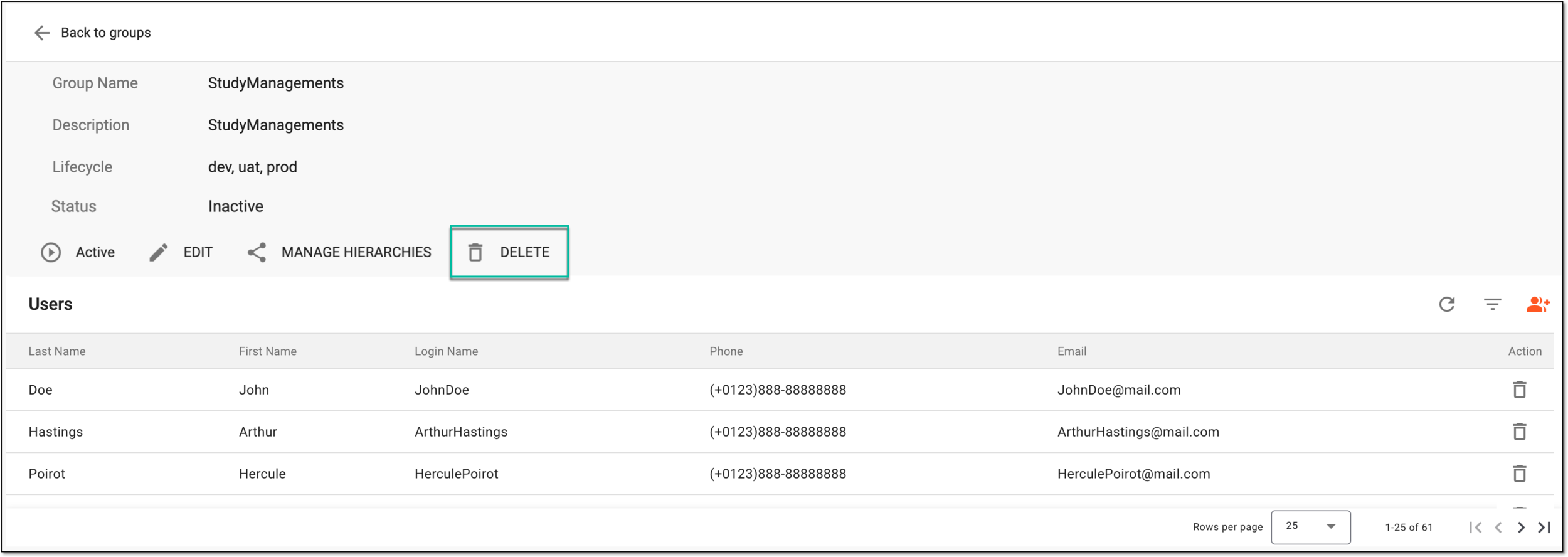
You have managed the user group details, status, and list of users.