Delete user group
In the ADMIN app, you can delete a user group that is no longer required, for instance, if the scope of activities and responsibilities of the users within becomes irrelevant for the study, and you need to cancel the site and depot access permissions of the entire group.
Important
You can only delete the user group that has been inactivated. You cannot delete the active user group.
-
In the ADMIN application header, select the USER GROUPS tab.
-
On the Groups page that appears, locate the inactive user group that you want to delete. Then next to the group, from the Actions column, select More
 > Delete
  .
.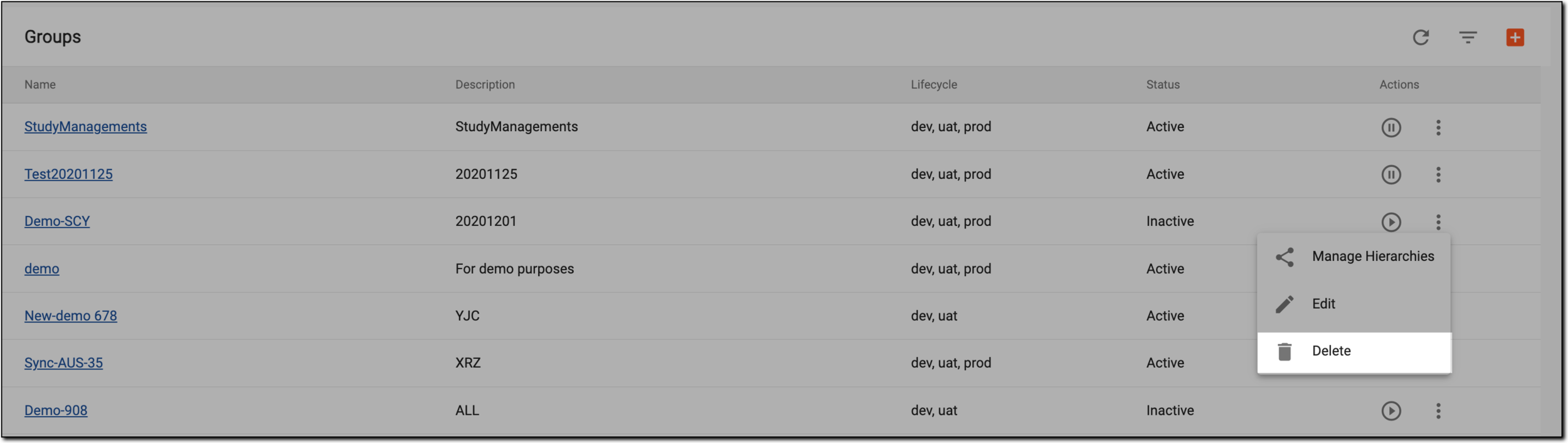 Figure 1. Deleting user group
-
In the confirmation dialog that appears, select
 to proceed with the deletion.
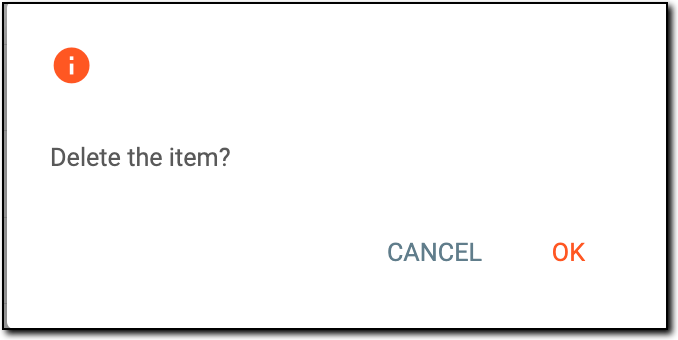 Figure 2. Confirming user group deletion
Once confirmed, the user group is deleted, and the users who were within the group no longer have site and depot access permissions associated with it.