Edit user group details
In the ADMIN app, you can create a new user group whenever you need to unite certain users with similar responsibilities, activities, and purposes to conveniently manage their access rights to selected sites and depots. You can also edit the existing user group if, at some point, you need to update its details to suit your changing business needs.
-
In the ADMIN application header, select the USER GROUPS tab.
-
On the Groups page that appears, locate the user group whose details you want to edit. Then, based on the activation status of the user group, access the editing option as follows:
-
For an active user group, from the Actions column next to it, select Edit
 .
. -
For an inactive user group, from the Actions column next to it, select More
 >
Edit .
>
Edit .
 Figure 1. Selecting option to edit user group
-
-
In the Edit Group dialog that appears, you can make the necessary changes. The fields here are identical to those explained in the table of the Add new user group section.
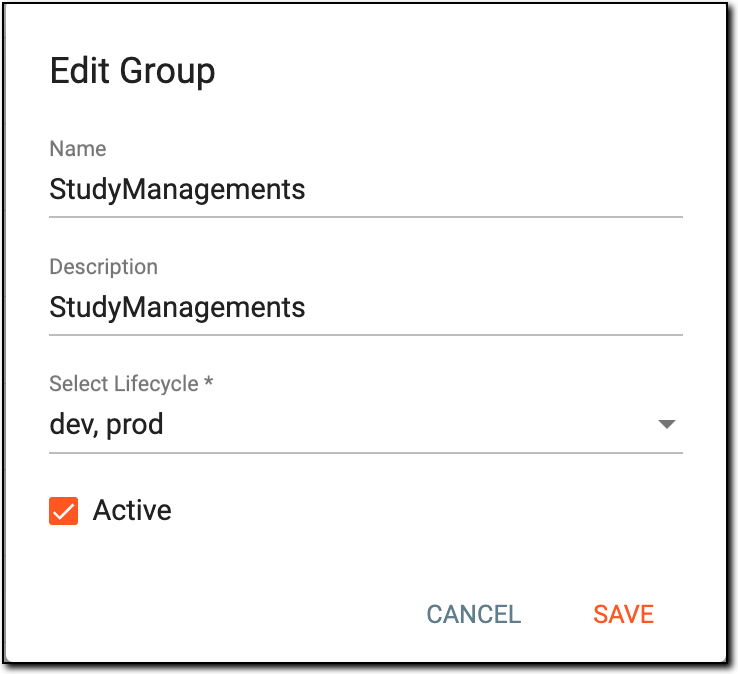 Figure 2. Editing user group details
-
Select
 to implement the changes.
Once saved, the user group details are updated.