Add new user group
In the ADMIN app, you can create a new user group whenever you need to unite certain users with similar responsibilities, activities, and purposes to conveniently manage their access rights to selected sites and depots.
For instance, you can create User Group A to which you add clinical research associates (CRA) who only manage Site A and Depot A, and User Group B to add CRAs who manage Site B and Depot B.
-
In the ADMIN application header, select the USER GROUPS tab.
-
On the Groups page that appears, from the workspace toolbar, select New item
 .
. Figure 1. Accessing option to add new user group
-
In the New Group dialog that appears, fill in the fields as explained in the following table.
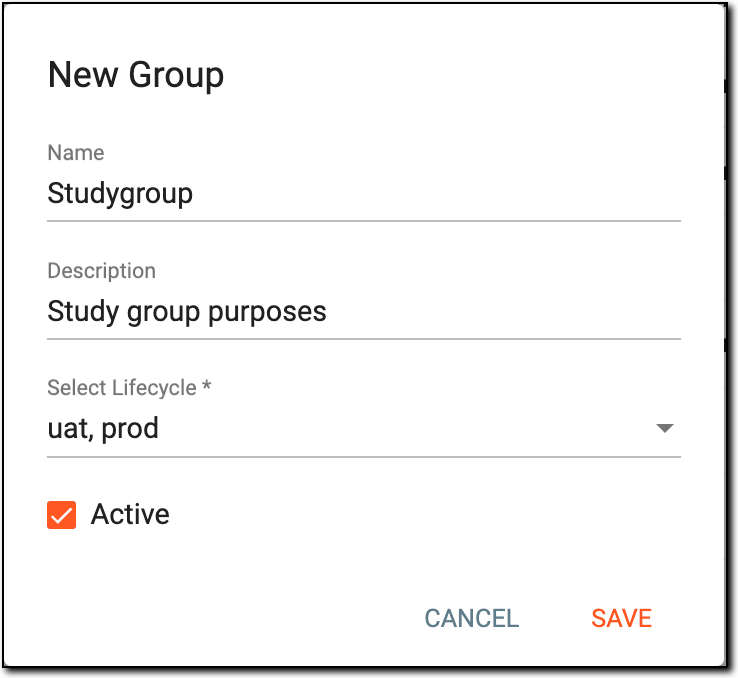 Figure 2. Specifying new user group details
Element
Details
Name
Enter the name of the user group.
Description
Enter information on the user group to depict its general purpose or distinguish it from others.
Select Lifecycle*
Select whether the user group can be accessed in dev (development), uat (testing), prod (production), or all lifecycles.
Active
Set as follows:
-
Select the checkbox to make the user group active upon creation and allow the users added to the group to access the respective site and depot data in the eClinical system.
-
Clear the checkbox to make the user group inactive upon creation and prevent the users added to the group to access the respective site and depot data in the eClinical system until activated.
You can activate or inactivate the user group whenever needed while working with eClinical.SAVE
Select
 to implement the changes.
CANCEL
Select
 to discard the changes without saving, close the dialog, and return to the Group
page.
to discard the changes without saving, close the dialog, and return to the Group
page. -
Once saved, the new user group is created. You can now configure the user group's access to certain sites or depots and then start adding users to the group.