Delete user from user group
In the ADMIN app, you can create user groups whenever you need to unite certain users with similar responsibilities, activities, and purposes to conveniently provide them with access rights to managing and reviewing the data and processes related to selected sites and depots. At any time, you can remove users from the group to retrieve their respective accesses.
-
In the ADMIN application header, select the USER GROUPS tab.
-
On the Groups page that appears, from the Name column, select the user group name.
 Figure 1. Selecting user group name to access details
-
On the user group details page that opens, in the Groups table, locate the user you want to delete from the group. Then next to the user, from the Action column, select Delete
 .
.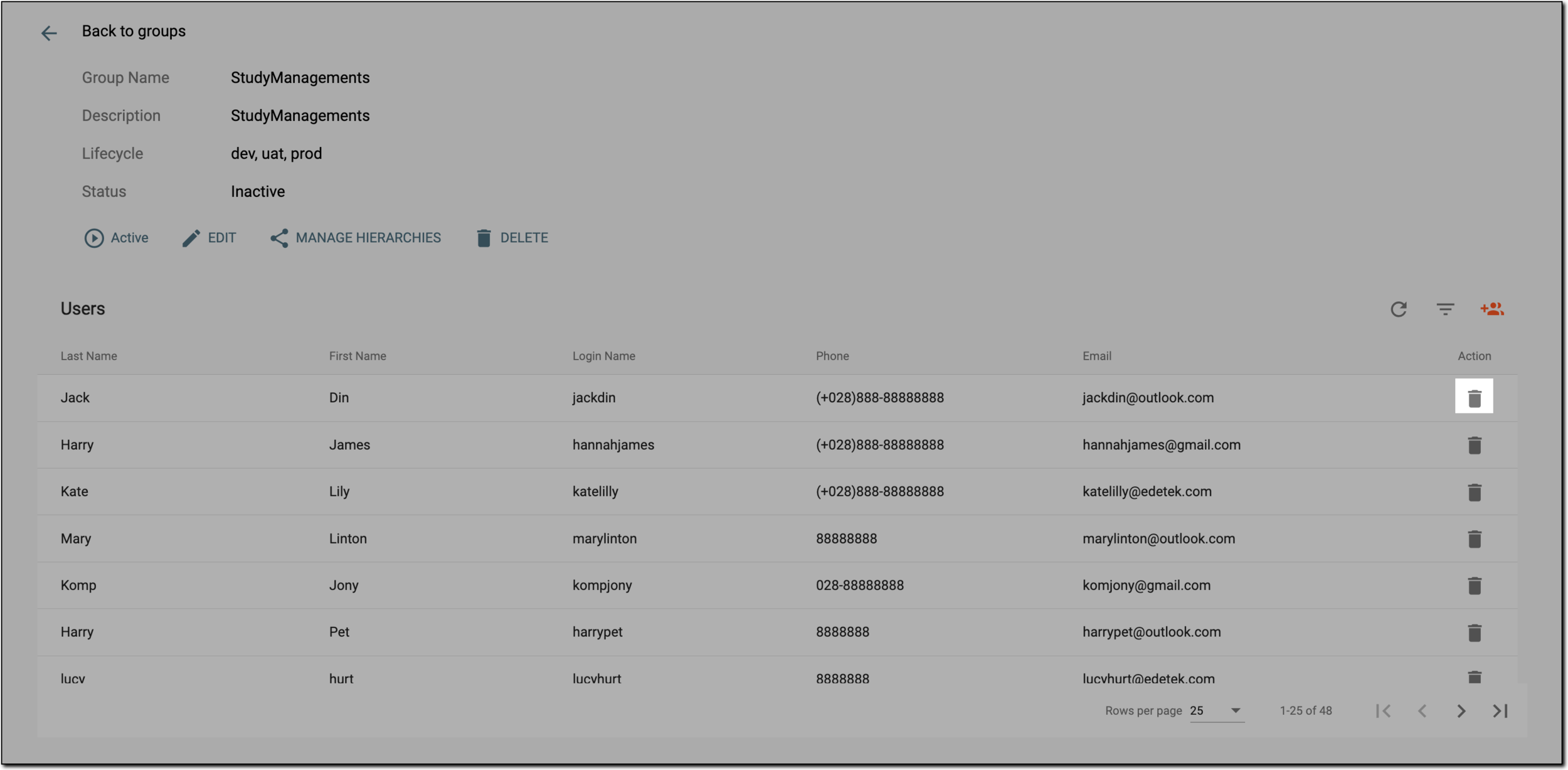 Figure 2. Deleting user from user group
-
In the confirmation dialog that appears, select
 to proceed with deletion.
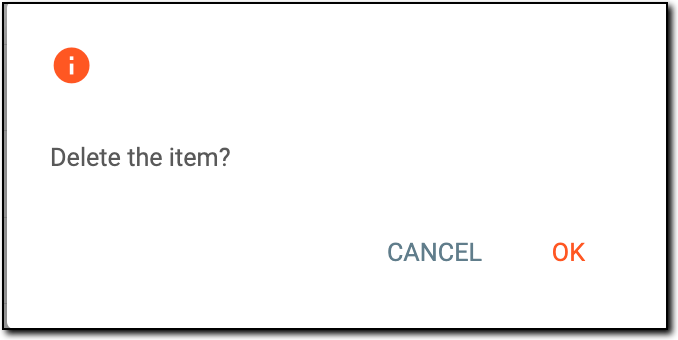 Figure 3. Confirming user deletion
Once confirmed, the user is deleted from the user group and no longer has access to the instances permitted within this group.