Review medical data for ICSR
The Medical Review page provides you with overall ICSR information that requires your attention conveniently compiled in one place. With the available functionality, the medical reviewer can conveniently assess data from the Case Narrative, Case Assessment, and Event Assessment blocks.
-
In the PV application header, select the ICSR tab.
-
On the ICSR List page that opens, in the table, locate the ICSR record for which you want to review medical data. Then select its case number to open the details page in the new browser tab.
Alternatively, from the Actions column next to your ICSR, select Edit
 to open the
ICSR details in the same browser tab.
to open the
ICSR details in the same browser tab. Figure 1. Selecting to edit ICSR
-
On the ICSR form page that opens, from the toolbar, select Medical Review
 .
. Figure 2. Accessing medical review
-
On the page that opens, under the Medical Review tab, view and manage the data as explained in the following table.
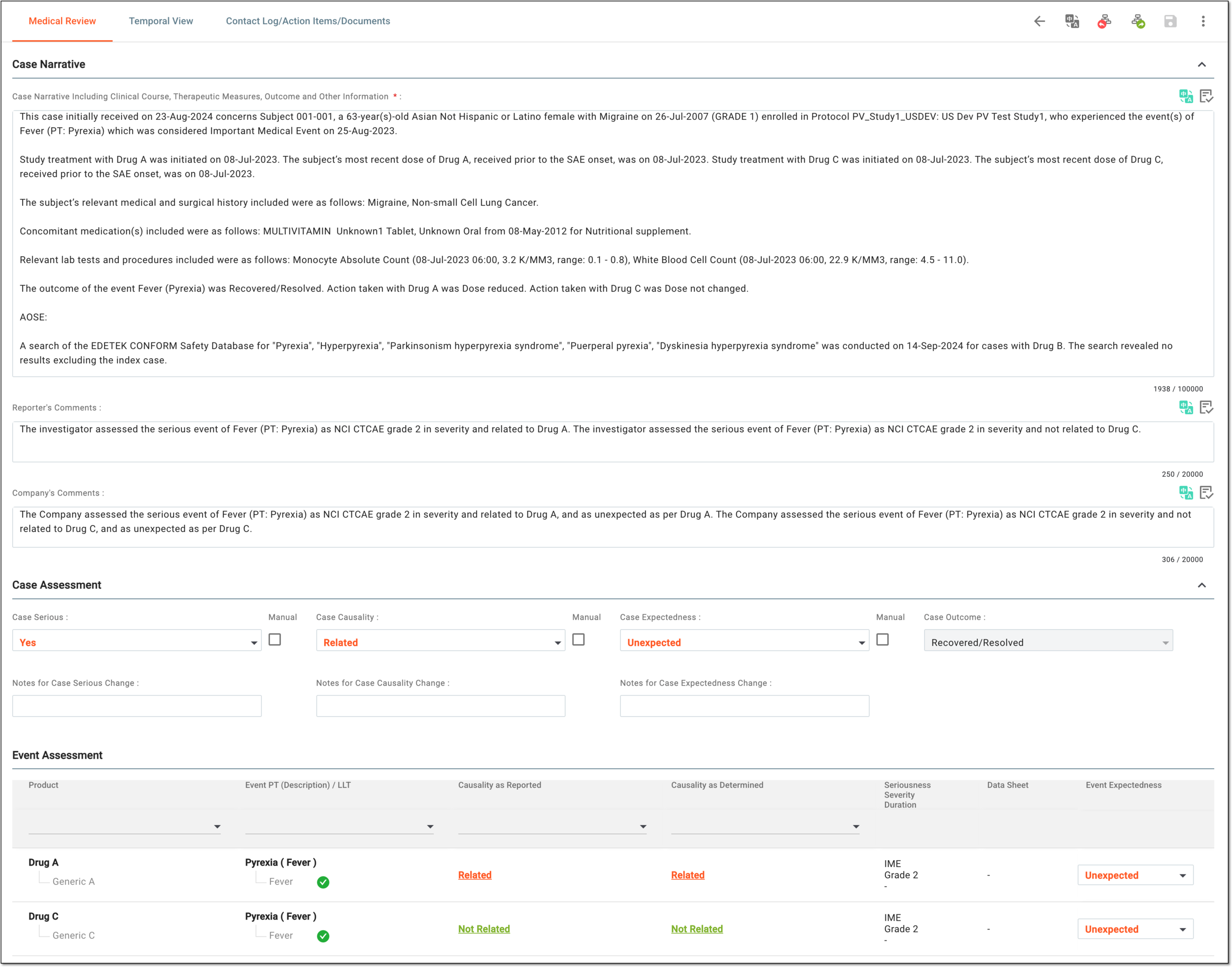 Figure 3. Reviewing medical data
Element
Details
Case Narrative
The data is pulled from the Narrative form of your ICSR.
Select
 or
or  next to the block title to collapse or expand the block contents for a convenient form view.
Case Narrative Including Clinical Course, Therapeutic Measures, Outcome and Other Information*
Represents details of the clinical course, therapeutic measures, treatment outcomes, and other important information related to the patient who has experienced the reported adverse reaction or event.
You can edit this field manually or by using translation or autogeneration features.
Once saved, the changes are synchronized to the respective field of the Narrative form of the ICSR.
Reporter's Comments
Represents the event-related comments provided by the reporter including diagnosis information and causality assessment.
You can edit this field manually or by using translation or autogeneration features.
Once saved, the changes are synchronized to the respective field of the Narrative form of the ICSR.
Company's Comments
Represents the company's assessment of the case including expectedness and causality based on the case information, narrative, and reporter's comments
You can edit this field manually or by using translation or autogeneration features.
Once saved, the changes are synchronized to the respective field of the Narrative form of the ICSR.
Translation
Select
 to add the field translation.
This option is unavailable if the translation view is enabled.Generate Narrative
Select
 to autogenerate the narrative and AOSE details.
Case Assessment
The data is pulled from the General form of your ICSR.
Select
or next to the block title to collapse or expand the block contents for a convenient form view.Case Serious
Select Yes or No to state the case seriousness according to criteria defined by regulatory authorities and international guidelines.
The value in this field is set to Yes automatically if at least one event is recorded as serious in the Event form. If none of the events is recorded as serious, then the value in this field is set to No automatically.
You can edit this field as needed. Once saved, the changes are synchronized to the respective field of the General form of your ICSR.
To change the value manually disregarding the preconfigured system logic of case seriousness calculation, select the Manual checkbox.Notes for Case Serious Change
Enter the reason or additional information to explain why the case seriousness is changed.
Case Causality
Select either Related or Not Related causality for the manually created ICSR.
The value in this field is automatically calculated from the Causality as Reported and Causality as Determined fields' values according to the configured rules.
The auto-calculation rules can be configured according to customer requirements by the EDETEK administrator.You can edit this field as needed. Once saved, the changes are synchronized to the respective field of the General form of your ICSR.
To change the value manually disregarding the preconfigured system logic of case causality calculation, next to the field, select the Manual
                                  checkbox.
Notes for Case Causality Change
Enter the reason or additional information to explain why the case causality is changed.
Case Expectedness
Select either Expected or Unexpected to state the expectedness of the case for the suspect product(s).
The value in this field is set to Unexpected automatically if at least one recorded event has been assessed as unexpected in the Assessment form.
To change the value manually disregarding the preconfigured system logic of case expectedness calculation, next to the field, select the Manual
                                  checkbox.
Notes for Case Expectedness Change
Enter the reason or additional information to explain why the case expectedness is changed, if indeed.
Case Outcome
This field is read-only and populates based on the values of the Outcome of Reaction / Event at the Time of Last Observation field of the Events form.
The rules for the outcome auto-calculation can be adjusted according to customer requirements by the EDETEK administrator.You can find the currently configured rules in Appendix E. Case outcome rules.Manual
Select the Manual checkbox next to the field to change the field value manually disregarding the preconfigured system calculation logic. If the Manual checkbox is cleared, upon saving, the system recalculates the value according to the preconfigured rules.
For instance, you have changed the case seriousness value to No without selecting the Manual checkbox, and there is one event recorded as serious for your case. Thus, upon saving, the system recalculates the value to Yes.
Event Assessment
The data is pulled from the Assessment form of your ICSR.
Product
Represents the name of the product that is considered to be a suspect in the AE case.
The product trade name is displayed in the first line. If the trade name is empty, the product name is displayed.The product's generic name is displayed in the second line. If the generic name is empty, the product name is displayed.Select the value to go to the respective product record of the Product form in the ICSR.
Event PT (Description) / LLT
Represents the Preferred Term (PT), event verbatim term, and the Lowest Level Term (LLT) of the event.
Select the event name value to go to the respective event details page within the Event form of your ICSR.
If the event is coded, the green check icon appears next to it. Select the icon to view the MedDRA hierarchy.
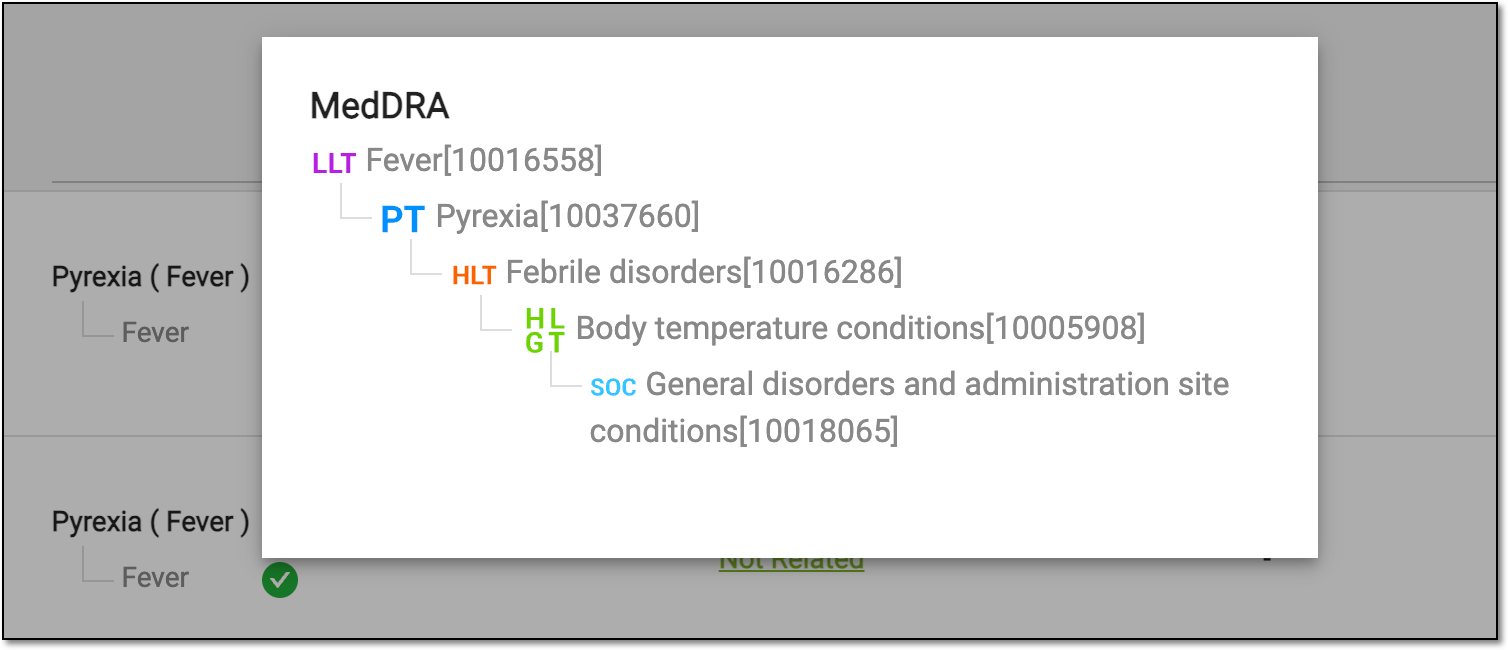 Figure 4. Viewing event MedDRA hierarchy
Causality as Reported
Represents the reported result of causality assessment automatically populated by the system based on the Causality Assessment block values of the Assessment form of your ICSR. The calculation follows the configured rules.
The autocalculation rules can be configured according to customer requirements by the EDETEK administrator. You can find the currently configured rules in Appendix B. Causality as reported rules.Select the value to open the Causality Assessment dialog and review, add, delete, or edit the causality details.
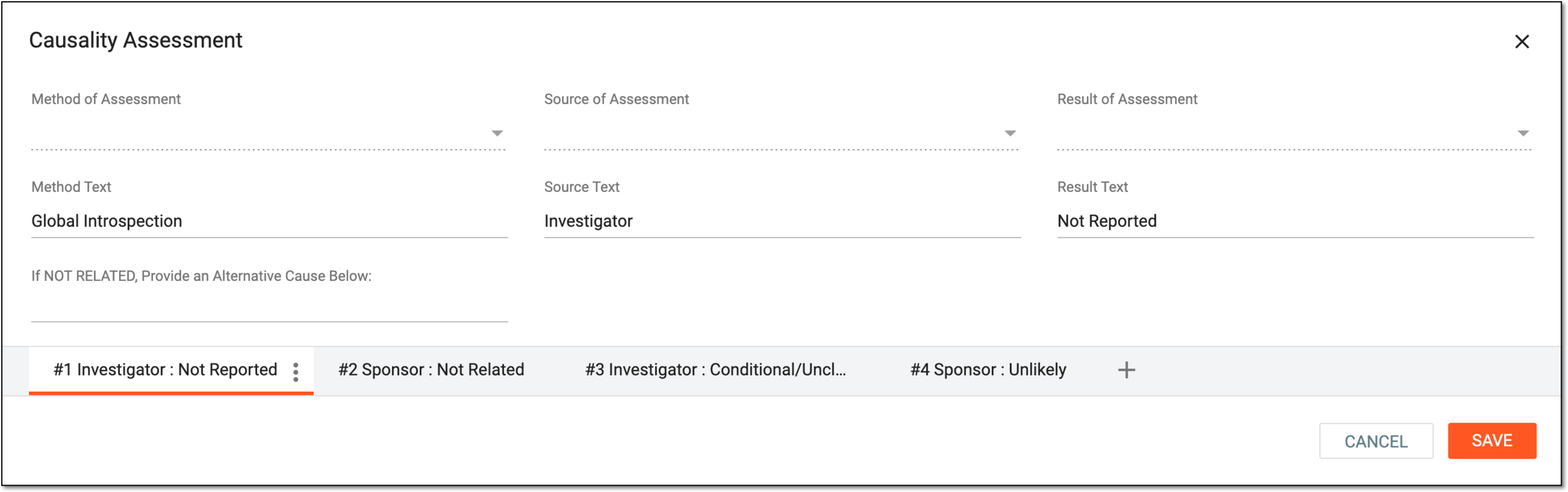 Figure 5. Viewing causality assessment details
The fields of this dialog are identical to the ones in the Causality Assessment block of the Assessment form.Causality as Determined
Represents the result of company causality automatically populated by the system based on the Causality Assessment block values of the Assessment form of your ICSR. The calculation follows the configured rules according to the configured rules.
The autocalculation rules can be configured according to customer requirements by the EDETEK administrator. You can find the currently configured rules in Appendix C. Causality as determined rules.Select the value to open the Causality Assessment dialog (same as for Causality as Reported) and review, add, or update the causality details.
Seriousness
Severity
Duration
Represents the seriousness, severity, and the duration of the event as follows:
-
For a serious event, the value reflects the seriousness criteria specified in the Event form, such as F for Results in Death, LT for Life Threatening, H for Caused / Prolonged Hospitalization, OTH for Other Medically Important Condition, DIS for Disabling / Incapacitatingand, CON for Congenital Anomaly / Birth Defect, IME for Important Medical Event, and so on. For a non-serious event, the Non-serious value is displayed.
-
The severity value is populated from the CTC AE Grades field of the Event form.
-
The duration value is based on the values from the Duration Number of Reaction / Event and Duration Unit of Reaction / Event fields of the Event form.
Data Sheet
Represents the data sheet associated with the product. This can be IB, SmPC, and so on. From the data sheet, the expectedness of the event is calculated.
Select the value to open the dialog and review the list of expected events (terms list) from the data sheet.
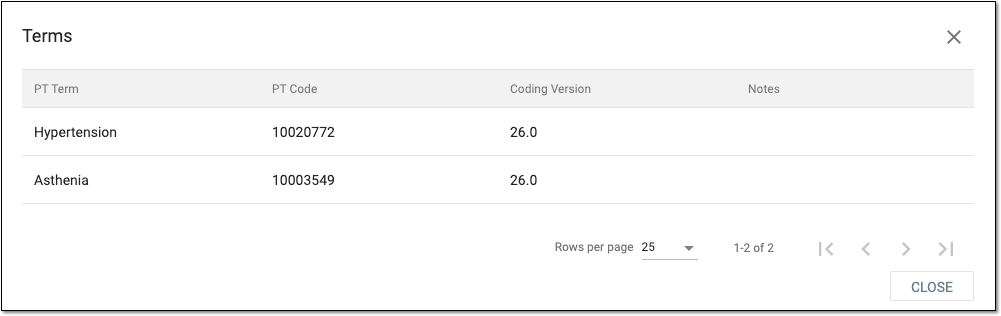 Figure 6. Viewing data sheet terms
In PV, you can configure data sheets for a specific product family. To learn more about the data sheet configuration, see the Configure product
                                  family section.
Event Expectedness
Indicates if the event is expected or not for the suspect product. The expectedness is calculated by the system automatically based on the associated data sheet, as follows:
-
Expected
 : this value in green is populated if the associated data sheet lists the occurred event as
expected for the product.
: this value in green is populated if the associated data sheet lists the occurred event as
expected for the product. -
Unexpected
 : this value in red is populated if the associated data sheet does not have the occurred
event in the list of expected for the product.
: this value in red is populated if the associated data sheet does not have the occurred
event in the list of expected for the product.
You can select the value manually here, but upon clicking Generate Record for the Assessment form, the
                                  system recalculates the value according to the preconfigured logic.
If you recode the product or event, you also need to select the Generate Record icon in the Assessment form manually to update the automatically calculated value.To enter an assessment for an AE, the product must be coded to the Company Drug Dictionary (CDD) via the Product functionality, so that the application can determine which data sheet to use for judgment, and the event must be coded to MedDRA.Workspace toolbar
Translation View
Select
 to review the translated version of the medical data. From the field that appears, select the target translation language.
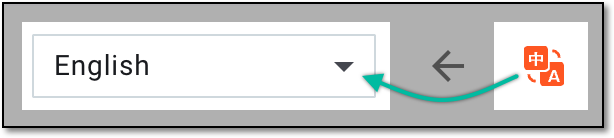 Figure 7. Selecting language of translation view
Currently, only English and Chinese translation languages are supported in PV.You can go back to the original language view by selecting Translation View .
.Return
Select
 to return the ICSR
workflow route.
to return the ICSR
workflow route.Forward
Select
 to forward the
ICSR workflow route.
to forward the
ICSR workflow route.CIOMS-I Export
Select More
 > CIOMS-I Export
  to export a draft CIOMS-1 report only to check the case assessments and entries easily following the CIOMS-1 template as we proceed with case processing and review. The exported file has the Draft watermark.
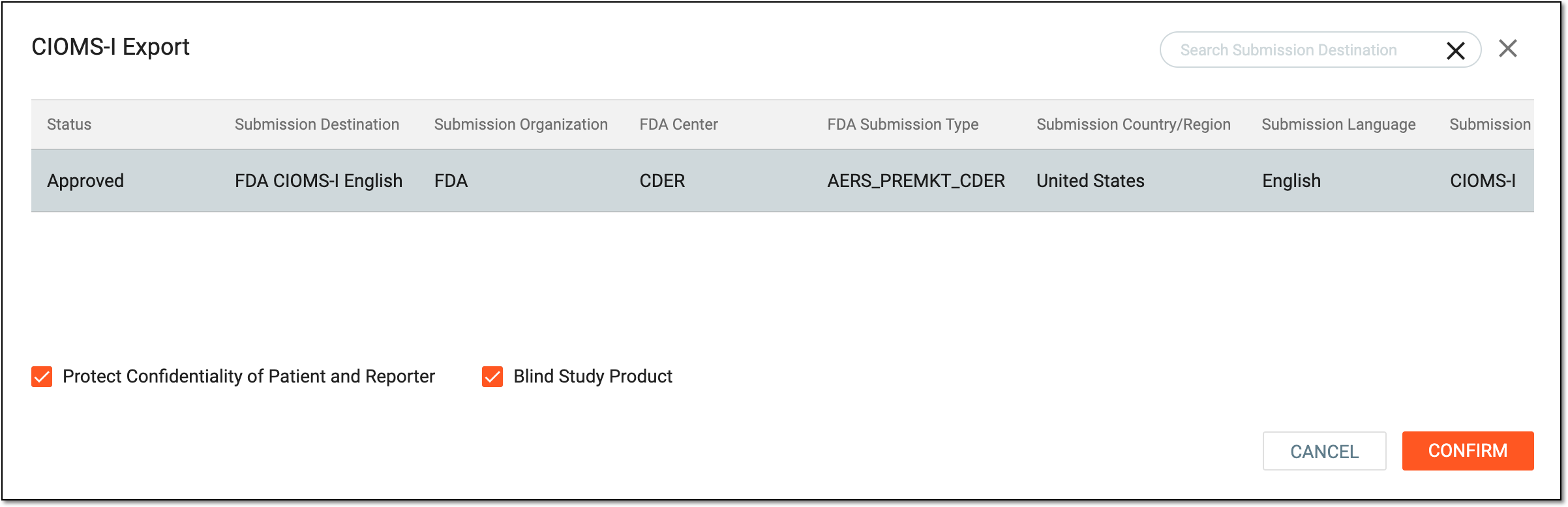 Figure 8. Exporting draft CIOMS-I report
Learn more about the CIOMS-I export functionality in the Export CIOMS-I report section.MedWatch3500A Export
Select More
> MedWatch3500A Export to export a draft MedWatch 3500A report only to check the case assessments and entries easily following the MedWatch 3500A template as we proceed with case processing and review. The exported file has
the Draft watermark.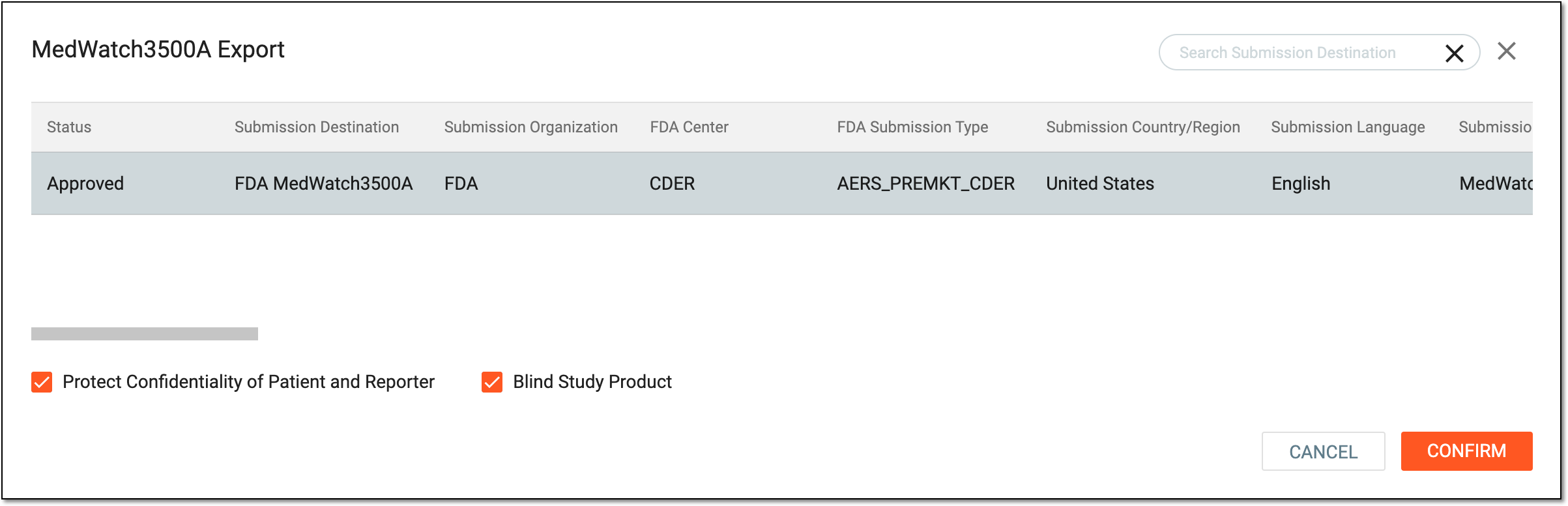 Figure 9. Exporting draft MedWatch 3500A report
Learn more about the MedWatch 3500A export functionality in the Export MedWatch 3500A report
                                  section.
SAVE
Select
 to save the implemented changes.
Back to List
Select
 to exit the medical review and return to the ICSR details page.
 -
Once saved, the data is updated and populated to the respective ICSR forms.