Review temporal summary of medical data
The Temporal View page provides a summary and event assessment in a timeline format. You can choose which data to include in the event assessment section according to your needs and preferences.
Important
All fields of the Temporal View page are read-only. Any necessary edits must be made in the respective case forms.
-
In the PV application header, select the ICSR tab.
-
On the ICSR List page that opens, in the table, locate the ICSR record for which you want to review medical data. Then select its case number to open the details page in the new browser tab.
Alternatively, from the Actions column next to your ICSR, select Edit
 to open the
ICSR details in the same browser tab.
to open the
ICSR details in the same browser tab. Figure 1. Selecting to edit ICSR
-
On the ICSR form page that opens, from the workspace toolbar, select Medical Review
 .
. Figure 2. Medical Review option
-
On the page that opens, select the Temporal View tab to view and manage the data as explained in the following table.
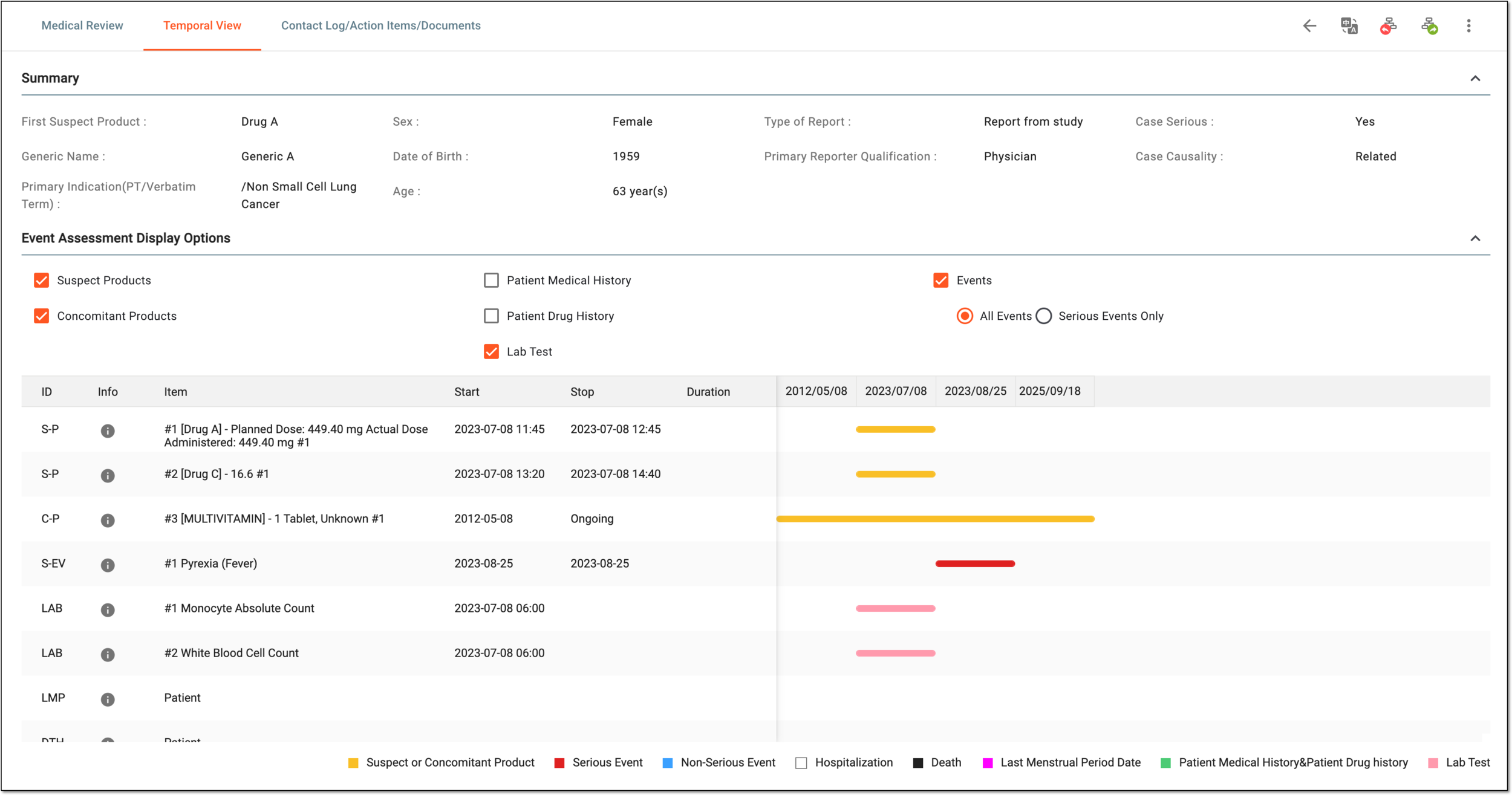 Figure 3. Reviewing temporal medical data
Element
Details
Summary
The data is pulled from various forms of your ICSR.
Select
 or
or  next to the block title to collapse or expand the block contents for a convenient form view.
First Suspect Product
Represents the first suspect product record.
Generic Name
Represents the official name of the active pharmaceutical ingredient of the first suspect product.
Primary Indication(PT/Verbatim Term)
Represents the first indication record for the first suspect product.
Sex
Represents the sex of the patient for whom the case is registered.
Date of Birth
Represents patients' date of birth for whom the case is registered.
Age
Represents the age of the patient for whom the case is registered.
Type of Report
Represents the type of the ICSR, which can be Report from study, Spontaneous report, and so on.
Primary Reporter Qualification
Represents the record of the reporter who is the primary source for regulatory purposes.
Case Serious
Represents if the case is serious.
The rule is that if at least one event reported for the case is serious, the case is considered serious.Case Causality
Represents the case-level causality.
Event Assessment Display Options
Select
or next to the block title to collapse or expand the selectable options and only view the timeline table.Suspect Products
Select or clear this checkbox to show or hide the suspected product in the timeline table.
Concomitant Products
Select or clear this checkbox to show or hide the concomitant product in the timeline table.
Patient Medical History
Select or clear this checkbox to show or hide the patient medical history in the timeline table.
Patient Drug History
Select or clear this checkbox to show or hide the patient drug history in the timeline table.
Lab Test
Select or clear this checkbox to show or hide the laboratory tests in the timeline table.
Events
Select or clear this checkbox to show or hide the events in the timeline table.
If selected, you can also chose what events statistics you want to review:
-
All Events: select this option to show the data for all the events reported for the case.
-
Serious Events Only: select this option to show the data for only the serious events reported for the case.
ID
Represents the ID of the selected entity.
Info
Select View
 to open the details for the selected entity (product, event, and so on).
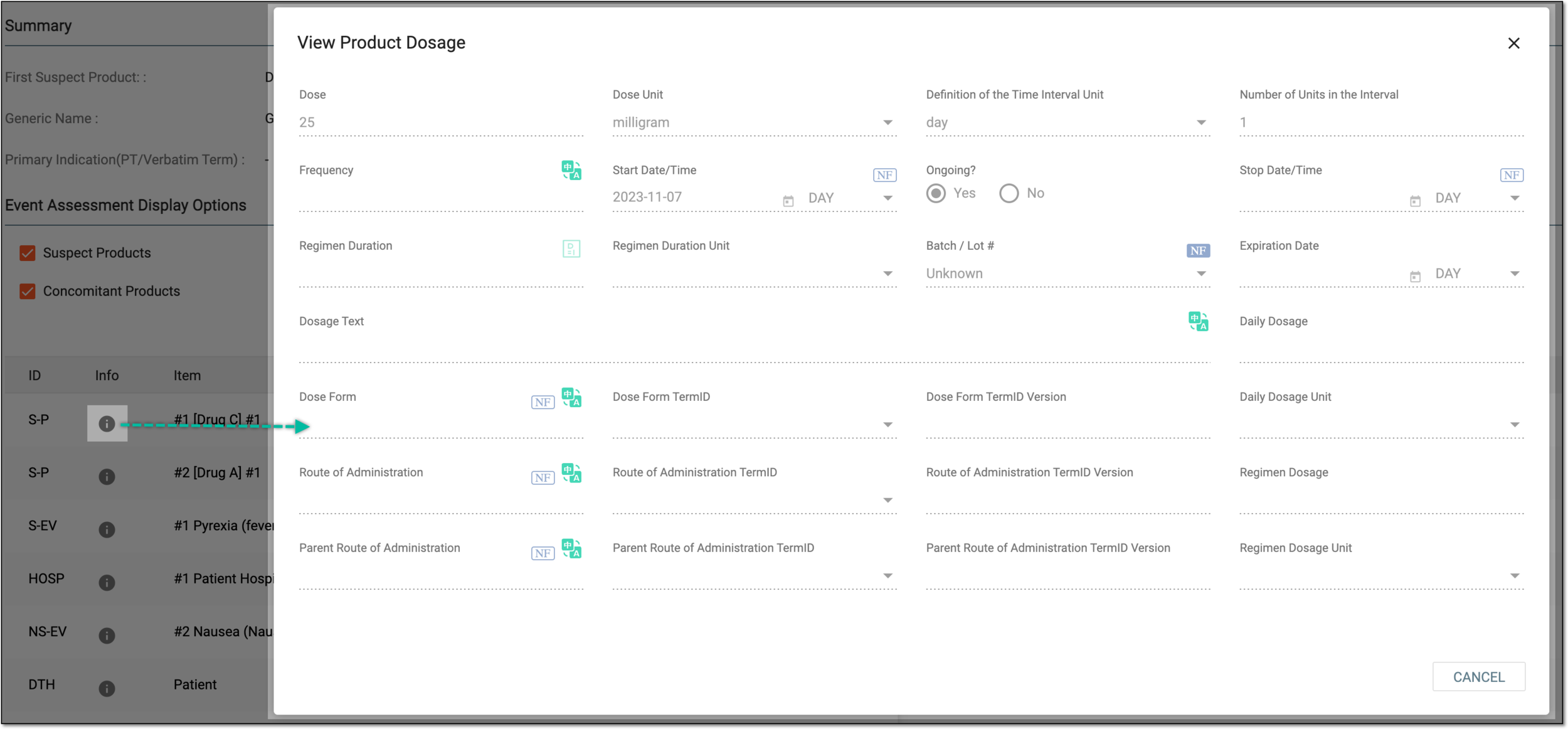 Figure 4. Viewing details for event
Item
Represents the selected entity (product, event, and so on).
Start
Represents the date of the timeline start for the selected entity.
Stop
Represents the date of the timeline end for the selected entity.
Duration
Represents the duration of the selected entity timeline.
Workspace toolbar
Translation View
Select
 to review the translated version of the temporal medical data. From the field that appears, select the target translation
language.
to review the translated version of the temporal medical data. From the field that appears, select the target translation
language. Figure 5. Selecting language of translation view
Currently, only English and Chinese translation languages are supported in PV.You can go back to the original language view by selecting Translation View .
.Return
Select
 to return the ICSR
workflow route.
to return the ICSR
workflow route.Forward
Select
 to forward the
ICSR workflow route.
to forward the
ICSR workflow route.CIOMS-I Export
Select More
 > CIOMS-I Export
  to export a draft CIOMS-1 report only to check the case assessments and entries easily following the CIOMS-1 template as we proceed with case processing and review. The exported file has the Draft watermark.
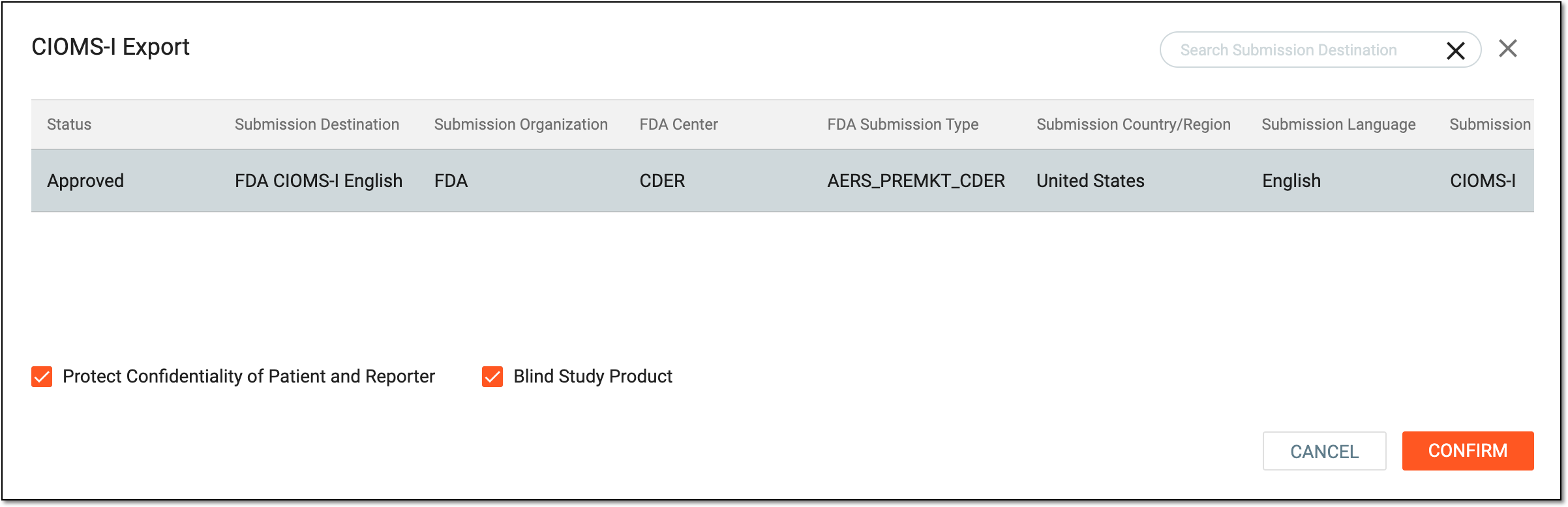 Figure 6. Exporting draft CIOMS-I report
Learn more about the CIOMS-I export functionality in the Export CIOMS-I report section.MedWatch3500A Export
Select More
> MedWatch3500A Export to export a draft MedWatch 3500A report only to check the case assessments and entries easily following the MedWatch 3500A template as we proceed with case processing and review. The exported file has
the Draft watermark.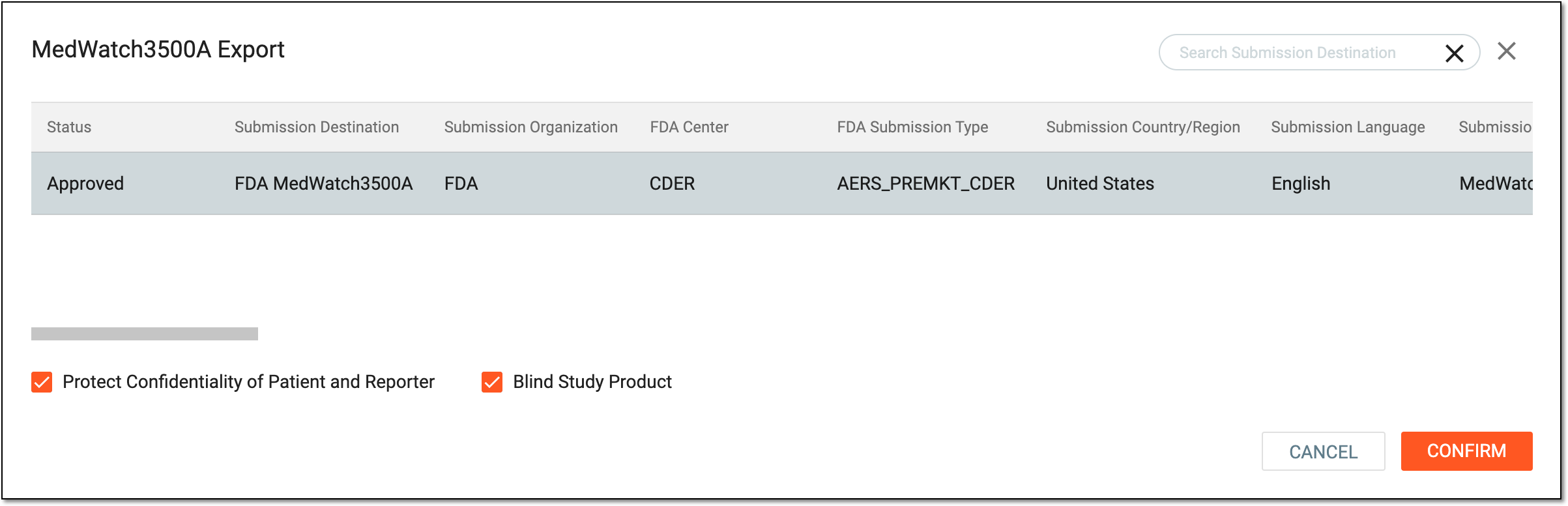 Figure 7. Exporting draft MedWatch 3500A report
Learn more about the MedWatch 3500A export functionality in the Export MedWatch 3500A report
                                  section.
Back to List
Select
 to exit the medical review and return to the ICSR details page.
 -
You have reviewed the temporal medical summary for your ICSR.