Export CIOMS-I report
CIOMS-I is an international standard reporting form of adverse drug reactions developed by the CIOMS working group in 1987. The CIOMS-I reporting form is widely used by many regulators around the world for non-electronic submissions. Typically, regulatory submissions are either E2B electronic, CIOMS-1, MedWatch 3500A, or other non-electronic forms of submission. Electronic and non-electronic forms of submission are not related.
With this functionality, you can export only a draft CIOMS-1 report to be able to check the case assessments and entries easily following the CIOMS-1 template as we proceed with case processing and review. The exported file has the Draft watermark.
Tip
If you need the final version of the CIOMS-1 report with no draft watermarks, it can be exported once the submission record is generated.
The report contains all the needed details as per CIOMS requirements, such as reaction information, suspect drug information (including the two primary suspect products), concomitant medication and history, and primary reporter (manufacturer) details. The additional information section of the report includes a description of the reaction as per narrative details of your ICSR, more details on the concomitant drugs and medical history, and additional reporters.
-
In the PV application header, select the ICSR tab.
-
From the left pane, select ICSR List.
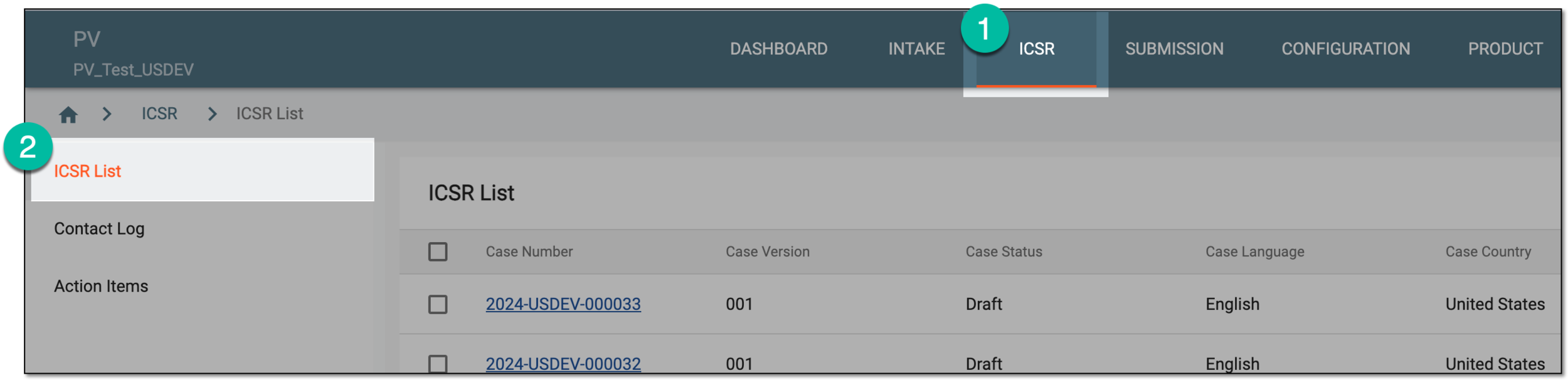 Figure 1. Accessing ICSR list
-
On the ICSR List page that appears, next to the needed ICSR case, select More
 > CIOMS-I Export
  .
.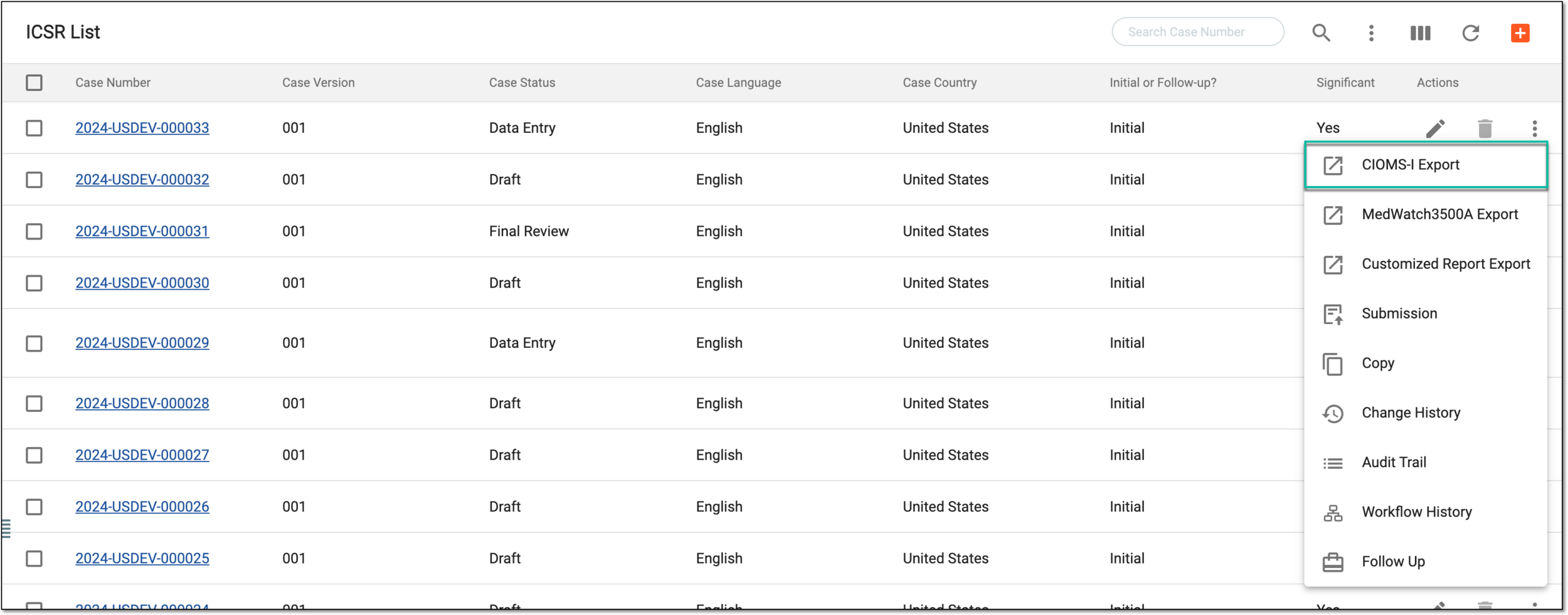 Figure 2. Exporting CIOMS-I from ICSR list
Alternatively, from the ICSR List table, select the needed case number. On the ICSR details page that opens in the new browser tab, from the toolbar, select More
> CIOMS-I Export .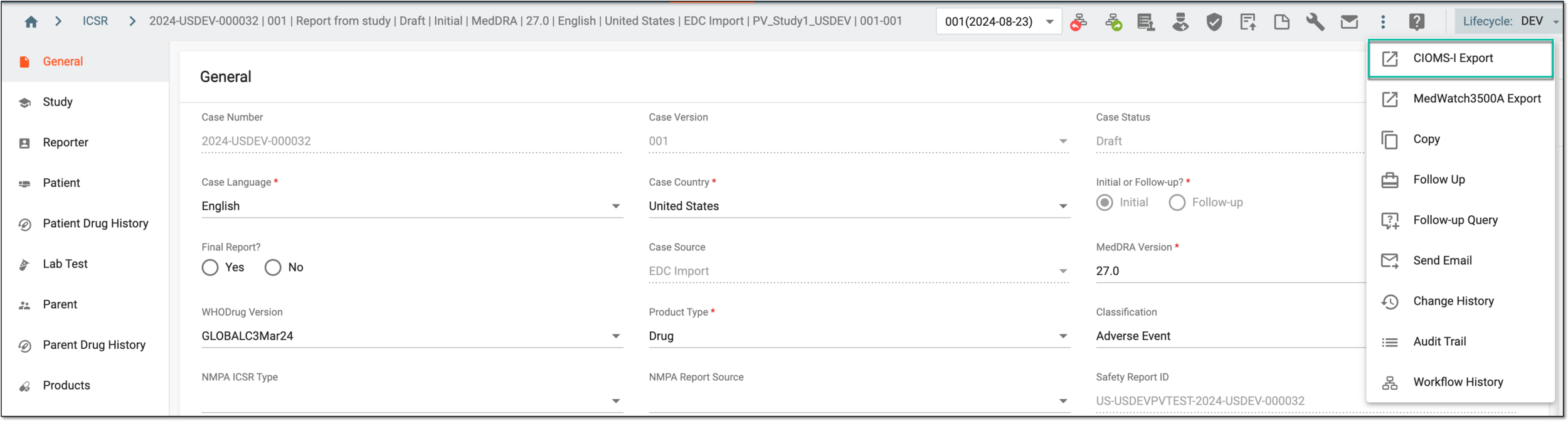 Figure 3. Exporting CIOMS-I from ICSR details
-
In the CIOMS-I Export dialog that appears, from the table, select the CIOMS-I submission method template based on which the report is to be generated. If there are multiple records, use the Search Submission Destination filter to facilitate your search.
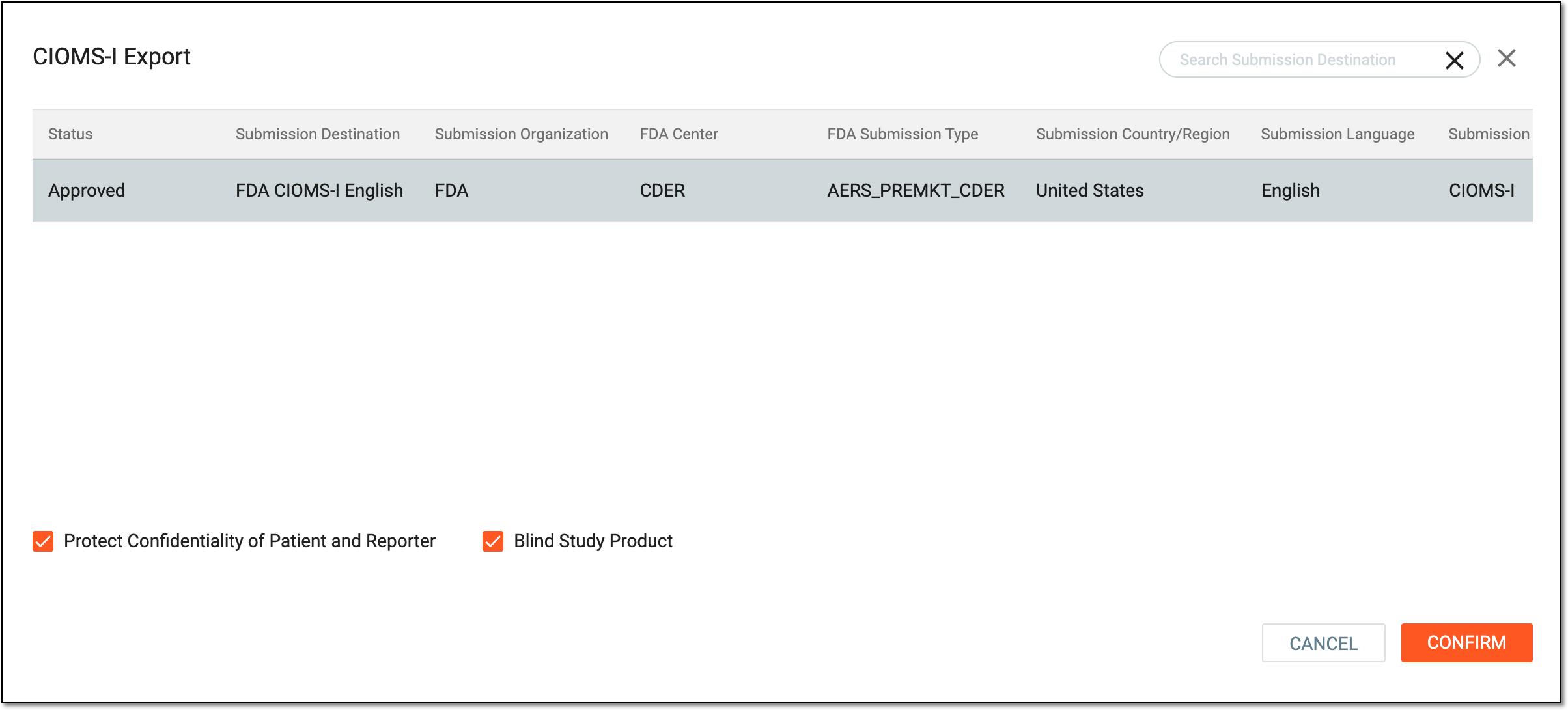 Figure 4. Selecting CIOMS-I report to export
Important
Select the Protect Confidentiality of Patient and Reporter checkbox to hide sensitive patient and reporter data in the exported report.
Select the Blind Study Product checkbox to blind information about the study product in the exported report.
-
Select
 .
.
Upon confirmation, the CIOMS-I report opens in a new browser tab. You can now download it to your computer.