Create template for line listing report export
You can create new public and private templates to use for the line listing report export. Such templates can be either updated or deleted if needed.
-
In the PV application header, select the ICSR tab.
-
From the left pane, select ICSR List.
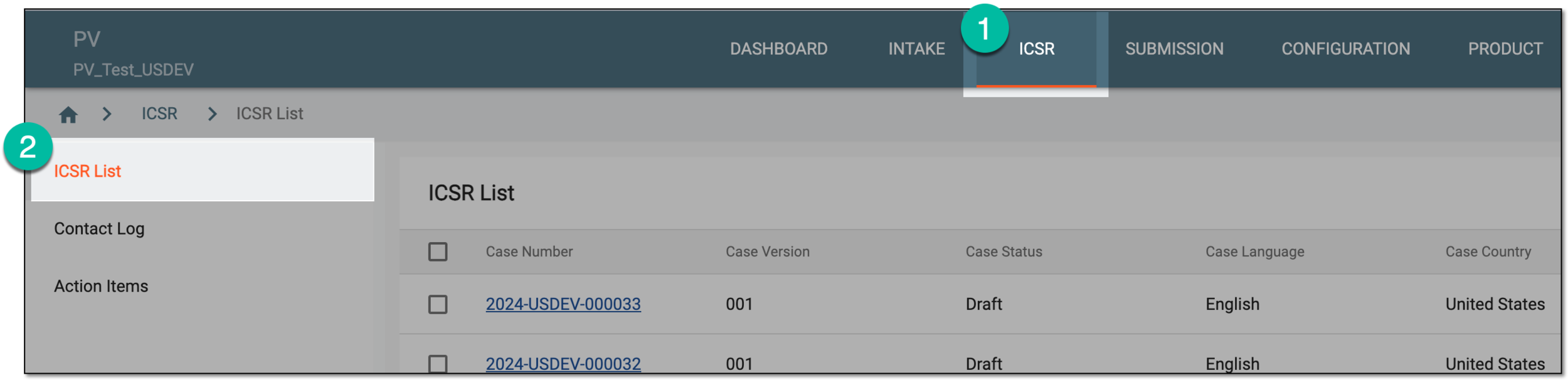 Figure 1. Accessing ICSR list
-
On the ICSR List page that appears, from the toolbar, select More
 > Line Listing Export
  .
. Figure 2. Exporting line listing
-
In the Line Listing Export dialog that appears, depending on the template type you want to create, select New
 above the Public Template or My Template table.
Tip
Public templates are created by authorized users and shared between departments while private templates are available only to the currently logged-in user. The process of configuration of private templates is the same as that of public ones.
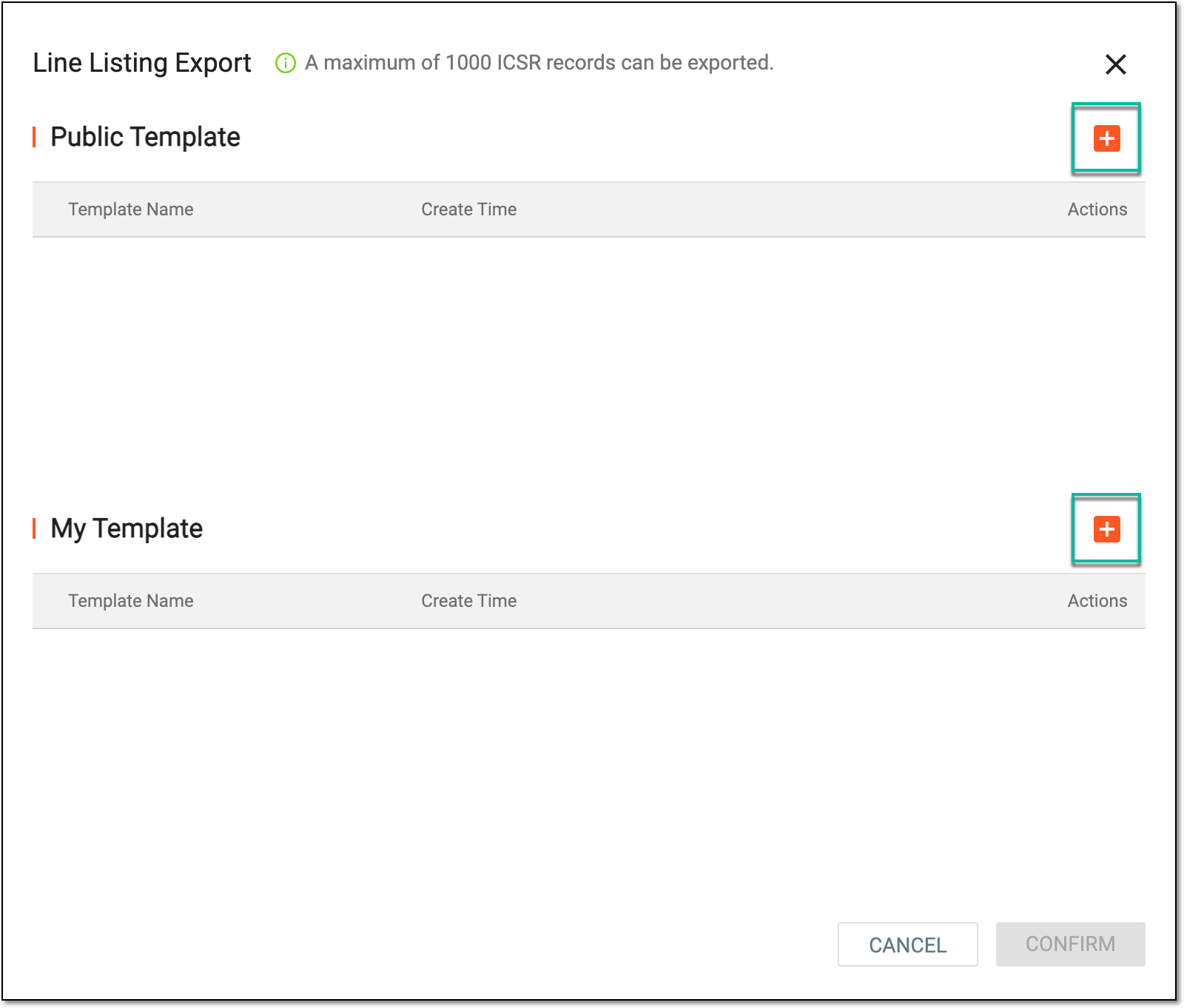 Figure 3. Adding new template
-
At the first stage of template creation, select the checkboxes next to the ICSR forms for which you want to export data according to this template. Then select
 .
.Important
Note that the following forms are preselected and cannot be cleared: General, Patient, Product, Event, and Assessment.
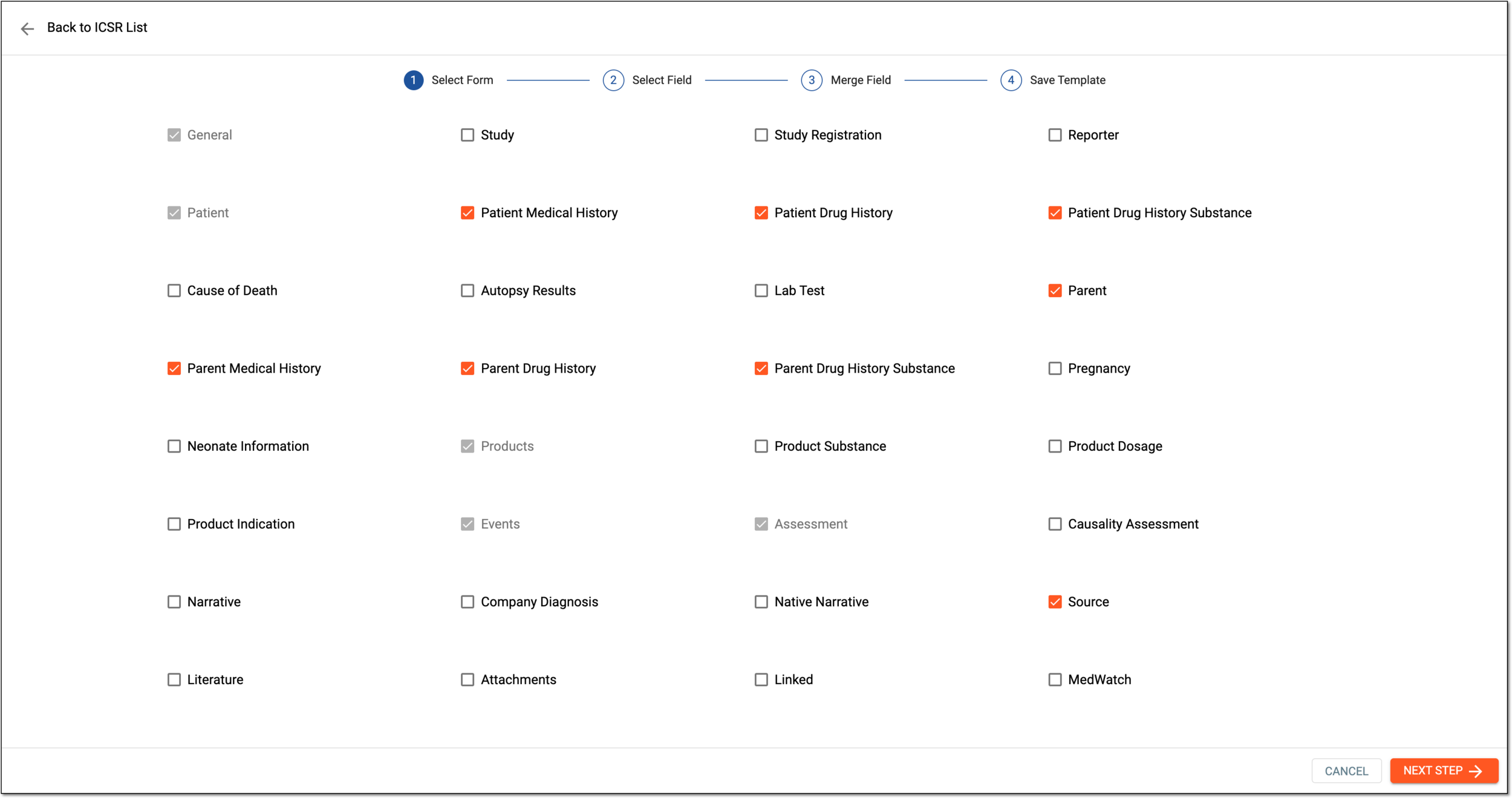 Figure 4. Selecting forms
-
At the second stage of template creation, select the necessary fields that are to be displayed in the line listing report as columns. To select the fields, drag them from the left bar to the right one in the corresponding sections. Then select
.Tip
For your convenience, you can go to the necessary forms in the left bar by switching between the top bar chips.
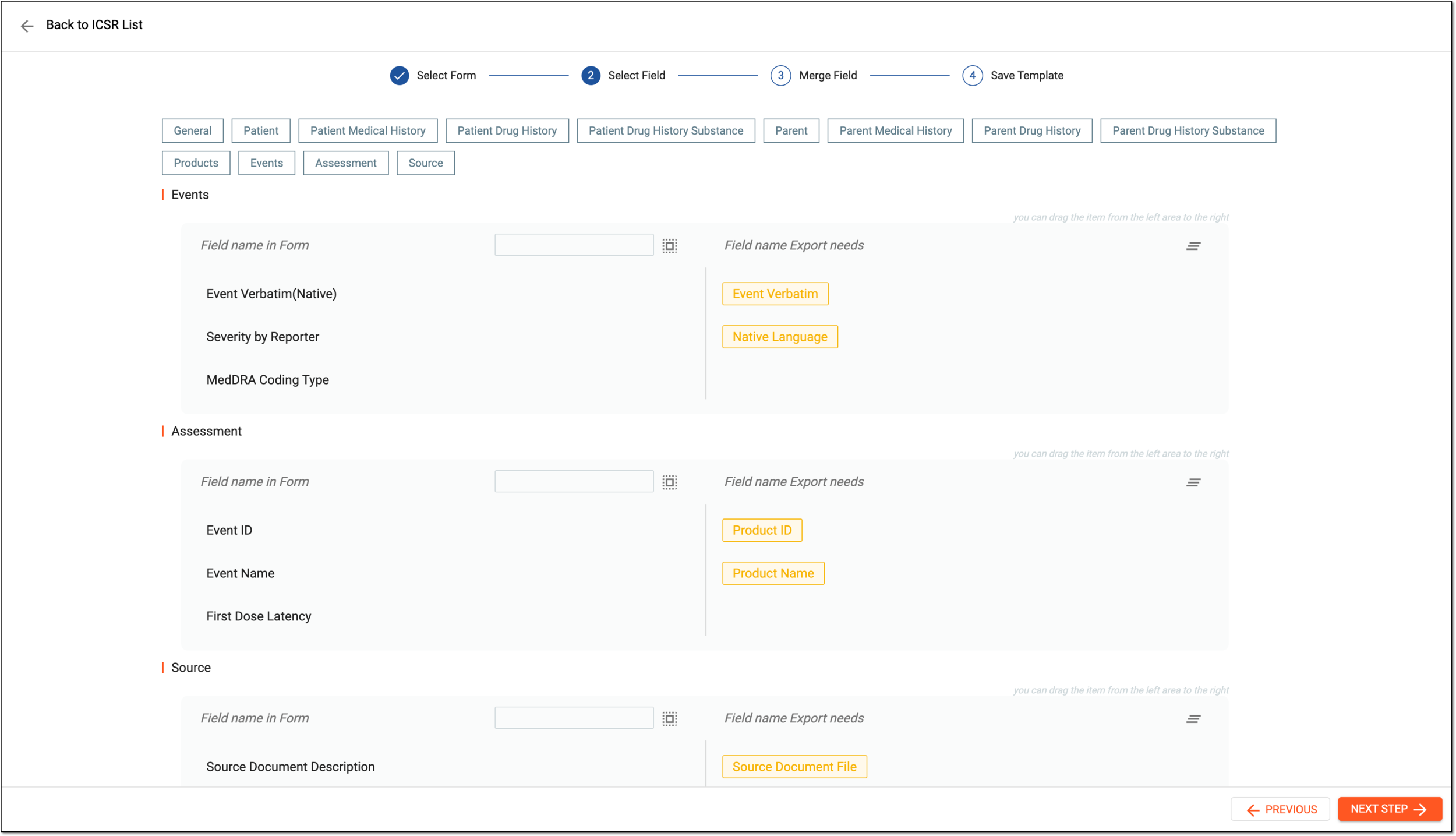 Figure 5. Selecting fields
-
At the third stage of template creation, you can merge previously selected fields into columns if needed. Drag the necessary fields from the left bar to the right one, and then select Merge
 .
.Important
You can only merge fields that belong to the same form.
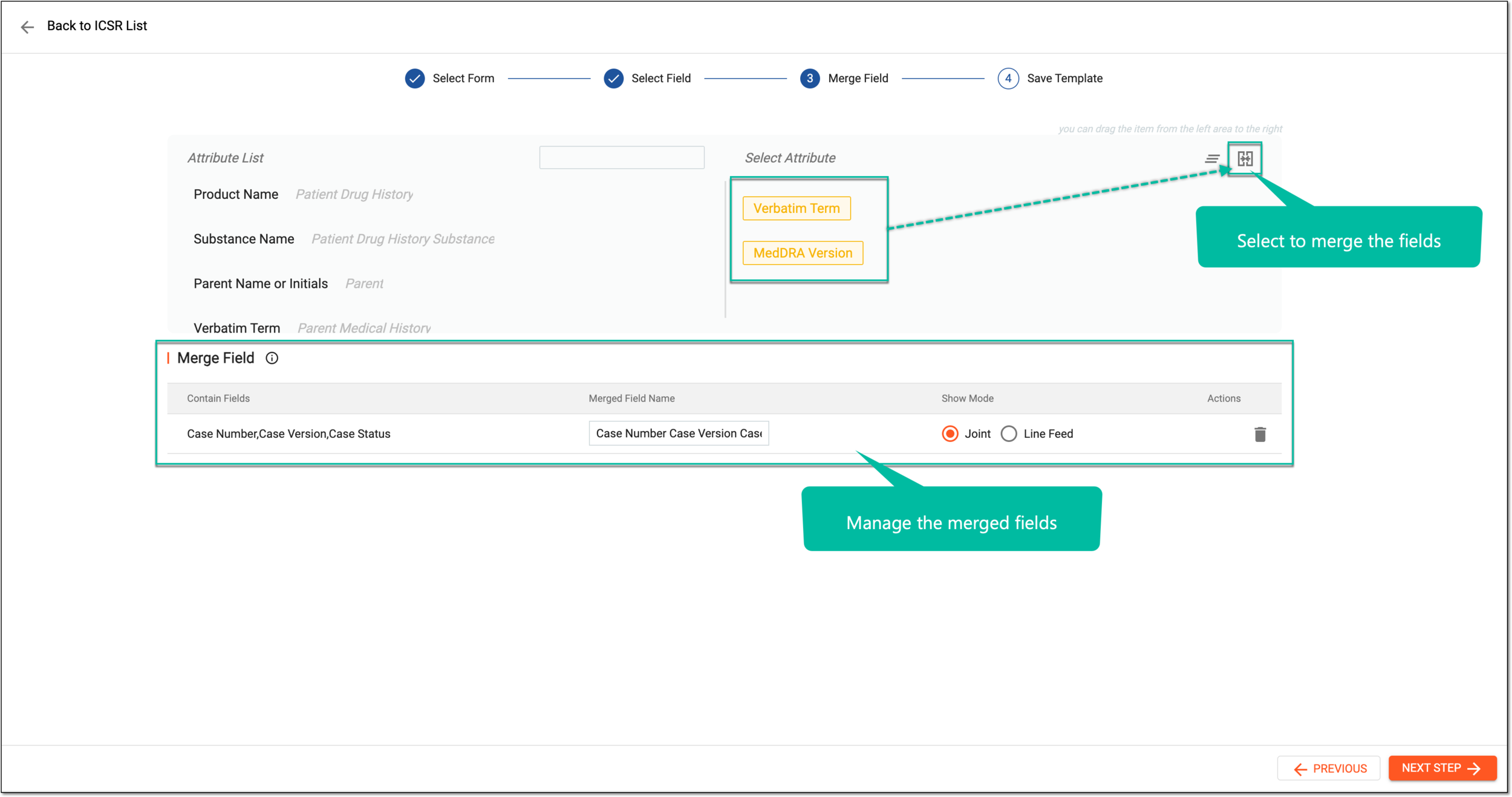 Figure 6. Merging fields
-
If you merged some fields, in the Merge Field table, you can define new names for specific merged columns and select one of the display modes:
-
Joint: select this option if, in the final output, you want to join the fields without a concatenation character.
-
Line Feed: select this option if, in the final output, you want to concatenate the column lines based on the selected fields.
-
-
When you are done merging fields at the third stage, select
. -
At the fourth stage of template creation, select a field by which the ICSR case is to be sorted, and then enter a new name for the created template. You can also drag fields to a different location depending on how you want them displayed in the report.
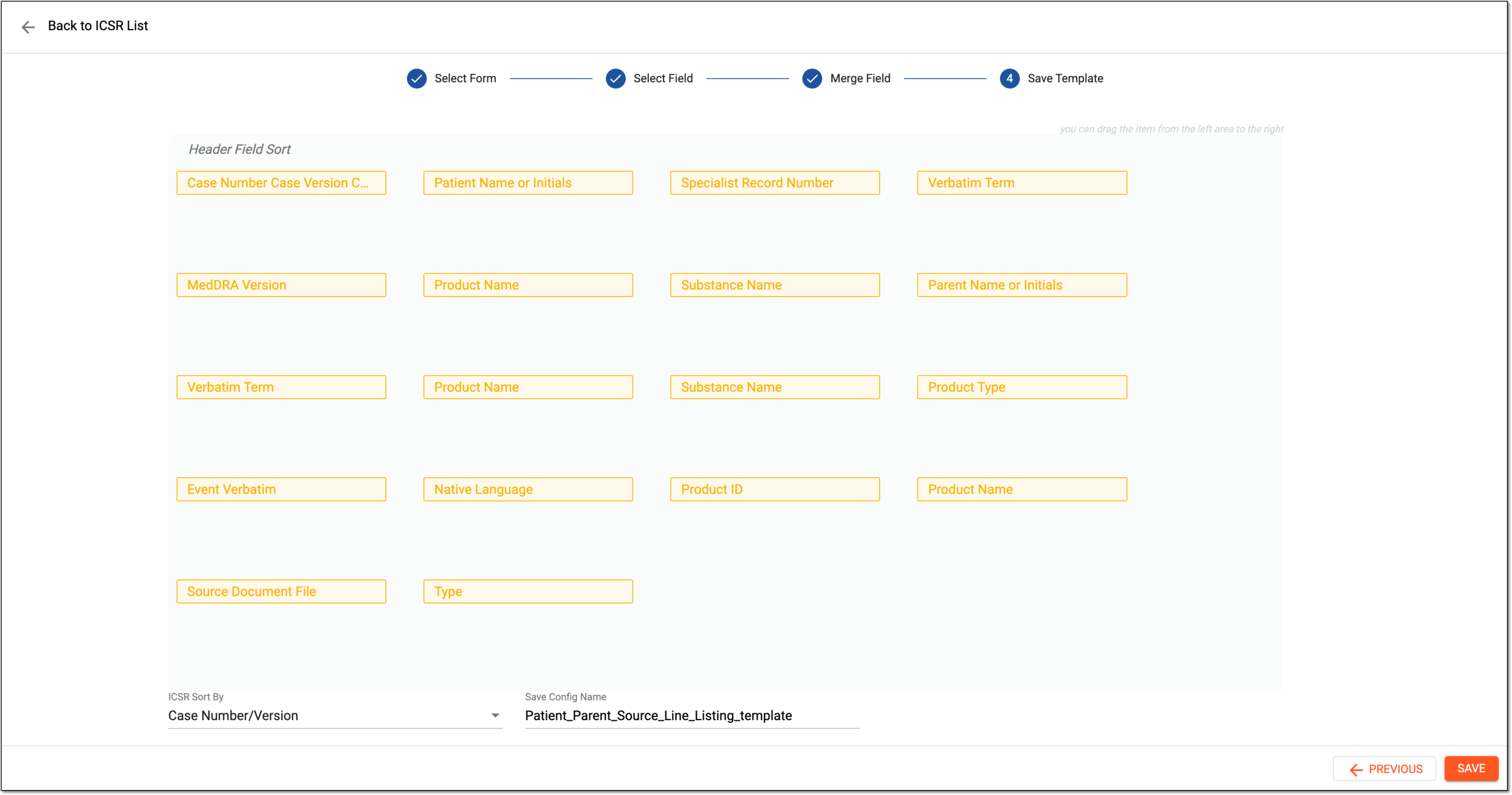 Figure 7. Organizing fields
-
Select
 .
.
Upon saving, a new template is created. You can now export a line listing report using this template.