Export ICSR line listing report
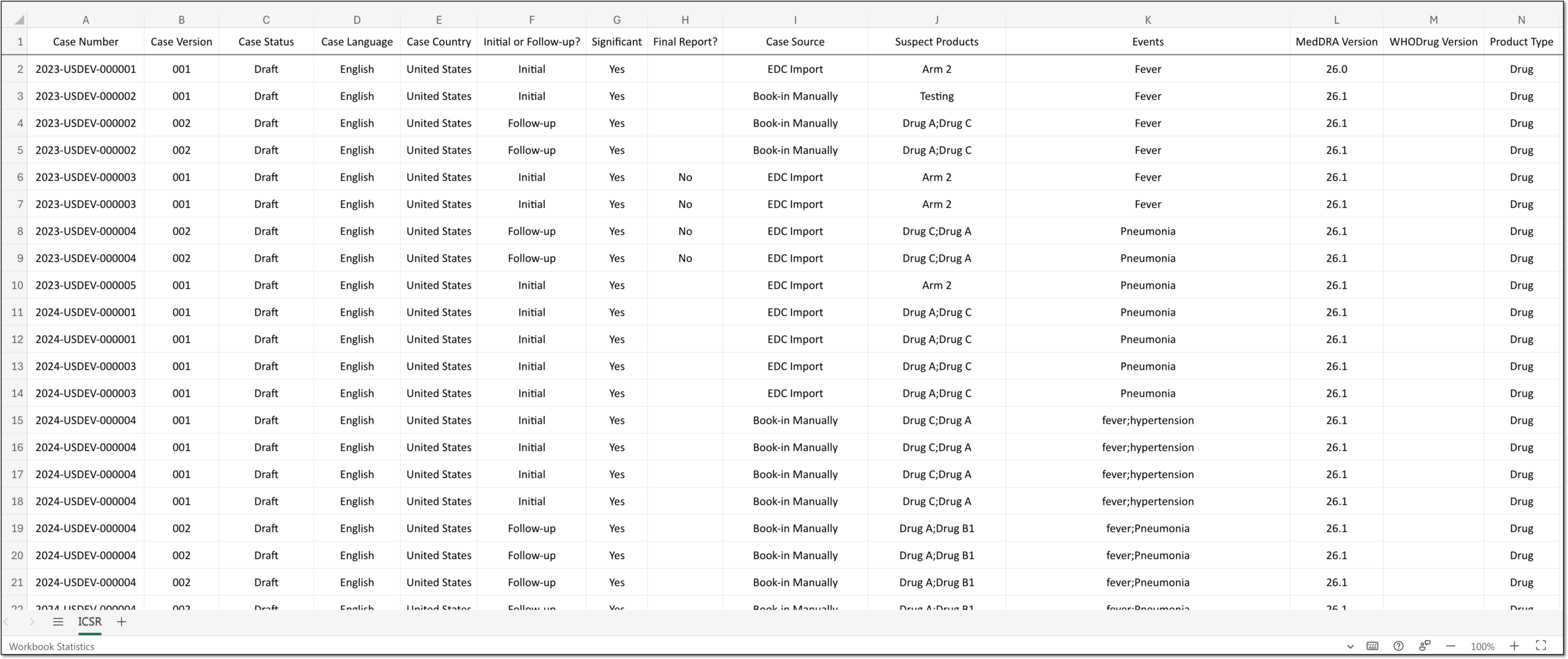
A line listing report contains key records on a collection of ICSR cases. This type of report may not necessarily provide all details collected on specific cases but only some data specified by the user. By generating line listing reports, you can provide PV specialists with the information needed to support their different business or procedural requirements.
For instance, you can export a line listing report for source document file names to be studied for reconciliation or migration purposes.
In PV, the line listing reports are exported based on the preconfigured templates that you modify based on various data sets required for review.
-
In the PV application header, select the ICSR tab.
-
From the left pane, select ICSR List.
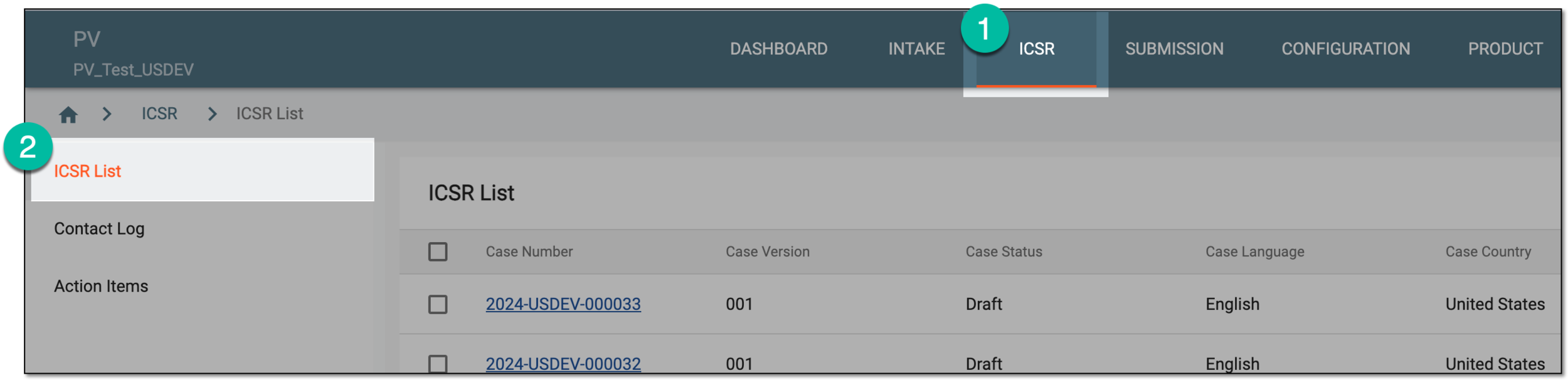 Figure 1. Accessing ICSR list
-
In the ICSR List table, select the checkboxes next to the ICSR cases that you want to include in the line listing report. Then from the toolbar, select More
 > Line Listing Export
  .
. Figure 2. Accessing line listing export
Important
If no checkboxes are selected and you export the line listing, all cases from the list are exported, however, no more than 2000 at once.
-
In the Line Listing Export dialog that appears, select one of the available templates, either a public or private one.
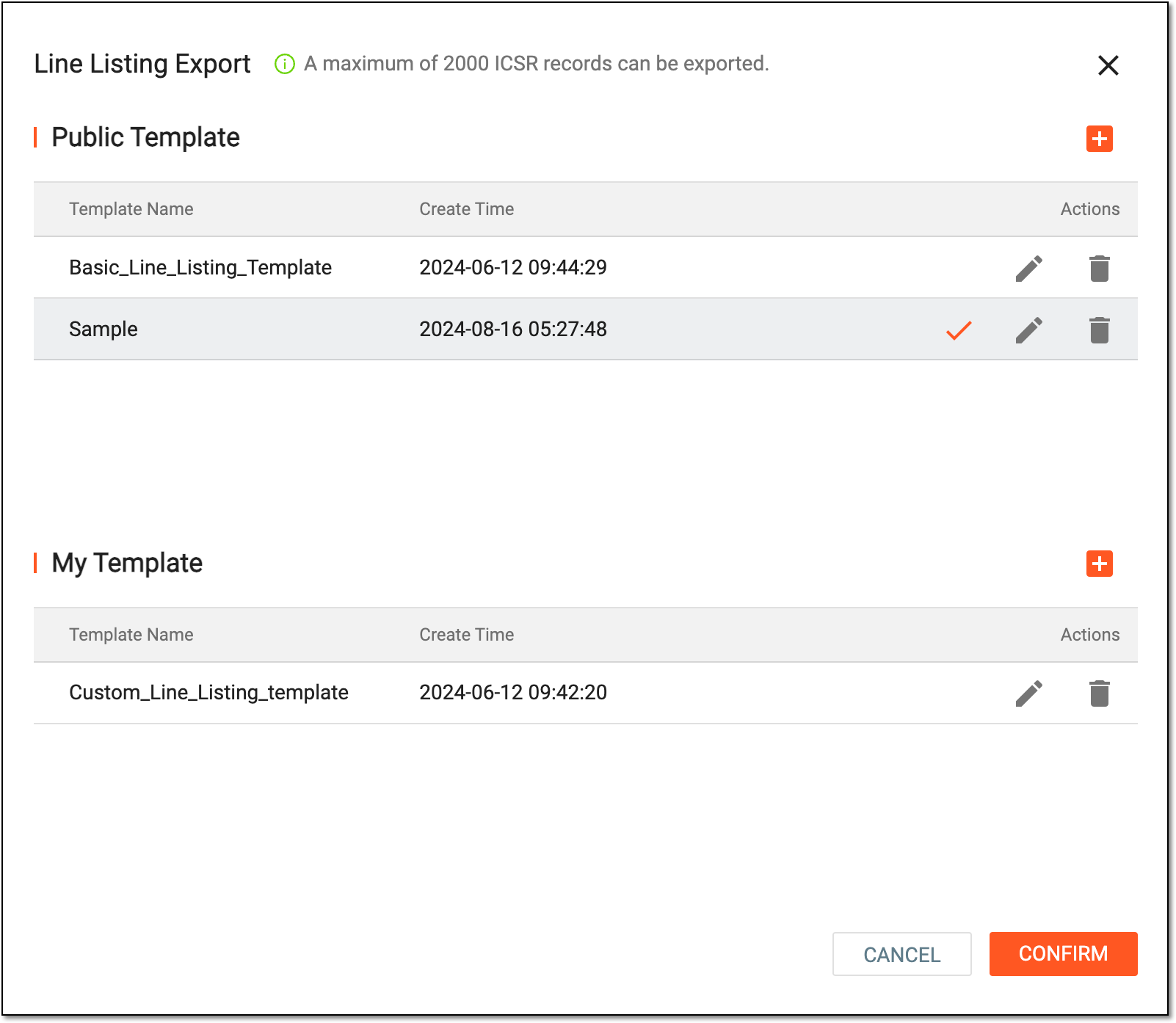 Figure 3. Exporting line listing report
Tip
If no template satisfies your needs, you can create a new template. You can also update the existing templates by selecting Edit
 next to them or remove irrelevant ones at any time by selecting Delete
 .
. -
Select
 to initiate the report export.
 -
On the ICSR List page, the downloads widget appears showing the export progress. Select the widget to access downloads.
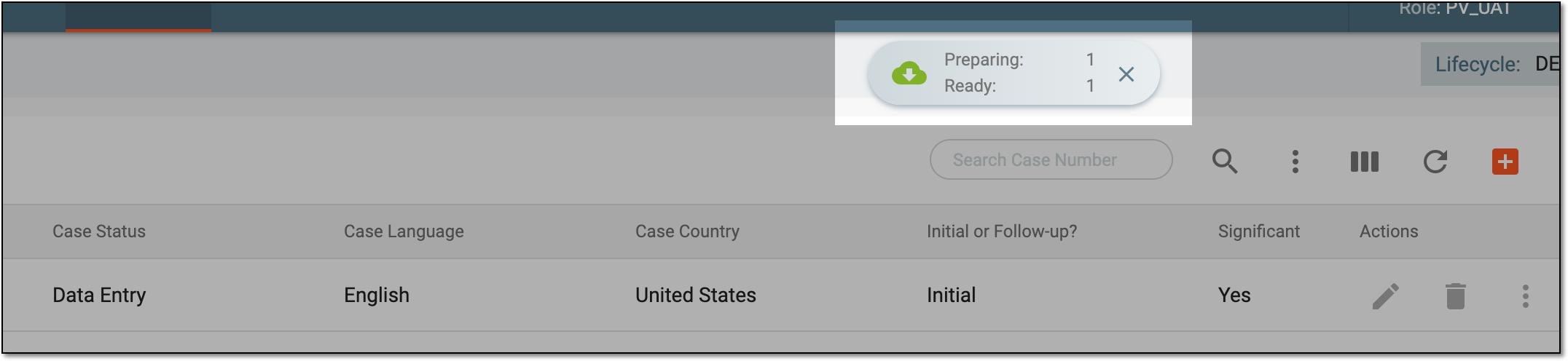 Figure 4. Downloads widget
-
In the My Downloads dialog that opens, go to the Download is Ready tab and next to the exported file of your interest, select
 .
.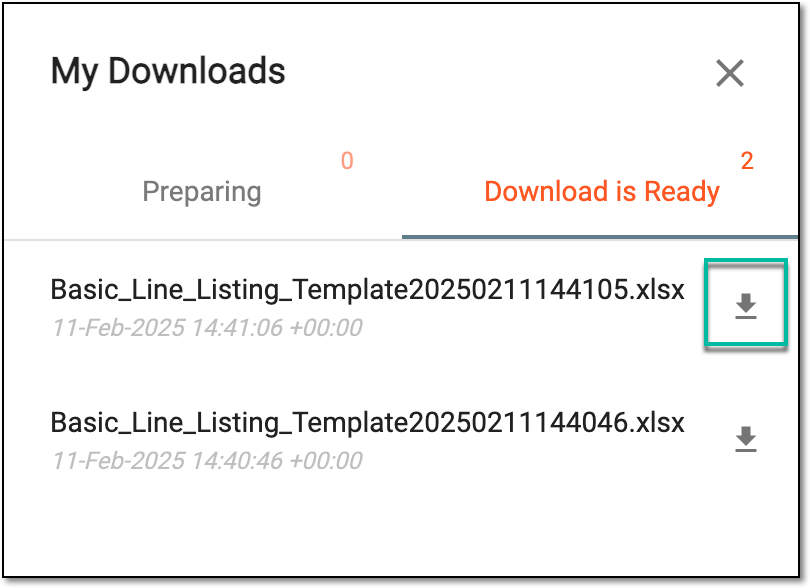 Figure 5. Downloading exported line listing report
Once downloaded, the line listing report becomes available in XLSX format on your computer. You can now view the generated report.