Reverse subject phase change
With the Reverse option, you can undo the latest change of subject phase if it has been performed by mistake. For all active subjects, you can reverse the phase to the previous one.
For instance, you have changed the subject phase to screen failure, but in reality, the subject has passed the screening and must be enrolled. Thus, you can reverse the phase change.
The reverse action can be applied to all subject phases—including discontinuation—except for the registration phase, as this is the initial one, and from it, you can only forward the subject further.
Important
When reversing the Randomization phase, the randomization number acquired by the subject before the reversal is put on hold and preserved for this subject in case they are randomized again.
The connection between the subject and their randomization number after the Randomization phase reversal can be broken by releasing the number from the subject manually.
-
In the IWRS application header, select the SUBJECT tab.
-
From Subject List that opens, select the needed site and subject.
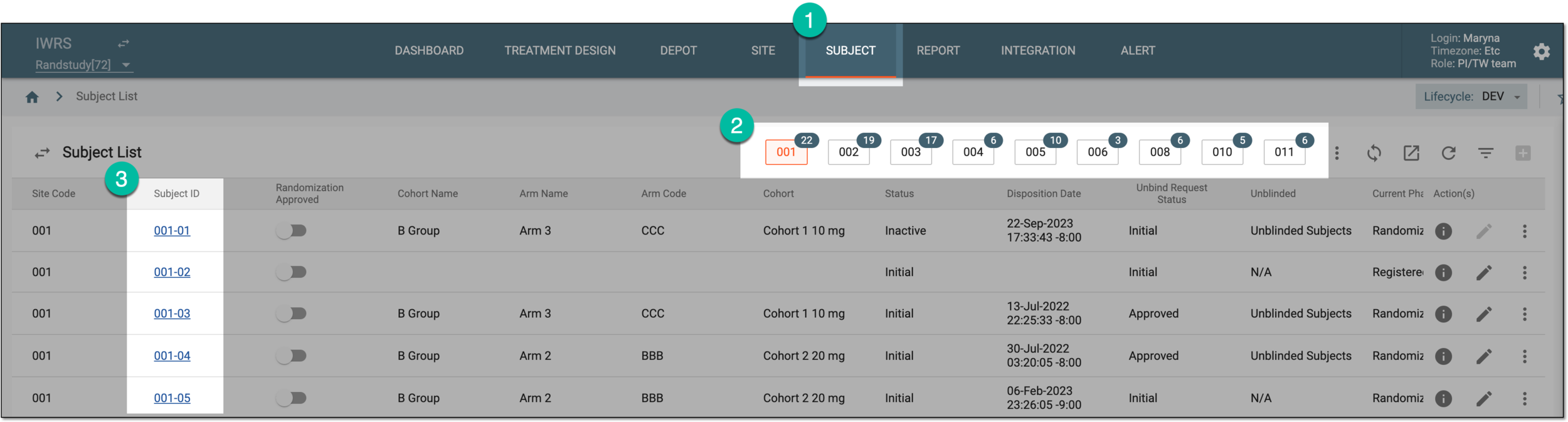 Figure 1. Selecting site and subject
-
On the Subject Information page that opens, select
 .
.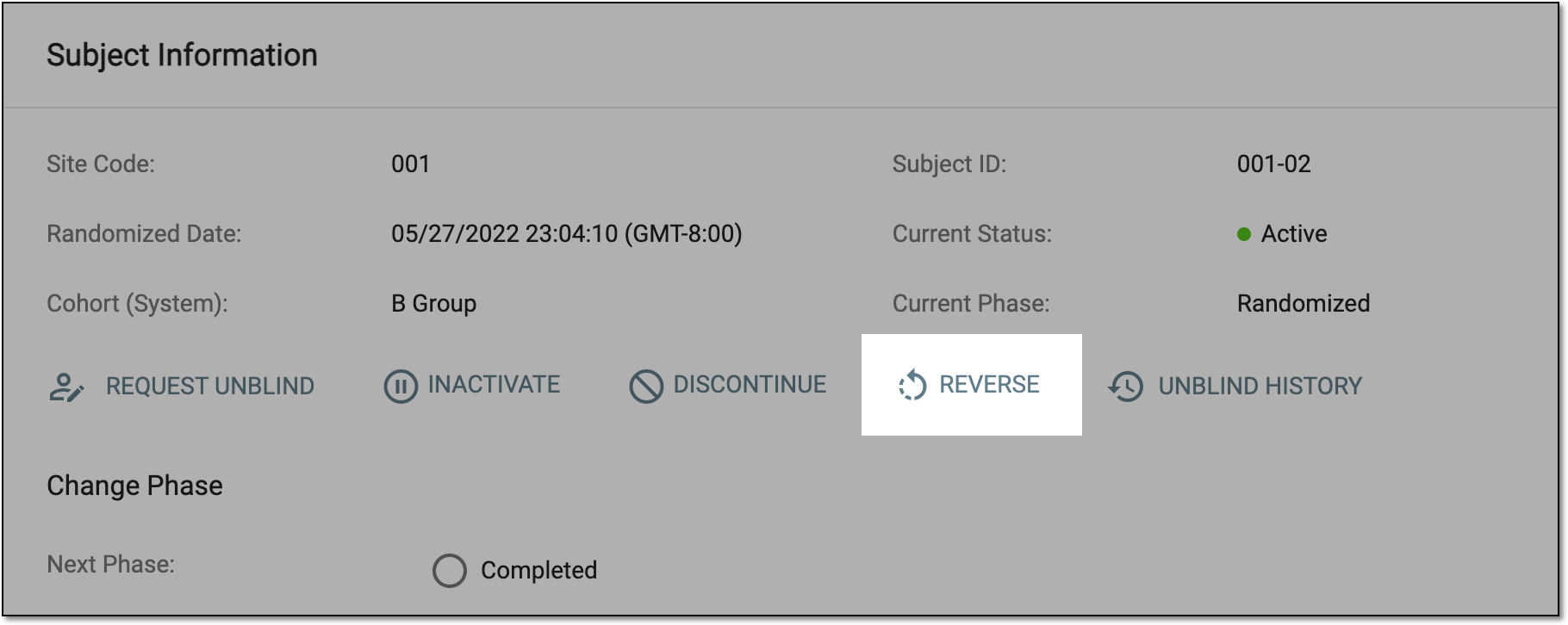 Figure 2. Selecting to reverse latest phase change
-
In the Reverse Reason dialog that opens, fill in the attributes as explained in the following table.
Important
The details you need to provide for action confirmation depend on the authentication method configured for you in the system—via SSO or via providing your login and password.
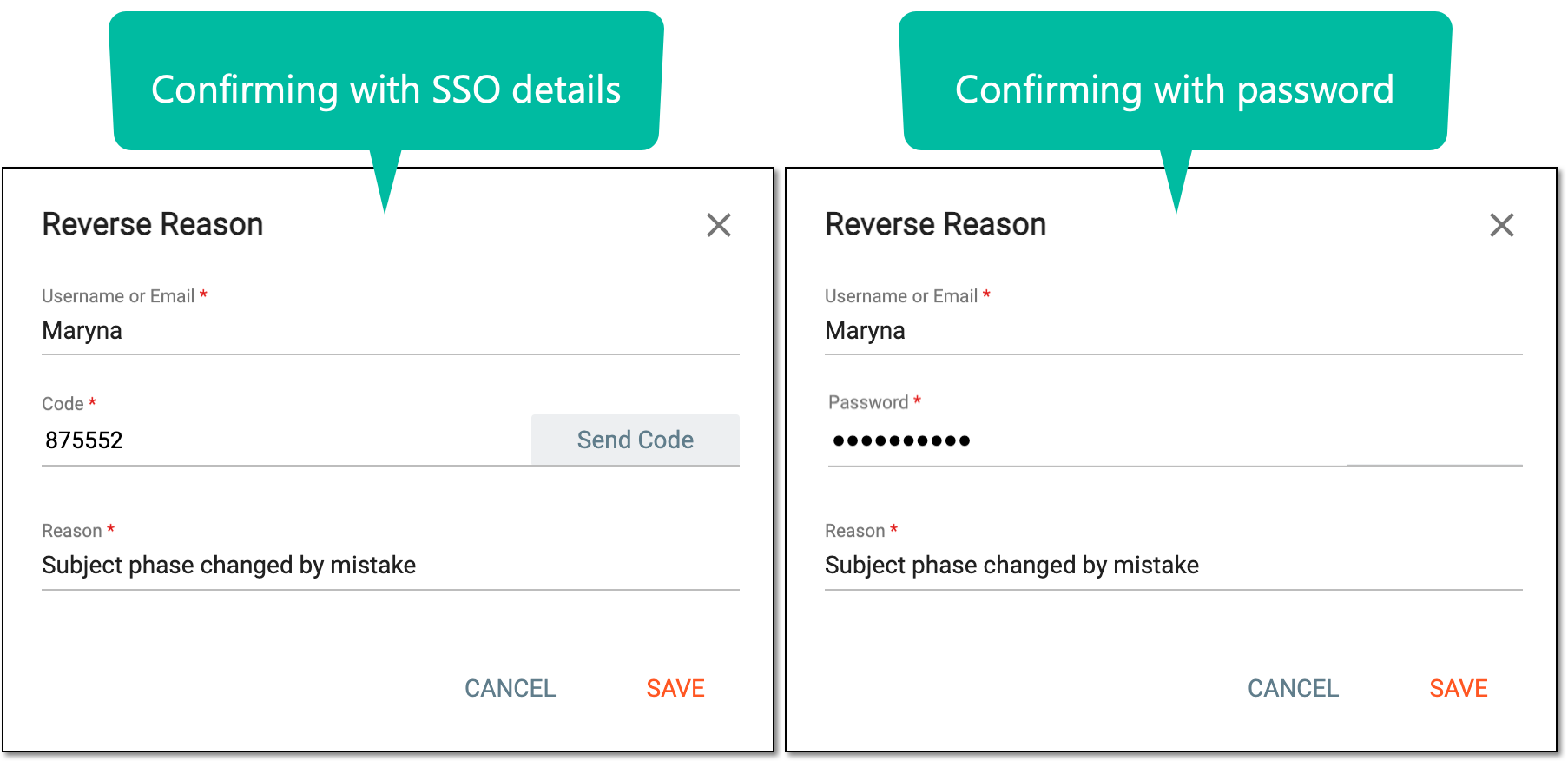 Figure 3. Adding reason to reverse subject
Tip
In the following table, mandatory elements are marked with an asterisk (*).
Element
Details
Username
A read-only field that represents the name of the user reversing the subject phase.
Send Code
Select
 to send the temporary PIN code to your email for which the SSO method is configured.
The button is only available if you use the authorization method via SSO.Code*
Enter the temporary PIN code that you received via email.
The field is only available if you use the authorization method via SSO.Password*
Enter the account password.
The field is only available if you use the authorization method by providing your login and password.Reason*
Enter the reason for reversing the subject phase.
SAVE
Select
 to save the implemented changes.
CANCEL
Select
 to dismiss the changes without saving.
Important
For security, the system logs you out after three failed attempts to confirm your identity with a password or code.
Once saved, the latest phase change is reversed and the subject returns to the previous phase.