Configuring on-demand report
In EDC, there are several ways to configure an on-demand report—from scratch or by copying an existing report in the system, from an imported file, or from an R script generated precisely to your needs.
The details of each configuration you can find in the following sections.
In EDC, you can configure custom on-demand reports to include only the data you need for your statistical analysis or other business needs.
For instance, create the Clean Patient Tracker report and use it as a single source of subject data collected via multiple forms and resources of EDC.
This section explains how to configure the on-demand report from scratch in the EDC system.
-
In the EDC application header, select the REPORTS tab.
-
On the page that opens, in the left pane, select On-Demand Report > Report Configuration.
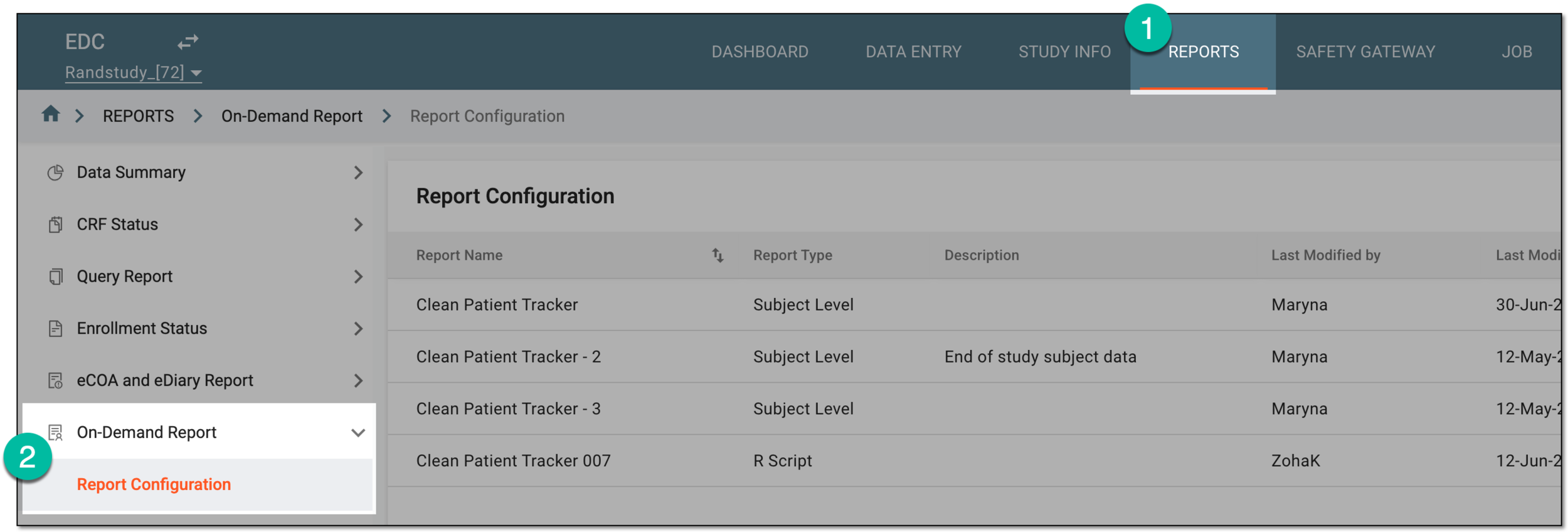 Figure 1. Accessing on-demand report configuration
-
On the Report Configuration page that opens, from the workspace toolbar, select New Item
 . Then from the menu that appears, select the report level as follows.
-
Study Level: to configure the report to track data for the study.
-
Site Level: to configure the report to track required study data per site.
-
Subject Level: to configure the report to track required study data per subject.
 Figure 2. Selecting on-demand report level
-
-
In the form that opens, configure the report fields as explained in the following table.
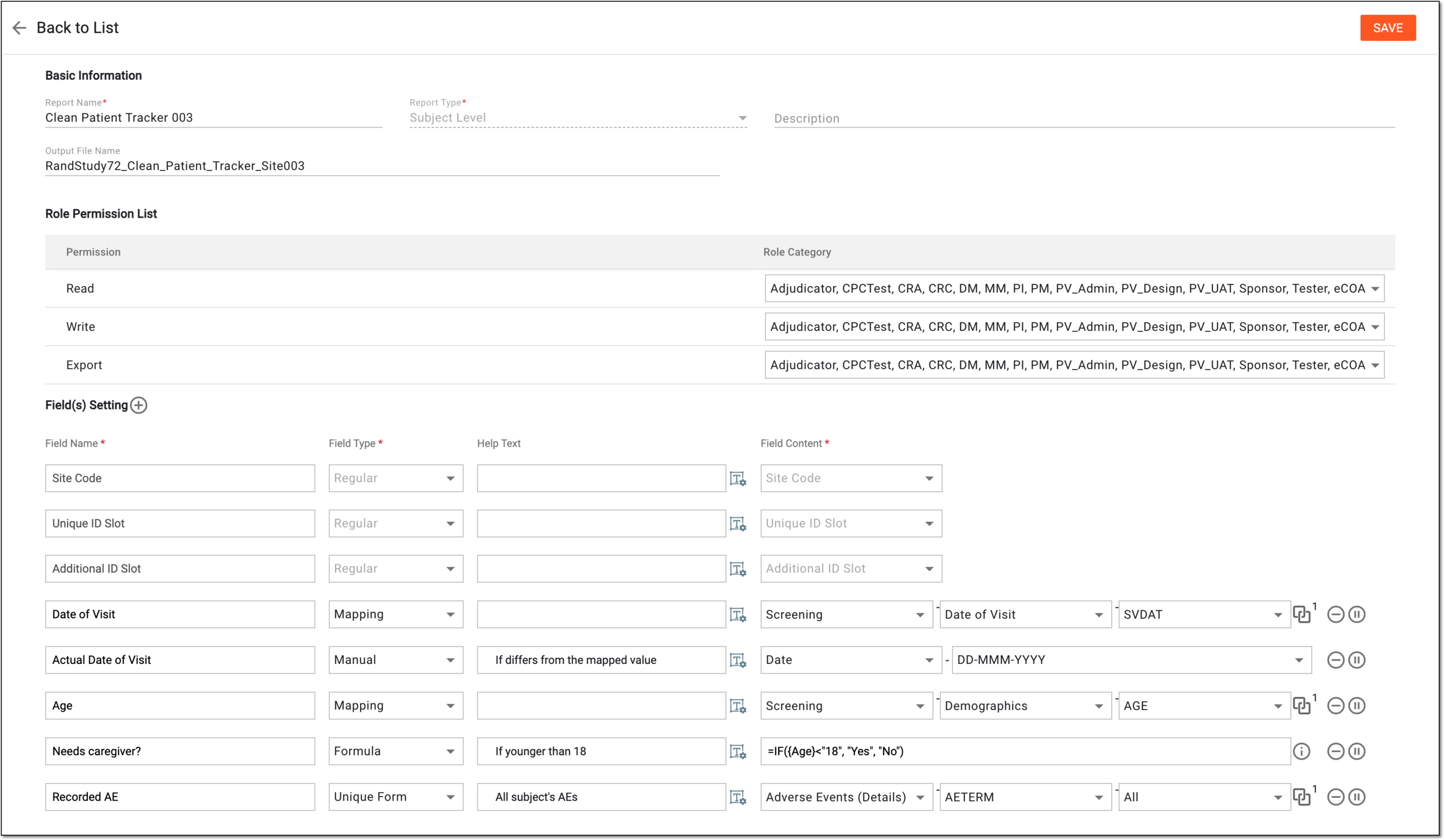 Figure 3. Configuring on-demand report
Tip
In the following table, mandatory elements are marked with an asterisk (*).
Element
Details
Basic Information
Report Name*
Enter the unique name for your report.
Report Type
Represents the level of the report selected upon creation—study, site, or subject.
The selection cannot be changed here, the field is read-only.Description
Enter brief information describing your report to present its purpose and specifications, if any.
Output File Name
Define a custom naming convention for the on-demand report files generated in EDC.
Role Permission List
Permission
View the Read, Write, and Export actions to which you can grant permissions for specific roles in EDC.
Role category
Select user roles allowed to read, write, or export the created on-demand report.
Field(s) Setting
For the site-level report, the Site Code field is preconfigured and cannot be manually amended.For the subject-level report, the Site Code and [Unique ID Label] fields are preconfigured. The [Unique ID Label] field name depends on the unique ID label configuration of your study in IWRS and can be "Subject ID," "Patient ID," or else.You can change the order of the preconfigured fields by selecting and dragging them.New Item
Select New Item
 to add more fields to your report.
Field Name*
Enter the descriptive name of the field you add to your report, for instance, Study Name, Subject Count, and so on.
Field Type*
Select the type of field you add to your report, as follows.
In the resulting report field, the data is entered manually. The type of data entry (date, number, text, or else) can be selected via the Field Content field.
For the manual field, you can also set the default value that will be populated to the report by default, but can be changed if needed.
For instance, you want the report user to have the option to enter the role of the subject's caregiver manually, so for the Text field, you enter "Parent" as the most expected answer.
 Figure 4. Setting default value for manual field
In the resulting report, the data is a result of system calculation based on the given formula. You can use formulas based on such dependencies as IF, SUM, AND, OR, and NOT. Select
 next to the field to see more details on available formulas.
For example, for the field "Needs caregiver?" you configure the formula =IF({Age}<"18", "Yes", "No"). In the resulting report, the system calculates if the age value of the subject is less than 18 and displays "Yes" or "No", respectively.
 Figure 5. Configuring formula field
In the resulting report, the data is pulled from the mapped variable of all the selected visits.
For instance, you want the report to show the AE terms recorded at any of the subjects' visits. Here, you select the form field, variable, and the visits from which the data must be pulled.
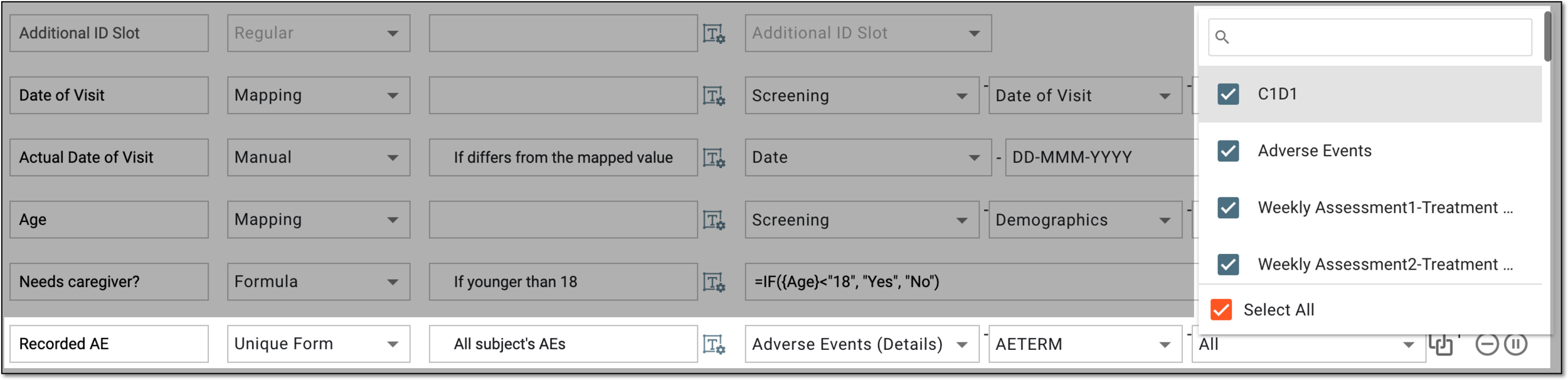 Figure 6. Configuring unique form field
Reference Item
Select
 to open the dialog to view and select the reference items from the form to which this field is mapped or another forms linked to
it.
to open the dialog to view and select the reference items from the form to which this field is mapped or another forms linked to
it.This icon is available for the Unique Form and Mapping field types only.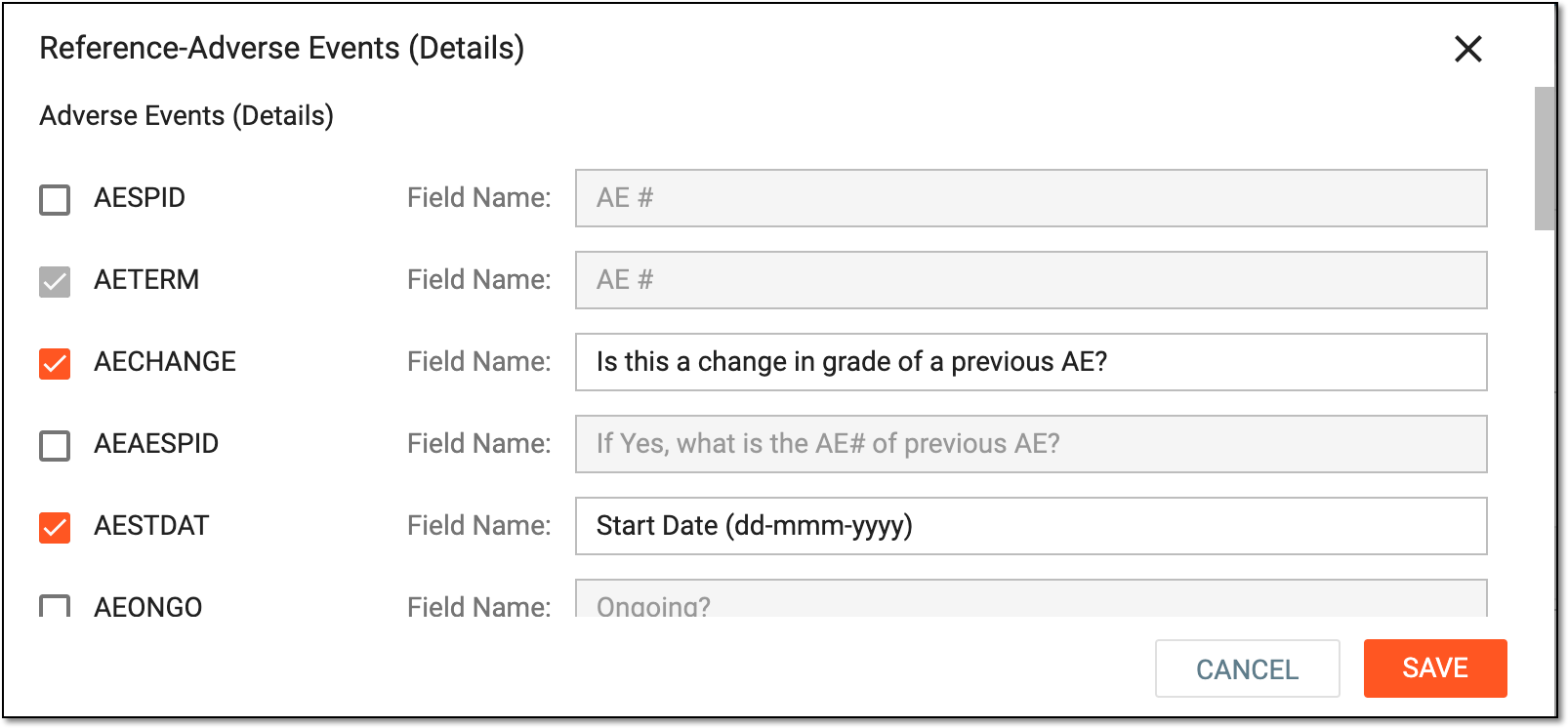 Figure 7. Selecting reference items
Help Text
Select the field or Rich Text
 to enter the auxiliary text to explain the field name or give useful details
to the user interacting with the report.
to enter the auxiliary text to explain the field name or give useful details
to the user interacting with the report.This text is available in the final report version upon selecting Help Text next to the column name.Field Content*
Select the field contents, as follows:
-
For the Manual field type, select the data type of the field value—date, number, text, or else.
-
For the Regular field type, select the value that the system adds to the resulting report field, for instance, the study name, total subject count, and so on.
-
For the Mapping field type, select the visit to specify the data to be pulled from the forms pertinent to this visit.
-
For the Formula field type, select the formula according to which the system calculates data for the resulting report.
-
For the Unique Form field type, select the form field to specify the data to be pulled from the selected visits' forms.
Delete
Select Delete
 next to the field to delete it from your report.
Activate/Inactivate
-
Select Activate
 next to the inactive field to make it available in your report.
 -
Select Inactivate
 next to the active field to make it unavailable in your report.
SAVE
Select
 to save the implemented changes.
 -
Upon saving, the configured report is added to the EDC system. You can now analyze your on-demand report data.
In EDC, you can configure custom reports to include only the data you need for your statistical analysis or other business needs.
For instance, create the Clean Patient Tracker report and use it as a single source of subject data collected via multiple forms and resources of EDC.
This section explains how to configure the on-demand report by copying and amending the existing report configuration. This may be useful when you need to configure multiple similar reports with only slight differences.
-
In the EDC application header, select the REPORTS tab.
-
On the page that opens, in the left pane, select On-Demand Report > Report Configuration.
Figure 1. Accessing on-demand report configuration
-
In the Report Configuration table that appears, go to the report from which you want to make a copy and in the Actions column next to it, select More > Copy
 .
.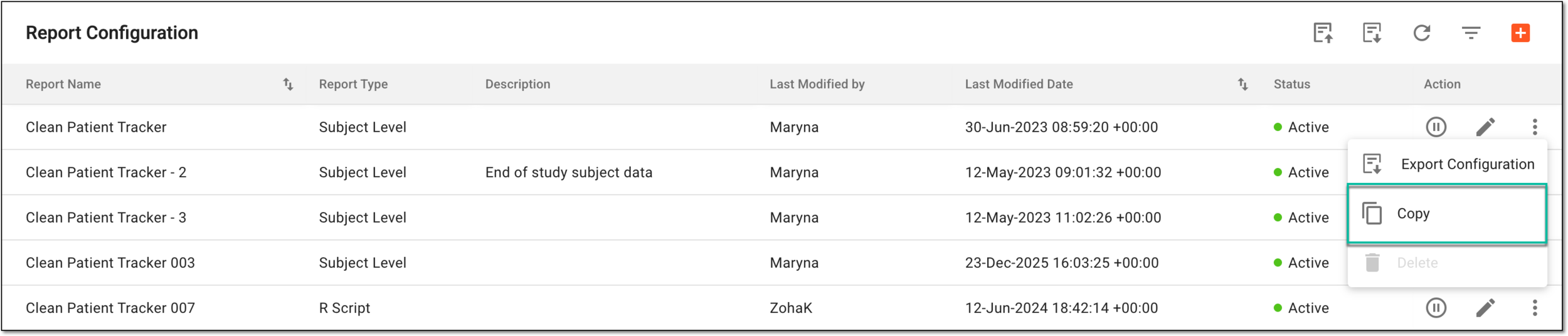 Figure 2. Selecting option to copy on-demand report
-
In the form that opens, you can name your report and amend the details as explained in the following table.
Figure 3. Configuring on-demand report
Tip
In the following table, mandatory elements are marked with an asterisk (*).
Element
Details
Basic Information
Report Name*
Enter the unique name for your report.
Report Type
Represents the level of the report selected upon creation—study, site, or subject.
The selection cannot be changed here, the field is read-only.Description
Enter brief information describing your report to present its purpose and specifications, if any.
Output File Name
Define a custom naming convention for the on-demand report files generated in EDC.
Role Permission List
Permission
View the Read, Write, and Export actions to which you can grant permissions for specific roles in EDC.
Role category
Select user roles allowed to read, write, or export the created on-demand report.
Field(s) Setting
For the site-level report, the Site Code field is preconfigured and cannot be manually amended.For the subject-level report, the Site Code and [Unique ID Label] fields are preconfigured. The [Unique ID Label] field name depends on the unique ID label configuration of your study in IWRS and can be "Subject ID," "Patient ID," or else.You can change the order of the preconfigured fields by selecting and dragging them.New Item
Select New Item
to add more fields to your report.Field Name*
Enter the descriptive name of the field you add to your report, for instance, Study Name, Subject Count, and so on.
Field Type*
Select the type of field you add to your report, as follows:
In the resulting report field, the data is entered manually. The type of data entry (date, number, text, or else) can be selected via the Field Content field.
For the manual field, you can also set the default value that will be populated to the report by default, but can be changed if needed.
For instance, you want the report user to have the option to enter the role of the subject's caregiver manually, so for the Text field, you enter "Parent" as the most expected answer.
Figure 4. Setting default value for manual field
In the resulting report, the data is a result of system calculation based on the given formula. You can use formulas based on such dependencies as IF, SUM, AND, OR, and NOT. Select
next to the field to see more details on available
formulas.For example, for the field "Needs caregiver?" you configure the formula =IF({Age}<"18", "Yes", "No"). In the resulting report, the system calculates if the age value of the subject is less than 18 and displays "Yes" or "No", respectively.
Figure 5. Configuring formula field
In the resulting report, the data is pulled from the mapped variable of all the selected visits.
For instance, you want the report to show the AE terms recorded at any of the subjects' visits. Here, you select the form field, variable, and the visits from which the data must be pulled.
Figure 6. Configuring unique form field
Reference Item
Select
to open the dialog to view and select the reference items from the form to which this field is mapped or another forms linked to
it.This icon is available for the Unique Form and Mapping field types only.Figure 7. Selecting reference items
Help Text
Select the field or Rich Text
to enter the auxiliary text to explain the field name or give useful details
to the user interacting with the report.This text is available in the final report version upon selecting Help Text next to the column name.Field Content*
Select the field contents, as follows:
-
For the Manual field type, select the data type of the field value—date, number, text, or else.
-
For the Regular field type, select the value that the system adds to the resulting report field, for instance, the study name, total subject count, and so on.
-
For the Mapping field type, select the visit to specify the data to be pulled from the forms pertinent to this visit.
-
For the Formula field type, select the formula according to which the system calculates data for the resulting report.
-
For the Unique Form field type, select the form field to specify the data to be pulled from the selected visits' forms.
Delete
Select Delete
next to the field to delete it from your report.Activate/Inactivate
-
Select Activate
next to the inactive field to make it available in your report. -
Select Inactivate
next to the active field to make it unavailable in your report.
SAVE
Select
to save the implemented changes. -
Upon saving, the new report is added to the EDC system. You can now analyze your on-demand report data.
In EDC, you can configure custom (on-demand) reports to include only the data you need for your statistical analysis or other business needs. One of the ways to generate the on-demand report is by uploading the R script configured according to your requirements and shared with you by the EDETEK team.
The R script becomes useful to generate reports that contain multiple calculations, saving time on configuring them from scratch. For the studies of hierarchical structure—where there is a master study and its substudies—the convenience of the R script is that it is possible to generate the reports from the master study using data from both the master and the substudies.
For instance, the R script can be used to create the Clean Patient Tracker report as a single source of subject data collected via multiple forms and resources of EDC from both the master and the substudies.
Important
Only five R scripts can be run by the system simultaneously. If you try to run more scripts, the system notifies you to wait for the ongoing execution to finish and try again later.
-
In the EDC application header, select the REPORTS tab.
-
On the page that opens, in the left pane, select On-Demand Report > Report Configuration.
Figure 1. Accessing on-demand report configuration
-
On the Report Configuration page that opens, from the workspace toolbar, select New Item
> R Script. Figure 2. Selecting option to create on-demand report from R script
-
On the page that opens, complete the form as explained in the following table.
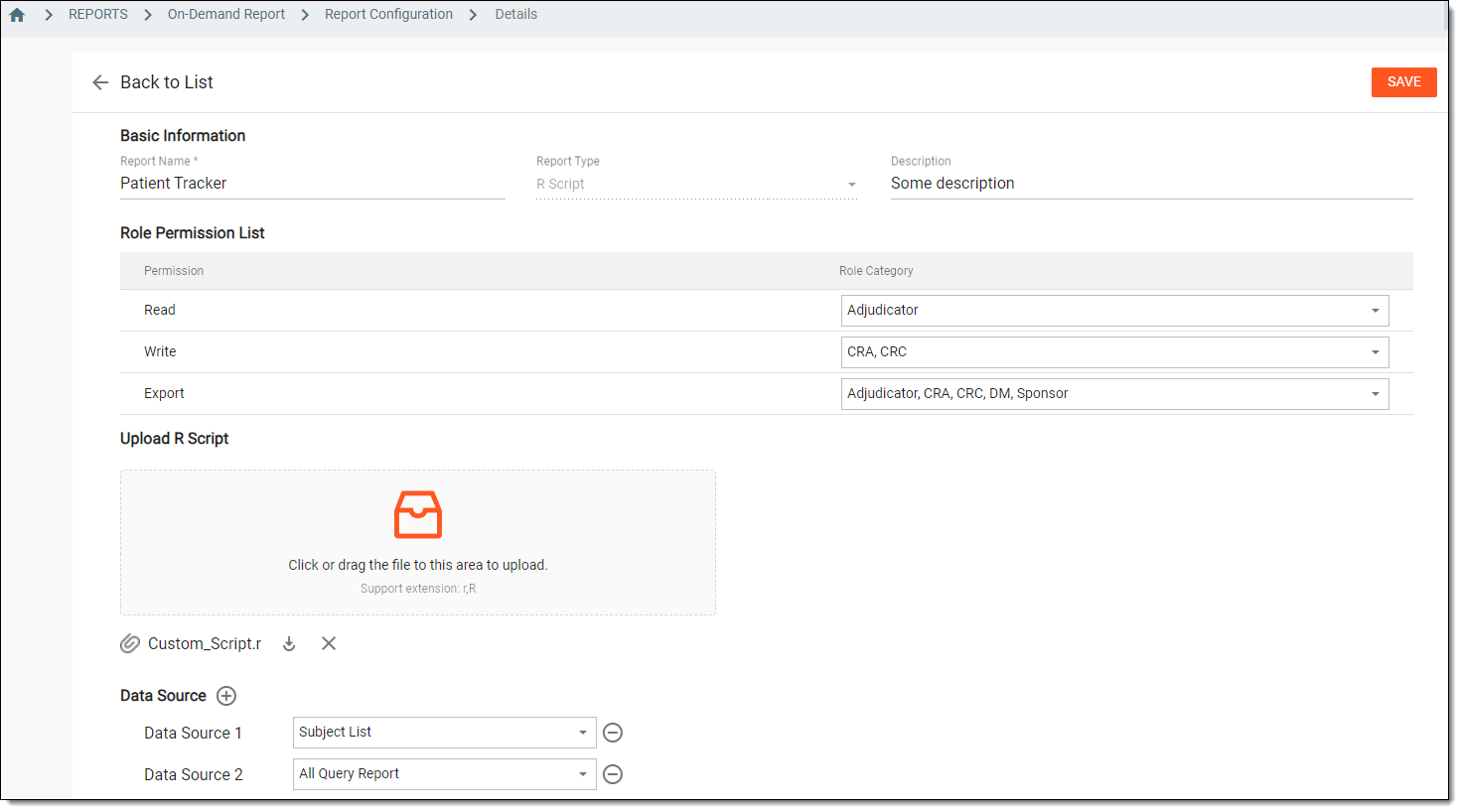 Figure 3. Configuring on-demand report from R script
Tip
In the following table, mandatory elements are marked with an asterisk (*).
Element
Details
Basic Information
Report Name*
Enter the unique name for your report.
Report Type
View the category of the selected report. The field is read-only.
Description
Enter brief information describing your report to present its purpose and specifications, if any.
Output File Name
Define a custom naming convention for the on-demand report files generated in EDC.
Export master and all sub studies data
For the master study, select this checkbox to export the substudy data along with the master data in one comprehensive report.
This checkbox is only available if the study hierarchy setting is enabled for the study, and when
                                        operating EDC from the master study.
Role Permission List
Permission
View the Read, Write, and Export actions to which you can grant permissions for specific roles in EDC.
Role Category
Select user roles allowed to read, write, or export the created on-demand report.
Upload R Script
Select the dedicated upload area or drag the file from your computer to this area for upload.
Only files of r. and R. extensions are supported for the report generation.You can upload an R script designed for multilevel data extraction and once configured and active, it results in a multitab page with various data reports included.
To configure such an R script, contact your EDETEK administrator.Data Source
New Item
Select
 to add a row for an additional source of data for the created report.
Data Source [sequence number]
From each added data source field, select the origin from which the information for the on-demand report being created is fetched:
-
Raw Data: select if the source of the data is from the list of original data collected directly from the participants.
-
Subject List: select if the source of the data is from the list of all the subjects within the clinical trial.
-
CRF Completion Status Report (CRF Completion Status): select if the source of the data is from the CRF completion status report.
-
Report Summary by Subject (CRF Completion Status): select if the source of the data is from the report summary by subject.
-
Report Summary by Site (CRF Completion Status): select if the source of the data is from the report summary by site.
-
All Query Report: select if the source of the data is from the report of all queries.
-
Form Status Details: select if the source of the data is from the list of all forms (CRFs) configured for the study.
-
SDV Result: By Form: select if the source of the data is of SDV result of form-level.
-
SDV Result: By Item: select if the source of the data is of SDV result of item-level.
-
Visit Status Details: select if the source of the data is the visit status details report.
Delete
Select
next to a row to delete it if unnecessary.Use default source for Clean Patient Tracker
Select this checkbox if you want to populate a predefined set of data sources required for the Clean Patient Tracker report.
Once selected, the New Item and Delete options become unavailable, and all the data source fields are created and completed with uneditable values. If you want to make amendments to the autopopulated data sources or add more custom ones, clear this checkbox; this will preserve the already added fields but enable the functionality to edit, delete, or add new ones.
This checkbox is only available if the Export master and all sub studies data checkbox is
                                        selected.
SAVE
Select
 to run the R script and generate the on-demand report.
If there are already five R scripts running, upon saving, the system notifies you to wait for the ongoing execution to finish and try again later. -
Once the R script is executed, the resulting on-demand report is created. You can now analyze your on-demand report data.
In EDC, you can configure custom reports to include only the data you need for your statistical analysis or other business needs. For instance, create the Clean Patient Tracker report and use it as a single source of subject data collected via multiple forms and resources of EDC.
This section explains, how to configure the on-demand report by uploading the preconfigured file into the EDC system. This may be useful when you want to configure a new report that contains only the data needed for your statistical analysis, and it is more convenient for you to complete the XLSX sheet than configure everything directly in the EDC system.
Important
In EDC, you can export an empty on-demand report template, fill it with data, and then import it back to the system. This way, you avoid inconsistencies between file configurations and system requirements.
-
In the EDC application header, select the REPORTS tab.
-
On the page that opens, in the left pane, select On-Demand Report > Report Configuration.
Figure 1. Accessing on-demand report configuration
-
On the Report Configuration page that opens, from the workspace toolbar, select Import Template
 . Then follow the prompts of your computer to upload the preconfigured report template.
 Figure 2. Selecting to import report template
-
Upon file upload, the report configuration page opens, where you can amend the fields as explained in the following table.
Figure 3. Configuring on-demand report
Element
Details
Basic Information
Report Name*
Represents the name of the report pulled from the uploaded file. However, you can enter another unique name for your report here.
Report Type
Represents the level of the report pulled from the uploaded file—study, site, or subject.
The selection cannot be changed here, the field is read-only.Description
Enter brief information describing your report to present its purpose and specifications, if any.
Output File Name
Define a custom naming convention for the on-demand report files generated in EDC.
Role Permission List
Permission
View the Read, Write, and Export actions to which you can grant permissions for specific roles in EDC.
Role category
Select user roles allowed to read, write, or export the created on-demand report.
Field(s) Setting
For the site-level report, the Site Code field is preconfigured and cannot be manually amended.For the subject-level report, the Site Code and [Unique ID Label] fields are preconfigured. The [Unique ID Label] field name depends on the unique ID label configuration of your study in IWRS and can be "Subject ID," "Patient ID," or else.You can change the order of the preconfigured fields by selecting and dragging them.The fields you see are pulled from the uploaded file. However, you can update, remove, or add more fields if required.New Item
Select New Item
to add more fields to your report.Field Name*
Enter the descriptive name of the field you add to your report, for instance, Study Name, Subject Count, and so on.
Field Type*
Select the type of field you add to your report, as follows:
In the resulting report field, the data is entered manually. The type of data entry (date, number, text, or else) can be selected via the Field Content field.
For the manual field, you can also set the default value that will be populated to the report by default, but can be changed if needed.
For instance, you want the report user to have the option to enter the role of the subject's caregiver manually, so for the Text field, you enter "Parent" as the most expected answer.
Figure 4. Setting default value for manual field
In the resulting report, the data is a result of system calculation based on the given formula. You can use formulas based on such dependencies as IF, SUM, AND, OR, and NOT. Select
next to the field to see more details on available
formulas.For example, for the field "Needs caregiver?" you configure the formula =IF({Age}<"18", "Yes", "No"). In the resulting report, the system calculates if the age value of the subject is less than 18 and displays "Yes" or "No", respectively.
Figure 5. Configuring formula field
In the resulting report, the data is pulled from the mapped variable of all the selected visits.
For instance, you want the report to show the AE terms recorded at any of the subjects' visits. Here, you select the form field, variable, and the visits from which the data must be pulled.
Figure 6. Configuring unique form field
Reference Item
Select
to open the dialog to view and select the reference items from the form to which this field is mapped or another forms linked to
it.This icon is available for the Unique Form and Mapping field types only.Figure 7. Selecting reference items
Help Text
Select the field or Rich Text
to enter the auxiliary text to explain the field name or give useful details
to the user interacting with the report.This text is available in the final report version upon selecting Help Text next to the column name.Field Content*
Select the field contents, as follows:
-
For the Manual field type, select the data type of the field value—date, number, text, or else.
-
For the Regular field type, select the value that the system adds to the resulting report field, for instance, the study name, total subject count, and so on.
-
For the Mapping field type, select the visit to specify the data to be pulled from the forms pertinent to this visit.
-
For the Formula field type, select the formula according to which the system calculates data for the resulting report.
-
For the Unique Form field type, select the form field to specify the data to be pulled from the selected visits' forms.
Delete
Select Delete
next to the field to delete it from your report.Activate/Inactivate
-
Select Activate
next to the inactive field to make it available in your report. -
Select Inactivate
next to the active field to make it unavailable in your report.
SAVE
Select
to save the implemented changes. -
Upon saving, the configured report is added to the EDC system. You can now analyze your on-demand report data.