Analyze configured on-demand report
In EDC, you can configure custom on-demand reports to include only the data you need for your statistical analysis or other business needs.
For instance, create the Clean Patient Tracker report and use it as a single source of subject data collected via multiple forms and resources of EDC.
You can access the previously configured custom reports under the REPORT > On-Demand Report module.
-
In the EDC application header, select the REPORTS tab.
-
In the left pane, expand the On-Demand Report option and select the report of your interest.
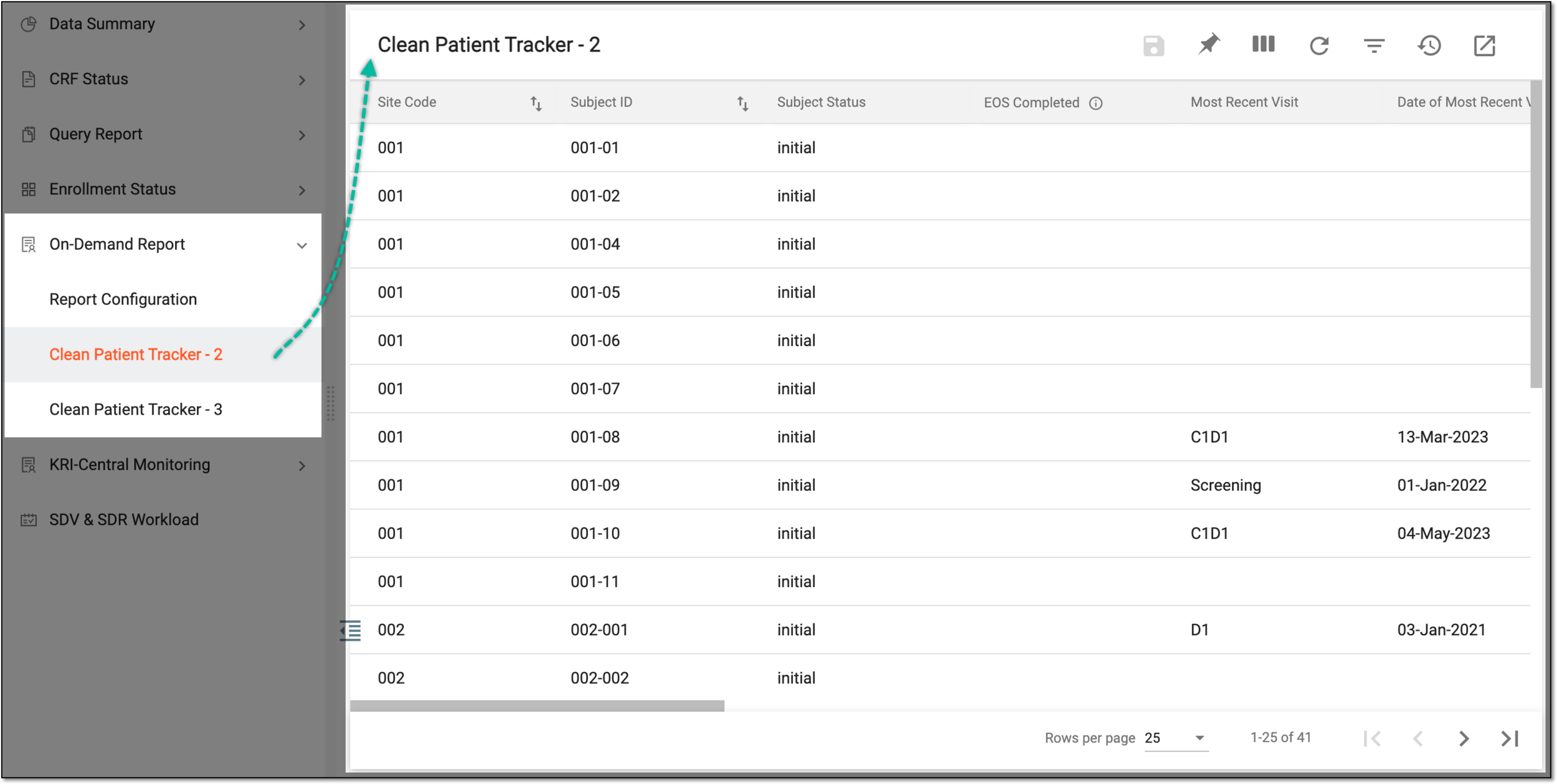 Figure 1. Selecting and viewing report data
Tip
If a multilevel report is configured via R script, the contents panel of the generated report displays multiple tabs as per your configurations.
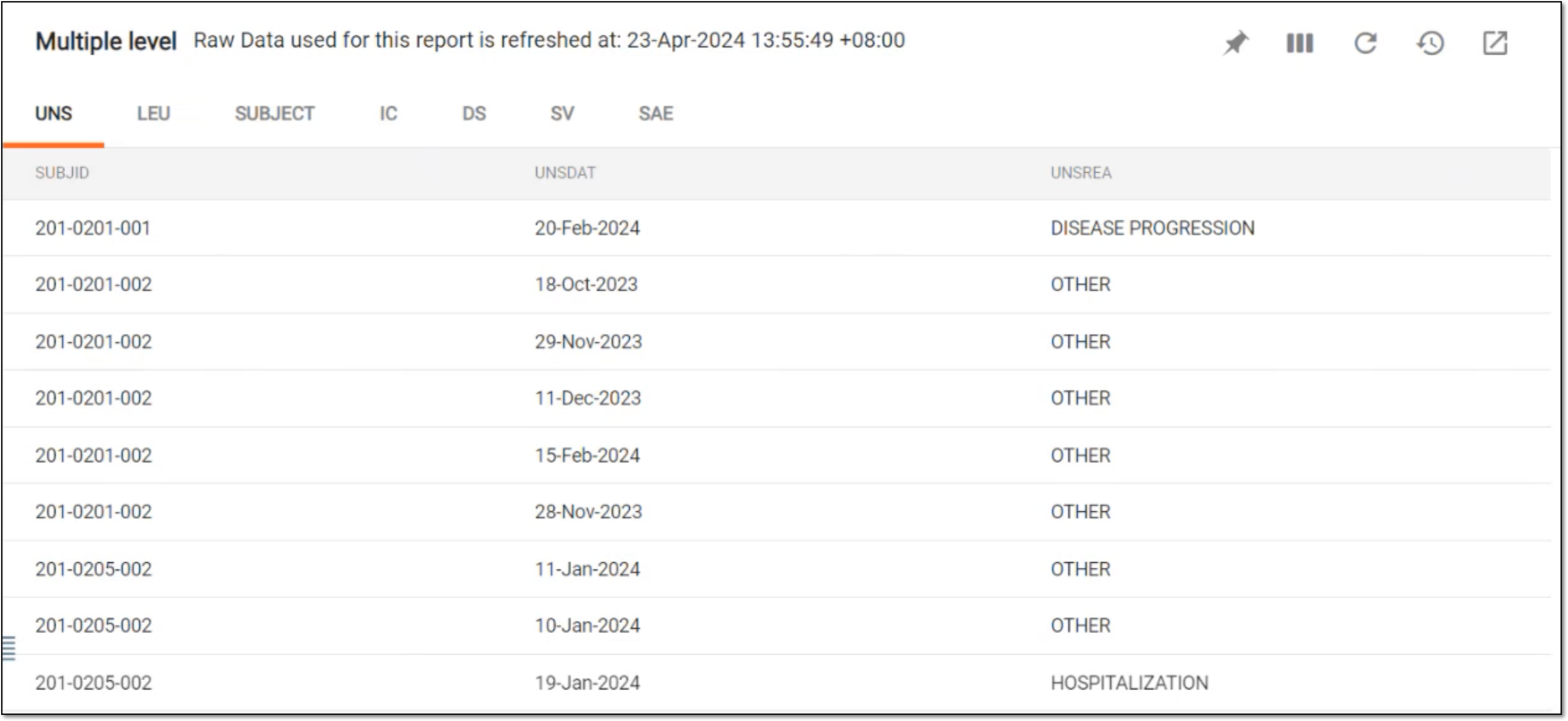 Figure 2. Viewing tabs of multilevel report
-
For the reports with manual fields configured—fields that require manual data input—you can enter the data. Then from the workspace toolbar, select Submit
 to save the values.
 Figure 3. Completing manual field
Once you have analyzed the report data and completed its manual fields, you can export the report to use it offline or share it with stakeholders.