Export on-demand report template
In EDC, you can configure custom reports to include only the data you need for your statistical analysis or other business needs.
There are multiple ways to configure the on-demand report, one of which is the template file import. In EDC, you can export an empty on-demand report template, fill it with data, and then import it back to the system.
-
In the EDC application header, select the REPORTS tab.
-
On the page that opens, in the left pane, select On-Demand Report > Report Configuration.
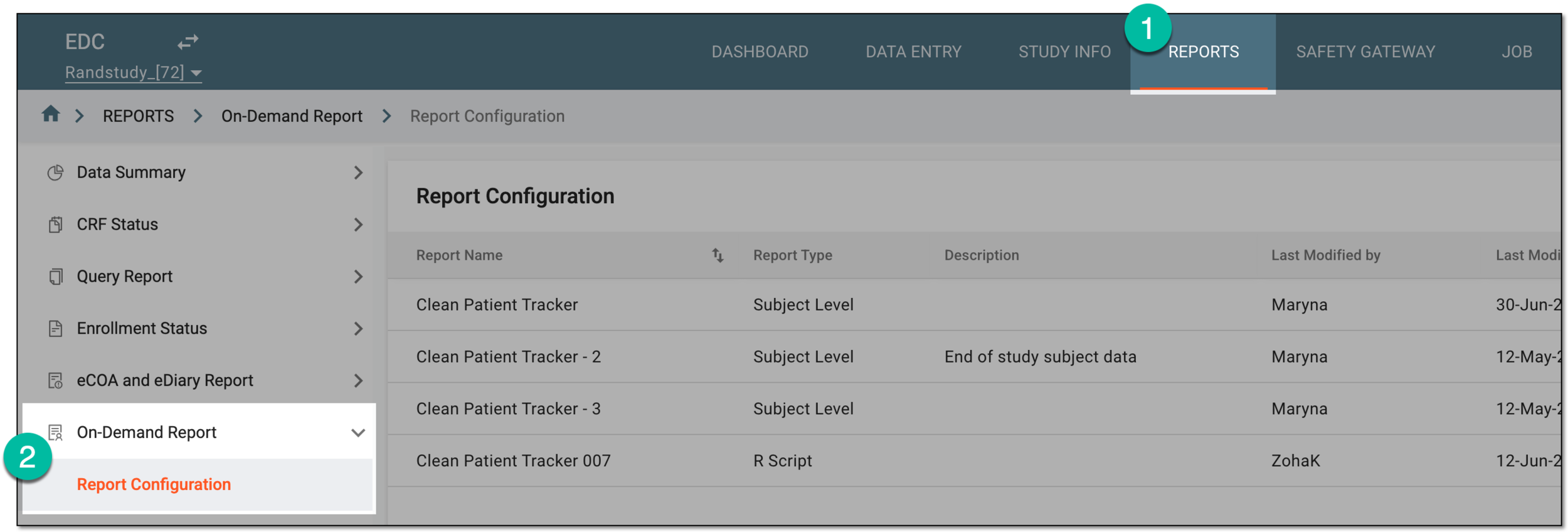 Figure 1. Accessing on-demand report configuration
-
On the Report Configuration page that opens, from the workspace toolbar, select Export Template
 .
. Figure 2. Selecting to export report template
-
In the Export Template dialog that opens, complete the fields as explained in the following table.
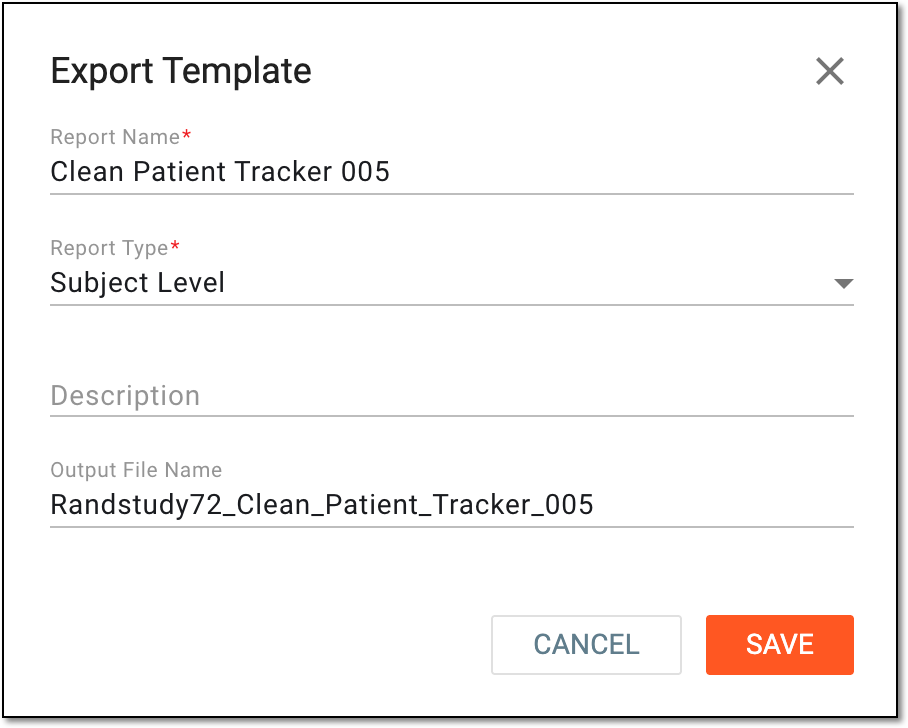 Figure 3. Defining parameters of on-demand report template
Tip
In the following table, mandatory elements are marked with an asterisk (*).
Element
Detils
Report Name*
Enter the unique name for your report.
Report Type*
Select the level of your intended on-demand report as follows:
-
Study Level: to export the template for the report intended to track data on the study level.
-
Site Level: to export the template for the report intended to track required data per site.
-
Subject Level: to export the template for the report intended to track required study data per subject.
-
R Script: to export the template for the report whose data is based on the R script configured according to your requirements by the EDETEK team.
Description
Enter brief information describing your report to present its purpose and specifications, if any.
SAVE
Select
 to save the implemented changes and download the XLSX file to your local machine.
CANCEL
Select
 to discard the changes and close the dialog.
 -
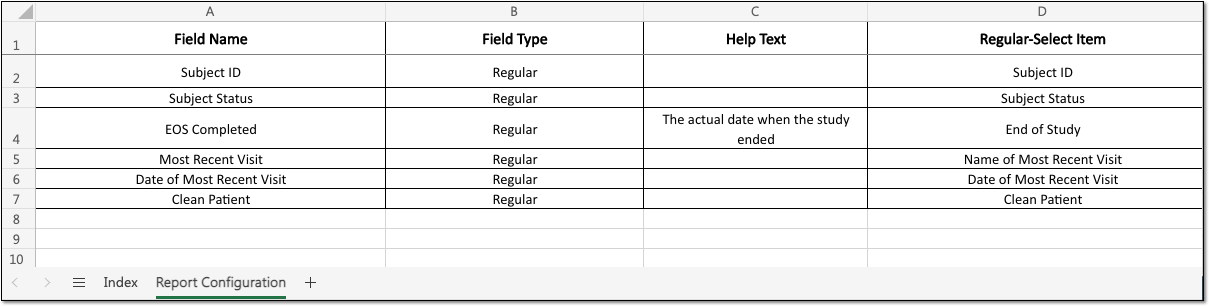
Once the empty XLSX template file is saved, you can see its general details under the Index sheet and configure your required report parameters under the Report Configuration sheet.