Item tag
An item tag is a useful marker or a note that you can add to items in IWRS via the Depot inventory and Site inventory functionality. You can use tags to make an important memo or stress out some useful information about the product unit.
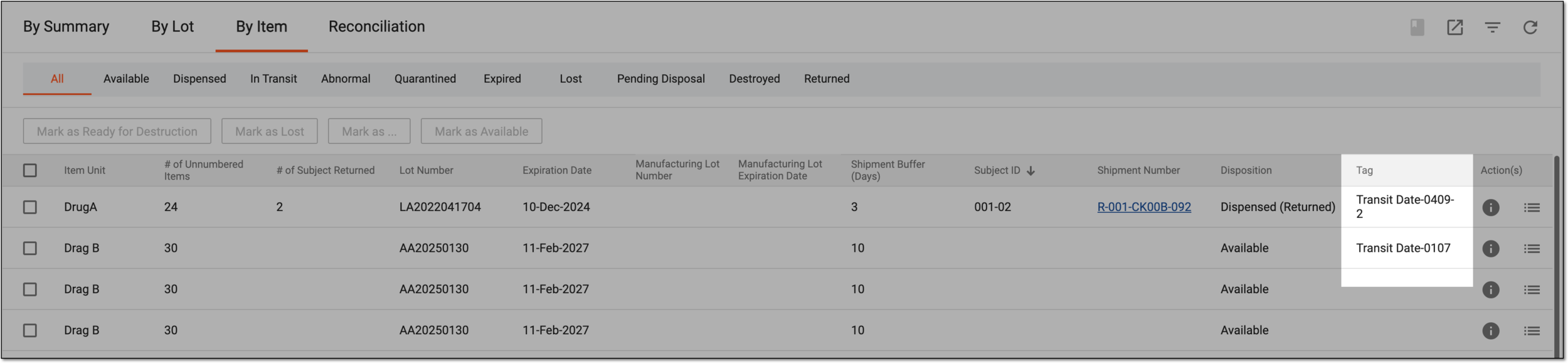
Tip
In IWRS, item tag management—creation, deletion, and so on—is handled via the Tag module of the Treatment Design functionality.
An item tag is a useful marker or a note that you can add to product units when managing your depot or site inventory.
Important
If an item already has a tag, adding a new one overwrites the previous one.
-
In the IWRS application header, select the DEPOT tab.
-
On the Depot List page that opens, select the depot to access its details.
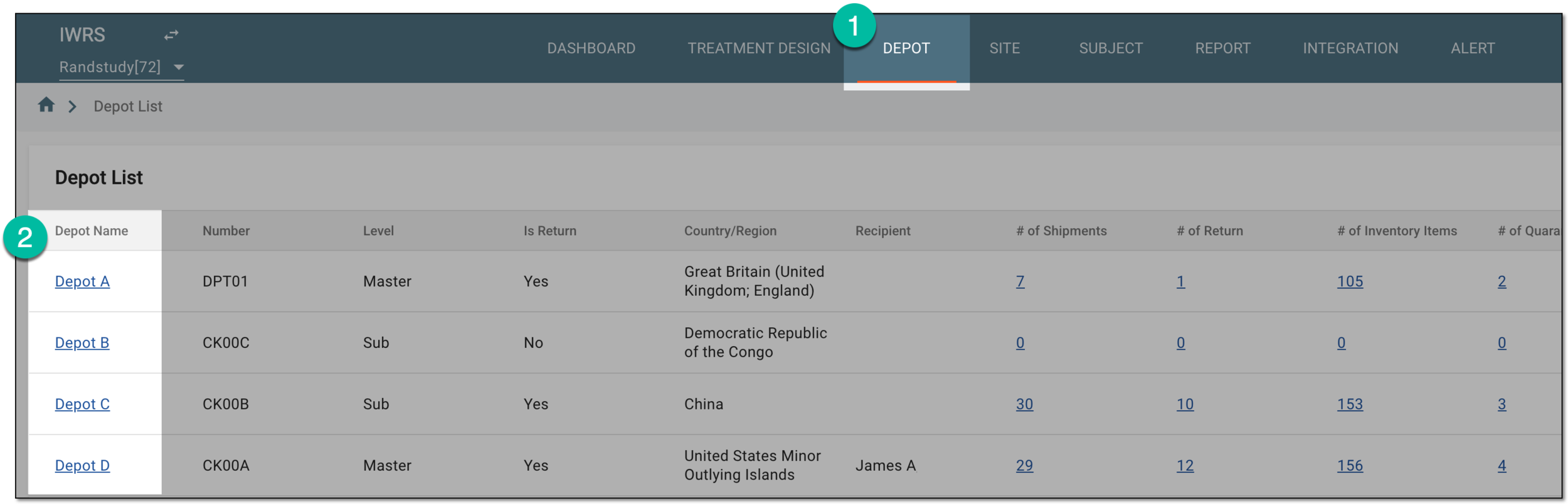 Figure 1. Selecting depot to open its details
-
On the Depot Information page that opens, in the left pane, select the Inventory subtab.
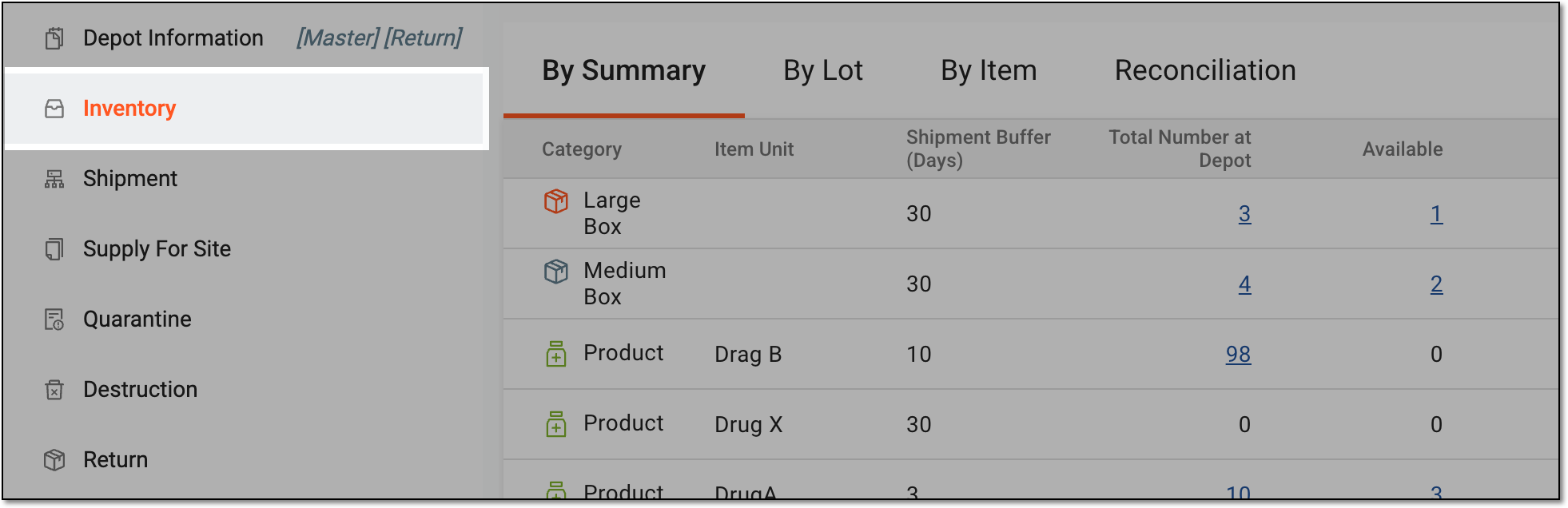 Figure 2. Accessing depot inventory
-
Go to the By Item tab and in the table, select the checkboxes next to the items to which you want to add a tag.
-
From the workspace toolbar, select Tag
 > Add Tag.
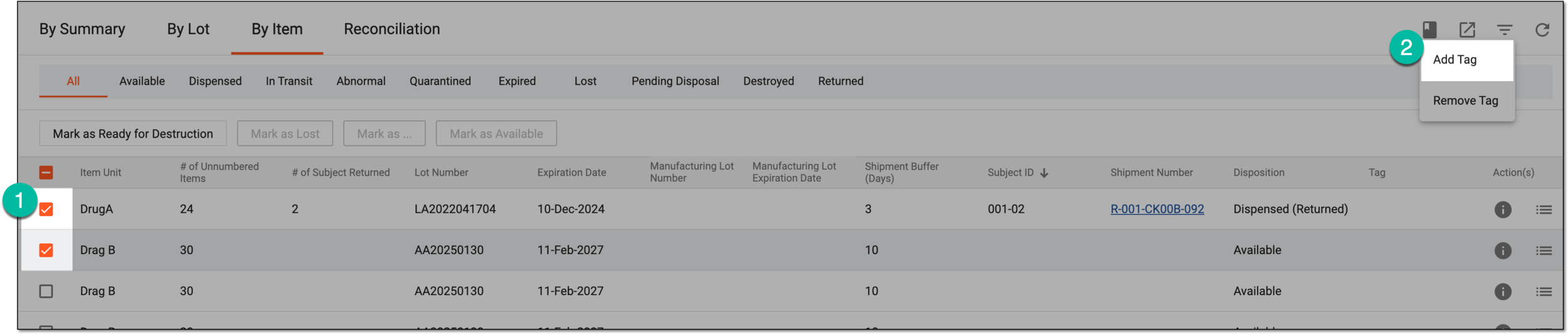 Figure 3. Selecting items to add tags
Important
You cannot add tags to container units.
-
In the Tag List dialog that opens, choose the required tag from the list and select
 to add it to your items.
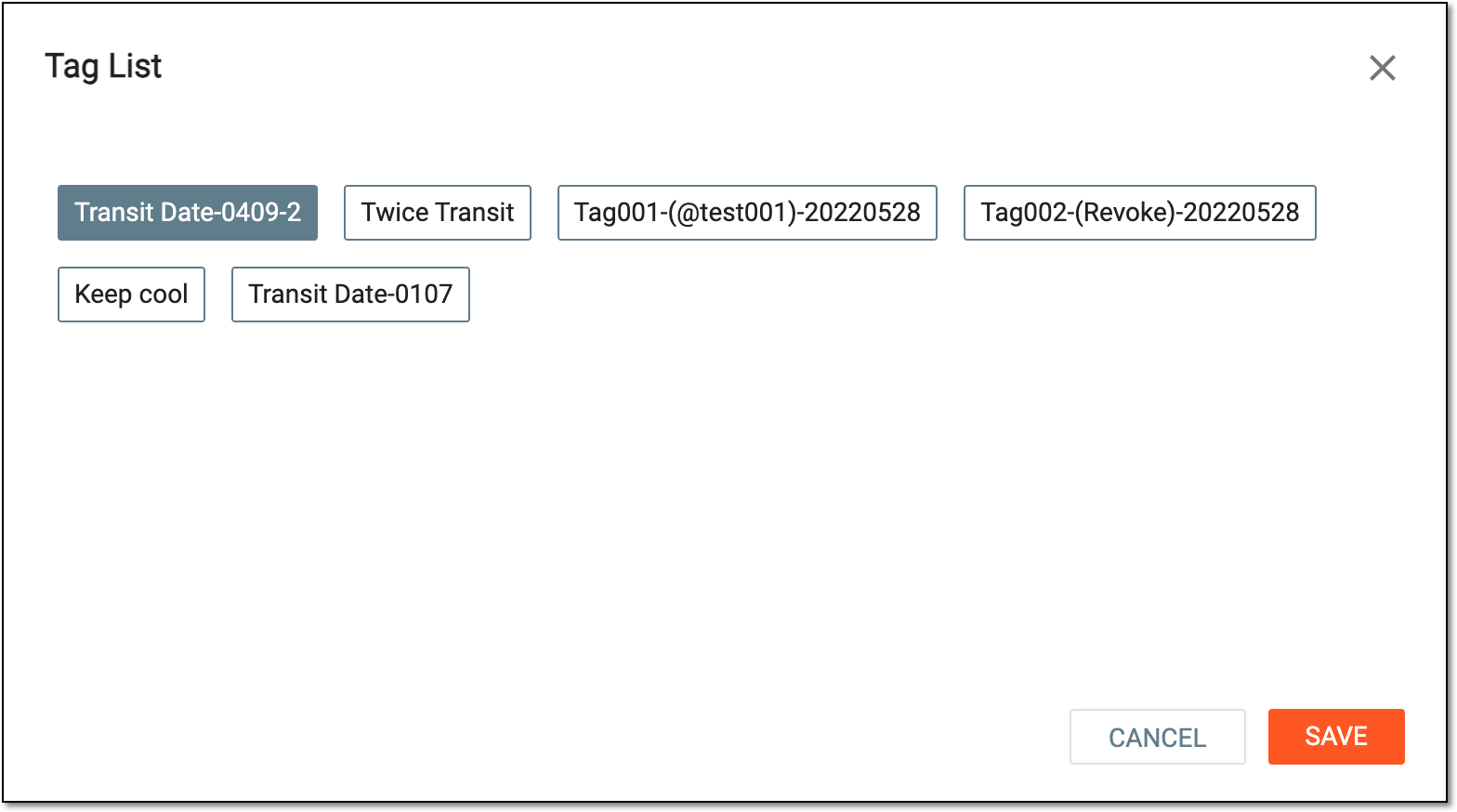 Figure 4. Adding tag to items
Tip
The available for selection tags are created under the TREATMENT DESIGN > Tag functionality.
Upon saving, your tag is added to the selected items.
An item tag is a useful marker or a note that you can add to items (product units) for their distinguishing or other reasons. When the tag is no longer valid for an item, you can remove it.
-
In the IWRS application header, select the DEPOT tab.
-
On the Depot List page that opens, select the depot to access its details.
Figure 1. Selecting depot to open its details
-
On the Depot Information page that opens, in the left pane, select the Inventory subtab.
Figure 2. Accessing depot inventory
-
Go to the By Item tab and in the table, select the checkboxes next to the items from which you want to remove a tag.
-
On the workspace toolbar, select Tag
> Remove Tag.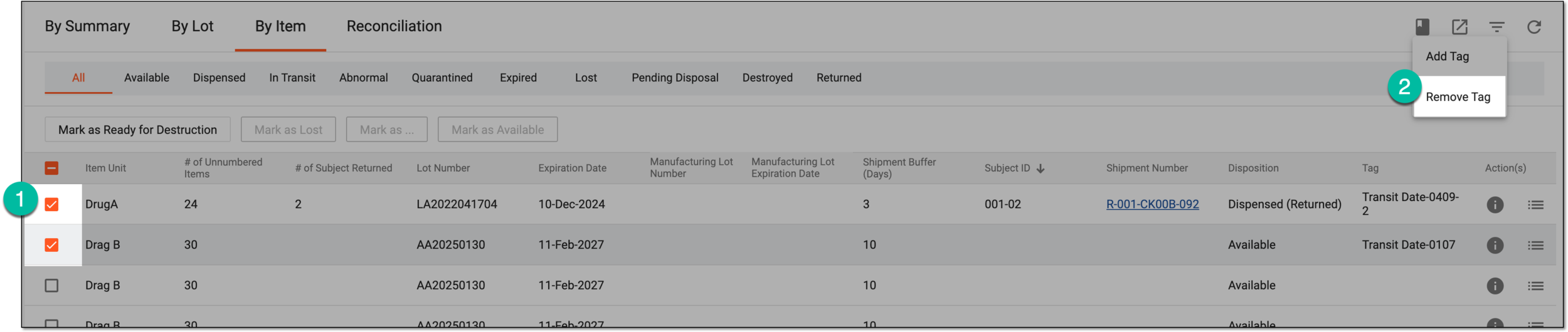 Figure 3. Selecting items to remove tags
-
In the confirmation dialog that appears, select
 to remove the tag.
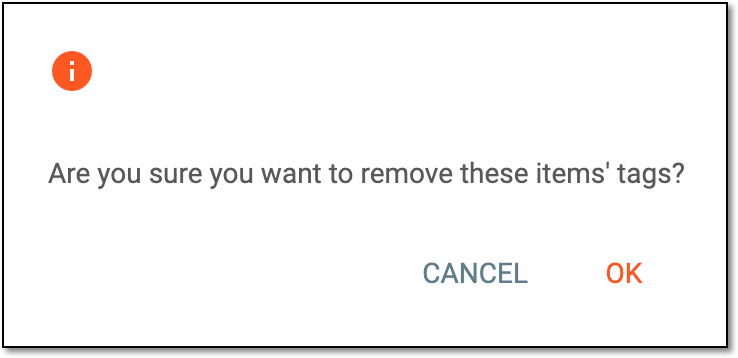 Figure 4. Confirming tag removal
Upon confirmation, the tag is removed from an item.