Add new tag
In the IWRS system, item tags have no system logic but serve as useful markers that you can add to items via the Depot inventory and Site inventory functionality.
-
In the IWRS application header, select the TREATMENT DESIGN tab.
-
In the left pane, select the Tag subtab.
-
On the page that appears, on the workspace toolbar, select New Item
 .
.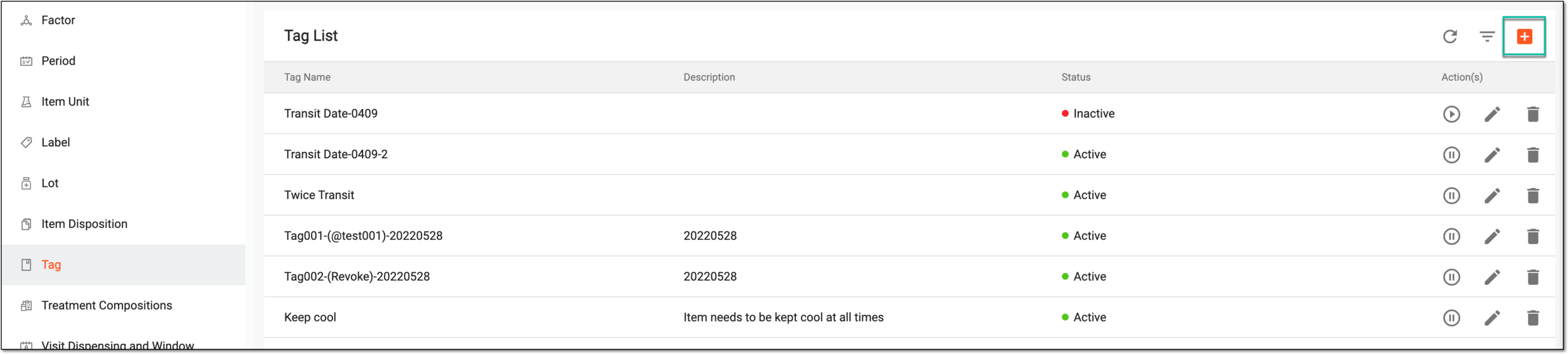 Figure 1. Adding new tag
-
In the Add dialog that opens, fill in the fields as explained in the following table.
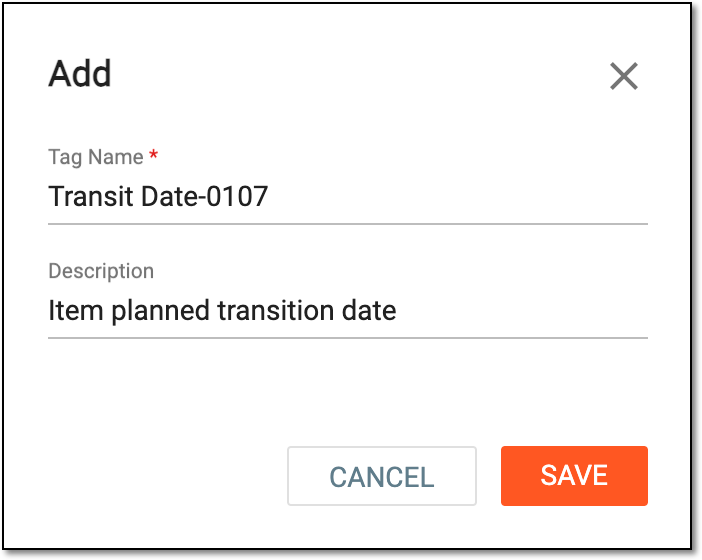 Figure 2. Adding new tag
Tip
In the following table, mandatory elements are marked with an asterisk (*).
Element
Details
Tag Name*
Enter the name of a tag. When a tag is added to an item, it is displayed in the By Item inventory table.
Description
Enter the tag description if needed.
SAVE
Select
 to apply the implemented changes.
CANCEL
Select
 to dismiss the changes and close the dialog.
Upon saving, the new tag is added and appears in the Tag List table. You can now edit, activate/inactivate, or delete your tag as needed.