View and export CRF completion status report
The data capture is the key feature and purpose of the EDC application, and it is very convenient to keep track of the completion status of all the CRFs in the study from a single report.
The CRF Completion Status report displays all the CRFs configured for the study organized by sites, subjects, visits, and statuses. It also shows open or closed queries, CRF reviews, and approvals. The report has additional sections—Report Summary by Subject and Report Summary by Site—that provide the statistics on CRF completion, query management, and data review for each subject or site in the study for more focused analysis.
This report helps study personnel assess the incomplete CRFs and required data collection activities at the upcoming visits and plan accordingly. Also, this report can be used to do the retrospective analysis of the completed forms and their review statuses, proving a convenient and comprehensive tool for data collection management in the study. Use the report online or export it to your computer in the XLSX format to share it with third parties and stakeholders or reenter data into different systems.
-
In the EDC application header, select the REPORTS tab.
-
On the page that opens, in the left pane, select the CRF Status subtab to expand the list of available reports and select CRF Completion Status.
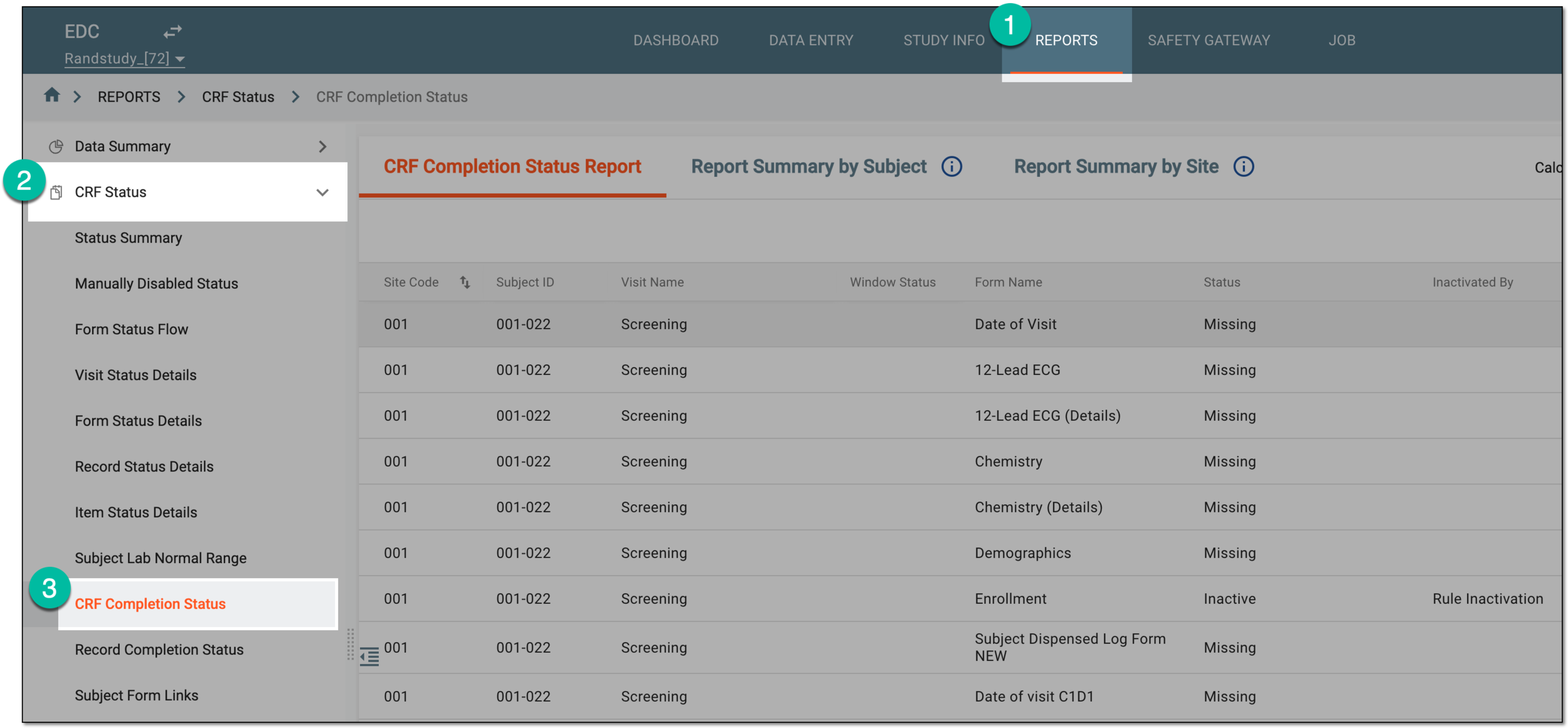 Figure 1. Accessing CRF completion status report
-
On the CRF Completion Status page that opens, study the report details under the three available tabs as follows.
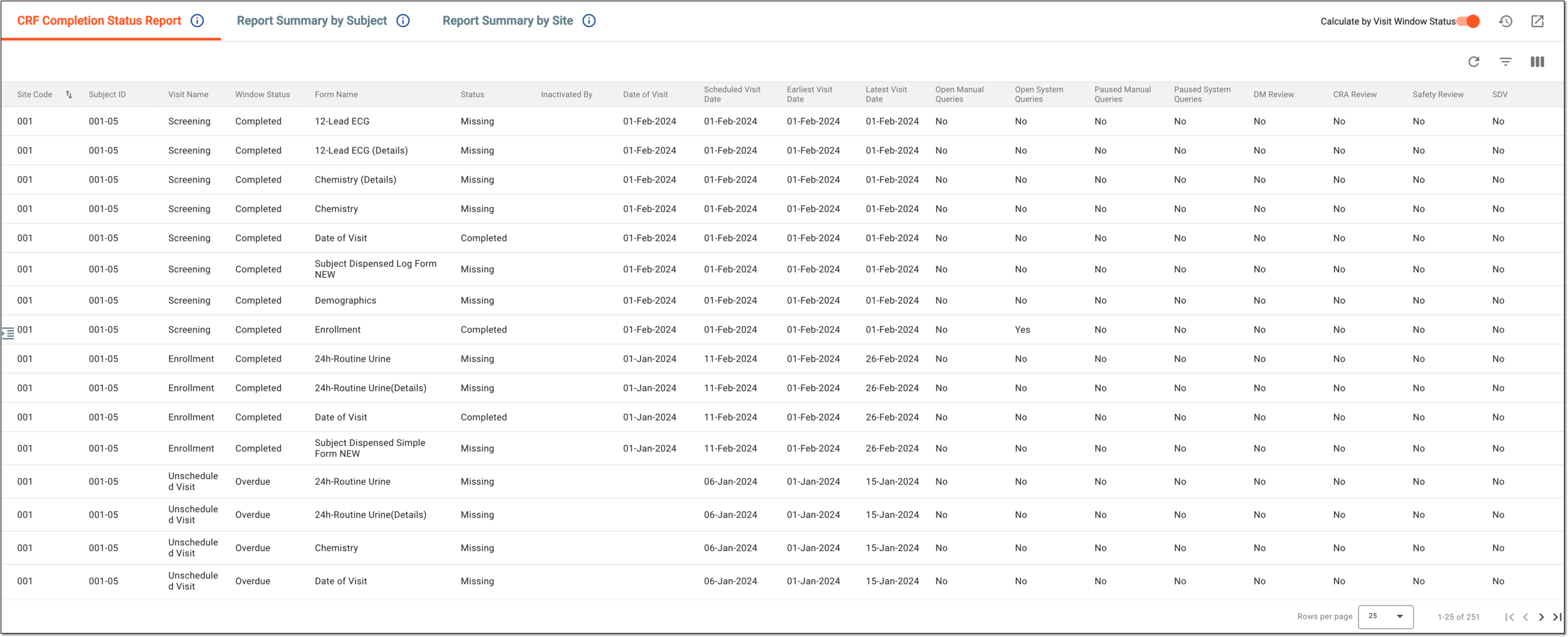 Figure 2. Studying CRF completion status report
Tip
Turn on the Calculate by Visit Windows Status toggle if you want to display the report statistics only for the CRFs with visit window statuses set to Completed, Ongoing, and Overdue, excluding the CRFs that have no visit window setting. By default, this toggle is turned off.
 Figure 3. Locating visit window calculation toggle
Column
Details
Site Code
Represents the code of the site where the data collection for the CRF occurs.
[Unique ID Label]
Represents the unique identifier of the subject to whom the CRF belongs and whose data is collected.
The column name depends on the unique ID label configuration of your study in IWRS.Visit Name
Represents the name of the visit at which the CRF must be completed.
Window Status
Represents the status of the visit window of CRF completion:
-
Completed: the visit window is over and the visit has occurred within it.
-
Ongoing: the visit window is currently open and the visit has not yet occurred.
-
Overdue: the visit window is over and the visit has not yet occurred.
Form Name
Represents the name of the CRF that must be completed.
Status
Represents the status of the CRF:
-
Completed: the data is captured and the CRF is submitted.
-
Incomplete: the data is partially captured and the CRF is not yet submitted.
-
Missing: the data is not yet captured and the CRF is empty.
-
Inactive: the form is deactivated manually by the user or automatically by the system based on the preconfigured rules.
Inactivated By
Represents the name of the user who deactivated the CRF manually or states Rule Inactivation if the CRF is deactivated by the system based on the preconfigured rules.
Date of Visit
Represents the date when the visit has occurred that can differ from the scheduled visit date due to unforeseen circumstances, human error, or other factors.
Scheduled Visit Date
Represents the date when the visit is scheduled to occur.
Earliest Visit Date
Represents the earliest date when the visit can occur without influencing the treatment and study flow. This date is the start date of the visit window.
Latest Visit Date
Represents the latest date when the visit can occur without influencing the treatment and study flow. This date is the end date of the visit window. If the actual date of visit is later than this date, the status of the visit window is Overdue.
Open Manual Queries
Represents one of the following:
-
Yes: for the CRF data, there are one or more queries opened manually by the user that have not yet been closed.
-
No: for the CRF data, there are no queries opened manually by the user or such queries are already closed.
Open System Queries
Represents one of the following:
-
Yes: for the CRF data, there are one or more queries opened automatically by the system that have not yet been closed.
-
No: for the CRF data, there are no queries opened automatically by the system or such queries are already closed.
Paused Manual Queries
Represents one of the following:
-
Yes: for the CRF data, there are one or more queries opened manually by the user that have not yet been closed and are currently on pause. You can pause manual queries to avoid their overdue in time of data unavailability or for other reasons.
-
No: for the CRF data, there are no queries opened manually by the user that are currently on pause.
Paused System Queries
Represents one of the following:
-
Yes: for the CRF data, there are one or more queries opened automatically by the system that have not yet been closed and are currently on pause. You can pause system queries to avoid their overdue in time of data unavailability or for other reasons.
-
No: for the CRF data, there are no queries opened automatically by the system that are currently on pause.
DM Review
Represents one of the following:
-
Yes: the CRF data is already reviewed by the data manager.
-
No: the CRF data is not yet reviewed by the data manager.
CRA Review
Represents one of the following:
-
Yes: the CRF data is already reviewed by the clinical research associate.
-
No: the CRF data is not yet reviewed by the clinical research associate.
Safety Review
Represents one of the following:
-
Yes: the safety review is already performed on the CRF data.
-
No: the safety review is not yet performed on the CRF data.
SDV
Represents one of the following:
-
Yes: the source data verification is already performed on the CRF data.
-
No: the SDV is not yet performed on the CRF data.
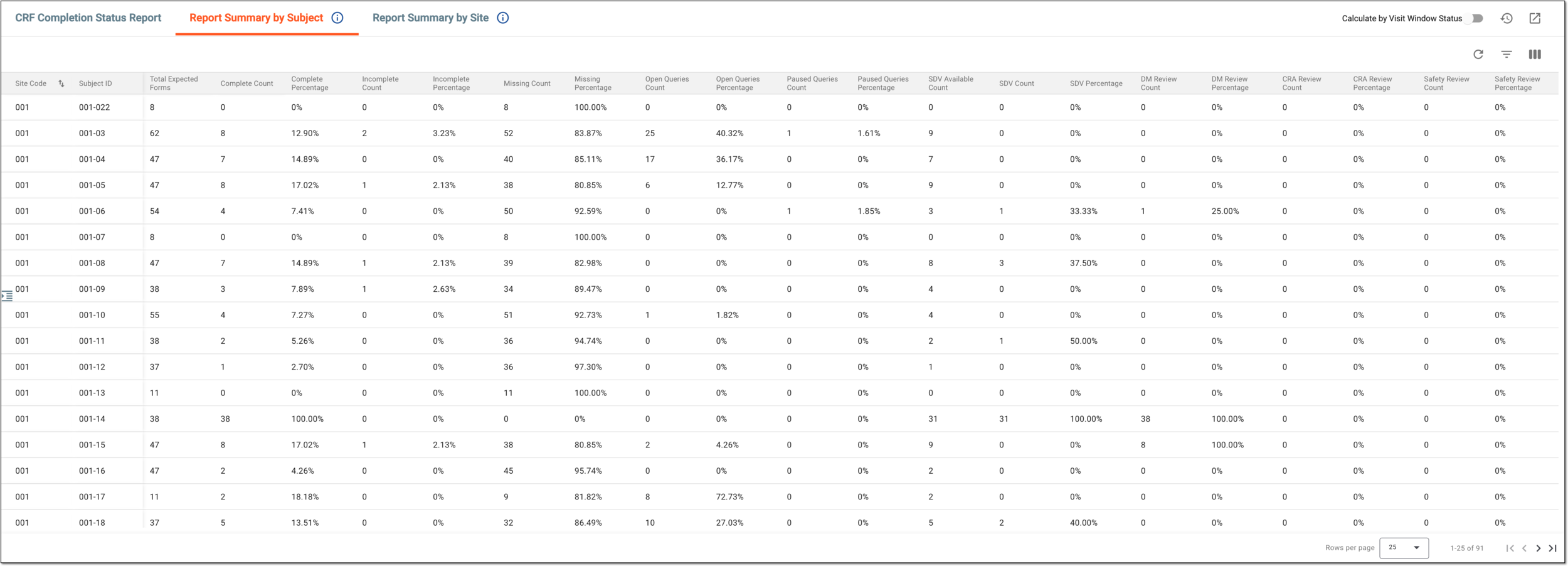 Figure 4. Studying CRF report summary by subject
Tip
Turn on the Calculate by Visit Windows Status toggle if you want to display the report statistics only for the CRFs with visit window statuses set to Completed, Ongoing, and Overdue, excluding the CRFs that have no visit window setting. By default, this toggle is turned off.
Column
Details
Site Code
Represents the code of the site where the data collection for the CRFs occurs.
[Unique ID Label]
Represents the unique identifier of the subject whose CRF completion statistics is analyzed.
The column name depends on the unique ID label configuration of your study in IWRS.Total Expected Forms
Represents the total number of CRFs that are expected to be competed for the subject during their participation in the trial.
This is the total volume of forms for the subject against which the percentages are calculated in the report.
Complete Count
Represents the number of subject's CRFs that are already completed. The completed CRF is the form filled with data and submitted, obtaining the Completed status.
Complete Percentage
Represents the proportion (in percent) of already completed CRFs out of the total volume of forms that must be completed for the subject.
Incomplete Count
Represents the number of subject's CRFs that are not yet completed. The data collection for these forms might have been initiated, but they are not yet submitted to obtain the Completed status.
Incomplete Percentage
Represents the proportion (in percent) of CRFs that are not yet completed out of the total volume of forms that must be completed for the subject.
Missing Count
Represents the number of subject's CRFs for which the data entry is not yet initiated.
Missing Percentage
Represents the proportion (in percent) of CRFs for which the data entry is not yet initiated out of the total volume of forms that must be completed for the subject.
Open Queries Count
Represents the number of all open manual and system queries (not yet closed) in all the subject's CRFs.
The number of open queries excludes the cancelled queries.Open Queries Percentage
Represents the proportion (in percent) of all manual and system queries currently open out of the total volume of queries created for the subject's CRFs data in any status.
Paused Queries Count
Represents the number of all manual and system queries that are currently paused in all the subject's CRFs.
Paused Queries Percentage
Represents the proportion (in percent) of all manual and system queries currently paused out of the total volume of queries created for the subject's CRFs data in any status.
SDV Available Count
Represents the number of subject's CRFs that are intended for source data verification.
SDV Count
Represents the number of subject's CRFs for which the source data verification is already performed.
SDV Percentage
Represents the proportion (in percent) of CRFs for which the source data verification is already performed out of the total volume of forms that are intended for SDV.
DM Review Count
Represents the number of subject's CRFs that are already reviewed by the data manager.
DM Review Percentage
Represents the proportion (in percent) of CRFs that are already reviewed by the data manager out of the total volume of subject's forms.
CRA Review Count
Represents the number of subject's CRFs that are already reviewed by the clinical research associate.
CRA Review Percentage
Represents the proportion (in percent) of CRFs that are already reviewed by the clinical research associate out of the total volume of subject's forms.
Safety Review Count
Represents the number of subject's CRFs for which the safety review is already performed.
Safety Review Percentage
Represents the proportion (in percent) of CRFs for which the safety review is already performed out of the total volume of subject's forms.
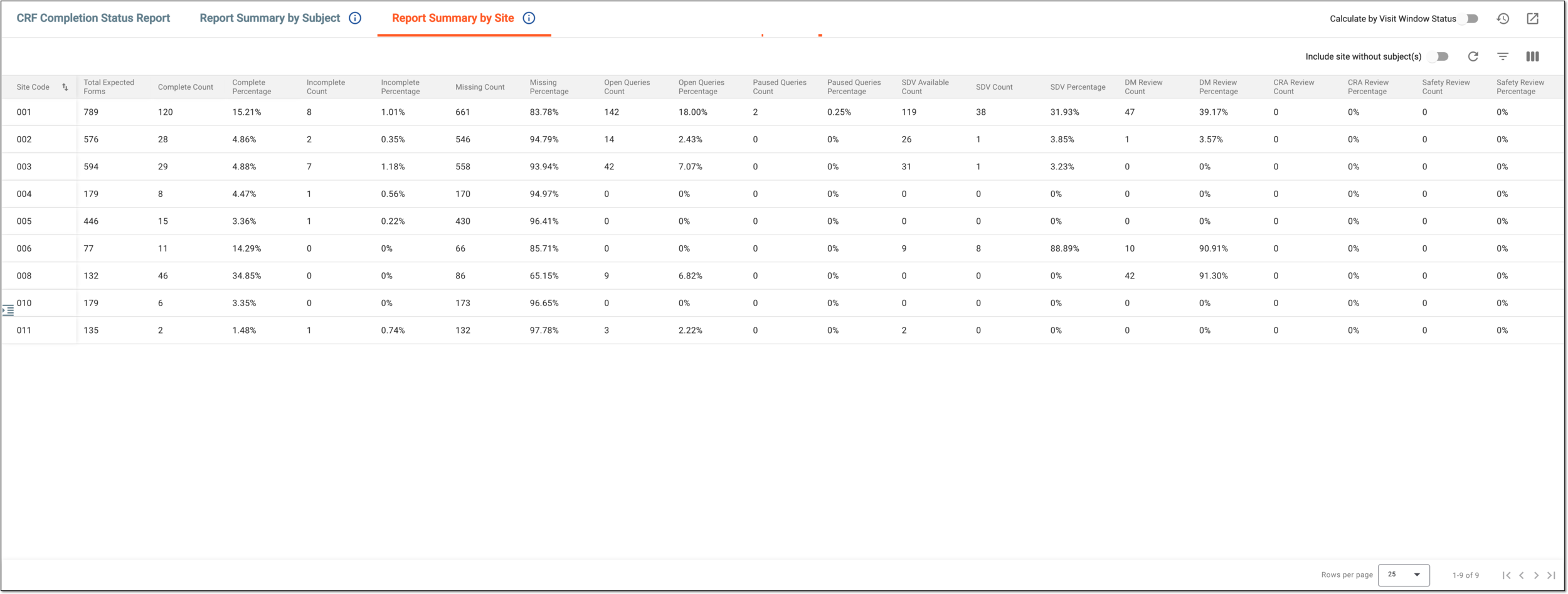 Figure 5. Studying CRF report summary by site
Tip
Turn on the Calculate by Visit Windows Status toggle if you want to display the report statistics only for the CRFs with visit window statuses set to Completed, Ongoing, and Overdue, excluding the CRFs that have no visit window setting. By default, this toggle is turned off.
Turn on or off the Include site without subject(s) toggle to show or hide the sites without registered subjects in your statistics, respectively.
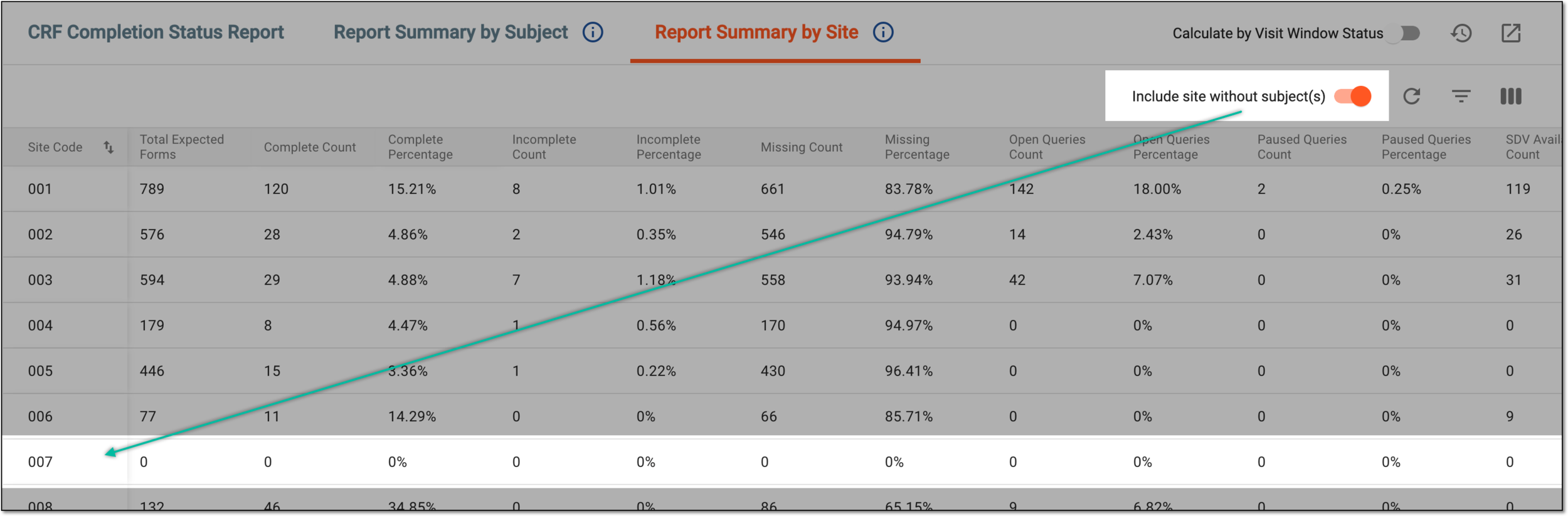 Figure 6. Including sites with no subjects in report
Column
Details
Site Code
Represents the code of the site where the data collection for the CRFs occurs.
Total Expected Forms
Represents the total number of CRFs that are expected to be competed at the site during their participation in the trial.
This is the total volume of forms for the site against which the percentages are calculated in the report.
Complete Count
Represents the number of CRFs at the site that are already completed. The completed CRF is the form filled with data and submitted, obtaining the Completed status.
Complete Percentage
Represents the proportion (in percent) of already completed CRFs out of the total volume of forms that must be completed at the site.
Incomplete Count
Represents the number of CRFs that are not yet completed at the site. The data collection for these forms might have been initiated, but they are not yet submitted to obtain the Completed status.
Incomplete Percentage
Represents the proportion (in percent) of CRFs that are not yet completed out of the total volume of forms that must be completed at the site.
Missing Count
Represents the number of CRFs at the site for which the data entry is not yet initiated.
Missing Percentage
Represents the proportion (in percent) of CRFs for which the data entry is not yet initiated out of the total volume of forms that must be completed at the site.
Open Queries Count
Represents the number of all open manual and system queries (not yet closed) in all the CRFs at the site.
The number of open queries excludes the cancelled queries.Open Queries Percentage
Represents the proportion (in percent) of all manual and system queries currently open out of the total volume of queries created for all the CRFs at the site in any status.
Paused Queries Count
Represents the number of all manual and system queries that are currently paused in all the CRFs at the site.
Paused Queries Percentage
Represents the proportion (in percent) of all manual and system queries currently paused out of the total volume of queries created for the CRFs at the site in any status.
SDV Available Count
Represents the number of CRFs at the site that are intended for source data verification. This is the total volume of SDV-intended forms against which the SDV percentage is calculated in this report.
SDV Count
Represents the number of CRFs at the site for which the source data verification is already performed.
SDV Percentage
Represents the proportion (in percent) of CRFs for which the source data verification is already performed out of the total volume of forms that are intended for SDV at the site.
DM Review Count
Represents the number of CRFs that are already reviewed by the data manager at the site.
DM Review Percentage
Represents the proportion (in percent) of CRFs that are already reviewed by the data manager out of the total volume of forms at the site.
CRA Review Count
Represents the number of CRFs that are already reviewed by the clinical research associate at the site.
CRA Review Percentage
Represents the proportion (in percent) of CRFs that are already reviewed by the clinical research associate out of the total volume of forms at the site.
Safety Review Count
Represents the number of CRFs for which the safety review is already performed at the site.
Safety Review Percentage
Represents the proportion (in percent) of CRFs for which the safety review is already performed out of the total volume of forms at the site.
-
-
To export the report as an XLSX file, go to the the report tab whose data you want to extract—CRF Completion Status, Report Summary by Subject, or Report Summary by Site. Then from the workspace toolbar, select Export
 .
. Figure 7. Selecting option to export CRF completion status data
-
In the Export dialog that appears, set the export parameters as explained in the following table.
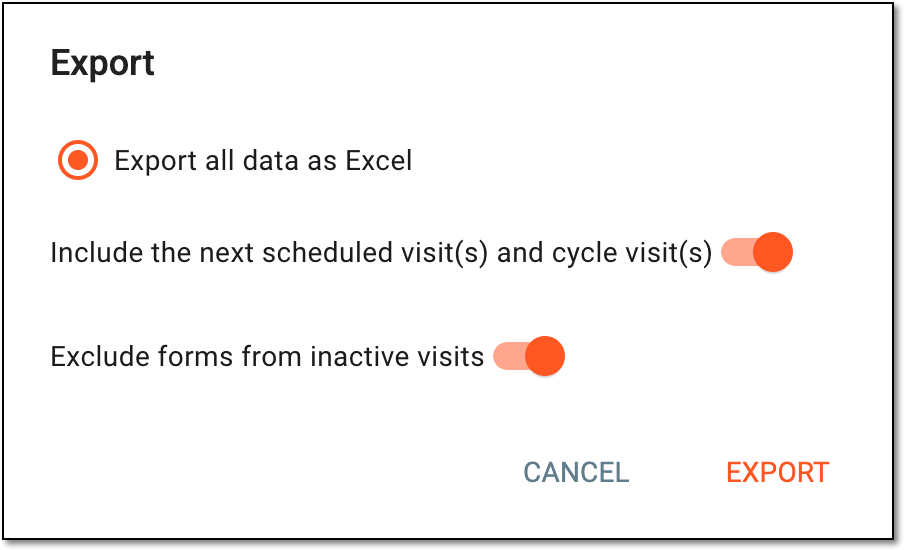 Figure 8. Setting report export parameters
Element
Details
Export all data as Excel
Select this option to export all the report details disregarding any filtering applied to the report. If cleared, the filtered version is exported.
This option is available for all report export—CRF Completion Status, Report Summary by Subject, or Report Summary by
                                  Site.
Include the next scheduled visit(s) and cycle visit(s)
Set as follows:
-
Turn on this toggle to include all the active (initialized) CRFs and all the hidden and not yet initialized CRFs for all scheduled visits and cycle visits whose anchor is completed. However, the CRFs for the unscheduled visits remain excluded from the generated report.
-
Turn off this toggle to exclude hidden and not yet initialized CRFs for all scheduled visits and cycle visits whose anchor visit is completed and generate the report with only active (initialized) CRFs.
This toggle is only available for the CRF Completion Status report export.Exclude forms from inactive visits
Set as follows:
-
Turn on this toggle to exclude from the exported report the CRFs of the visits that are currently in the Inactive status.
-
Turn off this toggle to include in the exported report the CRFs of the visits that are currently in the Inactive status.
This toggle is only available for the CRF Completion Status report export and if the Include the next scheduled visit(s) and cycle visit(s) toggle is turned
                                  on.
EXPORT
Select
 to proceed with the report file generation.
CANCEL
Select
 to discard the report export.
 -
-
The downloads widget appears depicting the export progress. Select the widget to access downloadable files.
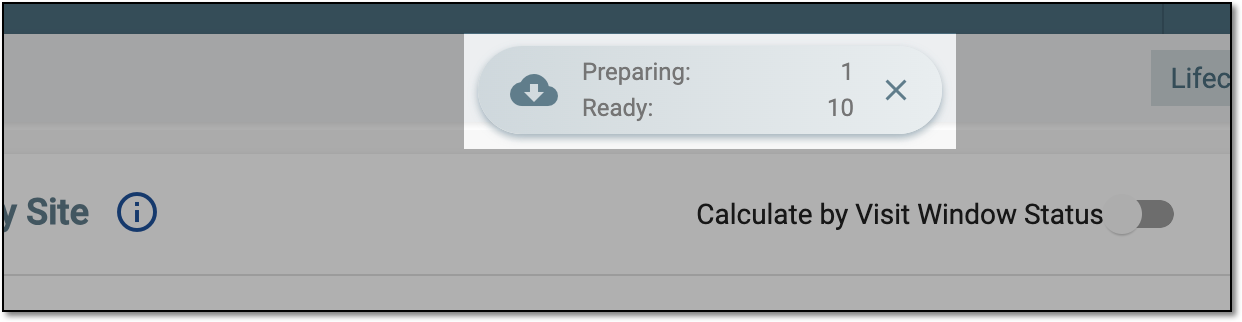 Figure 9. Selecting downloads widget for CRF completion status report
-
In the My Downloads dialog that appears, go to the Download is Ready tab and next to the generated report, select the download symbol
 .
.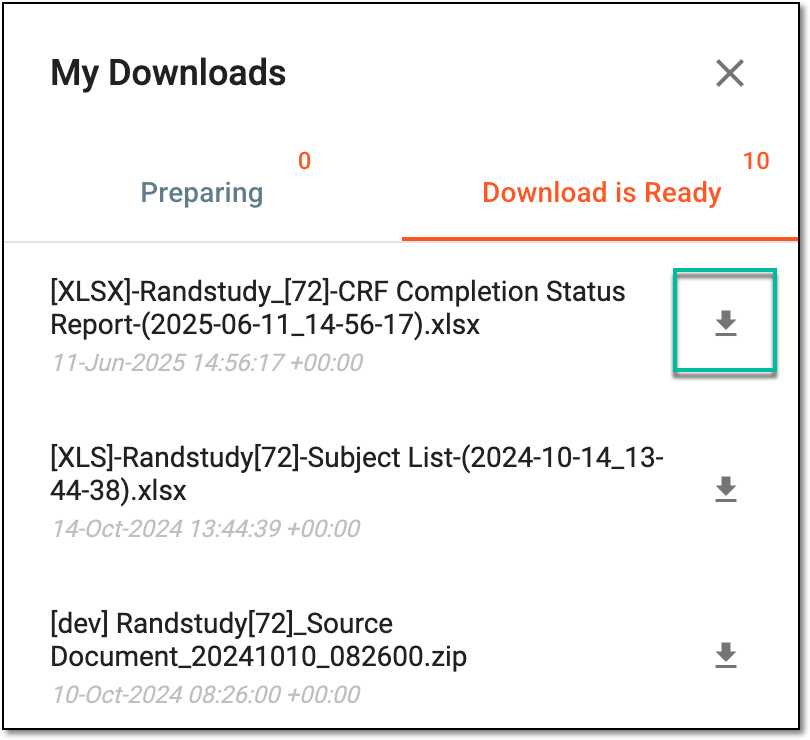 Figure 10. Downloading CRF completion status report
Once the report details are studied and the exported file downloaded, you have the needed data on your computer and can use it as per your business scenario.