View status summary report
In EDC, the Status Summary report displays the number of visits, forms, and items in different states (statuses). The report comprises a set of bar charts—for the visit, form, and item status summary—depicting the statistics of the portrayed matter by its status.
As this report has a summary of form statuses across the study, you can use it to create metrics on the matter and review the current state of study activities and the progress of data collection and validation.
For instance, you can review how many visits, forms, and items have the initial status and how many are closed, and compare these two statistics in an easily perceptible graphic way to understand current estimates for data collection.
-
In the EDC application header, select the REPORTS tab.
-
On the page that opens, in the left pane, select the CRF Status subtab to expand the list of available reports and select Status Summary.
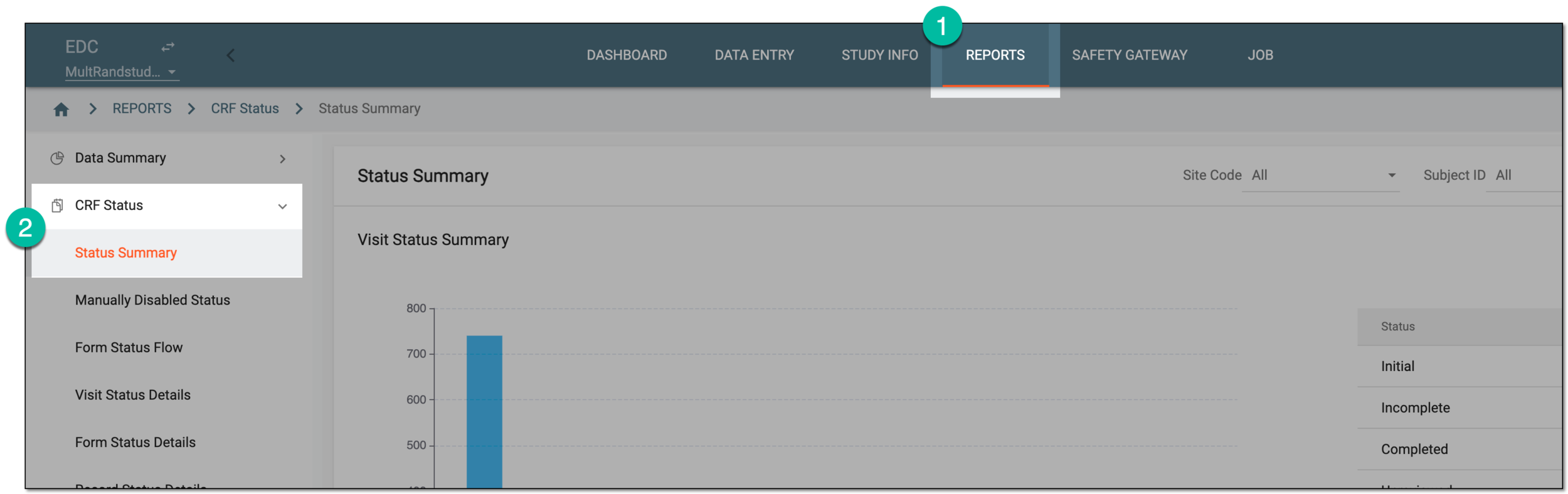 Figure 1. Accessing status summary
-
Make the report more site- or subject-specific by selecting the respective properties from the Site Code and Subject ID dropdown menus on the workspace toolbar.
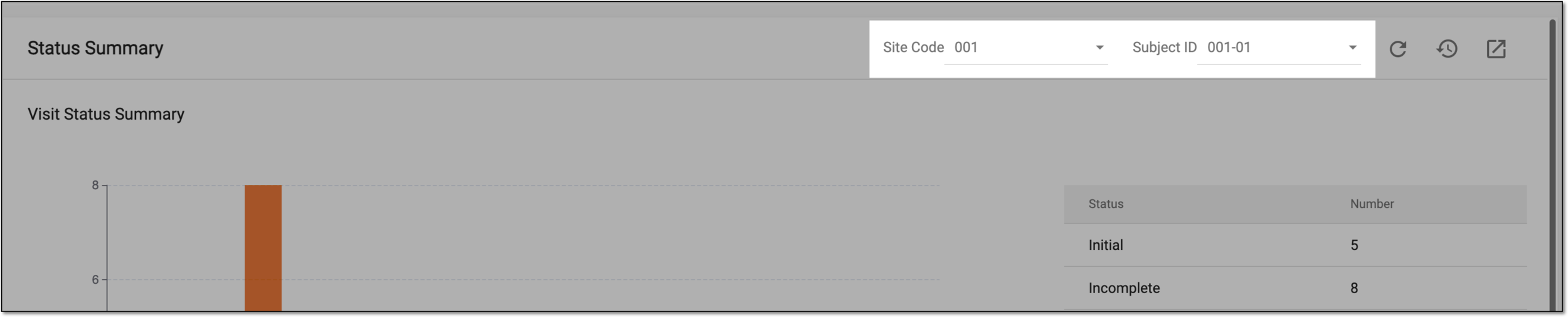 Figure 2. Adjusting status summary values
-
On the resulting charts, review the data as follows.
The bars of the chart represent the up-to-date number of visits in each status configured for your study as explained in the following table.
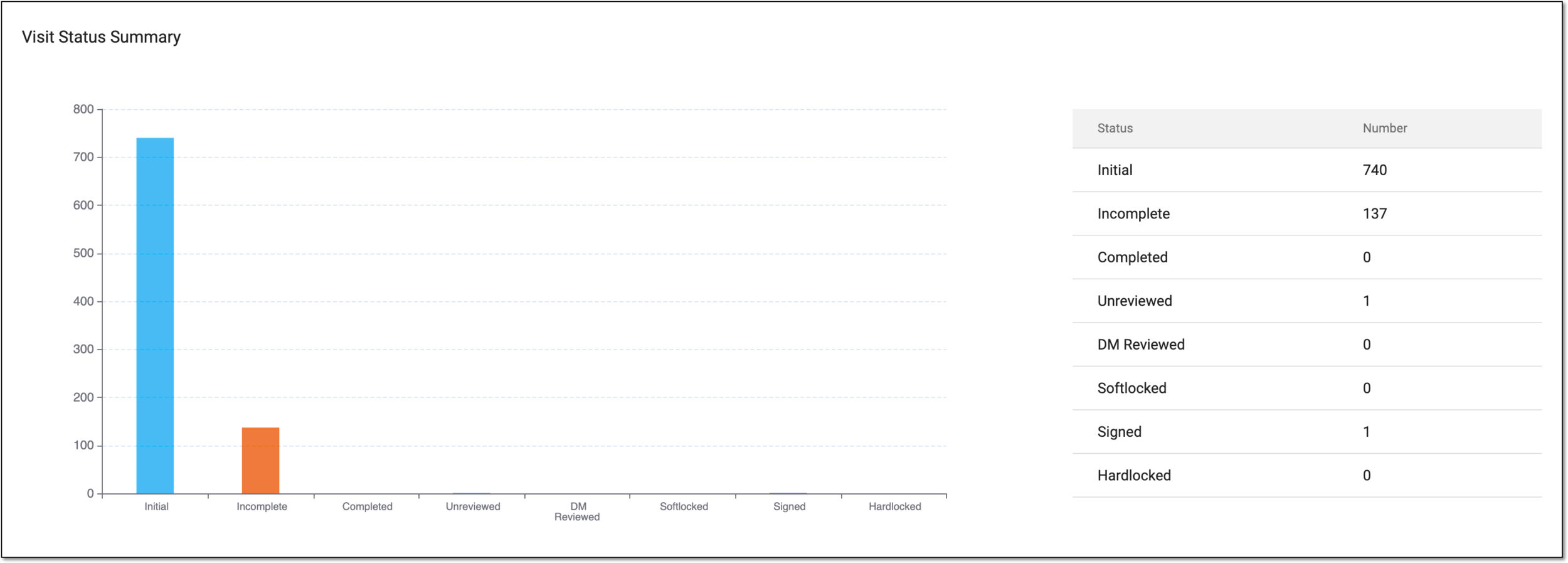 Figure 3. Reviewing visit status summary
Important
The available statuses depend on the review and approval stages configured for your study via EDC and SD.
Status
Details
Initial
The data collection is not initiated for CRFs associated with this visit.
Incomplete
The data collection is initiated for CRFs associated with this visit but has not been completed yet.
Completed
The data collection is completed for all CRFs associated with this visit.
Unreviewed
The data review for all CRFs associated with this visit is not done.
DM Reviewed
The data review for all CRFs associated with this visit is done by the data manager (DM).
Softlocked
All the CRFs and the visit itself are soft-locked after the needed review stages are completed.
Signed
All the CRFs and the visit itself are signed by the principal investigator (PI).
Hardlocked
All the CRFs and the visit itself are hard-locked after the needed review stages and PI signature are completed.
The bars of the chart represent the up-to-date number of CRFs in each status configured for your study as explained in the following table.
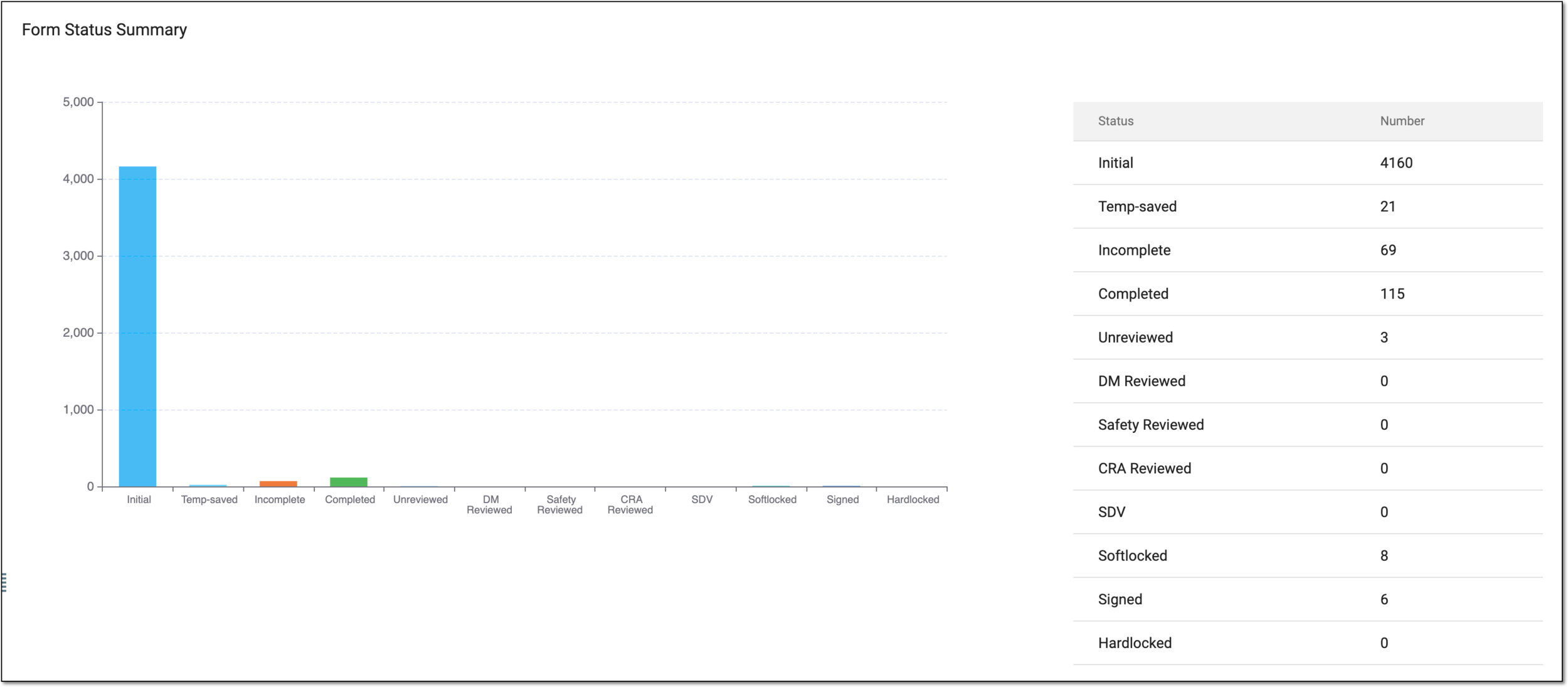 Figure 4. Reviewing form status summary
Important
The available statuses depend on the review and approval stages configured for your study via EDC and SD.
Status
Details
Initial
The data collection is not initiated for CRFs associated with this visit.
Temp-saved
The data collection is initiated, but the CRF is saved to be edited later and not yet submitted.
Incomplete
The data collection is initiated for the CRF but not all mandatory fields are filled upon submission, thus, the CRF cannot be considered Completed.
Completed
The data collection is completed for all the mandatory fields of the CRF.
Unreviewed
The CRF is not yet reviewed by any of the dedicated users.
DM Reviewed
The CRF is reviewed by the data manager (DM).
Safety Reviewed
The CRF is reviewed by the safety team.
CRA Reviewed
The CRF is reviewed by the clinical research associate (CRA).
Softlocked
The CRF is soft-locked after the needed review stages are completed.
Signed
The CRF is signed by the principal investigator (PI).
Hardlocked
The CRF is hard-locked after the needed review stages and PI signature are completed.
The bars of the chart represent the up-to-date number of CRF items (fields) in each status configured for your study as explained in the following table.
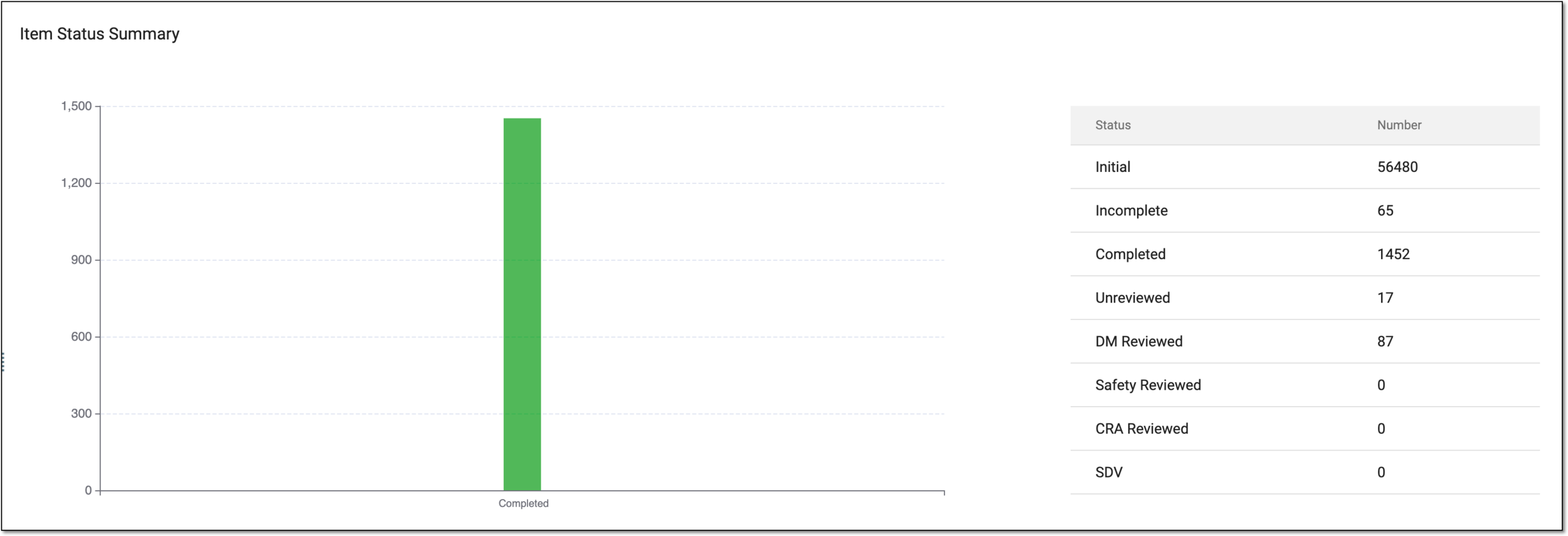 Figure 5. Reviewing item status summary
Important
The available statuses depend on the review and approval stages configured for your study via EDC and SD.
Status
Details
Initial
The data is not entered in the respective item of the form.
Incomplete
The data is entered in the respective item of the form but the form is not yet submitted.
Completed
The data is entered in the respective item of the form and the form is submitted.
Unreviewed
The data entry within the form item is not reviewed.
DM Reviewed
The data entry within the form item is reviewed by the data manager (DM).
Safety Reviewed
The data entry within the form item is reviewed by the safety team.
CRA Reviewed
The data entry within the form item is reviewed by the clinical research associate (CRA).
SDV
The source data verification (SDV) is completed for the data entry within the form item.
Once the report details are studied, you can leave the page or perform other suggested manipulations.