Soft-lock/Unlock form
In EDC, CRFs that are already reviewed by the data manager (DM) and are ready for further review—clinical research associate (CRA), principal investigator (PI), or else—can be soft-locked. The soft lock is required to prevent any actions or amendments to the data already validated by DM. Locking the form is important to avoid intended or accidental data distortion.
However, if there is a need to perform some eligible changes to the CRF data, the form can be temporarily unlocked.
Furthermore, when you configure study-level setting, you can set the conditions for the Softlock feature. These conditions ensure that you can only soft-lock forms when all the conditions that you set are met. Users will not be able to soft-lock sites accidentally or without the predefined conditions, including required reviews and resolved queries.
Important
In EDC, you can enable the functionality for the clinical research coordinator (CRC) to add new records to the soft-locked log forms. This is needed, for instance, to avoid delays in recording adverse event details for the subject whose form is already soft-locked, however, the follow-up data becomes available.
-
In the EDC application header, select the DATA ENTRY tab.
-
On the Site List page that opens, select the tile representing the site with which you want to work.
 Figure 1. Selecting site tile
-
In the Subject List table that appears, select the ID of the subject to open their Visit Overview page.
 Figure 2. Selecting database ID
-
On the Visit Overview page that opens, on the left, a panel with all subject visits is displayed. Expand the visit and select the form that you want to soft-lock or unlock.
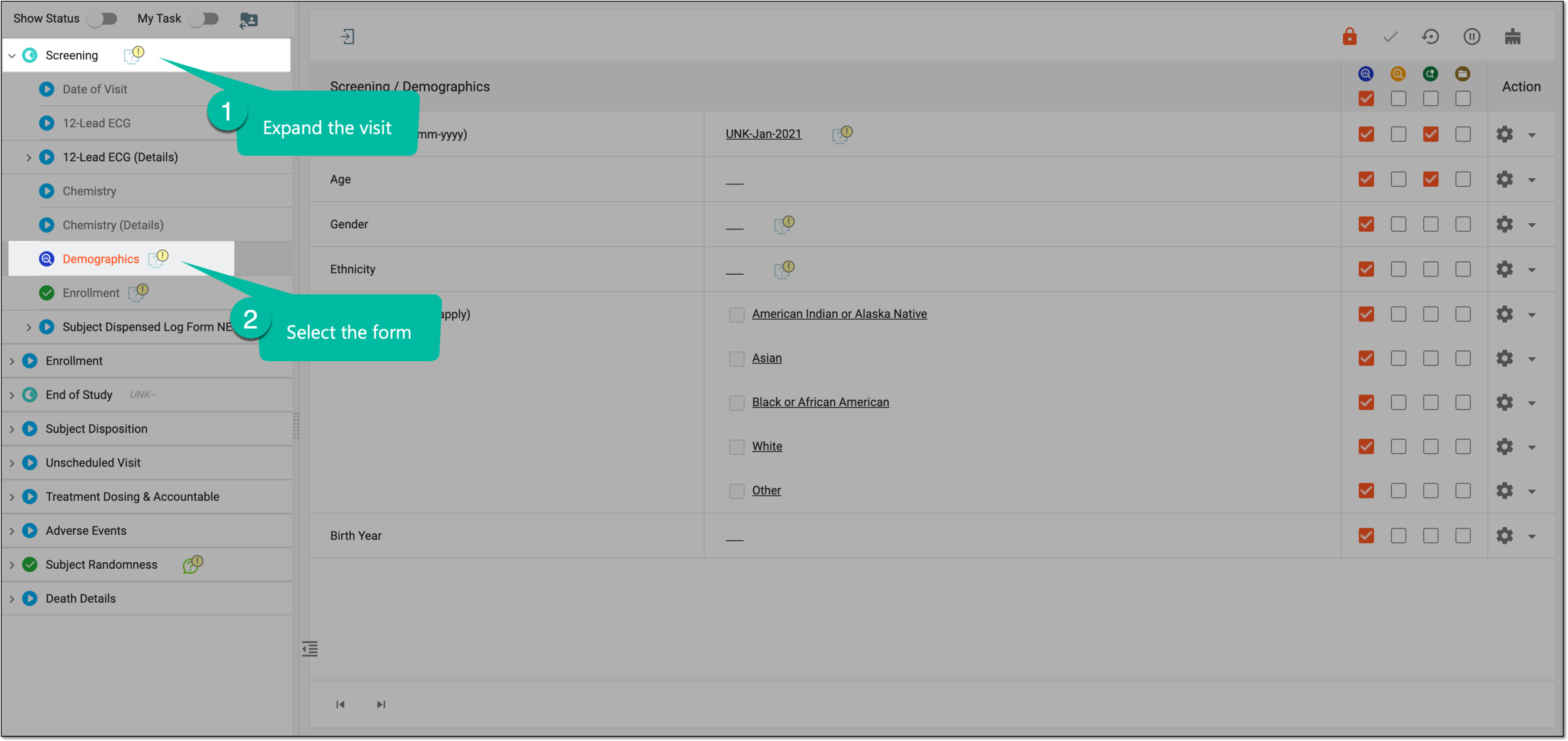 Figure 3. Accessing form to soft-lock
Tip
Note that forms available for soft-lock have the DM Review
 status and those available for
unlock have the Softlocked
status and those available for
unlock have the Softlocked  status.
 -
On the form page that opens, perform one of the following actions:
-
To soft-lock the form, from the workspace toolbar, select Softlock
 .
.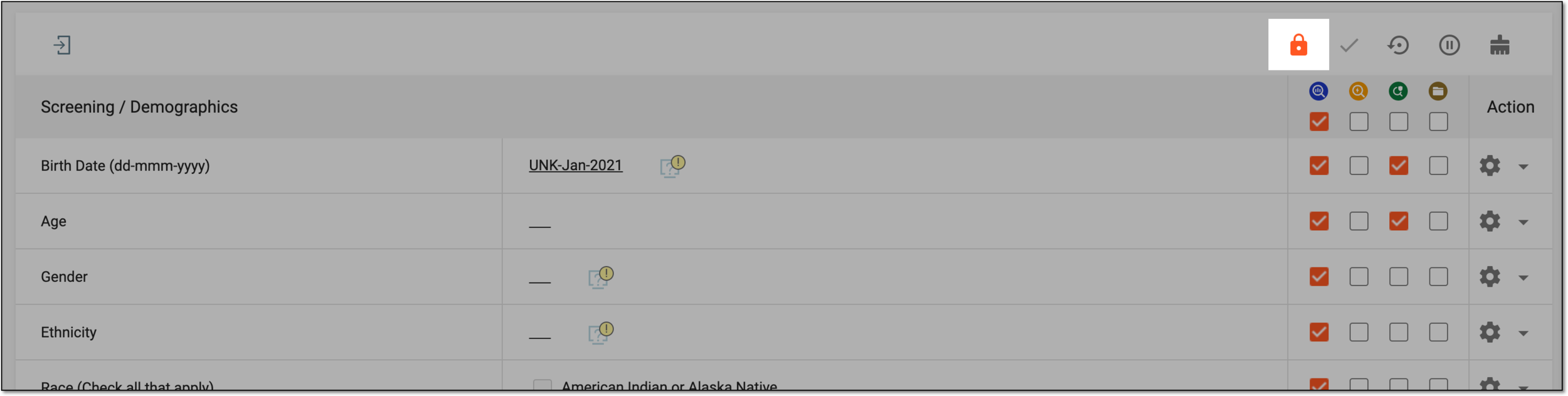 Figure 4. Soft-locking form
-
To unlock the locked form, select Unsoftlock
 .
.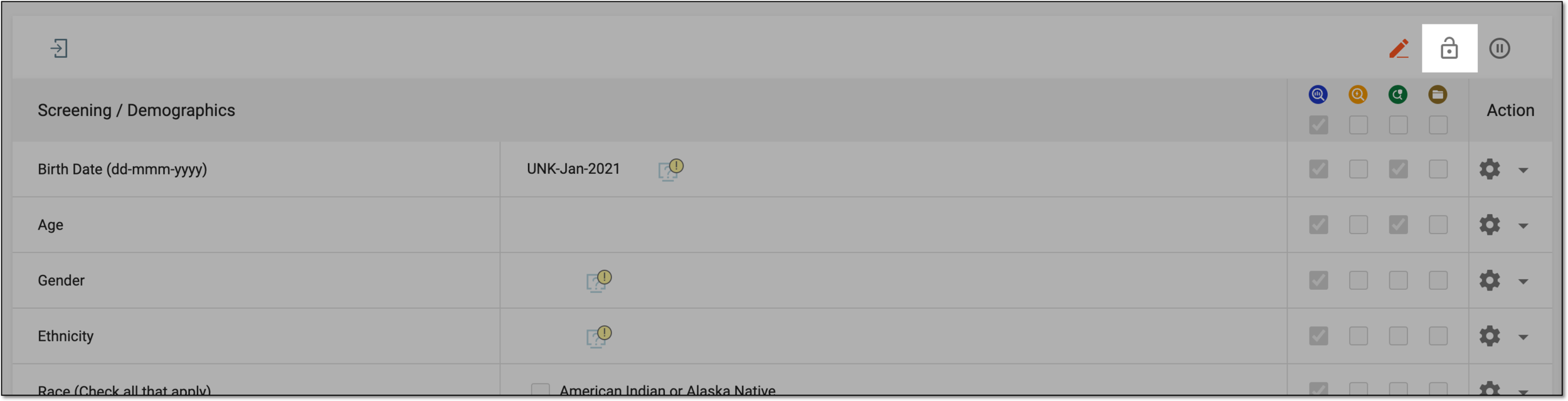 Figure 5. Soft-locking form
-
Once done, the form is soft-locked or unlocked based on your performed action.