Analyze study overview dashboard data
The Study Overview dashboard is designed to display insights into the selected study, such as milestones, essential documents, original files, file progress, rejected file records, query status summary, query aging details, and more. It explains complex study data statistics through easy-on-the-eye color-coded bars and pie charts.
Unlike the My Work dashboard, which is limited to the tasks assigned to you, the Study Overview dashboard covers the whole study data analysis with its milestones, essential documents, original files, file progress, rejected file record, query status summary, and query aging details.
-
In the eTMF application header, select the TMF tab.
-
On the page that opens, in the left pane, select the Study List subtab.
-
In the Study List table, select the study to access relevant dashboard data for analysis.
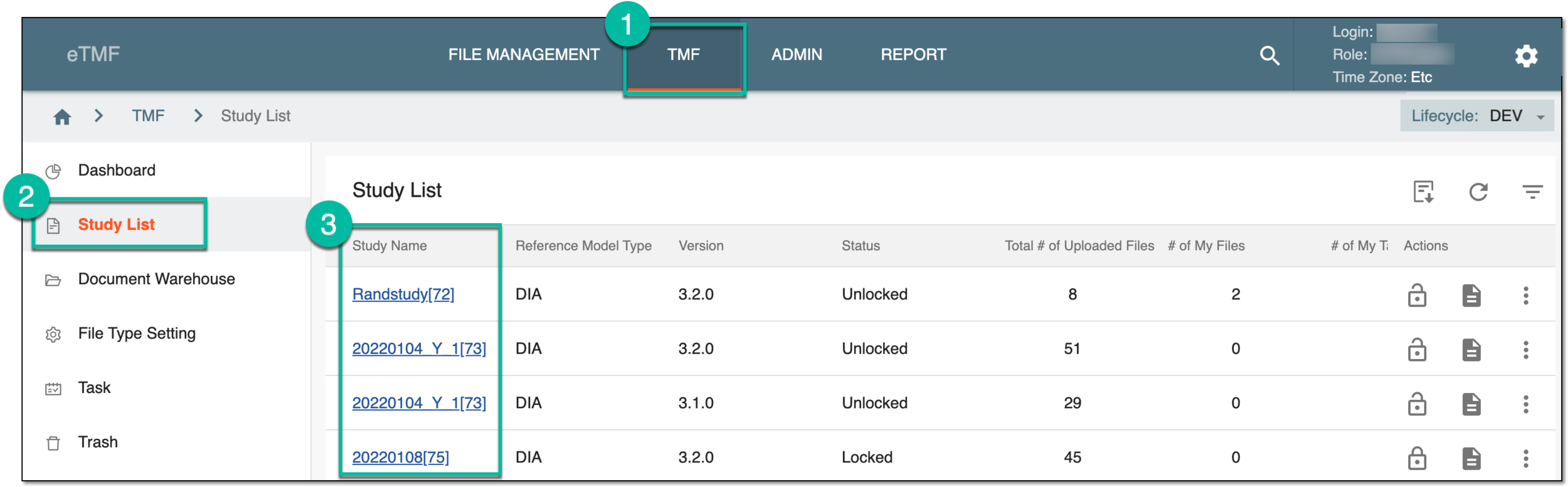 Figure 1. Accessing study data
-
On the page that opens, in the left pane, select the Study Overview subtab to display the dashboard.
-
On the Study Overview dashboard that opens, review the study data for each block according to your business needs.
Tip
If needed, select the study, level, and other parameters from the toolbar dropdown menus to organize the Study Overview dashboard statistics display.
 Figure 2. Selecting study, level, and country dashboard parameters
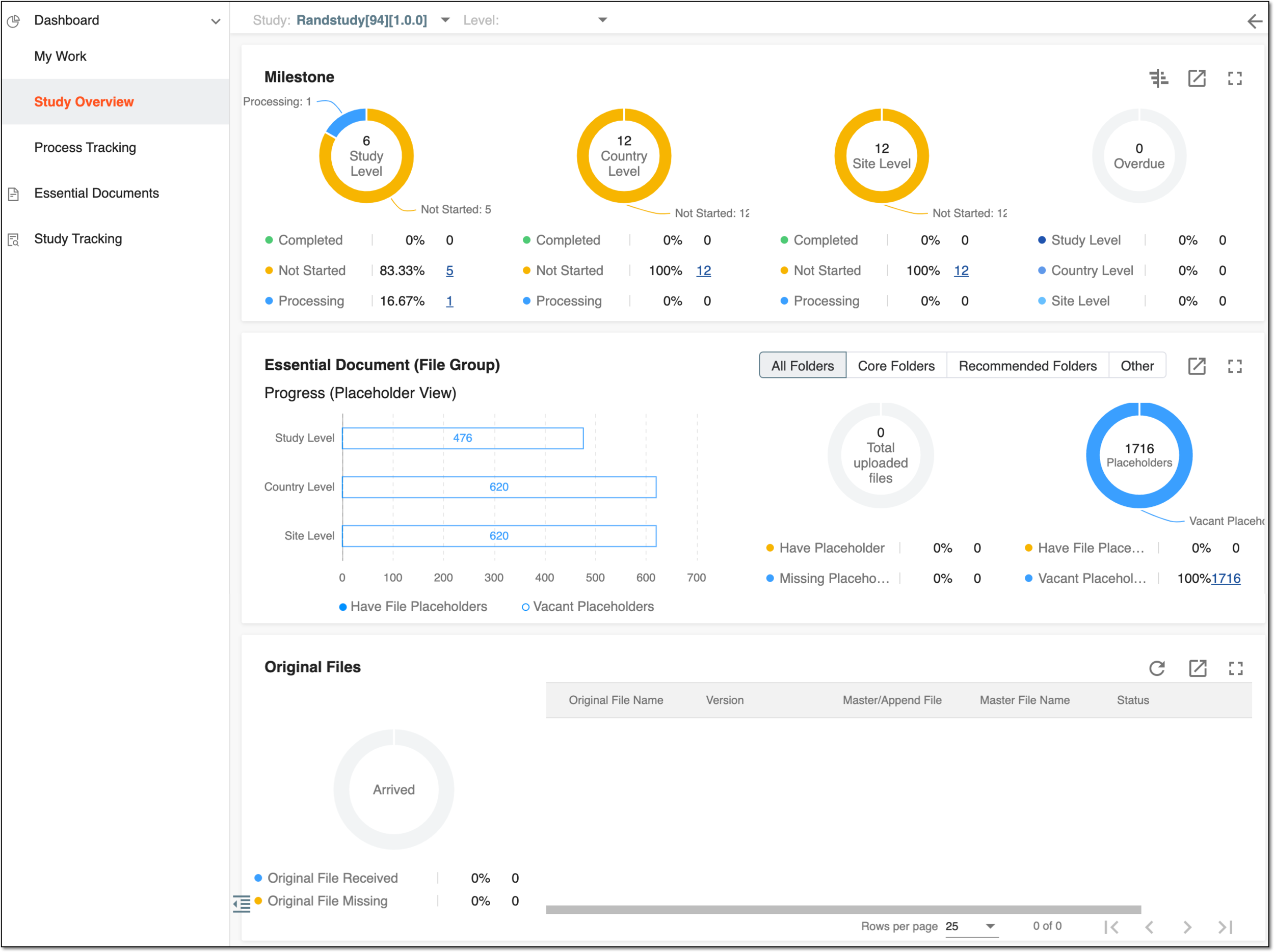 Figure 3. Analyzing study-overview data
After successfully reviewing the Study Overview data, select Back  to return to
the Study List page.
to return to
the Study List page.
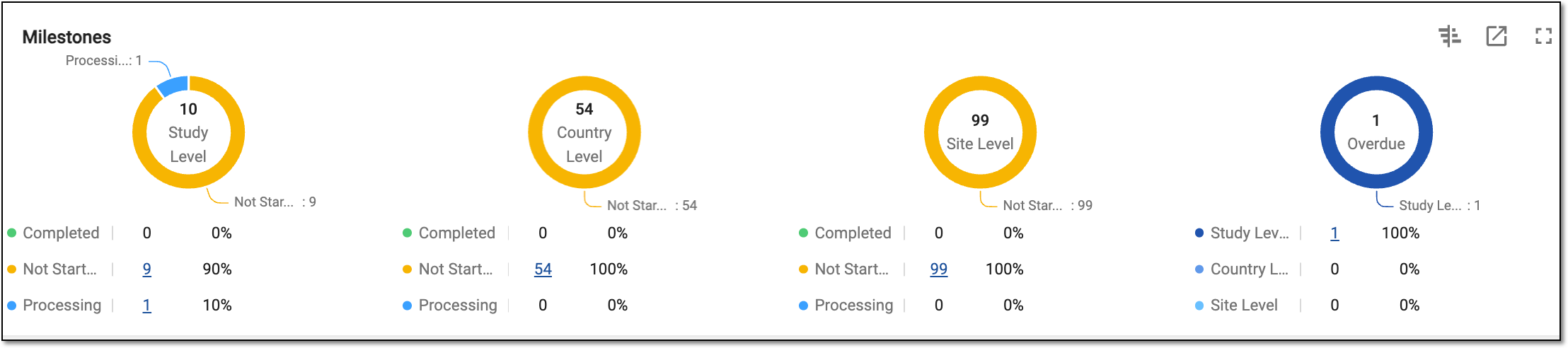
A milestone is a significant point in the development of the clinical trial at the study, country, or site level.
A series of pie charts in the Milestones block of the Study Overview page shows actual percentages and counts of the clinical trial's milestone progression at the study, country, and site levels and the percentage of milestones overdue at the respective levels.
Tip
This study's milestones data is populated from the milestone details during its definition via the CTMS app.
With the data you have in this block, you can do the following:
-
In the top rightmost corner, select Gantt
 to review the same statistics in the Gantt chart.
On the Gantt page that opens, view the statistics, considering the details explained in the following table, and select
 to return to the Study Overview dashboard page.
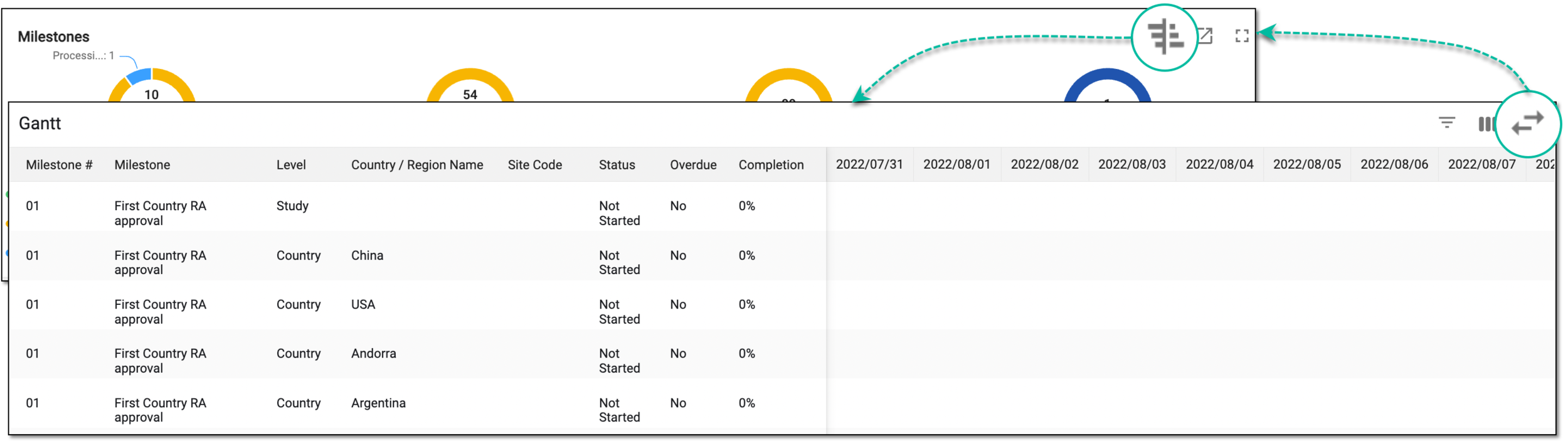 Figure 2. Gantt chart example and switching back to pie charts
Element
Details
Milestone #
Represents a unique identification number (ID) of the study milestone, such as 01.
This ID is specified during milestone configurations.Milestone
Represents the name of the study milestone, such as First Approval, which means that the milestone expects study approval at the first stage.
Level
Represents the scale at which you need to analyze the clinical trial level:
-
Study Level: the data is collected from all the study locations, including all the countries where it is conducted and all the sites where it occurs.
-
Country Level: the data is collected from the specific countries where the study is conducted.
-
Site Level: from the specific places (sites, such as labs, hospitals, and so on) where the study is conducted.
Country / Region Name
Represents the country or region name to which the milestone is related, for example, China, USA, Austria, etc.
Site Code
Represents a unique code of the site to which the milestone is related.
Status
Represents the current condition of the milestone.
For example, the Ongoing status informs us that the milestone is in progress.
Overdue
Defines whether the milestone is overdue or actual with the Yes or No values, respectively.
Completion
Represents the percentage of the milestone completion.
-
-
Export the dialog data by selecting Export
 .
. -
Select Full screen
 to view the dashboard in a more enhanced view.
 -
Hover over the pie part to check the percentage.
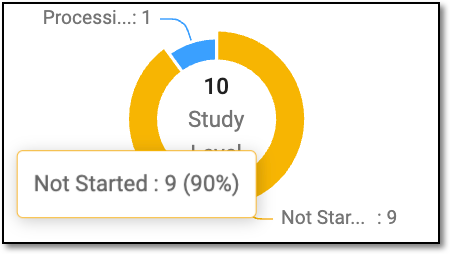 Figure 3. Hovering over pie chart parts
-
Under the pie, select the colored dot to enable
 or disable
  the respective percentage of milestone readiness on the pie.
 -
Select the number of milestones of any status to navigate to the Study Tracking > Milestone page, which is sorted by that status.
Essential documents are clinical trial documents that individually or collectively permit the evaluation of the study's conduct and quality. They include the protocol, ICF, CRF, CSR, investigator's brochure, ethics committee or IRB approval, study monitoring plan, adverse event reporting, source documents, and financial disclosure.
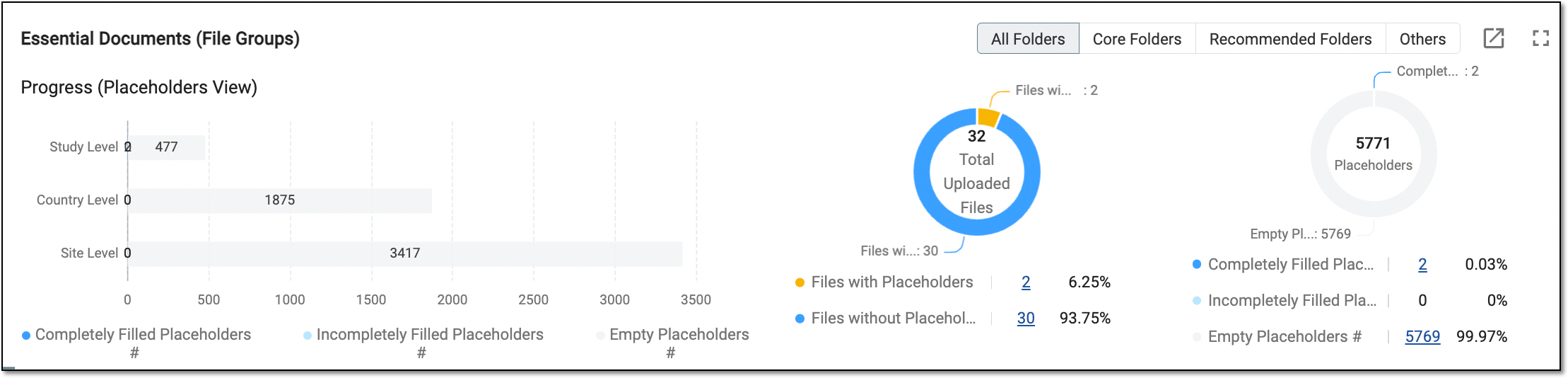
A series of pie charts in the Essential Document (File Group) of the Study Overview page shows the percentage and count of the placeholder progression within the study. Here, you can see the total number of instances, the number associated with files, the number vacant, and so on.
Tip
This study's placeholder data is populated from the file list of the Essential Documents functionality.
With the data you have in this block, you can do the following:
-
Sort out the placeholder statistics by folder type according to DIA RM to which they belong: All Folders, Core Folders, Recommended Folders, or Other.
-
Export the dialog data by selecting Export
. -
Select Full screen
to view the dashboard in a more enhanced view. -
Hover over the bar chart part to check the count and percentage of the empty, filled, or incompletely filled placeholders.
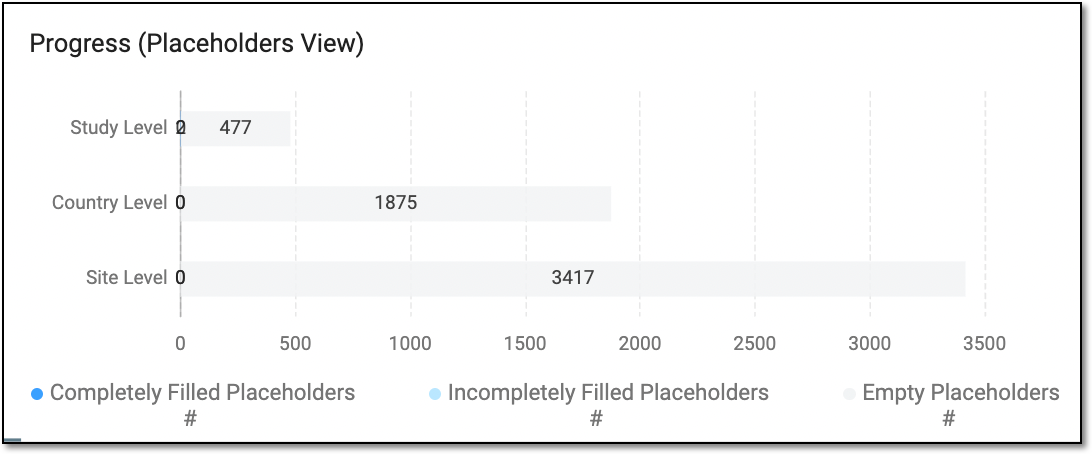 Figure 2. Hovering over bar chart parts
-
Under the bar chart, select the colored dot to enable
 or disable
  the respective percentage of placeholder completion on the bar chart.
 -
Hover over the needed pie chart to understand the percentage and number of files with or without placeholders and the level of file placeholder completion.
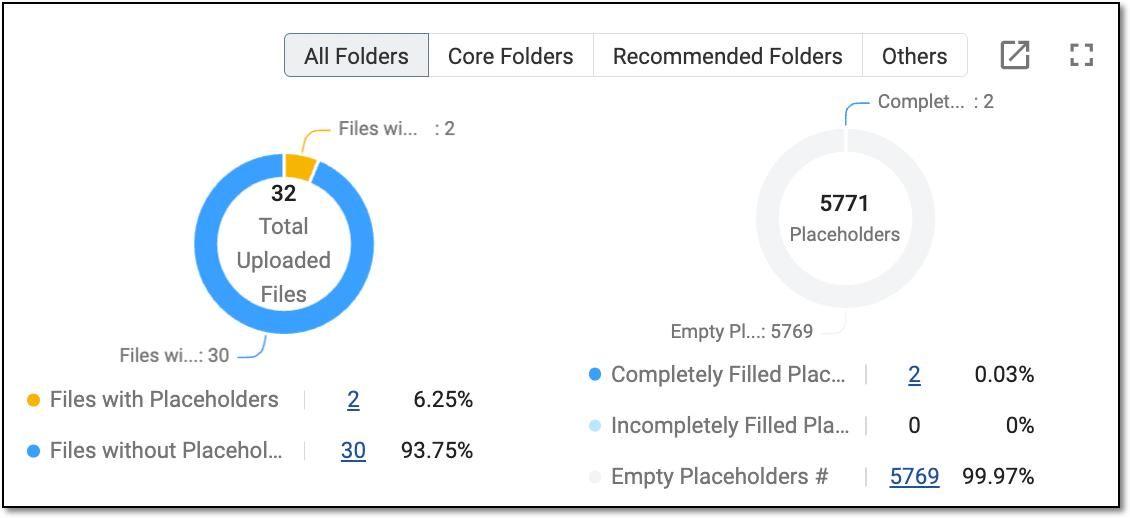 Figure 3. Analyzing placeholder details from pie charts
-
Under the pie chart, select the colored dot to enable or disable the respective percentage on the pie chart.
-
Select the linked number of the placeholders of any status to open the Essential Document (File Group) dialog with detailed information on the placeholders of that status. The table columns in the dialog correspond to the ones discussed in the Analyze essential documents section > Step 6.
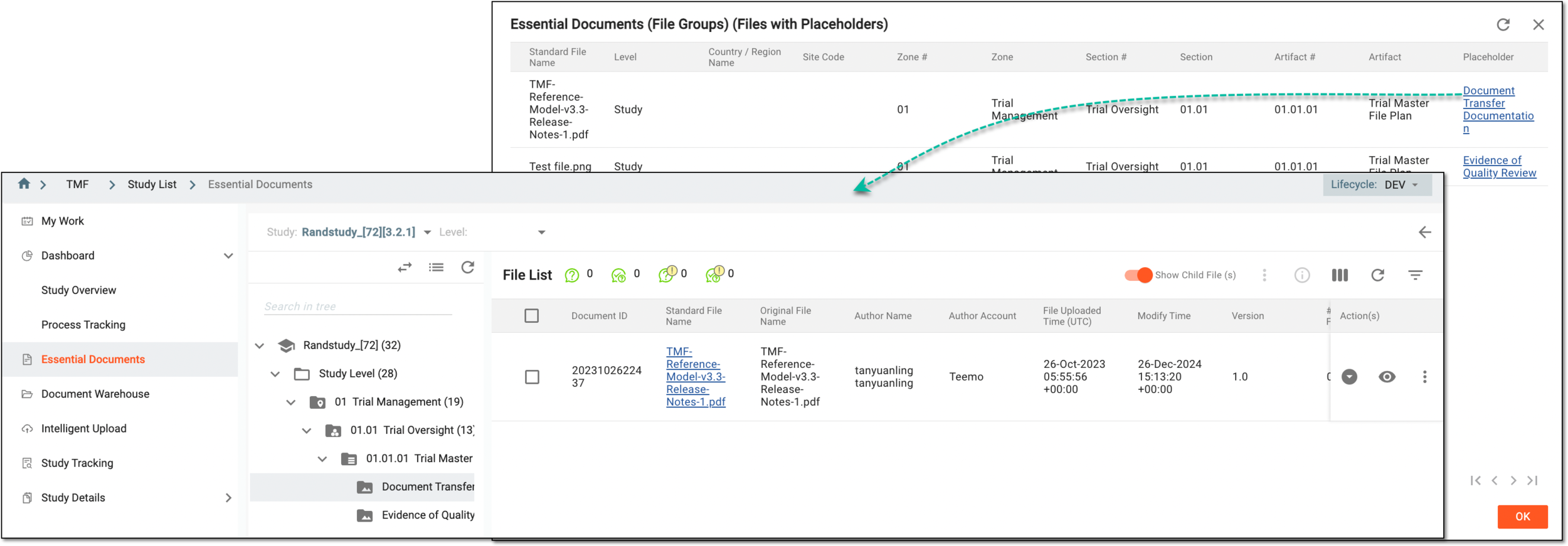 Figure 4. Accessing placeholder details and essential document management
Tip
Select
 or
or  to close the Essential Placeholder (File Group) dialog.
In the table, select the placeholder name link to navigate to the Essential Documents page and perform needed actions with that placeholder, such as uploading the file for an empty placeholder.
Tip
In the rightmost corner of the File List page, select
 to return to the Study List page.
-
The original files are the documentation that contains personal subjects' data, such as lab results, hospital records, patient diaries, and so on. Such source documents are a component of the Trial Master File (TMF). Original documents are also called source documents. They play a critical role in recording treatment cycles, ensuring the accuracy, integrity, and overall compliance of the clinical trial data
A series of pie charts in Original Files of the Study Overview page shows the percentage and count of files pending the collection of original (source) documents and those for which the original has already been collected.
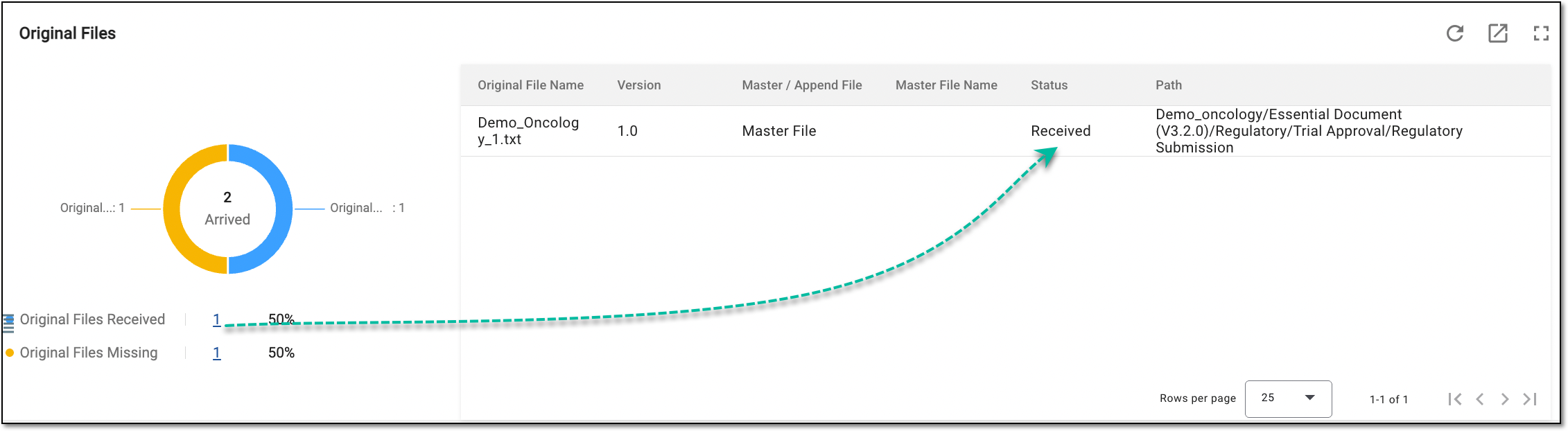
With the data you have in this block, you can do the following:
-
Export the dialog data by selecting Export
. -
Select Full screen
to view the dashboard in a more enhanced view. -
Hover over the pie chart part to check the count and percentage of the received versus the original missing files.
-
Under the pie chart, select the colored dot to enable
 or disable
  the respective percentage of the received and missing original files on the pie chart.
 -
Select the linked number of the original file of any status to view the details in the table that opens to the right. All the data in the table is a simplified variant of the table data populated from Essential Documents > File List.
Element
Details
Original File Name
Represents the file's primary name before it was changed upon upload to the eTMF system or further file amendments.
Version
Represents the current version number of the file. File version changes upon appending or replacing.
Master / Append File
Defines whether the file is of the Master or Append type.
Master File Name
Represents the file's name after any changes are introduced upon upload.
Status
Defines whether the file is received or missing with the respective statuses: Received and Missing.
Path
Represents the path or the link to the file location.
The File Progress functionality and statistics are helpful analytics instruments that show the percentage and count of all the files of different statuses within the study.
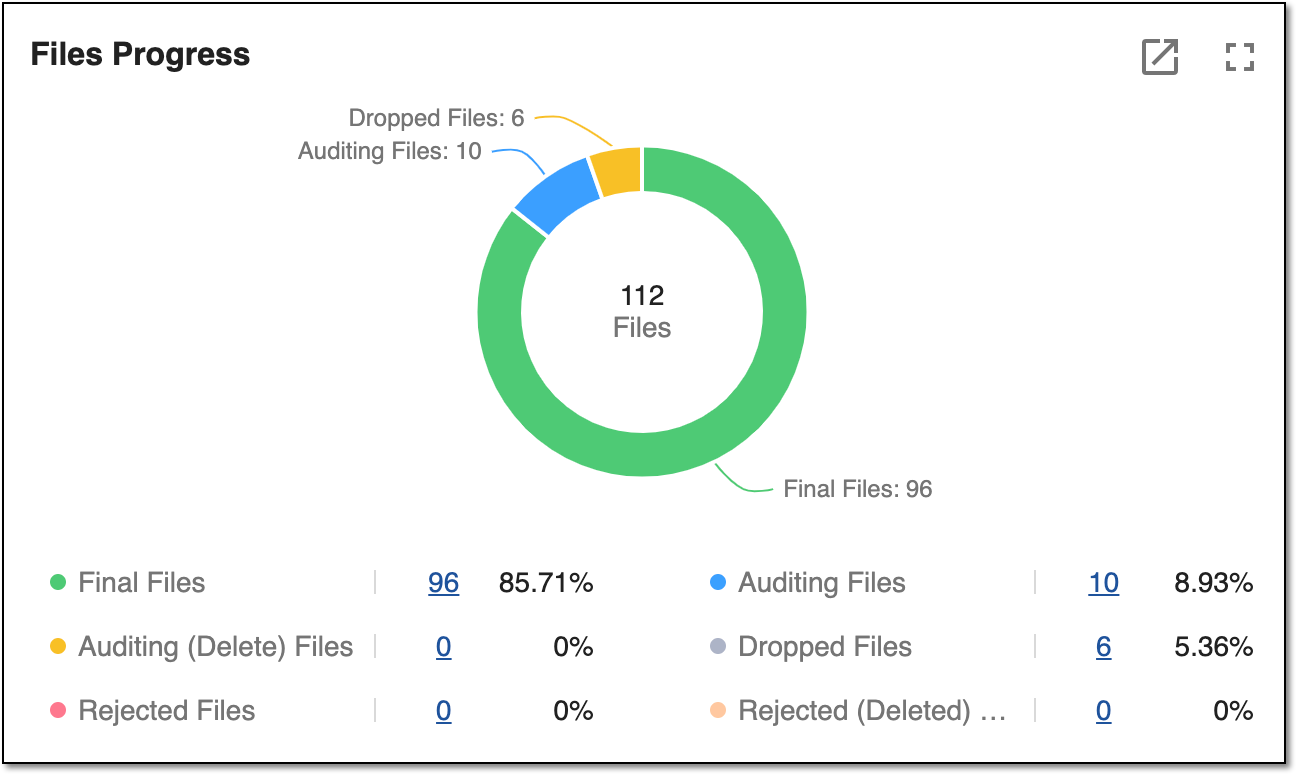
With the data you have in this block, you can do the following:
-
Export the dialog data by selecting Export
. -
Select Full screen
to view the dashboard in a more enhanced view. -
Hover over the pie chart part to check the count and percentage of the study files in various statuses.
-
Under the pie chart, select the colored dot to enable or disable the respective percentage of the files on the pie chart.
-
Select the linked number next to the files with the status of interest to you. Once selected, the File Progress [File status] dialog opens.
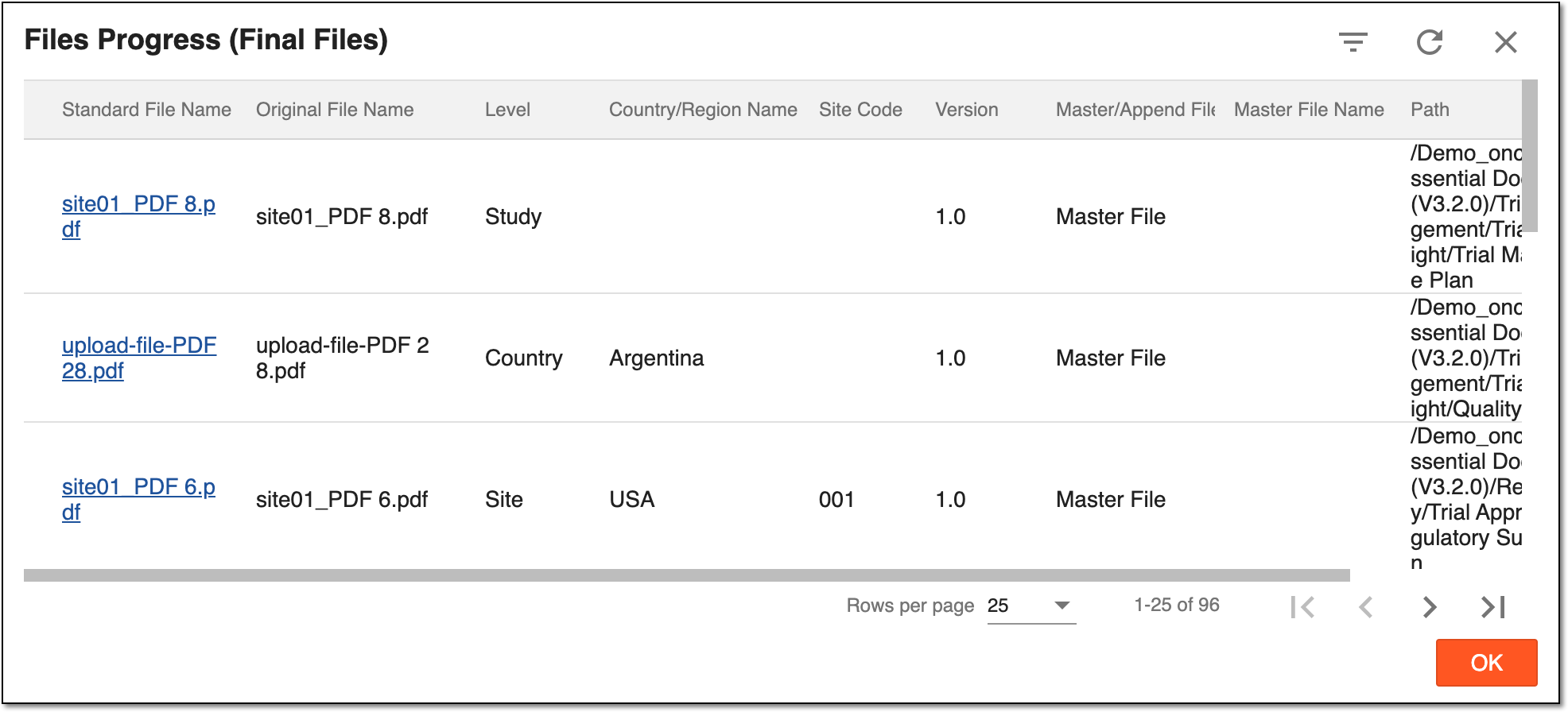 Figure 2. Displaying detailed information on files of specific status
Tip
Select
or to close the Files Progress [File status] dialog.The file data in the open table is a simplified variant of the file details populated from Essential documents > File List. Select the file link to access the View dialog.
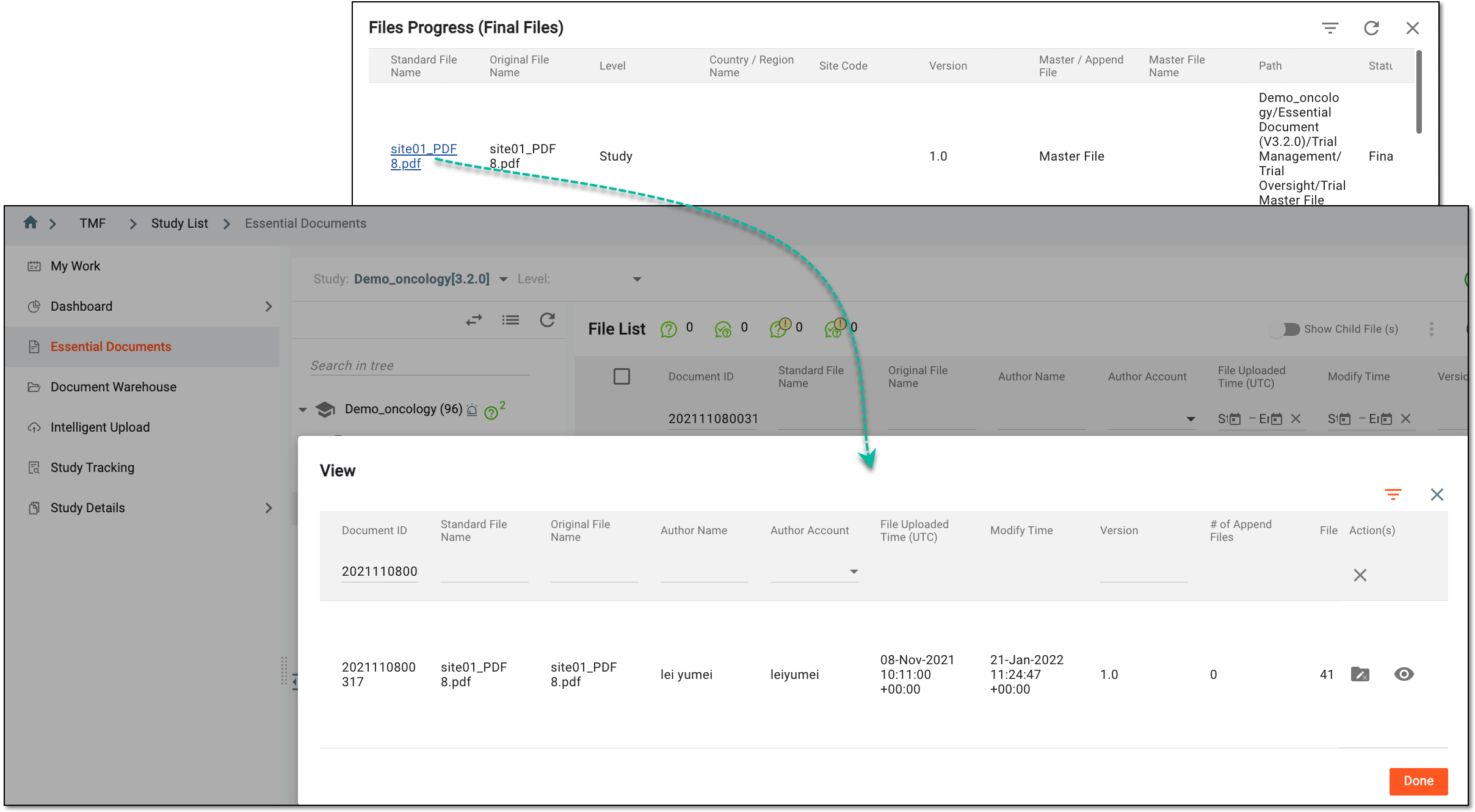 Figure 3. Accessing file details
Tip
Click
 to close the dialog. Then, in the rightmost corner of the File List page,
select to return to the Study List page.
to close the dialog. Then, in the rightmost corner of the File List page,
select to return to the Study List page.
The study data's rejected records are the result of the quality review workflow, after which the file data records have not met the organization's quality requirements. If any of such rejected records are present in the study files, these files are the subject of the following statistics.
The File Rejected Records statistics are a helpful analytics instrument that shows the percentage and count of the files classified by the rejection reason selected upon file audit in the essential documents storage.
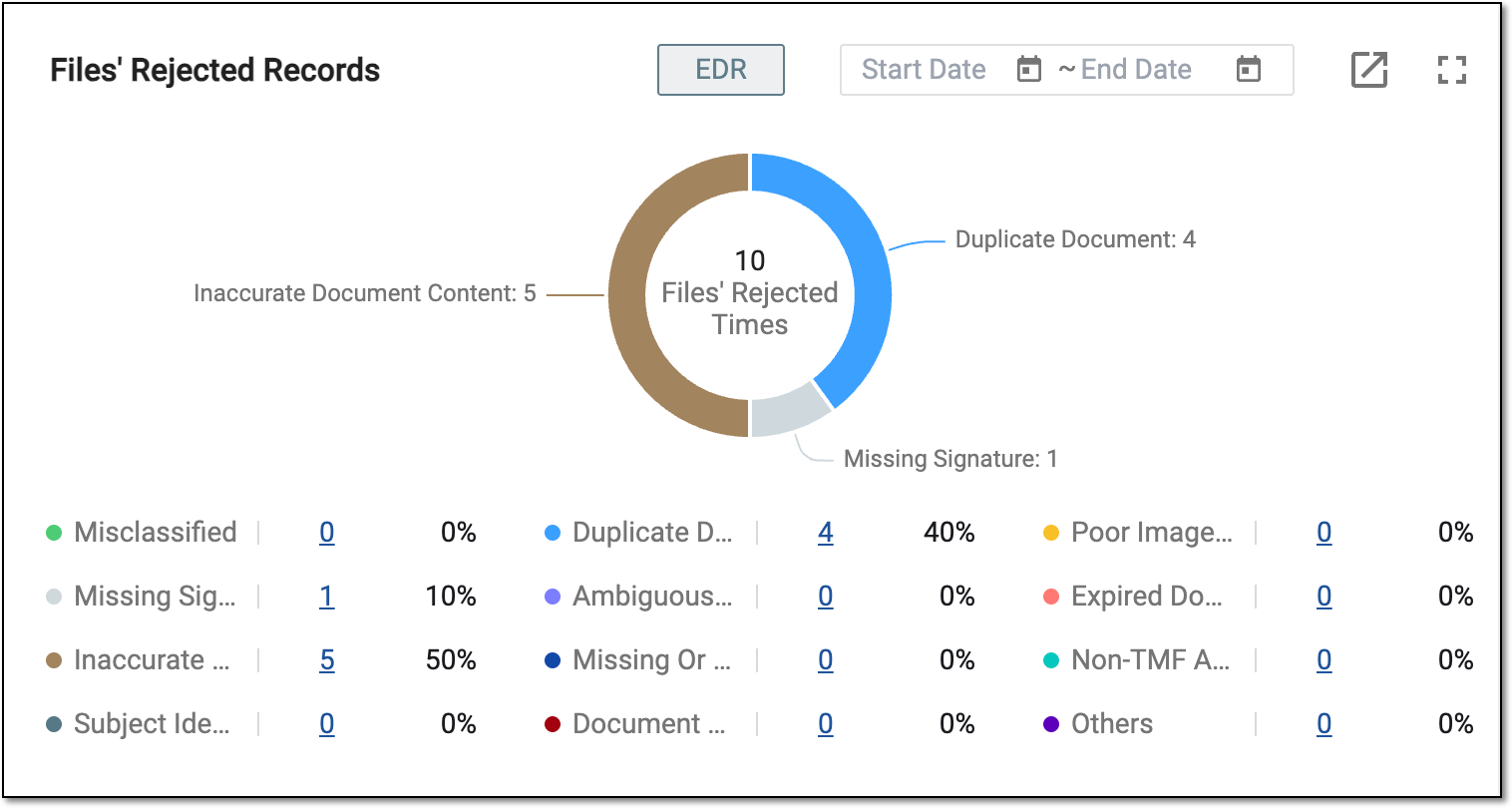
With the data you have in this block, you can do the following:
-
Select EDR
 to display the statistics since the first file rejection in your study.
 -
Select the date picker
 to specify the exact date and display the respective statistics.
 -
Export the dialog data by selecting Export
. -
Select Full screen
to view the dashboard in a more enhanced view. -
Hover over the pie chart part to check the count and percentage of the rejected files, if any.
-
Under the pie chart, select the colored dot to enable or disable the respective percentage of the files with rejected records for various reasons.
Since the rejection reasons can be different, you can display or hide the percentage only of the files that have been rejected due to duplicate documents found or missing signatures.
You can find out more about how the rejection is acquired in the Reject file or signature section.
-
Select the linked number next to the needed rejection reason to open the Rejected Records [Rejection reason] dialog. All the data in the table is a simplified variant of the table data populated from the Essential Documents functionality.
While doing quality control on clinical trial files in essential documents, you can open queries about the file content, format, attributes, and so on, and send them to specific roles or personnel.
The Query Status Summary functionality and statistics show the summary of the number of files for the study with the Open, Closed, and Answered statuses.
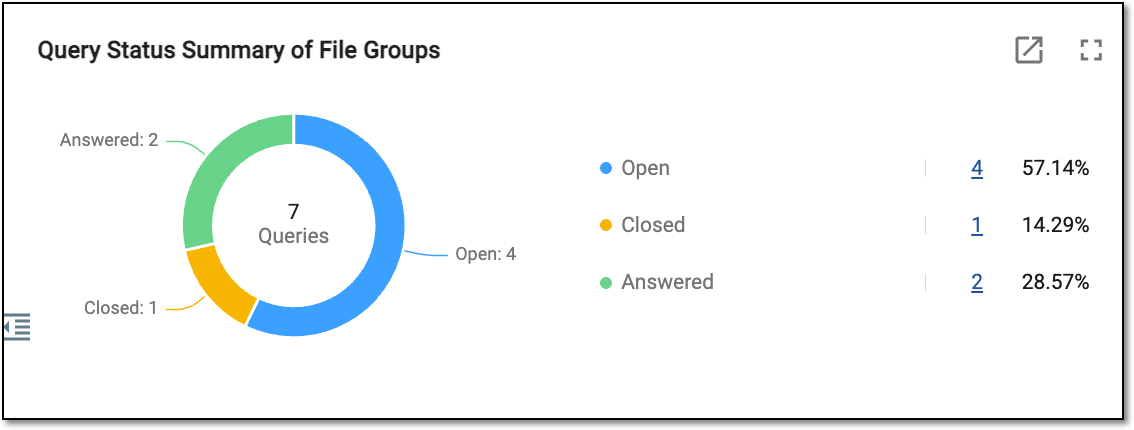
With the data you have in this block, you can do the following:
-
Export the dialog data by selecting Export
. -
Select Full screen
to view the dashboard in a more enhanced view. -
Hover over the pie chart part to check the count and percentage of the files whose queries are open, answered, and closed.
-
Next to the pie chart, select the colored dot to enable
 or disable
  the respective percentage of the open, closed, or answered queries on the pie chart.
 -
Select the linked number next to the query status to open the Query Status page.
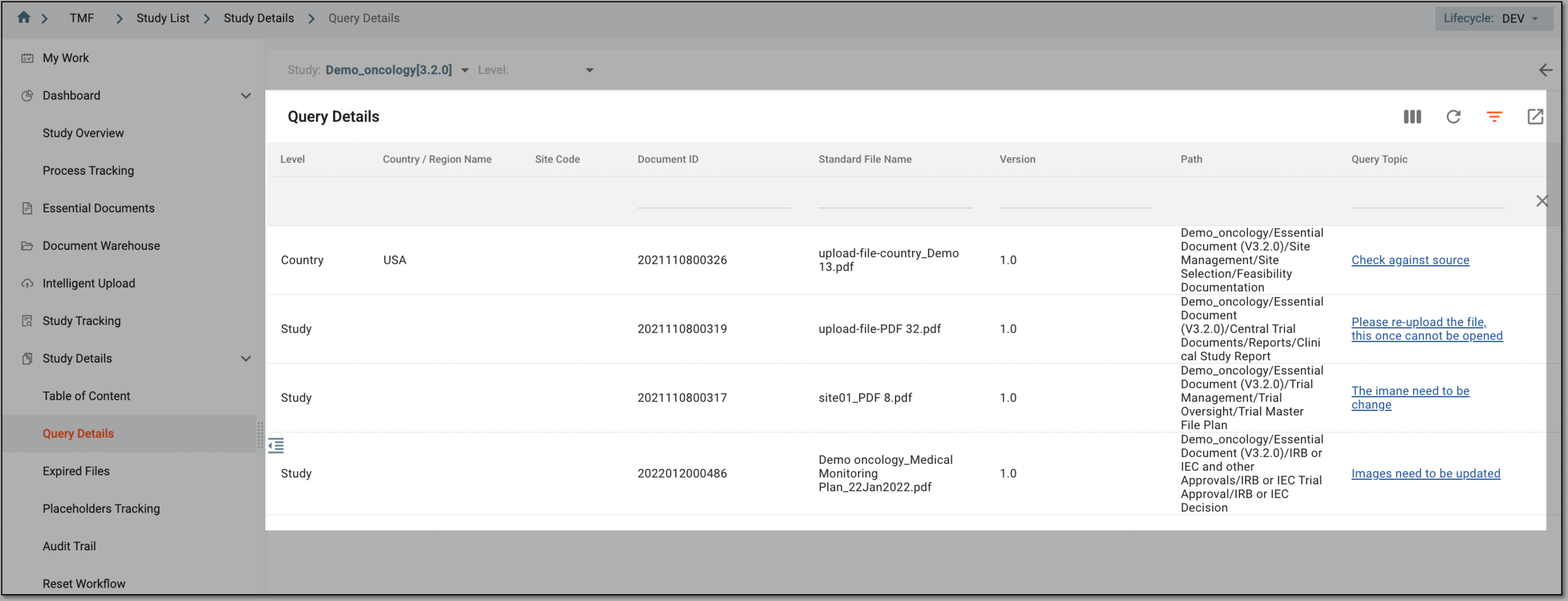 Figure 2. Accessing files with queries
On this page, you can export the data file with Export
as discussed in the Export query details section.
While doing quality control on clinical trial files in essential documents, you can open queries about the file content, format, attributes, and so on, and send them to specific roles or personnel.
The Query Aging Detail functionality and statistics display a bar chart showing the query aging details for the study files at the study, country, and site levels. The legend colors vary and classify different aging groups.
For example, 0<= x <=1 groups all the file queries that have not been addressed for less than one day.
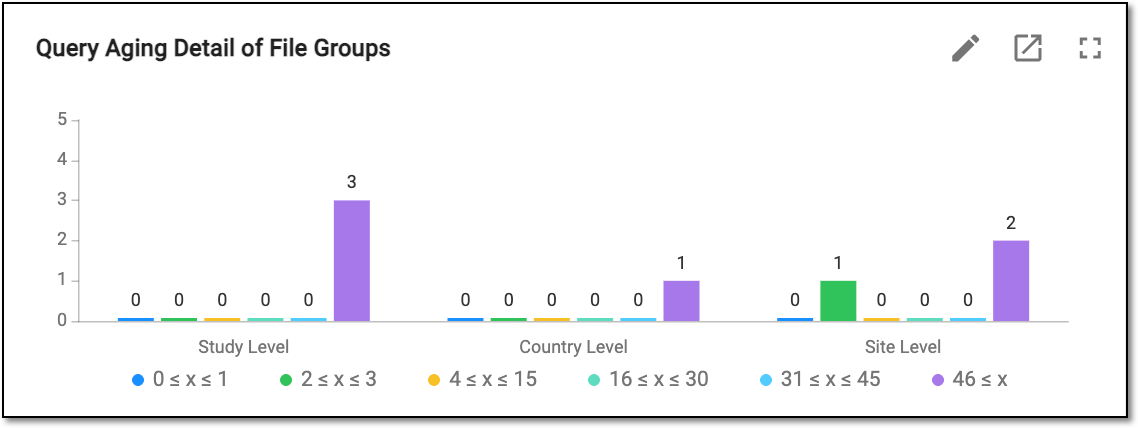
With the data you have in this block, you can do the following:
-
In the rightmost corner of the chart block, select Filter Conditions
 to configure the filters that will update the bar
chart's display.
to configure the filters that will update the bar
chart's display.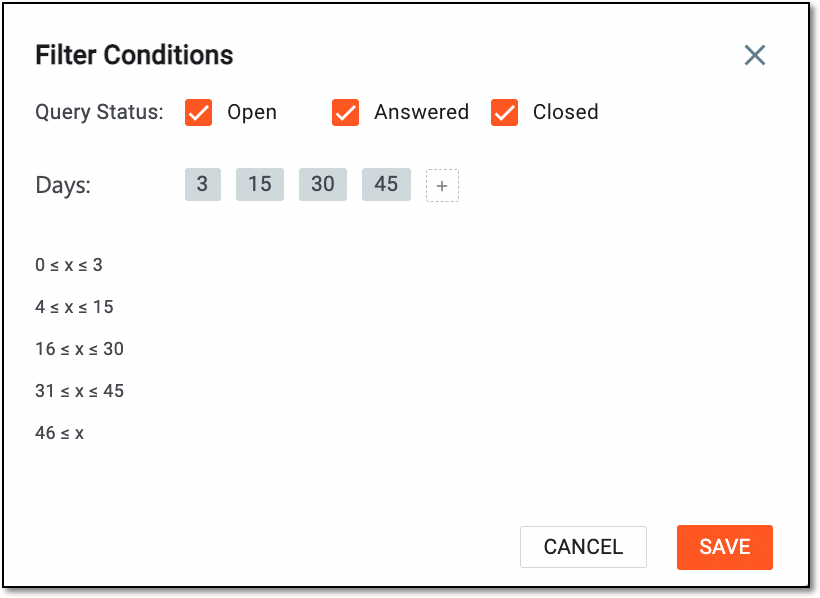 Figure 2. Editing filter conditions
Element
Details
Query Status
Select the checkbox to enable the query display with the respective status. Clear the checkbox to hide the display of the queries:
-
Open: the status of open queries; these queries have not been addressed.
-
Answered: the status of addressed queries; these queries have been processed by the reviewer.
-
Closed: the status of the queries that are no longer relevant.
Days
Select
 to add days for filtering. Hover over the days you no longer need to display and click the cross to remove the day
 .
.SAVE
Select
 to apply new filtering conditions and go to the updated aging query bar chart display.
CANCEL
Select
 or
or  to close the dialog without saving changes. You return to the Study Overview dashboards page.
 -
-
Export the dialog data by selecting Export
. -
Select Full screen
to view the dashboard in a more enhanced view. -
Hover over the bar chart to analyze the count of days for the particular aging category.
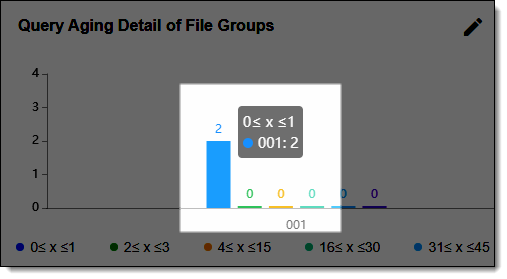 Figure 3. Analyzing aging details from bar chart
-
Select the required bar to analyze the aging category from the respective Query Details page.
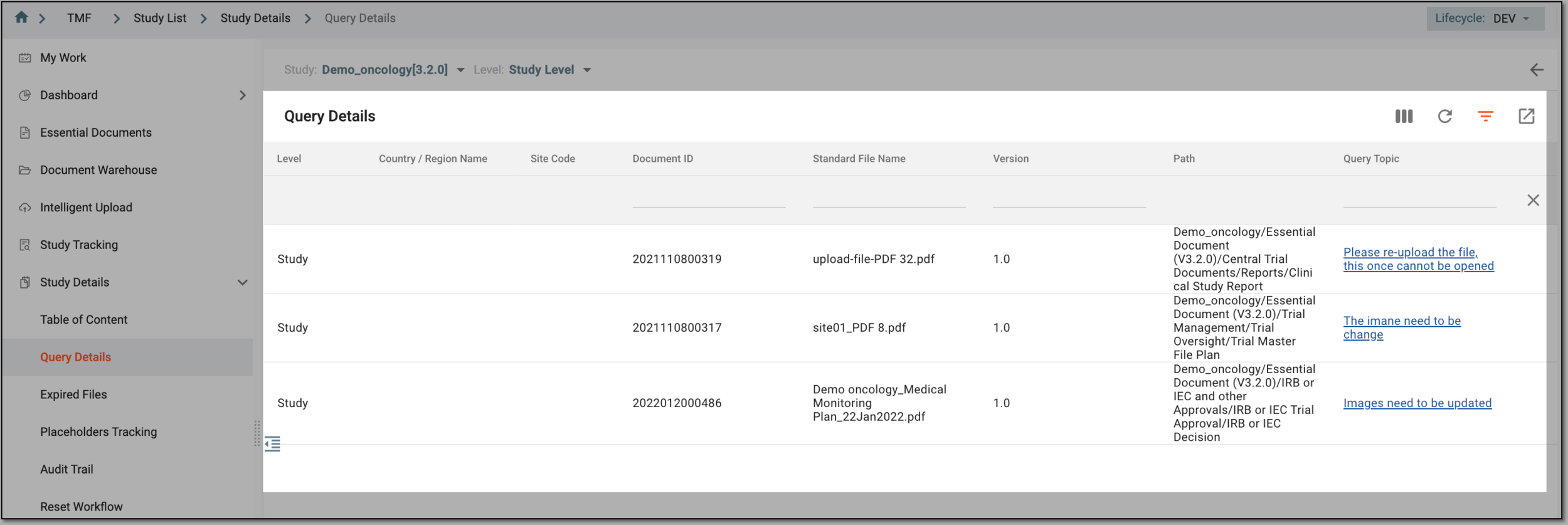 Figure 4. Analyzing query details
On this page, you can export the data file with Export
as discussed in the Export query details section. -
Under the bar chart, select the colored dot to enable
 or disable
  the respective aging query group on the bar chart.
The file quality of the clinical study data is essential to data compliance and integrity, as poor quality may affect the whole clinical trial process. One aspect of file quality in eTMF is the absence of rejected files.
The File Quality functionality and pie chart show the number and percentage of Files With Rejection and Files Without Rejection under the Essential Documents storage.
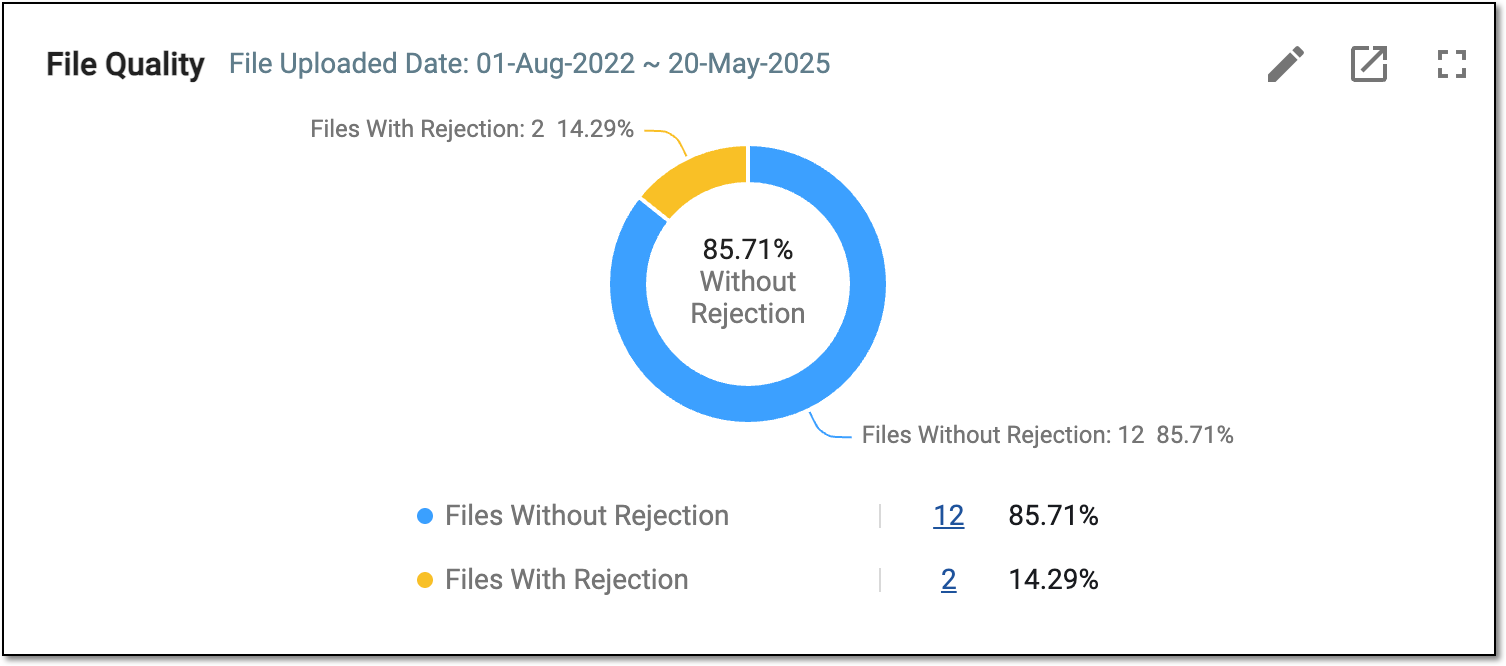
With the data you have in this block, you can do the following:
-
In the top rightmost corner, select Filter Conditions
to configure the filters and update the pie chart display as
explained in the following table. Figure 2. Editing filter conditions for file quality data display change
Element
Details
File Inclusion
Select the option to do one of the following:
-
All Files: to display all of the files in the chart.
-
Final Files: to display only the final files in the chart.
File Uploaded Date
Select one of the following to filter the files according to the date:
-
: select the button to filter all files to the earliest date recorded.
-
: select the date picker to define the period for which the filter files are filtered.
SAVE
Select
to apply the filtering conditions and go to the updated aging query pie chart display.CANCEL
Select
 or to close the dialog without saving changes. You return to the Study Overview dashboards page.
 -
-
Export the file quality data by selecting Export
. -
Select Full screen
to view the dashboard in a more enhanced view. -
Hover over the pie chart to see the percentage of files without rejection versus those rejected.
-
Under the pie chart, select the colored dot to enable
 or disable
  the files with or without rejection on the pie chart.
 -
Select the linked number next to the file with the required status to open the File Quality [File status] dialog. The table in the dialog contains data about files of a certain status, such as country or site affiliation, current status, location in the system, rejection reason, comments, if any, and so on.
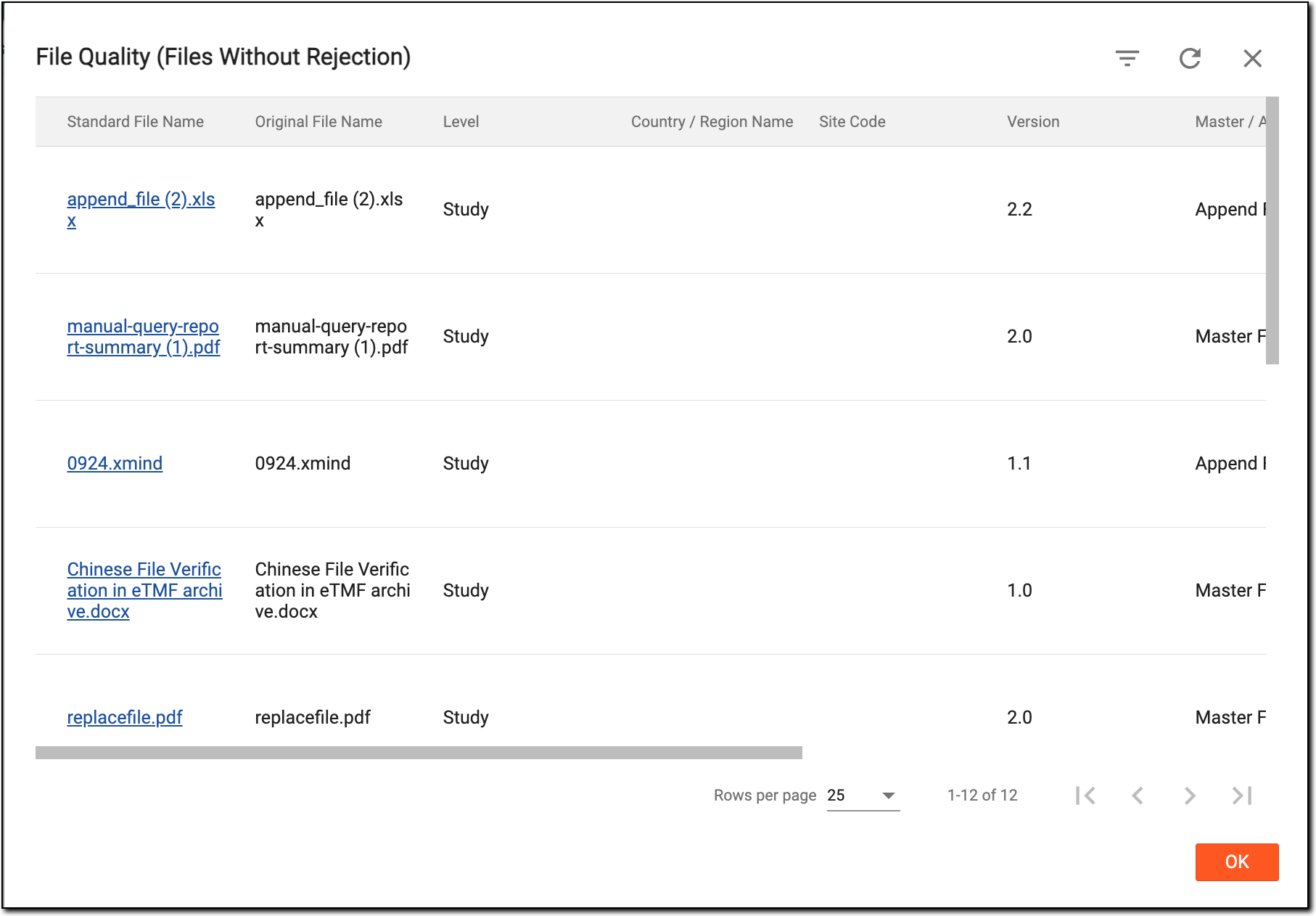 Figure 3. Analyzing file quality of files without rejection
In the dialog, you can open the required file by following the link and getting redirected to the Essential Documents > File List table.
The Timeliness functionality and statistics display a pie chart showing the number and percentage of Final Files and In Processing files in the essential documents. These statistics help you understand how much work and time you may need to finalize the file data.
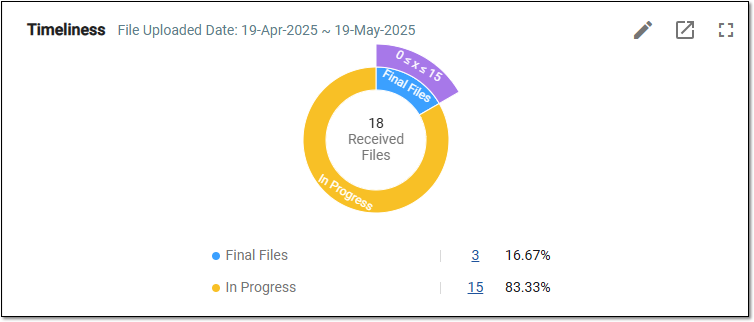
With the data you have in this block, you can do the following:
-
In the top rightmost corner, select Filter Conditions
to configure the filters and update the pie chart display as
explained in the following table.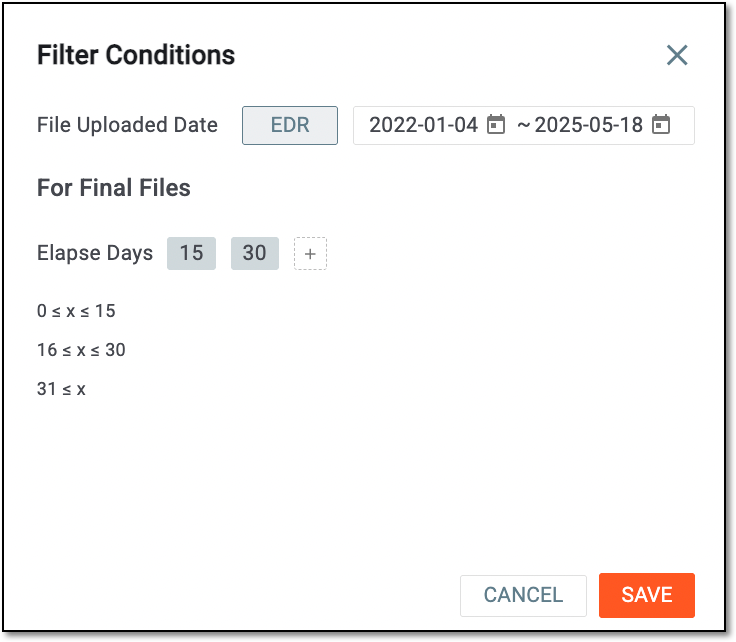 Figure 2. Editing filtering conditions for final files
Element
Details
File Uploaded Date
Select one of the following to filter the files according to the date:
-
: select the button to filter files only to the earliest date recorded.
-
: select the date picker to define the period for which the filter files are filtered.
For Final Files
Select
to add the count of elapsed days for filtering. Hover over the elapsed days you no longer need to display and click the
cross to remove the time slot  .
.SAVE
Select
to apply new filtering conditions and go to the updated aging query pie chart display.CANCEL
Select
or to close the dialog without saving changes. You return to the Study Overview dashboards page. -
-
Export the dialog data by selecting Export
. -
Select Full screen
to view the dashboard in a more enhanced view. -
Hover over the pie chart section you are interested in to analyze the percentage and count of the final files compared to those still being processed.
-
Under the pie chart, select the colored dot to enable
 or disable
  the display of the final files and the files in processing on the pie chart.
 -
Select the linked number next to the file with the required status to open the Timeliness [File status] dialog.
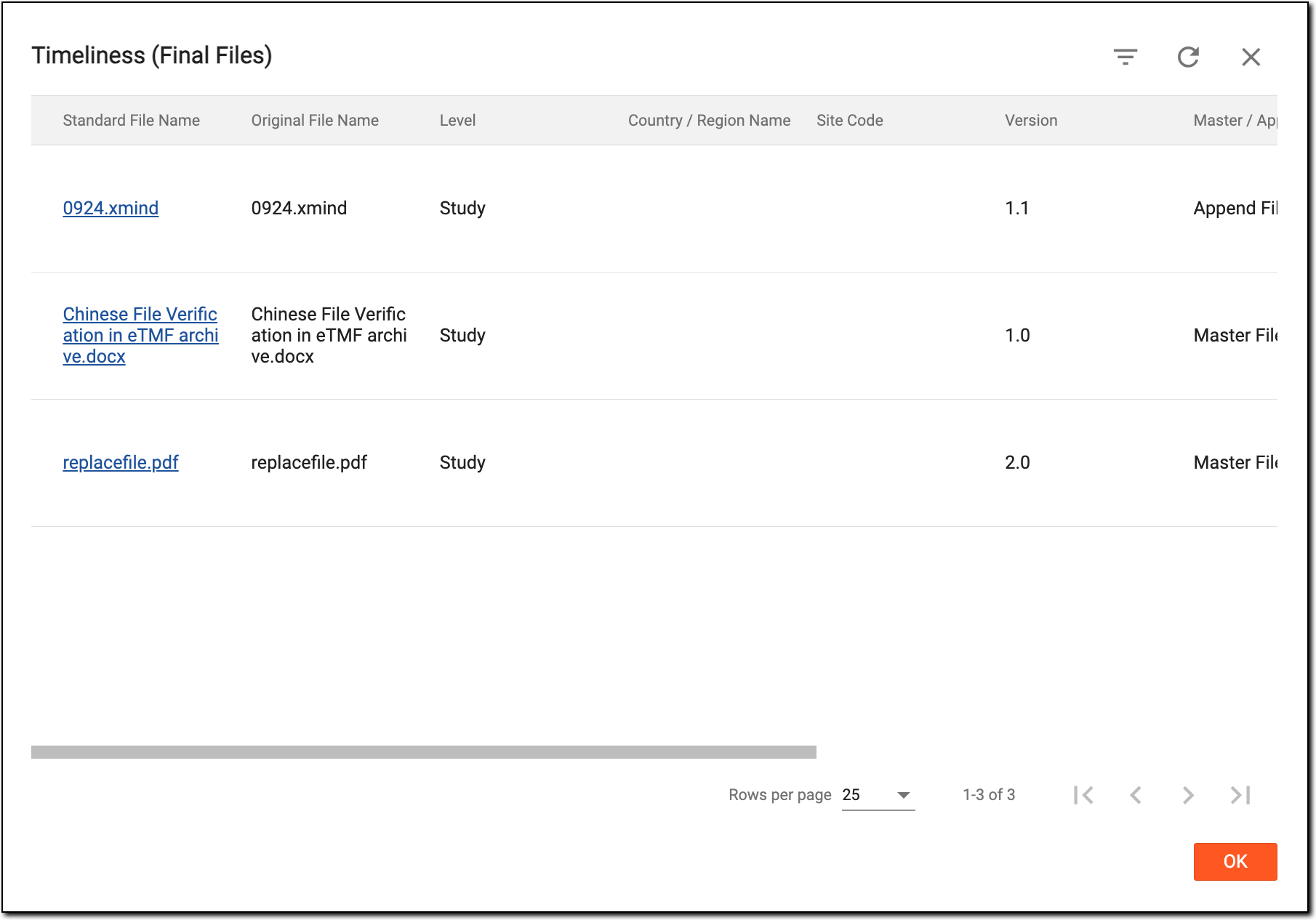 Figure 3. Analyzing timeliness of final files
In the Timeliness [File status] dialog, you can locate the needed file, select the link, and be redirected to the Essential Documents > File List table to study more details.
Artifacts are records, documents, or files containing any information that is captured during a clinical trial and that meet the purpose or definition described in the DIA RM. In some cases, the artifact is a single document, dataset, or piece of information, but in other cases, it can be represented by multiple document types or data types. These artifacts are stored in the respective folders of your study in Essential Documents.
The Artifacts statistical chart shows the summary of the artifact-level folders of your study in the Essential Documents storage for you to assess how many files are already collected and how many are still pending.
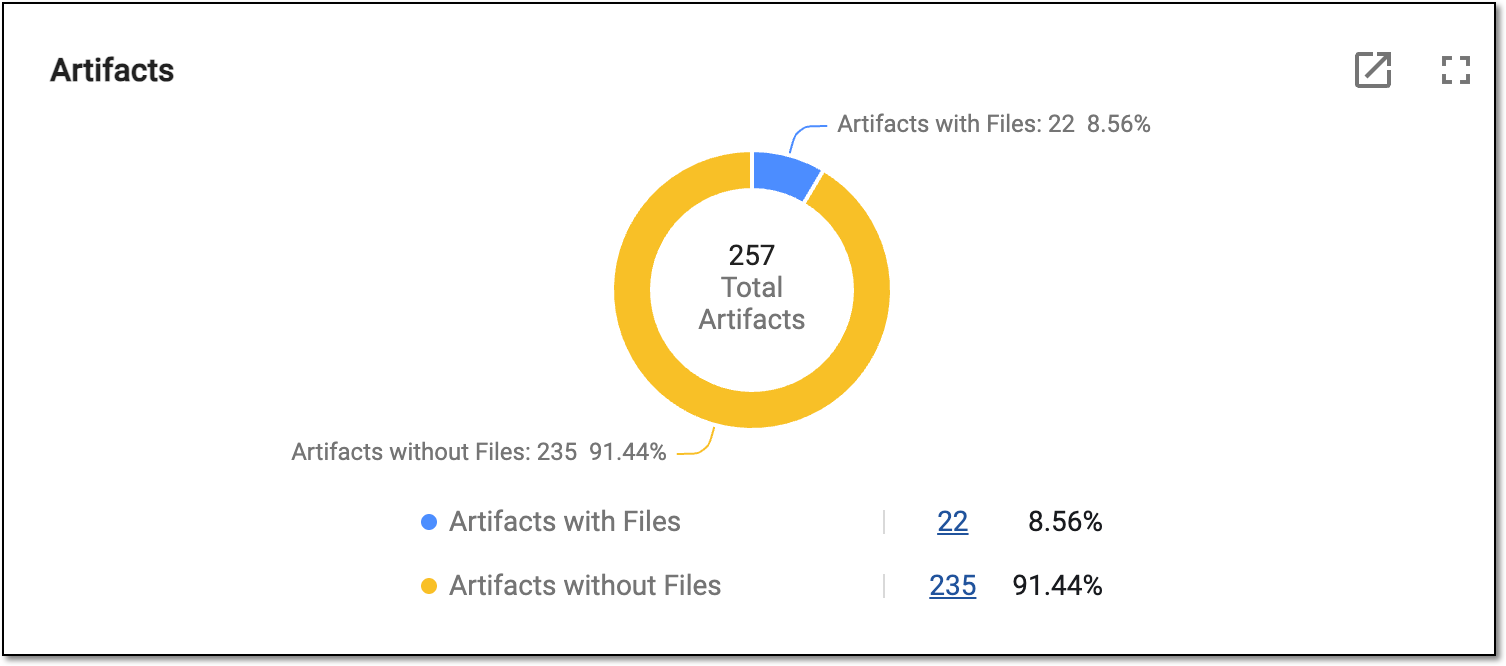
With the data you have in this block, you can do the following:
-
Export the dialog data by selecting Export
. -
Select Full screen
to view the dashboard in a more enhanced view. -
Hover over the pie chart part to check the count and percentage of the artifact-level folders that have uploaded files within and those with no files.
-
Select the linked number next to the available artifact category as follows:
-
Artifacts with Files: to open the list of all artifact-level folders that have files within and analyze the file statistics per folder.
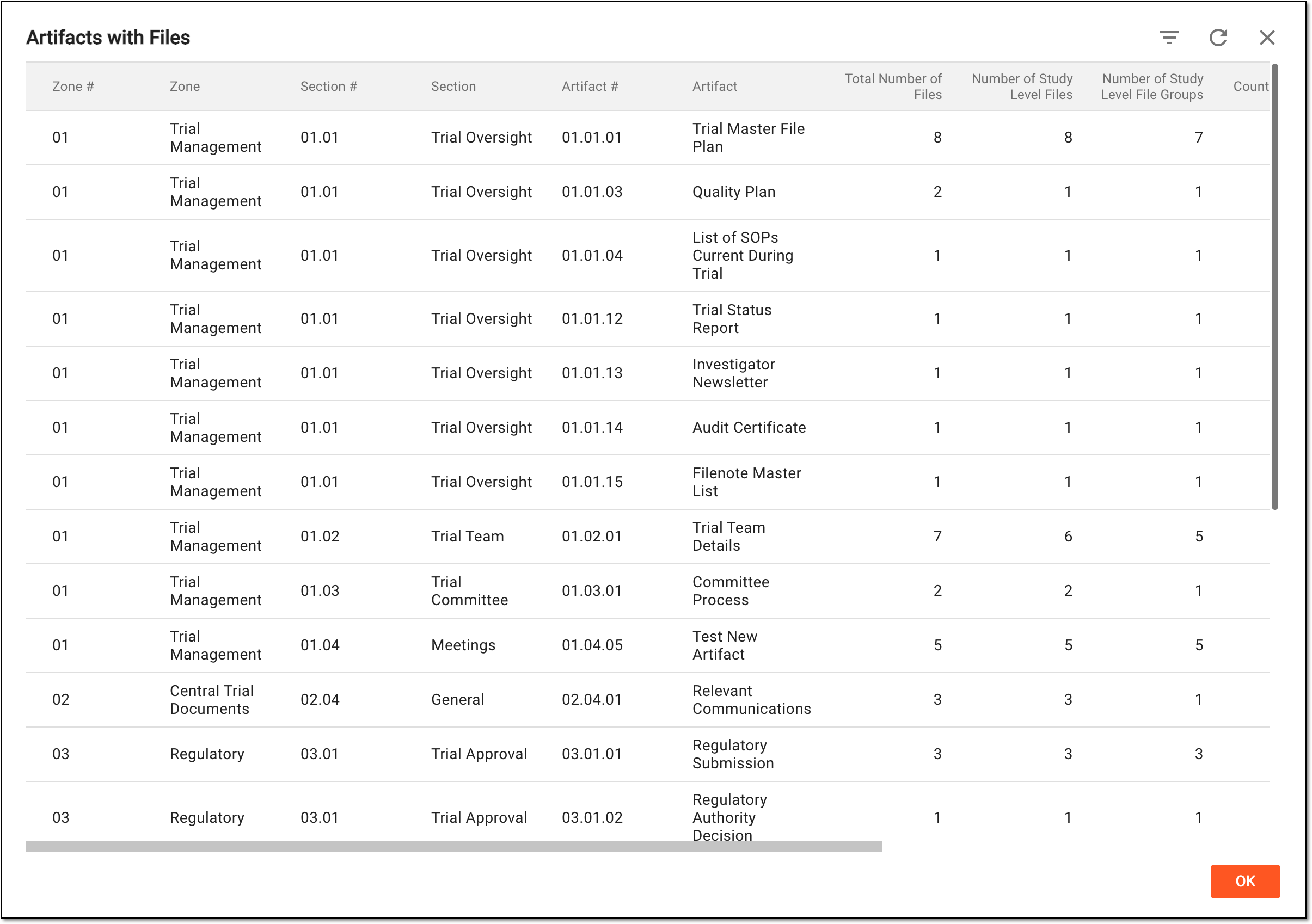 Figure 2. Analyzing list of artifacts with files
-
Artifacts without Files: to open the list of all artifact-level folders that have no files within to assess the amount of files to be collected for the study.
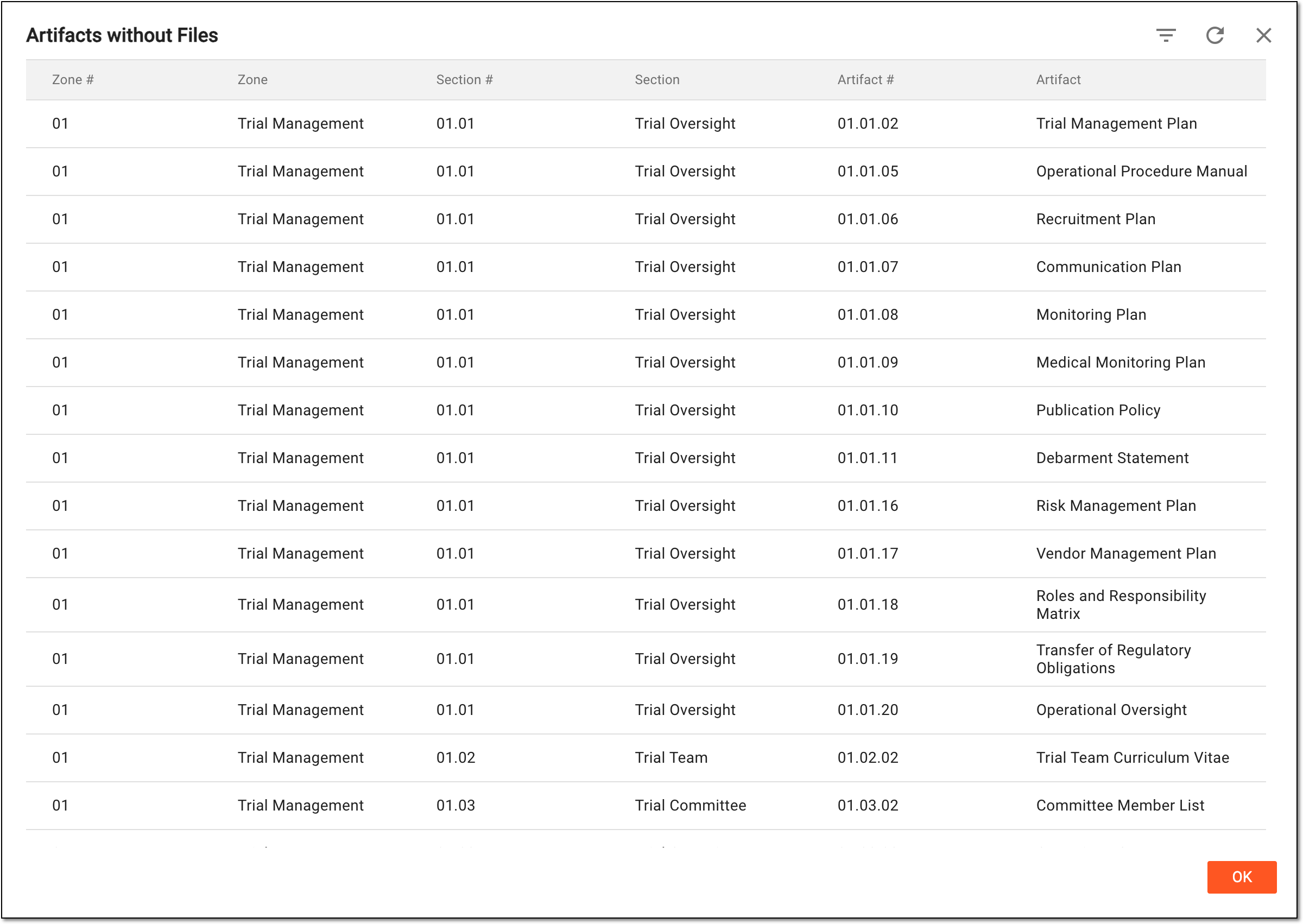 Figure 3. Analyzing list of artifacts without files
-