Milestone setting
Milestone settings are configurations that create the framework for how milestones are utilized within the trial at the study, country, and site levels. These settings ensure that milestones are tailored to the specific needs of the study and provide the structure for tracking and managing those milestones effectively.
During a study, you accumulate documents of various types. By associating milestones with documents, you can measure the completion of study processes and landmarks by tracking the status of the documents about them.
The Milestone Setting page represents the list of configurations created for the existing milestones to ensure seamless tracking and management.
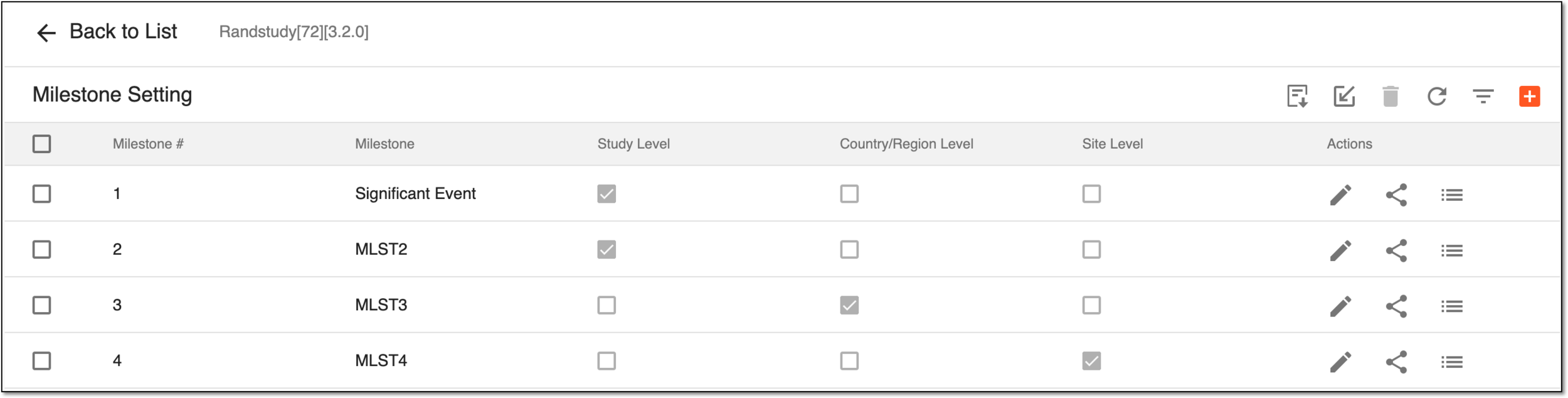
In eTMF, you can perform the following actions with milestone settings:
Add milestone setting
Milestone settings are configurations that create the framework for how milestones are utilized within the trial at the study, country, and site levels. These settings ensure that milestones are tailored to the specific needs of the study and provide the structure for tracking and managing those milestones effectively.
During the study, you accumulate documents of various types. By associating milestones with documents, you can measure the completion of study processes and landmarks by tracking the status of the documents about them.
There are multiple ways of adding new milestone settings to the eTMF application:
-
In the eTMF application header, select the TMF tab.
-
On the page that opens, in the left pane, select the Study List subtab.
-
In the Study List table that opens, select the needed study name.
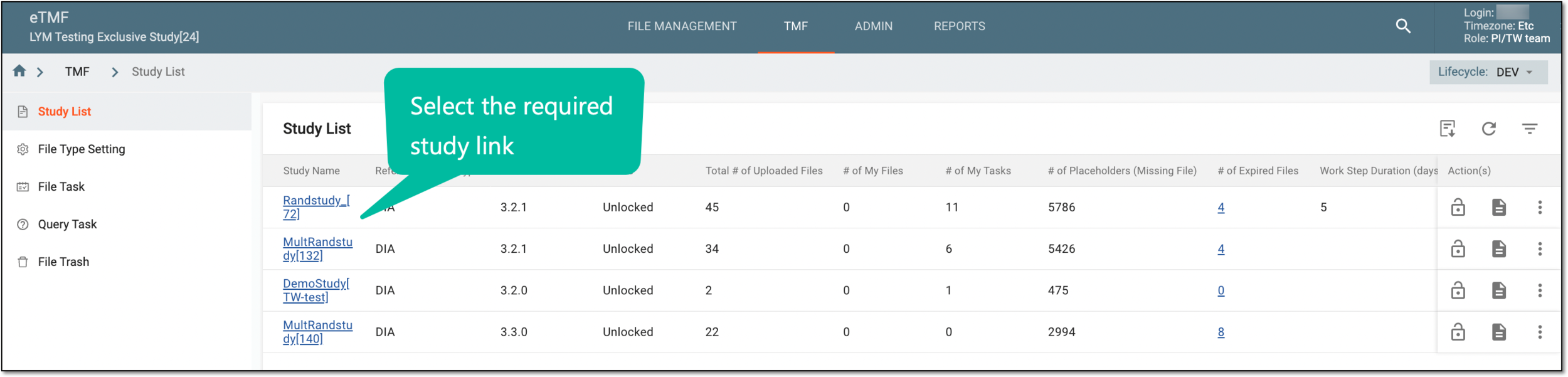 Figure 1. Selecting study
-
On the page that opens, select the Study Tracking pane option.
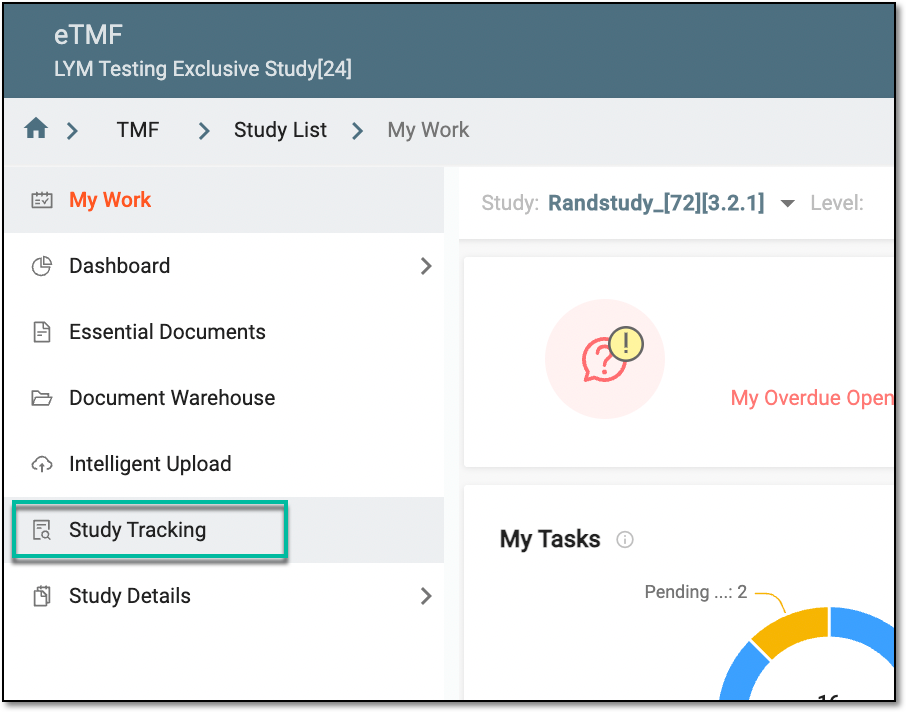 Figure 2. Accessing study tracking page
-
On the page that opens, in the workspace toolbar above the Milestone table, select Setting
 .
.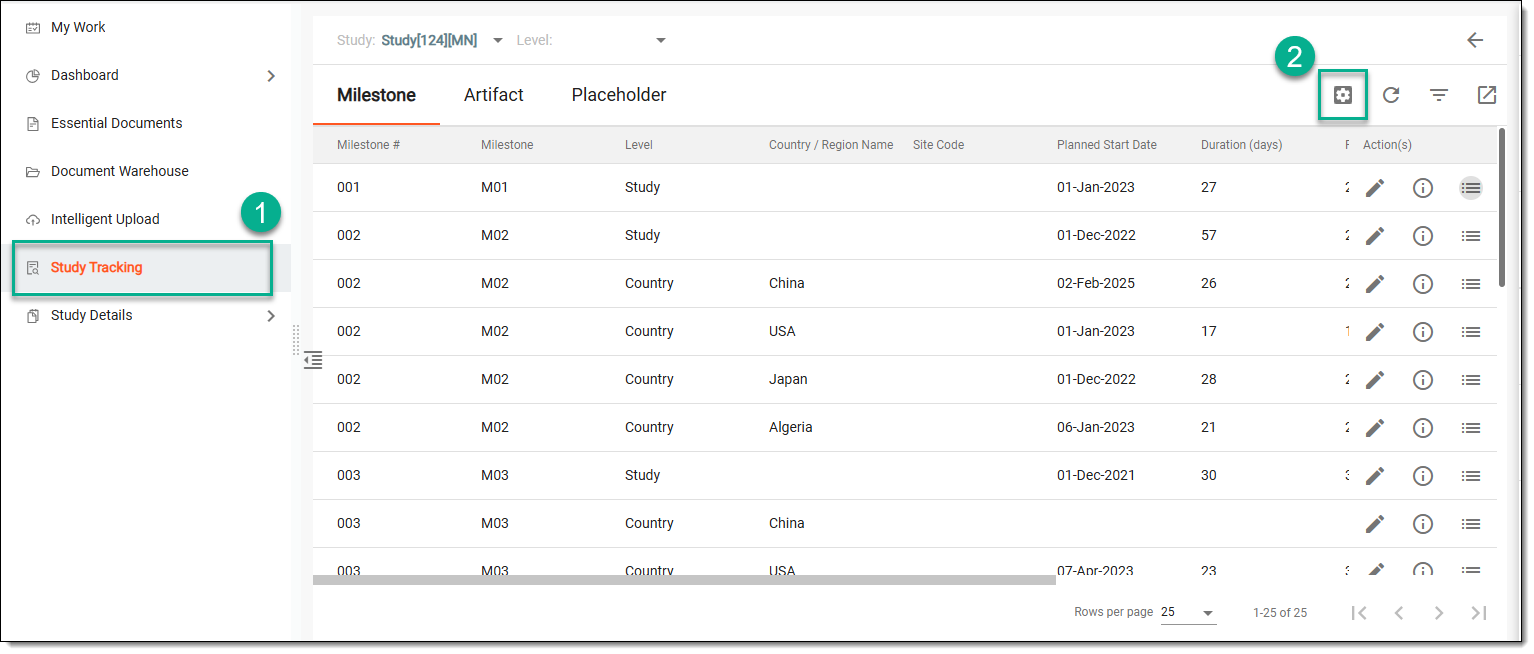 Figure 3. Accessing study tracking and milestone setting
-
On the Milestone Setting page that opens, from the workspace toolbar, select New
 .
. Figure 4. Accessing option to add new milestone
-
In the New dialog, enter the milestone information as explained in the following table.
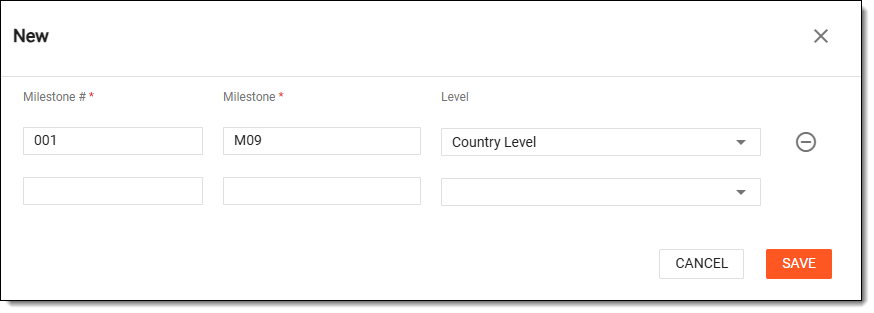 Figure 5. Adding new milestone
Tip
In the following table, mandatory elements are marked with an asterisk (*).
Element
Details
Milestone#*
Enter the milestone number for which you want to create the setting.
Milestone*
Enter the name of the milestone that corresponds to the selected milestone number.
Level
From the dropdown list, select the desired levels at which you want to configure the milestone (that is, study, country, or site).
SAVE
Select
 to implement the changes.
CANCEL
Select
 to dismiss the implemented changes without saving.
Upon saving, the new milestone setting is added and displayed in the Milestone Setting page.
Edit milestone setting
Milestone settings are configurations that create the framework for how milestones are utilized within the trial at the study, country, and site levels. These settings ensure that milestones are tailored to the specific needs of the study and provide the structure for tracking and managing those milestones effectively.
The Milestone Setting page represents the list of configurations created for the existing milestones. Here, you can change the milestone number, value, and its level.
-
In the eTMF application header, select the TMF tab.
-
On the page that opens, in the left pane, select the Study List subtab.
-
In the Study List table that opens, select the needed study name.
Figure 1. Selecting study
-
On the page that opens, select the Study Tracking pane option.
Figure 2. Accessing study tracking page
-
On the page that opens, in the workspace toolbar above the Milestone table, select Setting
.Figure 3. Accessing study tracking and milestone setting
-
On the Milestone Setting page that opens, locate the milestone setting that you want to update, and then in the Action(s) column, select Edit
 .
.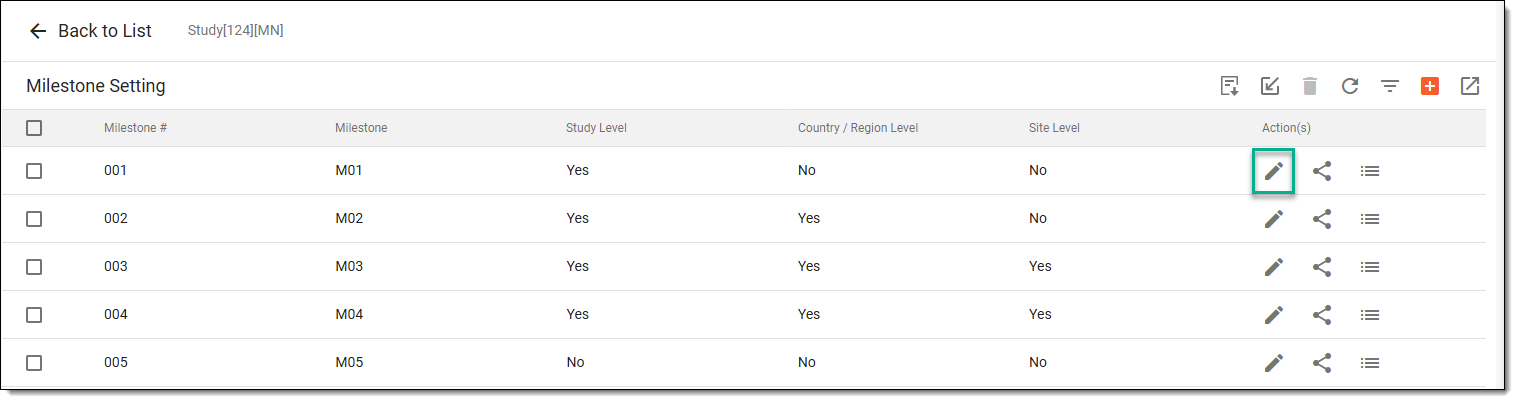 Figure 4. Accessing option to edit milestone details
-
In the Edit dialog that opens, edit the necessary information as needed. The fields are identical to the ones explained in the table of the Add milestone setting section.
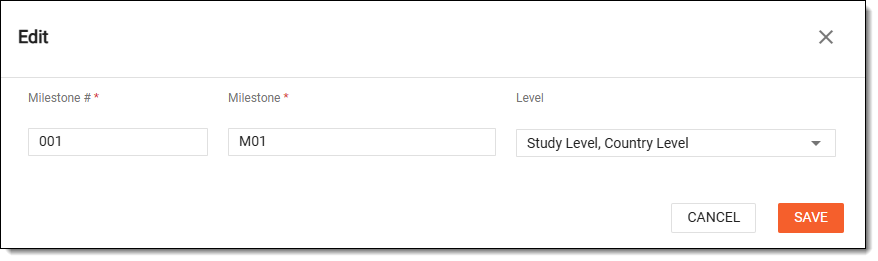 Figure 5. Editing milestone details
Upon saving, the milestone setting is updated.
Associate artifact with milestone
Milestone settings are configurations that create the framework for how milestones are utilized within the trial at the study, country, and site levels. These settings ensure that milestones are tailored to the specific needs of the study and provide the structure for tracking and managing those milestones effectively.
Associating specific artifacts with predefined milestones helps create a clear structure within the eTMF. This association aids in the review and approval process, as stakeholders can quickly find all necessary documentation associated with each milestone.
-
In the eTMF application header, select the TMF tab.
-
On the page that opens, in the left pane, select the Study List subtab.
-
In the Study List table that opens, select the needed study name.
Figure 1. Selecting study
-
On the page that opens, select the Study Tracking pane option.
Figure 2. Accessing study tracking page
-
On the Milestone page that opens, from the workspace toolbar, select Setting
.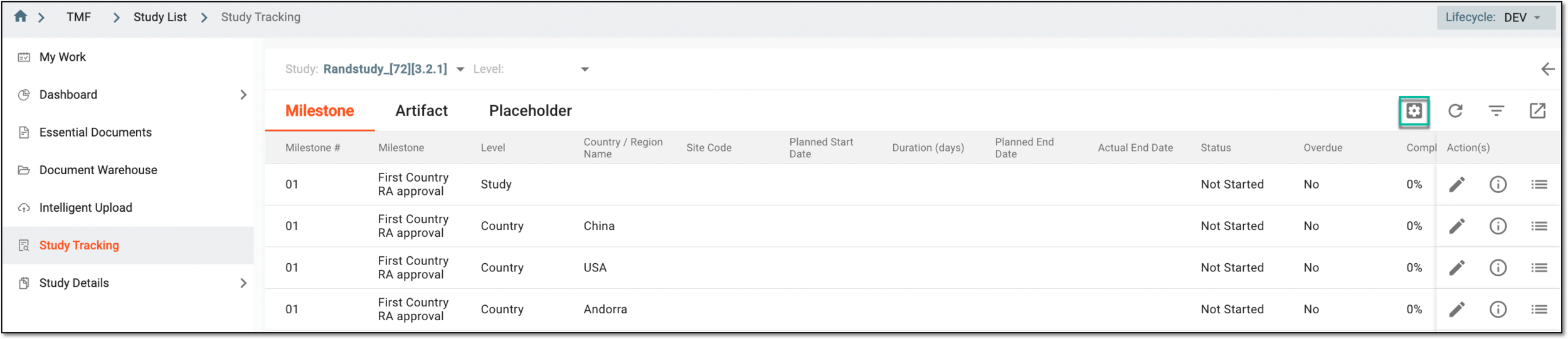 Figure 3. Accessing study tracking and milestone setting
-
On the Milestone Setting page, next to the needed milestone, select Associate
 .
. Figure 4. Accessing option to associate artifact with milestone
-
In the Associate Artifact dialog, choose the desired level at which you want to associate the artifacts, and then next to the artifacts, clear or select the checkboxes to remove or create an association with the selected milestone.
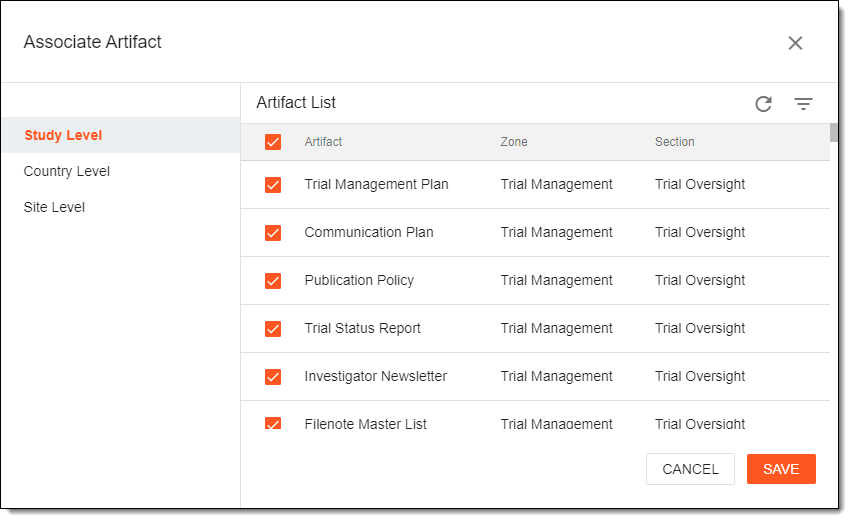 Figure 5. Associating artifacts
-
Select
to apply the changes.
Upon saving, the artifacts' association with the milestone is completed.
Download milestone setting template
Milestone settings are configurations that create the framework for how milestones are utilized within the trial at the study, country, and site levels. These settings ensure that milestones are tailored to the specific needs of the study and provide the structure for tracking and managing those milestones effectively.
The Download Milestone Settings functionality is quite useful when you need to introduce many changes to the settings at once.
-
In the eTMF application header, select the TMF tab.
-
On the page that opens, in the left pane, select the Study List subtab.
-
In the Study List table that opens, select the needed study name.
Figure 1. Selecting study
-
On the page that opens, select the Study Tracking pane option.
Figure 2. Accessing study tracking page
-
On the Milestone page that opens, from the workspace toolbar, select Setting
.Figure 3. Accessing study tracking and milestone setting
-
On the Milestone Setting page that opens, from the workspace toolbar, select Download Template
 .
. Figure 4. Downloading milestone setting template
Upon saving, the XLSX template file is downloaded to your computer. Now you can fill it out with data—create the milestone list—and then import the file back to generate the milestone list in the eTMF system.
View milestone setting audit trail
Milestone settings are configurations that create the framework for how milestones are utilized within the trial at the study, country, and site levels. These settings ensure that milestones are tailored to the specific needs of the study and provide the structure for tracking and managing those milestones effectively.
The audit trail data in eTMF serves as a comprehensive record that tracks changes made to the milestone settings, including additions and modifications.
-
In the eTMF application header, select the TMF tab.
-
On the page that opens, in the left pane, select the Study List subtab.
-
In the Study List table that opens, select the needed study name.
Figure 1. Selecting study
-
On the page that opens, select the Study Tracking pane option.
Figure 2. Accessing study tracking page
-
On the Milestone page that opens, from the workspace toolbar, select Setting
.Figure 3. Accessing study tracking and milestone setting
-
In the Milestone Setting table, go to the needed milestone setting. Next to the required milestone, in the Actions column, select Audit Trail
 .
.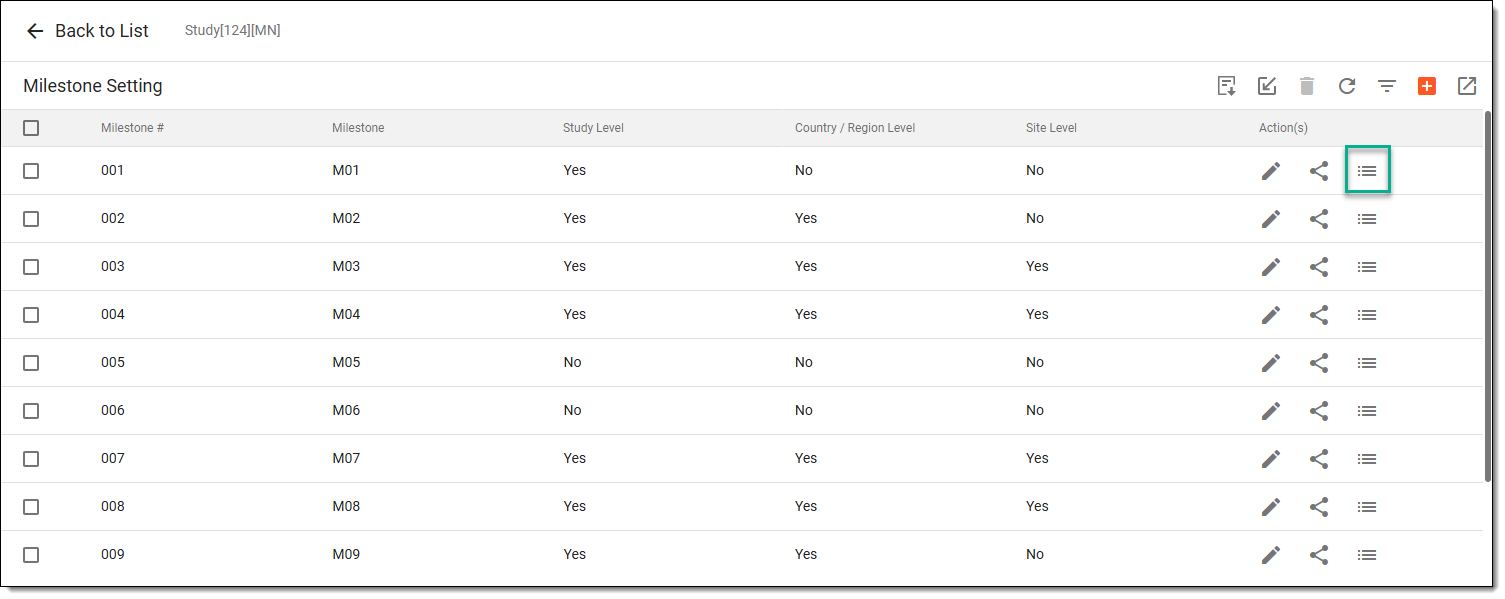 Figure 4. Accessing option view milestone setting's audit trail
-
In the Audit Trail dialog that appears, you can view the log of operations performed on the milestone setting.
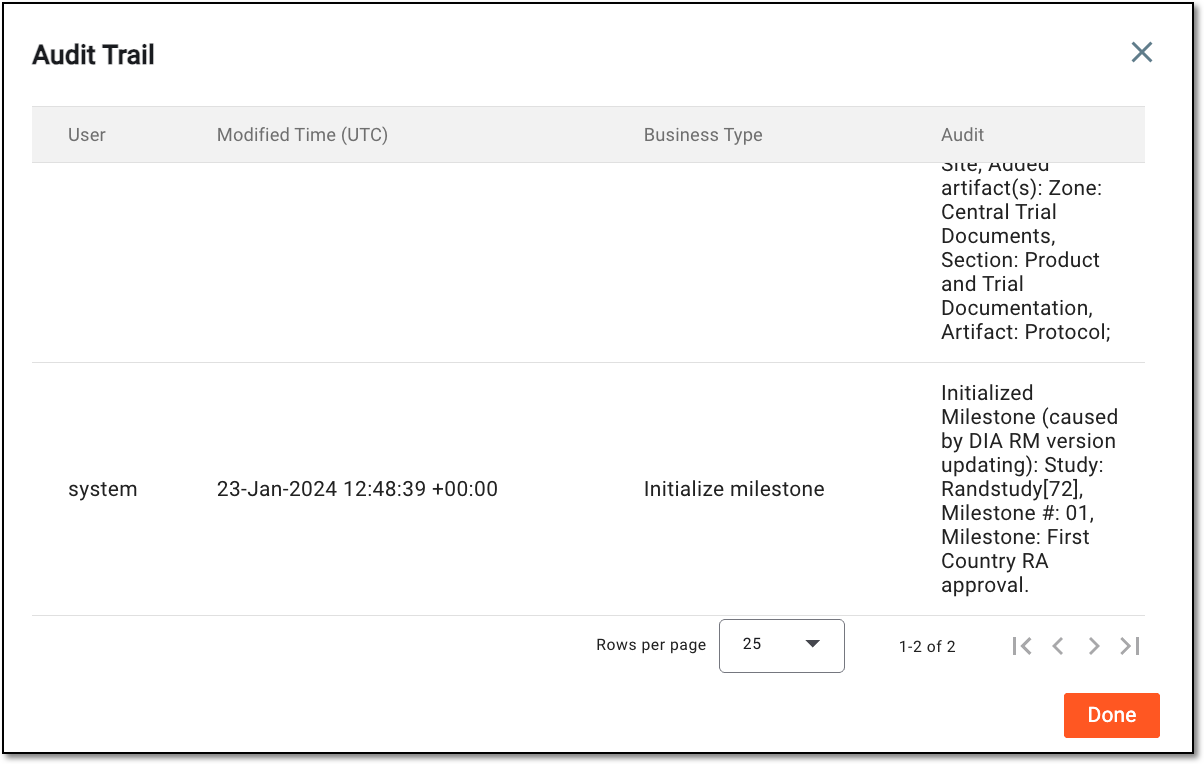 Figure 5. Analyzing audit trail of milestone settings
-
Select
 to close the dialog.
Once done, you return to the Milestone Setting table.
Import milestone setting list
Milestone settings are configurations that create the framework for how milestones are utilized within the trial at the study, country, and site levels. These settings ensure that milestones are tailored to the specific needs of the study and provide the structure for tracking and managing those milestones effectively.
After you have downloaded the template file, updated it with the required settings, you may want to introduce these changes in eTMF by importing the XLSX file back. It is very useful if you need to make multiple changes at once.
-
In the eTMF application header, select the TMF tab.
-
On the page that opens, in the left pane, select the Study List subtab.
-
In the Study List table that opens, select the needed study name.
Figure 1. Selecting study
-
On the page that opens, select the Study Tracking pane option.
Figure 2. Accessing study tracking page
-
On the Milestone page that opens, from the workspace toolbar, select Setting
.Figure 3. Accessing study tracking and milestone setting
-
On the Milestone Setting page that opens, from the workspace toolbar, select Import
 .
. Figure 4. Importing milestone list
Upon importing, the system generates the milestone list for the study based on the data from your XLSX spreadsheet.
Export milestone setting list
Milestone settings are configurations that create the framework for how milestones are utilized within the trial at the study, country, and site levels. These settings ensure that milestones are tailored to the specific needs of the study and provide the structure for tracking and managing those milestones effectively.
In the eTMF application, you can export the milestone settings for a particular study to work with them offline and import them back into eTMF. With this functionality, you can update the existing milestones in bulk instead of editing them one by one.
-
In the eTMF application header, select the TMF tab.
-
On the page that opens, in the left pane, select the Study List subtab.
-
In the Study List table that opens, select the needed study name.
Figure 1. Selecting study
-
On the page that opens, select the Study Tracking pane option.
Figure 2. Accessing study tracking page
-
On the Milestone page that opens, from the workspace toolbar, select Setting
.Figure 3. Accessing study tracking and milestone setting
-
On the Milestone Setting page that opens, from the workspace toolbar, select Export
 .
.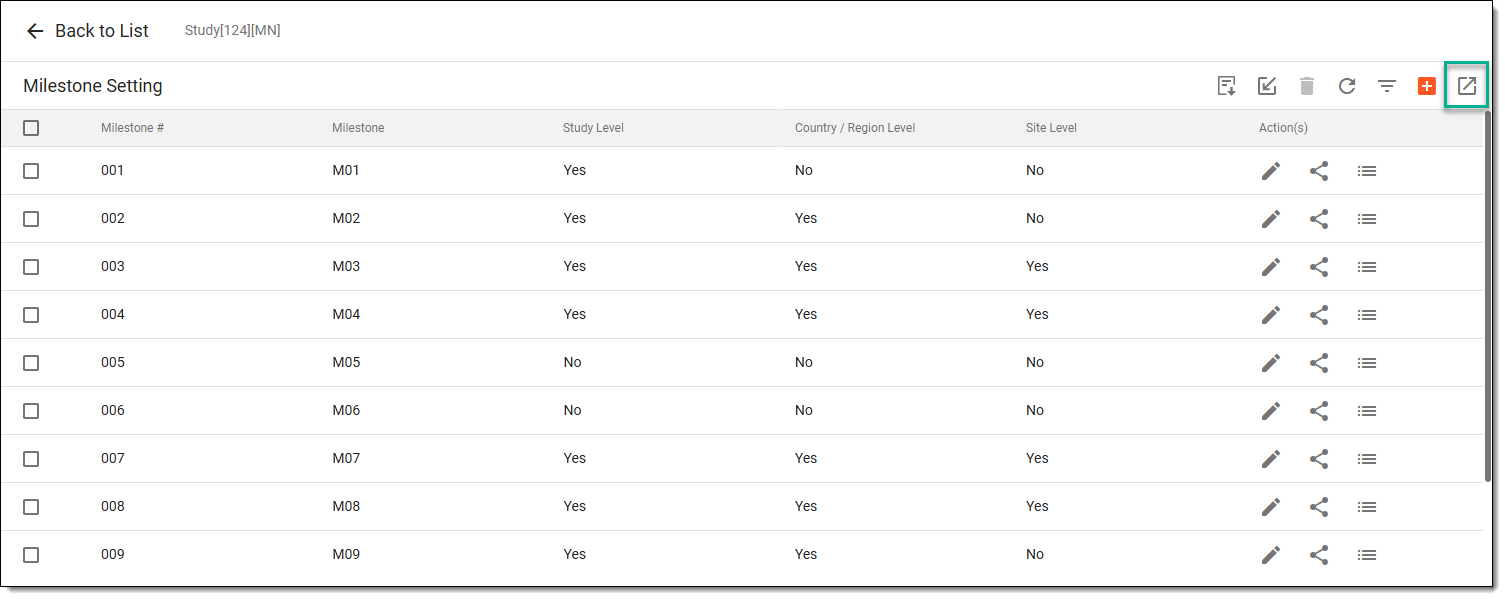 Figure 4. Exporting milestone setting
Once exported, the file is saved on your system in the XLSX format. You can now work with it offline.
Delete milestone setting
Milestone settings are configurations that create the framework for how milestones are utilized within the trial at the study, country, and site levels. These settings ensure that milestones are tailored to the specific needs of the study and provide the structure for tracking and managing those milestones effectively.
If the milestone settings contain errors or have become obsolete, it may be necessary to delete the redundant entry to keep the list of milestones up-to-date. Furthermore, some milestone settings related to canceled trials or phases that will no longer take place may need to be removed to maintain focus on current and relevant activities.
-
In the eTMF application header, select the TMF tab.
-
On the page that opens, in the left pane, select the Study List subtab.
-
In the Study List table that opens, select the needed study name.
Figure 1. Selecting study
-
On the page that opens, select the Study Tracking pane option.
Figure 2. Accessing study tracking page
-
On the Milestone page that opens, from the workspace toolbar, select Setting
.Figure 3. Accessing study tracking and milestone setting
-
On the Milestone Setting page, select the checkboxes next to the milestone settings you want to delete, and from the workspace toolbar, select Delete
 .
.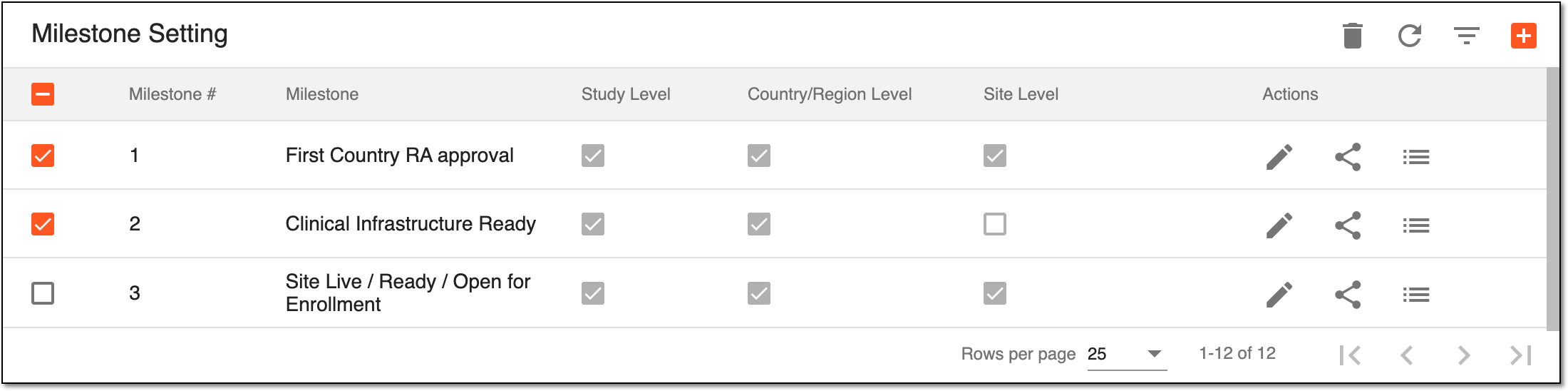 Figure 4. Deleting milestone
-
In the Delete confirmation dialog that opens, select
 to remove the selected settings.
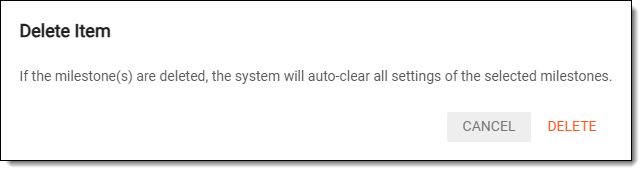 Figure 5. Confirming milestone deletion
The milestone settings are no longer available. You are returned to the Milestones page.