Milestone management before execution
In a clinical trial, milestones are key events or checkpoints that mark significant progress in the study timeline. They help track critical phases such as site initiation, subject enrollment, treatment phases, data collection, and study closure. Milestones ensure proper planning, monitoring, and compliance by providing measurable goals that indicate study progress and adherence to regulatory requirements.
To execute a milestone means to push it to a study where you can use it to manage your study timeline. Before execution, milestones must be properly defined, reviewed, and configured to align with study requirements. Managing milestones ensures accuracy and prevents issues once they are executed.
In the following sections, you can learn about various features available to define and manage the milestones before pushing them to a study.
In CTMS, you can define milestones representing a significant phase or checkpoint in a study or project, such as subject enrollment, site openings, or critical study visits. You can define and manage the milestones for a specific study, a country or region, or a site so that the teams can efficiently monitor progress, address potential delays, and maintain compliance with study timelines across different regions and locations.
-
Access the study management page in one of the following ways:
-
In the CTMS application header, select the DASHBOARD tab and then select the study dashboard of your interest.
 Figure 1. Accessing study management from dashboard
-
In the CTMS application header, select the STUDY MANAGEMENT tab. Then from the Study Data List table, select the study name of your interest.
 Figure 2. Accessing study management from study data list
-
-
On the page that opens, in the left pane, select Project Management > Milestones.
-
In the Milestones List table, from above the workspace toolbar, select Setting
 .
.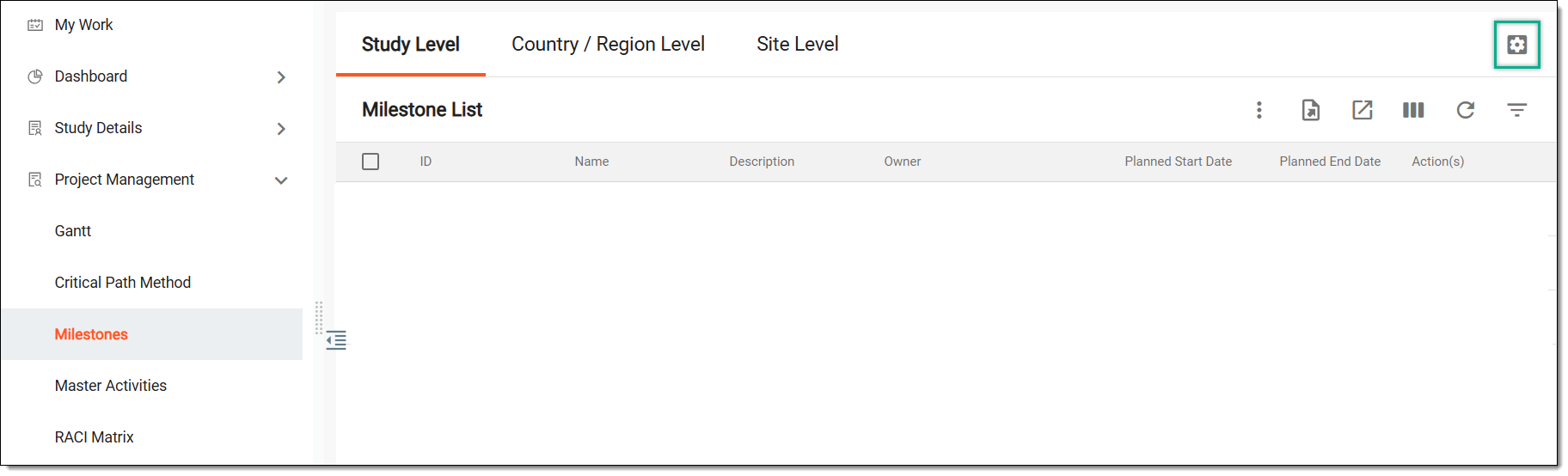 Figure 3. Accessing milestone settings
-
On the page that opens, in the Milestone Setting table, from the workspace toolbar, select New Item
 and then choose one of the following options.
 Figure 4. Selecting option to add milestone
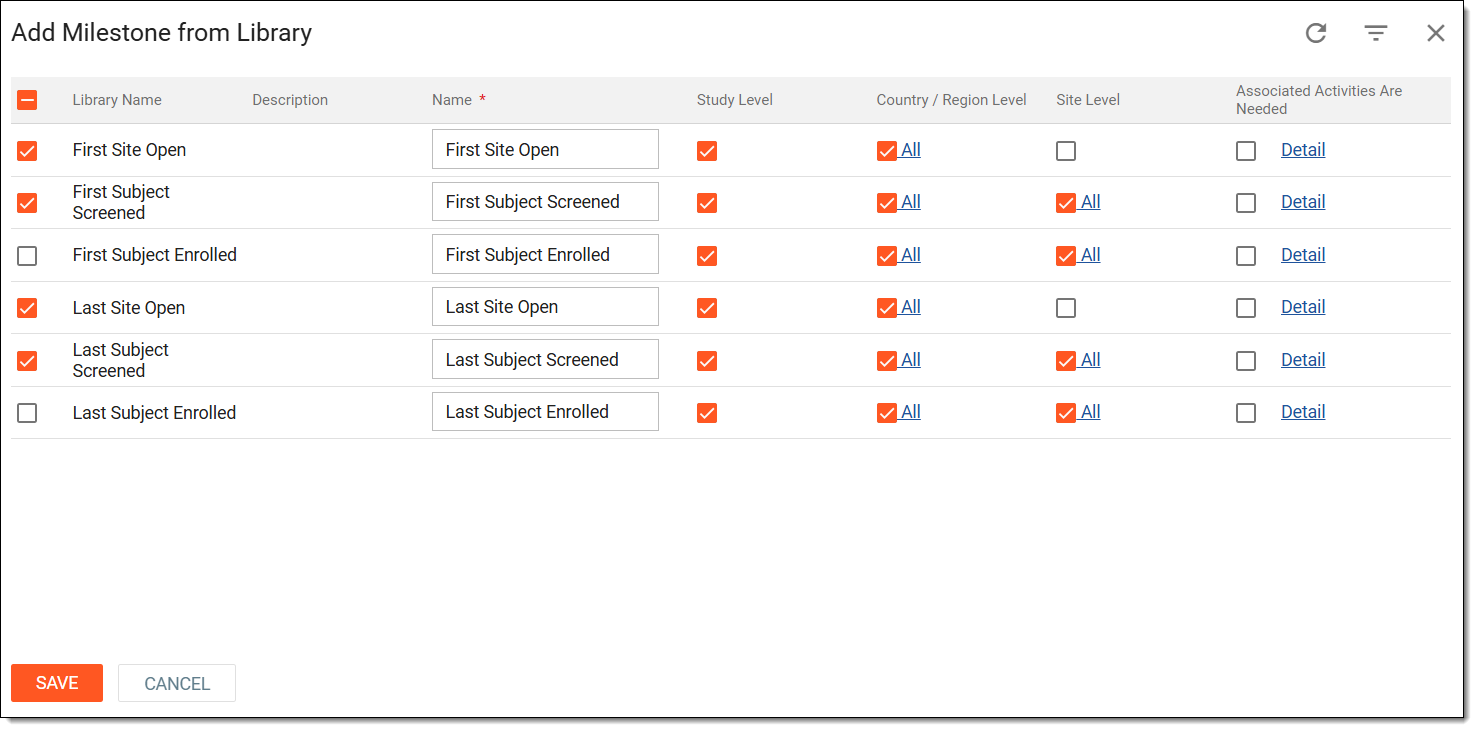
In the Add Milestone from Library dialog that appears, add predefined milestones to your study from the CTMS Library > Milestone Template feature by entering the details as explained in the following table.
Tip
In the following table, mandatory elements are marked with an asterisk (*).
Element
Details
Library Name
Represents the name of the milestone as defined in the CTMS Library > Milestone Template feature.
Description
Represents the milestone's description, which was defined during its creation in the library, providing relevant details to system users.
Name*
Enter a custom name for the milestone. By default, this field shows the name of the milestone as defined in the CTMS Library > Milestone Template feature.
Study Level
Select the checkbox if you want to add the milestone to your current study in which you are working.
Country/Region Level
Select the checkbox to add the milestone to all the countries and regions where the study is held and which are referenced in the system.
Upon selecting the checkbox, you can click All to open a dialog, in which you can turn the Apply to All toggle on or off. When off, you can choose a specific country or region to which you want to add the milestone. Then select SAVE.
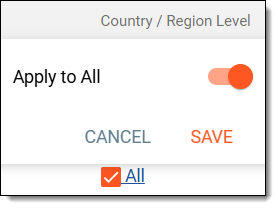 Figure 6. Choosing countries to add milestone
Site Level
Select the checkbox to add the milestone to all the sites of the study.
Upon selecting the checkbox, you can click All to open a dialog, in which you can turn the Apply to All toggle on or off. When off, you can choose a specific site to which you want to add the milestone. Then select SAVE.
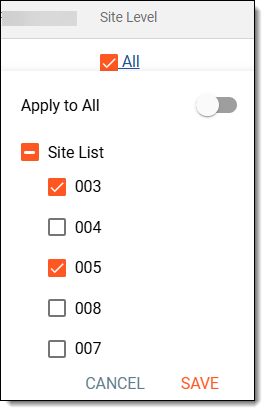 Figure 7. Choosing countries to add milestone
Associated Activities Are Needed
Select the checkbox to automatically associate the milestone with the activities as configured and set up in the library.
You can click Detail to view the activities associated with the milestone to make an informed decision. Then select OK to close the dialog.
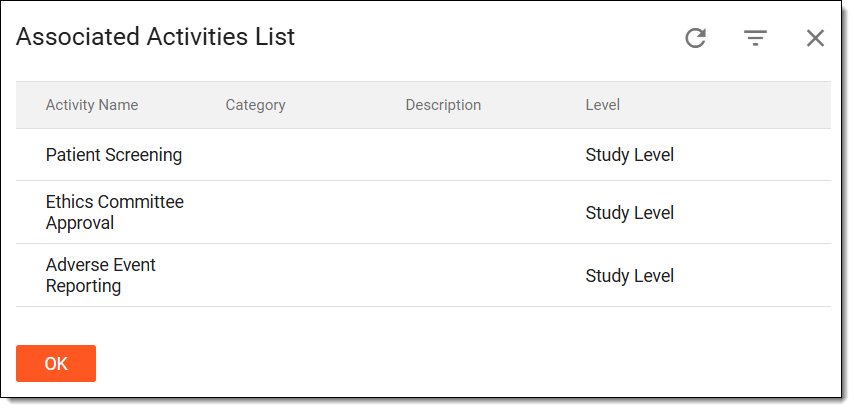 Figure 8. Viewing activities associated with milestone
SAVE
Select
 to preserve your changes and add the milestone.
CANCEL
Select
 to dismiss your changes without saving.Figure 5. Adding milestones from library
In the Add Milestone dialog that appears, create milestones from scratch by entering the details as explained in the following table.
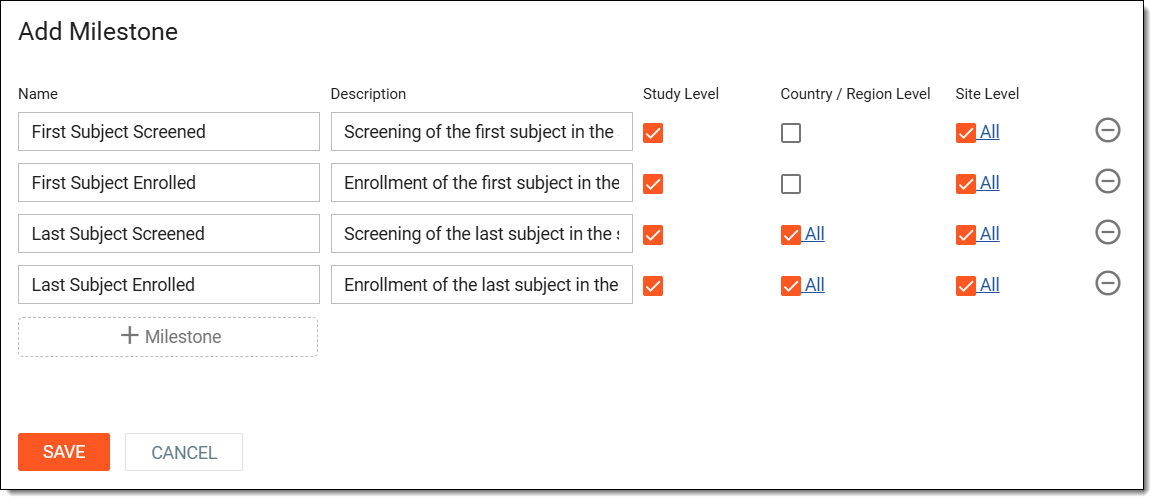 Figure 9. Adding milestones
Element
Details
Name
Enter a unique name for the milestone.
Description
Enter the milestone's description providing additional details or clarification to the system users.
Study Level
Select the checkbox if you want to add the milestone to your current study in which you are working.
Country/Region Level
Select the checkbox to add the milestone to all the countries and regions where the study is held and which are referenced in the system.
Upon selecting the checkbox, you can click All to open a dialog, in which you can turn the Apply to All toggle on or off. When off, you can choose a specific country or region to which you want to add the milestone. Then select SAVE.
Figure 10. Choosing countries to add milestone
Site Level
Select the checkbox to add the milestone to all the sites of the study.
Upon selecting the checkbox, you can click All to open a dialog, in which you can turn the Apply to All toggle on or off. When off, you can choose a specific site to which you want to add the milestone. Then select SAVE.
Figure 11. Choosing countries to add milestone
Add milestone
Select
 to add an additional row where you can define a new milestone. This way, you can define multiple milestones and then add
them all at once.
to add an additional row where you can define a new milestone. This way, you can define multiple milestones and then add
them all at once.Remove
Select
 to remove a milestone you have accidentally added.
SAVE
Select
to implement the changes and add the milestones.CANCEL
Select
to dismiss your changes without saving.
Once saved, the milestones are added. You can now proceed with associating milestones with an activity (if not already associated). Otherwise, proceed with executing your recently introduced updates to the Milestone Setting table and start using the milestones in your study.
In CTMS, you can define milestones representing a significant phase or checkpoint in a study or project, such as subject enrollment, site openings, or critical study visits. You can associate a milestone with study activities ensuring that key project events are linked to specific tasks, enabling better tracking and coordination. This connection allows milestones to reflect progress based on the completion of associated activities.
-
Access the study management page in one of the following ways:
-
In the CTMS application header, select the DASHBOARD tab and then select the study dashboard of your interest.
Figure 1. Accessing study management from dashboard
-
In the CTMS application header, select the STUDY MANAGEMENT tab. Then from the Study Data List table, select the study name of your interest.
Figure 2. Accessing study management from study data list
-
-
On the page that opens, in the left pane, select Project Management > Milestones.
-
In the Milestones List table, from above the workspace toolbar, select Setting
.Figure 3. Accessing milestone settings
-
On the page that opens, in the Milestone Setting table, next to the required milestone, from the Action(s) column, select More
 > Associate with Activities
  .
.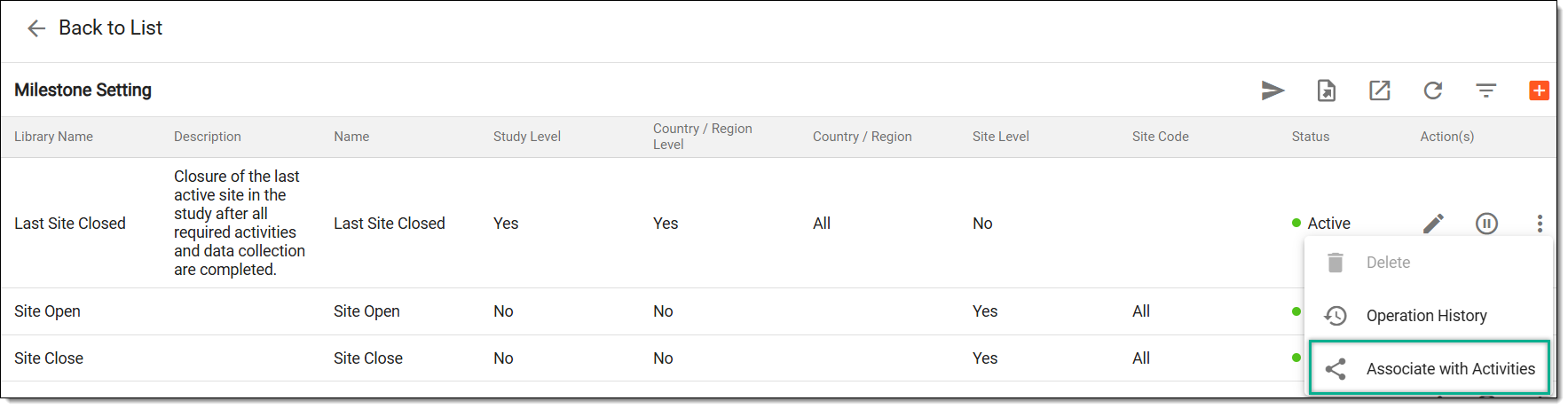 Figure 4. Selecting associate milestone with activity option
-
In the Associate with Activities dialog that appears, from the left pane, select any of the following options:
-
STUDY LEVEL: displays the activities applicable to the study.
-
COUNTRY/REGION LEVEL: displays the activities available at the country or region level.
-
SITE LEVEL: displays the activities available for the site.
Tip
Note that the activities available in this dialog are predefined and configured in the Project Management > Master Activities feature.
-
-
In the Activity List table, select the activities you want to associate with your milestone.
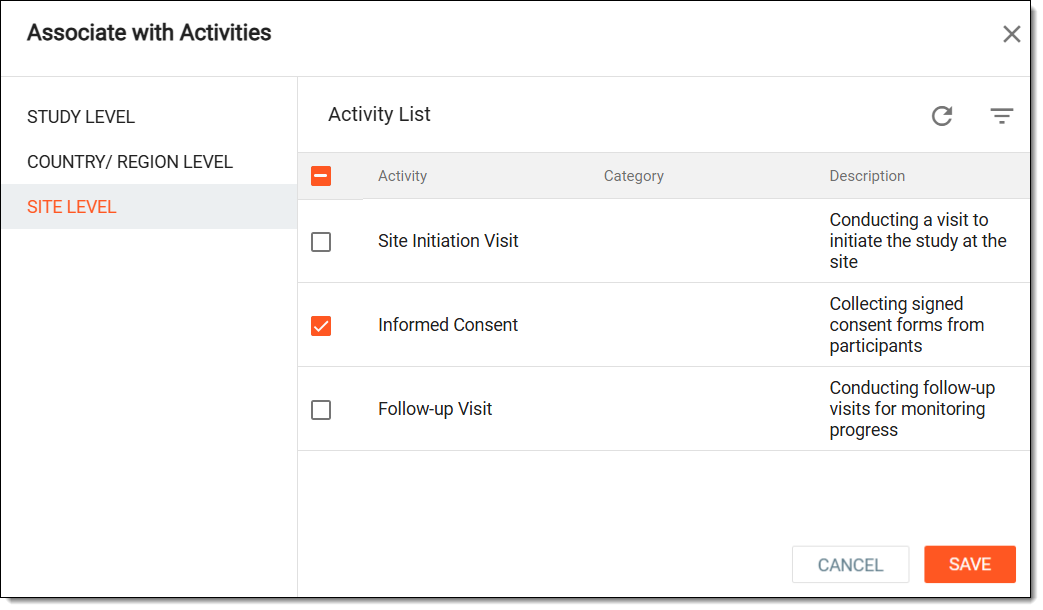 Figure 5. Associating activity with milestone
-
Select SAVE.
Once saved, the activities are associated with your milestone. You can now proceed with executing your recently introduced updates to the Milestone Setting table and start using the milestones in your study.
In CTMS, you can define milestones representing a significant phase or checkpoint in a study or project, such as subject enrollment, site openings, or critical study visits. When you execute a milestone, you can then start using it in your study. However, before execution, you can update the milestone details to ensure its information accuracy and alignment with the study progress.
-
Access the study management page in one of the following ways:
-
In the CTMS application header, select the DASHBOARD tab and then select the study dashboard of your interest.
Figure 1. Accessing study management from dashboard
-
In the CTMS application header, select the STUDY MANAGEMENT tab. Then from the Study Data List table, select the study name of your interest.
Figure 2. Accessing study management from study data list
-
-
On the page that opens, in the left pane, select Project Management > Milestones.
-
In the Milestones List table, from above the workspace toolbar, select Setting
.Figure 3. Accessing milestone settings
-
On the page that opens, in the Milestone Setting table, next to the required milestone, from the Action(s) column, select Edit
 .
.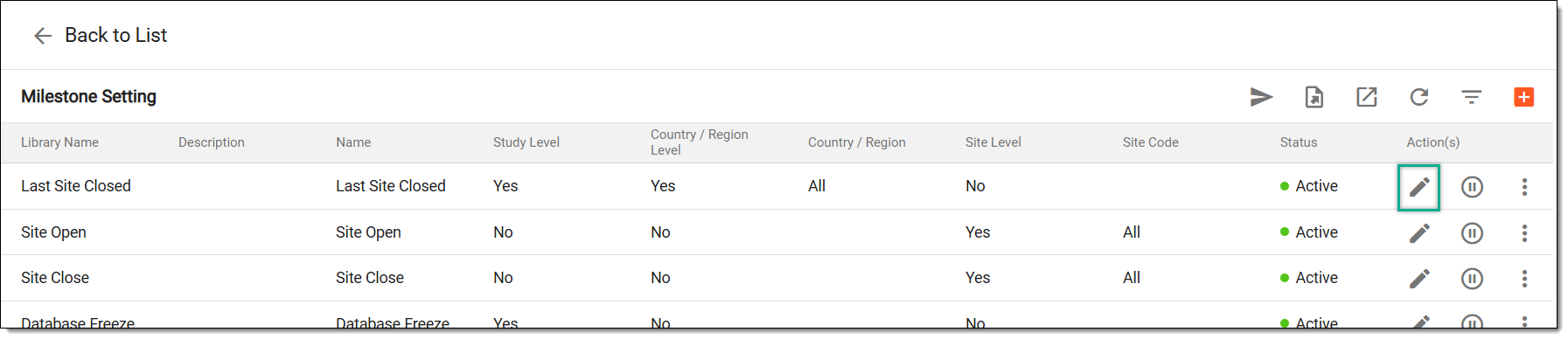 Figure 4. Accessing option to edit milestone
-
In the Edit Milestone dialog that appears, update the milestone details as explained in the following table.
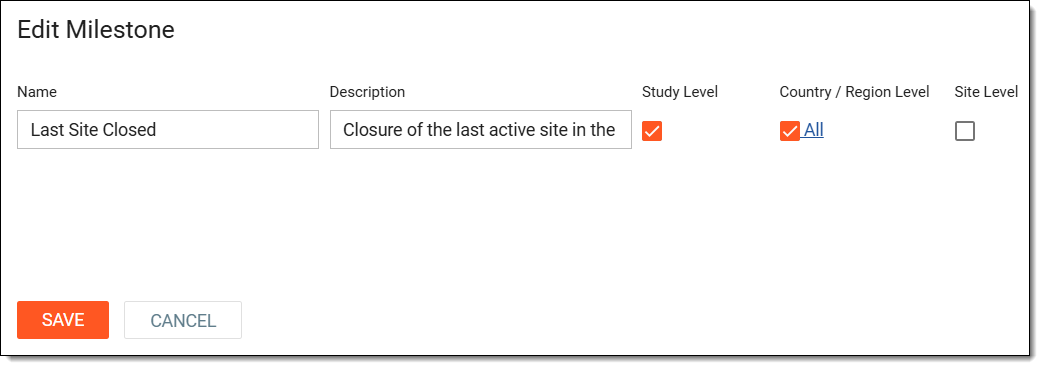 Figure 5. Editing milestone
Element
Details
Name
Enter a unique name for the milestone.
Description
Enter the milestone's description providing additional details or clarification to the system users.
Study Level
Select the checkbox if you want to add the milestone to your current study in which you are working.
Country/Region Level
Select the checkbox to add the milestone to all the countries and regions where the study is held and which are referenced in the system.
Upon selecting the checkbox, you can click All to open a dialog, in which you can turn the Apply to All toggle on or off. When off, you can choose a specific country or region to which you want to add the milestone. Then select SAVE.
Figure 6. Choosing countries to add milestone
Site Level
Select the checkbox to add the milestone to all the sites of the study.
Upon selecting the checkbox, you can click All to open a dialog, in which you can turn the Apply to All toggle on or off. When off, you can choose a specific site to which you want to add the milestone. Then select SAVE.
Figure 7. Choosing countries to add milestone
SAVE
Select
to implement your changes and update the milestones.CANCEL
Select
to dismiss your changes without saving.
Once saved, the milestone is updated. You can now proceed with executing your recently introduced updates to the Milestone Setting table and start using the milestones in your study.
In CTMS, you can define milestones representing a significant phase or checkpoint in a study or project, such as subject enrollment, site openings, or critical study visits. Before executing or pushing a milestone to a study, you can activate or inactivate it based on the study’s requirements. Activating a milestone ensures it is included in tracking, reporting, and workflow processes, making it visible and actionable. Inactivating a milestone temporarily disables it, preventing it from affecting study progress while retaining its details for future use. Additionally, a milestone must be inactivated before it can be deleted.
-
Access the study management page in one of the following ways:
-
In the CTMS application header, select the DASHBOARD tab and then select the study dashboard of your interest.
Figure 1. Accessing study management from dashboard
-
In the CTMS application header, select the STUDY MANAGEMENT tab. Then from the Study Data List table, select the study name of your interest.
Figure 2. Accessing study management from study data list
-
-
On the page that opens, in the left pane, select Project Management > Milestones.
-
In the Milestones List table, from above the workspace toolbar, select Setting
.Figure 3. Accessing milestone settings
-
On the page that opens, in the Milestone Setting table, next to the required milestone, from the Action(s) column, select Activate
 to reactivate an inactive milestone. Or, select Inactivate
  to deactivate a milestone.
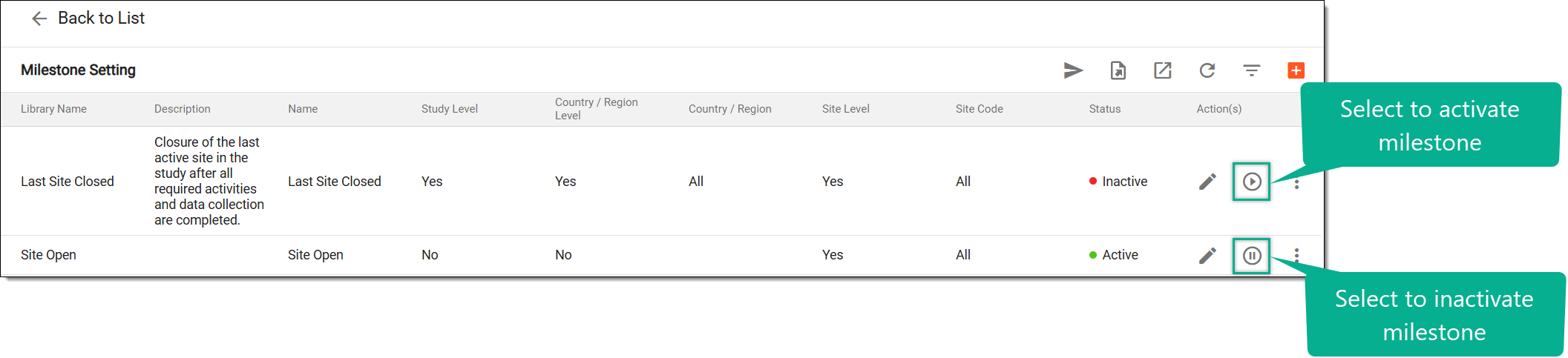 Figure 4. Accessing option to activate or inactivate milestone
-
In the Reason dialog that appears, enter the reason for activating or inactivating the milestone. Then select SAVE.
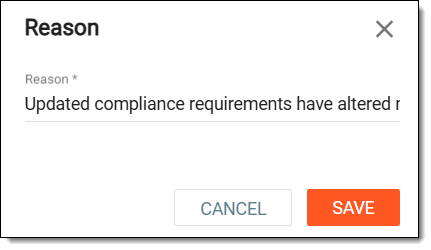 Figure 5. Entering reason to inactivate milestone
Once saved, the milestone is activated or inactivated. An inactivated milestone cannot be executed and pushed to a study and also, an inactivated milestone can be deleted, if needed.
In CTMS, you can define milestones representing a significant phase or checkpoint in a study or project, such as subject enrollment, site openings, or critical study visits. When you execute a milestone, you can then start using it in your study. Before a milestone is executed, you can delete a milestone if it is no longer needed.
Deleting a milestone removes it from the Milestone Setting table, ensuring that unnecessary or incorrectly created milestones do not proceed to execution.
Important
A milestone must first be inactivated before it can be deleted, preventing unintended data loss.
-
Access the study management page in one of the following ways:
-
In the CTMS application header, select the DASHBOARD tab and then select the study dashboard of your interest.
Figure 1. Accessing study management from dashboard
-
In the CTMS application header, select the STUDY MANAGEMENT tab. Then from the Study Data List table, select the study name of your interest.
Figure 2. Accessing study management from study data list
-
-
On the page that opens, in the left pane, select Project Management > Milestones.
-
In the Milestones List table, from above the workspace toolbar, select Setting
.Figure 3. Accessing milestone settings
-
On the page that opens, in the Milestone Setting table, next to the required milestone, from the Action(s) column, select More
> Delete  .
.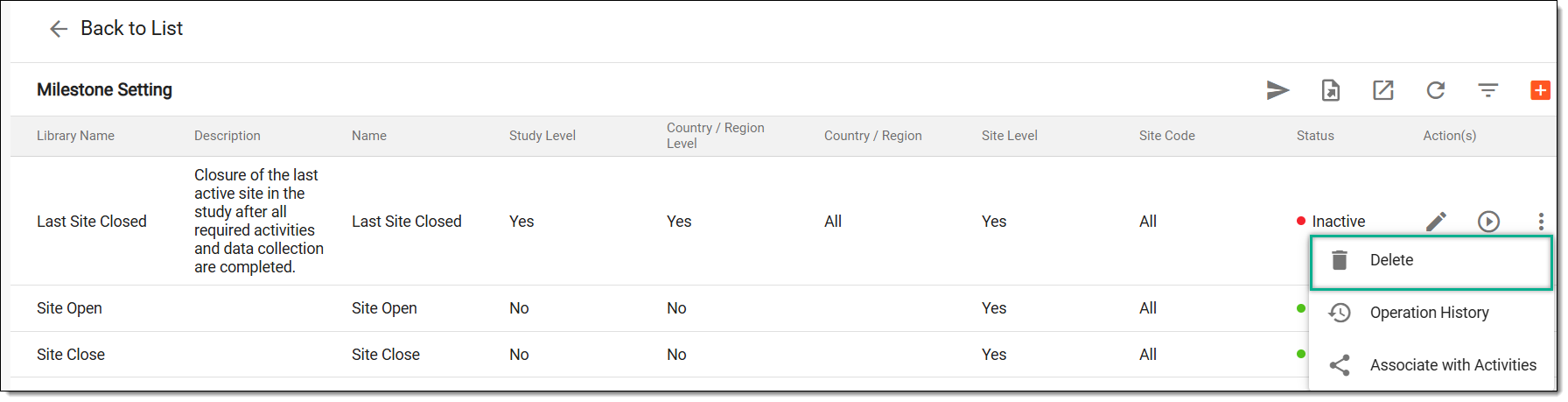 Figure 4. Accessing option to delete milestone
-
In the Reason dialog that opens, describe the reason for deleting the milestone. Then select SAVE.
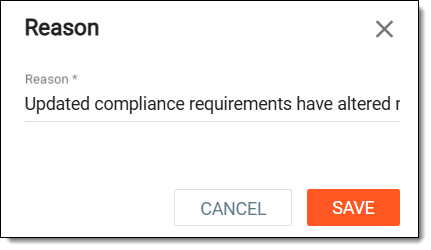 Figure 5. Entering reason to delete milestone
Once saved, the milestone is deleted.
In CTMS, you can define milestones representing a significant phase or checkpoint in a study or project, such as subject enrollment, site openings, or critical study visits. If needed, you can view a detailed log of all actions performed on a milestone that ensures transparency and helps you track changes over time. By reviewing the operation history, you can verify what modifications were introduced, by whom, and when, helping with compliance, auditing, and troubleshooting.
-
Access the study management page in one of the following ways:
-
In the CTMS application header, select the DASHBOARD tab and then select the study dashboard of your interest.
Figure 1. Accessing study management from dashboard
-
In the CTMS application header, select the STUDY MANAGEMENT tab. Then from the Study Data List table, select the study name of your interest.
Figure 2. Accessing study management from study data list
-
-
On the page that opens, in the left pane, select Project Management > Milestones.
-
In the Milestones List table, from above the workspace toolbar, select Setting
.Figure 3. Accessing milestone settings
-
On the page that opens, in the Milestone Setting table, next to the required milestone, from the Action(s) column, select More
> Operation History  .
.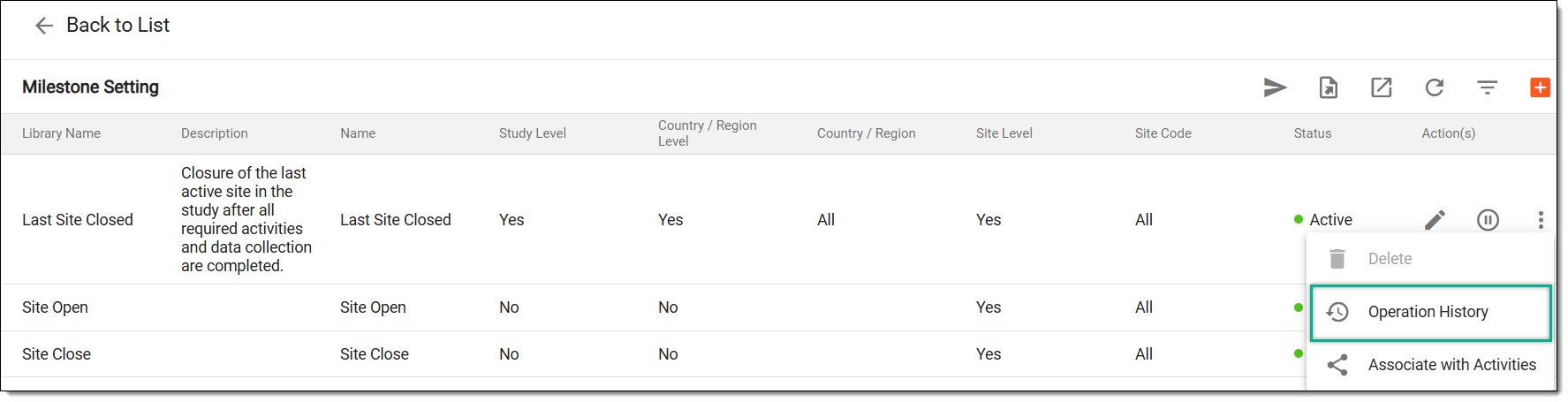 Figure 4. Accessing option to view operation history
-
In the Operation History dialog that opens, view the list of user actions that have been performed with the selected milestone.
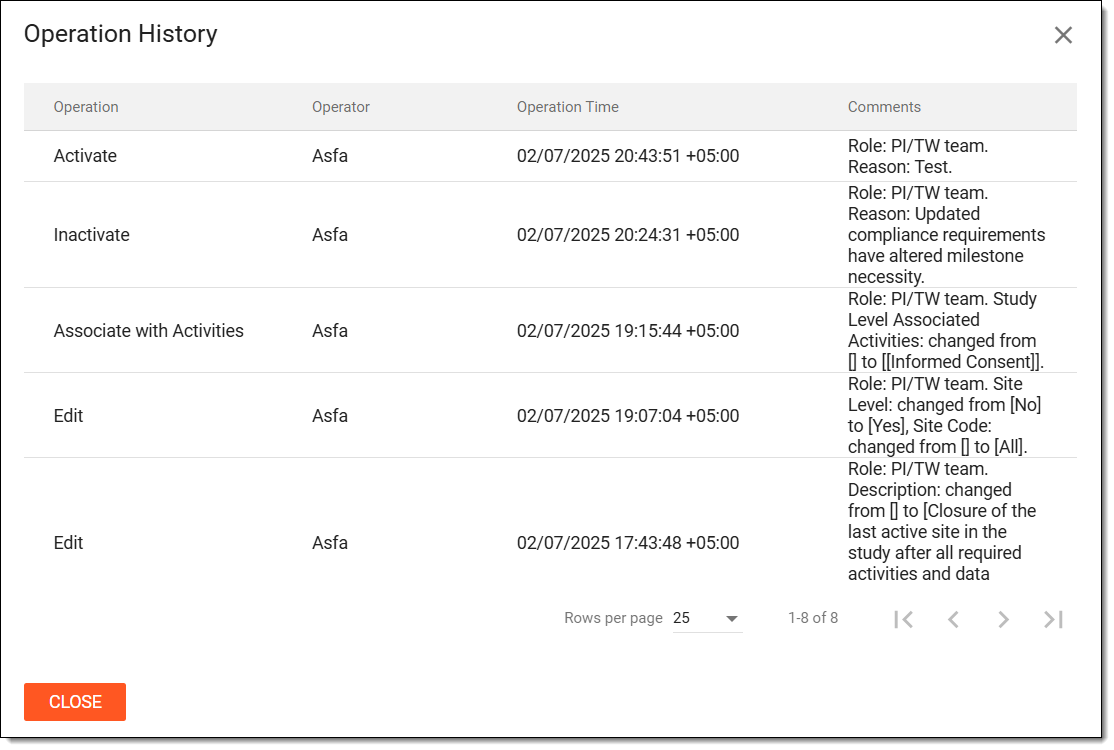 Figure 5. Viewing operation history of milestone
Once viewed, select CLOSE to return to the Milestone Setting table.
In CTMS, you can define milestones representing a significant phase or checkpoint in a study or project, such as subject enrollment, site openings, or critical study visits. If required, you can export the milestones to generate and download milestone data for reporting, analysis, or documentation purposes.
-
Access the study management page in one of the following ways:
-
In the CTMS application header, select the DASHBOARD tab and then select the study dashboard of your interest.
Figure 1. Accessing study management from dashboard
-
In the CTMS application header, select the STUDY MANAGEMENT tab. Then from the Study Data List table, select the study name of your interest.
Figure 2. Accessing study management from study data list
-
-
On the page that opens, in the left pane, select Project Management > Milestones.
-
In the Milestones List table, from above the workspace toolbar, select Setting
.Figure 3. Accessing milestone settings
-
On the page that opens, in the Milestone Setting table, from the workspace toolbar, select Export
 .
.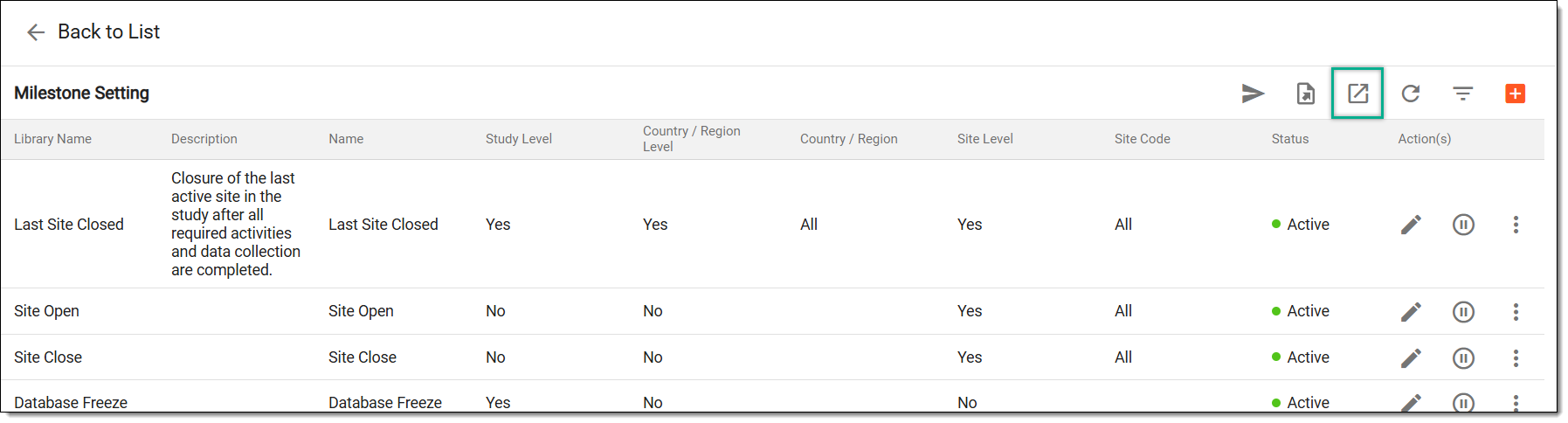 Figure 4. Accessing option to export milestones
-
The downloads widget appears showing the export progress. Select the widget to access exported files.
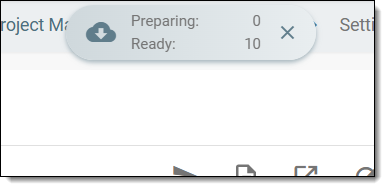 Figure 5. Downloads widget showing milestones being exported
-
In the My Downloads dialog that appears, in the Download is Ready tab, select
 next to the required exported file.
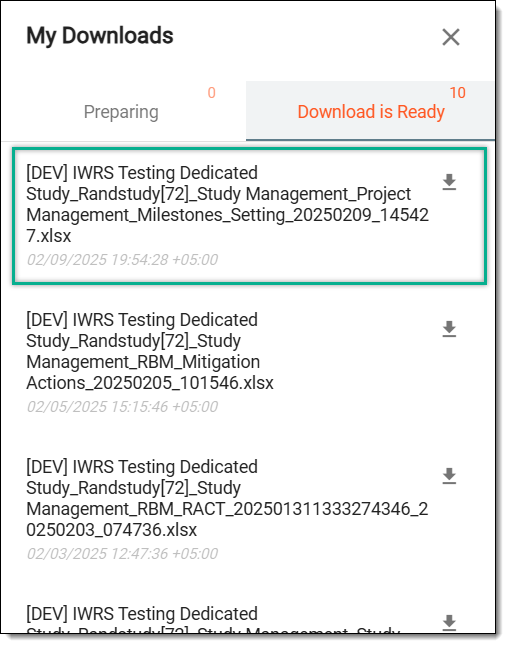 Figure 6. Downloading milestones list
Once selected, the list of milestones is downloaded as an XLSX file to your computer.
Milestones represent a significant phase or checkpoint in a study or project, such as subject enrollment, site openings, or critical study visits. Executing milestones moves them from the Milestone Setting table to Milestone List, making them active for tracking and management within the study. This step ensures that milestones can be seamlessly used in a study helping you track and monitor progress, update statuses, and associate relevant activities.
-
Access the study management page in one of the following ways:
-
In the CTMS application header, select the DASHBOARD tab and then select the study dashboard of your interest.
Figure 1. Accessing study management from dashboard
-
In the CTMS application header, select the STUDY MANAGEMENT tab. Then from the Study Data List table, select the study name of your interest.
Figure 2. Accessing study management from study data list
-
-
On the page that opens, in the left pane, select Project Management > Milestones.
-
In the Milestones List table, from above the workspace toolbar, select Setting
.Figure 3. Accessing milestone settings
-
On the page that opens, in the Milestone Setting table, from the workspace toolbar, select Execute
 .
.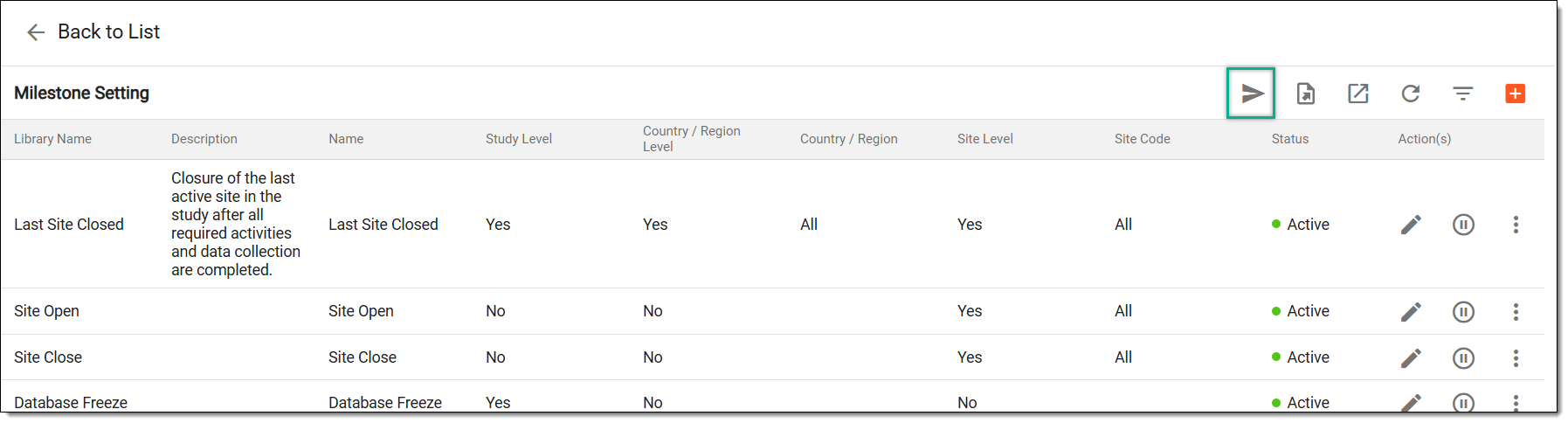 Figure 4. Executing milestones to study
Tip
If the study already contains milestones that match the ones being exported, the system displays a warning dialog informing you that proceeding with the execution will update the existing study milestones with the newly executed ones.
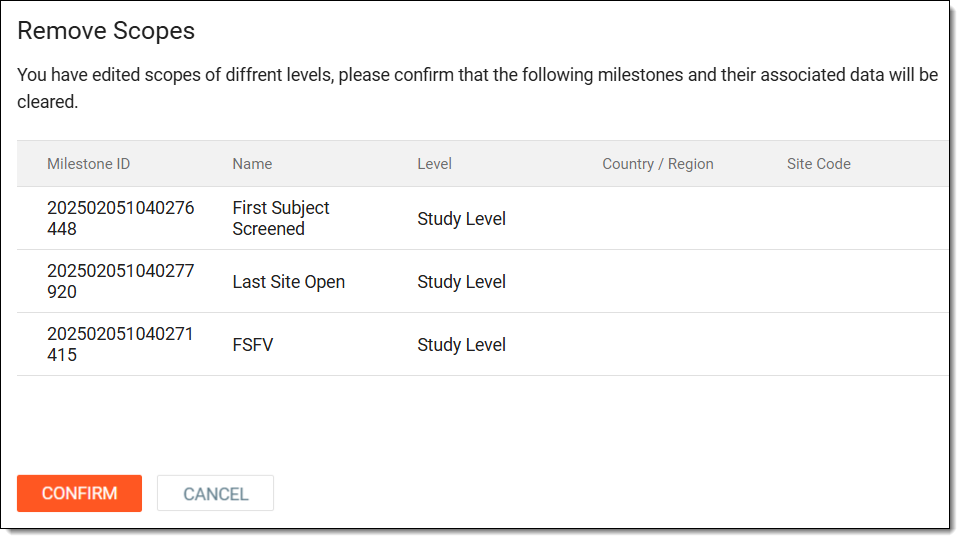 Figure 5. Updating existing study milestones before execution
Once the action is confirmed, the milestones are executed and sent to your study to ensure it stays on track. The executed milestones appear in the Milestone List table where you can manage them for your study as needed.