Milestone management in study
In a clinical trial, milestones are key events or checkpoints that mark significant progress in the study timeline. They help track critical phases such as site initiation, subject enrollment, treatment phases, data collection, and study closure. Milestones ensure proper planning, monitoring, and compliance by providing measurable goals that indicate study progress and adherence to regulatory requirements.
After milestones are defined and pushed to the study, you can manage the milestones in your study. This involves tracking, updating, and monitoring key study events after execution. Proper milestone management ensures that study timelines are adhered to, potential delays are identified, and critical study phases are completed efficiently.
In the following sections, you can learn about various features available to manage the milestones for your study.
Milestones are key events or checkpoints that mark significant progress in the study timeline helping you track critical phases such as site initiation, subject enrollment, treatment phases, data collection, and study closure. After a milestone is pushed to your study, you can update key details such as the milestone owner, and planned and actual start and end dates. This ensures that milestone information remains accurate and reflects the latest study progress.
-
Access the study management page in one of the following ways:
-
In the CTMS application header, select the DASHBOARD tab and then select the study dashboard of your interest.
 Figure 1. Accessing study management from dashboard
-
In the CTMS application header, select the STUDY MANAGEMENT tab. Then from the Study Data List table, select the study name of your interest.
 Figure 2. Accessing study management from study data list
-
-
On the page that opens, in the left pane, select Project Management > Milestones.
-
Above the Milestones List table, select one of the following options:
-
Study Level: milestones represent major phases that impact the overall study, such as the first subject screened or the last site open.
-
Country/Region Level: milestones focus on country-specific regulatory approvals, site activations, or regional study progress.
-
Site Level: milestones track individual site activities, such as the first subject visit or site closure.
-
-
In the Milestone List table, next to the required milestone, from the Action(s) column, select Edit
 .
.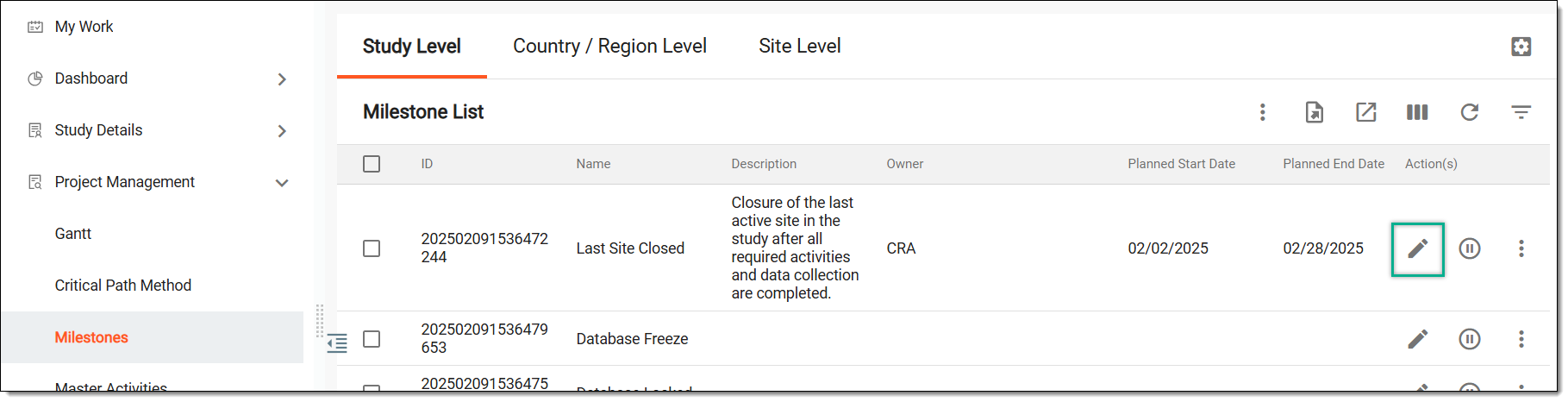 Figure 3. Accessing option to edit milestone in study
-
In the Edit dialog that appears, update the milestone details as explained in the following table.
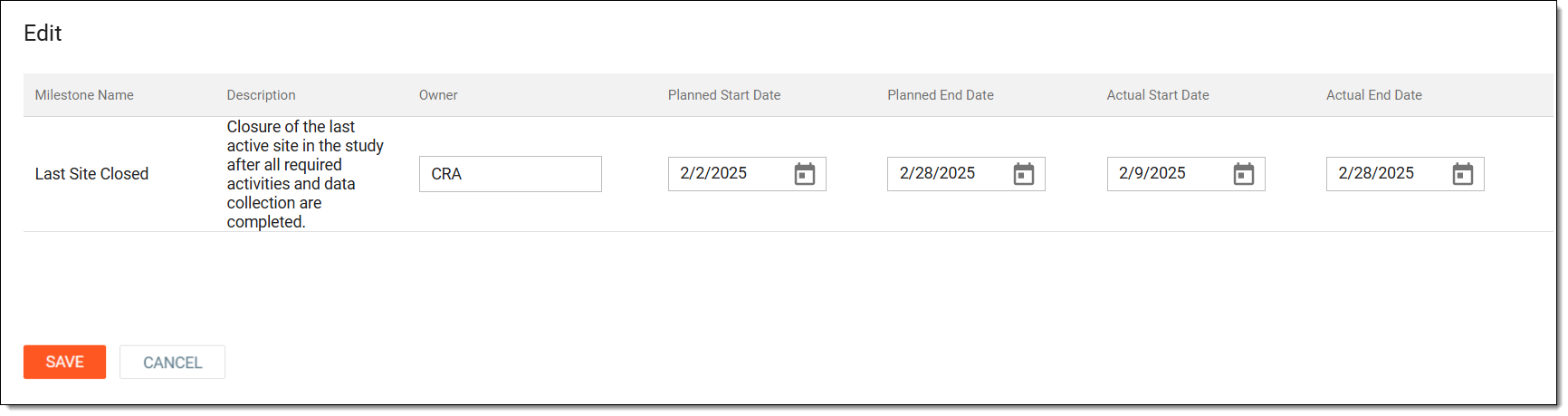 Figure 4. Updating milestone for study
Element
Details
Milestone Name
Represents the name of the milestone.
Description
Represent the milestone's description providing additional details or clarification about the milestone.
Owner
Select to open a dropdown menu where you can choose the user role or user to assign the milestone. Then, select SAVE.
Planned Start Date
Select the date picker
 to choose the date when the milestone is expected to begin.
Planned End Date
Select the date picker
to choose the date when the milestone is expected to be completed.Actual Start Date
Represents the date when the milestone activities began. This date is based on the actual start date of the activity associated with the milestone.
Actual End Date
Represents the date when the milestone was completed. This date is based on the actual end date of the activity associated with the milestone.
SAVE
Select
 to implement your changes and update the milestone.
CANCEL
Select
 to dismiss your changes without saving.
Once saved, the milestone is updated for your study and can be seamlessly used to keep track of the study timeline.
Milestones are key events or checkpoints that mark significant progress in the study timeline helping you track critical phases such as site initiation, subject enrollment, treatment phases, data collection, and study closure. After a milestone is pushed to your study, you can activate or inactivate it based on the study’s requirements. Activating a milestone ensures it is included in tracking, reporting, and workflow processes, making it visible and actionable. Inactivating a milestone temporarily disables it, preventing it from affecting study progress while retaining its details for future use.
-
Access the study management page in one of the following ways:
-
In the CTMS application header, select the DASHBOARD tab and then select the study dashboard of your interest.
Figure 1. Accessing study management from dashboard
-
In the CTMS application header, select the STUDY MANAGEMENT tab. Then from the Study Data List table, select the study name of your interest.
Figure 2. Accessing study management from study data list
-
-
On the page that opens, in the left pane, select Project Management > Milestones.
-
Above the Milestones List table, select one of the following options:
-
Study Level: milestones represent major phases that impact the overall study, such as the first subject screened or the last site open.
-
Country/Region Level: milestones focus on country-specific regulatory approvals, site activations, or regional study progress.
-
Site Level: milestones track individual site activities, such as the first subject visit or site closure.
-
-
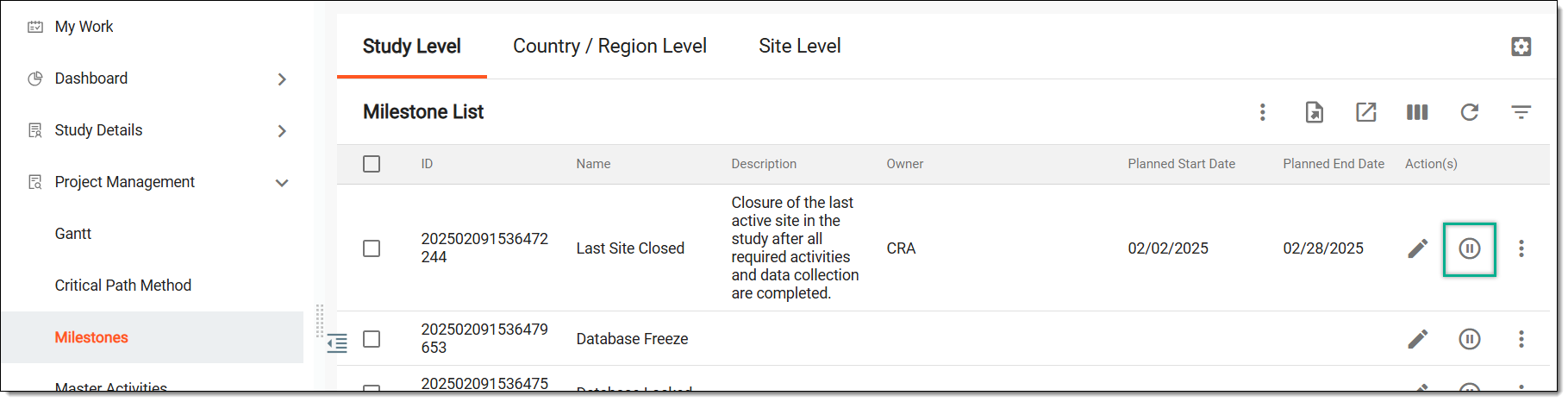
In the Milestone List table, perform one of the actions as follows.
Activate or inactivate multiple milestones at once by selecting the required milestones from the table, and then, from the workspace toolbar, select More
 > Activate
  or Inactivate
  .
.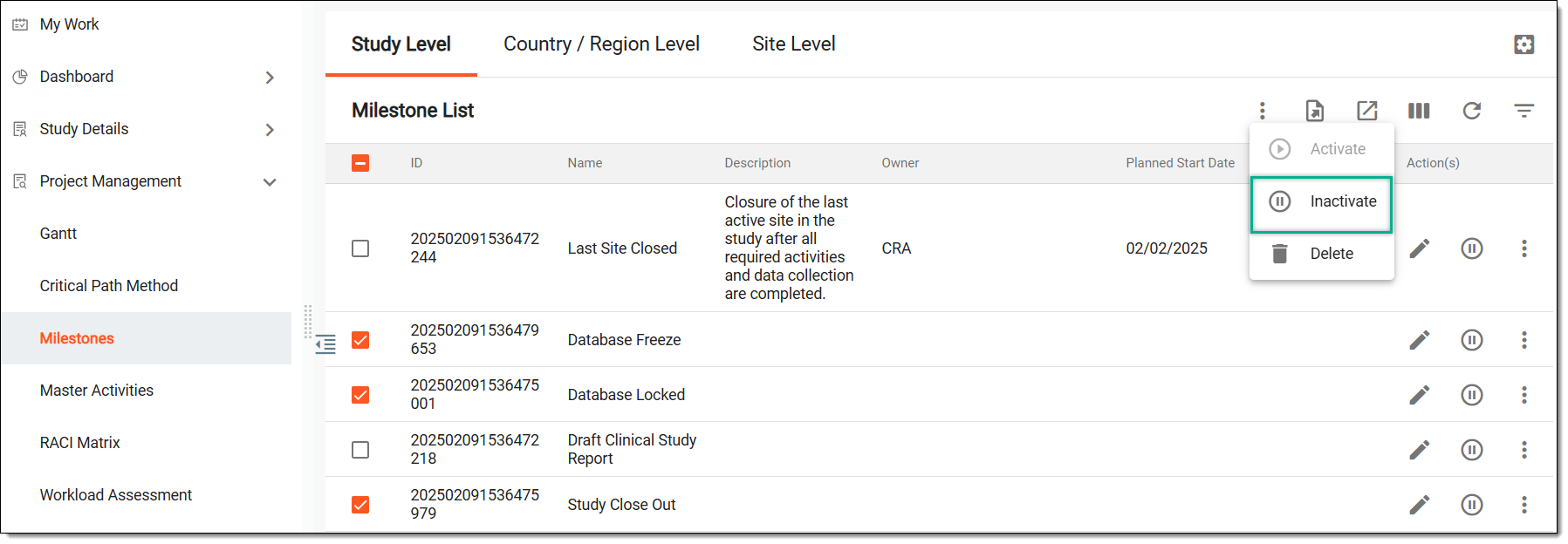 Figure 3. Inactivating multiple milestones
Important
You can perform this action in bulk only if all selected milestones share the same current status. If all selected milestones are active, you can inactivate them, and if they are inactive, you can activate them. However, if the selection includes both active and inactive milestones, the Activate
or Inactivate bulk action is not available. -
In the Reason dialog that appears, enter the reason for activating or inactivating the milestone. Then, select SAVE.
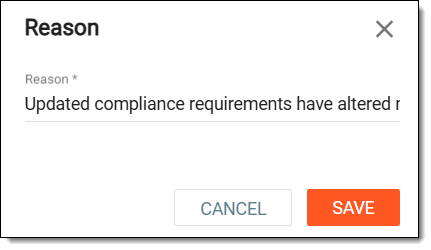 Figure 5. Entering reason to inactivate milestone
Once saved, the milestones are activated or inactivated.
Milestones are key events or checkpoints that mark significant progress in the study timeline helping you track critical phases such as site initiation, subject enrollment, treatment phases, data collection, and study closure. After a milestone is pushed to your study, if required, you can delete a milestone ensuring that unnecessary or incorrectly created milestones are removed from the study.
-
Access the study management page in one of the following ways:
-
In the CTMS application header, select the DASHBOARD tab and then select the study dashboard of your interest.
Figure 1. Accessing study management from dashboard
-
In the CTMS application header, select the STUDY MANAGEMENT tab. Then from the Study Data List table, select the study name of your interest.
Figure 2. Accessing study management from study data list
-
-
On the page that opens, in the left pane, select Project Management > Milestones.
-
Above the Milestones List table, select one of the following options:
-
Study Level: milestones represent major phases that impact the overall study, such as the first subject screened or the last site open.
-
Country/Region Level: milestones focus on country-specific regulatory approvals, site activations, or regional study progress.
-
Site Level: milestones track individual site activities, such as the first subject visit or site closure.
-
-
In the Milestone List table, perform one of the actions as follows.
-
In the Reason dialog that opens, describe the reason for deleting the milestone. Then select SAVE.
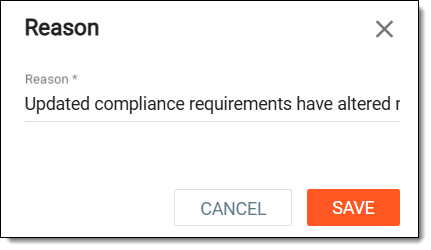 Figure 5. Entering reason to delete milestone

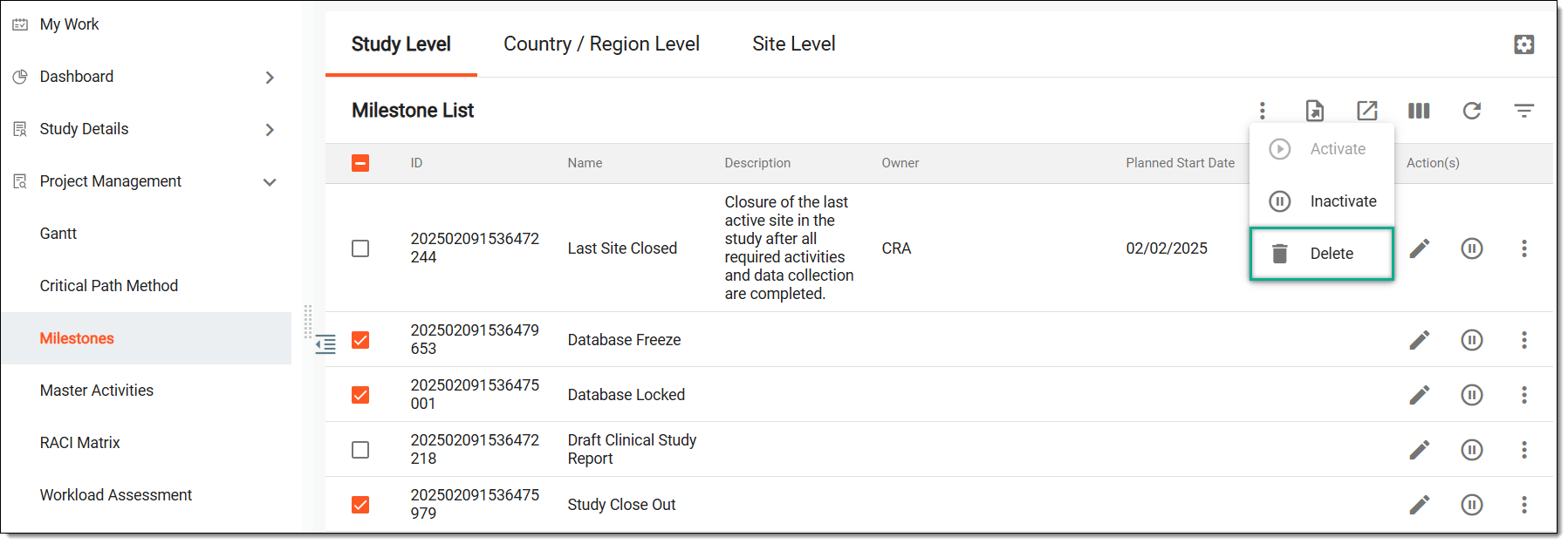
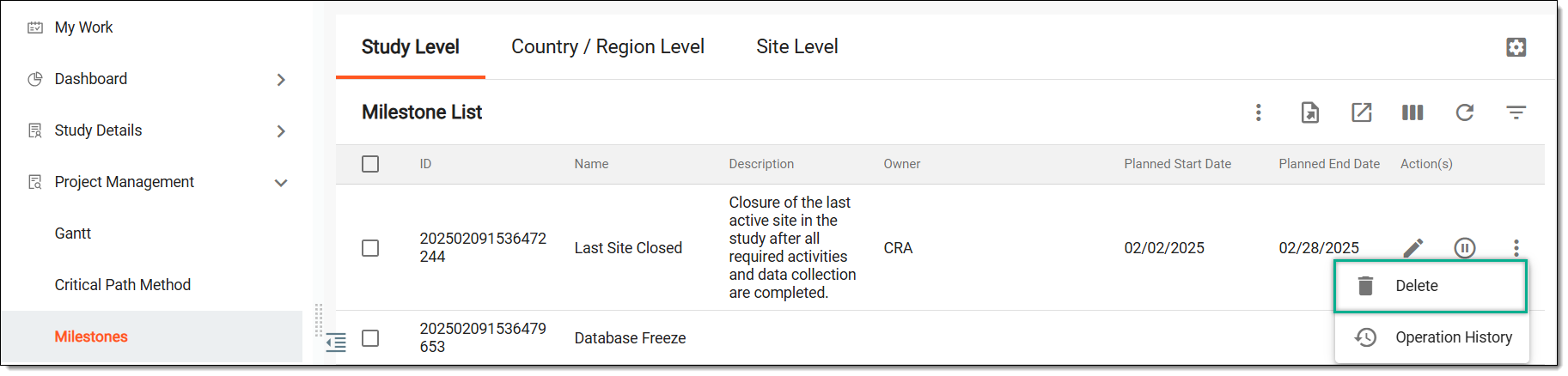
Once saved, the milestone is deleted from the study.
Milestones are key events or checkpoints that mark significant progress in the study timeline helping you track critical phases such as site initiation, subject enrollment, treatment phases, data collection, and study closure. After a milestone is pushed to your study, if needed, you can view a detailed log of all actions performed on a milestone that ensures transparency and helps you track changes over time. By reviewing the operation history, you can verify what modifications were introduced, by whom, and when helping with compliance, auditing, and troubleshooting.
-
Access the study management page in one of the following ways:
-
In the CTMS application header, select the DASHBOARD tab and then select the study dashboard of your interest.
Figure 1. Accessing study management from dashboard
-
In the CTMS application header, select the STUDY MANAGEMENT tab. Then from the Study Data List table, select the study name of your interest.
Figure 2. Accessing study management from study data list
-
-
On the page that opens, in the left pane, select Project Management > Milestones.
-
Above the Milestones List table, select one of the following options:
-
Study Level: milestones represent major phases that impact the overall study, such as the first subject screened or the last site open.
-
Country/Region Level: milestones focus on country-specific regulatory approvals, site activations, or regional study progress.
-
Site Level: milestones track individual site activities, such as the first subject visit or site closure.
-
-
On the page that opens, in the Milestone List table, next to the required milestone, from the Action(s) column, select More
> Operation History  .
.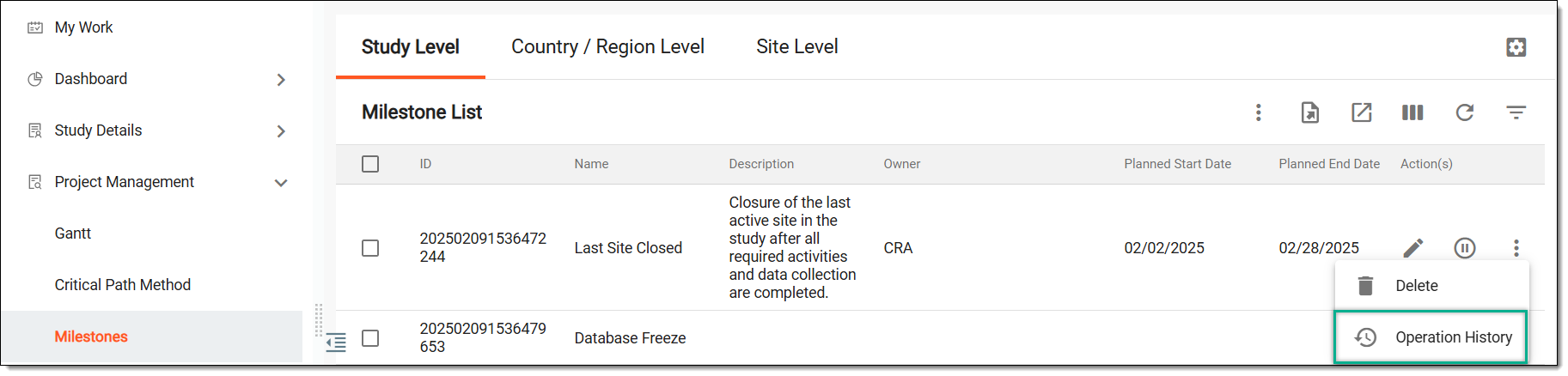 Figure 3. Accessing option to view operation history in study
-
In the Operation History dialog that opens, view the list of user actions that have been performed with the selected milestone.
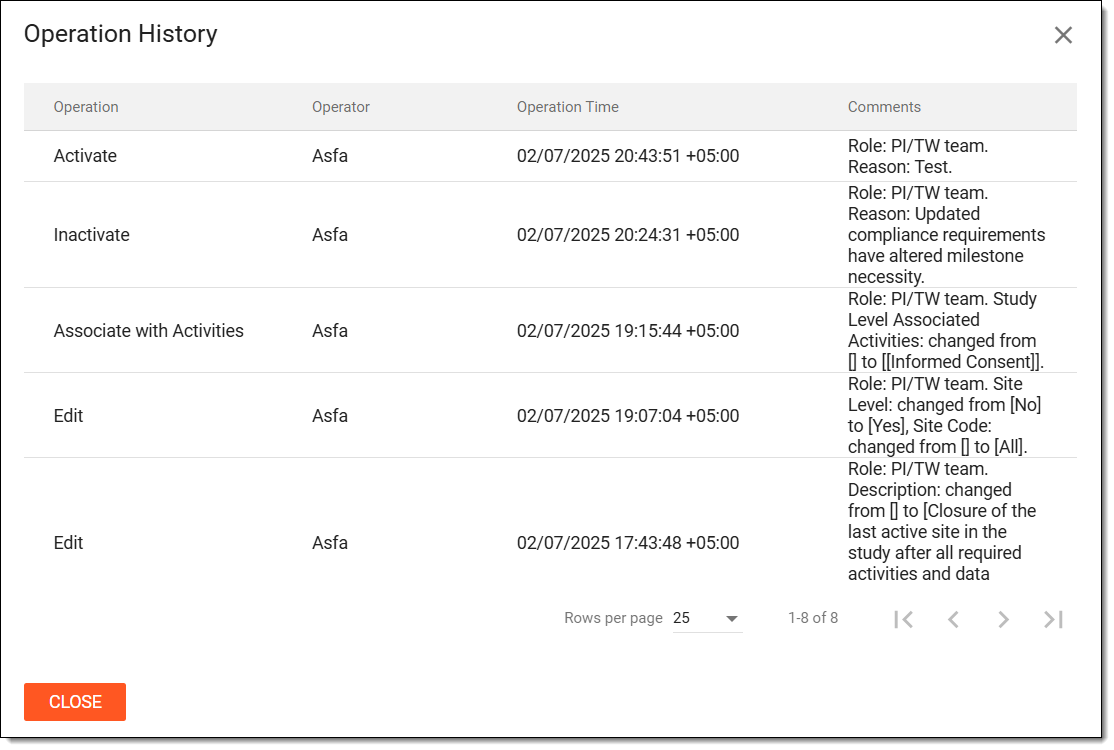 Figure 4. Viewing operation history of milestone
Once viewed, select CLOSE to return to the Milestone List table.
Milestones are key events or checkpoints that mark significant progress in the study timeline helping you track critical phases such as site initiation, subject enrollment, treatment phases, data collection, and study closure. After a milestone is pushed to your study, if needed, you can export the milestones to generate and download milestone data for reporting, analysis, or documentation purposes.
-
Access the study management page in one of the following ways:
-
In the CTMS application header, select the DASHBOARD tab and then select the study dashboard of your interest.
Figure 1. Accessing study management from dashboard
-
In the CTMS application header, select the STUDY MANAGEMENT tab. Then from the Study Data List table, select the study name of your interest.
Figure 2. Accessing study management from study data list
-
-
On the page that opens, in the left pane, select Project Management > Milestones.
-
Above the Milestones List table, select one of the following options:
-
Study Level: milestones represent major phases that impact the overall study, such as the first subject screened or the last site open.
-
Country/Region Level: milestones focus on country-specific regulatory approvals, site activations, or regional study progress.
-
Site Level: milestones track individual site activities, such as the first subject visit or site closure.
-
-
On the page that opens, in the Milestone List table, from the workspace toolbar, select Export
 and then choose of the following options:
-
Export All: to export all the milestones existing in the study, country or region, and site.
-
Export Current Level: to export the milestones existing on the selected level.
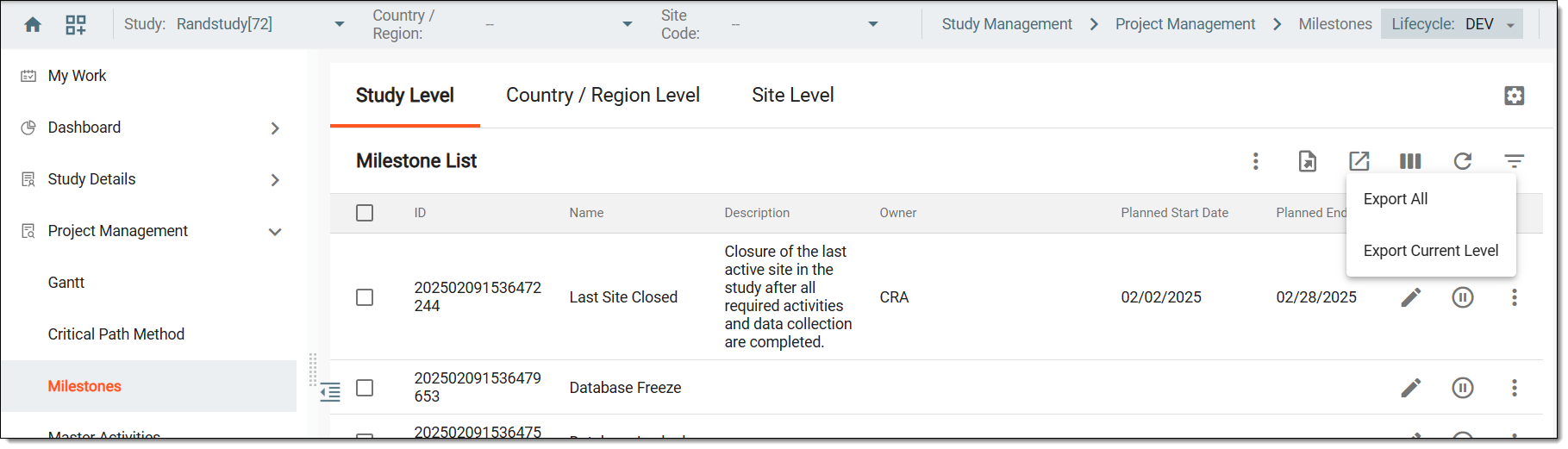 Figure 3. Exporting study milestones
-
-
The downloads widget appears showing the export progress. Select the widget to access exported files.
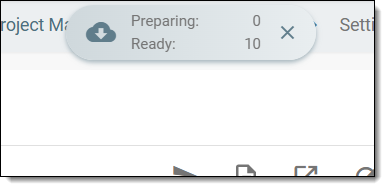 Figure 4. Downloads widget showing milestones being exported
-
In the My Downloads dialog that appears, in the Download is Ready tab, select
 next to the required exported file.
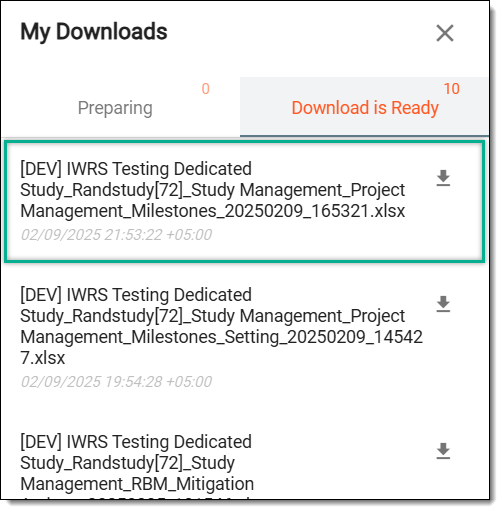 Figure 5. Downloading study milestones
Once selected, the list of milestones is downloaded as an XLSX file to your computer.