Activate/Inactivate workflow
In CTMS, you can manage the status of a workflow within the system. When a workflow is activated, it becomes available for use; when inactivated, it is removed from active use but remains saved in the system for future reference or updates. This helps in maintaining control over which workflows are currently in operation.
-
In the CTMS application header, select the LIBRARY tab.
-
On the page that opens, from the left pane, select the Workflow Setting subtab (if not opened by default).
 Figure 1. Accessing workflow setting
-
From the Workflow List table, locate the needed workflow and do one of the following:
-
Next to the activated workflow, from the Action(s) column, select More
 > Inactivate
  to inactivate the workflow.
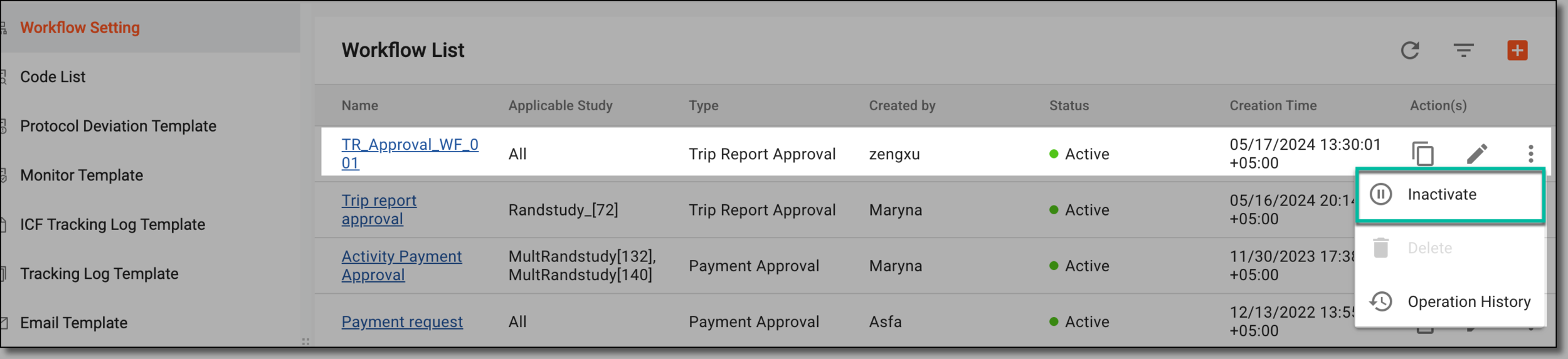 Figure 2. Inactivating workflow
-
Next to the inactivated workflow, from the Action(s) column, select More
>
Activate  to activate the workflow.
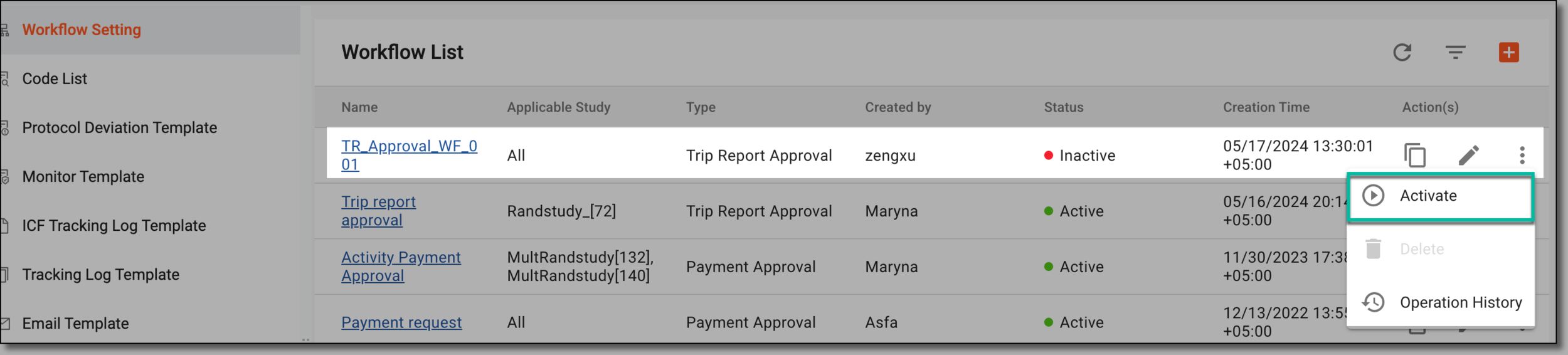 Figure 3. Activating workflow
-
-
In the Reason dialog that opens, enter the reason for inactivating or activating the workflow. Then select SAVE.
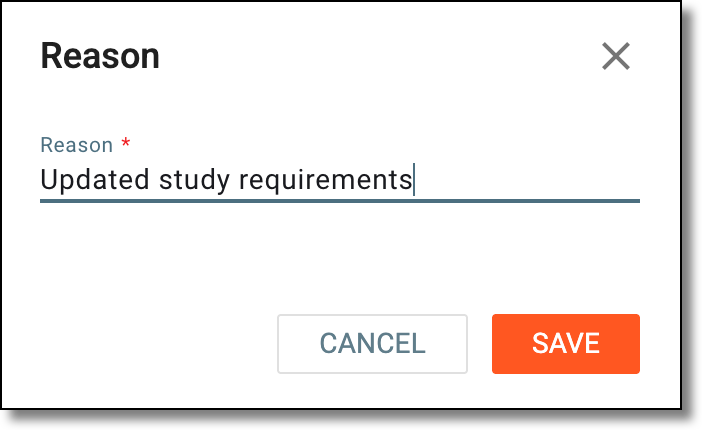 Figure 4. Entering reason
Once saved, the workflow is activated or inactivated. The inactivated workflow cannot be used for actions across CTMS, such as to audit payment requests, contracts, trip reports, and potential protocol deviations.