Manually add potential PD
The potential protocol deviation (PD) is a situation identified during a clinical trial that could lead to a violation of the study protocol if not addressed, but has not yet actually occurred. It represents a risk or near miss—something that, if left uncorrected, might result in an actual deviation from the protocol requirements.
For efficient management of a potential PD, it must be identified and recorded by a clinical research associate or data manager using a predefined template that is associated with a study, site, or subject prior to the actual occurrence of the PD.
-
Access the study management page in one of the following ways:
-
In the CTMS application header, select the DASHBOARD tab and then select the study dashboard of your interest.
 Figure 1. Accessing study management from dashboard
-
In the CTMS application header, select the STUDY MANAGEMENT tab. Then from the Study Data List table, select the study name of your interest.
 Figure 2. Accessing study management from study data list
-
-
On the study page, in the left pane, select Protocol Deviation > Potential PDs Entered Manually.
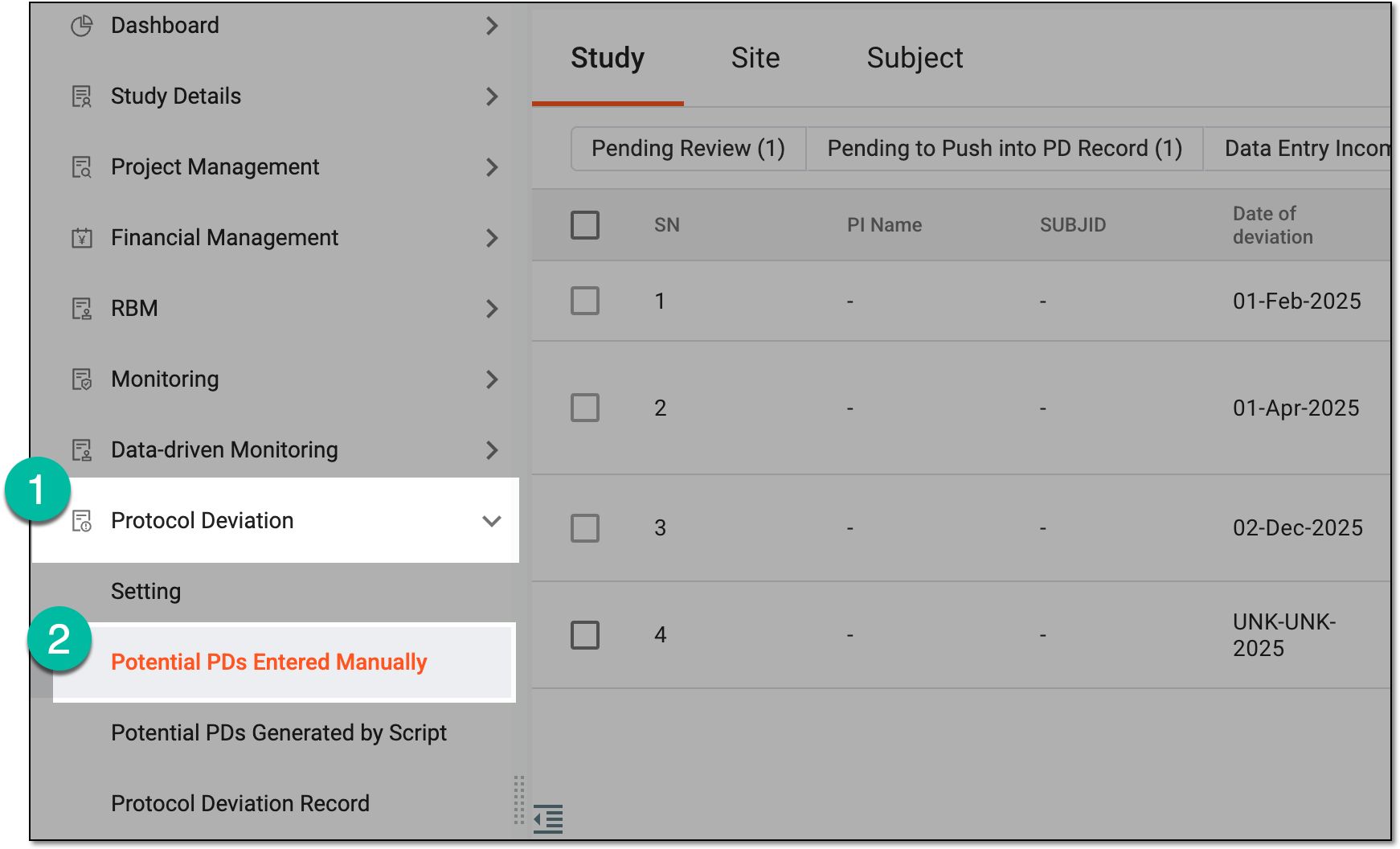 Figure 3. Accessing potential PDs entered manually
-
On the page that opens, select a tab depending on whether you want to add a potential PD for a study, site, or subject. Then, from the workspace toolbar, select New Item
 .
. Figure 4. Selecting to manually add potential PD
Tip
If the same potential PD is associated with two or more entities—study, site, or subject—they are displayed in a single tab named through a slash, such as Study/Site, Study/Site/Subject, or else. Whereas, the entities associated with unique template forms are displayed in separate tabs, such as Study, Site, or Subject.
-
Based on the protocol deviation template you have associated with your study, site, or subject, on the page that opens, fill in the template form.
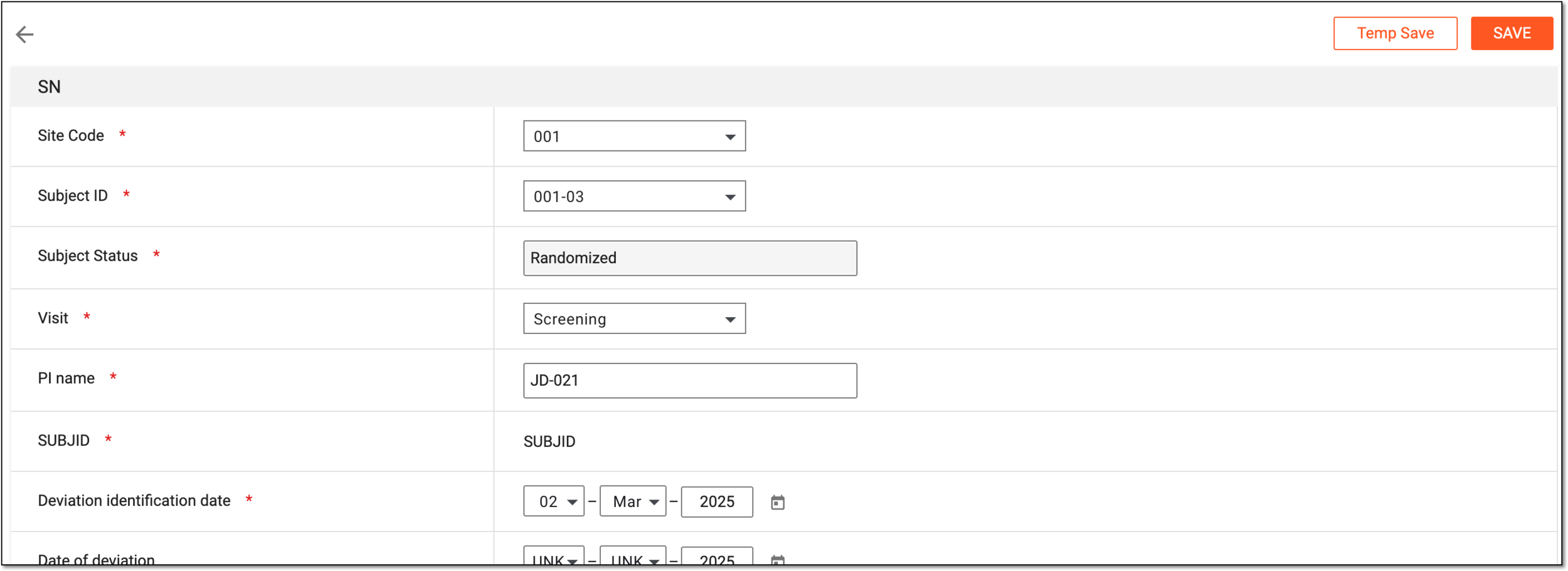 Figure 5. Filling potential PD record
-
Once the form is filled, perform any of the following actions as required:
-
SAVE. If you have completed the form, then select
 to submit it.
 -
TEMP SAVE. If you have partially completed the form and for some reason, you want to fill the rest of the form later, then select
 to save the information you have entered so far.
-
Based on your action, the result can vary as follows:
-
Upon saving, the potential PD record is added. The system shows a dialog asking whether you want to proceed with adding another record or go back to the existing records on the Potential PDs Entered Manually page.
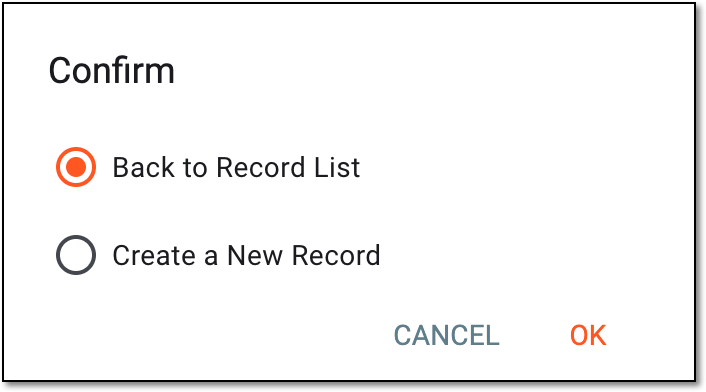 Figure 6. Confirming PD creation and selecting next action
The saved record appears with the Data Enter Completed status on the Potential PDs Entered Manually page. You can now proceed with submitting this record to a reviewer for their feedback and approval.
-
Upon temporarily saving the form, the potential PD record is saved with the Initial status. Later, whenever required, you can resume filling out the form by selecting Go
 next to the needed record from the Potential PDs Entered Manually page.
Edit potential PD data
In CTMS, you can update the manually entered data in the potential protocol deviation record. The potential protocol deviation (PD) is a situation identified during a clinical trial that could lead to a violation of the study protocol if not addressed, but has not yet actually occurred. You may want to update data in a record to conform with the updated study requirements, suggestions received from a reviewer or personnel as a result of auditing, and so on.
Important
You can edit the potential PD records created by you if you have the Potential PDs Entered Manually > Write access permission granted via ADMIN. However, via the PD setting functionality of CTMS, certain roles can also be granted permission to edit potential PD records created by other users.
-
Access the study management page in one of the following ways:
-
In the CTMS application header, select the DASHBOARD tab and then select the study dashboard of your interest.
Figure 1. Accessing study management from dashboard
-
In the CTMS application header, select the STUDY MANAGEMENT tab. Then from the Study Data List table, select the study name of your interest.
Figure 2. Accessing study management from study data list
-
-
On the study page, in the left pane, select Protocol Deviation > Potential PDs Entered Manually.
Figure 3. Accessing potential PDs entered manually
-
On the page that opens, select a tab depending on whether you want to update a potential PD for a study, site, or subject.
Tip
If the same potential PD is associated with two or more entities—study, site, or subject—they are displayed in a single tab named through a slash, such as Study/Site, Study/Site/Subject, or else. Whereas, the entities associated with unique template forms are displayed in separate tabs, such as Study, Site, or Subject.
-
In the table that displays the records, next to the required potential PD record, from the Action(s) column, select Go
. Figure 4. Accessing potential PD record
Tip
Above the table, use the toggles and filter buttons as needed:
-
Filter buttons: use the available filter buttons, such as Pending Review, Data Entry Completed, and so on, to locate the needed records faster.
-
Only Show Rejected Items: turn this toggle on to show only the records rejected upon audit; turn the toggle off to show all records.
-
Only My Pending Review Items: turn this toggle on to show only the records assigned to you for review and approval and awaiting your audit; turn the toggle off to show all records.
-
-
In the form that opens, update the needed data record. This form is based on the protocol deviation template you have associated with your study, site, or subject.
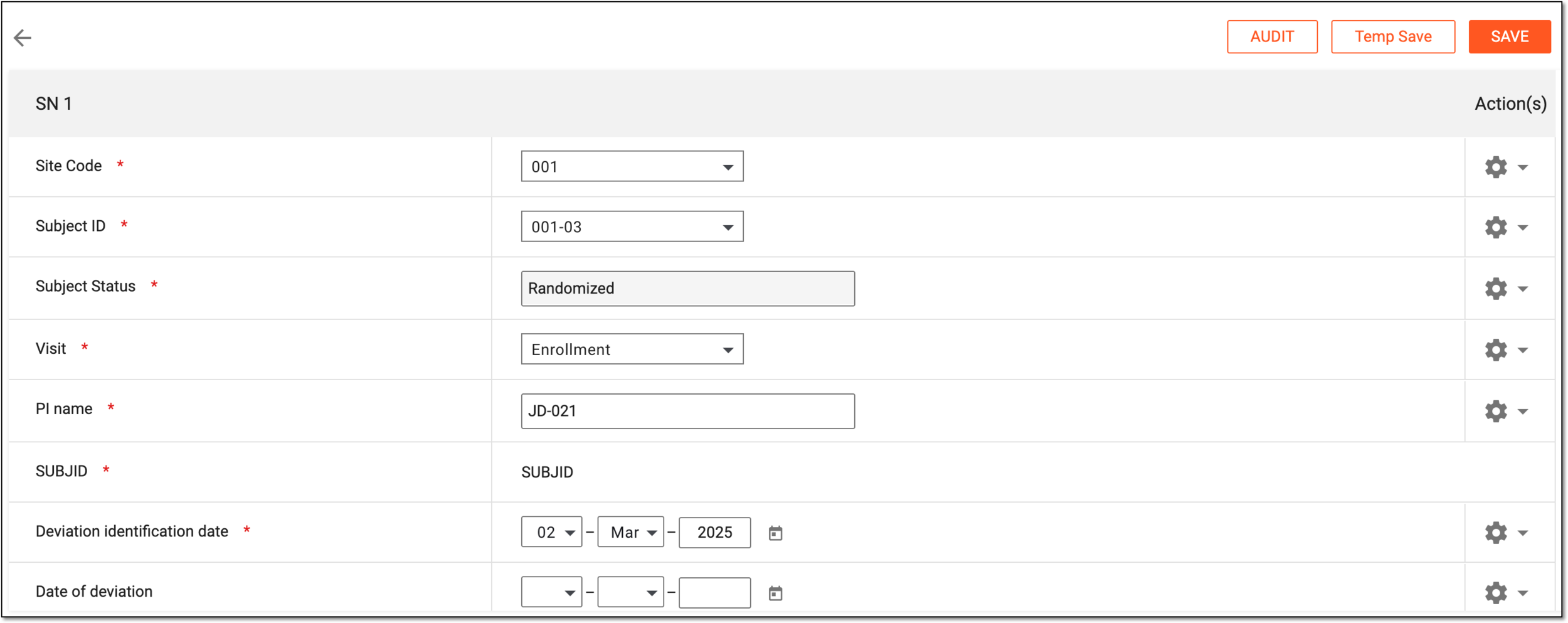 Figure 5. Updating potential PD record
-
If you are updating data in a saved record with completed data, then upon editing a field, an additional Reason field appears in which you must enter the reason for modifying the data.
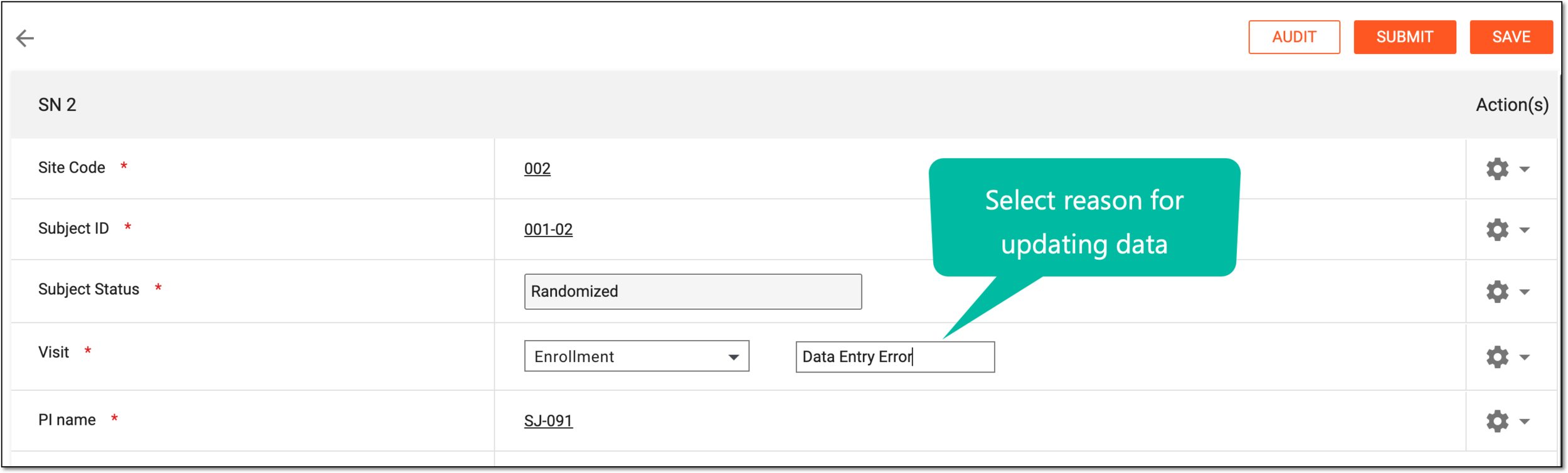 Figure 6. Adding reason for updating data in completed record
-
Once the form is filled, perform any of the following actions as required:
-
SAVE. If you have completed the form, then select
to submit it. -
TEMP SAVE. If you have partially completed the form and for some reason, you want to fill the rest of the form later, then select
to save the information you have entered so far.
-
-
Upon saving, in the confirmation dialog that opens, select one of the following options:
-
Back to Record List: to return to the potential protocol deviation record page.
-
Create a New Record: to open a new blank PD form and add more records right away.
Select OK to proceed with the selected option.
Figure 7. Confirming PD creation and selecting next action
-
Based on your action, the result can vary as follows:
-
Upon saving, the potential PD record is updated, and it appears with the Data Enter Completed status on the Potential PDs Entered Manually page.
-
Upon temporarily saving the form, the potential PD record is saved with the Initial status. Later, whenever required, you can resume filling out the form by again selecting Go
next to the needed record from the Potential PDs Entered Manually page.
Submit manually added potential PD
After you have entered data and saved the potential protocol deviation record, you can now submit the record to reviewers for their feedback and approval. The potential protocol deviation (PD) is a situation identified during a clinical trial that could lead to a violation of the study protocol if not addressed, but has not yet actually occurred.
-
Access the study management page in one of the following ways:
-
In the CTMS application header, select the DASHBOARD tab and then select the study dashboard of your interest.
Figure 1. Accessing study management from dashboard
-
In the CTMS application header, select the STUDY MANAGEMENT tab. Then from the Study Data List table, select the study name of your interest.
Figure 2. Accessing study management from study data list
-
-
On the study page, in the left pane, select Protocol Deviation > Potential PDs Entered Manually.
Figure 3. Accessing potential PDs entered manually
-
On the page that opens, select a tab depending on whether you want to update a potential PD for a study, site, or subject.
Tip
If the same potential PD is associated with two or more entities—study, site, or subject—they are displayed in a single tab named through a slash, such as Study/Site, Study/Site/Subject, or else. Whereas, the entities associated with unique template forms are displayed in separate tabs, such as Study, Site, or Subject.
-
In the table that displays the records, next to the required potential PD record, from the Action(s) column, select Go
.Figure 4. Accessing potential PD record
Tip
Above the table, use the toggles and filter buttons as needed:
-
Filter buttons: use the available filter buttons, such as Pending Review, Data Entry Completed, and so on, to locate the needed records faster.
-
Only Show Rejected Items: turn this toggle on to show only the records rejected upon audit; turn the toggle off to show all records.
-
Only My Pending Review Items: turn this toggle on to show only the records assigned to you for review and approval and awaiting your audit; turn the toggle off to show all records.
-
-
In the form that opens, from the workspace toolbar, select SUBMIT.
Figure 5. Submitting potential PD record for approval
-
In the dialog that appears, enter the submission details as explained in the following table.
Important
Note that the fields in this dialog may vary based on the tasks included in the associated workflow. For instance, this dialog may show an additional field to enter the details of a cosignee if the associated workflow includes the Co-sign node.
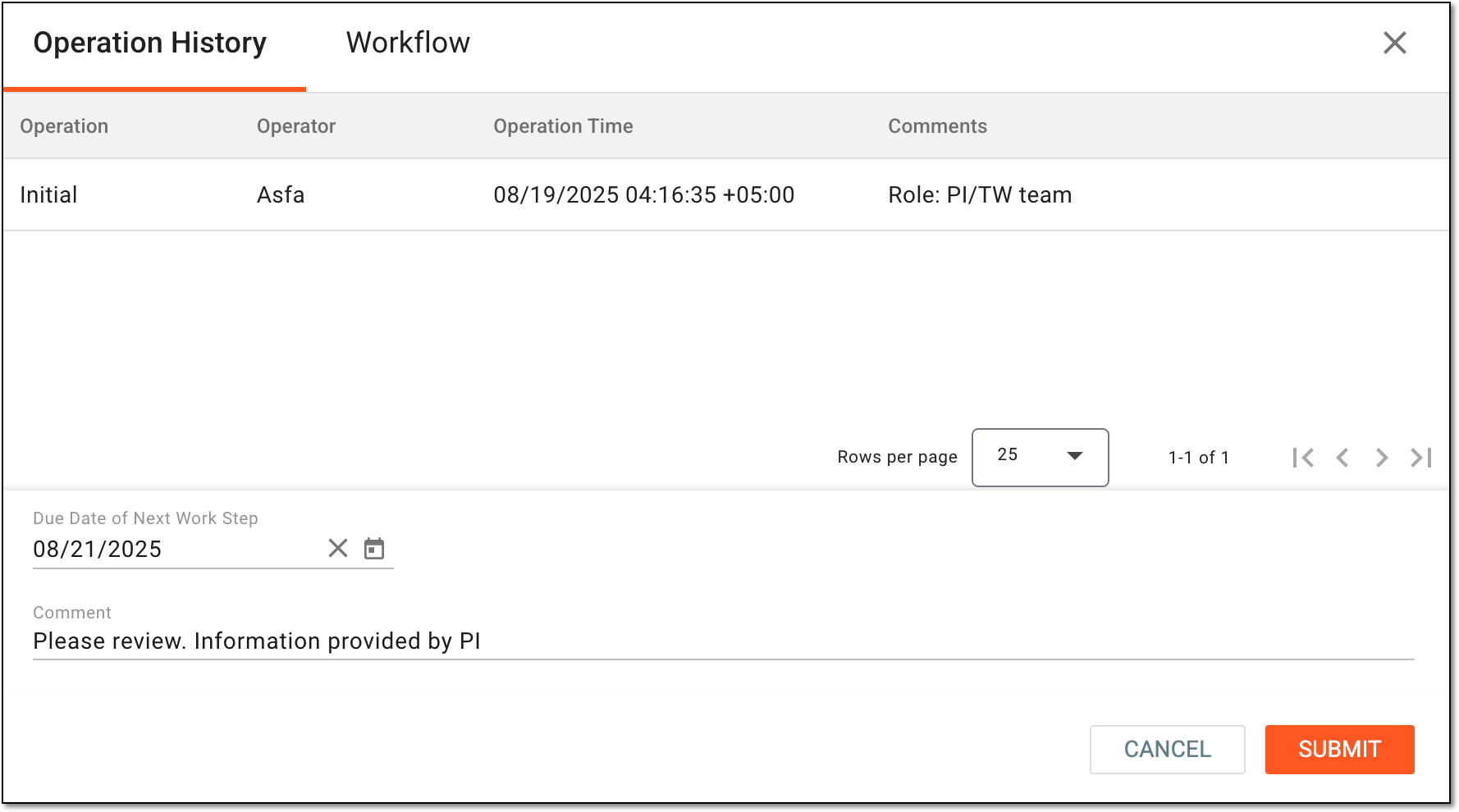 Figure 6. Entering submission details
Element
Details
Tabs
-
Operation History. Displays the history of the actions performed to the record as well as the username of the person who performed the action, the date and time at which the action was performed, and the role of the user.
-
Workflow. Shows the workflow linked to the potential PD, including the most recently completed stage and the next stages to be carried out.
Due Date of Next Work Step
Select the date by which you are expecting the user to review the potential PD record so that the workflow is moved to the next stage.
Comment
Enter a comment providing any additional details about the submitted potential PD record to the reviewer.
SUBMIT
Select
 to save your changes and submit the potential PD record.
CANCEL
Select
 to dismiss the submission process without saving.
 -
Once submitted, the potential PD record is sent to the reviewer assigned in the corresponding node configuration of the potential PD approval workflow.
Audit manually added potential PD
Auditing a potential protocol deviation offers a comprehensive set of tools to manage the review process of the record as well as analyze changes made to the potential deviation record. The potential protocol deviation (PD) is a situation identified during a clinical trial that could lead to a violation of the study protocol if not addressed, but has not yet actually occurred.
Once a record is submitted, the audit process supports the reviewer in approving or rejecting it, while the submitter retains the option to withdraw the review if necessary. In addition, prior to submitting the record, using the Audit feature, users can see the history of operations performed on the potential PD record.
-
Access the study management page in one of the following ways:
-
In the CTMS application header, select the DASHBOARD tab and then select the study dashboard of your interest.
Figure 1. Accessing study management from dashboard
-
In the CTMS application header, select the STUDY MANAGEMENT tab. Then from the Study Data List table, select the study name of your interest.
Figure 2. Accessing study management from study data list
-
-
On the study page, in the left pane, select Protocol Deviation > Potential PDs Entered Manually.
Figure 3. Accessing potential PDs entered manually
-
On the page that opens, perform one of the actions as follows.
-
From the workspace toolbar, select Batch Audit
 .
. Figure 4. Accessing batch audit
-
On the page that opens, enter the details to audit the potential PD records as explained in the following table.
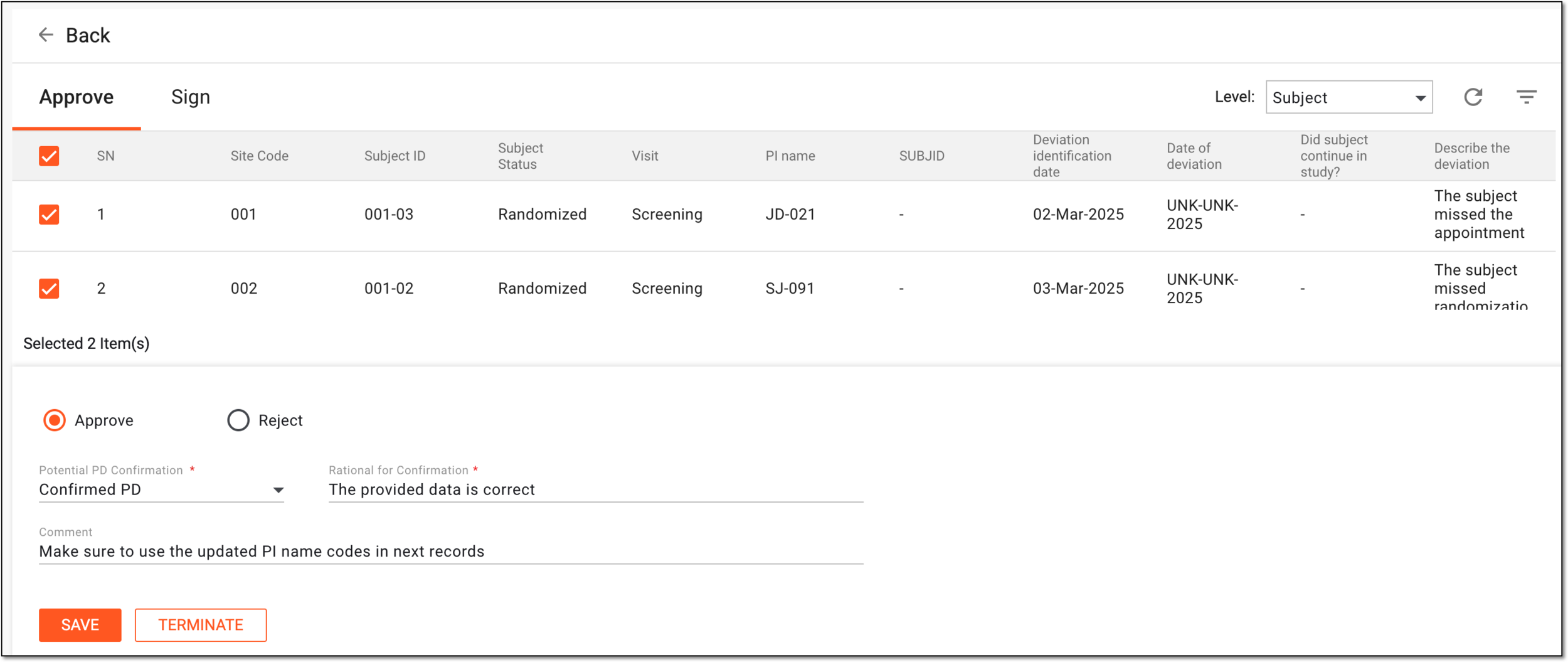 Figure 5. Auditing multiple submitted potential PD records
Element
Details
Tabs
-
Approve. This tab is selected by default, and it lists the potential PD records that you must approve or reject as a reviewer.
-
Sign. This tab lists the potential PD records that require signature once a PD record is approved and saved.
Records are displayed in this tab only if the signature step is added in the potential PD approval workflow that is associated with the PD template.
Level
Select an option to indicate whether you are accessing study, site, or subject-related potential PD records.
Potential PD records
In the table listing records, select the ones you want to approve or reject.
Approve
Select this option to approve the selected potential PD records.
Reject
Select this option to reject the selected potential PD records.
Potential PD Confirmation*
Select an option to confirm the validity of the potential PD record:
-
Confirmed PD: indicates that the potential PD is valid and represents a critical concern that must be documented.
-
Not a PD: indicates that the recorded item does not represent a protocol deviation and is not considered a critical issue.
Rational for Confirmation*
Enter an explanation to justify your selection in the previous field.
Comment
Enter a comment with any additional information to the submitter or for record-keeping purposes.
If you have rejected the potential PD, then this field becomes mandatory for you to provide the reason for rejection.
SAVE
Select
to implement your changes.TERMINATE
Select
 to dismiss the review process and unsubmit the potential PD records.
To terminate audit for the potential PD, you must have the Potential PDs Entered Manually > Terminate permission granted to your user role in ADMIN. -
-
Select a tab depending on whether you want to access a potential PD for a study, site, or subject.
Tip
If the same potential PD is associated with two or more entities—study, site, or subject—they are displayed in a single tab named through a slash, such as Study/Site, Study/Site/Subject, or else. Whereas, the entities associated with unique template forms are displayed in separate tabs, such as Study, Site, or Subject.
-
In the table that displays the records, next to the required potential PD record, from the Action(s) column, select Go
.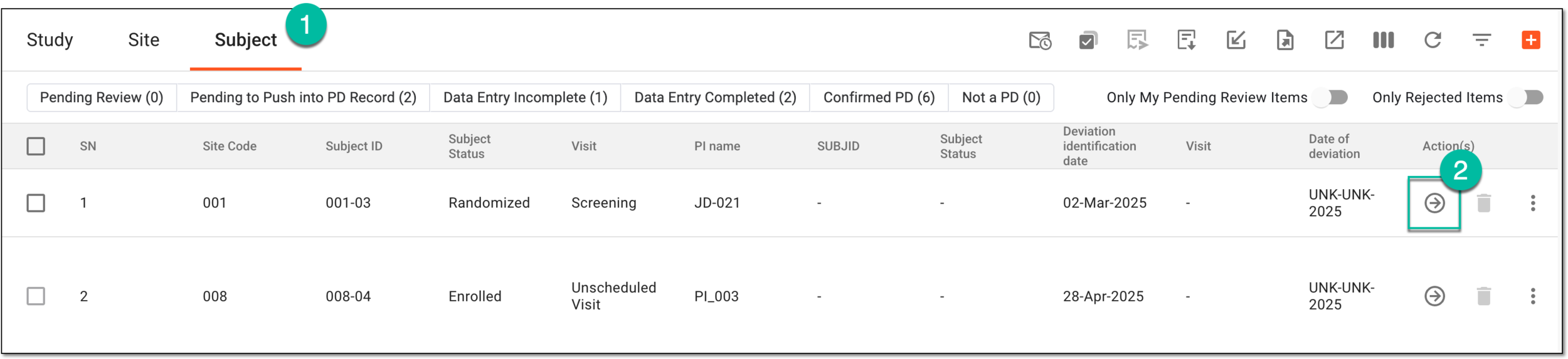 Figure 6. Accessing submitted potential PD record
Tip
Above the table, use the toggles and filter buttons as needed:
-
Filter buttons: use the available filter buttons, such as Pending Review, Data Entry Completed, and so on, to locate the needed records faster.
-
Only Show Rejected Items: turn this toggle on to show only the records rejected upon audit; turn the toggle off to show all records.
-
Only My Pending Review Items: turn this toggle on to show only the records assigned to you for review and approval and awaiting your audit; turn the toggle off to show all records.
-
-
In the dialog that opens, enter the details to audit the potential PD records as explained in the following table.
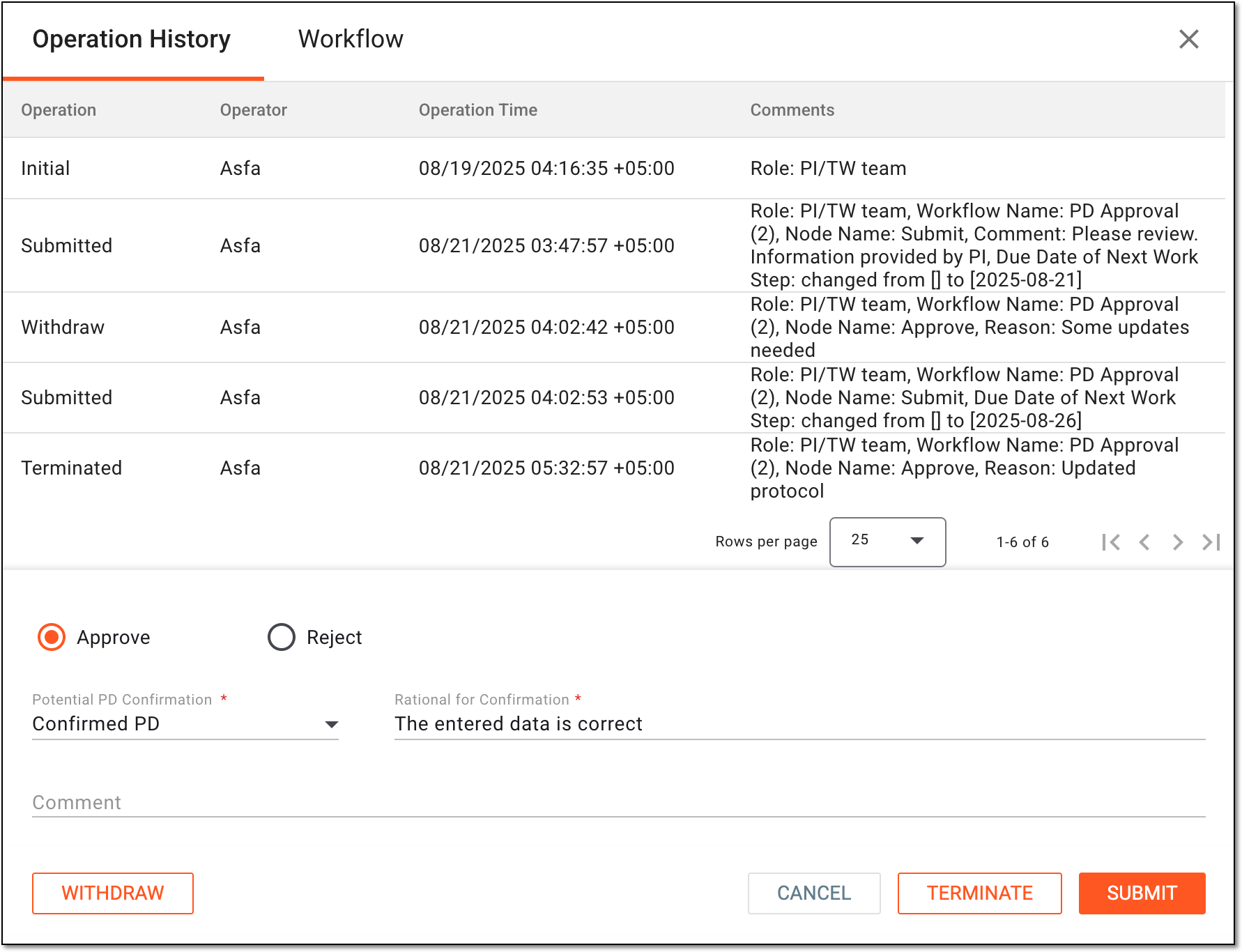 Figure 7. Auditing submitted potential PD records
Element
Details
Tabs
-
Operation History. Displays the history of the actions performed to the record as well as the username of the person who performed the action, the date and time at which the action was performed, and the role of the user.
Additionally, this tab also shows the fields discussed in this table.
-
Workflow. Shows the workflow linked to the potential PD, including the most recently completed stage and the next stages to be carried out.
Approve
Select this option to approve the selected potential PD record.
Reject
Select this option to reject the selected potential PD record.
Potential PD Confirmation*
Select an option to confirm the validity of the potential PD record:
-
Confirmed PD: indicates that the potential PD is valid and represents a critical concern that must be documented.
-
Not a PD: indicates that the recorded item does not represent a protocol deviation and is not considered a critical issue.
Rational for Confirmation*
Enter an explanation to justify your selection in the previous field.
Comment
Enter a comment with any additional information to the submitter or for record-keeping purposes.
If you have rejected the potential PD, then this field becomes mandatory for you to provide the reason for rejection.
SAVE
Select
to implement your changes.WITHDRAW
As a submitter of the PD record, select
 to revoke the submission of the potential PD record and dismiss the review process.
If you select this, then in the Reason dialog that opens, describe the reason for withdrawing the submission.
To revoke audit for the potential PD, you must have the Potential PDs Entered Manually > Withdraw permission granted to your user role in ADMIN.TERMINATE
Select
to dismiss the review process and unsubmit the potential PD records.To terminate audit for the potential PD, you must have the Potential PDs Entered Manually > Terminate permission granted to your user role in ADMIN. -
-
Select a tab depending on whether you want to access a potential PD for a study, site, or subject.
Tip
If the same potential PD is associated with two or more entities—study, site, or subject—they are displayed in a single tab named through a slash, such as Study/Site, Study/Site/Subject, or else. Whereas, the entities associated with unique template forms are displayed in separate tabs, such as Study, Site, or Subject.
-
In the table that displays the records, next to the required potential PD record, from the Action(s) column, select Go
.Figure 8. Accessing potential PD record
Tip
Above the table, use the toggles and filter buttons as needed:
-
Filter buttons: use the available filter buttons, such as Pending Review, Data Entry Completed, and so on, to locate the needed records faster.
-
Only Show Rejected Items: turn this toggle on to show only the records rejected upon audit; turn the toggle off to show all records.
-
Only My Pending Review Items: turn this toggle on to show only the records assigned to you for review and approval and awaiting your audit; turn the toggle off to show all records.
-
-
On the page that opens, from the workspace toolbar, select AUDIT to analyze the operation history and current workflow stage of the saved potential PD record.
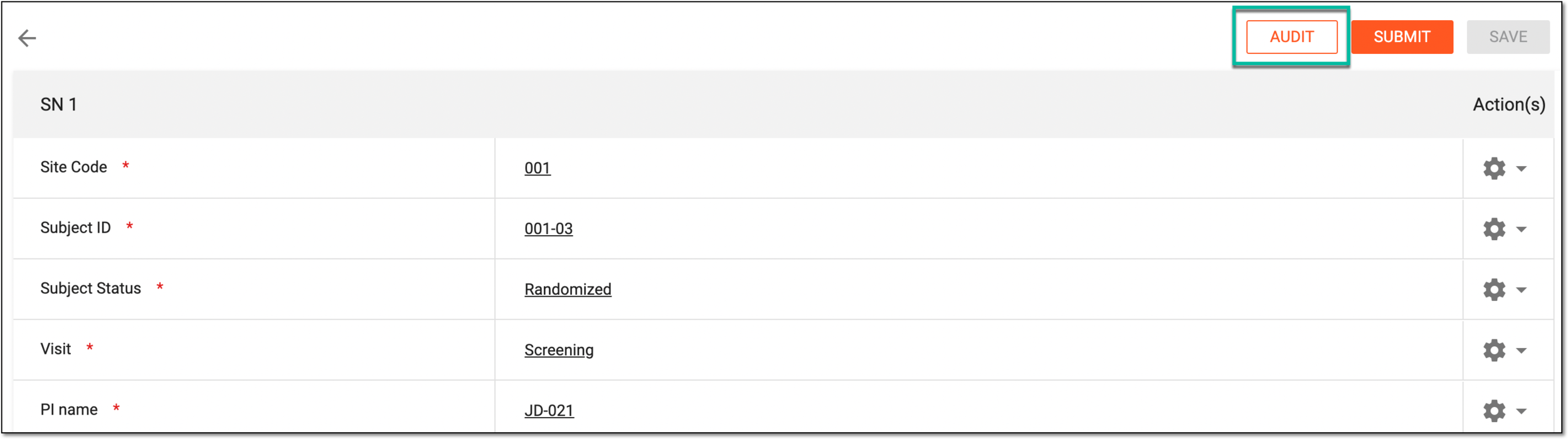 Figure 9. Selecting to audit unsubmitted potential PD
-
In the dialog that opens, analyze the details in the tabs as follows:
-
Operation History. Displays the history of the actions performed to the record as well as the username of the person who performed the action, the date and time at which the action was performed, and the role of the user.
-
Workflow. Shows the workflow linked to the potential PD, including the most recently completed stage and the next stages to be carried out.
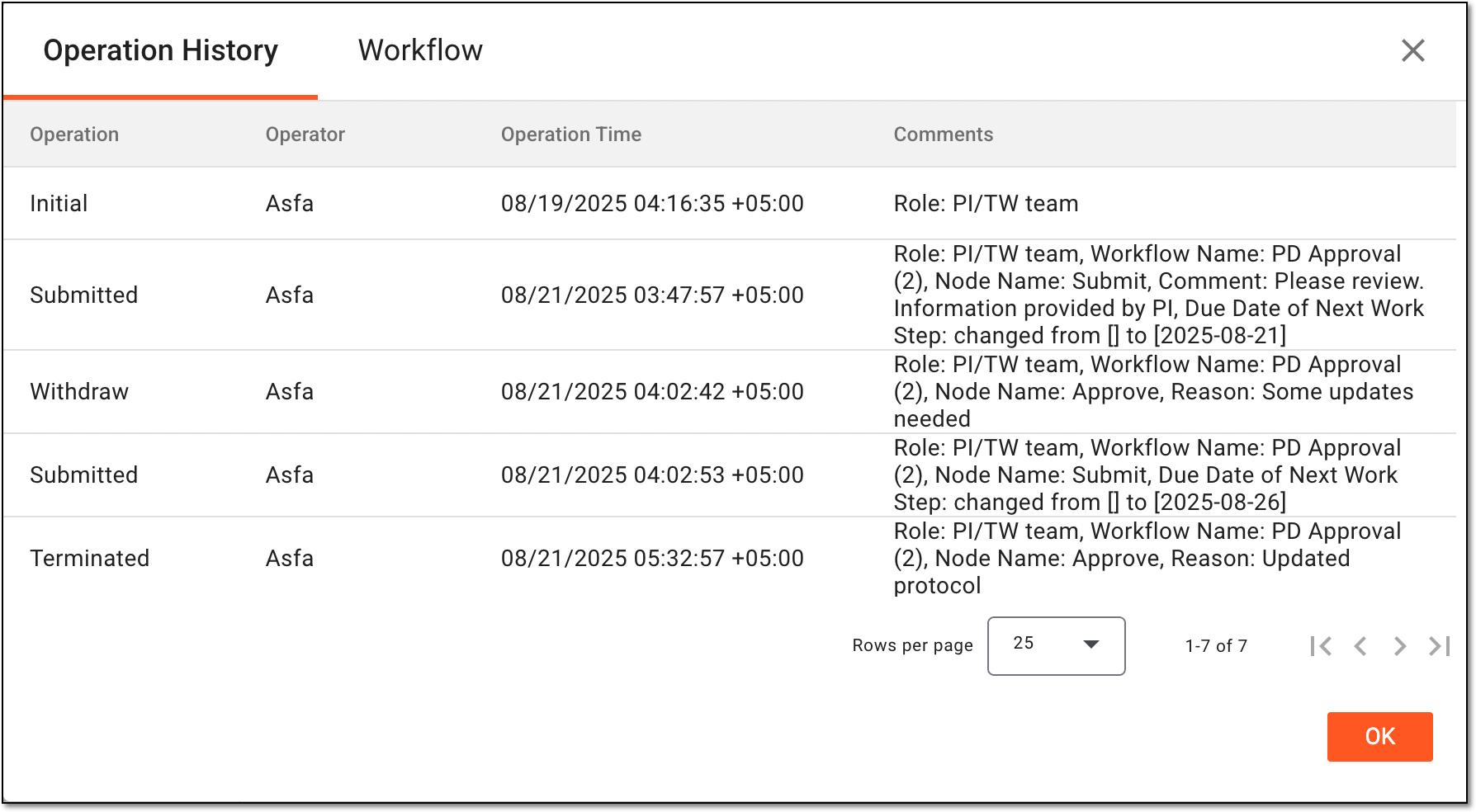 Figure 10. Auditing unsubmitted potential PD record
-
-
After the potential PD has been audited, you can push the submitted record to the finalized PD records or work on the unsubmitted and rejected potential PDs as needed.
Trigger workflow for manually added potential PD
After a potential protocol deviation record has been submitted for review and audited, you can trigger the workflow again to reinitiate the submission stage for another review. The potential protocol deviation (PD) is a situation identified during a clinical trial that could lead to a violation of the study protocol if not addressed, but has not yet actually occurred.
You may want to trigger the associated workflow's review and approval stage to ensure the reviewers are informed of the changes or updates that may have been introduced in the PD records.
-
Access the study management page in one of the following ways:
-
In the CTMS application header, select the DASHBOARD tab and then select the study dashboard of your interest.
Figure 1. Accessing study management from dashboard
-
In the CTMS application header, select the STUDY MANAGEMENT tab. Then from the Study Data List table, select the study name of your interest.
Figure 2. Accessing study management from study data list
-
-
On the study page, in the left pane, select Protocol Deviation > Potential PDs Entered Manually.
Figure 3. Accessing potential PDs entered manually
-
On the page that opens, select a tab depending on whether you want to update a potential PD for a study, site, or subject.
Tip
If the same potential PD is associated with two or more entities—study, site, or subject—they are displayed in a single tab named through a slash, such as Study/Site, Study/Site/Subject, or else. Whereas, the entities associated with unique template forms are displayed in separate tabs, such as Study, Site, or Subject.
-
In the table that displays the records, next to the required potential PD record, from the Action(s) column, select More
 > Trigger Workflow
  .
.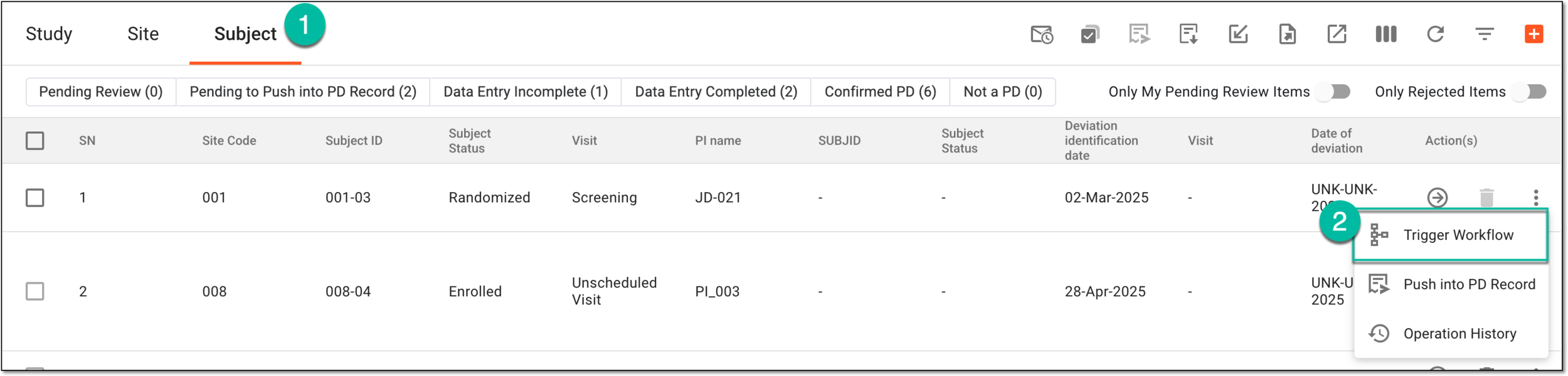 Figure 4. Selecting to trigger workflow for potential PD record
Tip
Above the table, use the toggles and filter buttons as needed:
-
Filter buttons: use the available filter buttons, such as Pending Review, Data Entry Completed, and so on, to locate the needed records faster.
-
Only Show Rejected Items: turn this toggle on to show only the records rejected upon audit; turn the toggle off to show all records.
-
Only My Pending Review Items: turn this toggle on to show only the records assigned to you for review and approval and awaiting your audit; turn the toggle off to show all records.
-
-
In the dialog that appears, submit the potential PD to trigger the workflow as explained in the following table.
Important
Note that the fields in this dialog may vary based on the tasks included in the associated workflow. For instance, this dialog may show an additional field to enter the details of a cosignee if the associated workflow includes the Co-sign node.
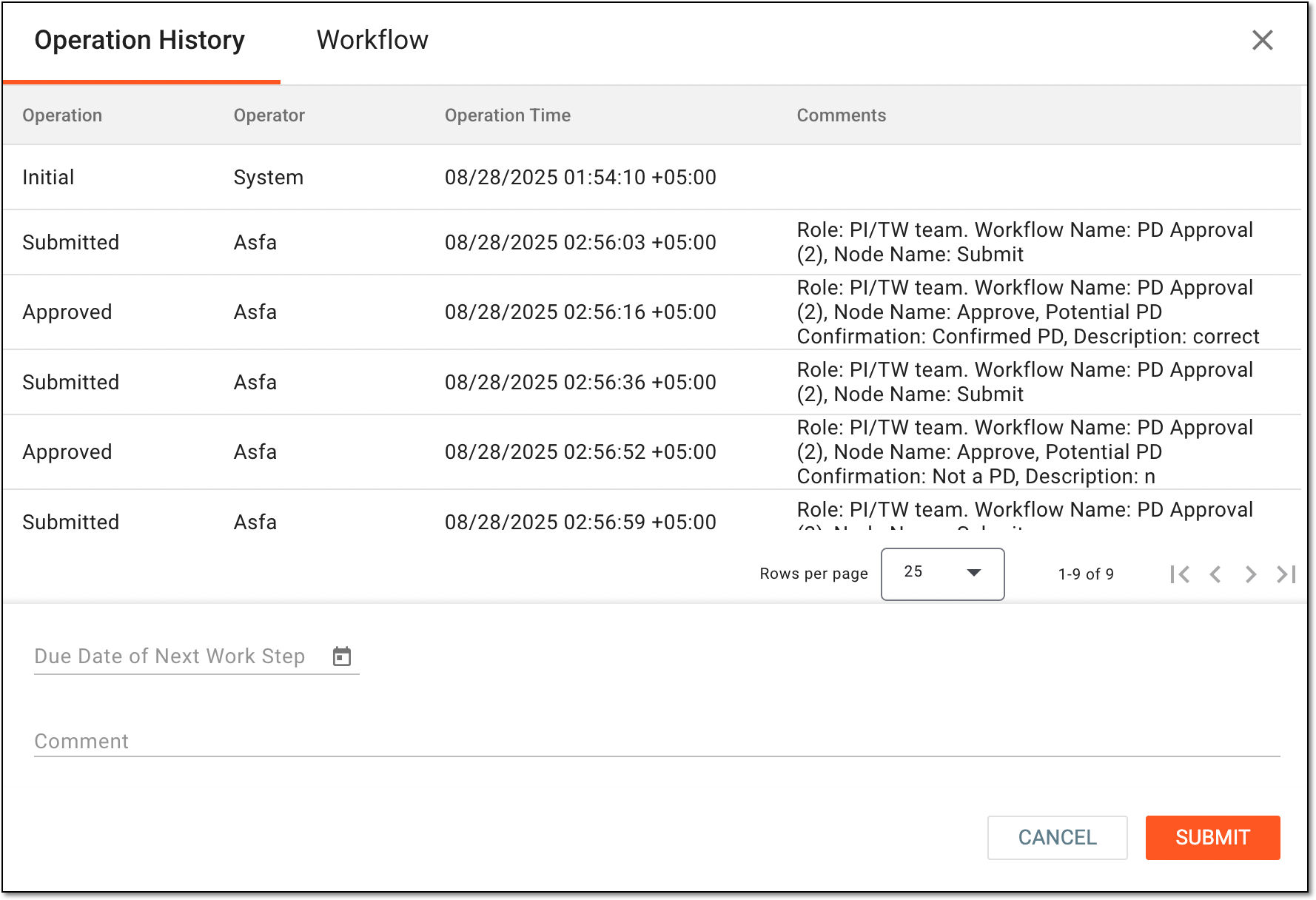 Figure 5. Submitting to trigger workflow
Element
Details
Tabs
-
Operation History. Displays the history of the actions performed to the record as well as the username of the person who performed the action, the date and time at which the action was performed, and the role of the user.
-
Workflow. Shows the workflow linked to the potential PD, including the most recently completed stage and the next stages to be carried out.
Due Date of Next Work Step
Select the date by which you are expecting the user to review the potential PD record so that the workflow is moved to the next stage.
Comment
Enter a comment providing any additional details about the submitted potential PD record to the reviewer.
SUBMIT
Select
to save your changes and submit the potential PD record.CANCEL
Select
to dismiss the submission process without saving. -
Once submitted, the review and approval process for the potential PD record can be initiated again.
Push potential PD to PD record
The approved potential PD records can be pushed to the actual or finalized PD records when they occur or if you are instructed to do so by a clinical research associate or data manager as per the study protocol requirements. The potential protocol deviation (PD) is a situation identified during a clinical trial that could lead to a violation of the study protocol if not addressed, but has not yet actually occurred.
Important
Note that you can only push the records if the Auto Publish Potential PD toggle is turned off in the publishing settings. If the toggle is on, then the approved potential PD records are automatically added to the finalized PD records.
-
Access the study management page in one of the following ways:
-
In the CTMS application header, select the DASHBOARD tab and then select the study dashboard of your interest.
Figure 1. Accessing study management from dashboard
-
In the CTMS application header, select the STUDY MANAGEMENT tab. Then from the Study Data List table, select the study name of your interest.
Figure 2. Accessing study management from study data list
-
-
On the study page, in the left pane, select Protocol Deviation > Potential PDs Entered Manually.
Figure 3. Accessing potential PDs entered manually
-
On the page that opens, select a tab depending on whether you want to access a potential PD for a study, site, or subject.
Tip
If the same potential PD is associated with two or more entities—study, site, or subject—they are displayed in a single tab named through a slash, such as Study/Site, Study/Site/Subject, or else. Whereas, the entities associated with unique template forms are displayed in separate tabs, such as Study, Site, or Subject.
-
In the table that displays the records, perform one of the actions as follows.
Next to the required potential PD record, from the Action(s) column, select More
> Push into PD Record  .
.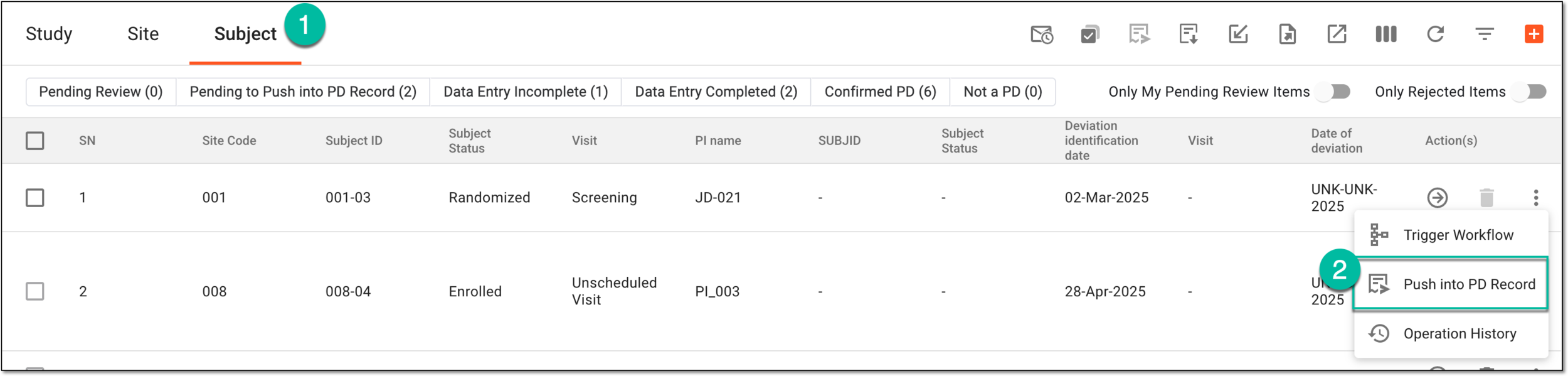 Figure 5. Pushing particular record
Tip
Above the table, use the toggles and filter buttons as needed:
-
Filter buttons: use the available filter buttons, such as Pending Review, Data Entry Completed, and so on, to locate the needed records faster.
-
Only Show Rejected Items: turn this toggle on to show only the records rejected upon audit; turn the toggle off to show all records.
-
Only My Pending Review Items: turn this toggle on to show only the records assigned to you for review and approval and awaiting your audit; turn the toggle off to show all records.
-
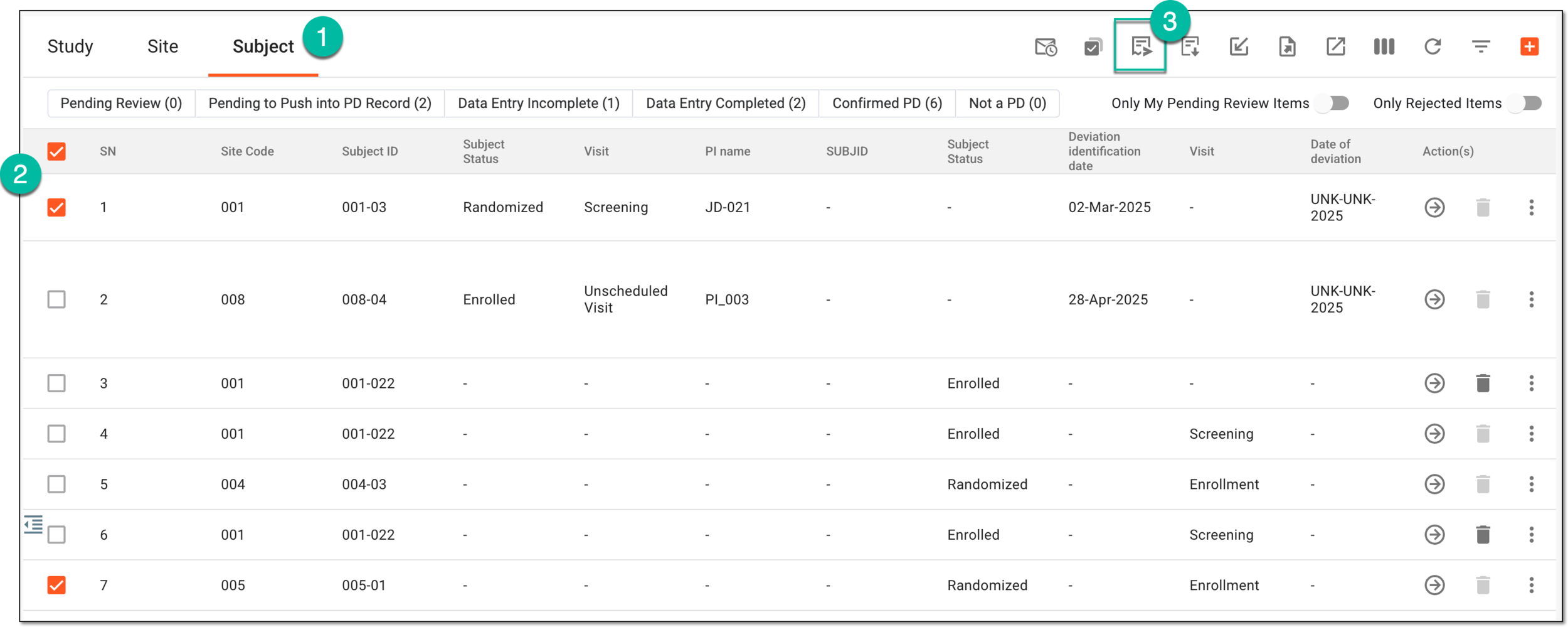
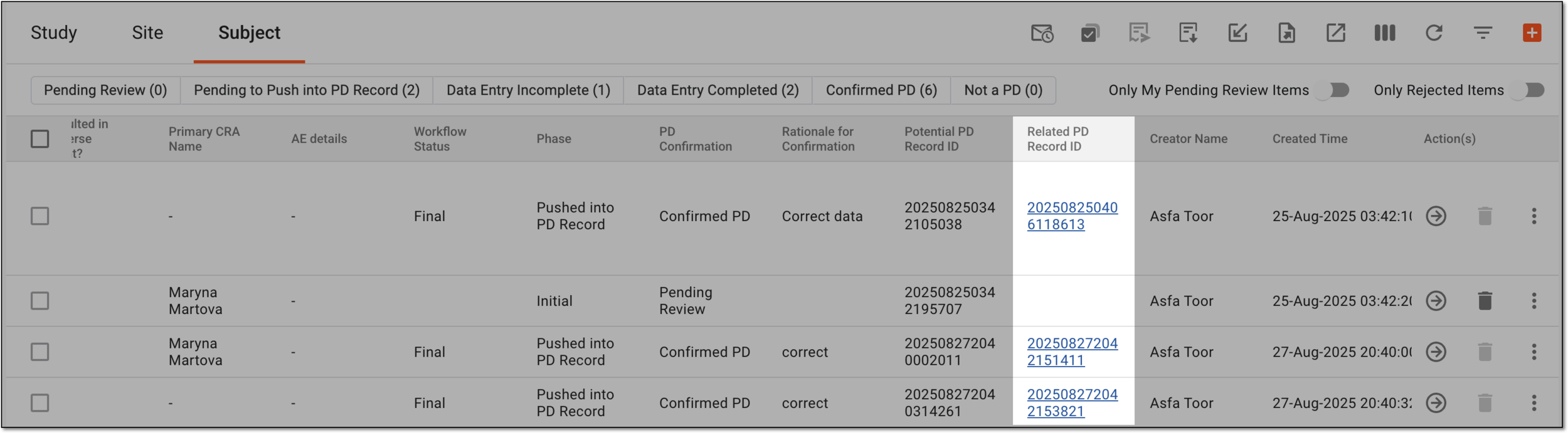
Once selected, the potential PD records are added to the actual and finalized PD records. In the table displaying the potential PD records, in the Related PD Record ID column, you can select the hyperlink to access the pushed potential PD record in the actual PD records table.
Recall pushed potential PD
A potential protocol deviation (PD) is a situation identified during a clinical trial that could lead to a protocol violation if not addressed but has not yet occurred. After pushing the manually added potential PD records to the finalized PD records, you can recall them to remove them from the finalized list and return them to the Potential PDs Entered Manually tab.
You may recall the pushed potential PD records if you need to restart the review and approval process, or if the record was pushed by mistake and needs to be removed from the finalized PD list.
-
Access the study management page in one of the following ways:
-
In the CTMS application header, select the DASHBOARD tab and then select the study dashboard of your interest.
Figure 1. Accessing study management from dashboard
-
In the CTMS application header, select the STUDY MANAGEMENT tab. Then from the Study Data List table, select the study name of your interest.
Figure 2. Accessing study management from study data list
-
-
On the study page, in the left pane, select Protocol Deviation > Potential PDs Entered Manually.
Figure 3. Accessing potential PDs entered manually
-
On the page that opens, select a tab depending on whether you want to access a potential PD for a study, site, or subject.
Tip
If the same potential PD is associated with two or more entities—study, site, or subject—they are displayed in a single tab named through a slash, such as Study/Site, Study/Site/Subject, or else. Whereas, the entities associated with unique template forms are displayed in separate tabs, such as Study, Site, or Subject.
-
In the table that displays the records, next to the required potential PD record, from the Action(s) column, select More
> Recall  .
.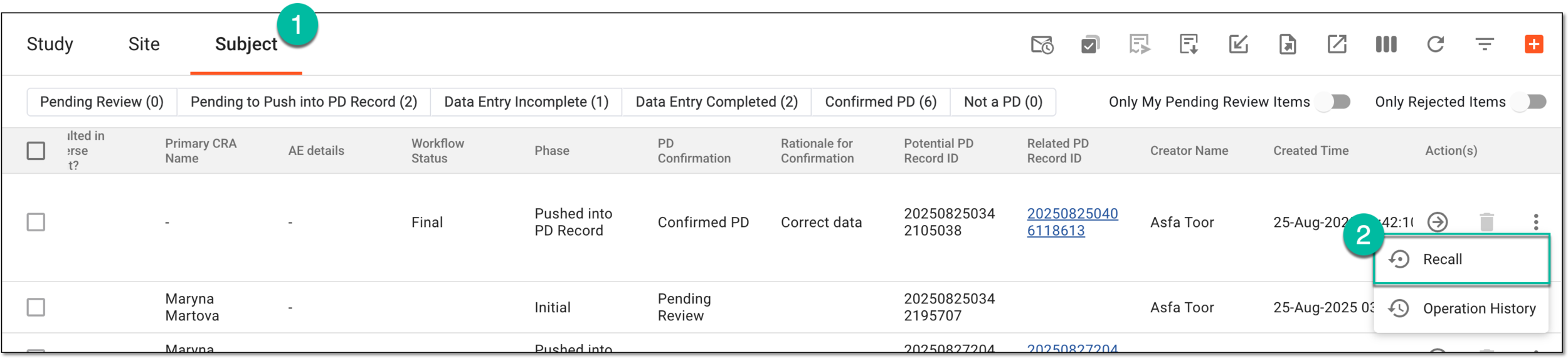 Figure 4. Selecting to recall pushed potential PD record
Tip
Above the table, use the toggles and filter buttons as needed:
-
Filter buttons: use the available filter buttons, such as Pending Review, Data Entry Completed, and so on, to locate the needed records faster.
-
Only Show Rejected Items: turn this toggle on to show only the records rejected upon audit; turn the toggle off to show all records.
-
Only My Pending Review Items: turn this toggle on to show only the records assigned to you for review and approval and awaiting your audit; turn the toggle off to show all records.
-
-
In the dialog that opens, enter the details to recall the record as explained in the following table.
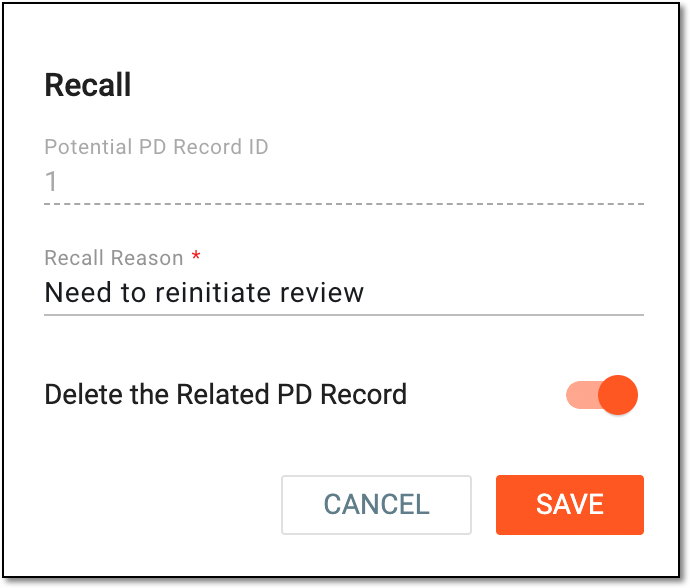 Figure 5. Recalling pushed PD record
Tip
In the following table, mandatory elements are marked with an asterisk (*).
Element
Details
Potential PD Record ID
Represents the record ID in Potential PDs Entered Manually.
Recall Reason*
Enter the reason for recalling the pushed potential PD record.
Delete the Related PD Record
Turn the toggle on if you want to delete the record from the finalized PD records and only retain it under the Potential PDs Entered Manually tab.
Otherwise, the record is maintained in both finalized PD records and under Potential PDs Entered Manually.
SAVE
Select
to implement your changes.CANCEL
Select
to dismiss your changes without saving.
Once saved, the manually created potential PD record is recalled from the finalized PD records. You can now proceed with updating the record and submitting it again for review.
Analyze operation history and audit trail of potential PD
In CTMS, you can analyze the history of the changes made to a potential PD record as well as changes made to a particular data item in a record. The potential protocol deviation (PD) is a situation identified during a clinical trial that could lead to a violation of the study protocol if not addressed, but has not yet actually occurred. You may require analyzing the history of changes for analysis purposes and understanding when and by whom the changes were introduced for auditing and clarity in the clinical trial processes.
-
Access the study management page in one of the following ways:
-
In the CTMS application header, select the DASHBOARD tab and then select the study dashboard of your interest.
Figure 1. Accessing study management from dashboard
-
In the CTMS application header, select the STUDY MANAGEMENT tab. Then from the Study Data List table, select the study name of your interest.
Figure 2. Accessing study management from study data list
-
-
On the study page, in the left pane, select Protocol Deviation > Potential PDs Entered Manually.
Figure 3. Accessing potential PDs entered manually
-
On the page that opens, select a tab depending on whether you want to update a potential PD for a study, site, or subject.
Tip
If the same potential PD is associated with two or more entities—study, site, or subject—they are displayed in a single tab named through a slash, such as Study/Site, Study/Site/Subject, or else. Whereas, the entities associated with unique template forms are displayed in separate tabs, such as Study, Site, or Subject.
-
In the table that displays the records, next to the required potential PD record, select the needed action as follows.
-
From the Action(s) column, select More
> Operation History  .
.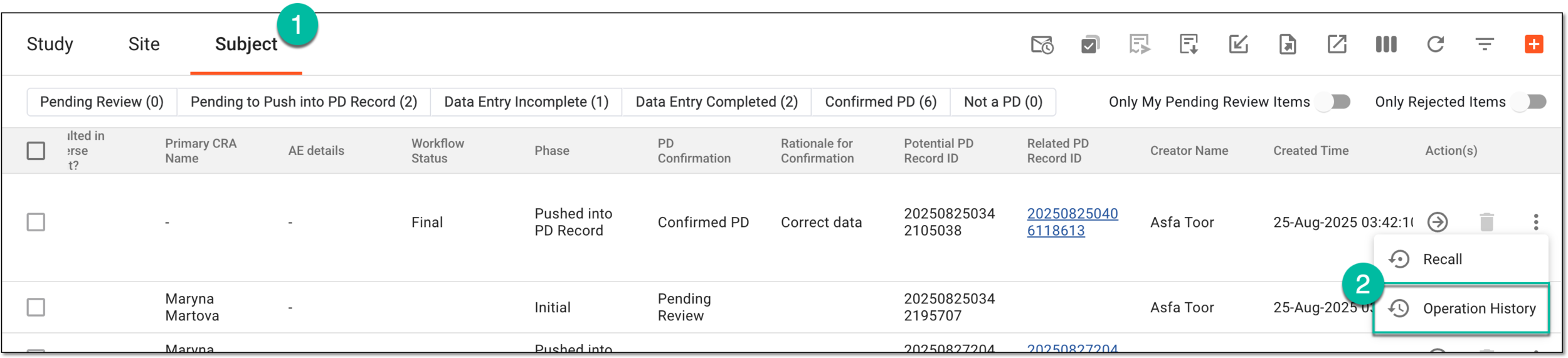 Figure 4. Accessing operation history of potential PD
Tip
Above the table, use the toggles and filter buttons as needed:
-
Filter buttons: use the available filter buttons, such as Pending Review, Data Entry Completed, and so on, to locate the needed records faster.
-
Only Show Rejected Items: turn this toggle on to show only the records rejected upon audit; turn the toggle off to show all records.
-
Only My Pending Review Items: turn this toggle on to show only the records assigned to you for review and approval and awaiting your audit; turn the toggle off to show all records.
-
-
In the Operation History dialog that opens, review the complete history of actions performed to the potential PD record.
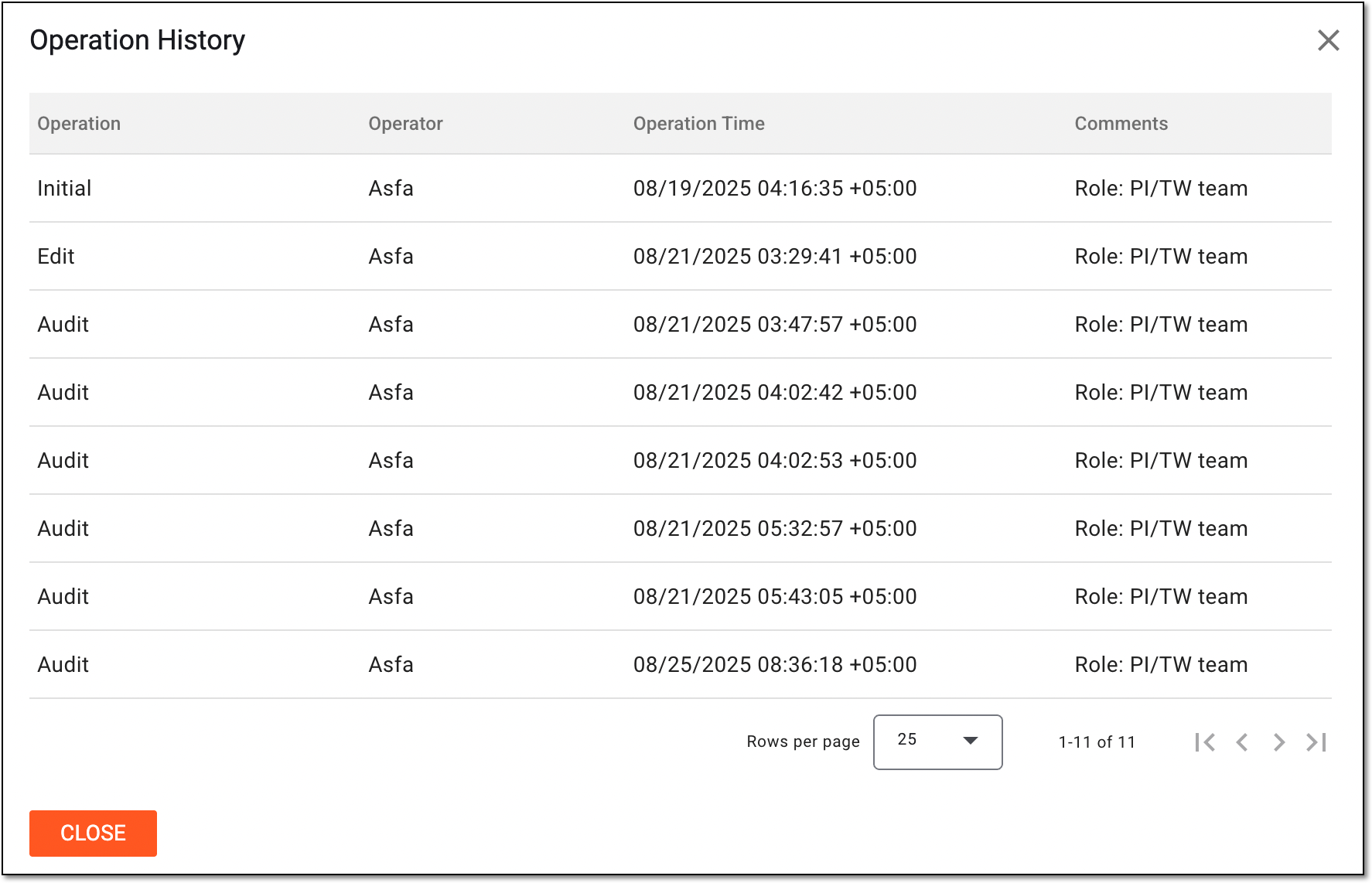 Figure 5. Analyzing operation history of potential PD record
-
From the Action(s) column, select Go
.Figure 6. Accessing potential PD record
Tip
Above the table, use the toggles and filter buttons as needed:
-
Filter buttons: use the available filter buttons, such as Pending Review, Data Entry Completed, and so on, to locate the needed records faster.
-
Only Show Rejected Items: turn this toggle on to show only the records rejected upon audit; turn the toggle off to show all records.
-
Only My Pending Review Items: turn this toggle on to show only the records assigned to you for review and approval and awaiting your audit; turn the toggle off to show all records.
-
-
In the form that opens, locate the needed record item and next to it, from the Action(s) column, select
 . In the dropdown menu that opens, select
Audit Trail .
. In the dropdown menu that opens, select
Audit Trail .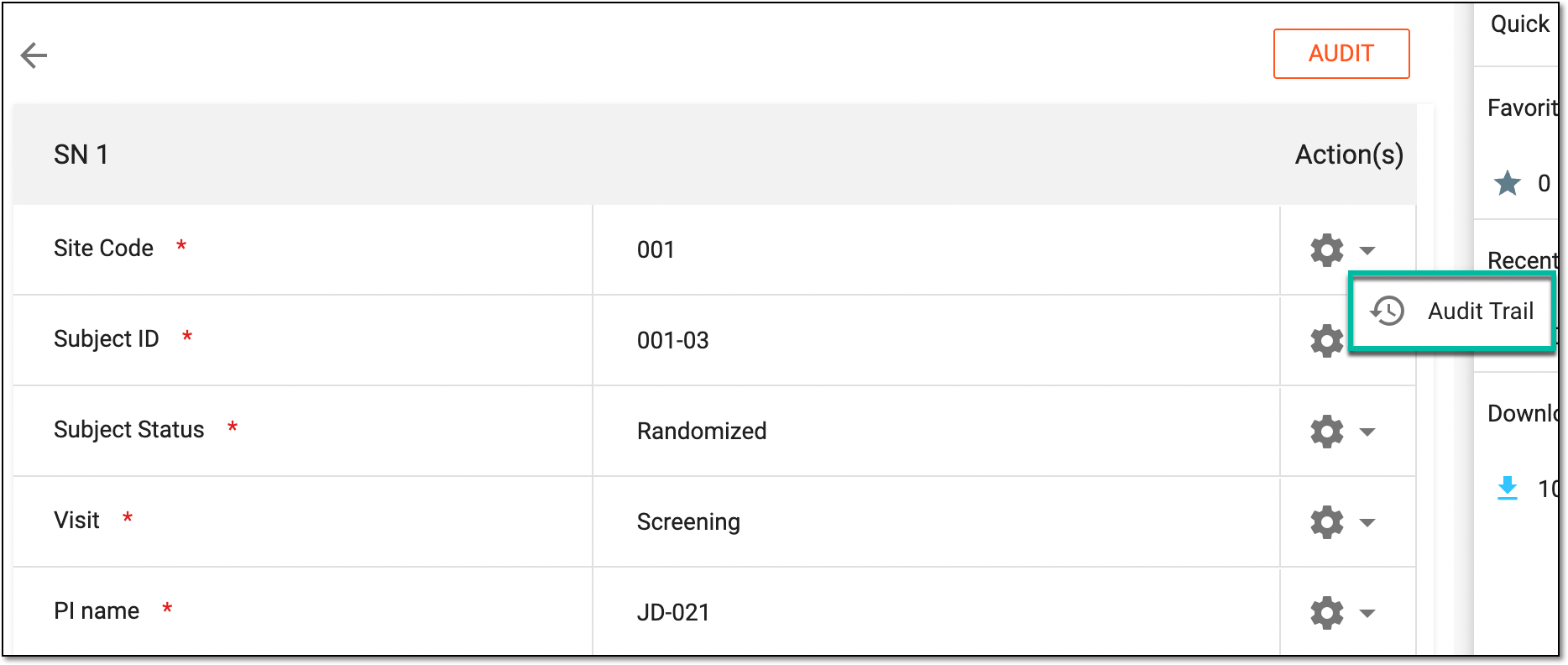 Figure 7. Accessing audit trail of potential PD record item
-
In the dialog that opens, analyze the history of the changes made to the data item.
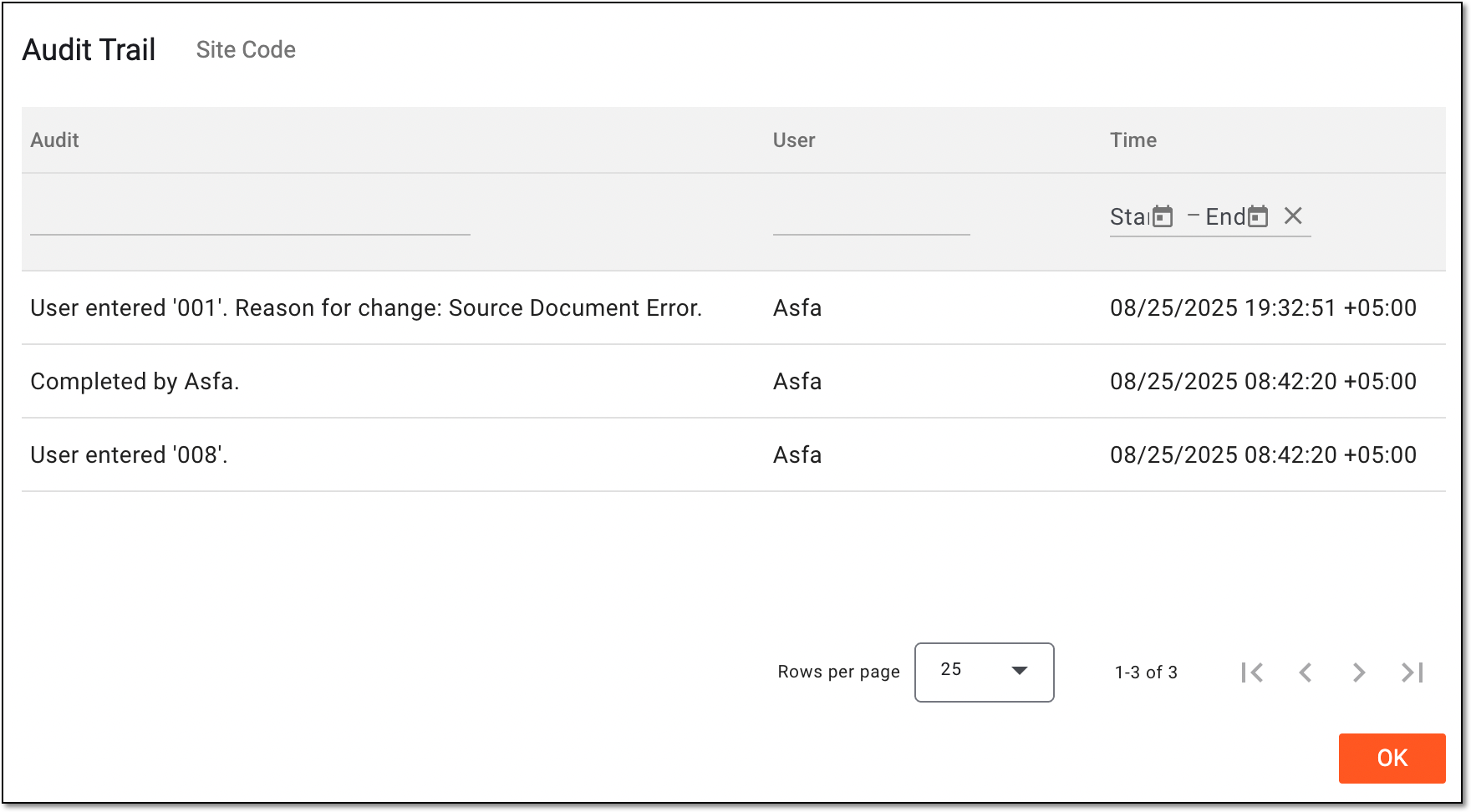 Figure 8. Analyzing change history of potential PD record item
-
Once you have reviewed the operation history of the potential PD record or its data items, you can close the dialogs by selecting CLOSE or OK.
Analyze mail history of manually added potential PD
The mail history of manually added potential PD provides a record of all email communications related to the potential PD records. The potential protocol deviation (PD) is a situation identified during a clinical trial that could lead to a violation of the study protocol if not addressed, but has not yet actually occurred. The mail history of potential PD records includes details such as when notifications were sent, to whom, and the status of each message, ensuring transparency and traceability in correspondence.
-
Access the study management page in one of the following ways:
-
In the CTMS application header, select the DASHBOARD tab and then select the study dashboard of your interest.
Figure 1. Accessing study management from dashboard
-
In the CTMS application header, select the STUDY MANAGEMENT tab. Then from the Study Data List table, select the study name of your interest.
Figure 2. Accessing study management from study data list
-
-
On the study page, in the left pane, select Protocol Deviation > Potential PDs Entered Manually.
Figure 3. Accessing potential PDs entered manually
-
On the page that opens, from the workspace toolbar, select Mail History
 .
.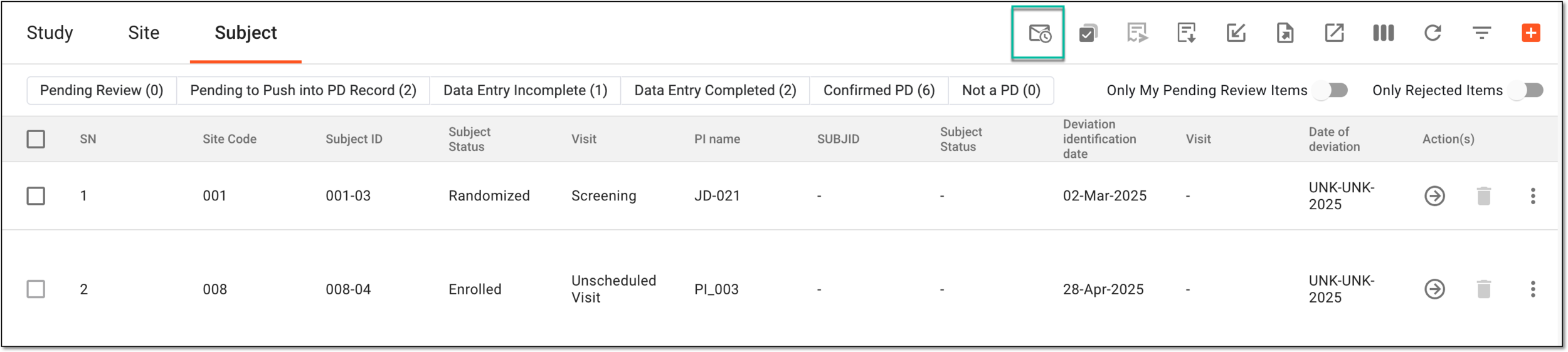 Figure 4. Accessing mail history of potential PD
-
In the Mail History dialog that opens, select Download
 to export a particular
mail in a PDF file to your computer or select Preview
to export a particular
mail in a PDF file to your computer or select Preview  to view this mail in the browser.
Once previewed, you can select CLOSE to go back to the manually added potential PD and proceed with configurations as needed.
Download template of potential PD
You can download a template for potential PDs to manually enter multiple records into the system at once. The potential protocol deviation (PD) is a situation identified during a clinical trial that could lead to a violation of the study protocol if not addressed, but has not yet actually occurred. The template includes predefined columns where data for multiple potential PD records can be filled in offline, and once completed, the file can be imported back into the system.
-
Access the study management page in one of the following ways:
-
In the CTMS application header, select the DASHBOARD tab and then select the study dashboard of your interest.
Figure 1. Accessing study management from dashboard
-
In the CTMS application header, select the STUDY MANAGEMENT tab. Then from the Study Data List table, select the study name of your interest.
Figure 2. Accessing study management from study data list
-
-
On the study page, in the left pane, select Protocol Deviation > Potential PDs Entered Manually.
Figure 3. Accessing potential PDs entered manually
-
On the page that opens, from the workspace toolbar, select Download Template
 .
.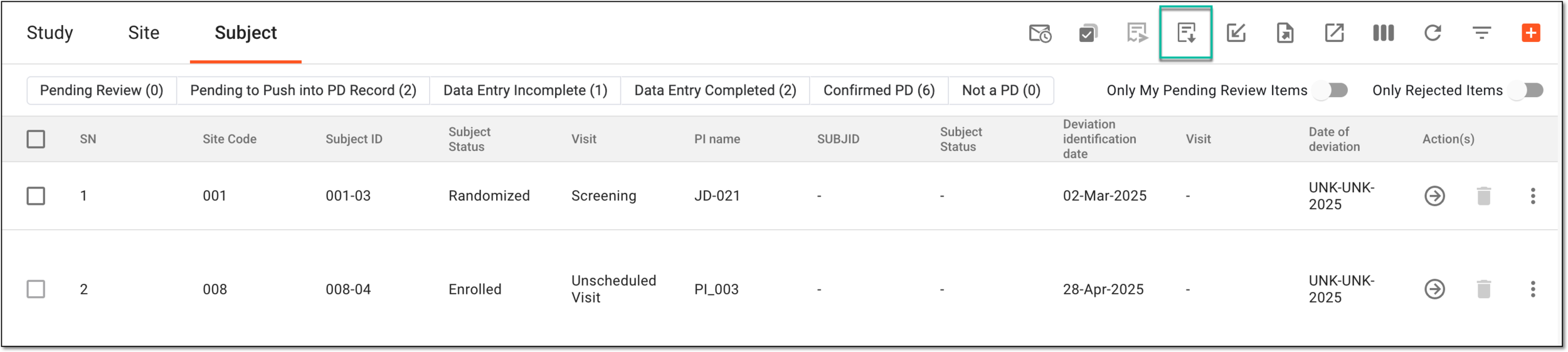 Figure 4. Downloading potential PD template
Once selected, the potential PD template is downloaded as an Excel file to your computer. You can add the needed records and then import the file when the records are ready to be added to the system.
Import potential PD
In CTMS, you can add multiple potential protocol deviation (PD) records into the system in a single action. Instead of entering each record individually, users can download a structured template, populate it with the required details offline, and then import it back into the system. This streamlines data entry, reduces manual effort, and ensures consistency when managing potential PD records.
-
Access the study management page in one of the following ways:
-
In the CTMS application header, select the DASHBOARD tab and then select the study dashboard of your interest.
Figure 1. Accessing study management from dashboard
-
In the CTMS application header, select the STUDY MANAGEMENT tab. Then from the Study Data List table, select the study name of your interest.
Figure 2. Accessing study management from study data list
-
-
On the study page, in the left pane, select Protocol Deviation > Potential PDs Entered Manually.
Figure 3. Accessing potential PDs entered manually
-
On the page that opens, from the workspace toolbar, select Import
 .
.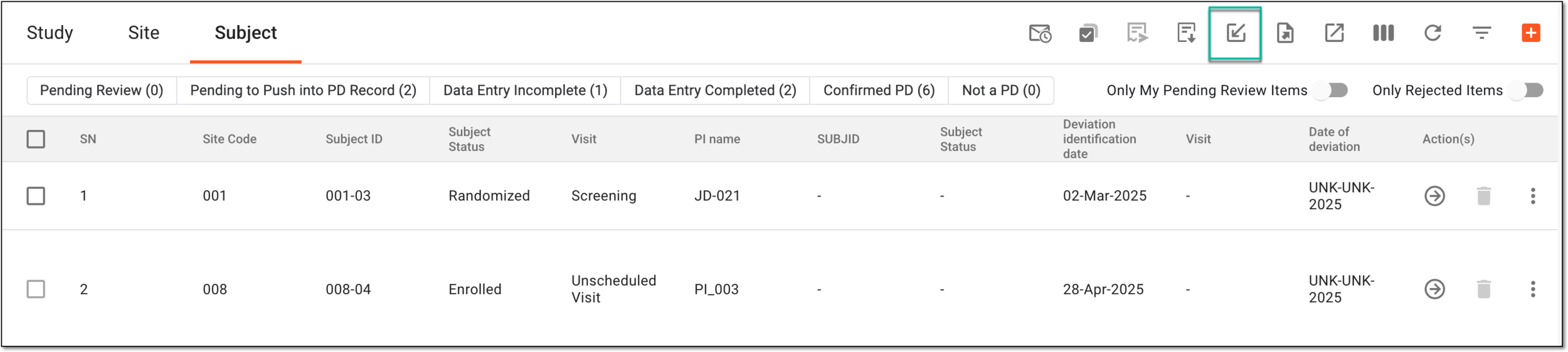 Figure 4. Importing potential PD
-
In your computer's file explorer, select the template file with potential PD records, and import it to the system.
Once imported, the potential PD records are displayed in the corresponding tab: Study, Site, and Subject.
Export potential PD
In CTMS, you can export potential protocol deviation (PD) records from the system into a structured file. This makes it easier to review, share, or archive records outside the system while maintaining data accuracy and consistency.
-
Access the study management page in one of the following ways:
-
In the CTMS application header, select the DASHBOARD tab and then select the study dashboard of your interest.
Figure 1. Accessing study management from dashboard
-
In the CTMS application header, select the STUDY MANAGEMENT tab. Then from the Study Data List table, select the study name of your interest.
Figure 2. Accessing study management from study data list
-
-
On the study page, in the left pane, select Protocol Deviation > Potential PDs Entered Manually.
Figure 3. Accessing potential PDs entered manually
-
On the page that opens, select a tab depending on whether you want to export a potential PD for a study, site, or subject.
Tip
If the same potential PD is associated with two or more entities—study, site, or subject—they are displayed in a single tab named through a slash, such as Study/Site, Study/Site/Subject, or else. Whereas, the entities associated with unique template forms are displayed in separate tabs, such as Study, Site, or Subject.
-
From the workspace toolbar, select Export
and then choose one of the following options:-
Export All. Select to export all the potential PD records from the tabs: Study, Site, and Subject.
-
Export Current Level. Select to export the potential PD records from the selected level only.
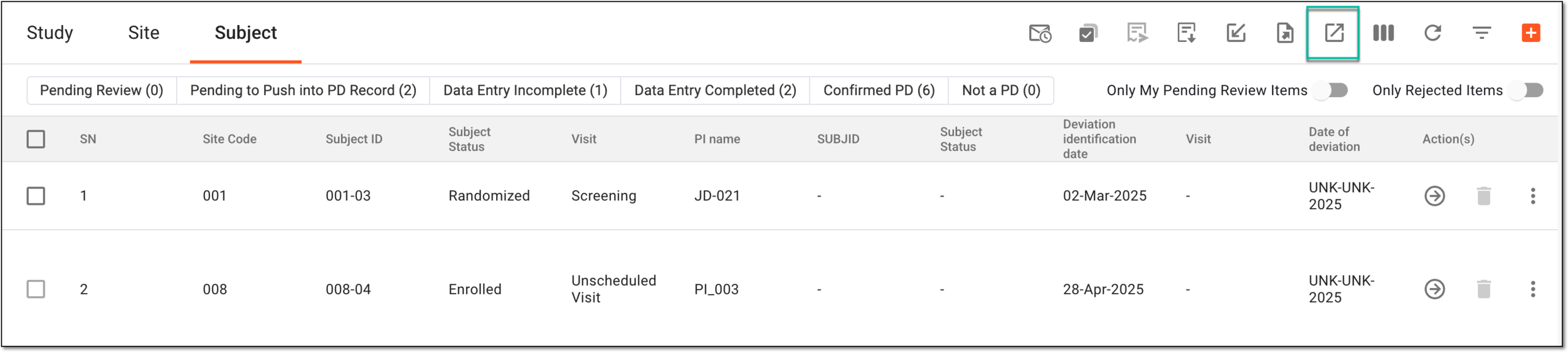 Figure 4. Exporting potential PD
-
-
The downloads widget appears showing the export progress. Select the widget to access exported files.
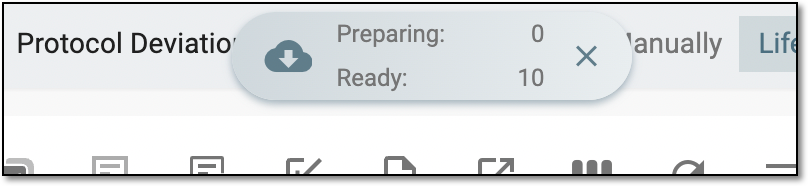 Figure 5. Downloads widget showing potential PD records being exported
-
In the My Downloads dialog that appears, in the Download is Ready tab, select
next to the required exported file.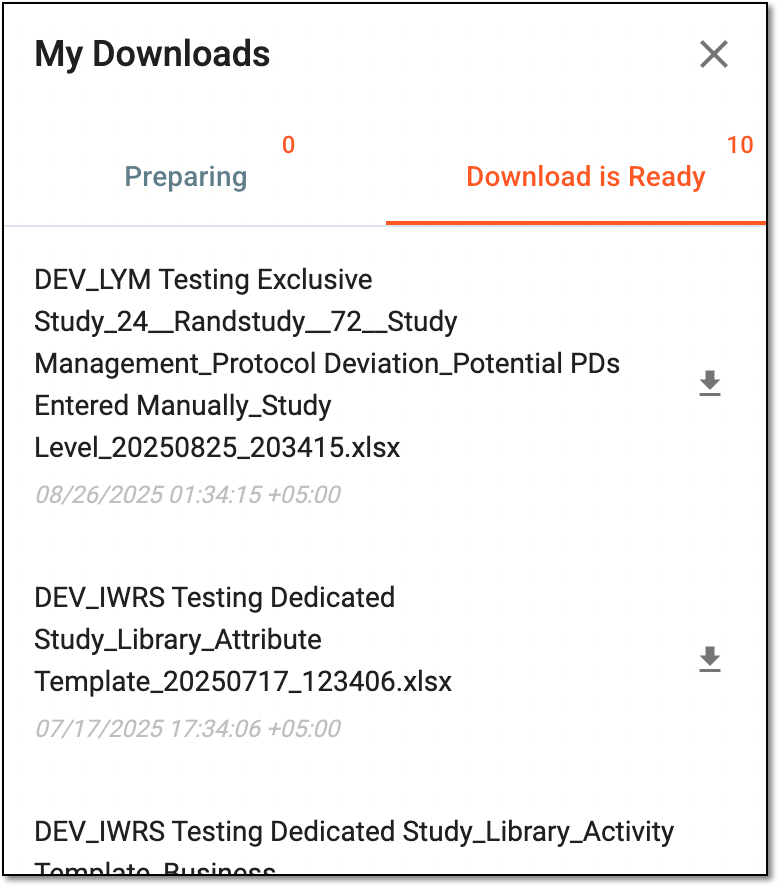 Figure 6. Downloading exported potential PD records
Once selected, the potential PD records are downloaded as an XLSX file to your computer.
Delete manually added potential PD
If required, you can delete potential protocol deviation (PD) records that were entered manually, ensuring only valid and relevant records remain in the system.
Important
Note that you can only delete the potential PD records that have not been approved and pushed to the finalized PD records.
-
Access the study management page in one of the following ways:
-
In the CTMS application header, select the DASHBOARD tab and then select the study dashboard of your interest.
Figure 1. Accessing study management from dashboard
-
In the CTMS application header, select the STUDY MANAGEMENT tab. Then from the Study Data List table, select the study name of your interest.
Figure 2. Accessing study management from study data list
-
-
On the study page, in the left pane, select Protocol Deviation > Potential PDs Entered Manually.
Figure 3. Accessing potential PDs entered manually
-
On the page that opens, select a tab depending on whether you want to delete a potential PD from the study, site, or subject.
Tip
If the same potential PD is associated with two or more entities—study, site, or subject—they are displayed in a single tab named through a slash, such as Study/Site, Study/Site/Subject, or else. Whereas, the entities associated with unique template forms are displayed in separate tabs, such as Study, Site, or Subject.
-
In the table that displays the records, next to the required potential PD record, from the Action(s) column, select Delete
 .
.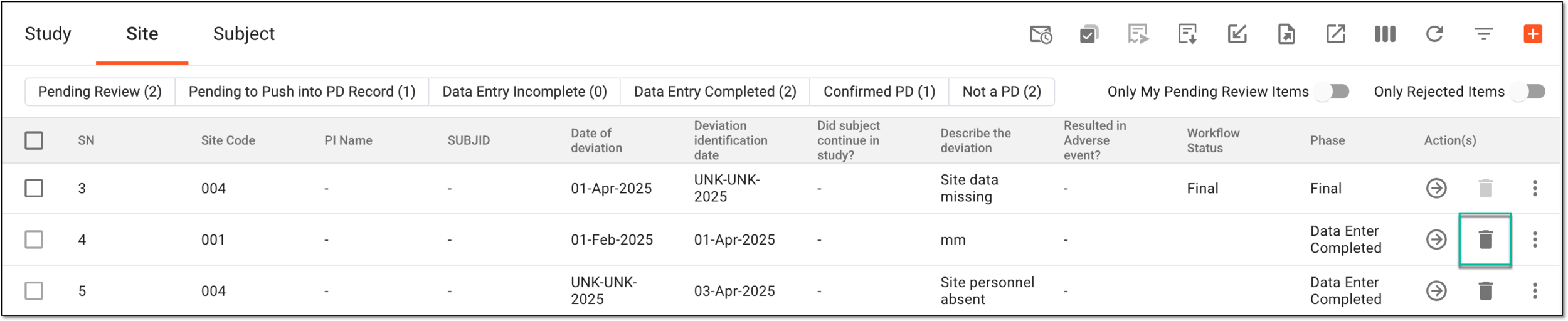 Figure 4. Deleting potential PD record
Tip
Above the table, use the toggles and filter buttons as needed:
-
Filter buttons: use the available filter buttons, such as Pending Review, Data Entry Completed, and so on, to locate the needed records faster.
-
Only Show Rejected Items: turn this toggle on to show only the records rejected upon audit; turn the toggle off to show all records.
-
Only My Pending Review Items: turn this toggle on to show only the records assigned to you for review and approval and awaiting your audit; turn the toggle off to show all records.
-
-
In the Reason dialog that opens, enter the reason for deletion and then select SAVE.
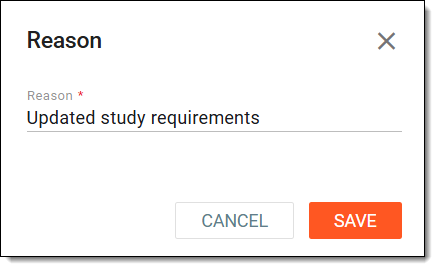 Figure 5. Entering reason to delete potential PD record
Once selected, the potential PD record is deleted from the system.