Copy workflow
The workflows are required to streamline the tasks or steps involved in a particular action, such as to audit payment requests, contracts, trip reports, and potential protocol deviations. In the CTMS library, you can instantly create a workflow by duplicating an existing one.
Once copied, the workflow can be modified as needed to align with the specific study protocol or sponsor's requirements, streamlining the setup of repeatable study processes.
-
In the CTMS application header, select the LIBRARY tab.
-
On the page that opens, from the left pane, select the Workflow Setting subtab (if not opened by default).
 Figure 1. Accessing workflow setting
-
On the Workflow List page that opens, next to the workflow you want to copy, from the Action(s) column, select Copy
 .
.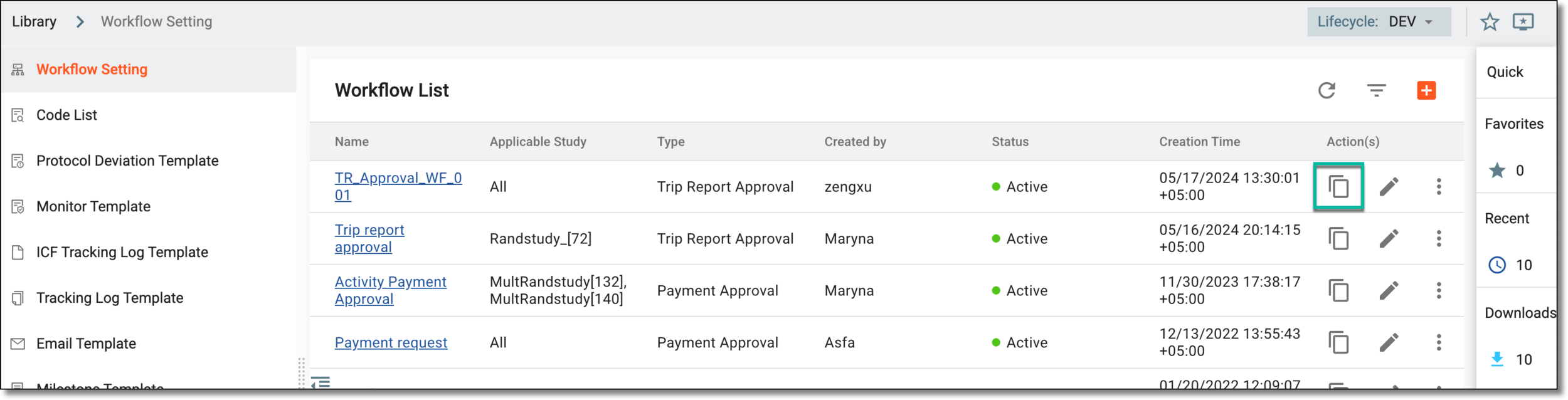 Figure 2. Copying workflow
-
On the page that opens, enter the workflow's name and its applicable study details. Next, set up the workflow by adding the necessary task nodes. These steps follow the same process described from Step 4 onward in the respective sections:
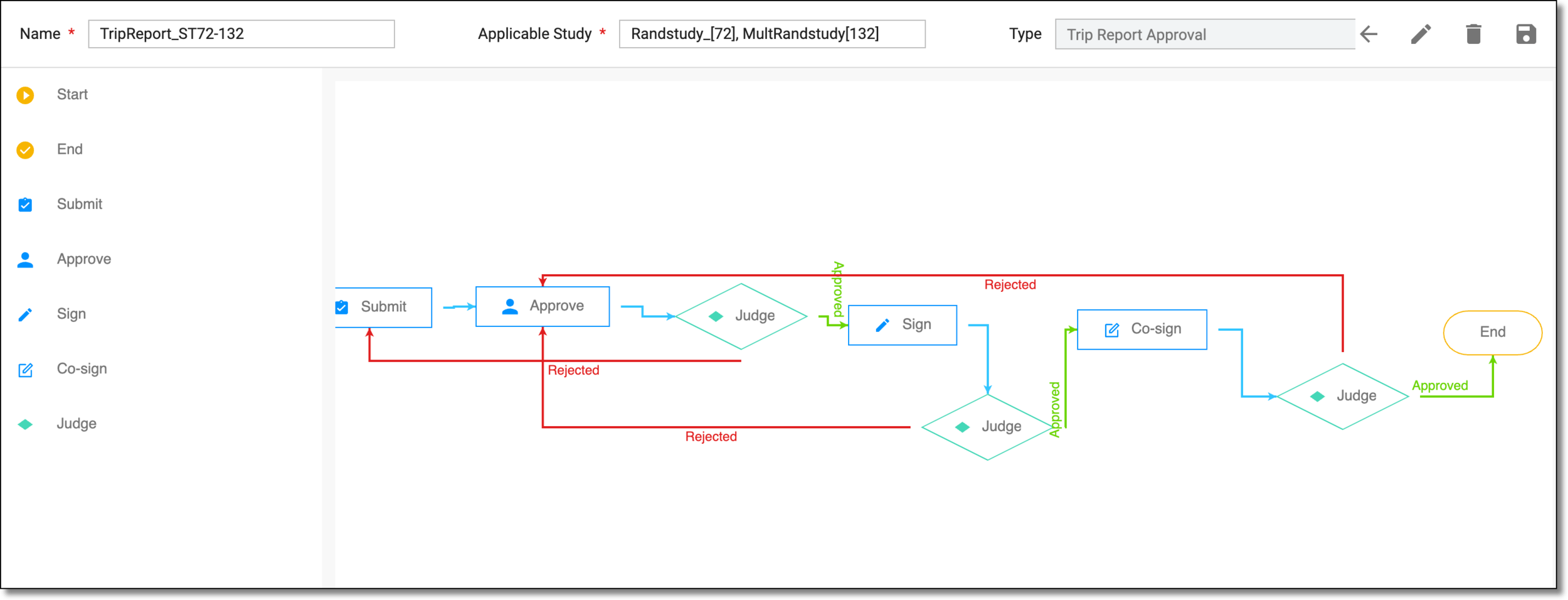 Figure 3. Updating duplicated workflow
-
Once the needed changes are introduced, from the workspace toolbar of the workflow designer, select Save
 .
.
Once saved, the workflow is duplicated. You can now use it for trip report, protocol deviation, contract, or payment request management in CTMS.