Define cycle group details
A cycle refers to the planned sequence of treatments and recovery periods that participants undergo during the study. The cycles can be added only within the dedicated cycle groups.
Once the cycle group is added to the study, you can start configuring its details—the cycle naming convention, cycle order, associated visits, and so on. These configurations are an integral part of the data entry process in the EDC application as they impact how the cycle visits and forms become available for data entry.
-
In the Study Designer application header, select the CRF DESIGN tab.
-
In the toolbar, select the latest draft CRF version marked with the respective unlock symbol
 , otherwise, you cannot perform any actions.
 Figure 1. Selecting latest draft CRF version
-
In the left pane that appears, select the needed cycle group.
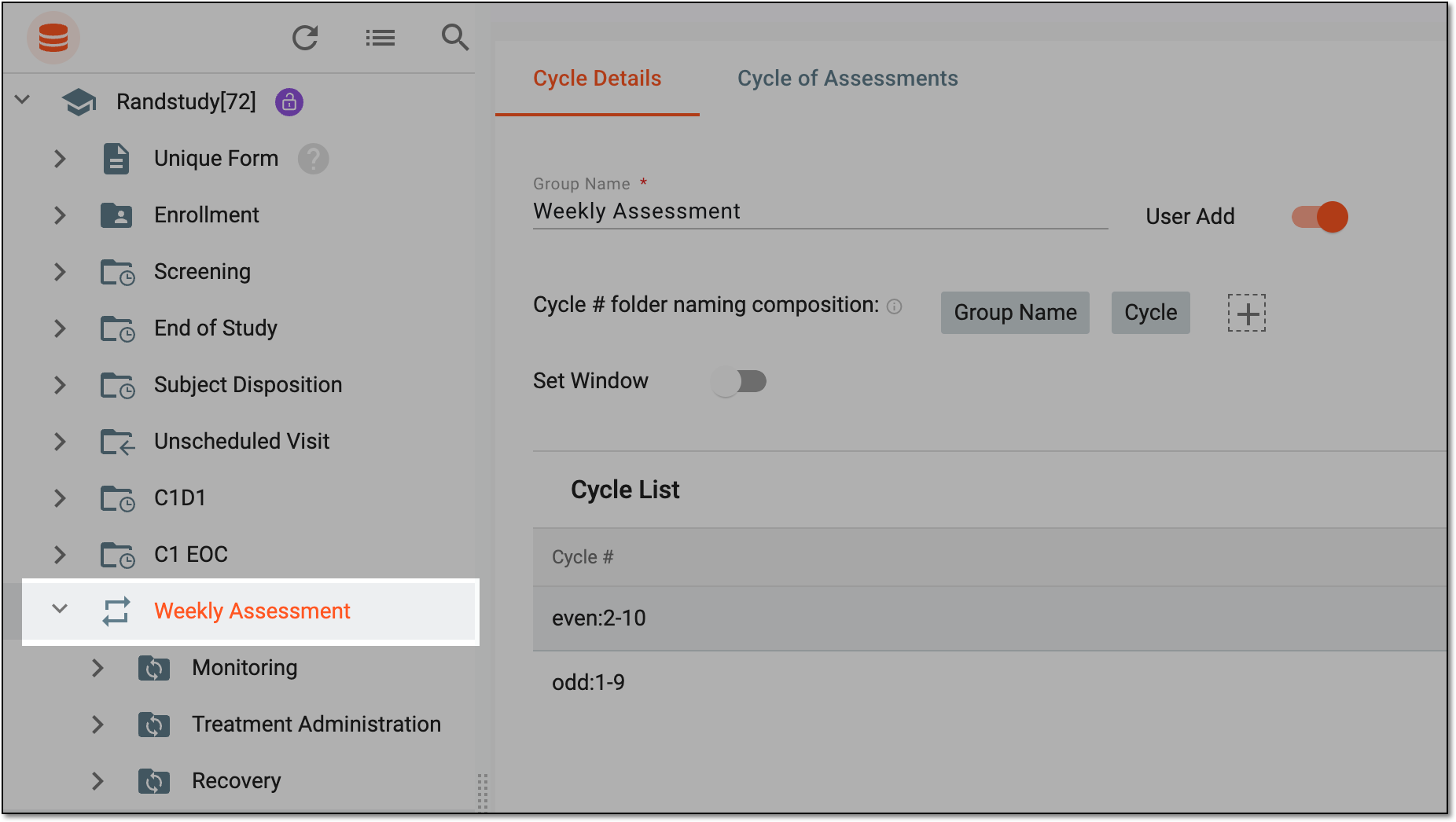 Figure 2. Accessing cycle details configuration
-
Under the Cycle Details tab that opens, define the cycle details as explained in the following table.
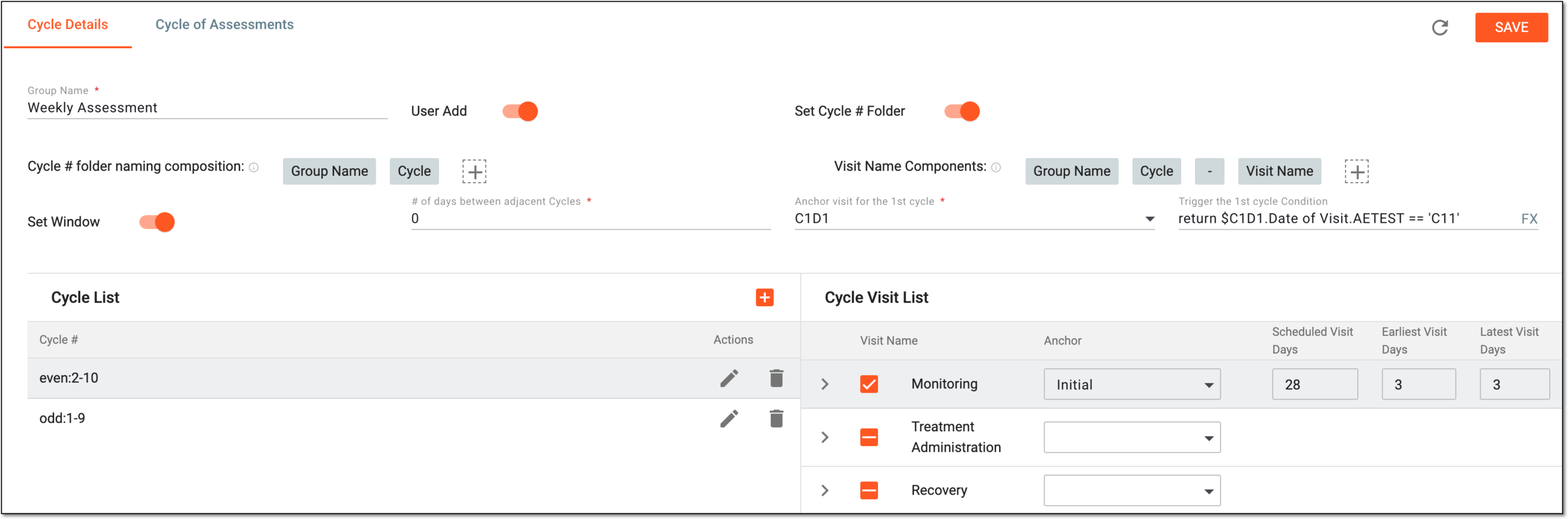 Figure 3. Defining cycle details
Tip
In the following table, mandatory elements are marked with an asterisk (*).
Element
Details
Group Name*
Enter the name of the cycle group.
User Add
Turn the toggle on or off to enable or disable the possibility for EDC users to add cycles manually in EDC.
Disregarding the position of this toggle, any cycle follows the defined naming convention—both manually-created and those
                                  triggered by the rule.
Set Cycle # Folder
Turn the toggle on or off to enable or disable the specific naming convention for cycle folders and cycle visits under this group in the EDC application.
Cycle # folder naming composition
Select the plus symbol
 to add components that establish the the naming convention for cycle folders under this group in the EDC application.
Visit Name Components
Select the plus symbol
to add components that establish the the naming convention for cycle visits under this group in the EDC application.If the study is intended for translation, all the components of the visit name are to be translated into the applied languages.Set Window
Turn the toggle on or off to enable or disable visit window configuration for cycle visits.
# of days between adjacent Cycles*
Enter the number of days to establish the interval between each following visit cycle.
This field is only available if the Set Window toggle is turned on.Anchor visit for the 1st cycle*
Select the visit that once completed initiates the first visit cycle.
This field is only available if the Set Window toggle is turned on.Trigger the 1st cycle Condition
Select the field and in the resulting dialog, enter the expression to outline the cycle triggering rule—the conditions upon which the first visit cycle must initiate.
For instance, the cycle must trigger once the subject is enrolled. Thus, the expression is:
$Screening.Enrollment.ENROLIEYN == 'Y'
Meaning that once the Enrollment CRF for the Screening visit is submitted with the answer to the question "Is subject enrolled to the study" as "Yes", the visit cycle initiates and the respective forms become available for completion in EDC.
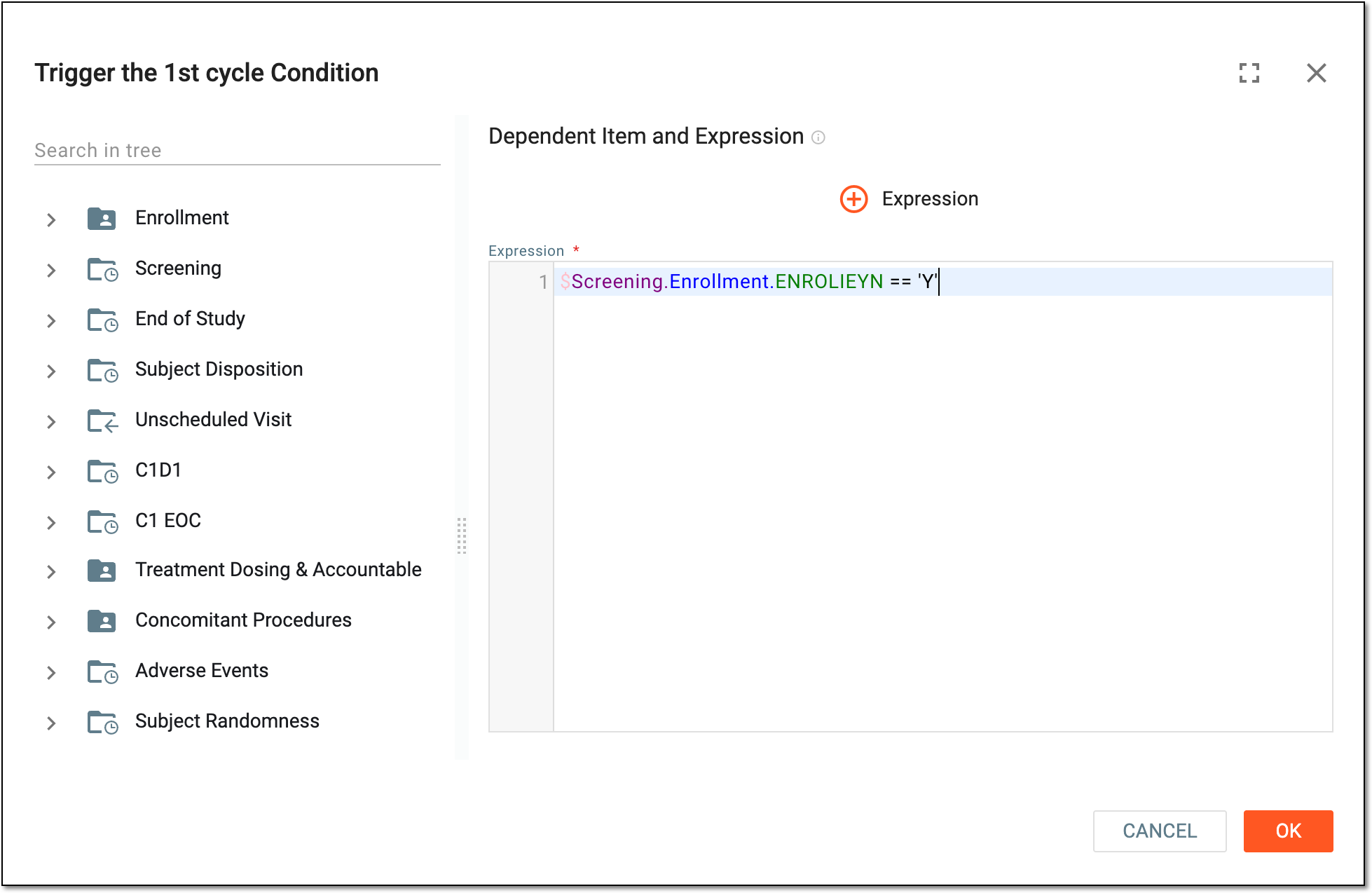 Figure 4. Entering trigger expression
This field is only available if the Set Window toggle is turned on.Cycle List
New Item
Select
 and in the resulting dialog, add new cycle to the group. Each group can be treated individually to add required cycle
visits.
and in the resulting dialog, add new cycle to the group. Each group can be treated individually to add required cycle
visits.For instance, you can create a separate cycle group for odd numbers of visits (from one to nine) and even numbers of visits (from two to ten) and thus, you will be able to add different visits to these groups.
Cycle #
Represents the visit numbers in the cycle that dictate the order in which the cycle visits become available in EDC during the data entry process.
Edit
Select
 to update the cycle visit numbers as explained before.
Delete
Select
 to remove the cycle visit numbers from the cycle configuration.
Cycle Visit List
Visit Name
Represents the name of the visit that can be added to the cycle by selecting the checkbox next to it. Remove the visit from the cycle by clearing the checkbox.
To learn more about adding visits to cycles, go to the Associate cycle with visits and
                                  forms section.
Anchor
Select the visit that when completed triggers the next one.
For instance, if next to the Monitoring visit, you select Initial, it means that the Monitoring visit can only happen when the Initial visit is completed.
Scheduled Visit Days
Enter the number of days that must pass from the anchor visit for the next one to happen according to the study plan.
Earliest Visit Days
Enter the lowest number of days that must pass from the anchor visit for the next one to happen that can be earlier than the scheduled date but still acceptable according to the study plan.
Latest Visit Days
Enter the highest number of days that must pass from the anchor visit for the next one to happen that can be later than the scheduled date but still acceptable according to the study plan.
Refresh
Select
 to reload the page and discard all the changes made without saving. This is helpful if you decide to start over.
SAVE
Select
 to implement the changes and apply new configurations.
Once saved, the cycle details are defined. You can now define the cycle of assessments.