Activate/Inactivate integration configuration
In eTMF, you can configure an integration with a particular external server preconfigured for your study in the ADMIN app, thus, enabling the system to pull external files automatically on a regular schedule and land them in your desired directory of file management or essential documents. Such automation simplifies cooperation with vendors and reduces the risk of human error compared to manual file extraction and upload.
All the integrations are activated automatically when first configured, however, you can manually deactivate them if, for instance, you want to postpone the file extraction or still have some amendments planned for it. Activation and deactivation can be performed at any time to suit your business needs and current study requirements.
-
In the eTMF application header, select the ADMIN tab.
-
From the left pane of the page that opens, select System Integration > Integration Configuration.
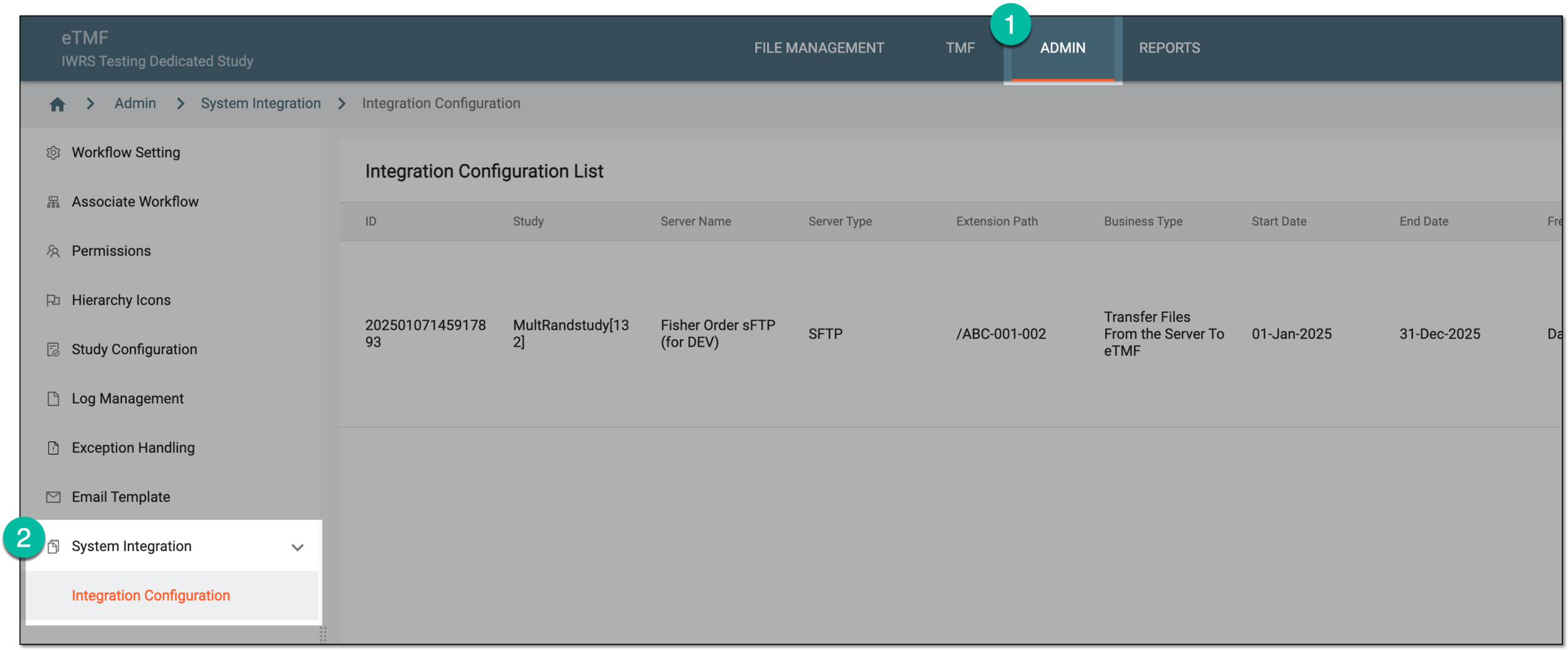 Figure 1. Accessing integration configuration
-
In the Integration Configuration List table that opens, locate the record for which you want to update details. Then next to it, select Activate
 to make the inactive configuration active or Inactivate
  to deactivate the active one.
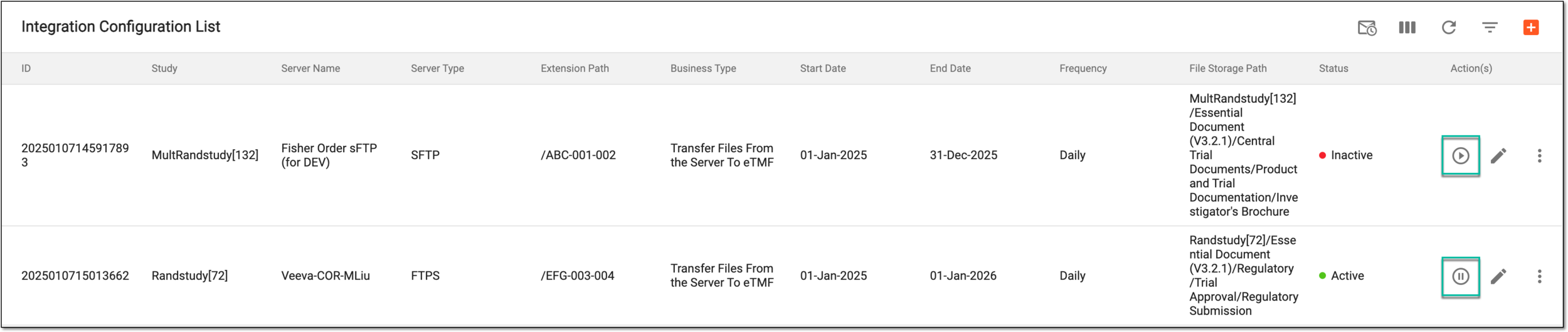 Figure 2. Activating/Inactivating integration configuration
-
For deactivation only, in the dialog that opens, enter the reason for your action and select
 .
.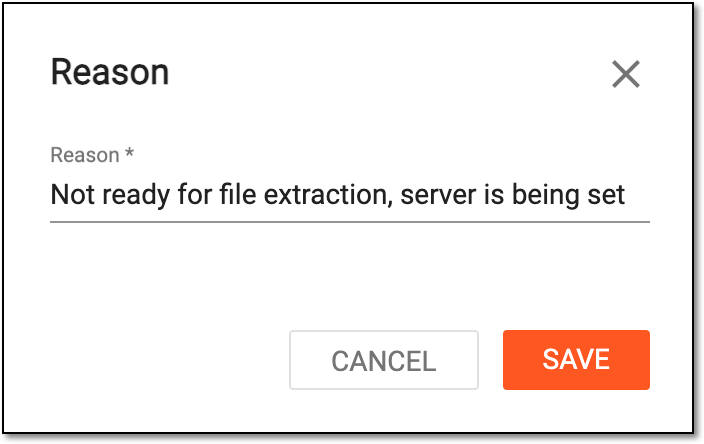 Figure 3. Providing reason for integration inactivation
Once done, the integration either becomes active and the file extraction proceeds on the established schedule or inactive and the file extraction ceases until activated again.