Delete integration configuration
In eTMF, you can configure an integration with a particular external server preconfigured for your study in the ADMIN app, thus, enabling the system to pull external files automatically on a regular schedule and land them in your desired directory of file management or essential documents.
However, some integrations may become outdated and no longer relevant, thus, you might want to delete them from the system to keep the list up-to-date.
Important
You can only delete inactive integrations, thus, inactivate the configuration to remove it from the system.
-
In the eTMF application header, select the ADMIN tab.
-
From the left pane of the page that opens, select System Integration > Integration Configuration.
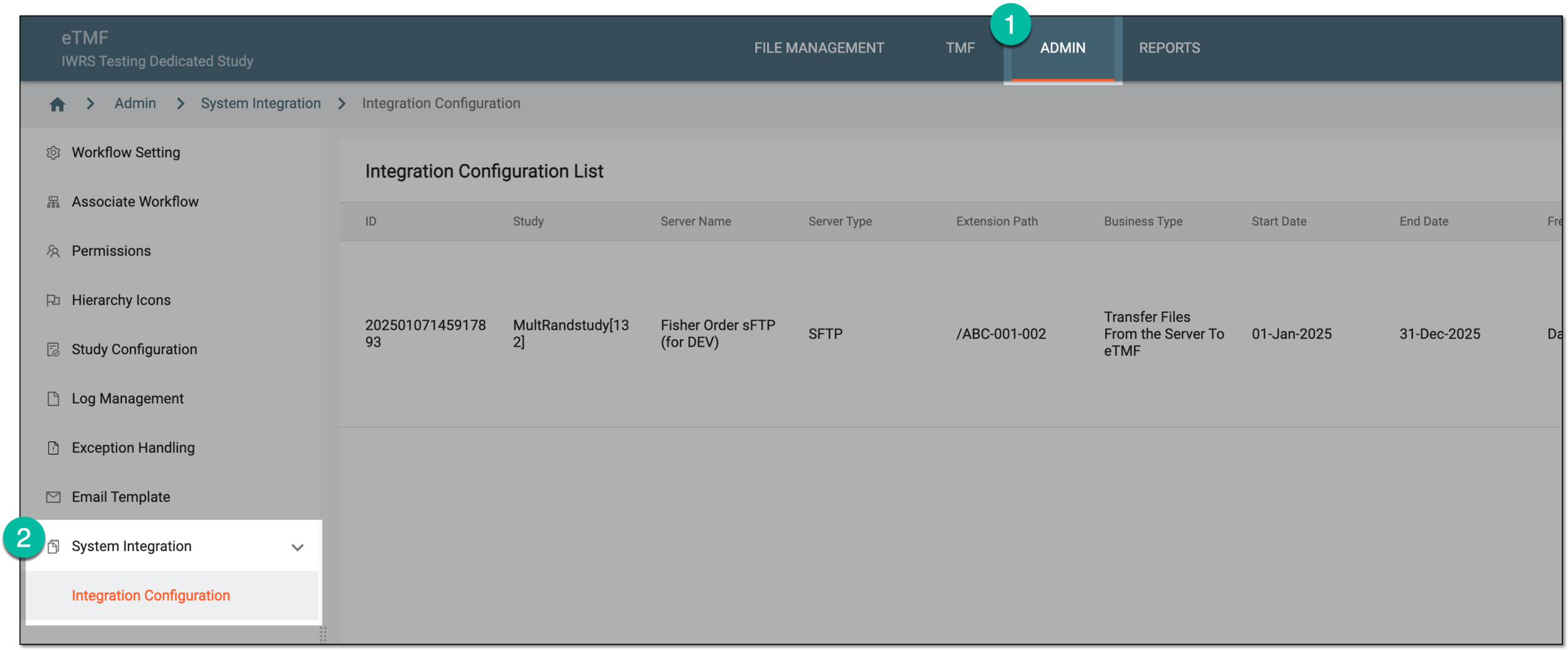 Figure 1. Accessing integration configuration
-
In the Integration Configuration List table that opens, locate the Inactive integration configuration that you want to delete. Then next to it, select More
 > Delete
  .
.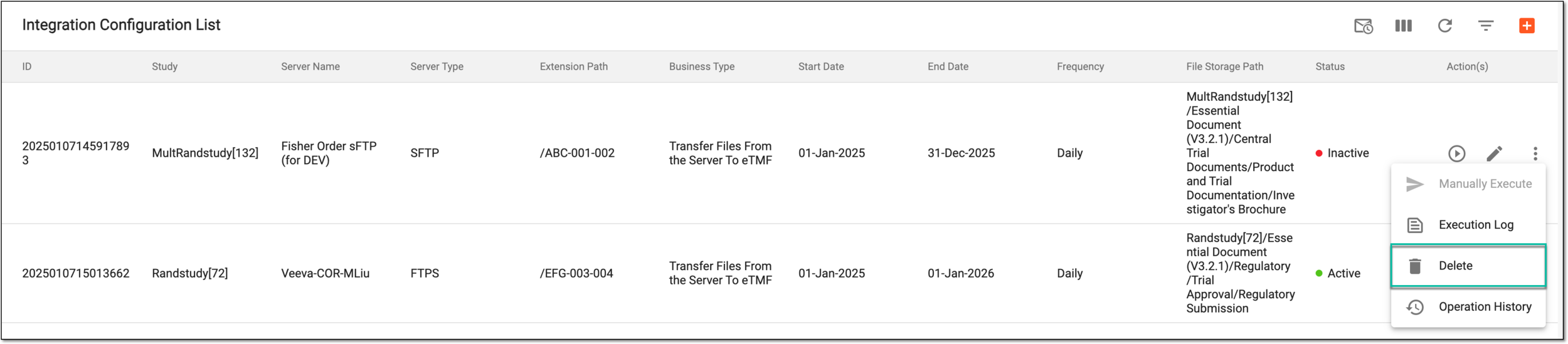 Figure 2. Deleting integration configuration
-
In the dialog that appears, enter the reason for integration deletion and select
 .
.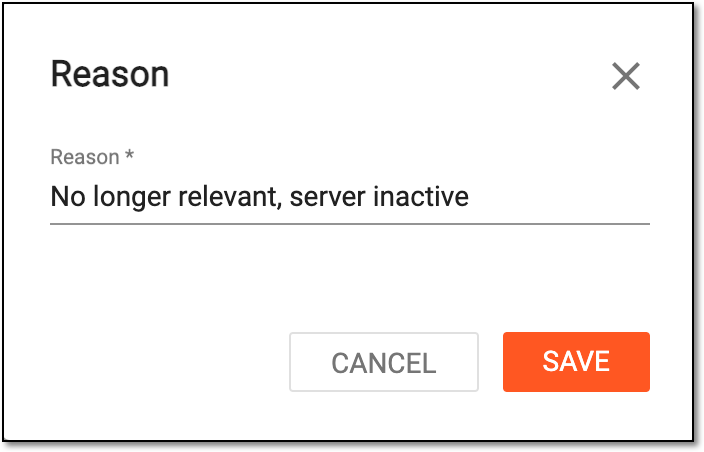 Figure 3. Providing reason for integration deletion
Once confirmed, the integration configuration is deleted.