Add file server account
A file server account is defined as a system account that is created to manage and organize data extraction between eClinical applications, such as IWRS EDC, and so on, and external servers—S3, SFTP and FTPS. When configuring the account, you add the server details so that when this server is associated with jobs, the system knows where the data must be extracted.
In this section, you can learn how to create a new account for servers. By using the account created, you can associate with the data extraction jobs in the EDC application.
-
In the ADMIN application header, select the CONFIGURATION tab.
-
On the page that opens, from the left pane, select Integration Account > File Server Account.
-
On the File Server Account page that appears, from the workspace toolbar, select New Item
 .
. -
In the New dialog that appears, fill in the fields as explained in the following table.
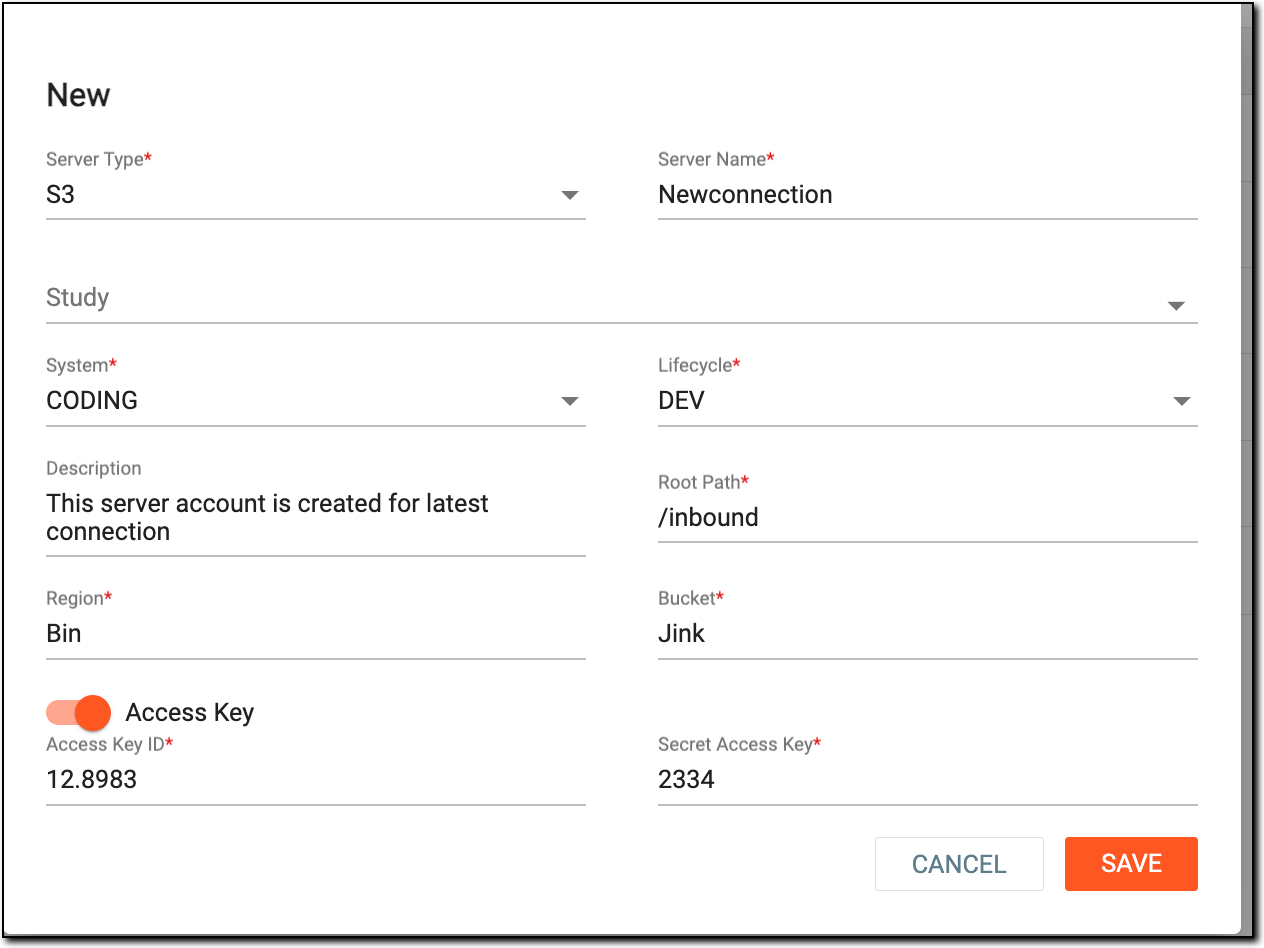 Figure 1. Adding new file server account
Tip
In the following table, mandatory elements are marked with an asterisk (*).
Element
Details
Server Type*
From the dropdown list, select the server category used by the sponsor to which you want the account to extract the data. The following are the three types:
-
S3: select this server if you want the account to extract a large amount of data.
-
SFTP: select this server if you want the account to use encryption for data extraction.
-
FTPS: select this server if you want the account to extract data for systems that only support FTP.
Server Name*
Enter a meaningful name for the server account being created.
Study
From the dropdown list, select the study of a certain application from which you want the account to extract the data.
System*
From the dropdown list, select the name of the application from which you want the account to extract the data, for instance, IWRS.
Lifecycle*
From the dropdown list, select the stage at which you want the account to extract the data, for instance, DEV.
Description
Enter a brief information about the account being created.
Root Path*
Enter the destination path to the server account where the extracted data should be stored. This information is provided by the sponsor.
Region*
Enter the server region, which is the absolute path to the directory that contains the web application content files. This information is provided by the sponsor.
Bucket*
Enter the server bucket, which is the server listing with the lowest latency to your server. This information is provided by the sponsor.
Access Key
-
Turn the toggle on if the server requires a password or a certification for access. When this toggle is turned on, the Access Key ID and Secret Access Key fields are displayed. You can provide the sign-in information for the server in these fields.
-
Turn the toggle off if the server is open for access and does not require a password or specific certification.
This toggle only appears if S3 is selected as a server.Access Key ID*
Provide the access key ID that is used to access the server account. This field is only visible when the Access Key toggle is turned on.
Secret Access Key*
Provide the access key password that is used to access the server account. This field is only visible when the Access Key toggle is turned on.
IP*
Enter the Internet Protocol (IP) address of the server where it is hosted. This information is provided by the sponsor.
This field only appears when SFTP or FTPS is selected as the server type.Port*
Enter the unique numerical value that is the endpoint, which allows the applications to interact. This information is provided by the sponsor.
This field only appears when SFTP or FTPS is selected as the server type.Username*
Enter the name of the user account who is creating the server account.
Password*
Enter the password of the user account who is creating the server account.
Enter password or Upload Certificate
Select either of the two options to connect the server account being created with the eClinical system:
-
Password: select this radio button if you want users to enter the password while connecting the file server account to the eClinical system.
-
Certificate: select this option if you want users to upload the generated certificate while connecting the file server account to the eClinical system.
SAVE
Select
 to create the file server account.
CANCEL
Select
 to dismiss without making any changes.
 -
Upon saving, the file server account is created, and you can use this account to perform job management activities once the server is associated with EDC.