Edit file server account
A file server account is defined as a system account that is created to manage and organize data extraction between eClinical applications, such as IWRS EDC, and so on, and external servers—S3, SFTP and FTPS. When configuring the account, you add the server details so that when this server is associated with jobs, the system knows where the data must be extracted.
In this section, you can learn how to change a previously added file server account.
-
In the ADMIN application header, select the CONFIGURATION tab.
-
On the page that opens, from the left pane, select Integration Account > File Server Account.
-
In the File Server Account table that appears, next to the needed one, select Edit
 .
. Figure 1. Selecting to edit file server account
-
In the Edit dialog that appears, edit the fields as needed. These fields are identical to the ones explained in the table of Add file server account.
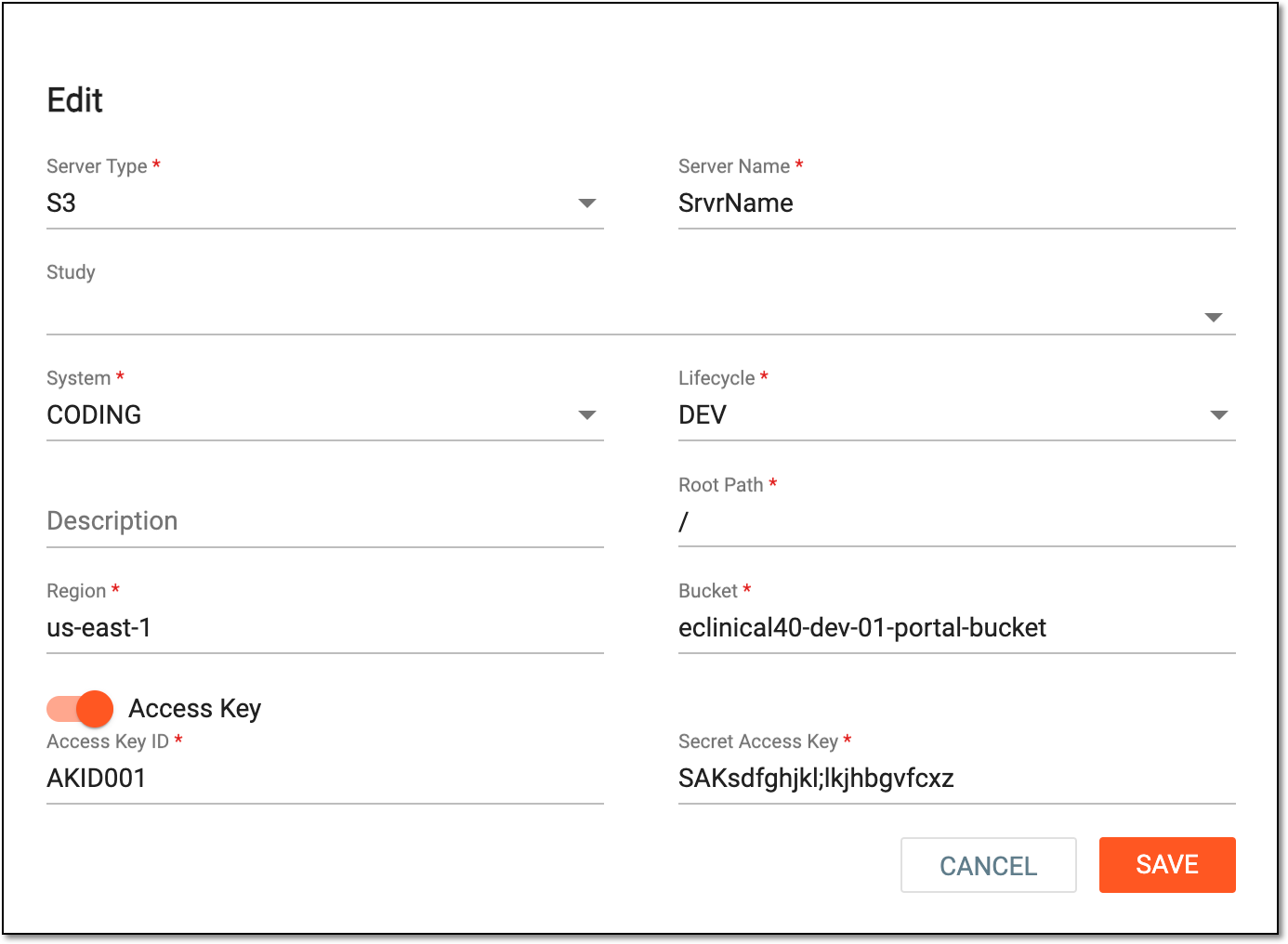 Figure 2. Editing file server account
-
Select
 to save the implemented changes.
Upon saving, your changes are implemented, and you can view the updated file server account from the File Server Account table. The integration then works based on updated details, so users need to utilize the latest details.