Edit integration configuration
In eTMF, you can configure an integration with a particular external server preconfigured for your study in the ADMIN app, thus, enabling the system to pull external files automatically on a regular schedule and land them in your desired directory of file management or essential documents. Such automation simplifies cooperation with vendors and reduces the risk of human error compared to manual file extraction and upload.
For existing integrations, the details can change—such as the external server path, the schedule of file extraction, or else—and you can easily adjust your configurations to suit your business needs.
-
In the eTMF application header, select the ADMIN tab.
-
From the left pane of the page that opens, select System Integration > Integration Configuration.
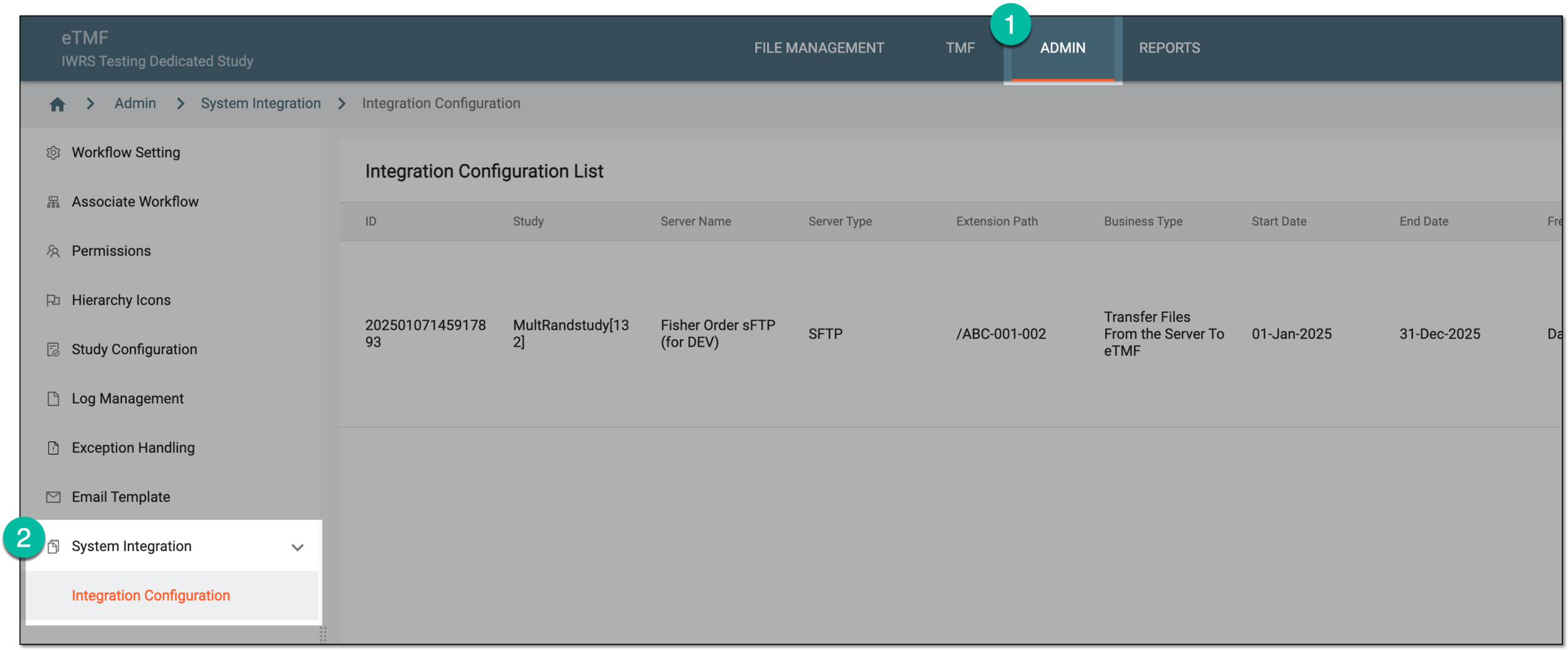 Figure 1. Accessing integration configuration
-
In the Integration Configuration List table that opens, locate the record for which you want to update details. Then next to it, select Edit
 .
.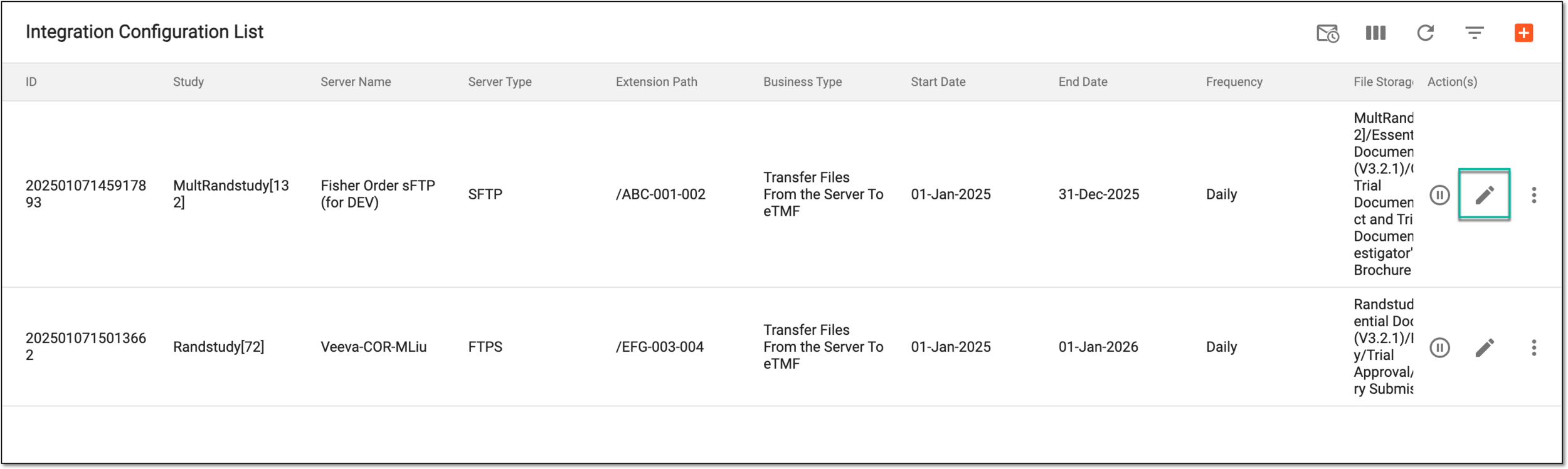 Figure 2. Selecting to edit integration configuration
-
In the Edit dialog that opens, update the integration details as explained in the following table.
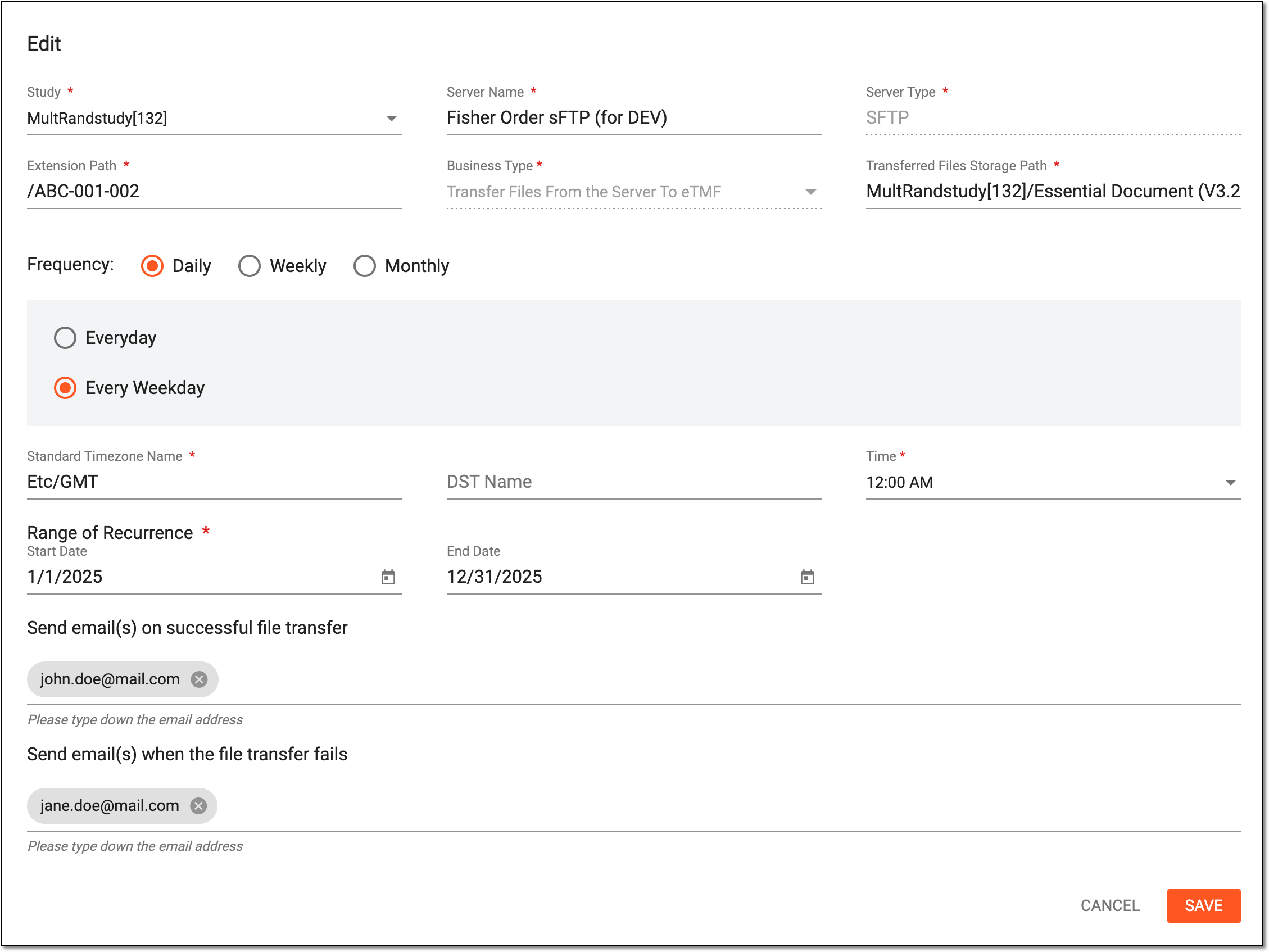 Figure 3. Editing integration configuration
Tip
In the following table, mandatory elements are marked with an asterisk (*).
Element
Details
Study*
Select the study for which the file transfer integration is being configured.
Server Name*
Select the field and in the resulting dialog, select the server from which you want to extract files to eTMF according to this integration.
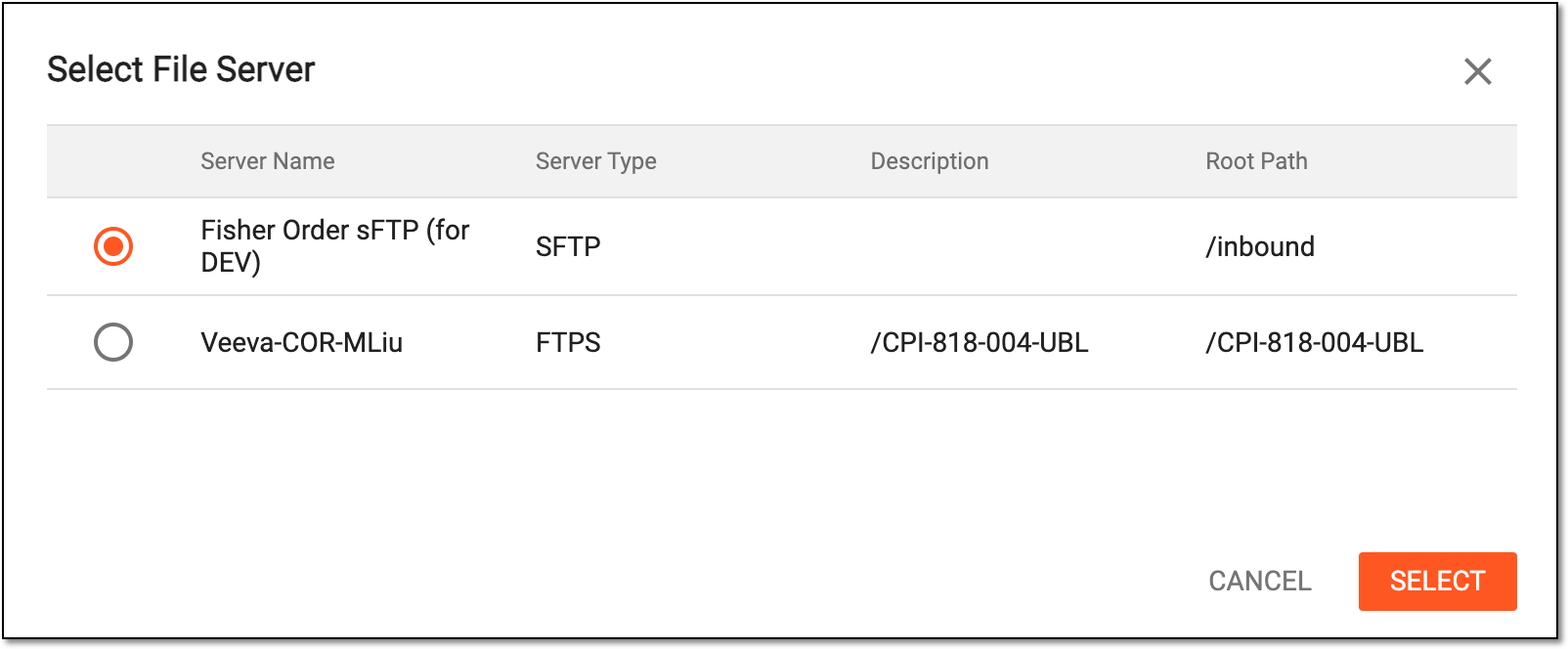 Figure 4. Selecting file server
Server Type*
Represents the type of the server—S3, SFTP, FTPS—automatically pulled from the ADMIN app upon server selection in the previous field. This value cannot be manually changed.
Extention Path*
Enter the path to the directory on the external server from where the files must be extracted according to this integration. This path should be provided to you by the vendor in charge of the integration.
Business Type*
Represents the operation being performed according to the integration. Currently, only Transfer Files From the Server To eTMF is available and prepopulated and cannot be changed.
Transferred File Storage Path*
Select the directory where your files must land in eTMF once extracted from the external server.
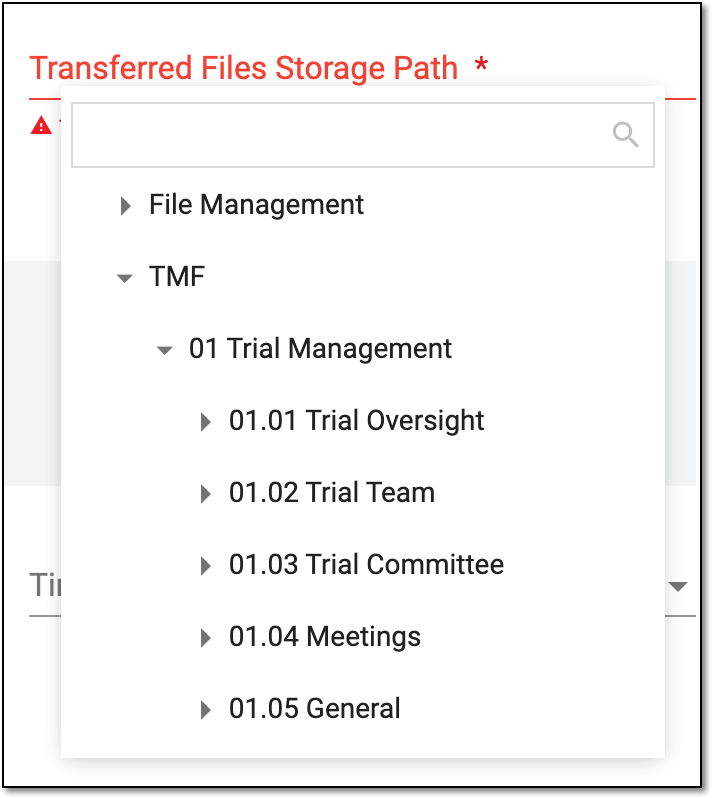 Figure 5. Selecting eTMF directory to land files
Frequency
Select one of the following options to schedule data extraction from the external server.
Standard Timezone Name*
Select the time zone according to which the server integration must be configured and the scheduled data extraction must happen.
DST Name
Select the Daylight Saving Time (DST) specification if such is relevant for the selected time zone.
Time*
Select the time when the data extraction from the external server to eTMF must occur.
Range of Recurrence*
Select the start and end dates of the file extraction period. The ability to outline the integration period with the vendor's server helps plan future integrations and control the end of cooperation.
Send email(s) on successful file transfer
Enter the email address of the personnel who must be notified that the files are successfully extracted from the external server and landed into the set directory of eTMF.
Send email(s) when the file transfer fails
Enter the email address of the personnel who must be notified if the files extraction from the external server fails and some action must be taken to remedy the disruption.
SAVE
Select
 to apply the changes.
CANCEL
Select
 to discard the changes without saving and close the dialog.
Once saved, the integration configuration is updated. The file extraction from the external server now follows the established conditions and schedule until the end date or inactivation of this configuration.