Configure dispensing window
In IWRS, by configuring dispensing visits, you can define which dispensing packages and under which conditions are given to subjects during their treatment visits. You can also configure dispensation windows to outline specific time frames for each dispensation.
The dispensing window configuration is version-bound. This helps maintain change history and satisfies international multisite studies, where different locations and subjects can follow their own dispensation schedules.
-
In the IWRS application header, select the TREATMENT DESIGN tab.
-
From the left pane, select Visit Dispensing and Window.
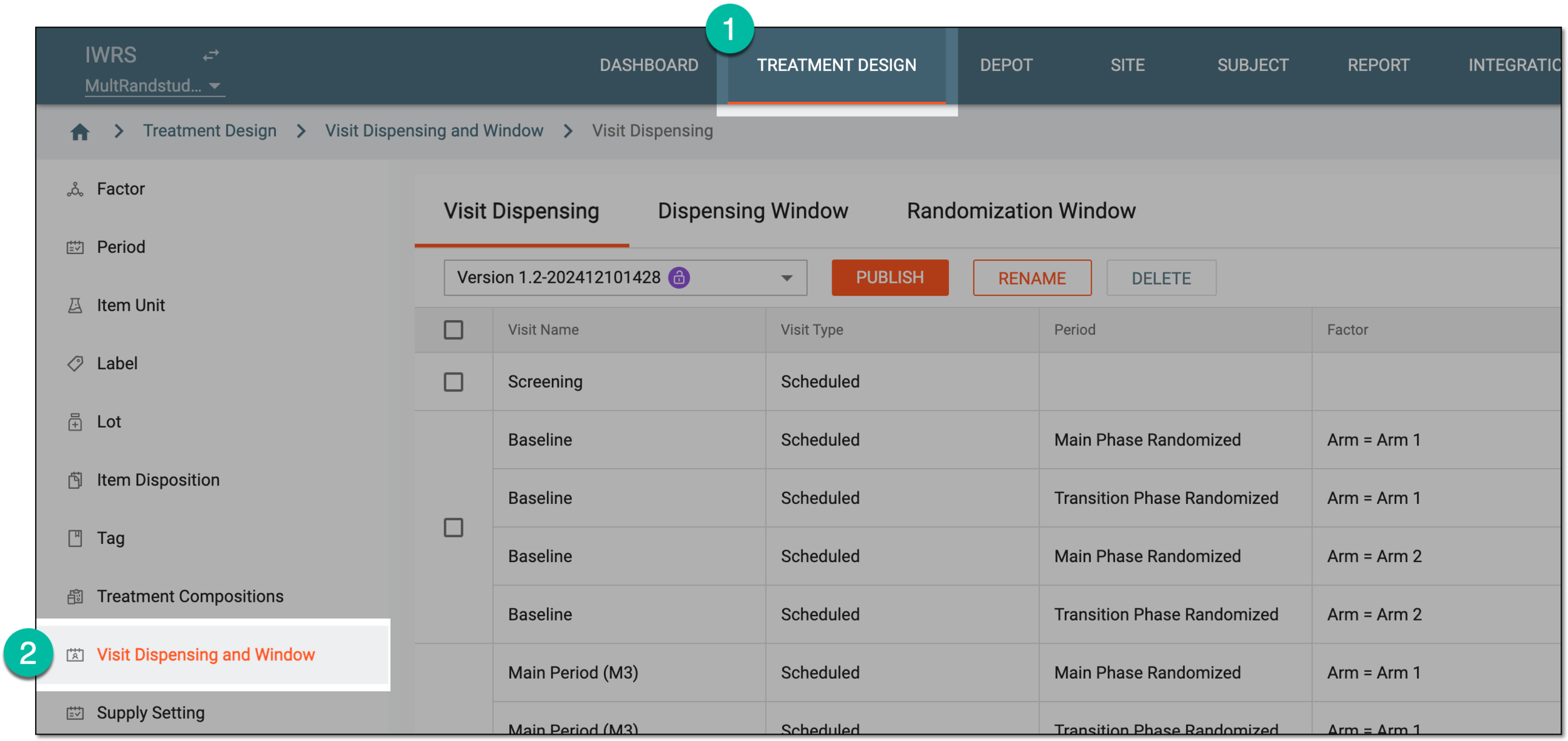 Figure 1. Accessing visit dispensing and window configuration
-
On the page that opens, from the version menu, ensure the unlocked version
 is selected, otherwise, you cannot amend any dispensing visit or window
configurations.
is selected, otherwise, you cannot amend any dispensing visit or window
configurations.If the current version is locked
 , consider adding a new dispensing visit setting version.
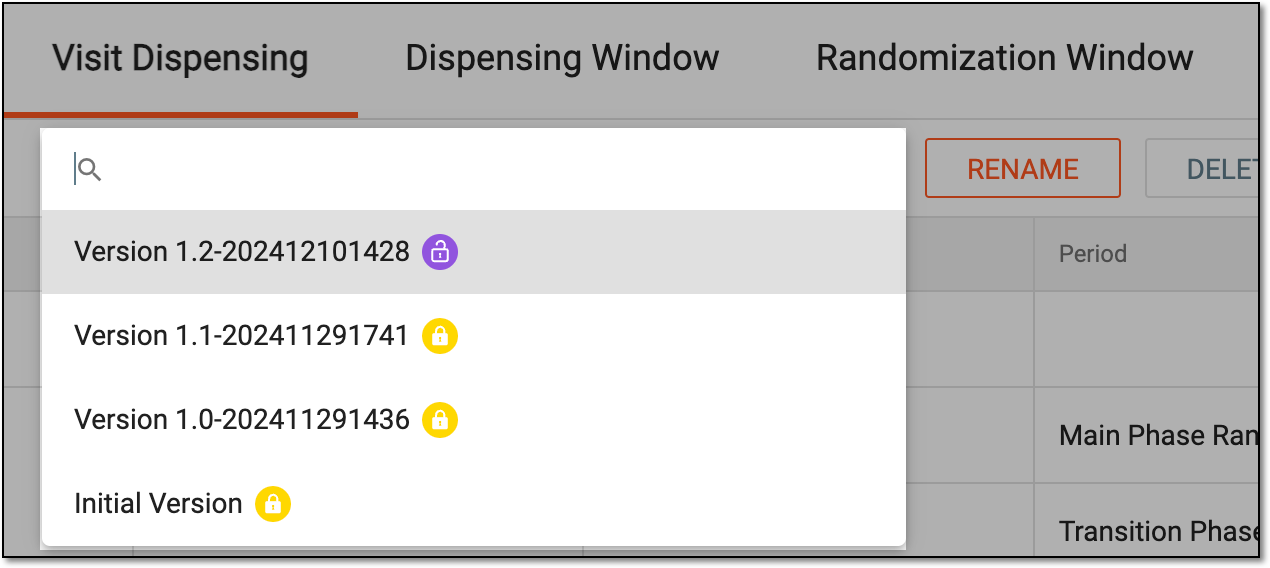 Figure 2. Selecting dispensing visit setting version
-
From the contents panel, select the Dispensing Window tab.
-
From the workspace toolbar, select New Item
 .
. Figure 3. Adding new dispensing window
-
In the form that opens, complete the Select Factor and Set Dispensing Visit configuration stages as explained in the following table.
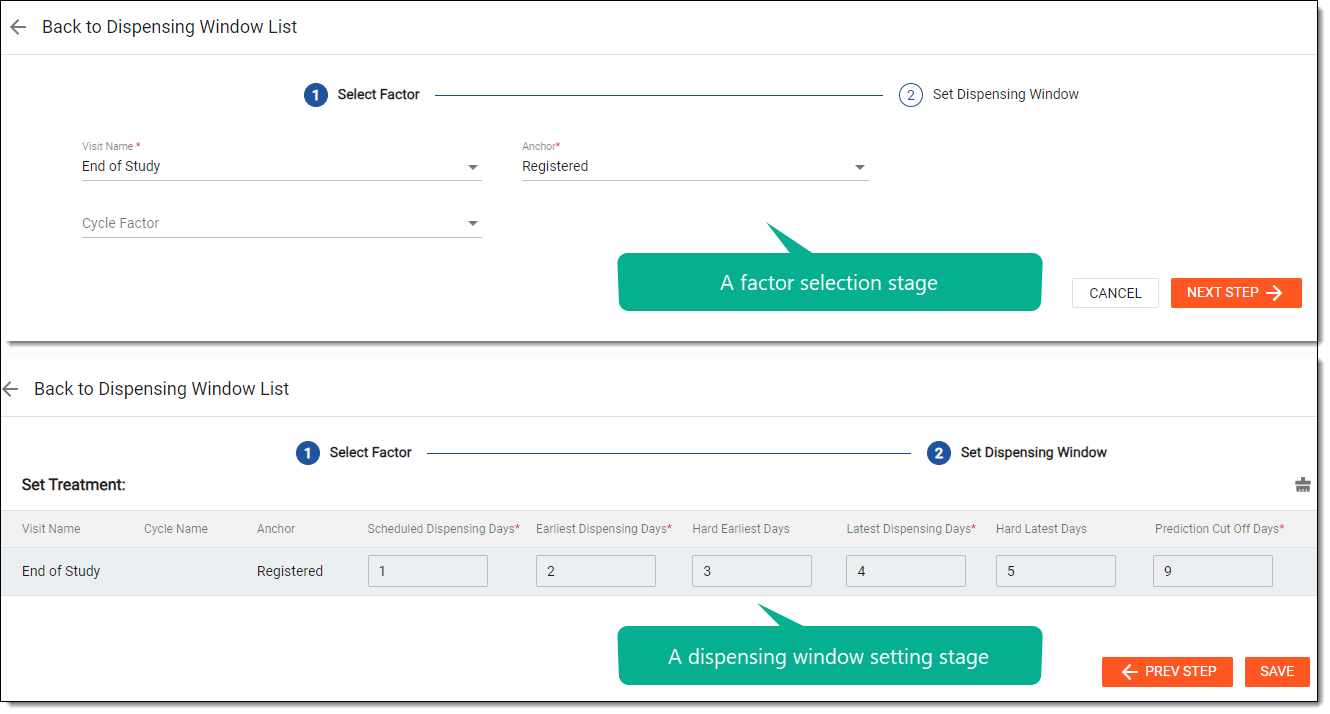 Figure 4. Configuring dispensing window
Tip
In the following table, mandatory elements are marked with an asterisk (*).
Element
Details
Select Factor
At this stage, select the visit and the factors—such as cycles or subject phases—for which visit windows are configured.
Visit Name*
Select the name of the visit for which you want to create the dispensation window.
Anchor*
Select the event that when occurs will serve as a starting point for a dispensing window.
For instance, the subject is supposed to get a medication as soon as they are randomized. Thus, you select the Randomized subject phase as an anchor and the date when the subject phase changes to Randomized is considered to calculate the visit window.
Cycle Factor
Select the factor according to which the system will assign dispensing windows only to certain visits. Currently, in the system, the visit cycle is an available dispensation configuration factor.
-
If the Cycle value is selected, the Cycle Name field appears and you need to select specific cycles of the visit.
-
If no value is selected, the dispensing window configuration set at the next stage is applied to the selected visit at all cycles of your trial.
Cycle Name*
This field is only available if the Cycle Factor field value is Cycle. From this list, select the checkboxes next to the cycles during which you want to configure a dispensation window for a selected visit.
The cycle order is as established upon configuring the factor.NEXT STEP
Select
 to proceed to visit window details configuration.
CANCEL
Select
 to discard the changes, close the form, and return to the Dispensing Window
table.
to discard the changes, close the form, and return to the Dispensing Window
table.Set Dispensing Window
At this stage, configure dispensing window details for your visit and its cycles, if any.
Visit Name
Represents the name of the visit for which you are configuring a dispensation window. Here, the field is read-only and its value is set in the Visit Name field at the previous stage.
Cycle Name
Represents the name of the cycle during which the visit occurs for which you are configuring a dispensation window.
Anchor
Represents the event that when occurs will serve as a starting point for a dispensing window for the visit.
If you are configuring visit windows for multiple cycles, the anchor event for the first cycle is the one selected in the Anchor field at the previous stage. For each following cycle, the anchor is the date of dispensation during the preceding cycle.Scheduled Dispensing Days*
Enter the number of days that should pass from the anchor date to the scheduled dispensation of a drug.
For instance, if you set this value to "4" days, and the anchor date is 1 July, then the scheduled dispensation date is 5 July.
Earliest Dispensing Days*
Enter the number of days before the scheduled dispensation date to outline the earliest time frame during which the subject can be given the medication. The resulting date will be the start of your dispensing window.
For instance, if the scheduled dispensation date is 5 July and you set the earliest dispensation date to "3" days before that, then your dispensation window starts on 2 July.
Hard Earliest Days
Represents the minimum number of days required before a dispensing can take place. It sets a lower limit on when the dispensing window can begin.
For example, if the hard earliest days are set to "3," it means that a dispensing cannot occur until at least three days have passed since the previous visit. This ensures that a specific period elapses before the next dispensing can be initiated.
Latest Dispensing Days*
Enter the number of days after the scheduled dispensation date to outline the latest time frame during which the subject can be given the medication. The resulting date will be the end of your dispensing window.
For instance, if the scheduled dispensation date is 5 July and you set the latest dispensation date to "3" days after that, then your dispensation window ends on 8 July.
Hard Latest Days
Represents the maximum number of days allowed for the start of a dispensing window. It sets an upper limit on when the window can begin.
If the hard latest days are set to, let us say, "10," it means that a dispensing must start within 10 days of the previous event. Beyond this timeframe, the system does not permit the initiation of the dispensing window.
Prediction Cut Off Days*
Enter the number of days after the latest dispensation date—the end of the dispensing window—for the system to stop calculating this dispensation for the item inventory prediction.
For instance, if your dispensing window ends on 8 July and you set the cut-off days to "2," then starting 10 July, this dispensation will not be considered when calculating the item inventory sufficiency for upcoming dispensation.
Clear
Select
 to clear the entered values from all the fields and start over.
Apply to All
Select
 next to the dispensing window configuration to apply it to all the cycles in the table.
The Apply to All option populates values between the cycles displayed on the same page. If there are more cycles than fit on one page, use pagination to go to all pages and apply the needed settings.SAVE
Select
 to implement the changes.
PREV STEP
Select
 to return to the previous stage and update some factor configurations, if needed.
 -
Upon saving, the dispensing window is configured and appears in the Dispensing Window table. Once the current visit dispensing version is published, the sites and subjects can be upgraded to this version to populate the respective parameters and dates to the relevant subjects' dispensing plans.
In IWRS, a set of items to be dispensed (given) to a particular subject in a course of their treatment.
An occurrence in a clinical trial in which the subject comes to a site to receive treatment, undergo some tests, or complete other required procedures.
A specific period within the clinical trial during which certain activities or interventions occur. Clinical trials are conducted in multiple phases, each consisting of several cycles, depending on the study design and the specific protocol.
A specific phase that a subject has to complete in the course of a clinical trial to move further to the next phase. For instance, Screening, Enrolled, Randomized, and others.
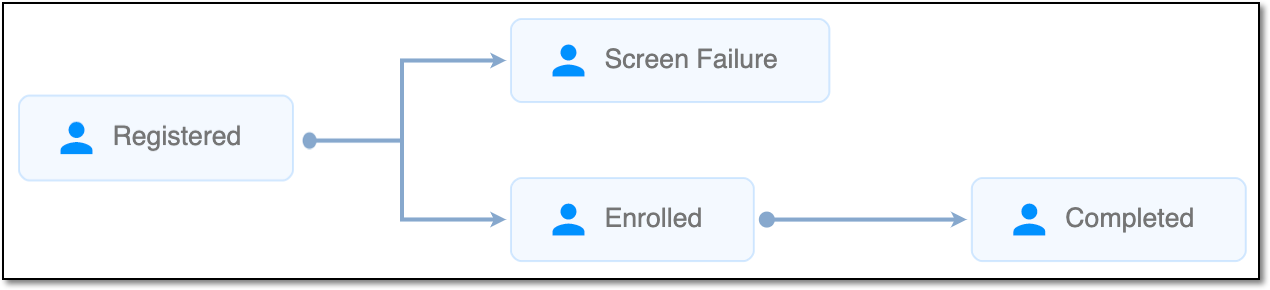 |
In eClinical, subject phases are designed individually for each study via the SD application, although they are referenced in others, like IWRS or EDC.