Update dispensing visit version for study, site, or subject
Versioning of dispensing visits helps satisfy international multisite studies, where different locations and subjects can follow their own dispensation settings. The dispensing visit version can be changed per study as a whole, per individual site, or per subject. Using this functionality, you have the flexibility to not only upgrade the dispensing version of the site or subject but also downgrade—change it to one of the previous versions whenever needed.
For instance, Site 01, Site 02, and Site 03 participate in your study and follow the current dispensing visit setting of version 1.0. Site 001 and Site 002 are ready to increase the dosage for their patients, and for Site 003, the approval for the increase is pending. Thus, you can create a new dispensing visit version 2.0 that satisfies the needs of the two sites, and upgrade Site 001 and Site 002 to this version, while leaving Site 003 to follow version 1.0. This way, you have the flexibility to introduce needed changes more efficiently without delaying study progression at sites.
Important
When a new site is added to the study, it automatically follows the latest published version of dispensing visit and window settings.
You can also upgrade subjects to the needed dispensing plan version individually.
-
In the IWRS application header, select the TREATMENT DESIGN tab.
-
From the left pane, select Visit Dispensing and Window.
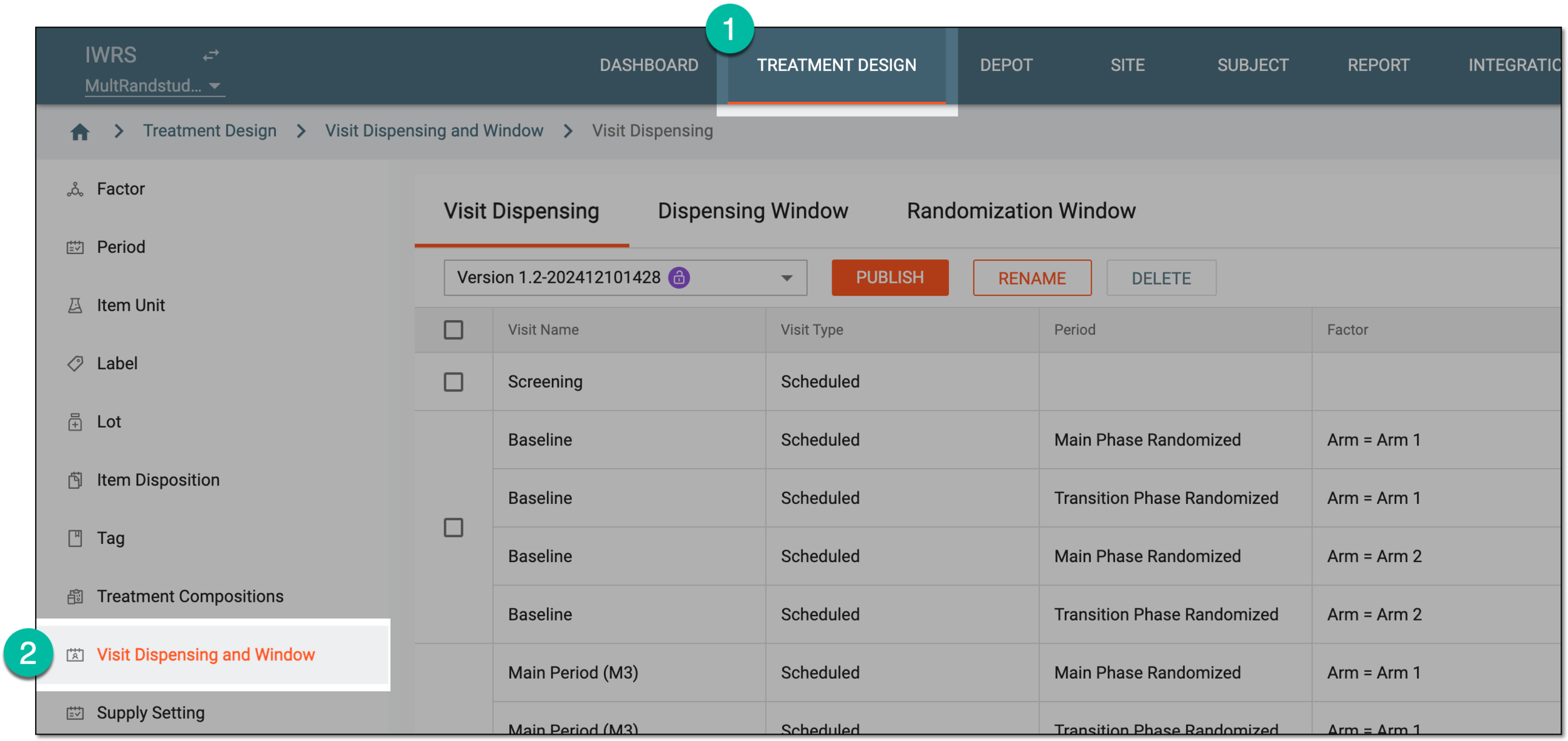 Figure 1. Accessing visit dispensing and window configuration
-
Under the Dispensing Visit or Dispensing Window tab, select
 .
.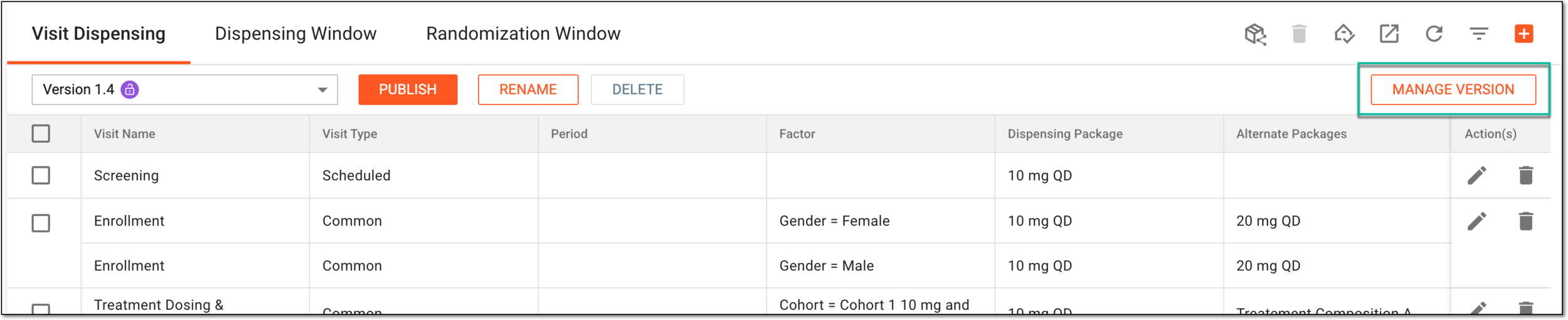 Figure 2. Accessing dispensing visit version management
-
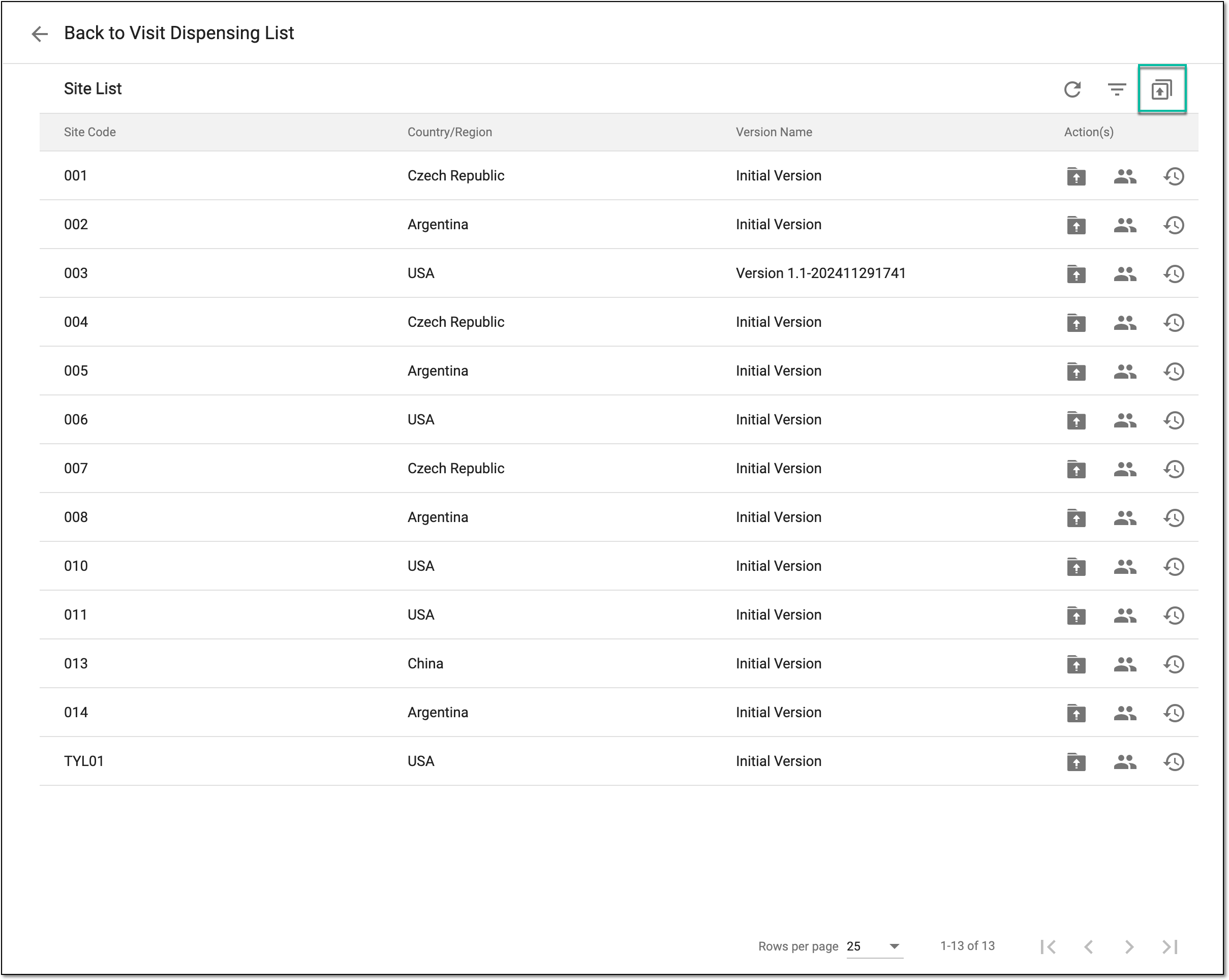
On the page that opens, change the version for the study, site, or subject as follows.
-
From the list that opens, locate the site for which you want to upgrade the dispensing visit version. Then from the Action(s) column next to it, select Upgrade
 .
.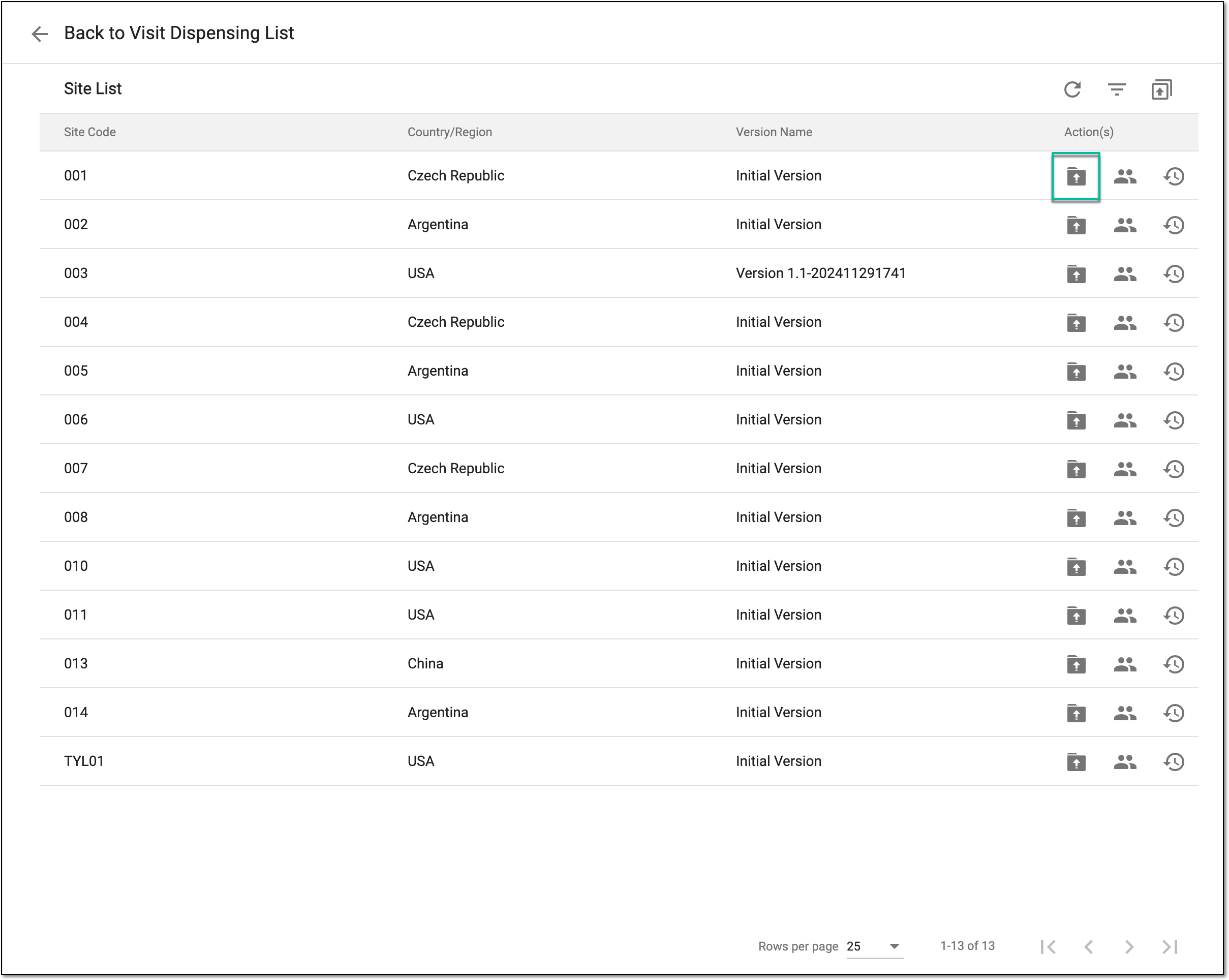 Figure 5. Accessing site version upgrade
-
In the Upgrade dialog that opens, proceed with the configurations as explained in the following table.
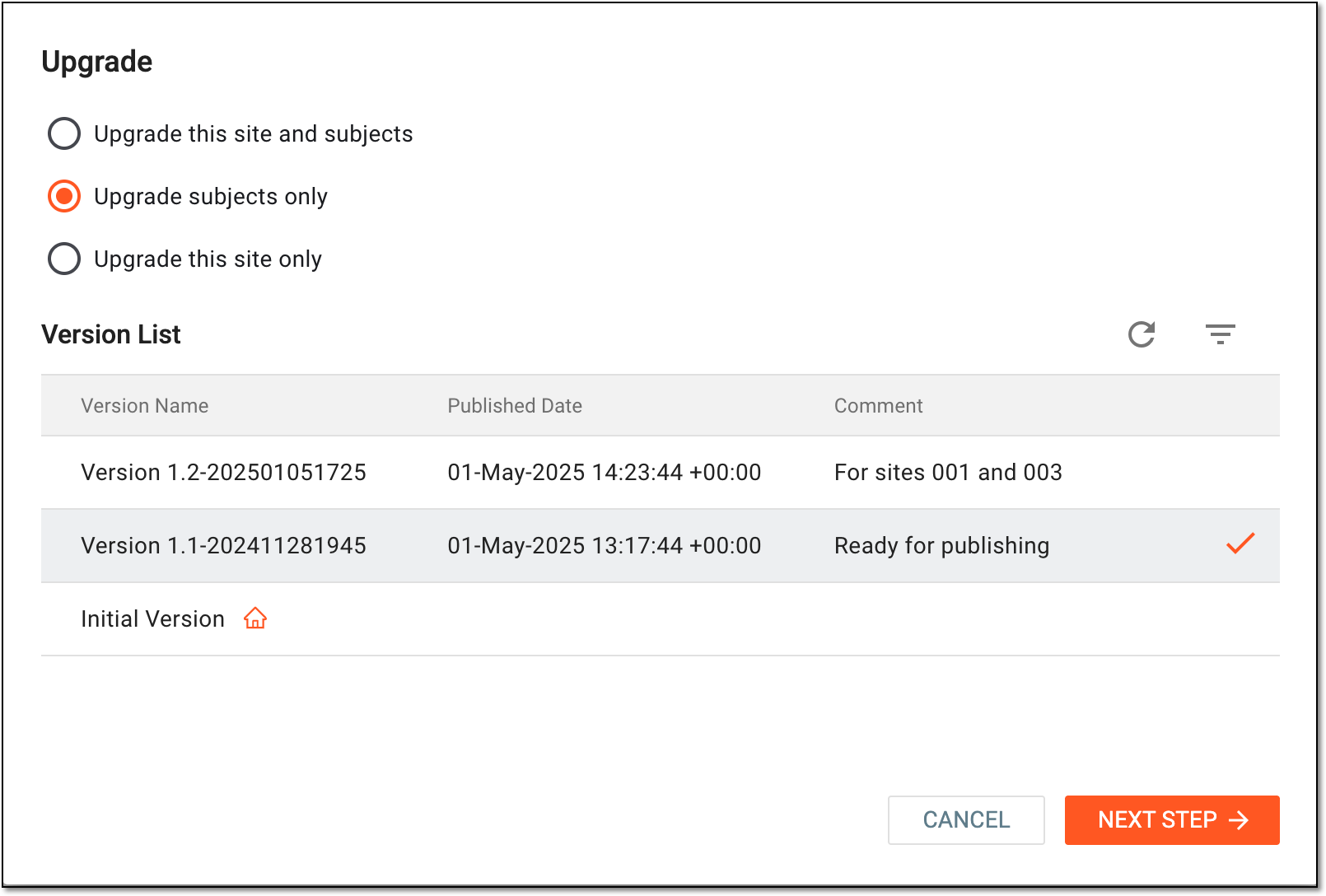 Figure 6. Upgrading site version
Element
Details
Upgrade this site and subjects
Select this option if you want to upgrade the site and its subjects to the selected dispensing visit version. This means that the existing subjects that are currently registered at this site are to be upgraded and all the newly registered subjects are to acquire the selected dispensing visit version.
Upgrade subjects only
Select this option if you want to upgrade the subjects at the site to the selected dispensing visit version but leave the current version for the site itself. This means that all the existing subjects that are currently registered at this site obtain the selected dispensing visit version, however, all the newly registered subjects are to remain with the current version the site follows.
Upgrade this site only
Select this option if you want to upgrade the site to the selected dispensing visit version but leave the current version for the subjects. This means that all the existing subjects that are currently registered at this site remain with the current version they follow, however, all the newly registered subjects are to acquire the selected dispensing visit version.
Version List
From the list, select the version to which you want to upgrade your site.
The version that is currently effective for the site is marked as Current Version
 on the list.
Only the published and activated dispensing visit setting versions are available for selection here.Comments
Enter the auxiliary information to follow up on the version change if needed.
This option is only available for the Upgrade this site only
                                              option.
NEXT STEP
Select
 to proceed to the subject selection stage of the version change.
This button is only available for Upgrade this site and subjects and Upgrade subjects only options.SAVE
Select
 to implement the version change for the site.
This button is only available for the Upgrade this site only option.CANCEL
Select
 to discard the changes without saving and close the dialog.
 -
In the Subject List dialog, proceed to select the subjects for whom you want to change the version to the selected one as explained in the following table.
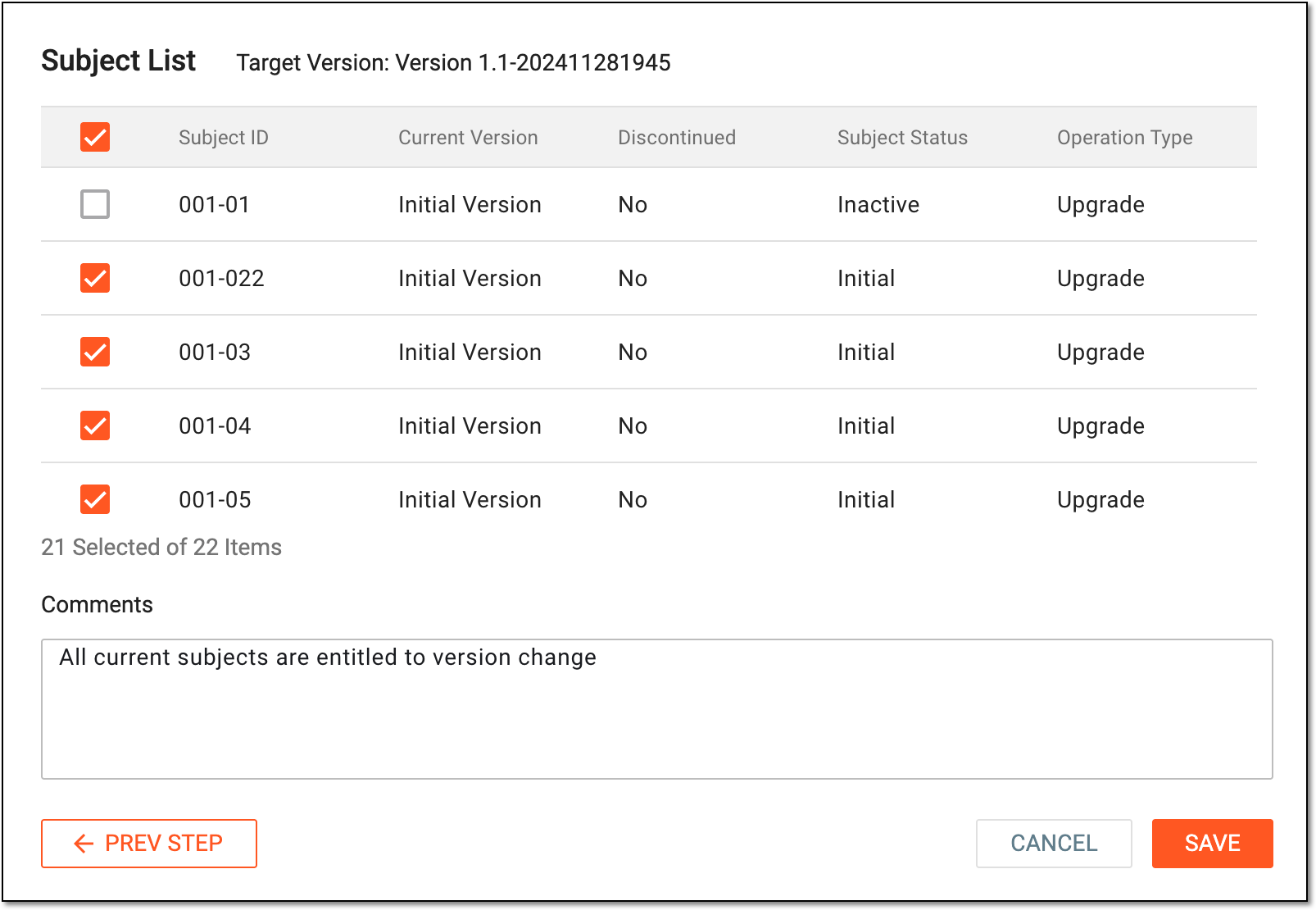 Figure 7. Selecting subjects for version change
Element
Details
Target Version
Represents the name of the version selected for subject upgrade or downgrade at the site.
Multiselect
Select all or certain subjects for whom you want to apply the target version. The checkbox can be unavailable if the subject is inactive in the system or if their current version is the same as the target version.
Subject ID
Represents the unique identification number of the subject.
Current Version
Represents the name of the currently effective version of the subject.
Discontinued
From the list, select the version to which you want to upgrade your site.
Subject Status
Represents the current status of the subject.
Operation Type
Represents one of the following:
-
Upgrade: indicates that for the subject the target version is newer than the current one, thus, by changing the version you perform its upgrade.
-
Downgrade: indicates that for the subject the target version is older than the current one, thus, by changing the version you perform its downgrade.
-
The value is missing if the subject's current version is the same as the target version.
Comments
Enter the auxiliary information to follow up on the version change if needed.
PREV STEP
Select
 to return to the previous stage if needed.
SAVE
Select
to implement the version change for the selected subjects.CANCEL
Select
to discard the changes without saving and close the dialog. -
-
From the list that opens, locate the site of the subject for whom you want to upgrade the dispensing visit version. Then from the Action(s) column next to it, select Subject
 .
.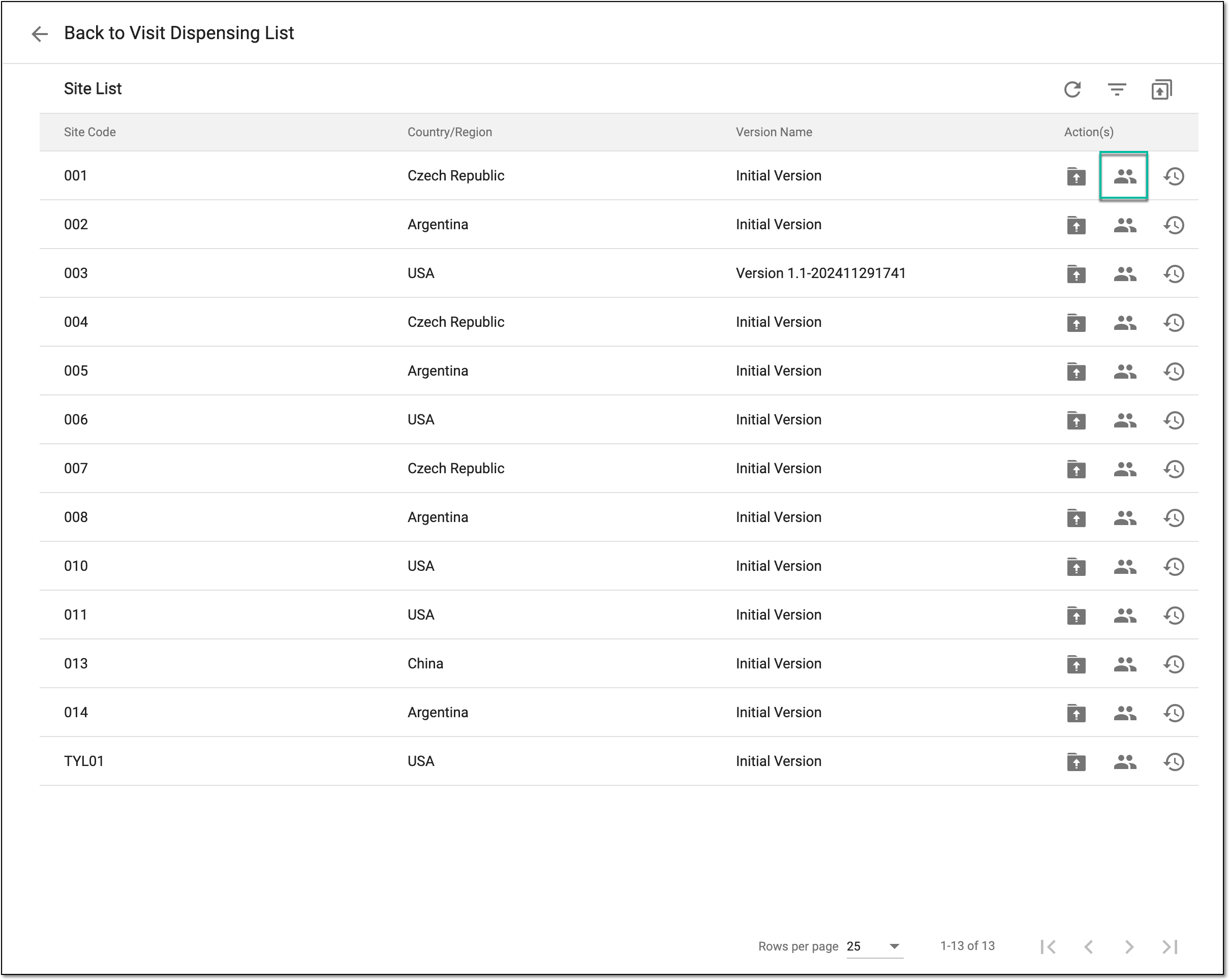 Figure 8. Accessing subject list
-
In the Subject List table that appears, next to the subjects whose version you want to upgrade, select Upgrade
.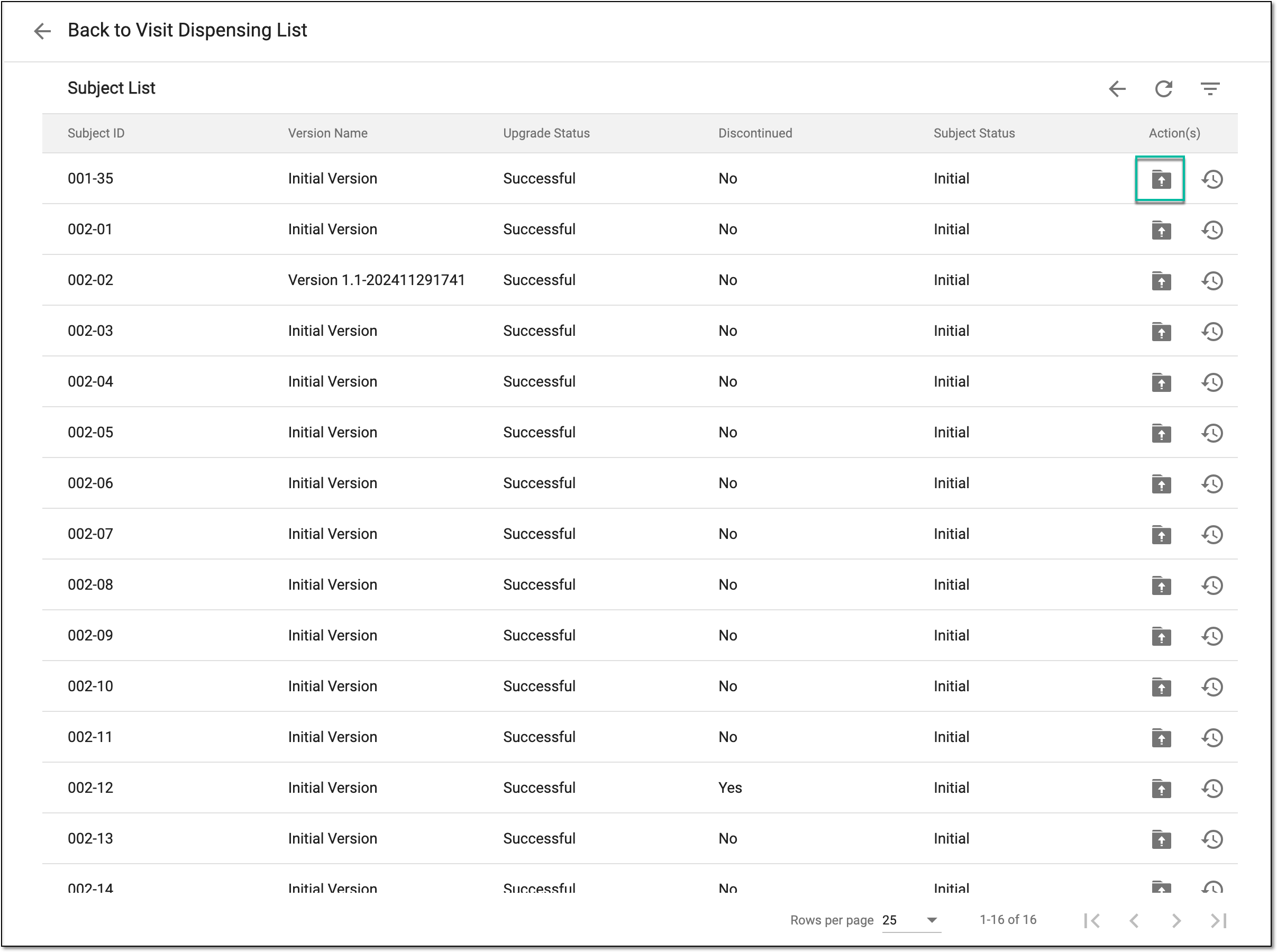 Figure 9. Accessing subject dispensing visit version upgrade
-
In the Upgrade dialog that opens, from the list, select the version to which you want to upgrade your site and select
.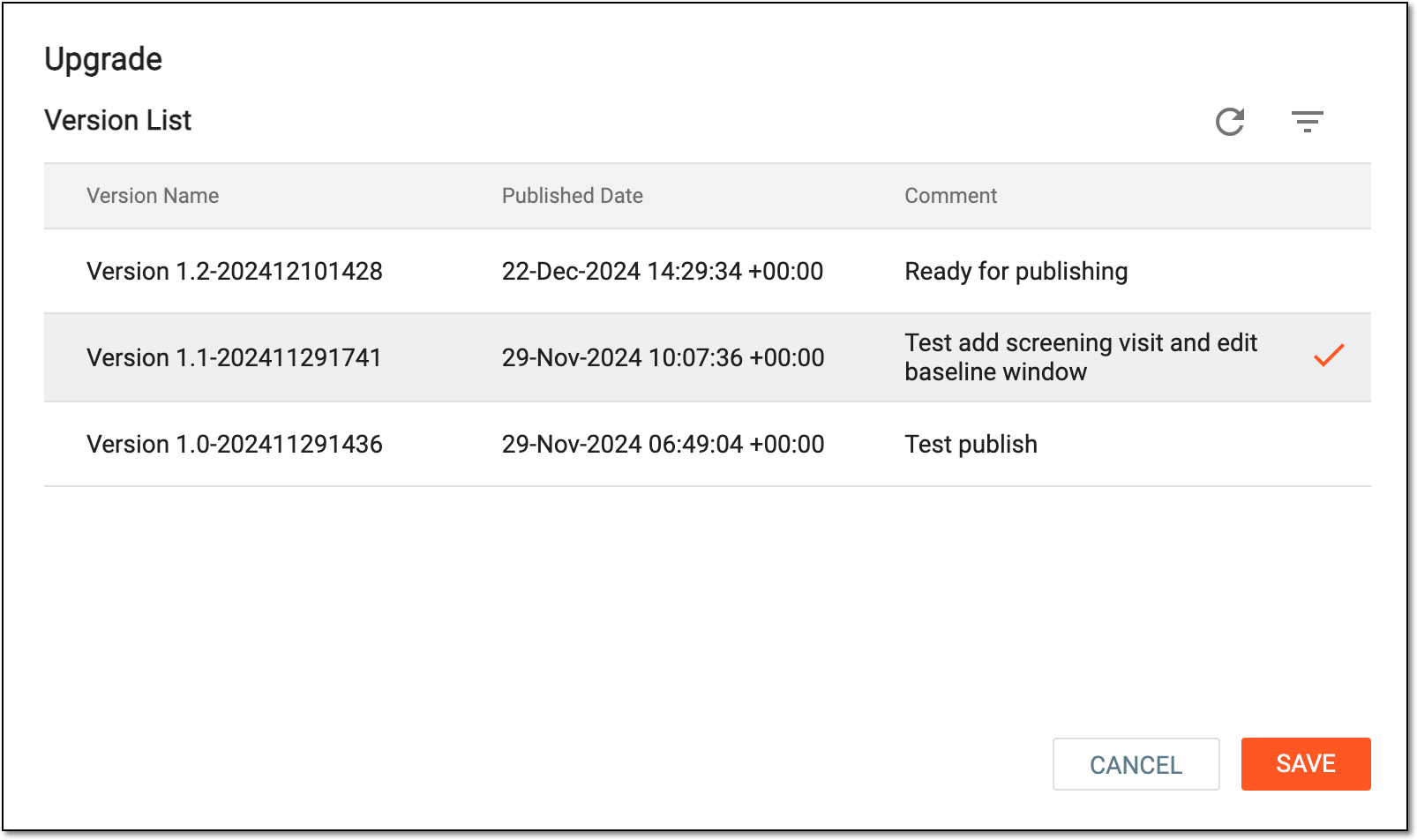 Figure 10. Upgrading subject dispensing visit version
-


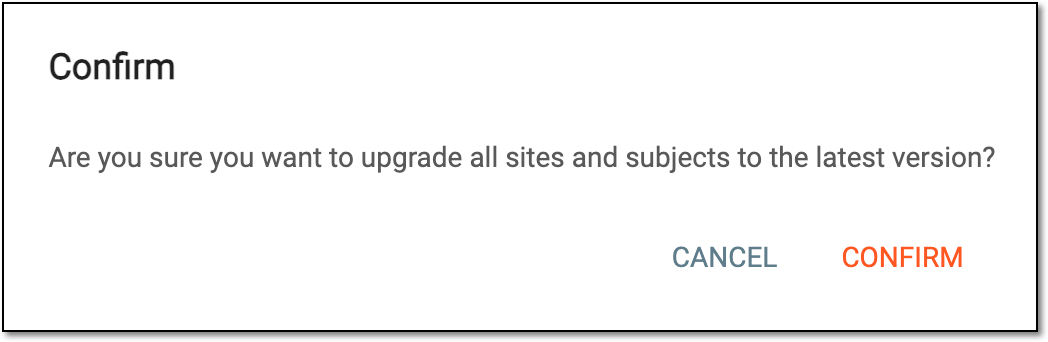
Once saved, the respective sites or subjects are updated to their respective version of dispensing visit settings as per your selection.