Set coding variables
Medical coding is intended to standardize elements of data collected during clinical trials to organize large amounts of information in industry and regulatory-compliant ways—according to WHODrug and MedDRA dictionaries.
In the eClinical suite, medical coding is performed via the dedicated application—CODING. Then the results of it are traceable in EDC via the subject case report forms (CRFs) and respective reports. However, before medical coding for the study can be initiated, the indication of the domains and variables intended to be coded occurs in the SD application at the CRF preparation stage as one of the study management essential activities.
Tip
A domain is a specific area or category of data within a clinical trial that encompasses a set of related variables that share a common theme. Each domain organizes data to facilitate analysis and reporting, ensuring that information is structured and easily interpretable. For instance, demographics (DM), adverse events (AE), and so on.
A variable is an individual piece of data collected within a domain. It represents a specific attribute or characteristic that can vary among subjects in a study. Each variable is defined by its format (such as categorical, continuous, and so on) and plays a crucial role in data analysis, allowing researchers to assess relationships and outcomes in the study. For instance, within the "demographics" domain, variables might include age (AGE), gender (SEX), and so on.
-
In the Study Designer application header, select the CRF DESIGN tab.
-
In the toolbar, select the latest draft CRF version marked with the respective unlock symbol
 , otherwise, you cannot perform any actions.
 Figure 1. Selecting latest draft CRF version
Tip
The identifier next to the study name aids you in diversifying between the Locked
 CRF
version unavailable for edits and Unlocked one that you can amend and configure.
CRF
version unavailable for edits and Unlocked one that you can amend and configure.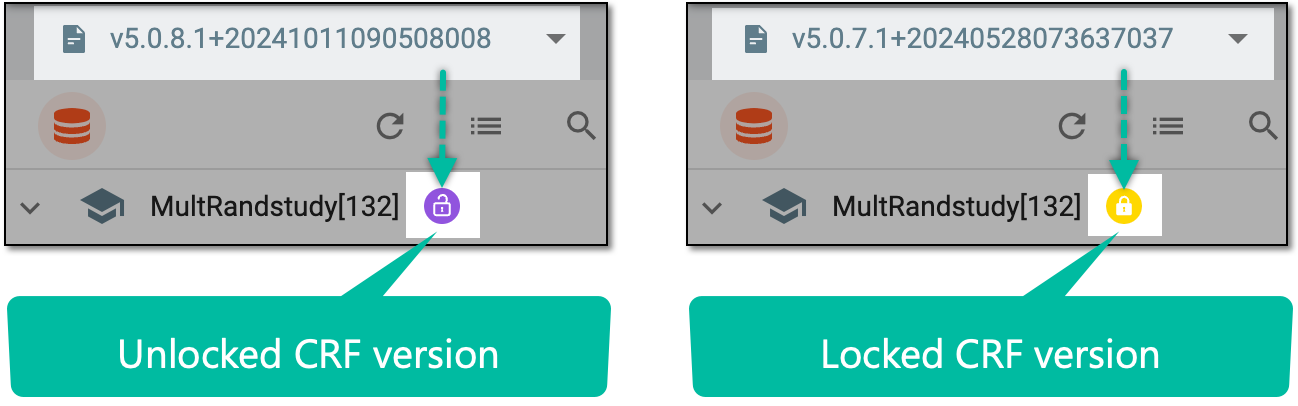 Figure 2. Unlocked vs locked CRF version
-
In the left pane that appears, select the study node.
-
In the contents panel that appears, select the Coding Settings tab.
-
From the Main Variable contents panel, select Add Main Variable.
 Figure 3. Adding main variable
Tip
You can add as many main variables as required by your business scenario.
-
In the form that appears, complete the details as explained in the following table.
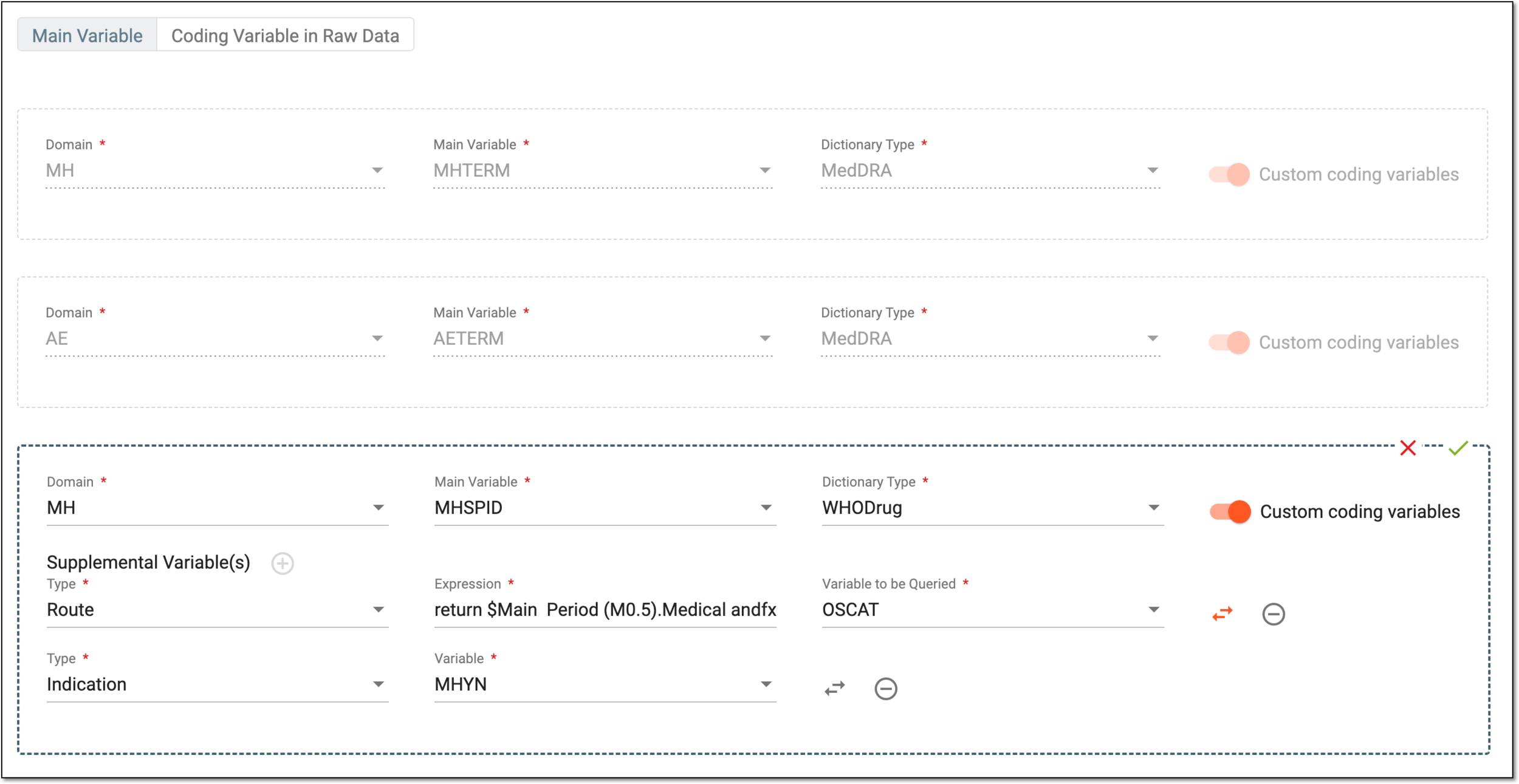 Figure 4. Configuring main variable
Tip
In the following table, mandatory elements are marked with an asterisk (*).
Element
Details
Domain*
Select the domain code for which the main variable must be coded.
For instance, if you want the adverse event reported term to be coded according to MedDRA, you need to select the AE domain that contains the required variable.
Main Variable*
Select the main variable that contains the term to be coded.
For instance, if you want the adverse event reported term to be coded according to MedDRA, you need to select the AETERM variable here to let the system know that this recorded data element is intended for coding.
Dictionary Type*
Select the industry dictionary according to which the indicated term is to be coded—WHODrug for medicinal product coding or MedDRA for medical conditions, diagnosis, and so on.
Custom coding variables
Configure as follows:
-
Turn the toggle on to enable the functionality to edit variable details for the selected domain.
-
Turn the toggle off to disable the functionality to edit variable details for the selected domain.
Supplemental Variable(s)
Provide supporting variables to serve as route and indication pertinent to the coded medicinal product main variable.
This block is only available if the WHODrug dictionary type is selected, as route and indication only apply to medicinal product coding.
Select the plus symbol to add more fields for supplemental variables.
Type*
Select one of the following variable types:
-
Route: select this type if the variable represents a method by which a drug is administered to a patient, such as oral (by mouth), intravenous (injection into a vein), intramuscular (injection into a muscle), or else.
-
Indication: select this type if the variable represents a specific medical condition or disease for which a pharmaceutical product is intended to be used.
Variable*
Select the variable that contains the term to be coded as a route or indication.

Select the minus symbol next to the extra rows to remove them.
 /
/
Select the gray switch symbol to enable the Expression and Variable to be Queried fields.
Select the red switch symbol to go back to the Type and Variable fields.
Expression*
Select the field to open the Variable dialog and configure the expression that must be executed to pull the data from multiple variables. You can add variables to the expression by dragging them from the tree to the Expression block.
For example, suppose there is no variable in the CM (Clinical Modification) domain that can be used directly as a drug indication. In that case, it must be derived from AE (Adverse Events) or MH (Medical and Surgical History) domains. Thus, we need to write an expression to find the corresponding AE or MH record associated with this CM and populate it as the indication.
Select OK to save the expression, close the dialog, and return to the coding setting.
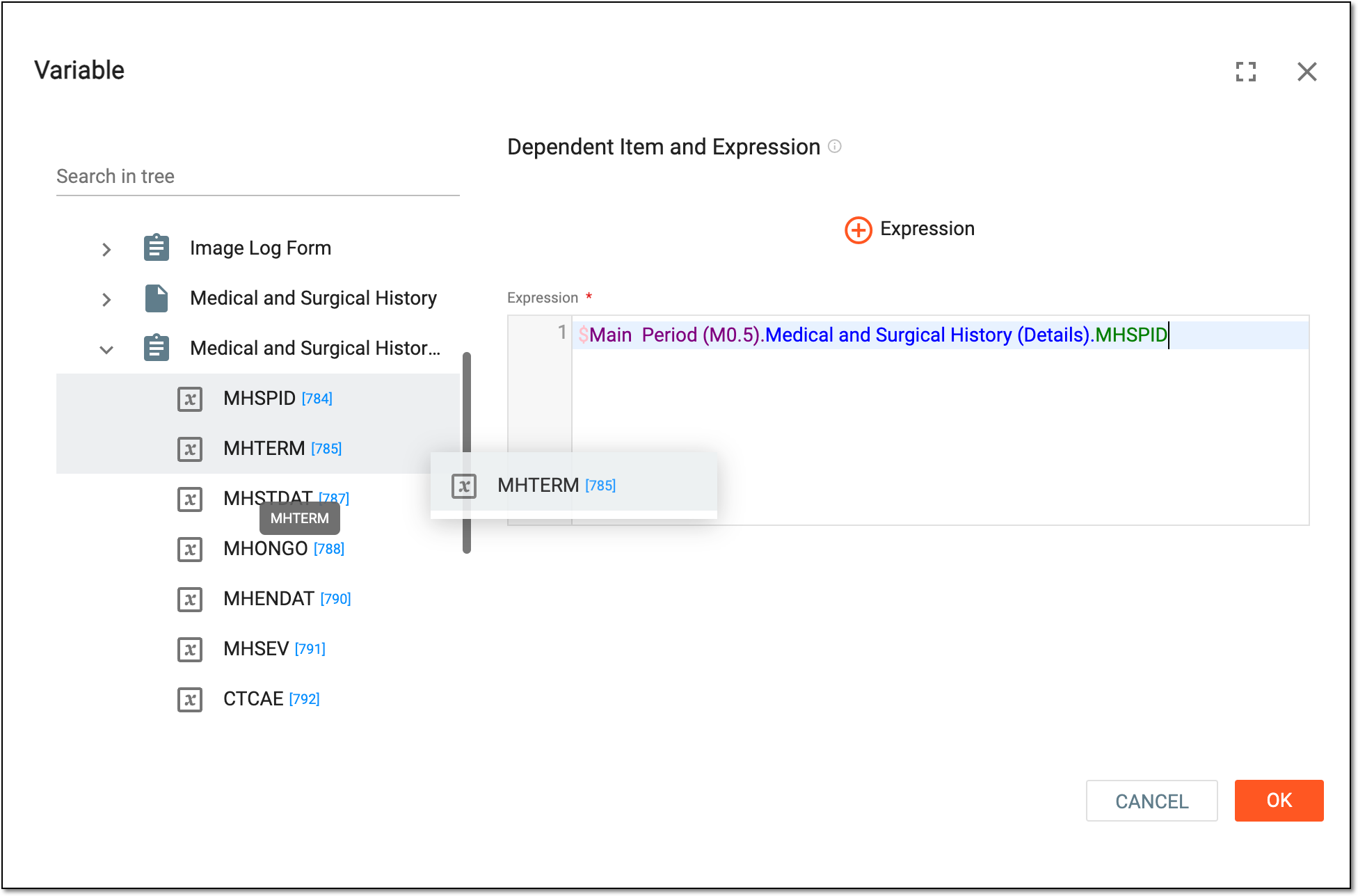 Figure 5. Configuring variable expression
When composing the expression, you can use the variables from the related form settings and reference items to suit different business scenarios of how the indication variable is derived.Variable to be Queried*
Select the variable in EDC, for which the query opened in the CODING application is to appear.
This is needed when the expression pulls data from multiple variables. In such a case, there is no direct variable to be queried between the systems—CODING and EDC—so you need to select one manually.
Tip
If you save the variable but realize that it requires amendments or has to be removed, use edit
 and delete
  options respectively.
 Figure 6. Locating editing and deletion options for variable
-
-
Once all the main variables are established and if for any of them, the custom coding variables are enabled, select Coding Variable in Raw Data to provide the needed adjustments as explained in the following table.
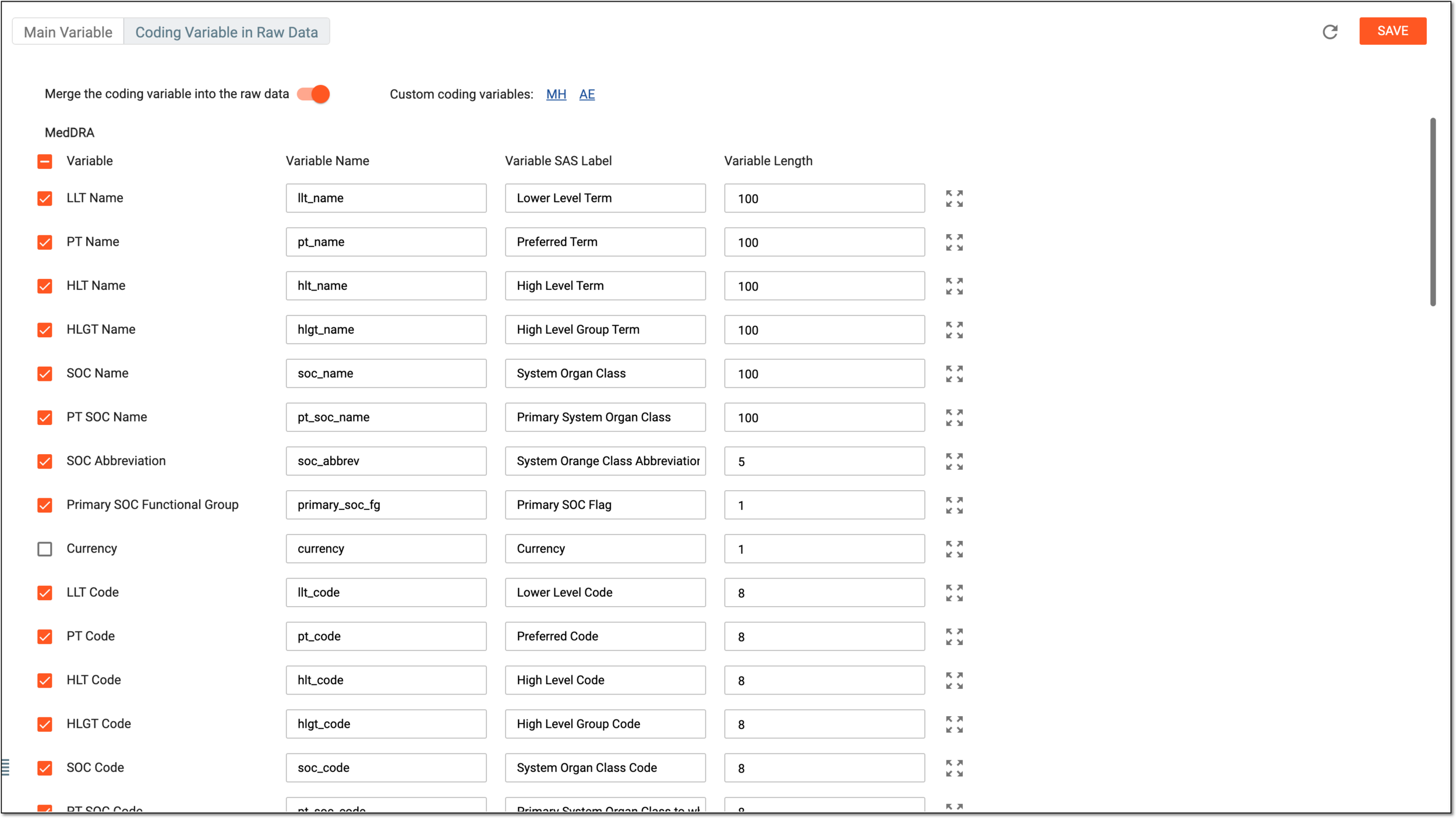 Figure 7. Configuring coding variables for raw data
Element
Details
Merge the coding variable into the raw data
Configure as follows:
-
Turn this toggle on to display the coding results in the raw data report of EDC. In this case, if the raw data is exported, the resulting file contains coding results in it.
-
Turn this toggle off to exclude the coding results from EDC's raw data report. In this case, if the raw data is exported, there are two resulting files—one comprising raw data and another containing coding results.
Custom coding variables
Select one of the domains whose variables you want to review and adjust.
Only the domains for which the Custom coding variables toggle is turned on are available here for customization.MedDRA/WHODrug
The two blocks—MedDRA and WHODrug—comprise the list of variables and their details to be adjusted to your business requirements.
Variable Name
Enter a descriptive name assigned to a variable in a dataset, such as llt_name and pt_name for MedDRA terms or drug_record_number and drug_name for WHODrug ones.
Variable SAS Label
Enter a descriptive label assigned to a variable in a dataset, such as Lower Level Term and Preferred Term for MedDRA terms or Drug_record_number and Drug_name for WHODrug ones.
Variable Length
Enter a number to limit the allowed length of the variable term.

Select this icon next to the needed field and drag it to adjust its placement to your needs.
SAVE
Select
 to apply all the implemented customizations for the coding variables.
 -
You have completed the coding variable setup for your study.