View coding batches
By reviewing the batches available in the Medical Coding module, you can analyze the currently created batches that contain verbatim terms (VTs) intended for medical coding. Here, you can inspect specific details for each batch, including the source (file or EDC import), view/update the batch status, and view the coding completion results.
Additionally, you can quickly navigate to related functionalities, such as uploading verbatim term files, editing existing batches, or exporting the domain's coded data, along with any coding results, ensuring streamlined batch management and control over coding outcomes.
-
In the Medical Coding application header, select the BATCH tab.
 Figure 1. Accessing batch configurations
-
In the Batch List table, view the available batches of verbatim terms designated for coding in your study, along with their corresponding details as outlined in the following table.
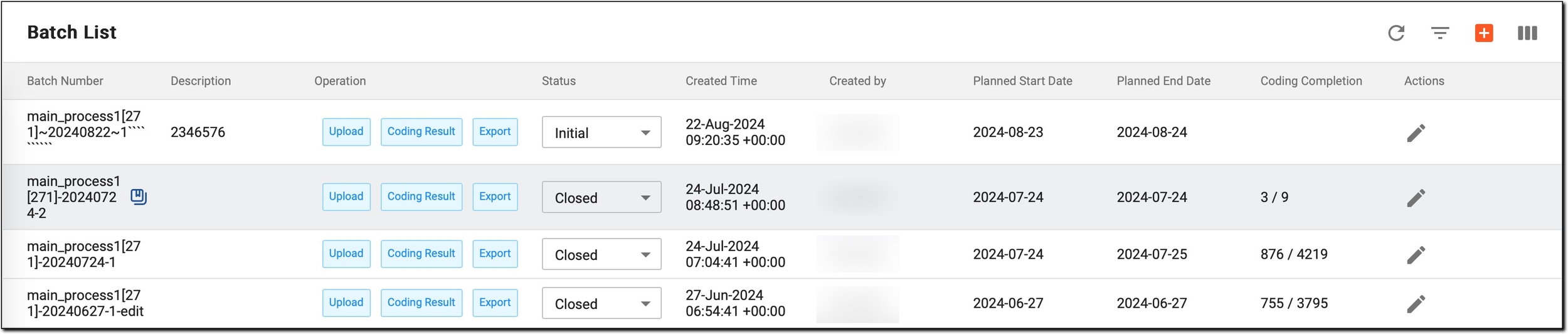 Figure 2. Reviewing available coding batches
Element
Details
Batch Number
The unique identifier assigned to each batch. If the following symbol
 appears next to the batch number, it indicates that the batch was created via eClinical EDC.
Description
A brief summary or title that describes the contents or purpose of the batch, offering context for the data it includes.
Operation
Lists the available actions you can perform, including Upload, Coding Result, and Export, allowing for easy management of each batch's processes.
Status
View or update the current status of the batch, providing insight into its progress within the coding process:
-
Initial: the batch has been created but not yet processed. It serves as the starting point for any coding activities, allowing users to prepare the batch for subsequent steps.
-
Cancelled: the batch has been terminated and will not proceed further in the coding process. This can occur if the batch is deemed unnecessary or if there are issues that prevent it from being completed.
-
Closed: all coding processes have been completed; the results have been finalized and archived. Any further changes in the CODING module will not affect the closed batch.
Created Time
The date and time when the batch was created, helping to track its history and relevance in the coding process.
Created by
The name of the user who created the batch, which can be helpful for accountability and reference.
Planned Start Date
The date when the coding process for the batch is scheduled to begin, assisting in study project planning.
Planned End Date
The anticipated completion date for the batch's coding process, helping to manage timelines effectively.
Coding Completion
The progress of the coding process, for example, "1426 / 8016," which means that 1,426 out of a total of 8,016 verbatim terms have been coded, providing a clear indication of the batch's status.
-
Once done, you have a comprehensive overview of each batch’s status, timeline, and ownership details, helping you track progress and ensure all terms are on schedule for accurate coding completion.