Edit coding batch
By editing coding batches, you can modify essential details that define how verbatim terms (VTs) are managed during the medical coding process. This ensures that the batches reflect the current needs of your study, thereby facilitating more efficient coding flows.
For example, you can change the batch number, which serves as the unique identifier for the batch, to better align with your study's naming conventions. You can also update the planned start and end dates to reflect the new timelines for coding activities. Additionally, you can edit the batch description to provide clearer context about the batch’s content and purpose, ensuring that all team members understand its relevance.
-
In the Medical Coding application header, select the BATCH tab.
 Figure 1. Accessing batch configurations
-
In the Batch List table that appears, go to the coding batch that you want to update and select Edit
 next to it.
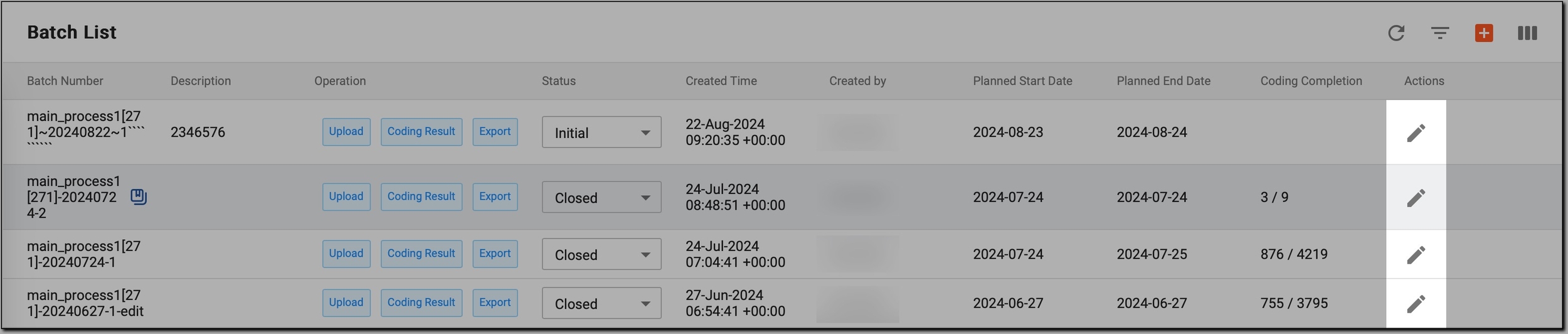 Figure 2. Initiating coding batch editing
-
In the Edit dialog that opens, update the details of a coding batch as explained in the following table.
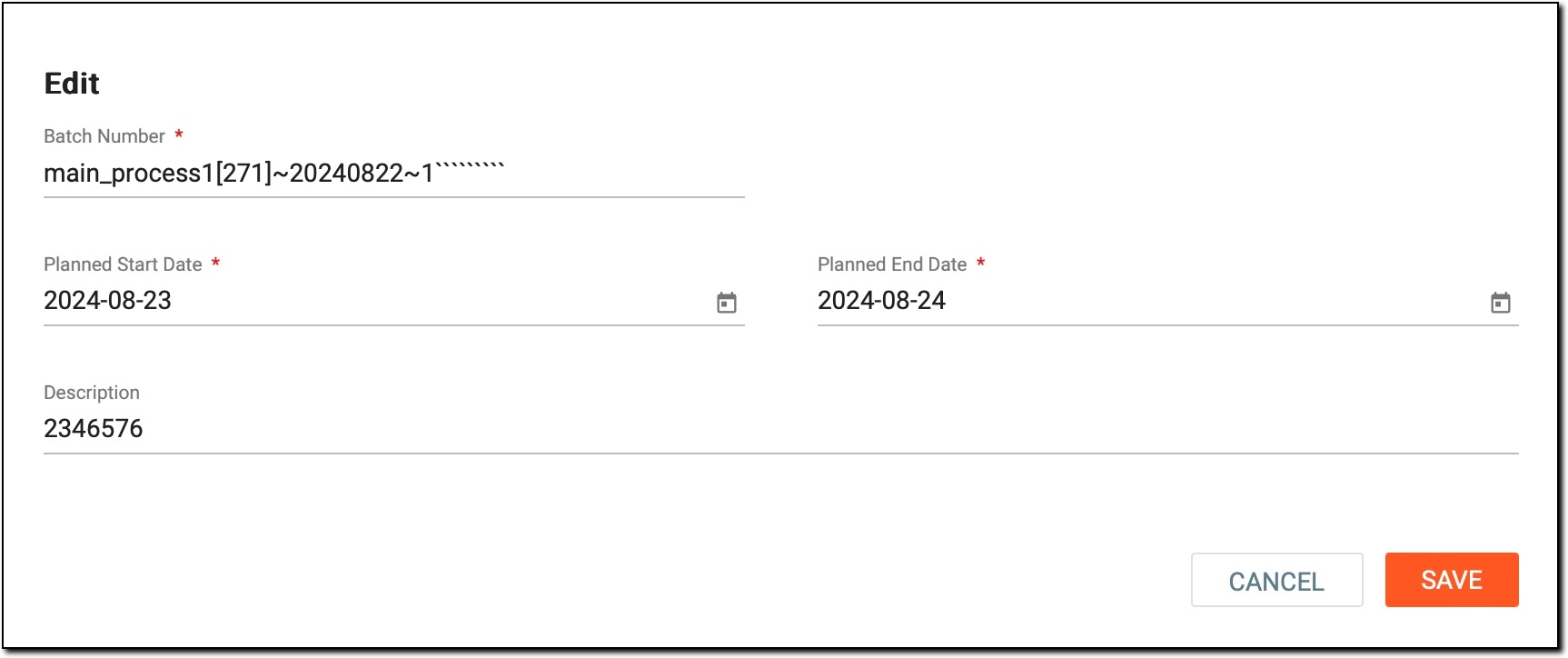 Figure 3. Coding batch updating
Tip
In the following table, mandatory elements are marked with an asterisk (*).
Element
Details
Batch Number*
Update the batch number to reflect a more accurate or relevant identifier for your coding batch.
Planned Start Date*
Change the planned start date to set a new beginning for the coding activities associated with this batch. This date should align with your study timelines and reflect any scheduling adjustments necessary for the process.
Planned End Date*
Modify the planned end date to indicate when the coding for this batch is expected to conclude. This date helps track progress and ensure all tasks are completed within the designated timeframe.
Description
Provide an updated context for the coding batch. A clear and informative description helps team members understand the batch's contents, objectives, and any specific details that may be relevant for processing.
SAVE
Select
 to save your changes.
CANCEL
Select
 to cancel the batch editing and dismiss the changes.
Once the coding batch is updated, it reflects the most current information and scheduling for your project, ensuring that the batch management process aligns with the evolving needs of your study.