Review imported follow-up data for manually created ICSR
In PV, the AE and SAE data used to create Individual Case Safety Reports (ICSR) is pulled from EDC via managing respective tasks for data extraction. As soon as the data is sent from EDC to PV, it lands under the INTAKE > EDC Import tab, and the system alerts you via email that there is new safety data to review. Data review at this point is intended to validate the data as ready for ICSR management.
The incoming data from EDC can be new (an initial case report) or follow-up (include more information on the already existing report in PV).
If the initial report is imported to PV from EDC, all the follow-up data on it can be detected by the system and marked as Follow Up automatically. However, if the initial report was created manually in PV and more data on this case is then imported from EDC, then the system cannot autodetect it as a follow-up. The user in charge must review the imported data and associate it with the respective initial case.
For instance, the initial SAE case is entered in PV manually from the site-provided paper form.
Then, according to the obligatory protocol, the respective SAE case record is made in EDC, and more details on the case progress are recorded. Then this data is pushed to PV.
Once the case lands in PV's intake, it must be reviewed and recognized as a follow-up to be associated with the respective initial case to align the two entries as one progressing SAE.
-
In the PV application header, select the INTAKE tab.
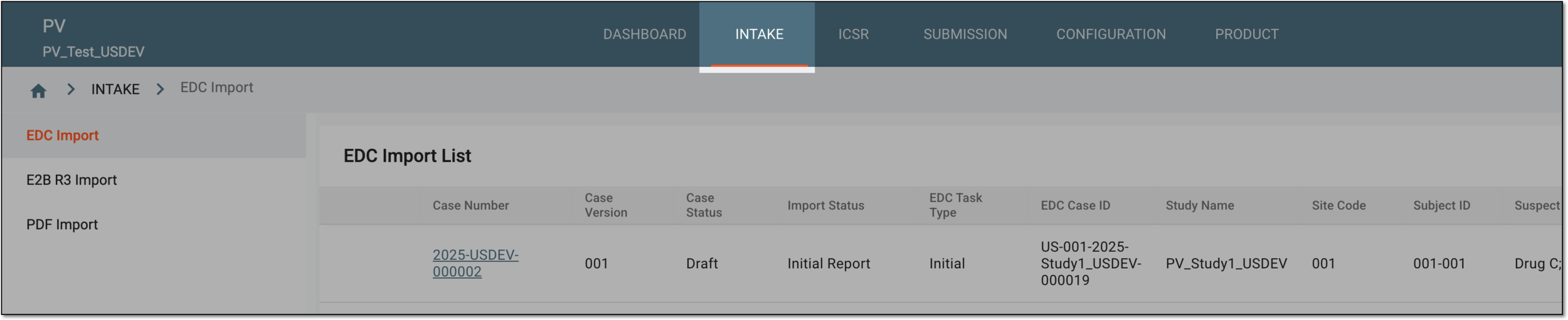 Figure 1. Accessing intake management
-
On the page that opens, in the left pane, select the EDC Import subtab.
-
In the EDC Import List that appears, locate the unprocessed safety data that you need to review, and in the Actions column next to it, select Review
 .
.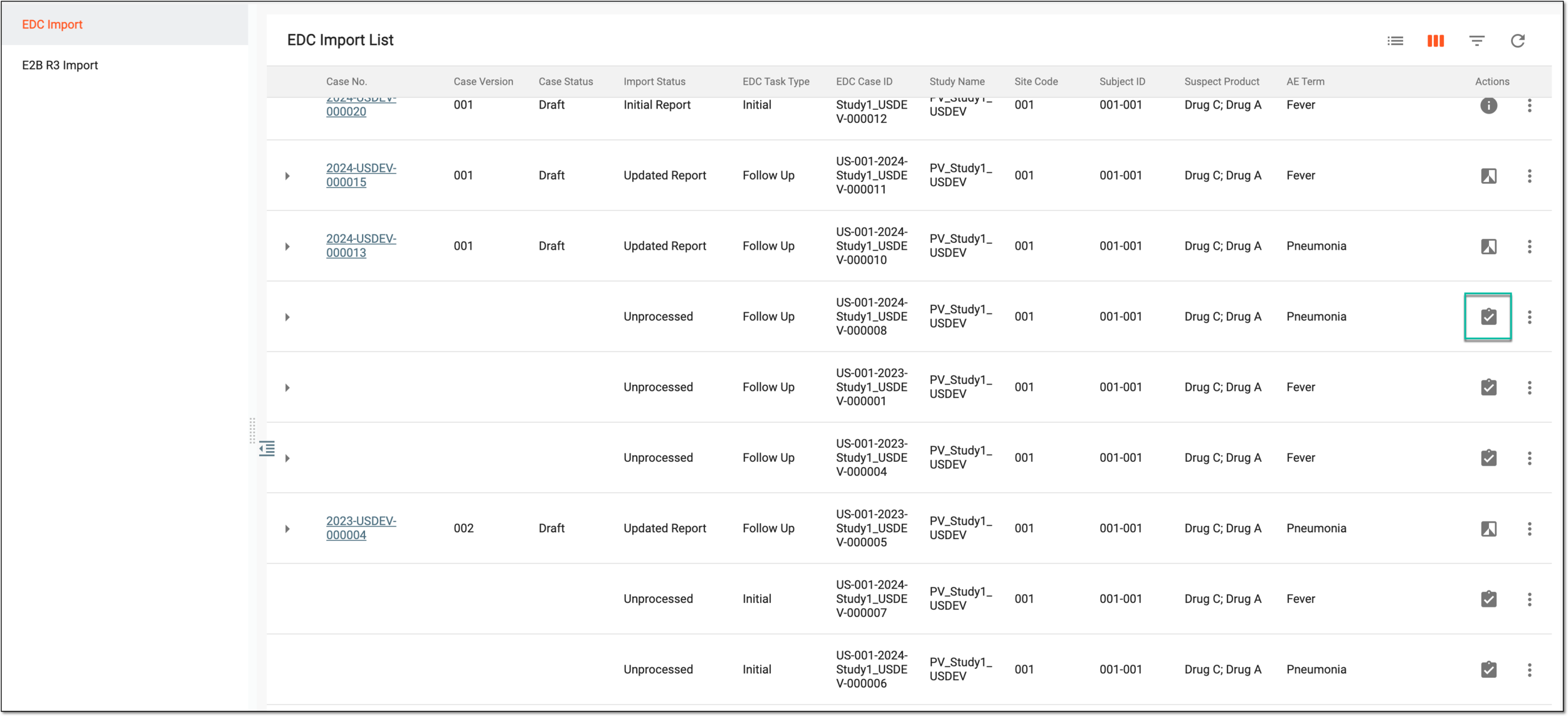 Figure 2. Accessing imported case review
-
On the page that opens, select
 .
.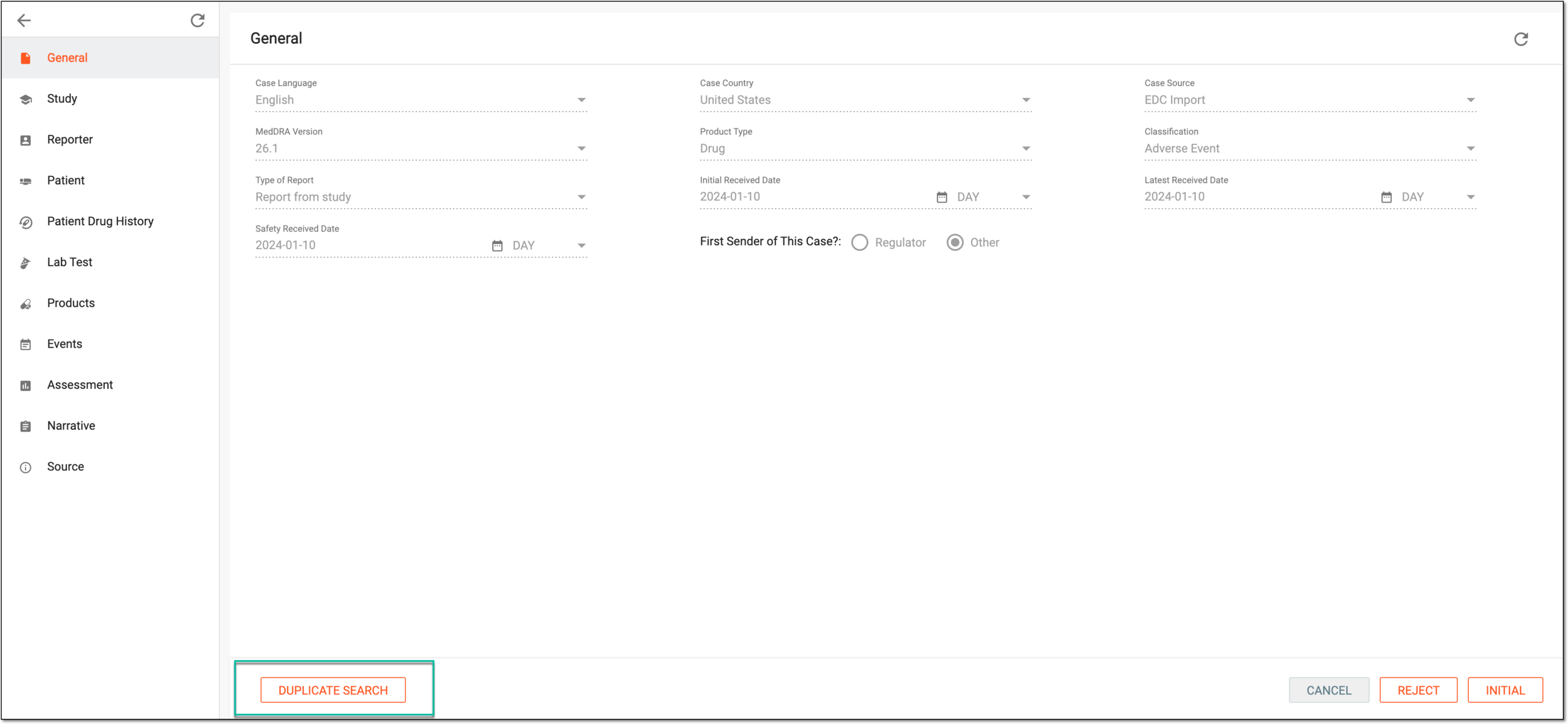 Figure 3. Accessing duplicate search
-
On the Duplicate Search page that appears, select the checkboxes next to the data elements by which you want to retrieve similar cases. This helps you find the initial manually-created report in PV for which you are reviewing the follow-up version. Then select
 .
.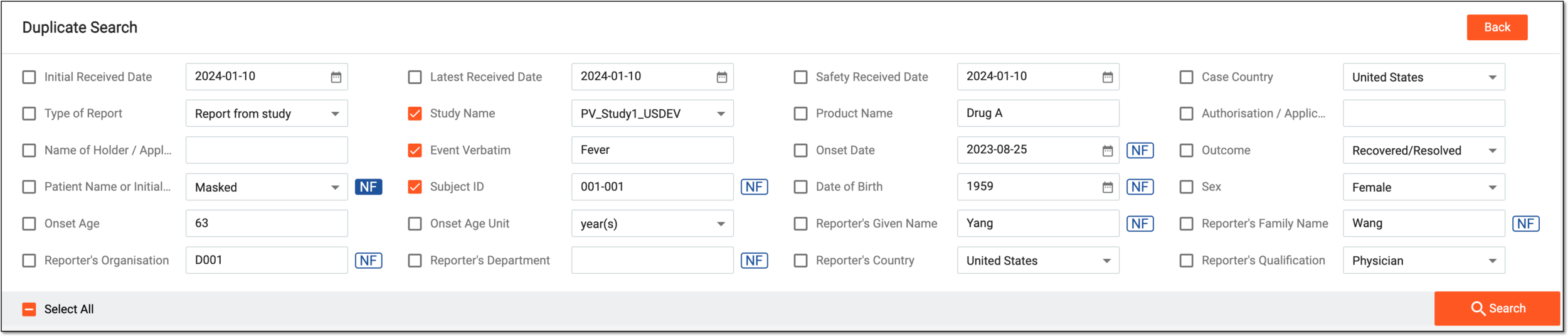 Figure 4. Searching for duplicate cases
-
In the search result table, locate the case that is the initial ICSR for which the reviewed data serves as a follow-up. Then next to it, select Compare
 .
.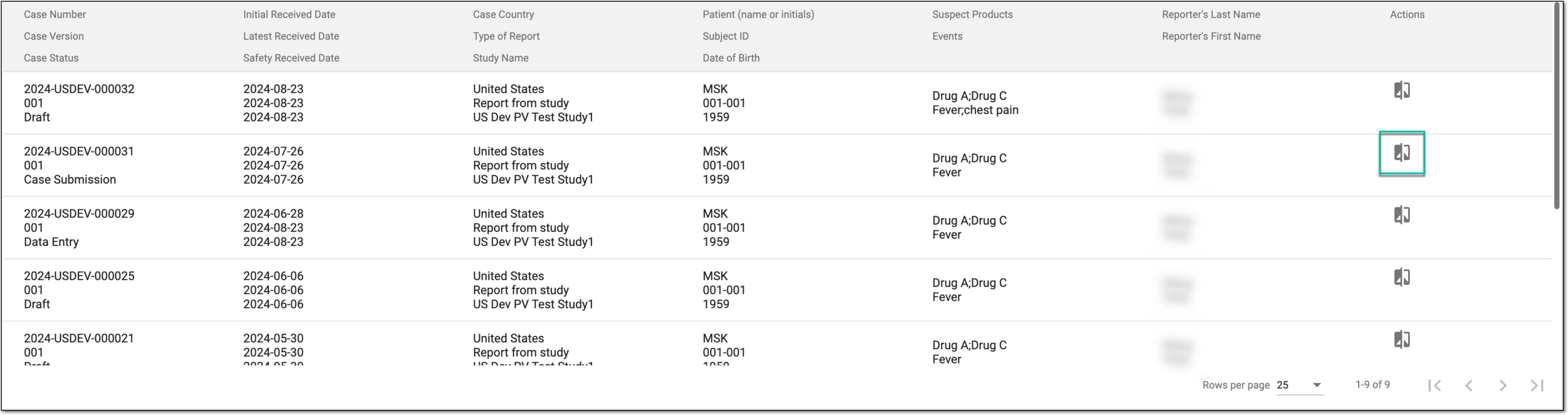 Figure 5. Selecting to compare initial case with follow-up
-
On the resulting page, compare the new—follow-up—details imported from EDC and the initial report data already available in PV and select with which data elements you want to proceed. From the tree on the left, switch between forms and review all data entries.
Tip
If the differences from the previous ICSR version are in the fields intended for review according to your study configurations, once the new version is created in PV, you need to translate such fields individually or using translation review.
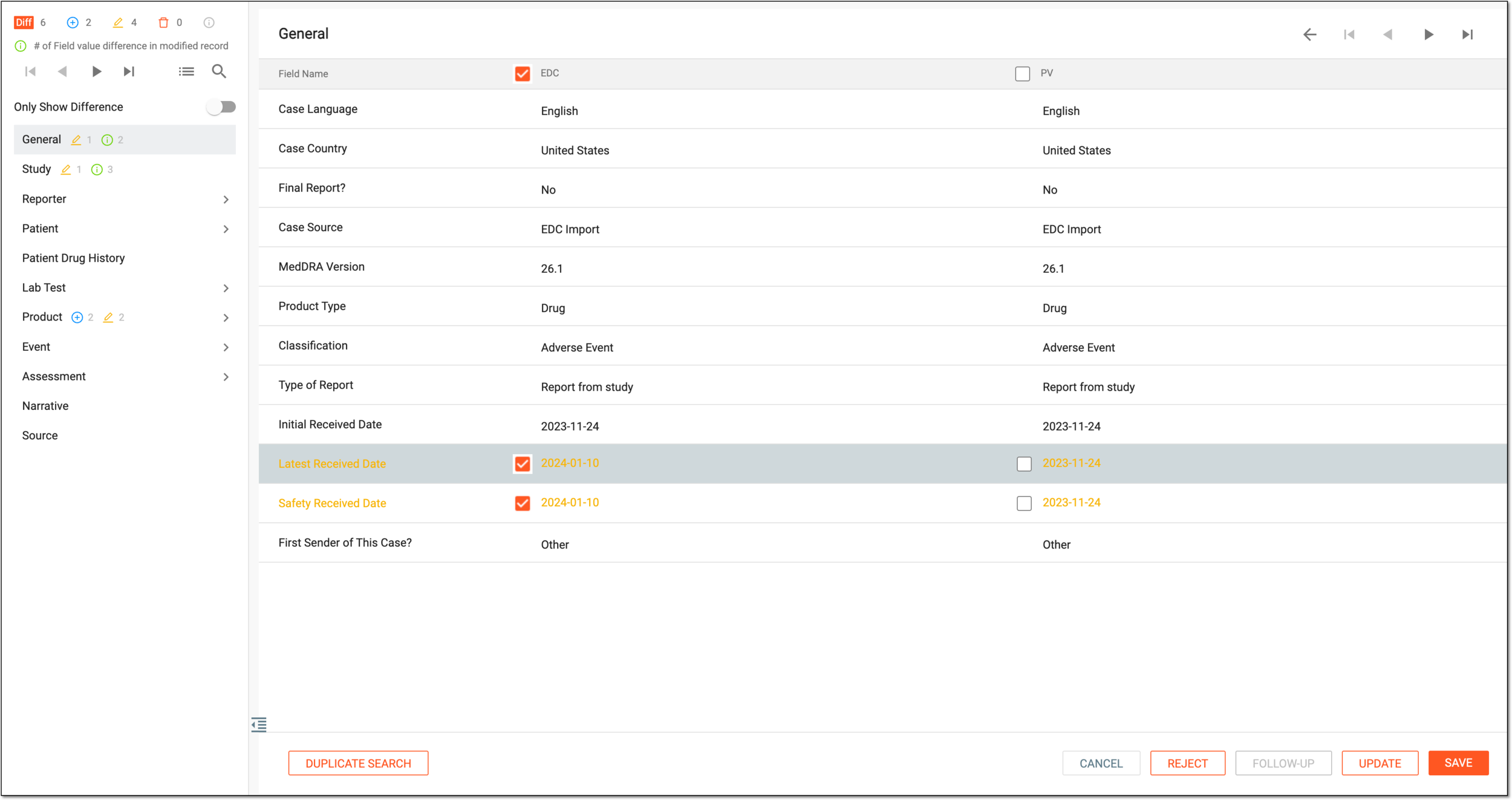 Figure 6. Comparing and updating initial data with follow-up
-
While reviewing, if detecting the records that you want to merge or split, right-click such a record, select Reassociate
 , and do one of the following:
-
To merge the records that were created separately by the system but are supposed to be combined into one, in the resulting dialog, select the record with which you want to merge. Then click
 .
.For instance, the system records “Lung effusion” and “Large pleural effusion” separately. These are verbatim used to record the same event in different reports. To avoid treating them as distinct occurrences, combine them into a single record.
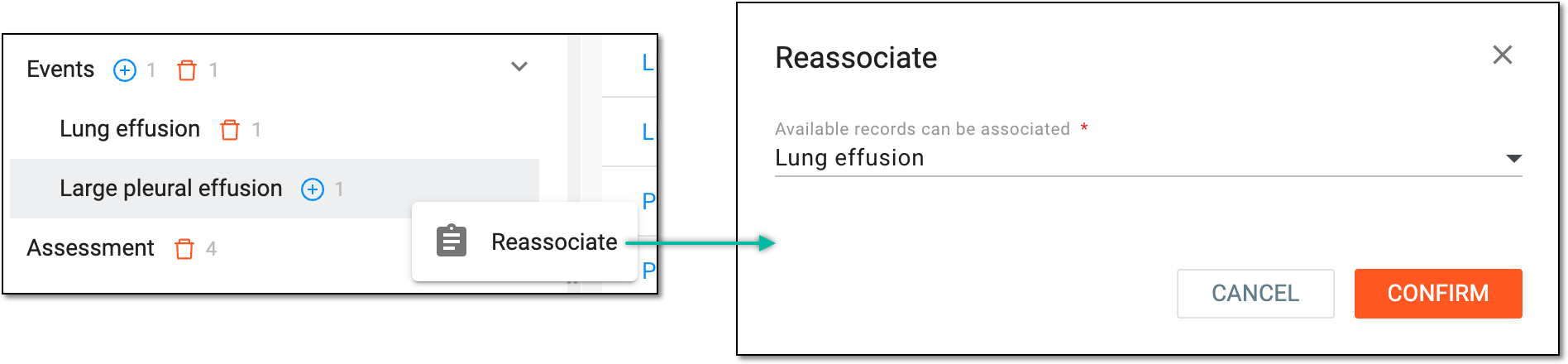 Figure 7. Reassociating similar records
-
To split the records that were automatically merged by the system but must be separated, in the resulting dialog, select the –– option. Then click
.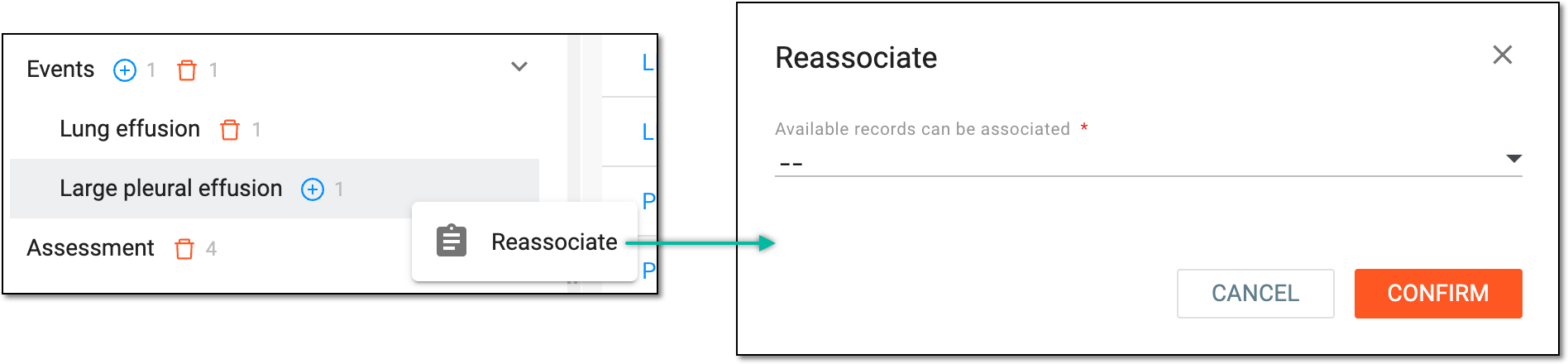 Figure 8. Disassociating merged records
-
-
Once the review and comparison process is completed, proceed with one of the available options as explained in the following table.
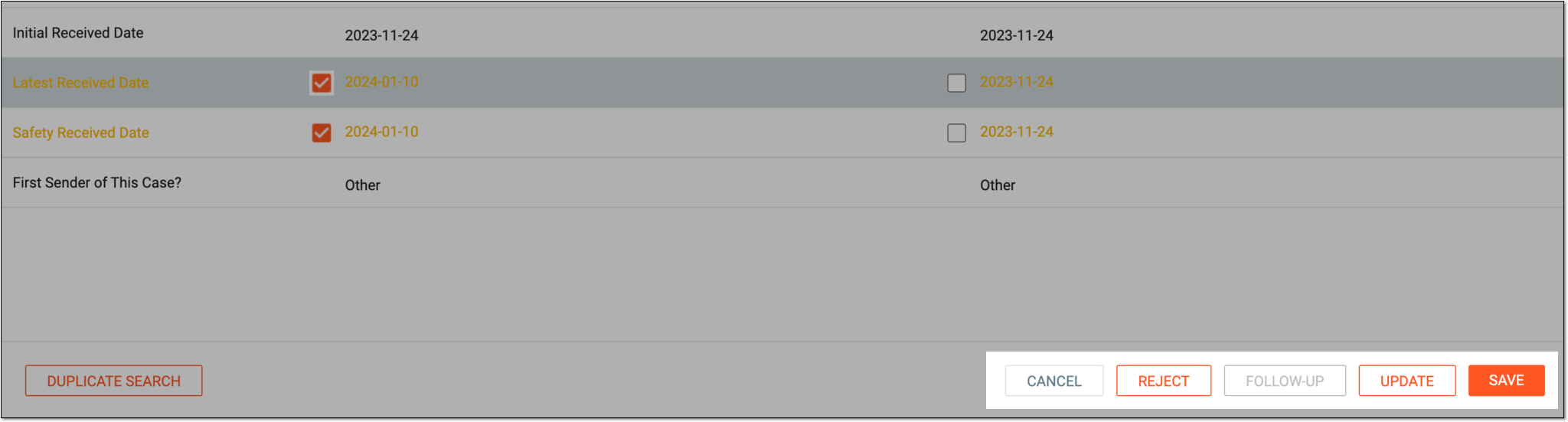 Figure 9. Finalizing imported follow-up data review
Action
Details

Select this button to save the implemented changes.

Select this button to update the initial ICSR existing in PV with new follow-up data imported from EDC without creating additional follow-up versions.
This button is available if the initial case is in any status except for Case Submission or Case Archived.
Select this button to create a follow-up ICSR version from the imported data.
This button is available if the initial case is one of the following statuses: Case Submission or Case Archived status.
Select this button to reject the imported case details.

Select this button to cancel the comparison and return to the case import page.
You have successfully reviewed imported follow-up data for manually created ICSR.