Review safety data
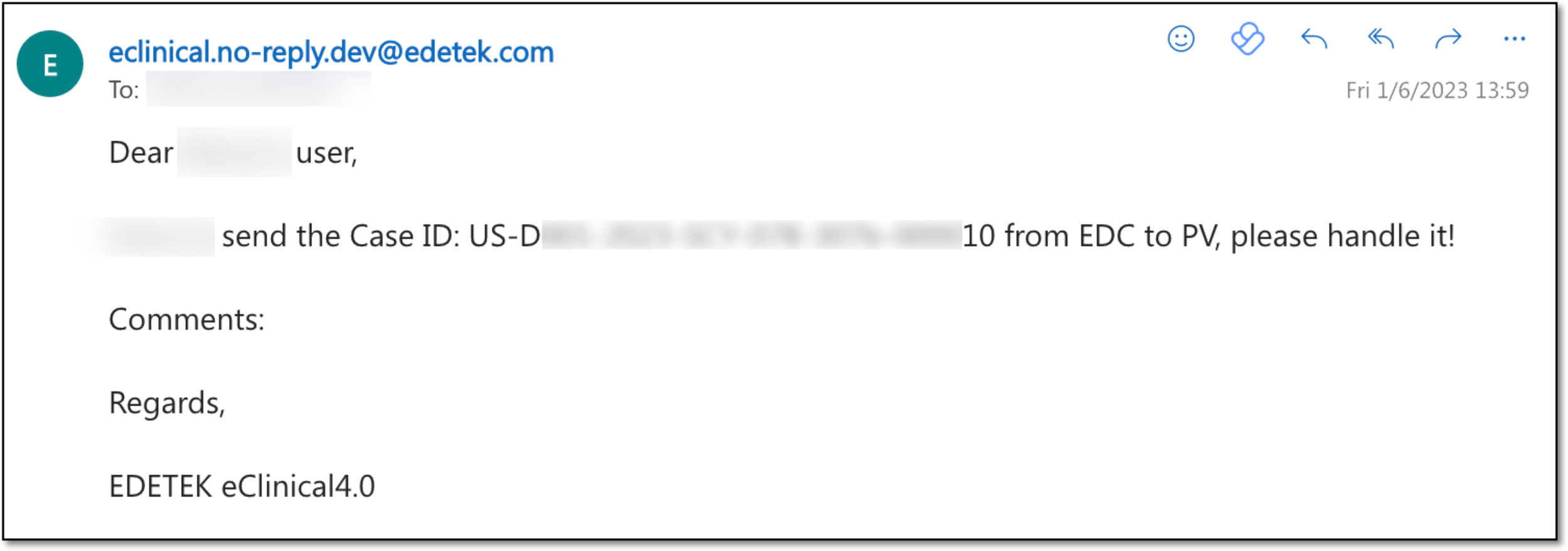
In PV, the AE and SAE data used to create Individual Case Safety Reports (ICSR) is pulled from EDC via managing respective tasks for data extraction. As soon as the data is sent from EDC to PV, it lands under the INTAKE > EDC Import tab, and the system alerts you via email that there is new safety data to review. Data review at this point is intended to validate the data as ready for ICSR management.
Important
If there is initial and follow-up data awaiting your review, you have multiple unprocessed tasks of the same EDC Case ID, and you need to process them in chronological order. There is no Review  for the follow-up task until the initial one is reviewed.
-
In the PV application header, select the INTAKE tab.
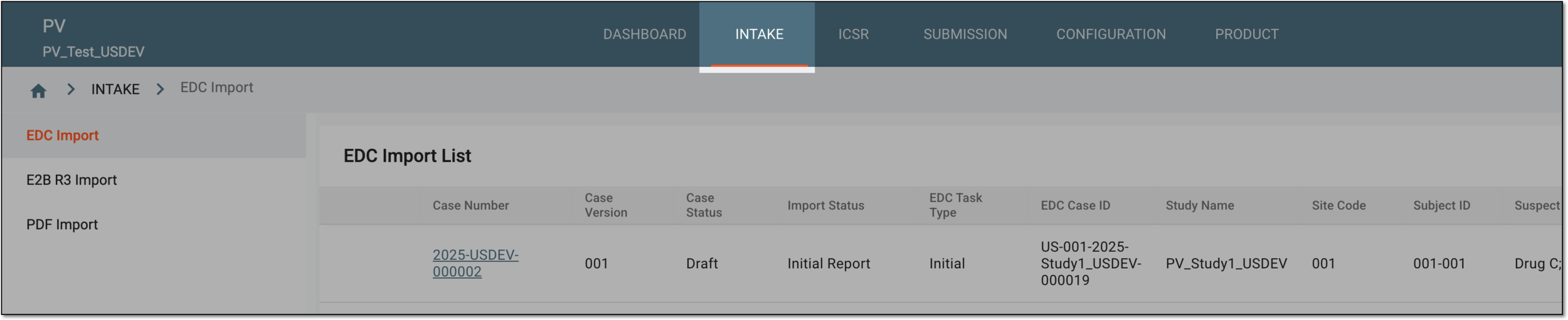 Figure 2. Accessing intake management
-
On the page that opens, in the left pane, select the EDC Import subtab.
-
In the EDC Import List that appears, locate the unprocessed safety data that you need to review, and in the Actions column next to it, select Review
.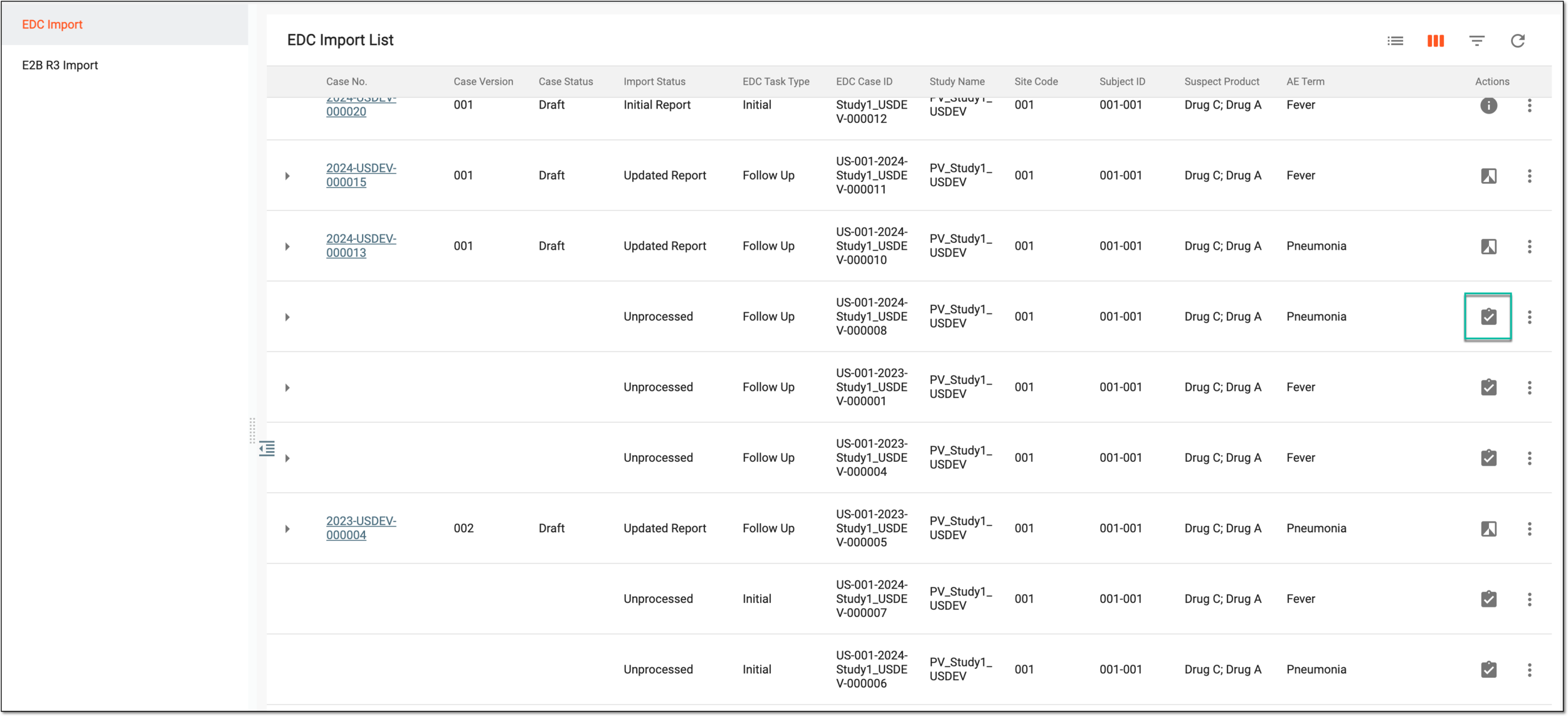 Figure 3. Accessing imported case review
-
On the page that opens, navigate among subtabs of the left pane to review all the details.
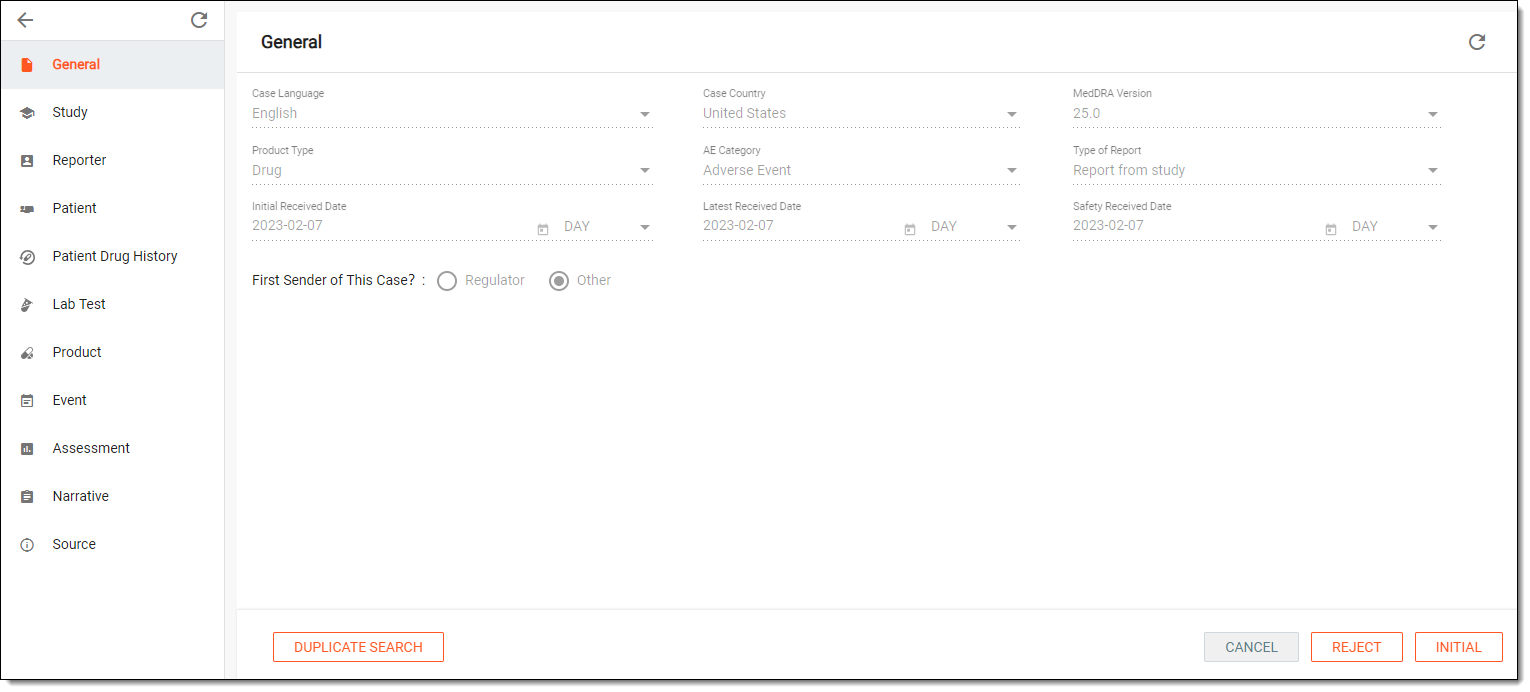 Figure 4. Reviewing initial safety data
Tip
When reviewing the follow-up data, the differences from the last imported ICSR version are highlighted the same way as when you select to compare the two data versions.
If the differences from the previous ICSR version are in the fields intended for review according to your study configurations, once the new version is created in PV, you need to translate such fields individually or using translation review.
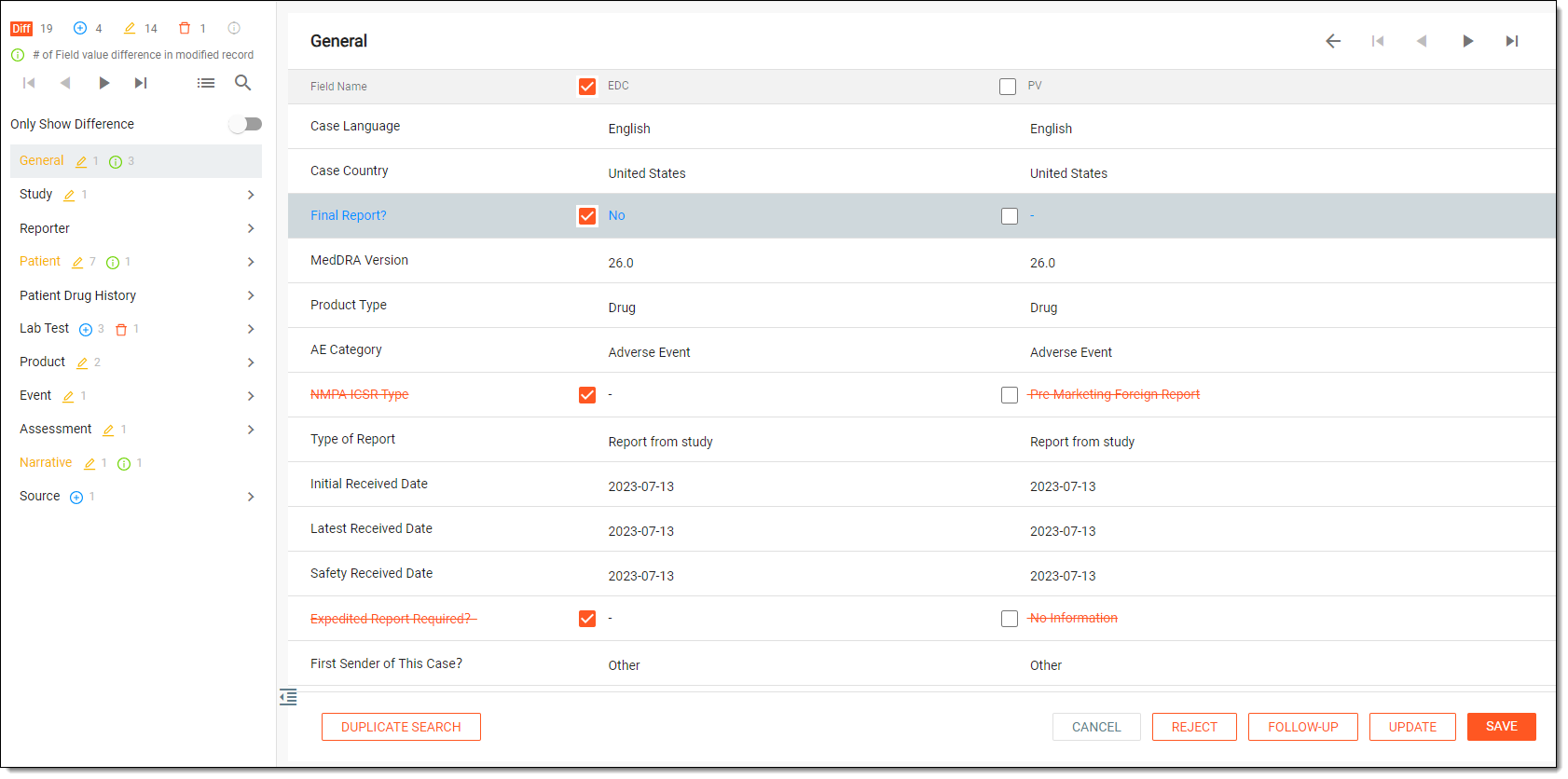 Figure 5. Reviewing follow-up safety data
-
When reviewed, depending on how the EDC data has been imported by the EDC user (initial or follow-up), perform one of the actions explained in the following table.
Button
Details

Select this button to save the updates made to safety data.

Select this button to import the follow-up safety data and update the last imported ICSR version
You cannot update the last imported ICSR when its status is Case Submission or Case Archived.
Select this button to import the follow-up safety data as a follow-up ICSR.
You can only import a report as a follow-up when the last imported ICSR is in Case Archived status.
Select this button to reject the unprocessed data and send it back to the EDC application.

Select this button to check whether the report imported from EDC has a matching ICSR record in the PV safety database.
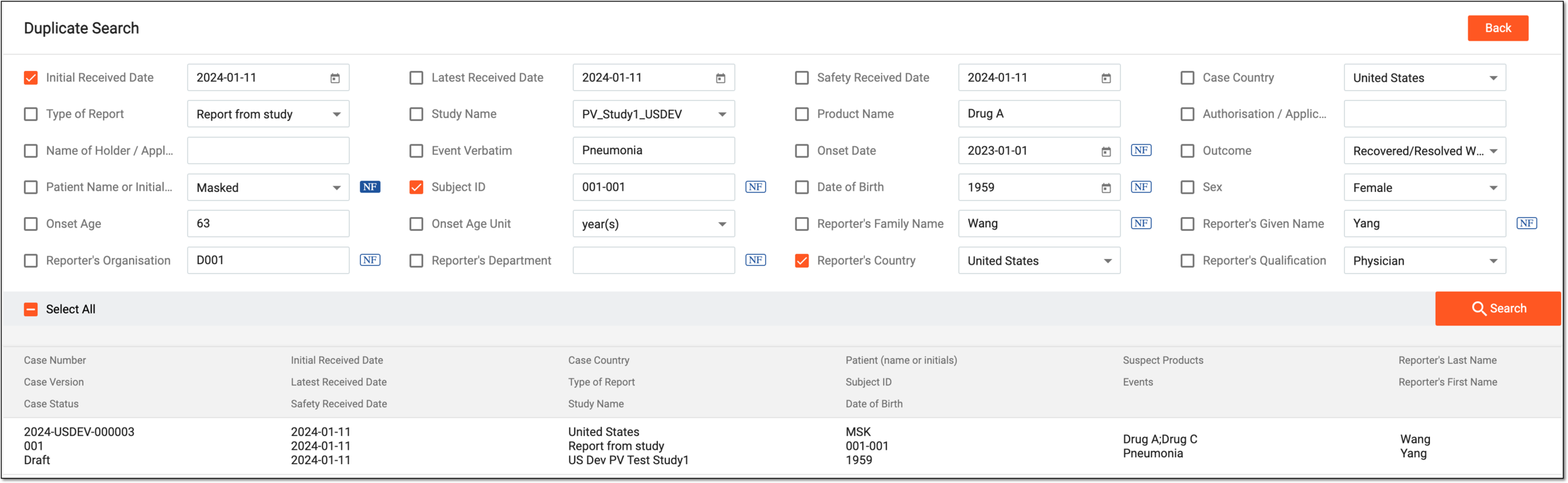 Figure 6. Performing duplicate search

Select this button to cancel the safety data review.
-
For the INITIAL, FOLLOW-UP, and REJECT operations, the confirmation dialog appears. Proceed with confirmation as suggested in the following table.
Important
The details you need to provide differ depending on the authorization method configured for you in the system—via SSO or via providing your login and password.
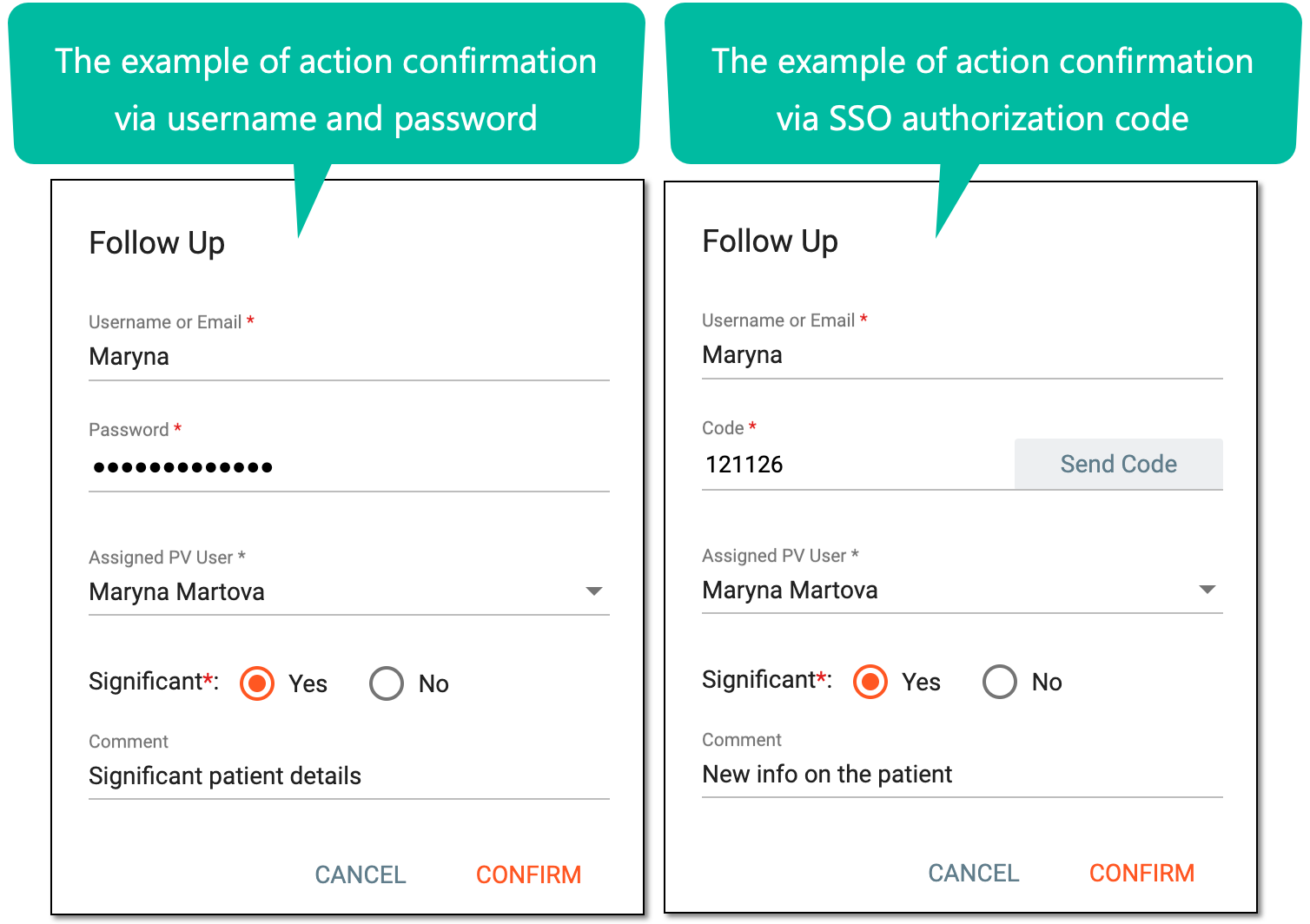 Figure 7. Confirming your action via SSO or user credentials
Tip
In the following table, mandatory elements are marked with an asterisk (*).
Element
Details
Authorization via username and password
User Name
Automatically populates with the user name of the current user and cannot be manually changed.
Password*
Enter the password that you use to log in to the eClinical system.
Authorization via SSO
Username or Email*
Enter your username or email for which the SSO access is configured.
SEND CODE
Select
 to send the temporary PIN code to your email for which the SSO method is configured.
The PIN code is valid for 5 minutes before it expires. Select again to send another email and
regenerate the PIN if required.Code*
Enter the temporary PIN code that you received via email.
Case-related details
Assigned PV User*
Select the user to be assigned for the ICSR processing in PV. Upon confirmation, this user gets an email notification to process the new data in PV.
This field is only applicable to the initial safety data. When processing the follow-up data or rejecting import, there is no assignee.The list of assignees is based on their study access permission granted via ADMIN.Significant*
Select one of the following options:
This field is only available when confirming the action of creating the follow-up case version from the imported file.Comment
Enter a comment to follow your data if needed. This comment is included in the notification email for the assigned user, so you can use it to communicate any specific details to them.
This field is mandatory for the rejection operation.CONFIRM
Select
 to confirm the intended action.
CANCEL
Select
to discard the implemented changes.Important
For security, the system logs you out after three failed attempts to confirm your identity with a password or code.
Upon confirmation, the data is imported as either a new, updated, or follow-up ICSR version, and an email notification is sent to the assigned user.
The assignee receives an email notification including the link to easily access the system and the specific page that requires attention. To open the needed page, the user must log in to the system upon clicking the link.