Restore canceled manual query
The Cancelled Manual Query report displays all the canceled manual queries—per visit, form, record, and item—and provides you with an opportunity to restore the previously canceled query to its original location.
Important
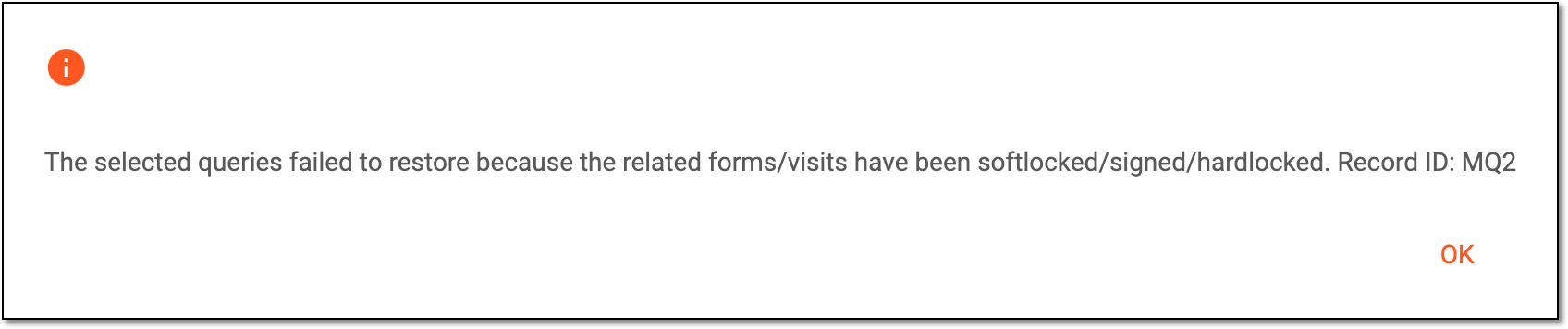
If there is a precondition set for your study that the soft-locked, signed, or hard-locked visits and forms cannot have unresolved queries, the attempt to restore open queries to the visit or form (which is already soft-locked, signed, or hard-locked) fails, and you receive the respective error notification.
-
In the EDC application header, select the REPORTS tab.
-
On the page that opens, in the left pane, select the Query Report subtab to expand the list of available reports and select Manual Query Details.
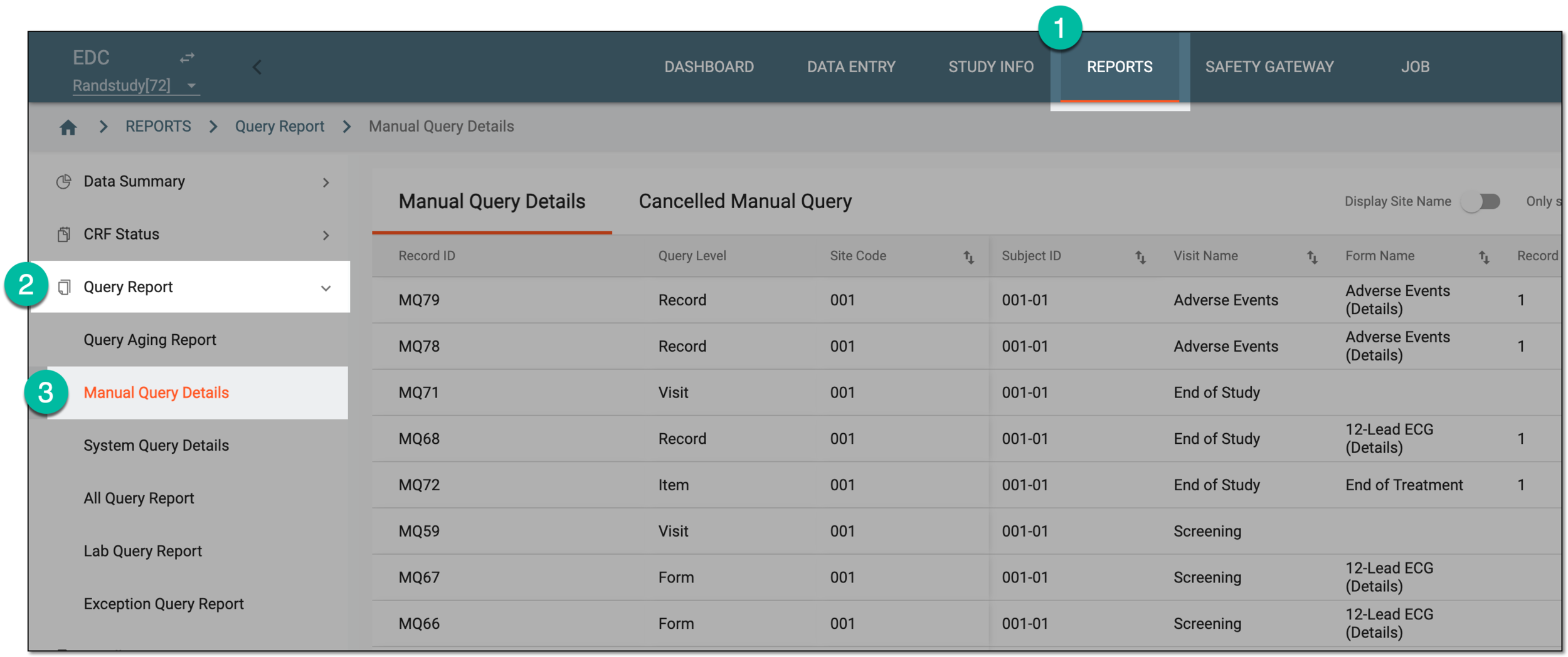 Figure 2. Accessing manual query details
-
On the page that appears, select the Cancelled Manual Query tab.
-
In the resulting report, locate and select the checkbox next to the canceled manual query you want to restore. Then from the workspace toolbar, select Restore Manual Query
 .
. Figure 3. Restoring manual query
-
In the Restore Manual Query dialog that opens, enter the reason for restoring the query to its original location. Then select
 .
.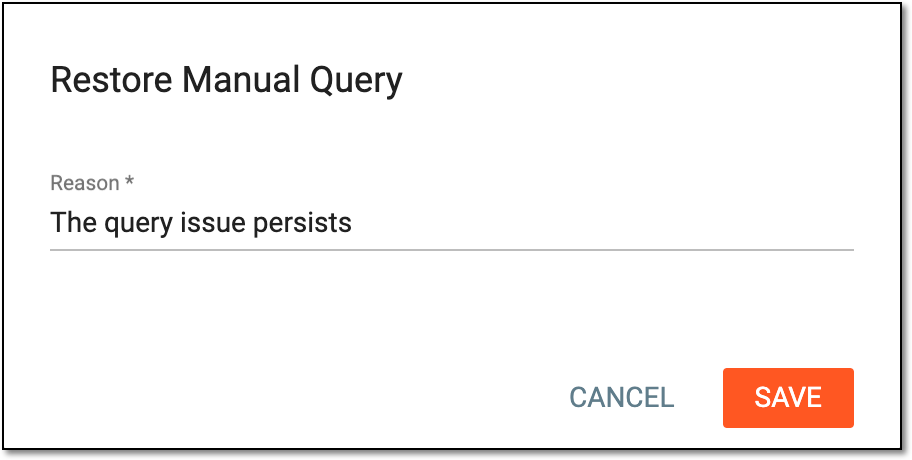 Figure 4. Providing reason for restoring manual query
Once saved, the query is restored to its original location and disappears from the Cancelled Manual Query report. The restored query must now be addressed and resolved by the assignee.