View resupply history report
In IWRS, you can configure supply plans for your study sites to automate the process of requesting items (drugs) whenever the inventory is running low—resupplying your site.
For tracking purposes and compliance reasons, with the Resupply History report, you can view the complete history of all the resupply requests triggered by the system along with the shipment details for those requests.
Important
To view the report, you must have the Resupply History permission granted to your user role via the ADMIN application.
-
In the IWRS application header, select the REPORT tab.
-
On the page that appears, on the left pane, select Shipment Report > Resupply History.
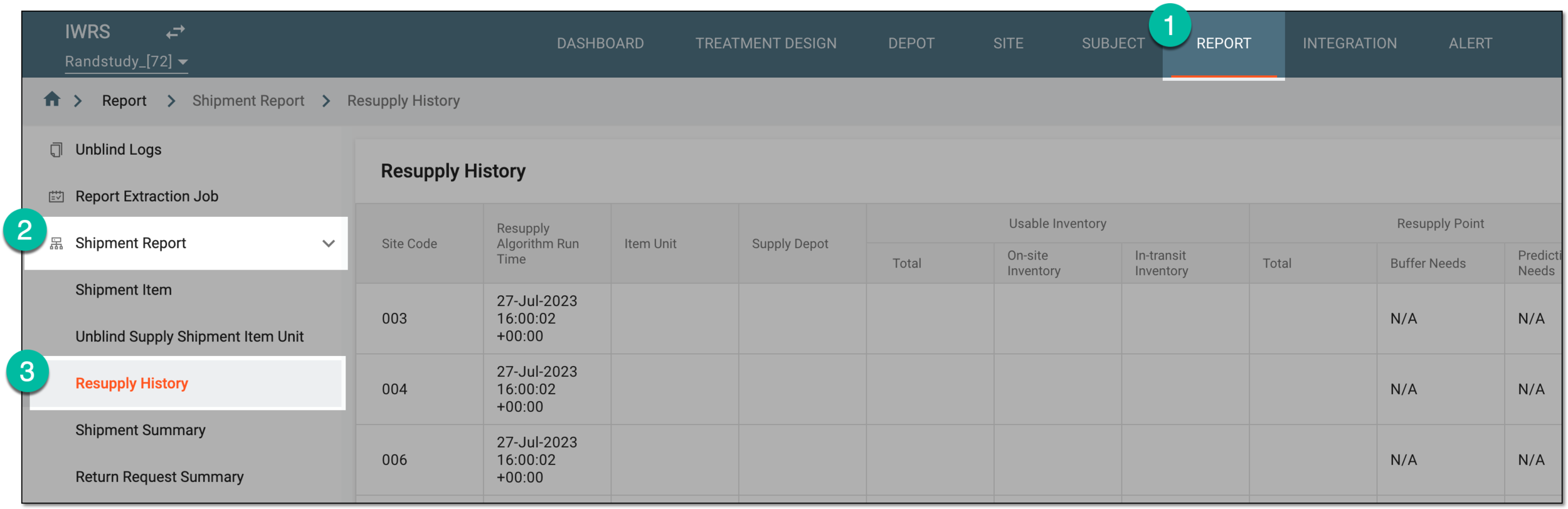 Figure 1. Accessing resupply history report
-
In the Resupply History table that opens, view the details of the trigger history of the resupply shipments as explained in the following table.
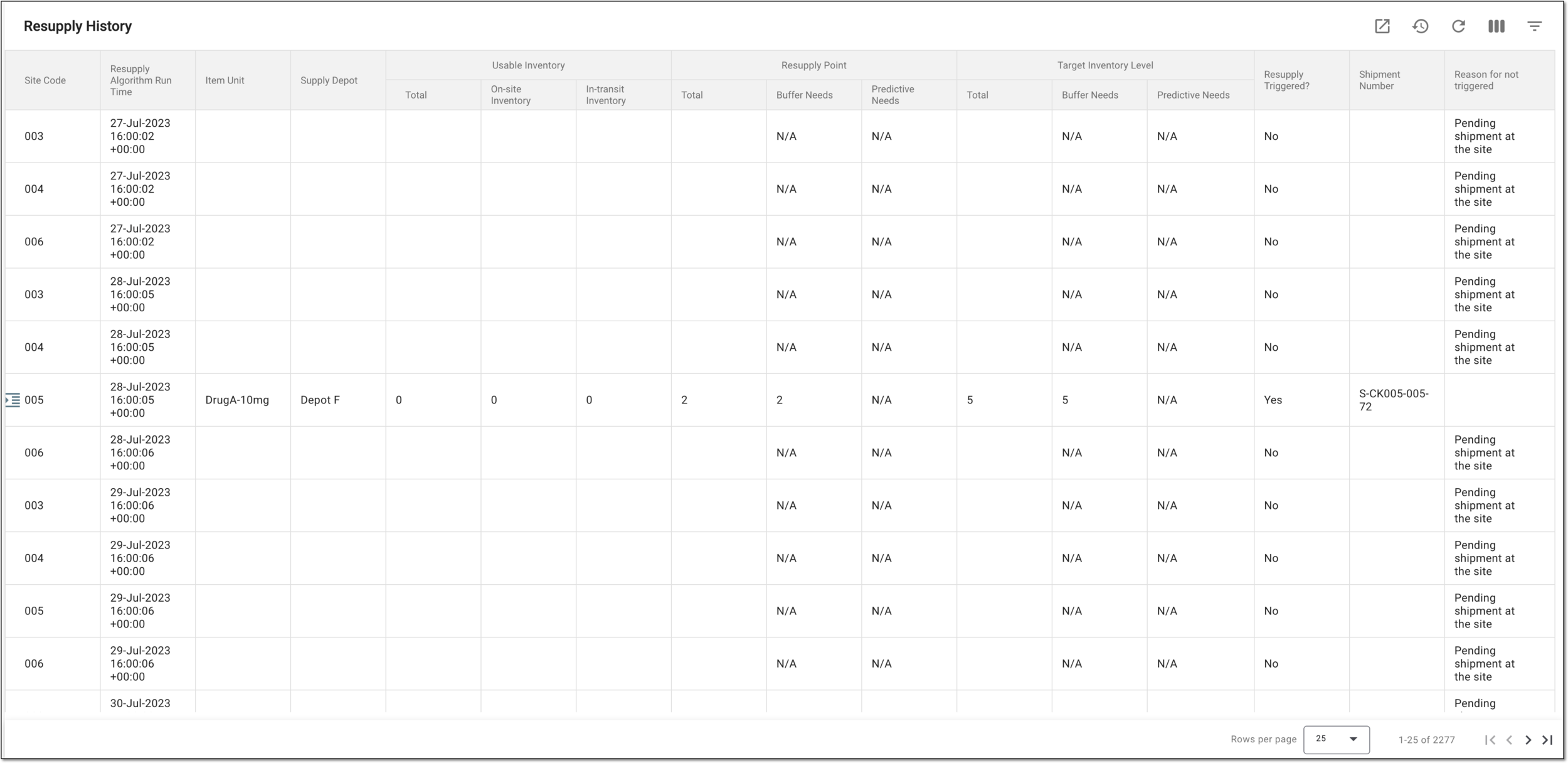 Figure 2. Viewing details of resupply history report
Tip
From the workspace toolbar, select Visible Columns
 to choose the columns you want to show or hide
from the report before viewing it.
to choose the columns you want to show or hide
from the report before viewing it.Column
Details
Site Code
Represents the site code for which the resupply algorithm is triggered.
Resupply Algorithm Run Time
Represents the date and time when the resupply algorithm is triggered.
Item Unit
Represents the item unit that is resupplied.
Supply Depot
Represents the depot from which the items are supplied.
Usable Inventory
Total
Represents the total number of items available in the site inventory. The total usable inventory value equals the sum of items in the on-site inventory and items in transit.
On-site Inventory
Represents the number of available items that can be used for dispensing on-site.
In-transit Inventory
Represents the number of available items that are currently in transit.
Resupply Point
Total
Represents the number of items in the inventory that when reached triggers the resupply shipment request. This value is calculated as follows:
Resupply Point Buffer Needs + Resupply Point Predictive Needs
Buffer Needs
Represents the trigger buffer value—the number of items reached to trigger the resupply shipment. The data comes from the trigger buffer value of the supply plan configured for a site.
Predictive Needs
Represents the predictive (potential) number of items that can be dispensed or possibly dispensed within the minimum dispensing window.
Target Inventory Level
Total
Represents the number of items that must be reached in the site inventory with the resupply shipment. This value is calculated as follows:
Target Inventory Level Buffer Needs + Target Inventory Level Predictive Needs
Buffer Needs
Represents the ceiling buffer value—number of items expected to be reached after replenishment. The data comes from the ceiling buffer value of the supply plan configured for a site.
Predictive Needs
Represents the predictive (potential) number of items that can be dispensed within the maximum dispensing window.
Resupply Trigged
The resupply shipment is triggered once the total target inventory level value is reached or when the total resupply point value is greater than the total usable inventory value.
Shipment Number
Represents the triggered shipment number. If the shipment for resupply is not triggered, this field remains empty.
Reason for not trigged
Represents the reason why the resupply shipment has not been triggered.
You have viewed the resupply history report. You can also export the report data to work with it offline.