Report export
In the IWRS application, you can export each of the reports that are available to you in the system and work with their data offline according to your business scenarios or share them with third parties that have no access to the system.
There are several exporting options available for you in IWRS as explained in the following sections.
In the IWRS application, you can export each of the reports that are available to you and work with their data offline or share them with third parties that have no access to the system.
Important
To view and export each report, you must have the respective permissions granted to your user role via the ADMIN application.
-
In the IWRS application header, select the REPORT tab.
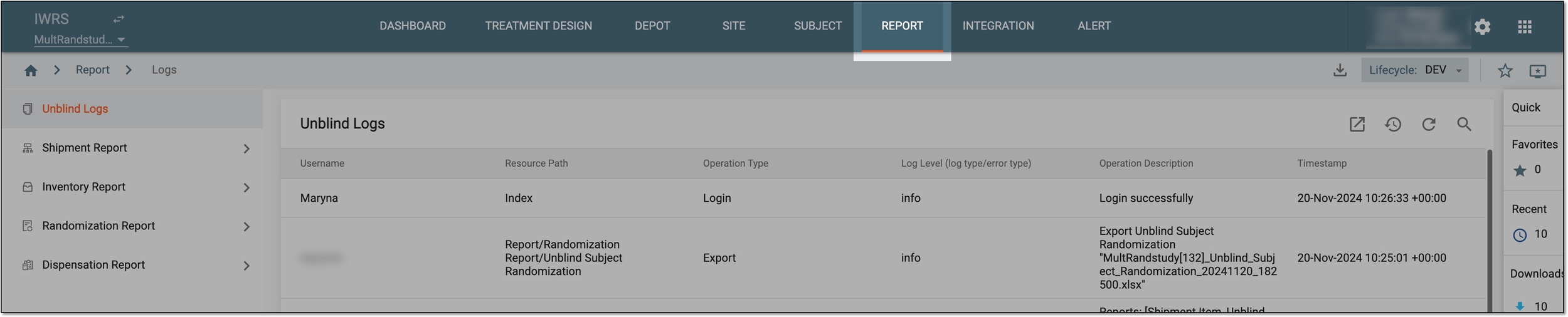 Figure 1. Accessing reports of IWRS
-
On the page that opens, in the left pane, select the report you want to export.
-
In the report table that appears, optionally use Filter
 or Refresh
  to have the targeted and most recent data in the exported file.
 -
From the workspace toolbar, select Export
 .
.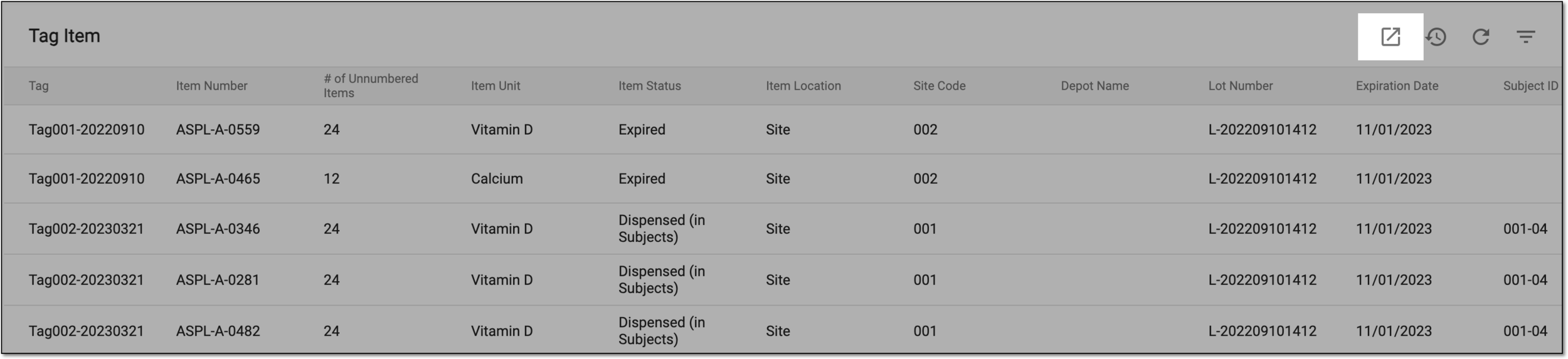 Figure 2. Exporting report
Tip
If any filtering is applied to the report before export, the system asks you to select whether you want to export only the filtered report data or all report details disregarding the filters.
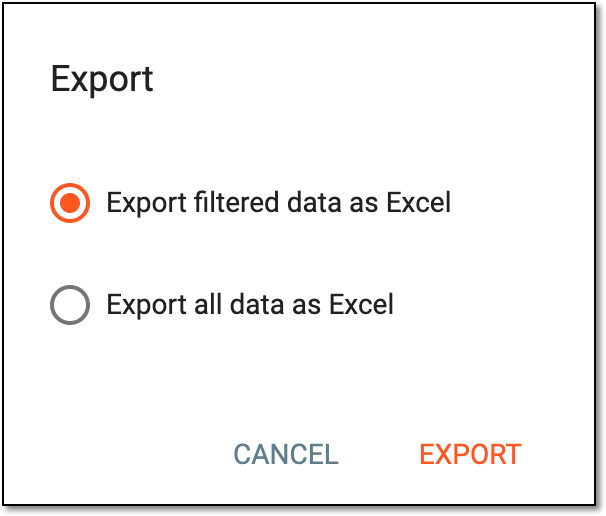 Figure 3. Selecting to export all or filtered data
-
Select the download widget to view the download management dialog.
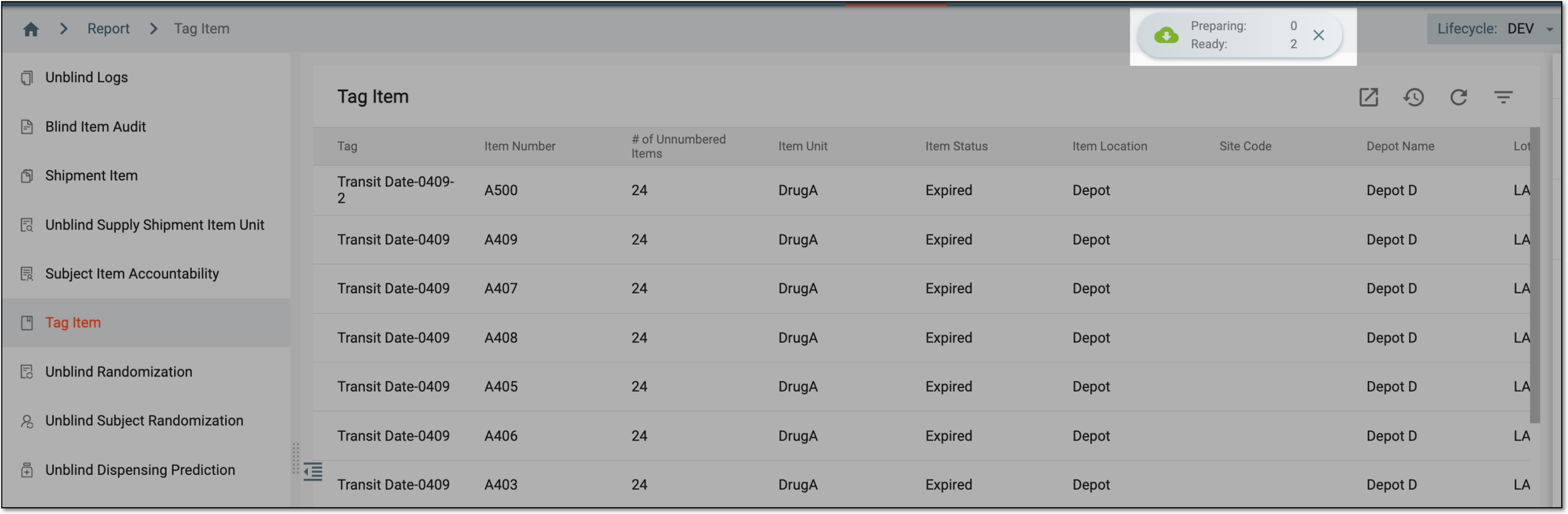 Figure 4. Selecting download widget
-
In the My Downloads dialog that opens, you can find the following tabs:
-
Preparing: under this tab, you can find all the files whose export is in progress, and they are not yet ready for download.
-
Download is Ready: under this tab, you can find all the files whose export is complete, and they can be downloaded to your computer.
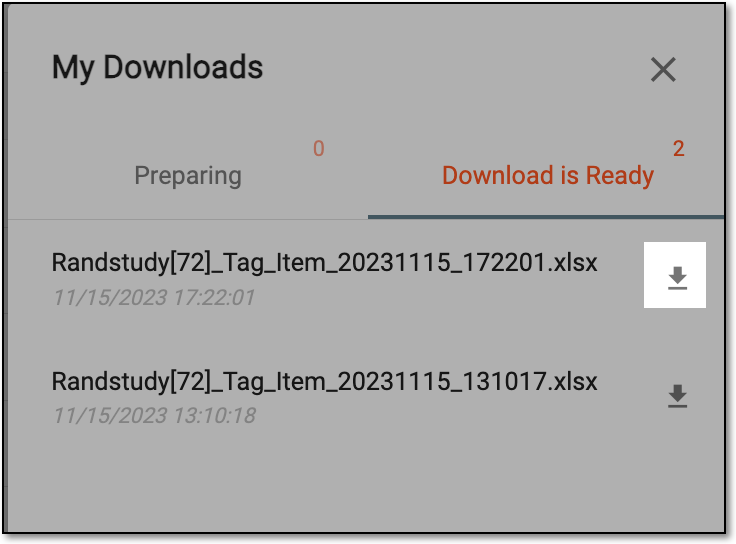 Figure 5. Viewing downloads
-
-
Under the Download is Ready tab, next to the file that you want to download, select

The report is exported and is available on your computer.
In the IWRS application, you can view the export history of a report. When a report is exported it goes to export history from where you can view the details of the exported report based on your user role and user access. If you have an unblinded user role, you can view both the blinded and unblinded export history of reports. However, if you have a blinded user role, you can view only the blinded export history reports.
For instance, blinded users always have the item unit values concealed from them to avoid sensitive data breaches.
Important
To view each report and its export history, you must have the respective permissions granted to your user role via the ADMIN application.
The export history is available for all reports except for Unblind Logs.
-
In the IWRS application header, select the REPORT tab.
-
On the page that appears, in the left pane, select the report for which you want to view the export history.
-
From the workspace toolbar, select Export History
 .
.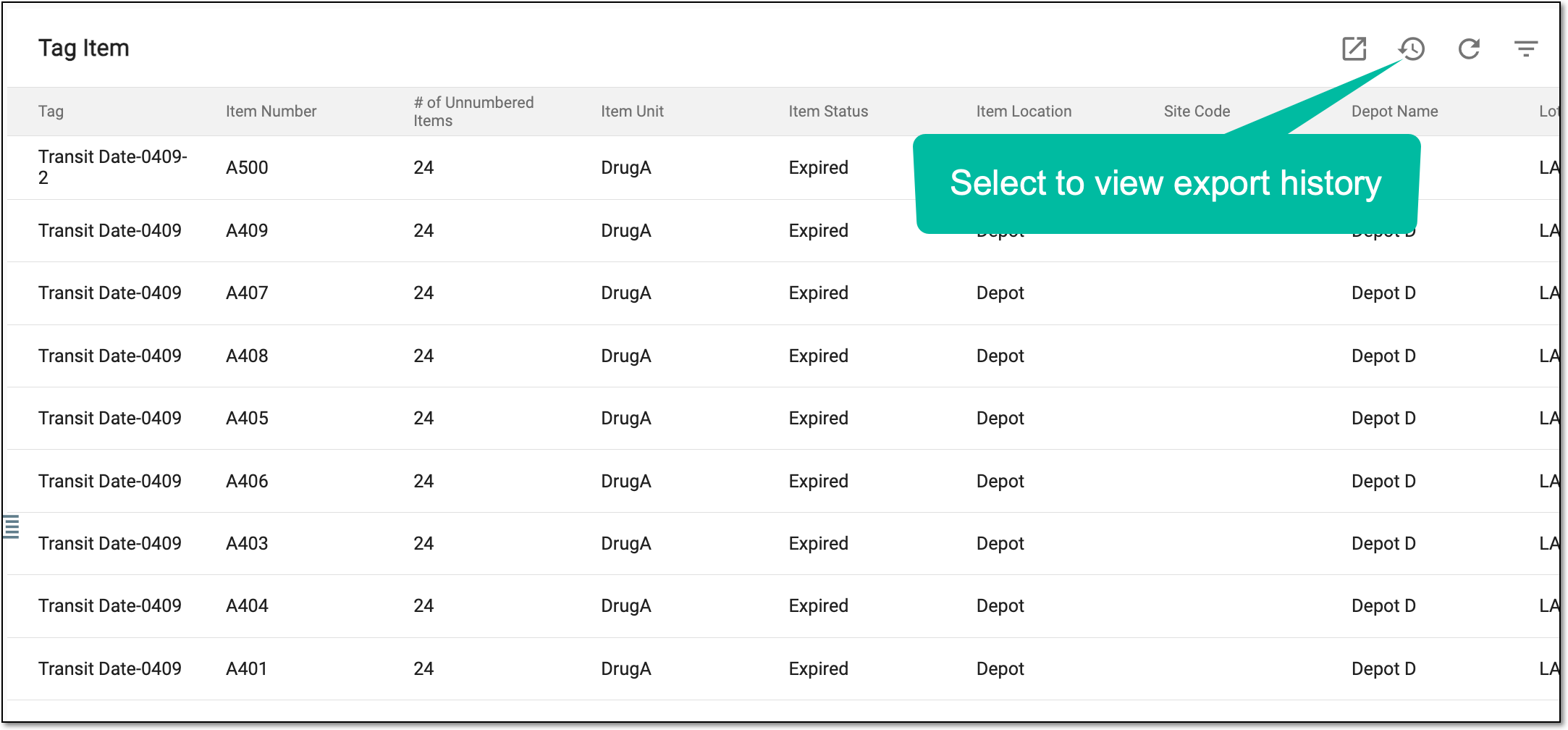 Figure 1. Accessing export history
-
On the Export History dialog that appears, view the details of the exported report history as explained in the following table.
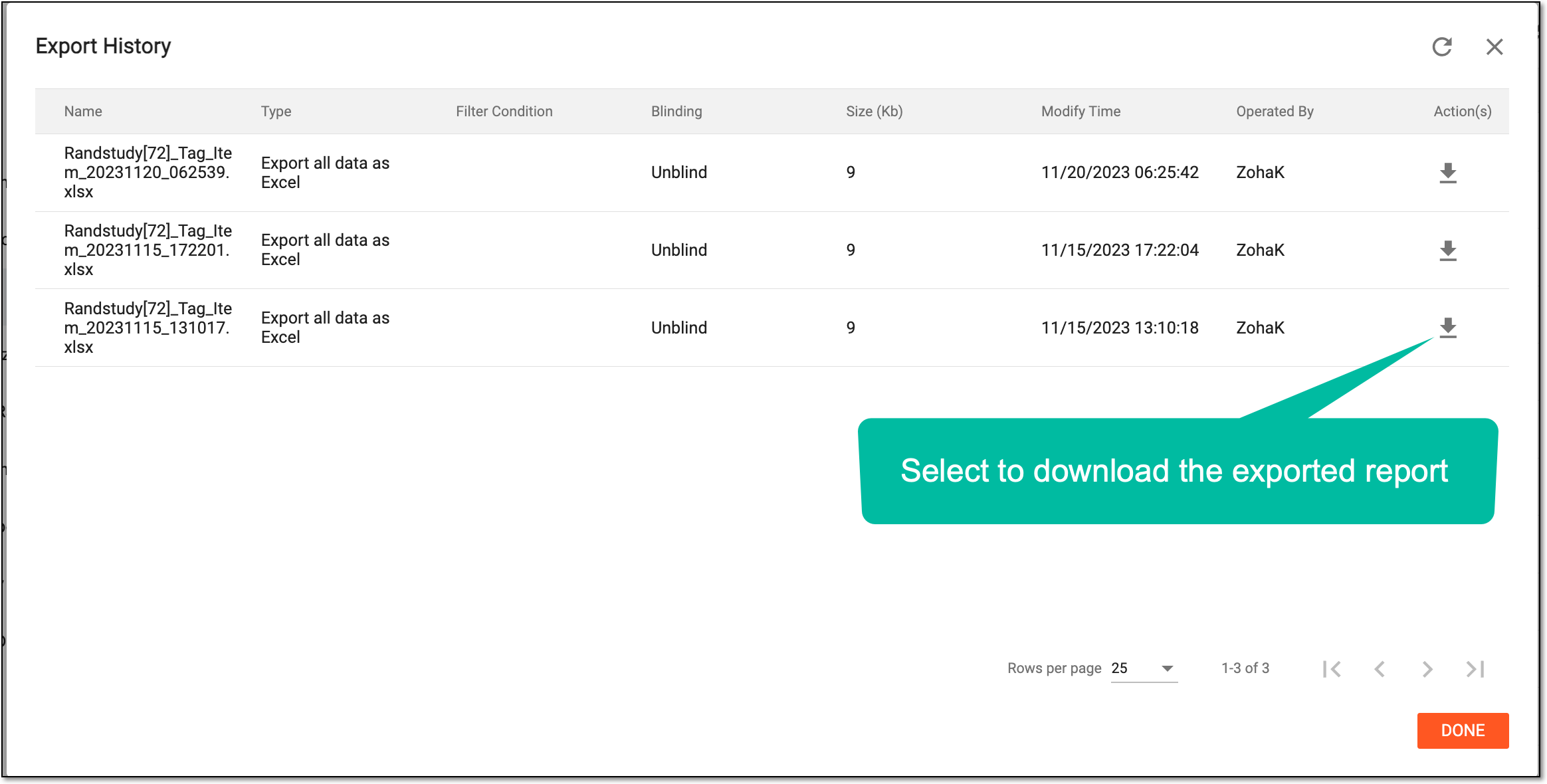 Figure 2. Downloading report from export history
Element
Details
Name
Represents the name of the exported report.
Type
Represents the file type in which the report is exported.
Blinding
Represents whether the report is exported by a blinded user or unblinded user. An unblinded user can view the complete export history whereas the blinded user can view only the reports exported by blinded users.
Size(Kb)
Represents the file size of the exported report.
Modify Time
Represents the date and time of the exported report's latest modification.
Operated By
Represents the user who exported the report.
Action(s)
Select Download
 to download the report.
DONE
Select
 to close the dialog.
You have viewed the export history of a particular report of your interest. If you have downloaded any file version here, it is not available on your computer and can be used offline as per your needs.
In the IWRS application, you can export each of the reports that are available to you in the system as one batch—in a ZIP archive—and work with their data offline or share them with third parties that have no access to the system.
Important
To view and export each report, you must have the respective permissions granted to your user role via the ADMIN application.
-
In the IWRS application header, select the REPORTS tab.
Figure 1. Accessing reports of IWRS
-
On the page that opens, from the toolbar, select Batch Export
 .
.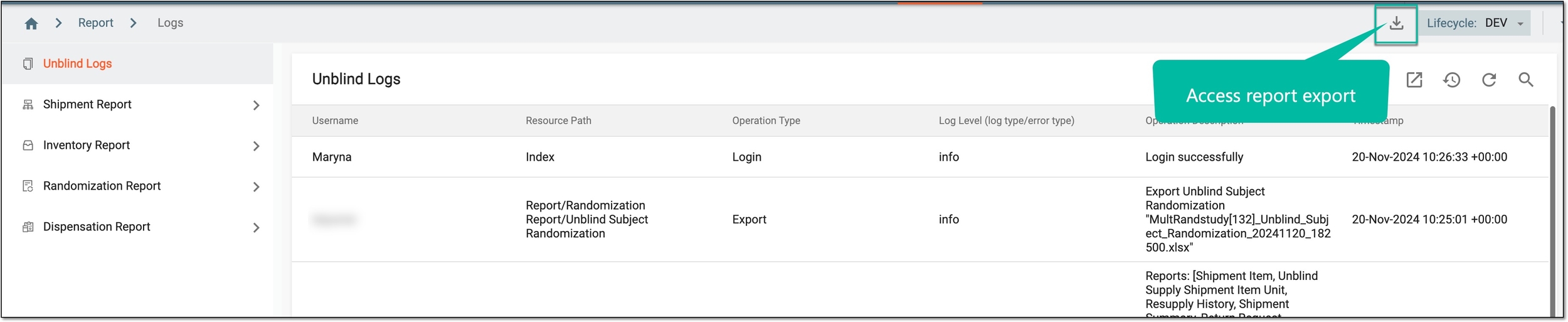 Figure 2. Exporting reports in batch
Tip
The option to export all reports in a batch is available from all the pages under the REPORT tab.
-
In the Batch Export dialog that opens, select or clear the checkboxes next to the report categories or individual reports to include or exclude them from the batch being exported. Then select
 .
.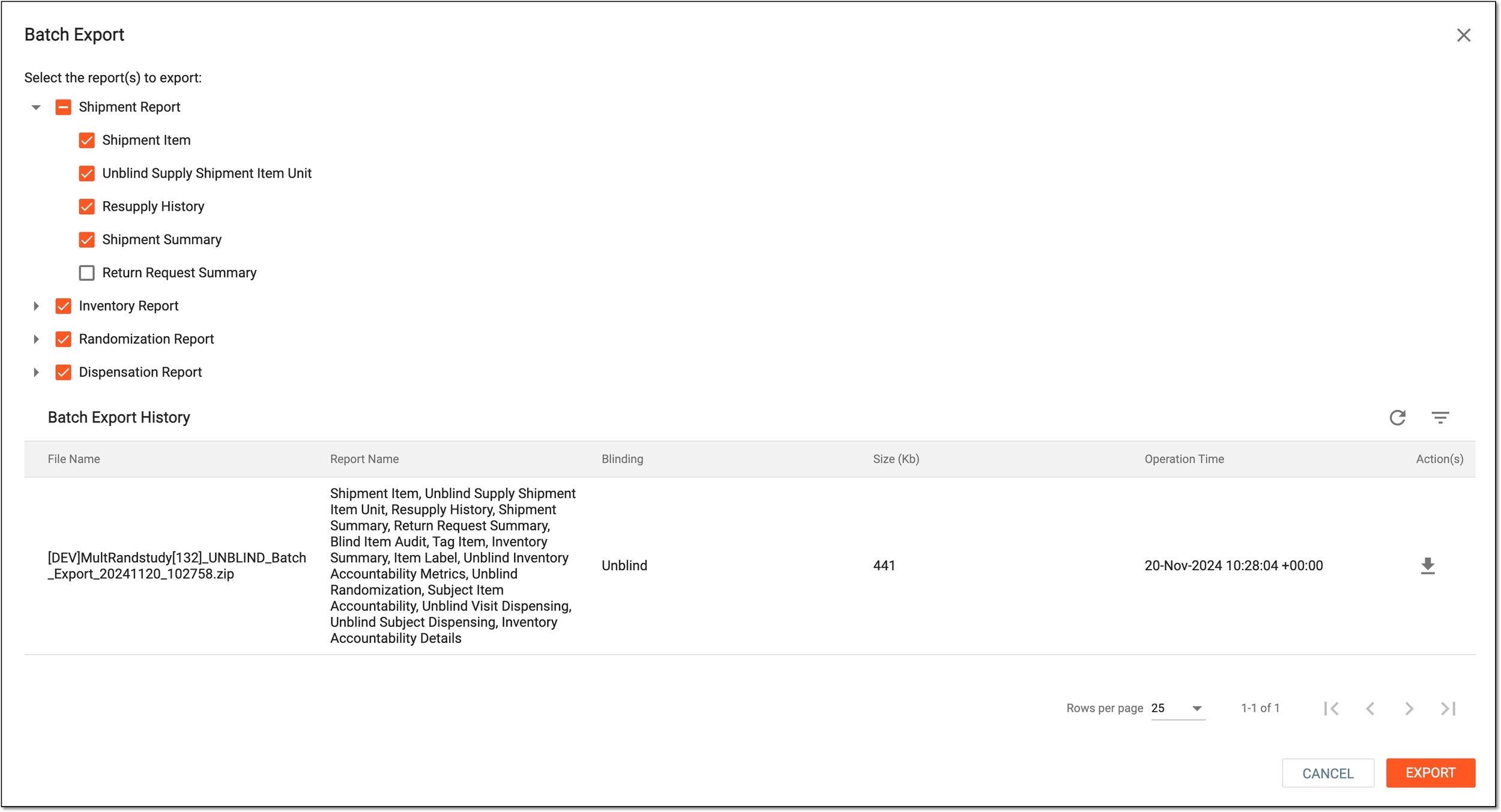 Figure 3. Selecting reports to export in batch
Tip
In the Batch Export History block, you can check all the previously generated report batches and download
the version of your interest. -
Once the export is initiated, the widget appears depicting the file generation progress. Select the widget to access exported files ready for download.
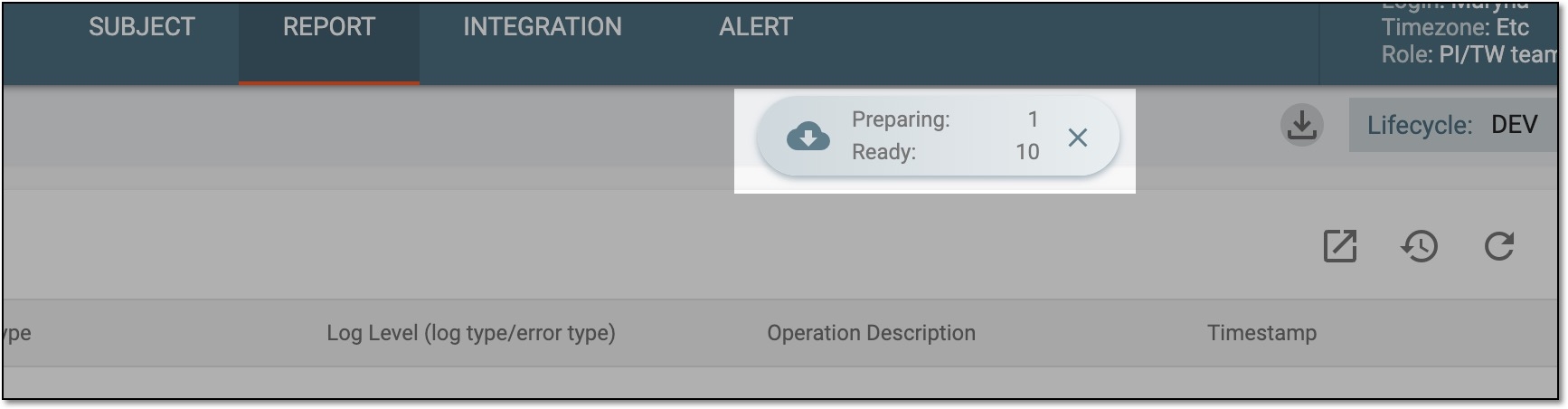 Figure 4. Report export widget
-
In the My Downloads dialog that appears, once the file is generated, it appears under the Download Ready tab. Select
next to it to download the report batch file to your computer.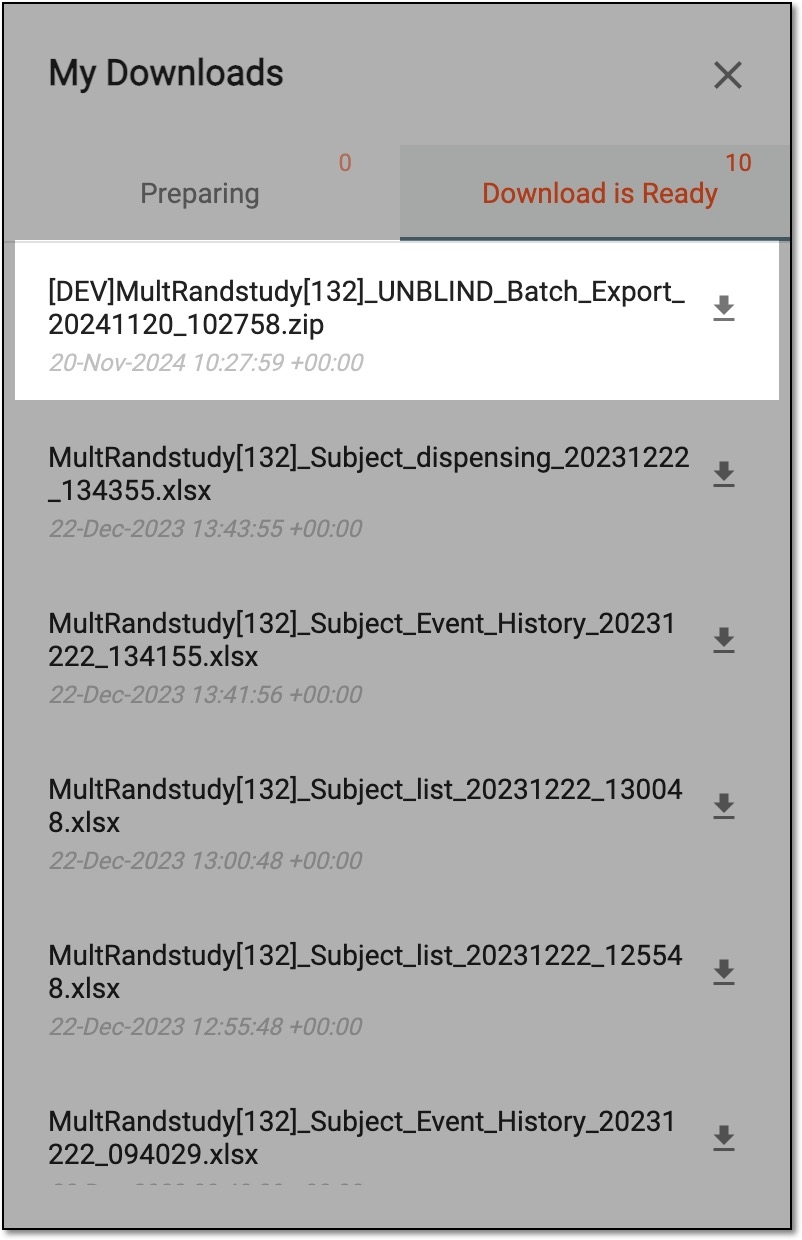 Figure 5. Downloading file with reports exported in batch
Once downloaded and saved, the ZIP archive is available on your computer. You can now extract your reports in XLSX format and use them according to your business needs.