View and manage study domains
In the Medical Coding module, the Domain List page provides a comprehensive overview of all domain-specific details and configurations. It consolidates key domain information and settings, offering a unified overview that is essential for the coding process. By centralizing these details, the page ensures that you have access to key information necessary for the accurate and efficient handling of medical coding within study domains.
-
In the Medical Coding application header, select the CONFIGURATION tab.
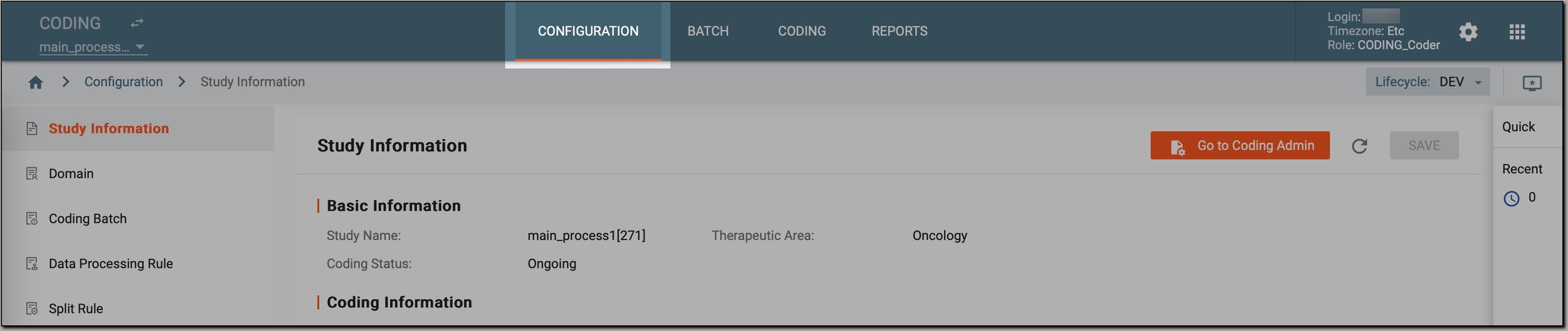 Figure 1. Accessing coding configurations
-
In the left pane, select Domain.
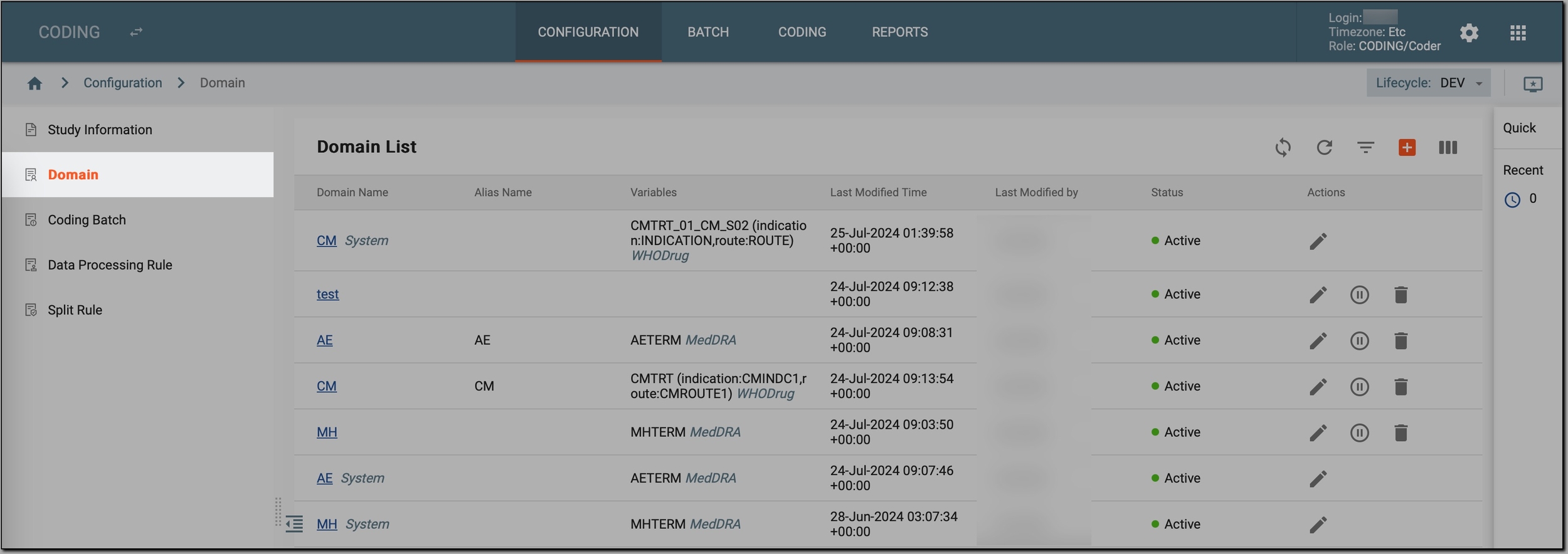 Figure 2. Accessing study domains
-
On the Domain List page that opens, view all relevant domain information and settings as described in the following table.
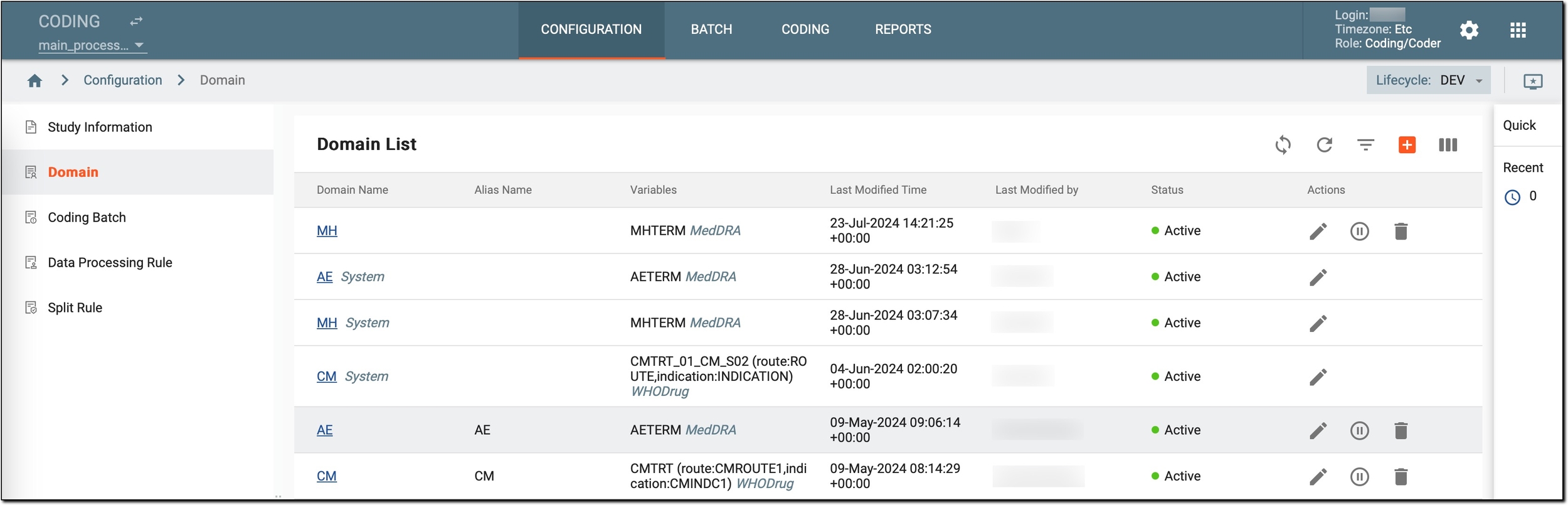 Figure 3. Viewing and managing domain information
Column
Details
Domain Name
The name of the domain, represented as a hyperlink, with an optional System label next to it. This label indicates that the domain is created in Study Designer.
Select this hyperlink to be redirected to the domain configuration page where you can view and edit detailed settings of the domain.
Alias Name
A shorthand or alias for the domain.
For example, "AE" for Adverse Events or "CM" for Concomitant Medications.
Variables
The main variable associated with the domain (for instance, AETERM, MHTERM) along with its corresponding label—MedDRA or WHODrug—indicating which coding dictionary the variables are linked to.
Last Modified Time
The date and time when the domain was last modified. This helps in tracking the most recent changes made to the domain.
Last Modified by
The user who last modified the domain. This is useful for audit trails and accountability.
Status
The current status of the domain, which helps in identifying which domains are available for use:
-
Active: the domain is currently active and can be used for study coding.
-
Inactive: the domain is currently inactive and cannot be used for study coding.
-
-
If updates to the current domain configurations are needed, in the Actions column, you can select one of the following options:
-
Edit
 : to modify the alias name of a domain to better
reflect its purpose or make it more understandable for users.
: to modify the alias name of a domain to better
reflect its purpose or make it more understandable for users. -
Activate
 /Inactivate
  : to change the status of the
domain to control its usage in the coding process.
: to change the status of the
domain to control its usage in the coding process. -
Delete
 : to remove the domain from the
system.
: to remove the domain from the
system.
-
Once you have viewed and managed the study domains, you now have a comprehensive understanding of the current domain configurations.