Create new domain
With the Create New Domain feature, medical coders can establish custom domains tailored to their study's specific coding needs. When existing domains do not adequately cover the range of medical data categories required, coders can create new domains to ensure comprehensive and accurate data capture.
By defining relevant domains and associated variables, coders address unique data categories or specialized medical information not covered by existing domains. This customization enhances the coding process and supports the integrity of the study's data, maintaining high data quality and regulatory compliance.
-
In the Medical Coding application header, select the CONFIGURATION tab.
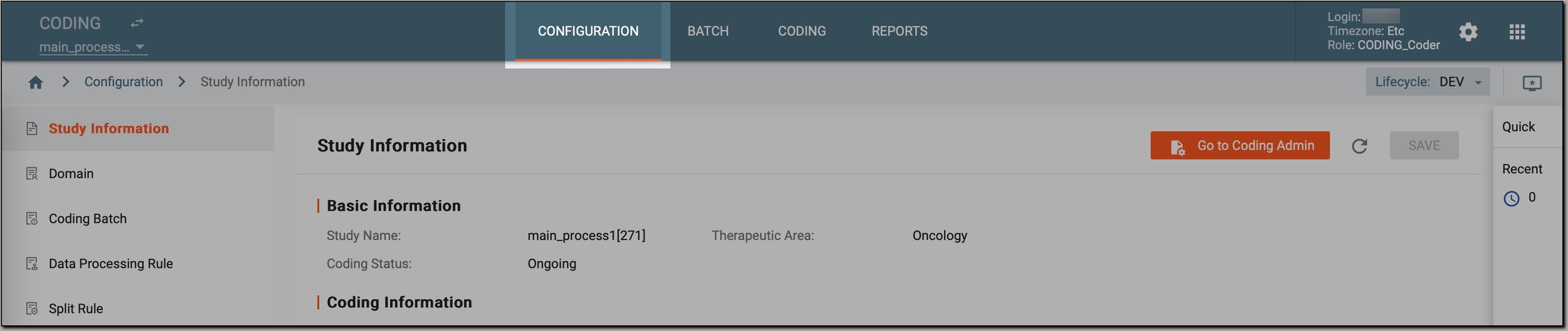 Figure 1. Accessing coding configurations
-
In the left pane, select Domain.
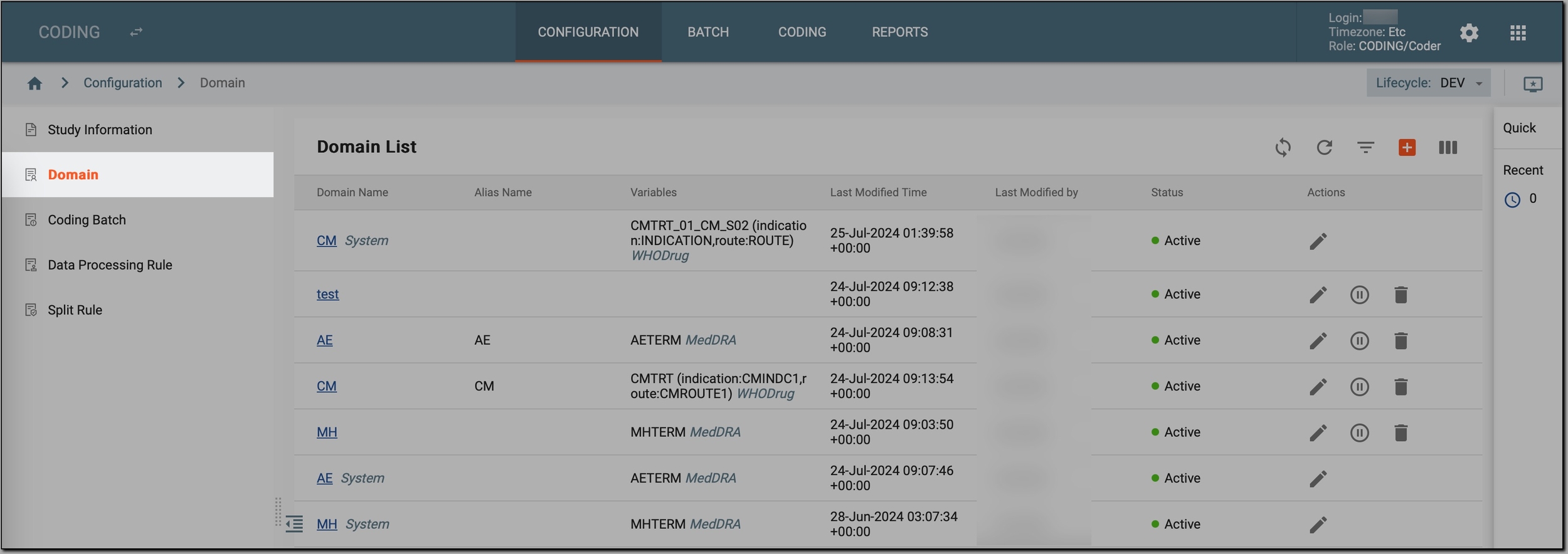 Figure 2. Accessing study domains
-
On the Domain List page that opens, in the workspace toolbar, select New item
 .
. -
In the New dialog, provide the synonym list details as described in the following table.
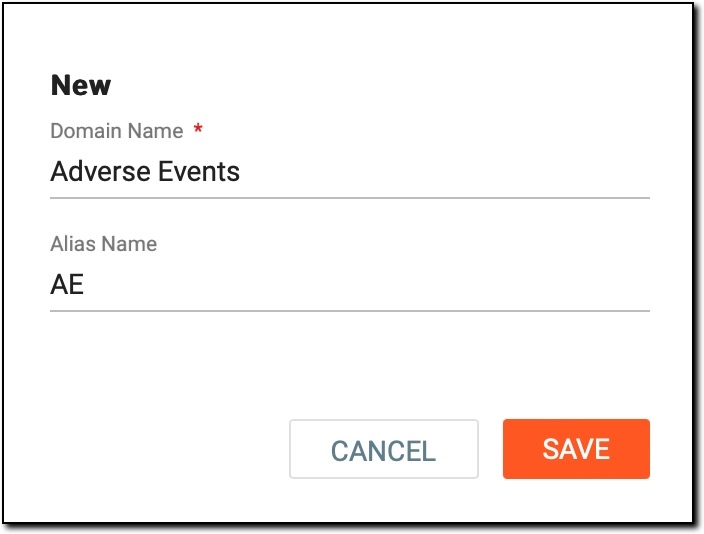 Figure 3. Creating new domain
Tip
In the following table, mandatory elements are marked with an asterisk (*).
Element
Details
Domain Name*
Enter a unique name for the domain.
Alias Name
Enter a shorthand or alias for the domain. For example, "AE" for Adverse Events or "CM" for Concomitant Medications.
SAVE
Select
 to create the new domain.
CANCEL
Select
 to cancel the domain creation and dismiss the changes.
Once saved, the new domain is added to the CODING system. Now, you can proceed to configuring it. With configurations added, coders can later code medical terms in a study.