Configure domain
Configuring a domain involves setting up and managing various domain parameters to ensure accurate and efficient coding within the CODING application. You can define which variables are included in the domain, assign descriptive labels to each variable for clarity, and map domain variables to the Case Report Form (CRF) fields used in a study for data collection.
Additionally, you can automatically synchronize domain variables with MedDRA or WHODrug dictionaries and import variables from XLSX files. These configurations ensure that the domain is tailored to the study’s needs and supports effective data management throughout the coding process.
-
In the Medical Coding application header, select the CONFIGURATION tab.
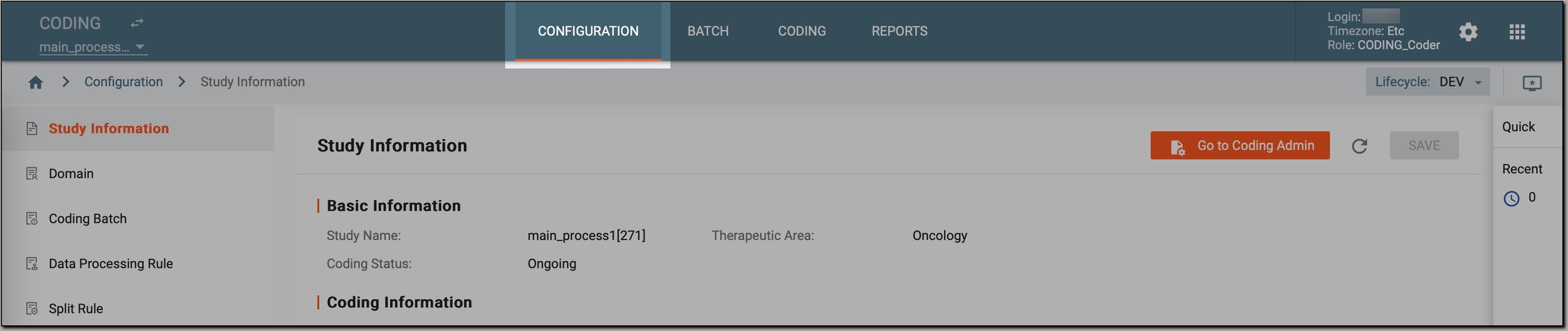 Figure 1. Accessing coding configurations
-
In the left pane, select Domain.
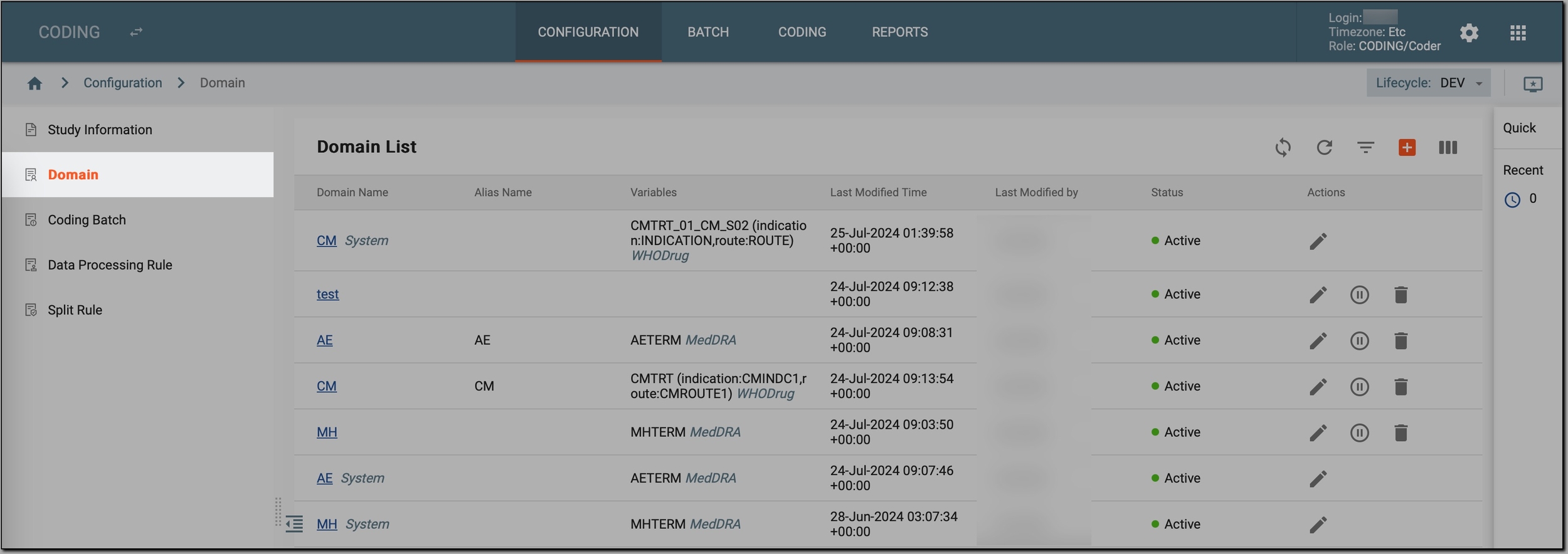 Figure 2. Accessing study domains
-
In the Domain List table that appears, go to the domain that you want to configure, represented by a hyperlink, and select it.
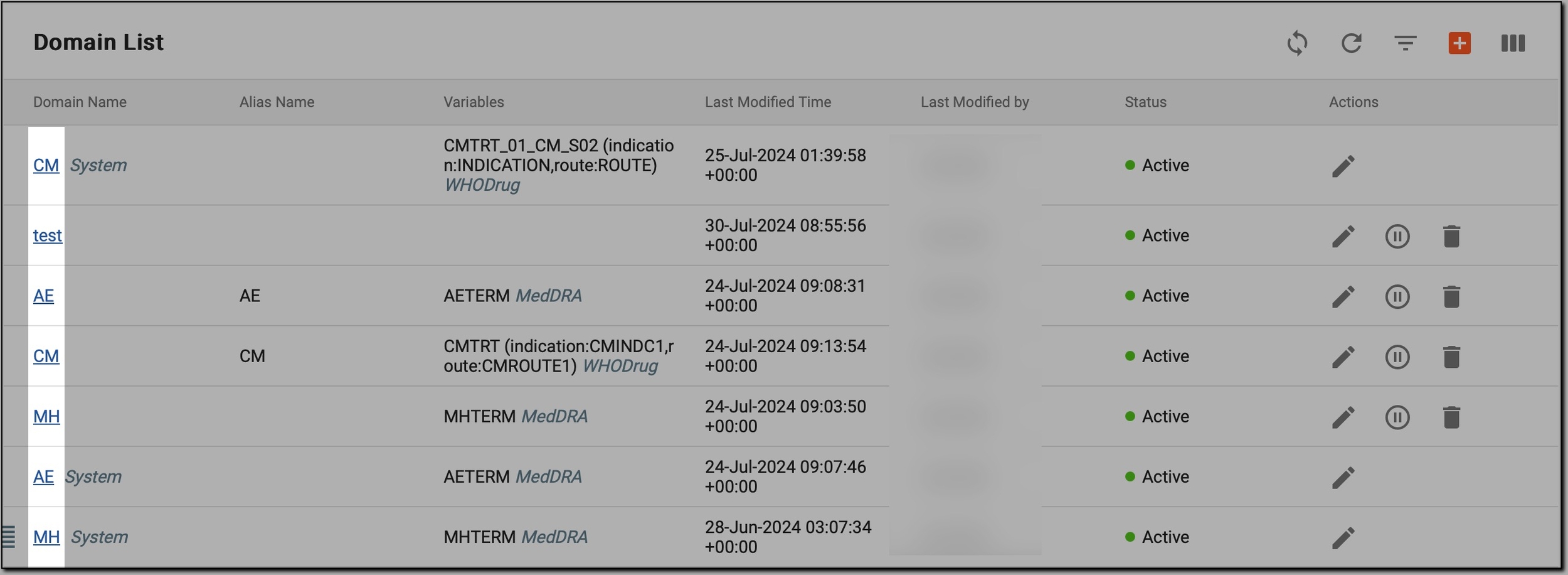 Figure 3. Selecting domain to configure
-
On the Configuration page that opens, review the existing configurations of the domain as explained in the following table.
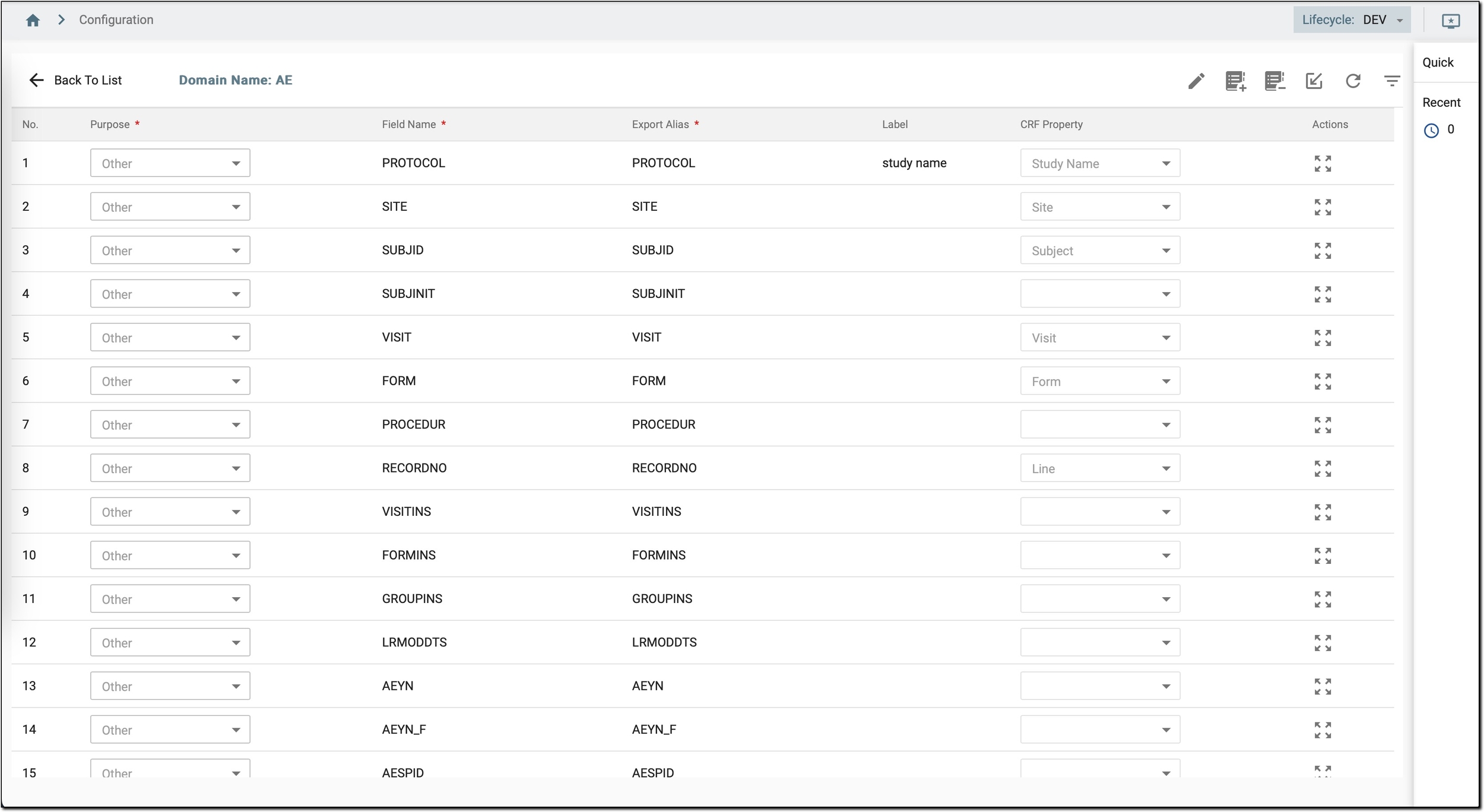 Figure 4. Configuring domain
Column
Details
No.
A number indicating the domain configuration setting in the configuration table for reference purposes. It also indicates the sequence of variables to be presented in the Batch > Export feature of the Medical Coding module.
Purpose*
The purpose of a specific variable or attribute included in the domain.
For example, for an Adverse Event (AE) variable, the purpose might be defined as Main Variable (MedDRA) to capture the primary term for the adverse event from the MedDRA dictionary, Main Variable (Who Drug) to capture the main term from the WHO Drug dictionary, Indication (WhoDrug) to record the reason for using a medication, and others.
In addition, if you scroll down to the end of the list, you may also notice Special Variable. This variable captures the date of export in the user's time zone when the domain data is exported into a batch. It helps track when the data was last extracted, ensuring transparency and accurate version control in the coding process.
Field Name*
The name of a variable or attribute included in the domain.
Export Alias*
A shorthand or alias for the domain variable used for data export and mapping.
Label
A descriptive name associated with each variable, helping you understand its specific meaning or usage within the domain.
CRF Property
A field from the Case Report Form (CRF) mapped to the domain variable. This mapping provides insights into how the domain's variables map to the study CRFs and helps in aligning data entry with the study's forms and data collection processes.
Actions
Provides the option to sort variables within the domain. Click and drag Sort
 to reorder variables as needed for better
organization.
to reorder variables as needed for better
organization. -
If configuration updates or additions are needed, in the workspace toolbar, select Edit
 . Then, make the necessary
changes as explained in the following table.
. Then, make the necessary
changes as explained in the following table. Figure 5. Updating domain configurations
What
How
Add/Change purpose of domain variable
Next to the needed variable, expand the Purpose field and select the appropriate purpose for the domain variable from the list.
Update variable name
Next to the needed variable, in the Field Name field, update the variable name.
Add/Update export alias name
Next to the needed variable, in the Export Alias field, add or update a shorthand or alias for the domain variable.
Add/Update variable label
Next to the needed variable, in the Label field, add or update a descriptive name associated with the variable.
Add/Update CRF field-variable mapping
Next to the needed variable, expand the list and select a field from the Case Report Form (CRF) to map your variable to this CRF field.
Add new domain variable
If you need to expand the domain's configuration by including more variables or attributes as needed, in the Actions column, next to any variable, select the New item
 icon.
icon.This adds a new row to the table, allowing you to create additional domain variables and specify their purpose, export alias, label, and other settings.
Remove domain variable
If you need to eliminate outdated or unnecessary variables from the domain configuration, in the Actions column, next to the variable you need to remove, select Delete
 .
.This removes the specific variable and its associated mappings and settings from the domain.
-
Once done, in the workspace toolbar, above the table, select one of the following options:
-
SAVE
 : select this option to apply and save your changes to the domain configuration.
 -
Cancel Edit
 : select this option to discard any changes made and revert to the previous domain's
configuration.
: select this option to discard any changes made and revert to the previous domain's
configuration.
-
-
Additionally, in the workspace toolbar above the table, you can further customize the domain configuration if needed by selecting one of the options as explained in the following table.
Option
Details
Auto Add Domain System Variable
This option adds all variables from the MedDRA or WHODrug dictionaries that are specific to your domain. For example, if you are working with an AE domain, only the variables relevant to the AE domain will be added. To do so, follow these steps:
-
Select
 .
. -
In the list that opens, select one of the following:
-
MedDRA: adds all MedDRA dictionary variables to this domain.
-
WHODrug: adds all WHODrug dictionary variables to this domain.
-
-
In the confirmation dialog that opens, select OK to proceed with adding MedDRA/WHODrug variables to your domain.
Auto Delete Domain System Variable
This option removes all variables from the MedDRA or WHODrug dictionaries that are specific to your domain. To do so, follow these steps:
-
Select
 .
. -
In the list that opens, select one of the following:
-
MedDRA: removes all MedDRA dictionary variables from this domain.
-
WHODrug: removes all WHODrug dictionary variables to this domain.
-
-
In the confirmation dialog that opens, select OK to proceed with removing all MedDRA/WHODrug variables from your domain.
Import
This option simplifies the process of adding new variables to your domain by uploading an XLSX file from your PC. This approach simplifies the task and eliminates the need to add each variable individually using the New item
option.To import new variables from an XLSX file, select Import
 . Once imported, the new variables appear in your domain's
configuration table. Be sure to define their purpose, export alias, label, and other settings as needed.
. Once imported, the new variables appear in your domain's
configuration table. Be sure to define their purpose, export alias, label, and other settings as needed. -
Now that the domain is properly configured and accurately mapped to your study’s data collection needs, as well as aligned with the Case Report Form (CRF) fields and dictionary variables, you can proceed to use it in the medical coding process. This ensures consistency and accuracy in your study’s data management.